> ## Documentation Index
> Fetch the complete documentation index at: https://help.kwentra.com/llms.txt
> Use this file to discover all available pages before exploring further.
# كيف أُضيف مورّداً جديداً إلى النظام؟
> توجد طريقتان لإضافة مورّد إلى دليل حساباتك، ولكل طريقة ميزتها الخاصة.
توجد طريقتان لإضافة مورّد إلى دليل حساباتك (Chart of Accounts)، ولكل طريقة ميزتها الخاصة.
##### **ربط المورّد بحساب واحد من نوع "Liabilities":**
هذه هي الطريقة الأسهل، حيث يكون لكل مورّد حساب Liabilities خاص به في دليلك.
**[Back Office → Settings → Vendors → Add New](https://manage.kwentra.com/income/vendorprofile/)**
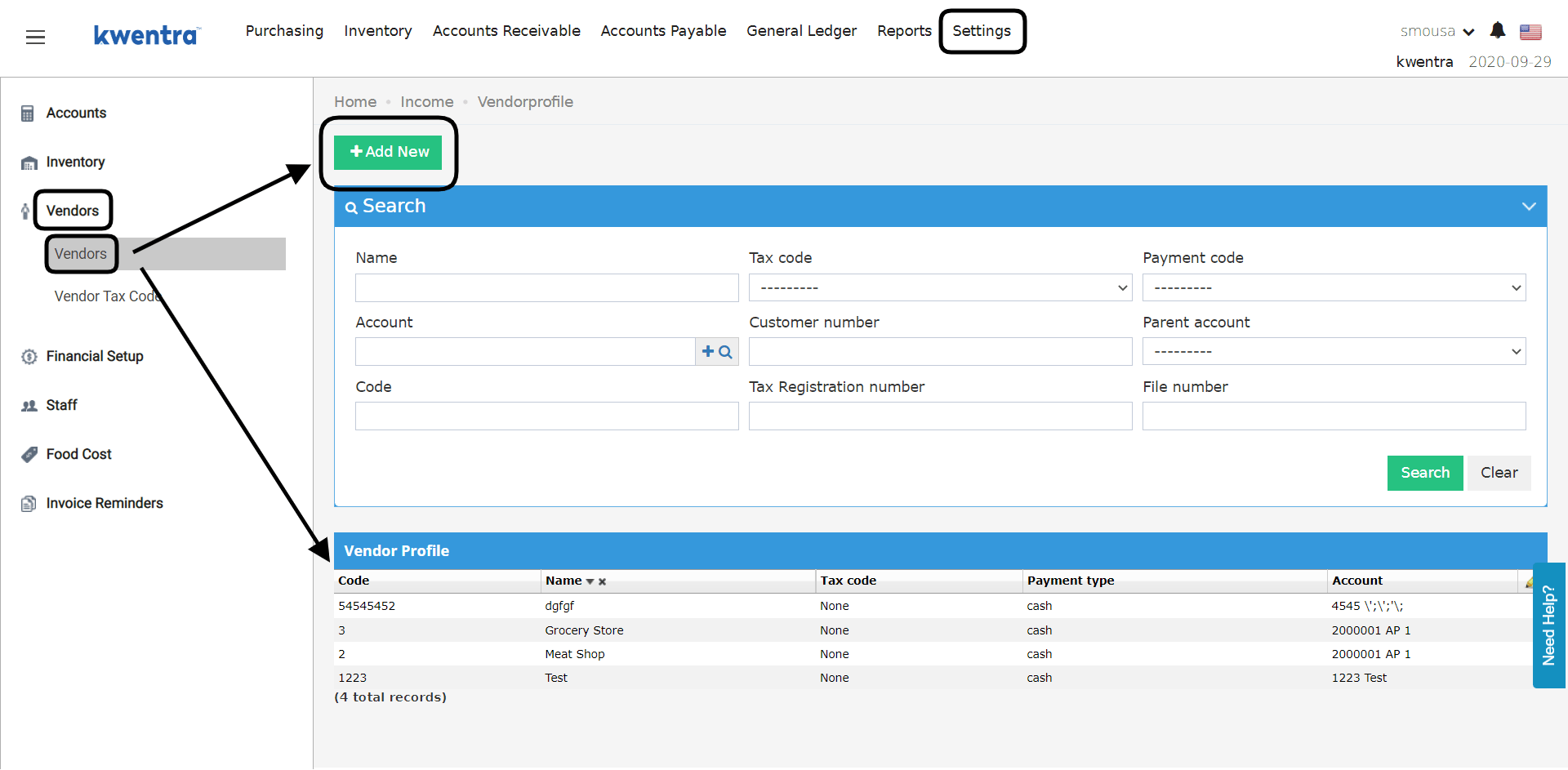 من خلال الخطوة السابقة ستتمكن من ملء الحقول وإضافة المورّد.
المعلومات الإلزامية مميّزة بخط عريض، إلا أنه من الضروري اختيار أحد حسابات Liabilities لربطه بهذا المورّد كي ينعكس بشكل صحيح على تقرير الميزانية العمومية (Balance Sheet).
يمكنك إضافة مزيد من الموردين إلى نفس حساب Liabilities، وستكون كل بياناتهم ضمن صفّ واحد يخصّ نفس الحساب.
من خلال الخطوة السابقة ستتمكن من ملء الحقول وإضافة المورّد.
المعلومات الإلزامية مميّزة بخط عريض، إلا أنه من الضروري اختيار أحد حسابات Liabilities لربطه بهذا المورّد كي ينعكس بشكل صحيح على تقرير الميزانية العمومية (Balance Sheet).
يمكنك إضافة مزيد من الموردين إلى نفس حساب Liabilities، وستكون كل بياناتهم ضمن صفّ واحد يخصّ نفس الحساب.
 ##### **ربط عدة موردين بحساب أب (Parent Account) من نوع "Liabilities":**
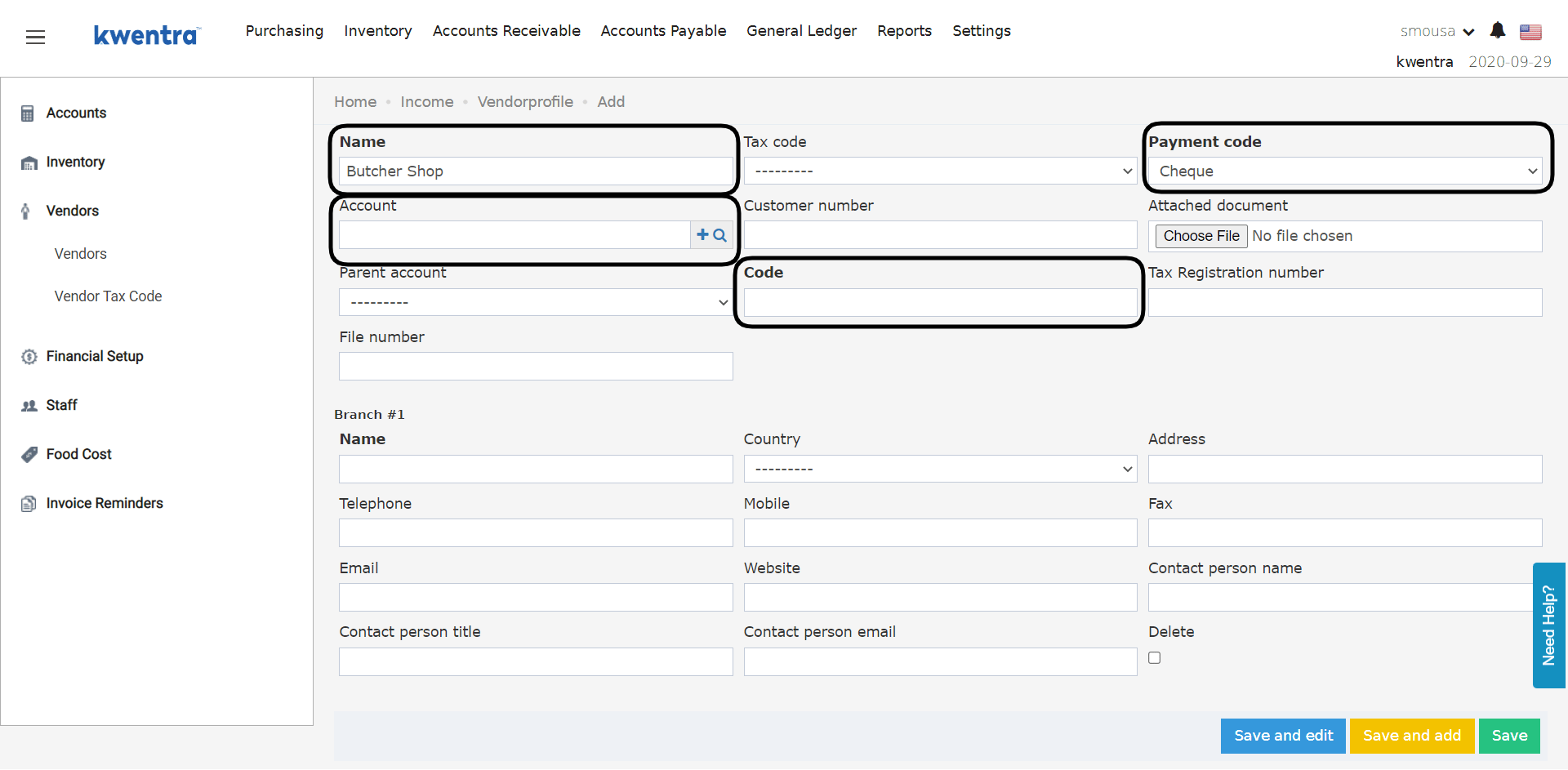
لكي يكون لدينا حساب أب واحد لجميع الموردين، نحتاج إلى أن يظهر الحساب المخصص في القائمة المنسدلة للحسابات الأب عند إضافة مورّد.
**[Back Office → Settings → Accounts → Account → Search for Account with type Liabilities → Click on the account you desire](https://manage.kwentra.com/gl/account/)**
##### **ربط عدة موردين بحساب أب (Parent Account) من نوع "Liabilities":**
لكي يكون لدينا حساب أب واحد لجميع الموردين، نحتاج إلى أن يظهر الحساب المخصص في القائمة المنسدلة للحسابات الأب عند إضافة مورّد.
**[Back Office → Settings → Accounts → Account → Search for Account with type Liabilities → Click on the account you desire](https://manage.kwentra.com/gl/account/)**
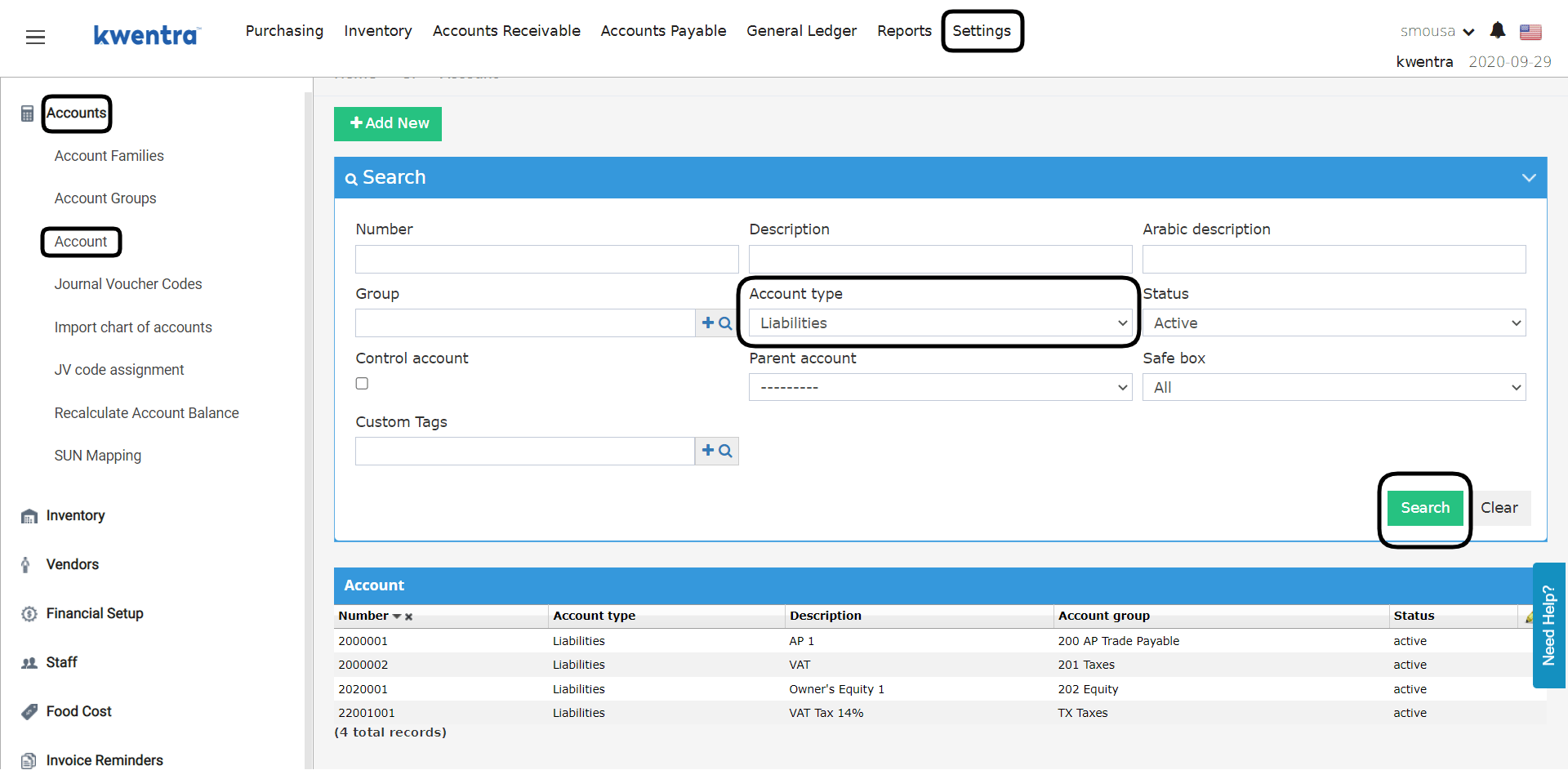 عليك تعليم هذا الحساب كـ **Control Account** لكي ينعكس في القائمة المنسدلة للحسابات الأب عند إضافة مورّد.
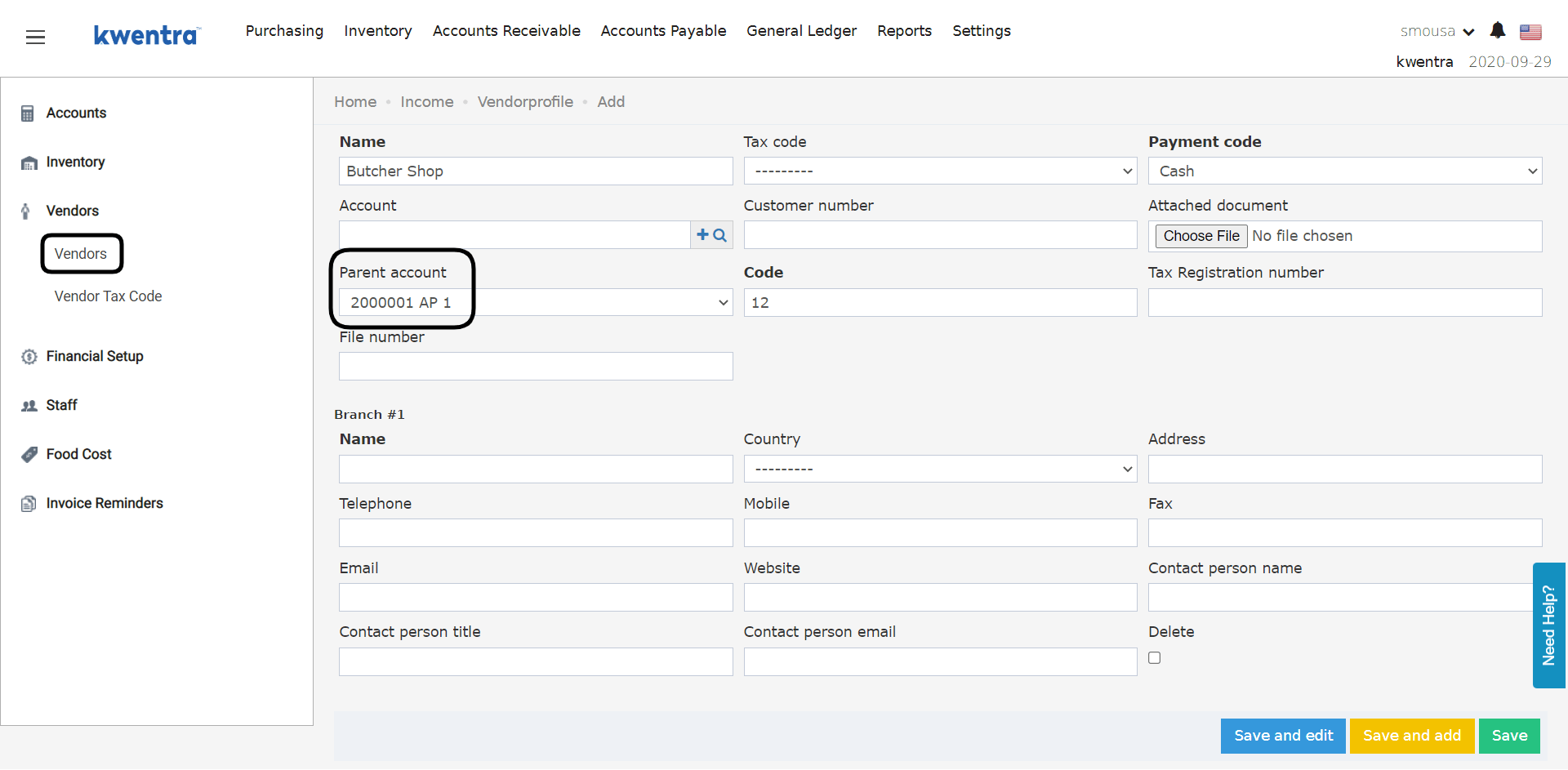
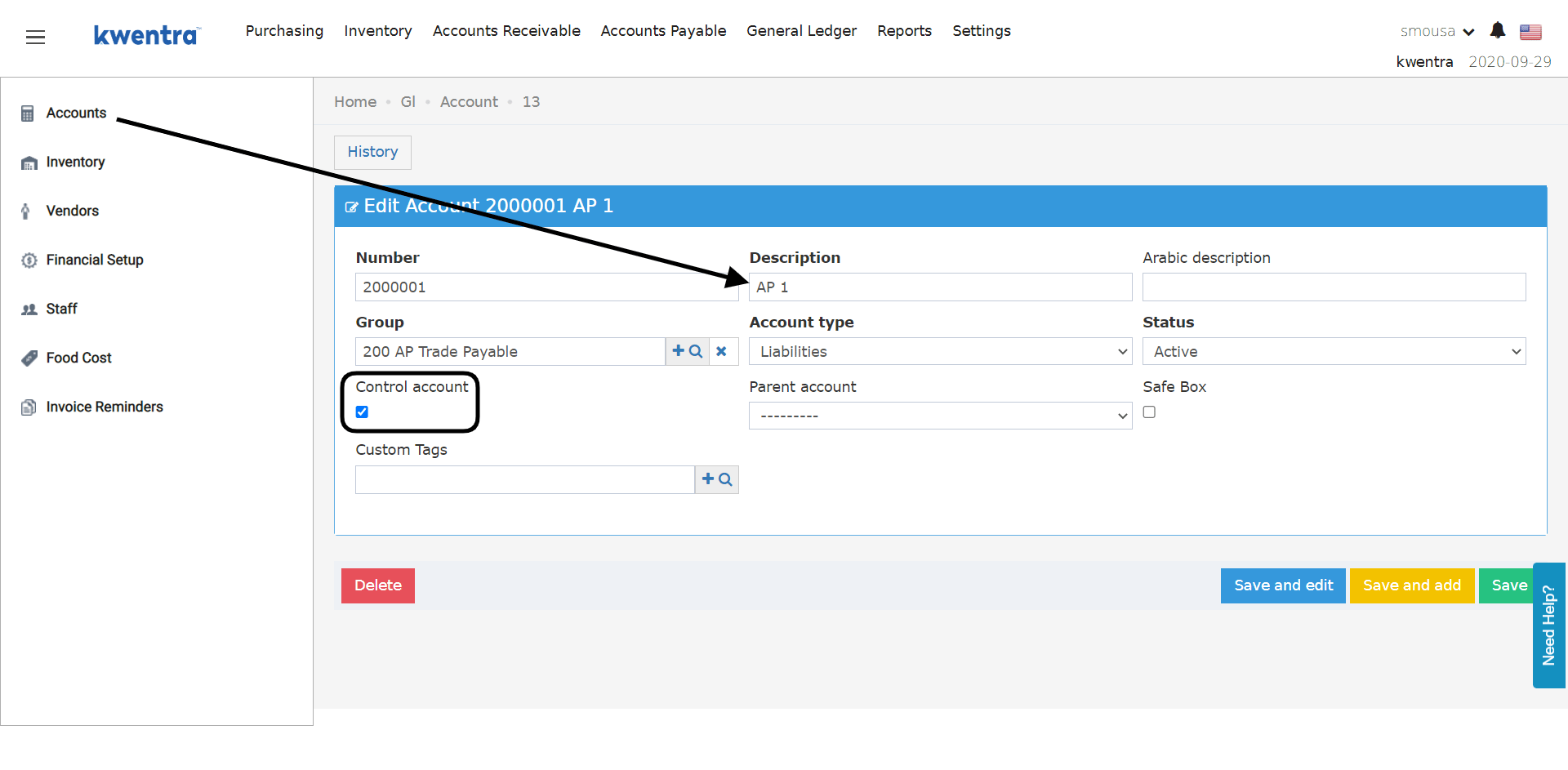 الآن عند إضافة مورّد ستجد هذا الحساب ضمن القائمة المنسدلة للحساب الأب (Parent Account).
يؤدي ذلك إلى وضع جميع مدفوعات الموردين (Vendor Payments) تحت حساب أب واحد في تقرير الميزانية العمومية.
**[Back Office → Settings → Vendors → Add New](https://manage.kwentra.com/income/vendorprofile/)**
الآن عند إضافة مورّد ستجد هذا الحساب ضمن القائمة المنسدلة للحساب الأب (Parent Account).
يؤدي ذلك إلى وضع جميع مدفوعات الموردين (Vendor Payments) تحت حساب أب واحد في تقرير الميزانية العمومية.
**[Back Office → Settings → Vendors → Add New](https://manage.kwentra.com/income/vendorprofile/)**
 ***تحديث: 30 أكتوبر 2022***
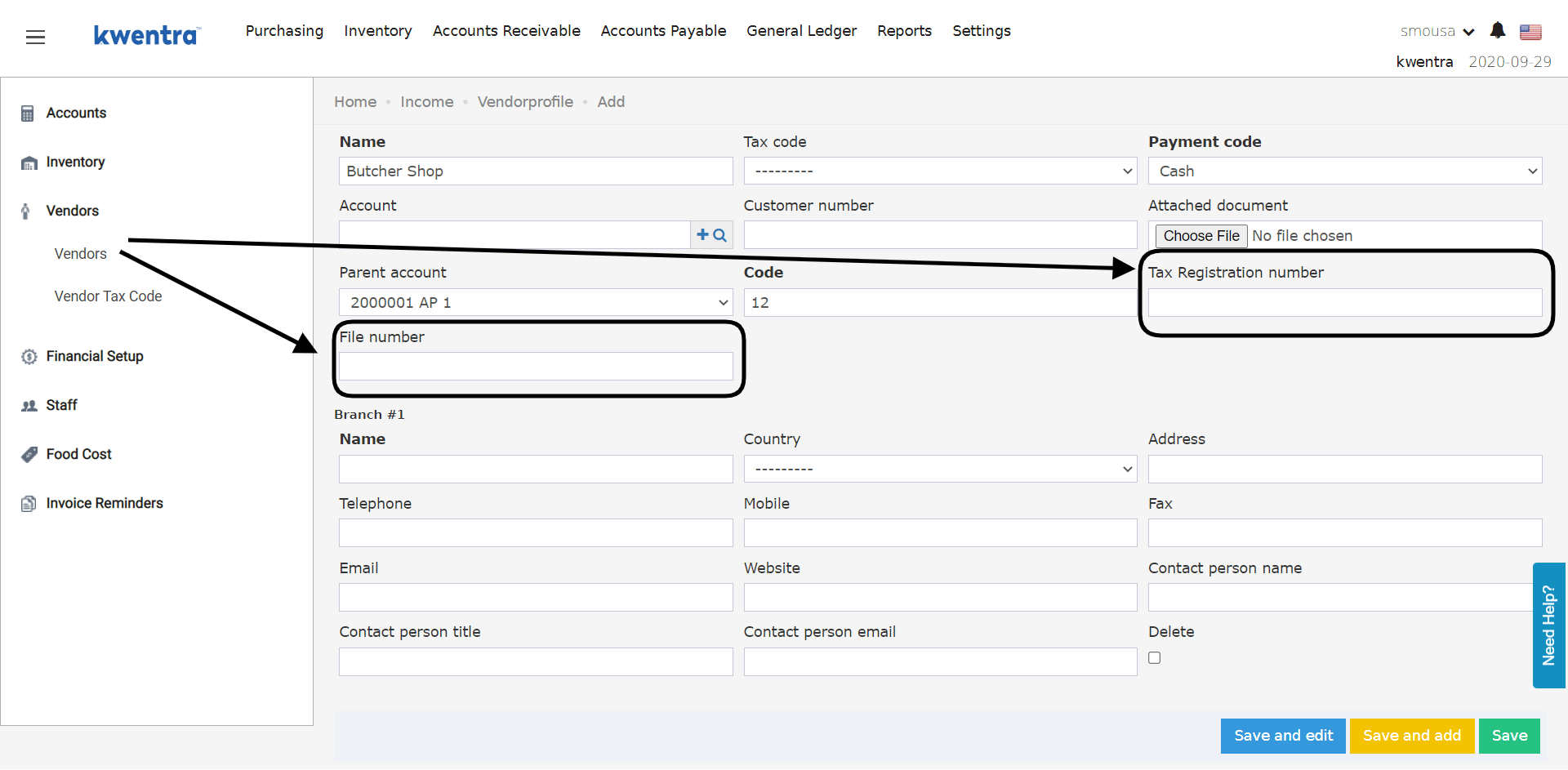
أضفنا حقولاً جديدة إلى ملف المورّد لتظهر على المدفوعات والمطبوعات:
* Vendor Tax Registration number
* File number
***تحديث: 30 أكتوبر 2022***
أضفنا حقولاً جديدة إلى ملف المورّد لتظهر على المدفوعات والمطبوعات:
* Vendor Tax Registration number
* File number