> ## Documentation Index
> Fetch the complete documentation index at: https://help.kwentra.com/llms.txt
> Use this file to discover all available pages before exploring further.
# شاشة عرض العميل في نقاط البيع
> اعرض فاتورة النزيل على شاشة منفصلة أمامه تُظهر الأصناف المطلوبة وسعر كل صنف والإجمالي المستحق.
أصبحت الـ POS Terminals تتيح لك عرض فواتير النزلاء على شاشة منفصلة تُظهر الأصناف التي طلبوها فور إضافتها إليهم، مع الاطلاع على سعر كل صنف وكذلك الإجمالي المستحق عليهم.
ولا تتطلب هذه الخاصية أي ضبط للإعدادات، فكل ما تحتاجه هو وجود شاشتين، واحدة لـ **The Cashier** وأخرى لـ **Customer Display.**
1. افتح الـ terminal الذي ستعمل من خلاله.
Point of Sale => Cashiering => Select Outlet => Select Terminal => Select Table
2. افتح **Customer Display Screen** أمام النزيل.
Point of Sale => Customer Display Screen => Select Outlet => Select Terminal => Select Table
من المهم جدًا اختيار الـ terminal نفسه تمامًا على كلتا الشاشتين حتى تنعكس الفاتورة على شاشة النزيل.
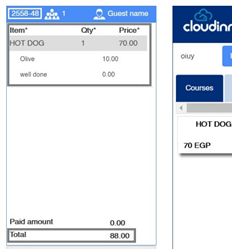
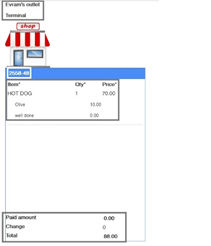
في الصورتين أدناه فاتورة مفتوحة على الـ terminal وعلى شاشة عرض العميل، حيث نرى رقم الفاتورة نفسه وجميع الأصناف المضافة متزامنة لحظيًا مع شاشة عرض العميل.
 This documentation is built and hosted on [Mintlify](https://mintlify.com), a developer documentation platform.