> ## Documentation Index
> Fetch the complete documentation index at: https://help.kwentra.com/llms.txt
> Use this file to discover all available pages before exploring further.
# تفعيل المصادقة الثنائية (2FA)
> اربط مستخدمك في Kwentra بتطبيق Google Authenticator. بعدها تسجّل الدخول بكلمة المرور ورمز من 6 أرقام من التطبيق.
اربط مستخدمك في Kwentra بتطبيق Google Authenticator. بعد ذلك، تسجّل الدخول بكلمة المرور ورمز من التطبيق.
فقدت التطبيق أو هاتفك؟ اطلب من المسؤول [إعادة تعيين المصادقة الثنائية](/ar/settings/general-settings/manage-system-users#المصادقة-الثنائية).
### **قبل أن تبدأ**
* هاتف ذكي.
* اسم المستخدم وكلمة المرور في Kwentra.
### **كيف يعمل**
| **Where:** manage.kwentra.com → your username (top right) → Account security |
| - |
#### **1. ثبّت Google Authenticator على هاتفك**
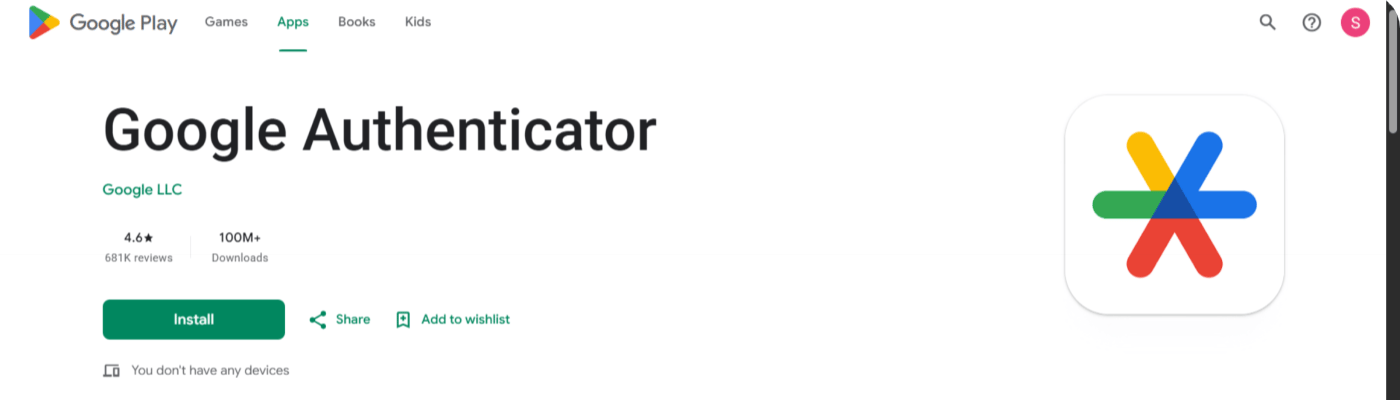
1. افتح **Google Play** (Android) أو **App Store** (iPhone).
2. ابحث عن **Google Authenticator** من **Google LLC**.
3. ثبّت التطبيق.
 | **نصيحة:** تعرض صفحة الإعداد أيضاً زري **Google Play** و**App Store** للتطبيق. |
| - |
#### **2. فعّل 2FA في Kwentra**
1. ادخل إلى [manage.kwentra.com](https://manage.kwentra.com).
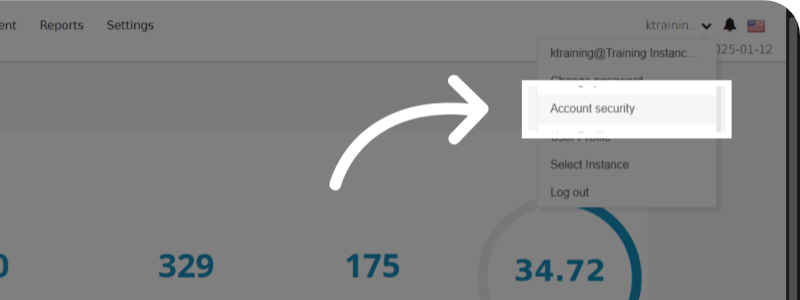
2. اضغط **اسم المستخدم** الخاص بك أعلى الصفحة. تظهر قائمة المستخدم.
3. اضغط **Account security**.
| **نصيحة:** تعرض صفحة الإعداد أيضاً زري **Google Play** و**App Store** للتطبيق. |
| - |
#### **2. فعّل 2FA في Kwentra**
1. ادخل إلى [manage.kwentra.com](https://manage.kwentra.com).
2. اضغط **اسم المستخدم** الخاص بك أعلى الصفحة. تظهر قائمة المستخدم.
3. اضغط **Account security**.
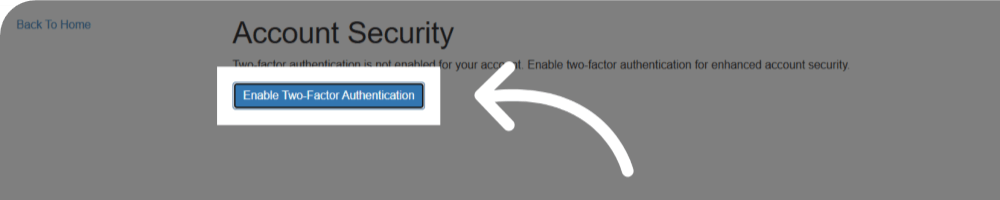
 4. تقول صفحة **Account Security** إن 2FA غير مفعّل لحسابك. اضغط **Enable Two-Factor Authentication**.
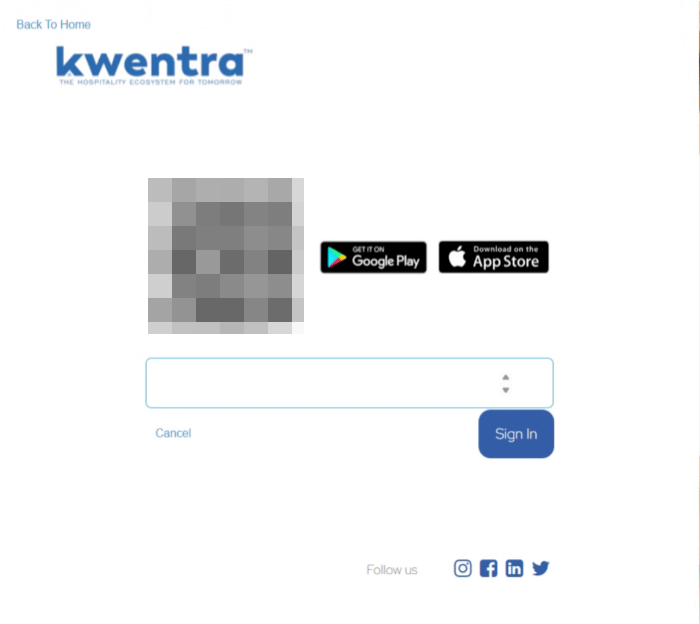
 5. إذا عرضت الصفحة التالية **Sign In** و**Cancel** فقط، اضغط **Sign In**. يظهر رمز QR.
#### **3. امسح رمز QR وأكّد**
1. افتح Google Authenticator على هاتفك.
2. اضغط **+**، ثم **Scan a QR code**.
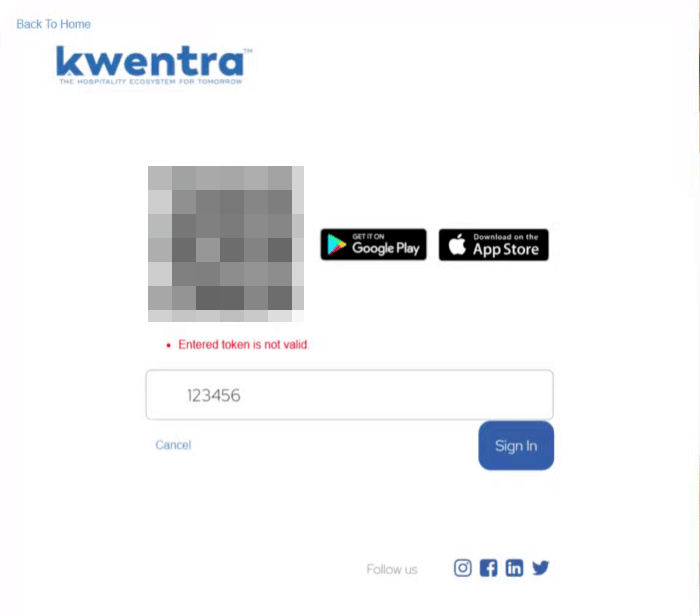
3. وجّه الكاميرا إلى رمز QR على شاشة Kwentra. يضيف التطبيق مستخدمك في Kwentra ويعرض رمزاً من 6 أرقام.
4. اكتب الرمز المكوّن من 6 أرقام في الحقل تحت رمز QR.
5. اضغط **Sign In**.
6. عند انتهاء الإعداد، اضغط **Back To Home**.
5. إذا عرضت الصفحة التالية **Sign In** و**Cancel** فقط، اضغط **Sign In**. يظهر رمز QR.
#### **3. امسح رمز QR وأكّد**
1. افتح Google Authenticator على هاتفك.
2. اضغط **+**، ثم **Scan a QR code**.
3. وجّه الكاميرا إلى رمز QR على شاشة Kwentra. يضيف التطبيق مستخدمك في Kwentra ويعرض رمزاً من 6 أرقام.
4. اكتب الرمز المكوّن من 6 أرقام في الحقل تحت رمز QR.
5. اضغط **Sign In**.
6. عند انتهاء الإعداد، اضغط **Back To Home**.
 | **ملاحظة:** إذا كان الرمز خاطئاً أو انتهت صلاحيته، تظهر الرسالة **Entered token is not valid**. يتغير الرمز كل بضع ثوانٍ. اكتب الرمز الذي يعرضه التطبيق الآن واضغط **Sign In** مرة أخرى. |
| - |
| **ملاحظة:** إذا كان الرمز خاطئاً أو انتهت صلاحيته، تظهر الرسالة **Entered token is not valid**. يتغير الرمز كل بضع ثوانٍ. اكتب الرمز الذي يعرضه التطبيق الآن واضغط **Sign In** مرة أخرى. |
| - |
 #### **4. سجّل الدخول باستخدام 2FA**
من الآن، كل تسجيل دخول له خطوتان.
1. أدخل اسم المستخدم وكلمة المرور. اضغط **Sign In**.
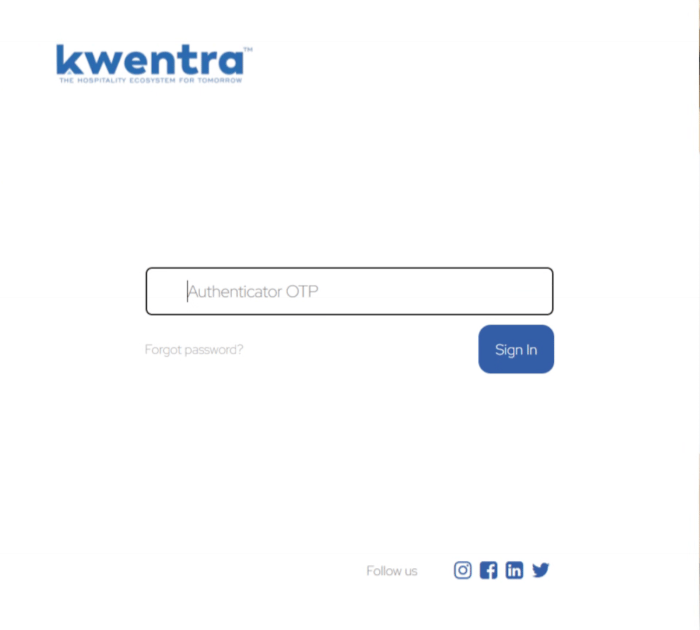
2. يظهر حقل **Authenticator OTP**.
3. افتح Google Authenticator واكتب الرمز المكوّن من 6 أرقام الخاص بـ Kwentra.
4. اضغط **Sign In**.
#### **4. سجّل الدخول باستخدام 2FA**
من الآن، كل تسجيل دخول له خطوتان.
1. أدخل اسم المستخدم وكلمة المرور. اضغط **Sign In**.
2. يظهر حقل **Authenticator OTP**.
3. افتح Google Authenticator واكتب الرمز المكوّن من 6 أرقام الخاص بـ Kwentra.
4. اضغط **Sign In**.
 5. في صفحة **Welcome Back**، اختر وجهتك: **Dashboard** أو **Multi Property** أو نسخة (instance).
6. إذا اخترت نسخة، اضغط **Get Started**.
This documentation is built and hosted on [Mintlify](https://mintlify.com), a developer documentation platform.
5. في صفحة **Welcome Back**، اختر وجهتك: **Dashboard** أو **Multi Property** أو نسخة (instance).
6. إذا اخترت نسخة، اضغط **Get Started**.
This documentation is built and hosted on [Mintlify](https://mintlify.com), a developer documentation platform.