> ## Documentation Index
> Fetch the complete documentation index at: https://help.kwentra.com/llms.txt
> Use this file to discover all available pages before exploring further.
# How do I add a new account to my chart of accounts?
> This article is to help you understand how your general ledger works and how to add a new account to your chart in respect to the account groups & families. Your Chart of Accounts consists of 2 lev...
This article is to help you understand how your general ledger works and how to add a new account to your chart in respect to the account groups & families.
Your Chart of Accounts consists of 2 levels of categorization:
* Each account belongs to an account group.
* Each account group belongs to an account family.
*Example: the rooms family consists of 2 groups rooms revenue and rooms expenses, each account group consists of multiple accounts just like the example below:*
| **Account Number** | **Account Description** | **Account Type** | **Group Code** | **Group Description** | **Family Code** | **Family Description** |
| ------------------ | ----------------------- | ---------------- | -------------- | --------------------- | --------------- | ---------------------- |
| 1010001 | Room Charges | Revenue | 101 | Rooms Revenue | 1 | Rooms |
| 1010002 | Extra Bed | Revenue | 101 | Rooms Revenue | 1 | Rooms |
| 1010003 | Late Check-out | Revenue | 101 | Rooms Revenue | 1 | Rooms |
| 1020001 | Rooms Stationary | Expenses | 102 | Rooms Expenses | 1 | Rooms |
| 1020002 | Housekeeping Supplies | Expenses | 102 | Rooms Expenses | 1 | Rooms |
| 1020003 | Cleaning Supplies | Expenses | 102 | Rooms Expenses | 1 | Rooms |
There are 5 globally known Account Types in which your chart of accounts has:
* Assets
* Equity
* Liabilities
* Revenue
* Expenses
Each Account type has its own nature wherein it determines how the transaction would be financially recorded.
**How do I add a new account group to my chart?**
**[Back Office → Settings → Accounts → Account Groups → Add New](https://manage.kwentra.com/gl/accountgroup/)**
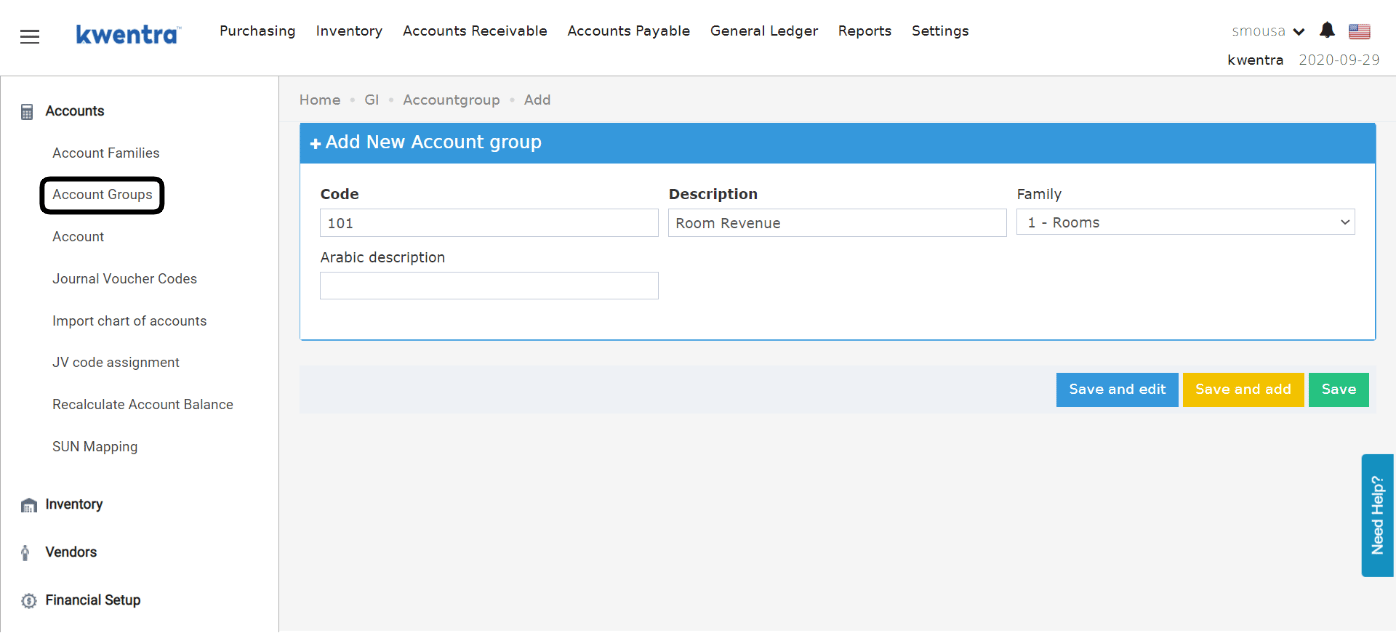
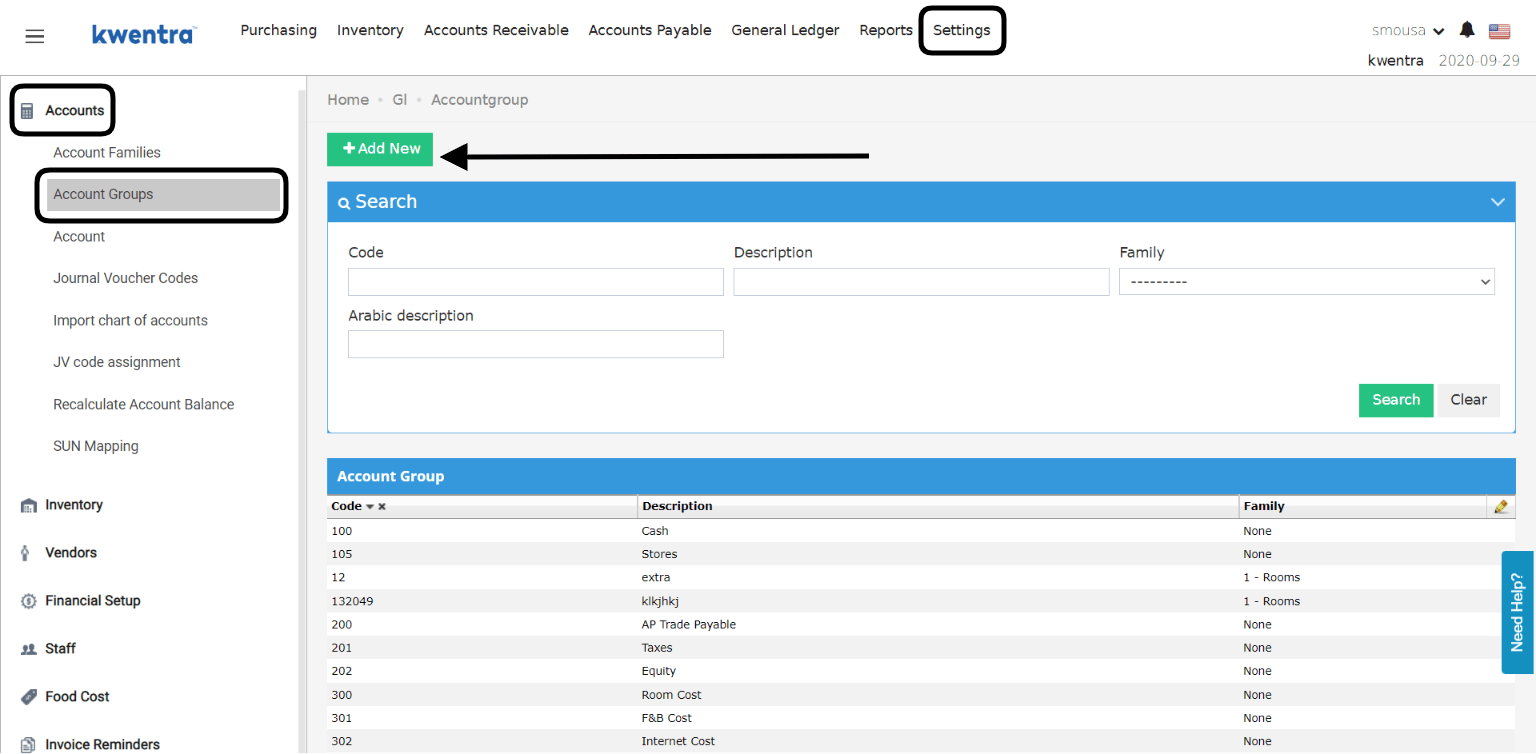 1. Add the account group code you desire, the group code will determine the order of this group on your finanacial reports.
2. Add a description for the new group.
3. Linking the new group to an account family is important yet not mandatory.
4. Click **Save** so you won't lose your changes.
1. Add the account group code you desire, the group code will determine the order of this group on your finanacial reports.
2. Add a description for the new group.
3. Linking the new group to an account family is important yet not mandatory.
4. Click **Save** so you won't lose your changes.
 **How do I add a new account to my chart?**
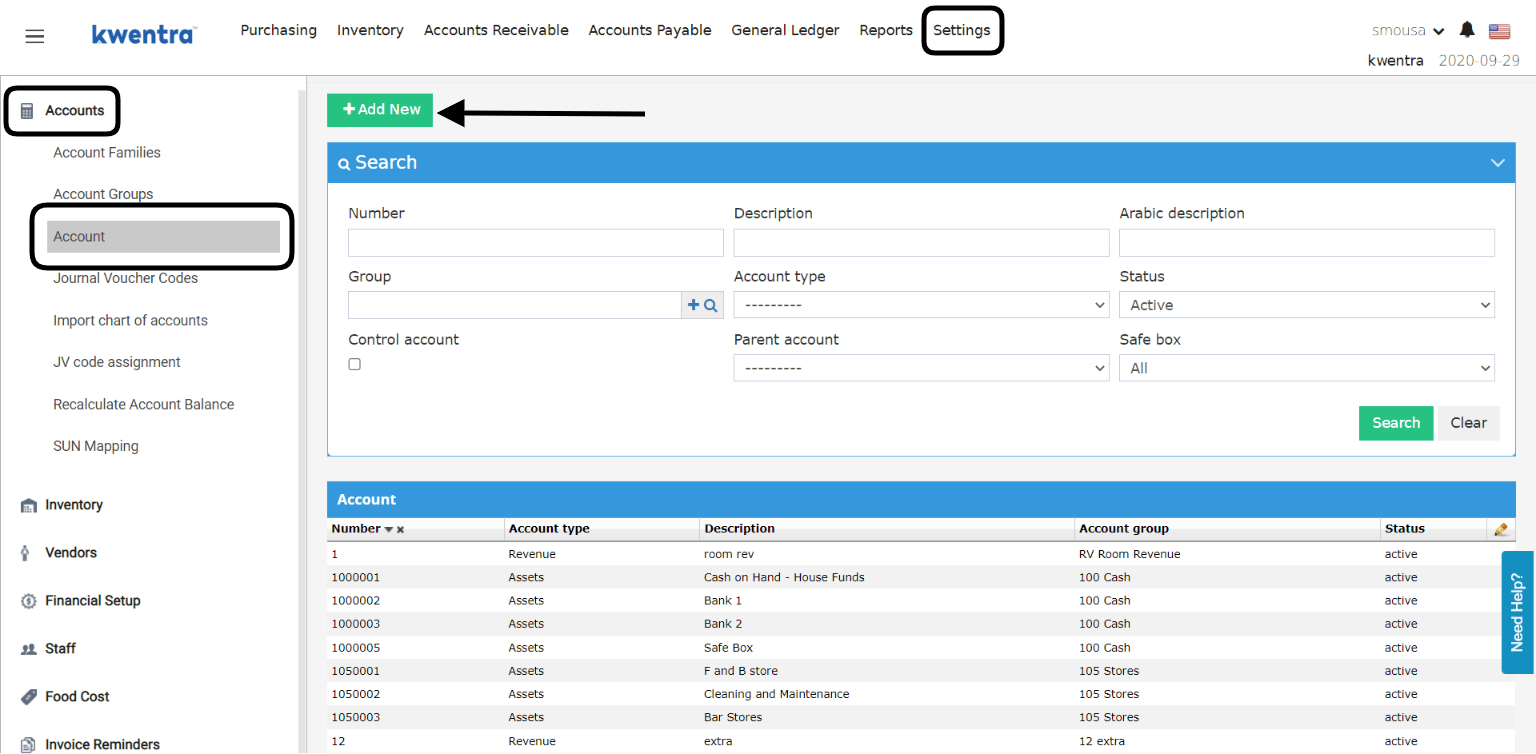
**[Back Office → Settings → Accounts → Account → Add New](https://manage.kwentra.com/gl/account/)**
From the below screen you can search for any account you desire using the account description or the code in order to easily edit it, multiple search criteria like the below:
* Account number
* Description
* Search using the account group
* Account type
**How do I add a new account to my chart?**
**[Back Office → Settings → Accounts → Account → Add New](https://manage.kwentra.com/gl/account/)**
From the below screen you can search for any account you desire using the account description or the code in order to easily edit it, multiple search criteria like the below:
* Account number
* Description
* Search using the account group
* Account type
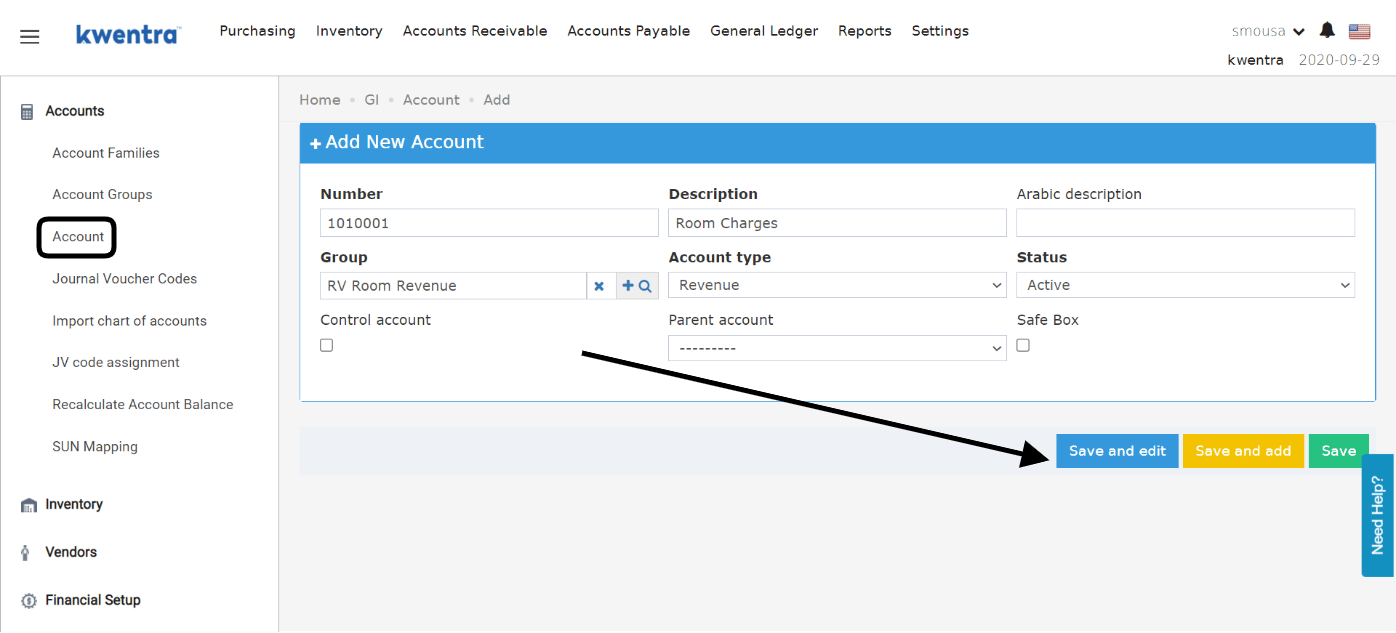
 1. Insert the Account number you want depending on the serialization of the account group/family.
2. Insert a description for the new account that explains it.
3. Link the new account to the group you desire.
4. Select the account type "Assets / Liabilities / Revenue / Expenses / Equity"
5. Click **Save** so as not to lose your settings.
1. Insert the Account number you want depending on the serialization of the account group/family.
2. Insert a description for the new account that explains it.
3. Link the new account to the group you desire.
4. Select the account type "Assets / Liabilities / Revenue / Expenses / Equity"
5. Click **Save** so as not to lose your settings.
 **What is a parent account and when do we use the control account flag?**
A parent account is **a top-level account used for accounting purposes**. It's called a “parent account” because it contains one or more other, lower-level accounts. The parent account is the primary account under which lower-level accounts, also known as sub accounts, are placed.
Just like the guest ledger being the parent account for all reservations in front office, a parent account is **the summation of the respective child account values**.
* To mark an account as a parent, you need to use the **Control Account Flag.**
* To create an account under a parent, you need to select the parent account from the designated dropdown menu.
*Important Note: in order for the parent account to appear in its designated dropdown menu it needs to be marked as a **Contol Account.***
## ***Update: July, 2026***
### **Protections for City Ledger & AR Account Parents**
The Chart of Accounts now guards the parent of an AR (city ledger) account, so a stray edit can't silently re-group your city-ledger history or drop a balance from your reports.
### **How It Works**
| **Where:** Back Office → Settings → Accounts → Account, and the AR / City Ledger account forms |
| ---------------------------------------------------------------------------------------------- |
* The top-level **City Ledger** account no longer appears in the **Parent account** dropdown on AR account forms — only its control accounts can be selected.
* An AR account's parent must be an **active control account**. Saving one with an inactive parent, or a parent that is not a control account, is rejected with a clear message — on both the screen and the API.
* An account already used as the parent of AR accounts is protected: you can't clear its **Control Account** flag, move it out of the City Ledger branch, or set it inactive. The error names how many AR accounts currently rely on it.
* Changing the parent of an account that has posted transactions now asks you to confirm first. The prompt warns that moving it re-groups all of its history under the new parent in every GL report, so previously printed reports will no longer match. Accounts with no posted history are unaffected.
| **Note:** These checks apply to rare administrative edits on the Chart of Accounts. Day-to-day posting, night audit, and hotel operations are unaffected. |
| --------------------------------------------------------------------------------------------------------------------------------------------------------- |
**What is a parent account and when do we use the control account flag?**
A parent account is **a top-level account used for accounting purposes**. It's called a “parent account” because it contains one or more other, lower-level accounts. The parent account is the primary account under which lower-level accounts, also known as sub accounts, are placed.
Just like the guest ledger being the parent account for all reservations in front office, a parent account is **the summation of the respective child account values**.
* To mark an account as a parent, you need to use the **Control Account Flag.**
* To create an account under a parent, you need to select the parent account from the designated dropdown menu.
*Important Note: in order for the parent account to appear in its designated dropdown menu it needs to be marked as a **Contol Account.***
## ***Update: July, 2026***
### **Protections for City Ledger & AR Account Parents**
The Chart of Accounts now guards the parent of an AR (city ledger) account, so a stray edit can't silently re-group your city-ledger history or drop a balance from your reports.
### **How It Works**
| **Where:** Back Office → Settings → Accounts → Account, and the AR / City Ledger account forms |
| ---------------------------------------------------------------------------------------------- |
* The top-level **City Ledger** account no longer appears in the **Parent account** dropdown on AR account forms — only its control accounts can be selected.
* An AR account's parent must be an **active control account**. Saving one with an inactive parent, or a parent that is not a control account, is rejected with a clear message — on both the screen and the API.
* An account already used as the parent of AR accounts is protected: you can't clear its **Control Account** flag, move it out of the City Ledger branch, or set it inactive. The error names how many AR accounts currently rely on it.
* Changing the parent of an account that has posted transactions now asks you to confirm first. The prompt warns that moving it re-groups all of its history under the new parent in every GL report, so previously printed reports will no longer match. Accounts with no posted history are unaffected.
| **Note:** These checks apply to rare administrative edits on the Chart of Accounts. Day-to-day posting, night audit, and hotel operations are unaffected. |
| --------------------------------------------------------------------------------------------------------------------------------------------------------- |