> ## Documentation Index
> Fetch the complete documentation index at: https://help.kwentra.com/llms.txt
> Use this file to discover all available pages before exploring further.
# How to Restrict Item Usage by Division in Purchasing and Inventory?
> You can now link items to specific divisions to control who can use them in inventory and purchasing screens. This ensures that only authorized departments can access and transact with certain item...
You can now link items to specific **divisions** to control who can use them in inventory and purchasing screens. This ensures that only authorized departments can access and transact with certain items, improving control and reducing misuse.
### **💡 Business Value**
This update helps hotels and businesses:
* Restrict **item visibility and usage** to the right departments
* Improve **inventory control** and reduce errors in purchasing
* Ensure that each division only interacts with **relevant items**
### **✅ Use Cases**
* The F\&B division should only see ingredients, not engineering items
* The Maintenance division should not request housekeeping supplies
* Storekeepers should avoid incorrect usage or receiving of restricted items
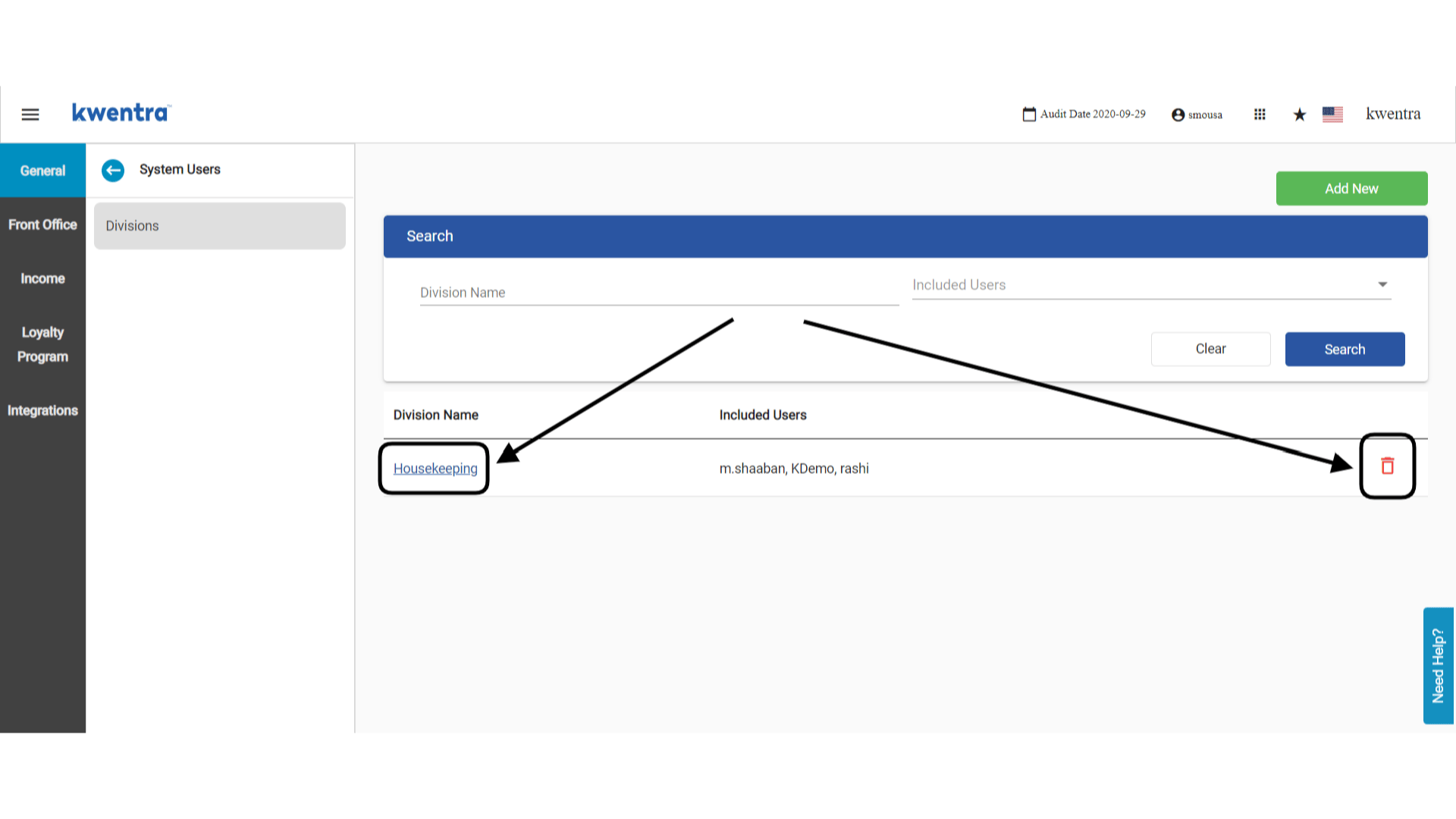
### **How do we create divisions?**
[**Front Office → Settings Gear Sign → General → System Users → Divisions**](https://manage.kwentra.com/settings/#/general/divisions)
All your divisions and the users under each one would be under this screen. To add a new division, click **Add New.**
 **Go to Home Screen**
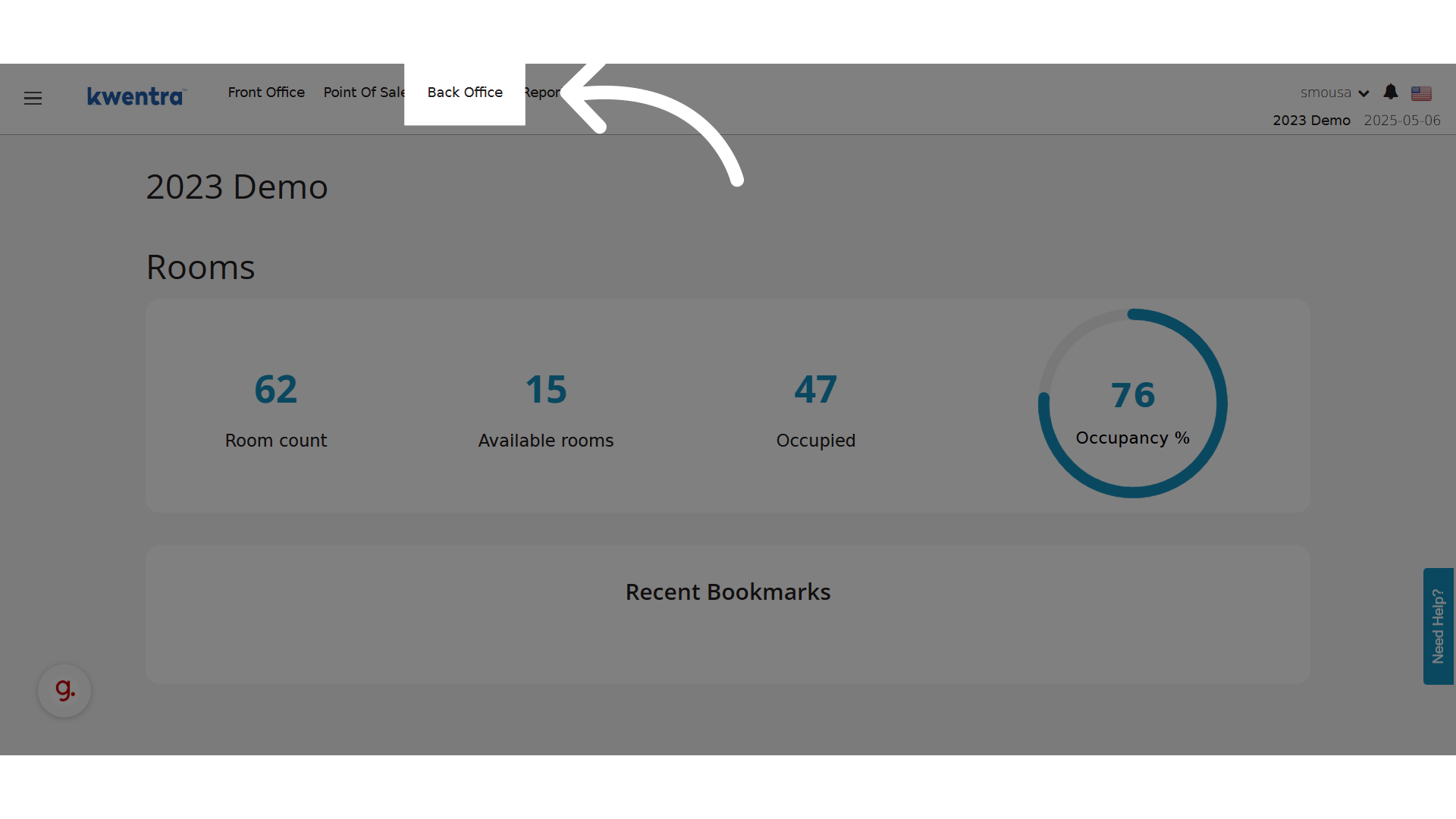
**Click "Back Office"**
**Go to Home Screen**
**Click "Back Office"**
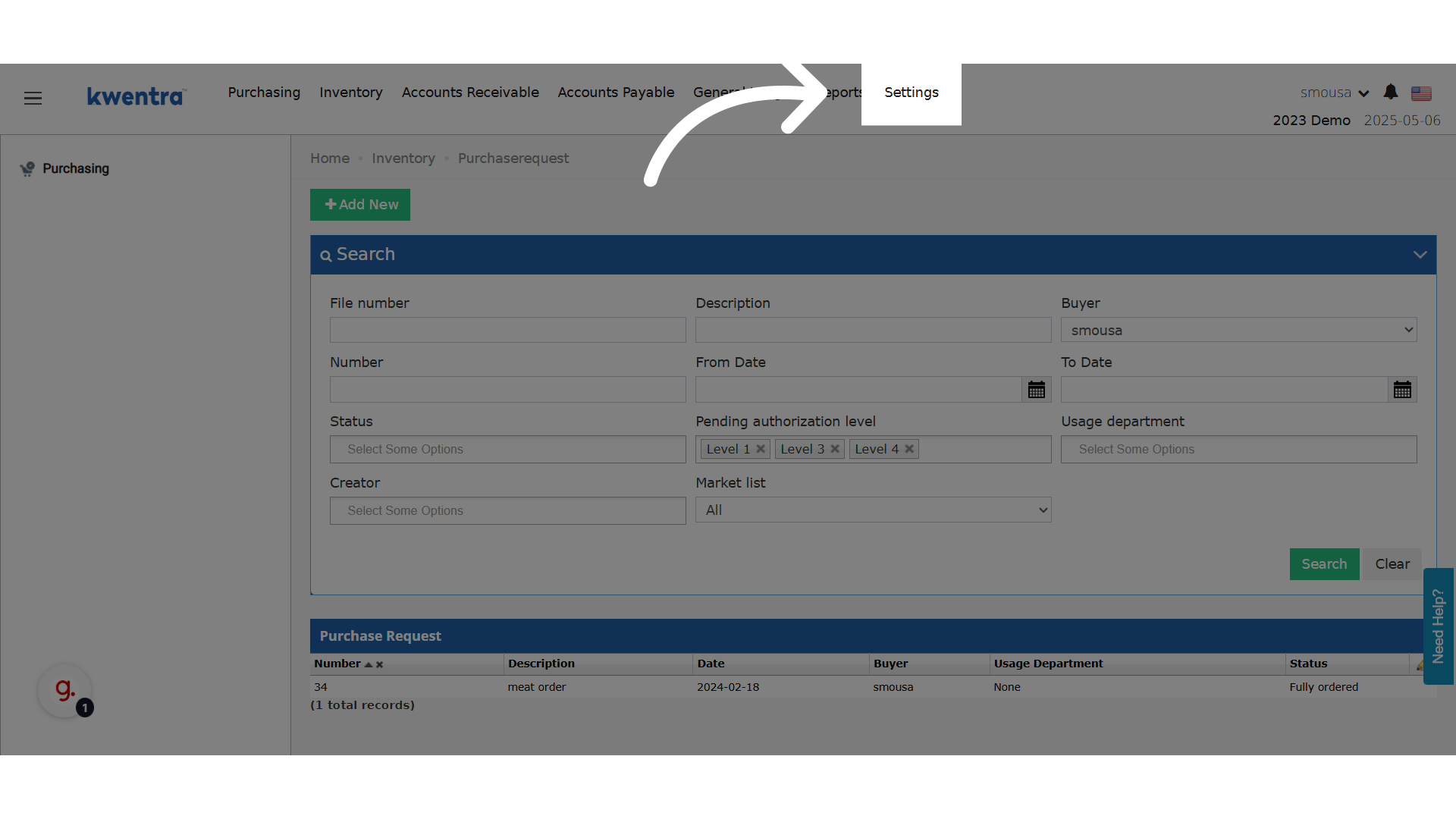
 **Click "Settings"**
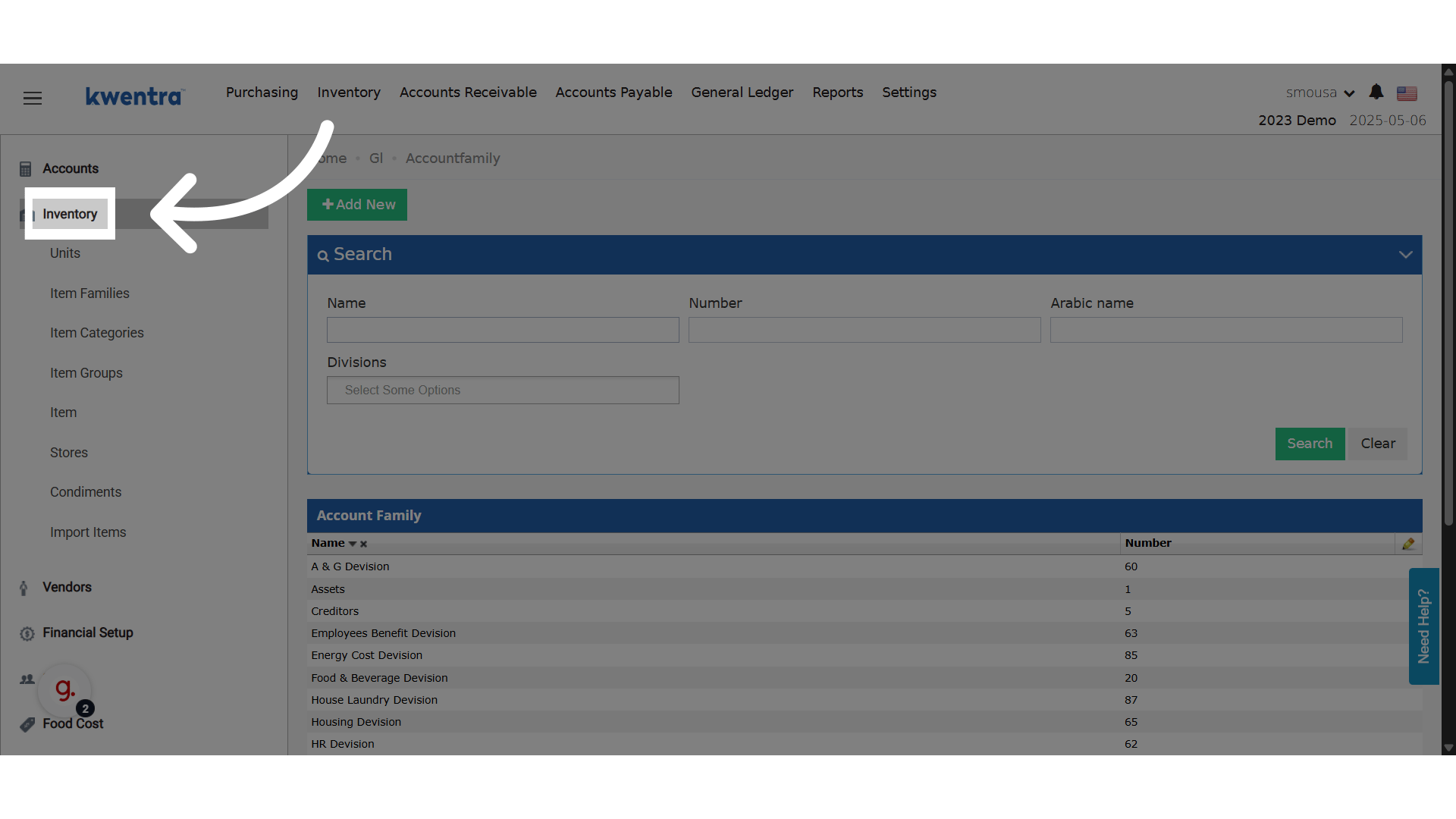
 **Click "Inventory"**
 **Click "Item"**
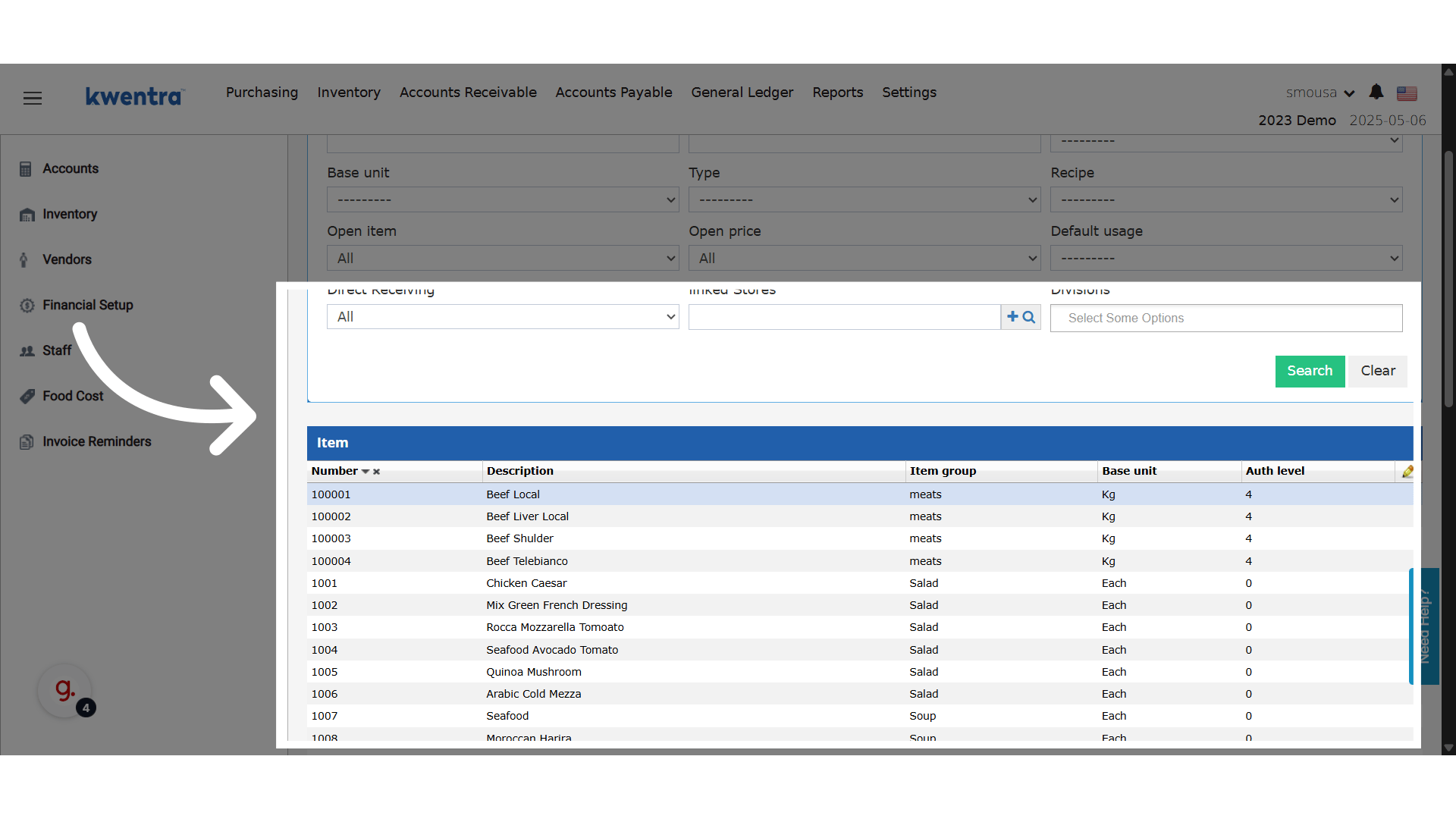
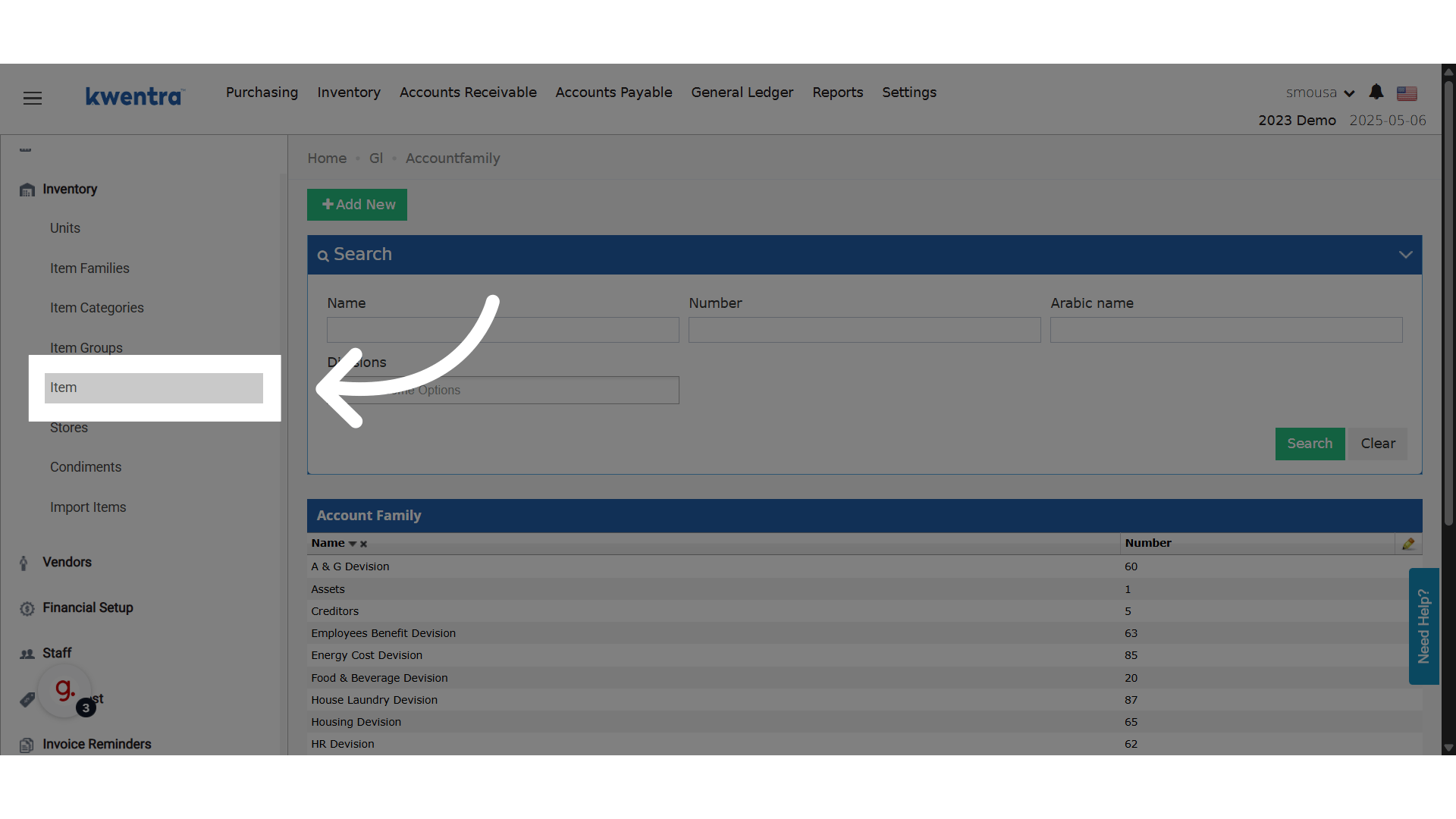 **Search and select an item**
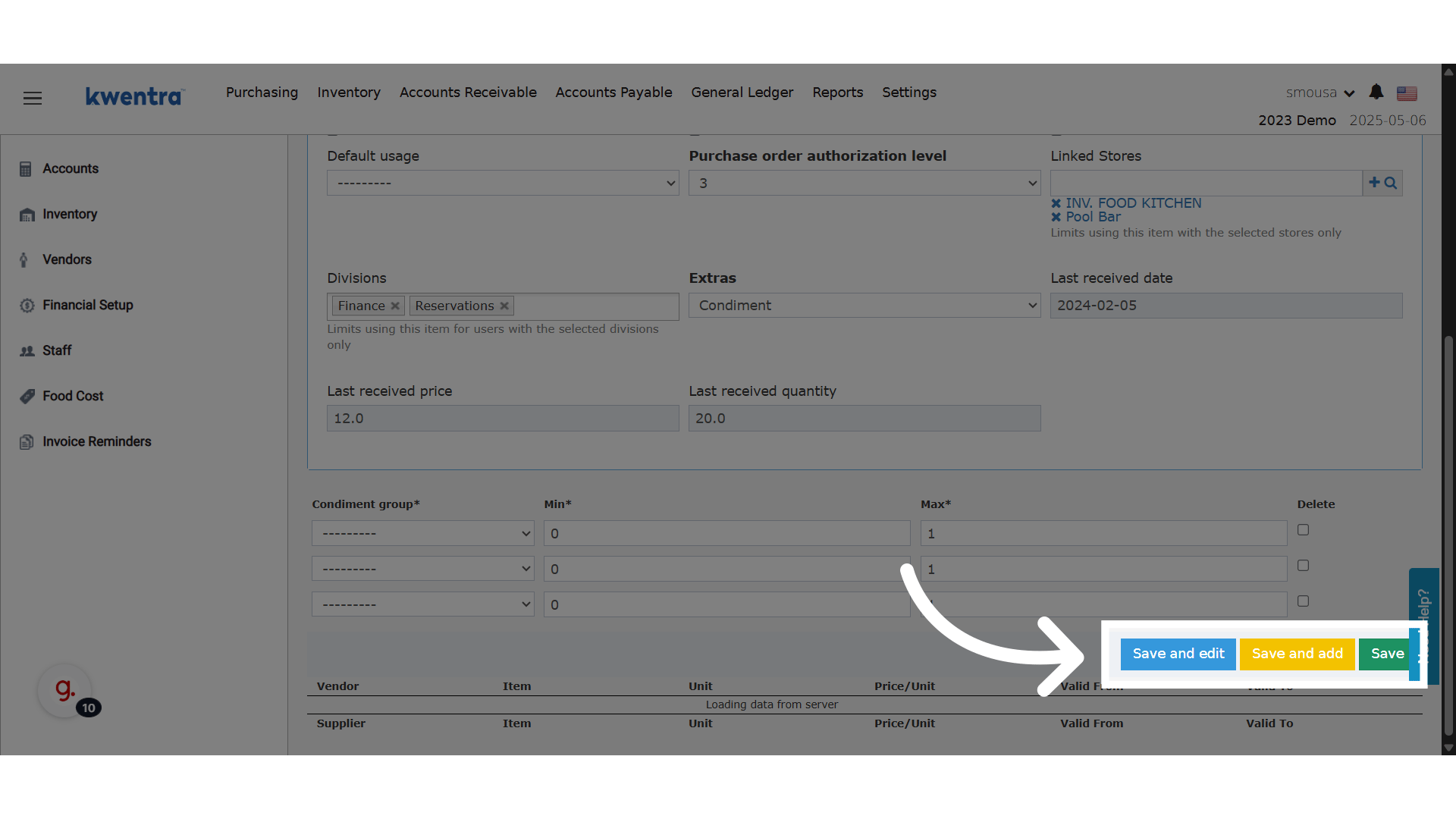
 **Link the item to the divisions you desire**
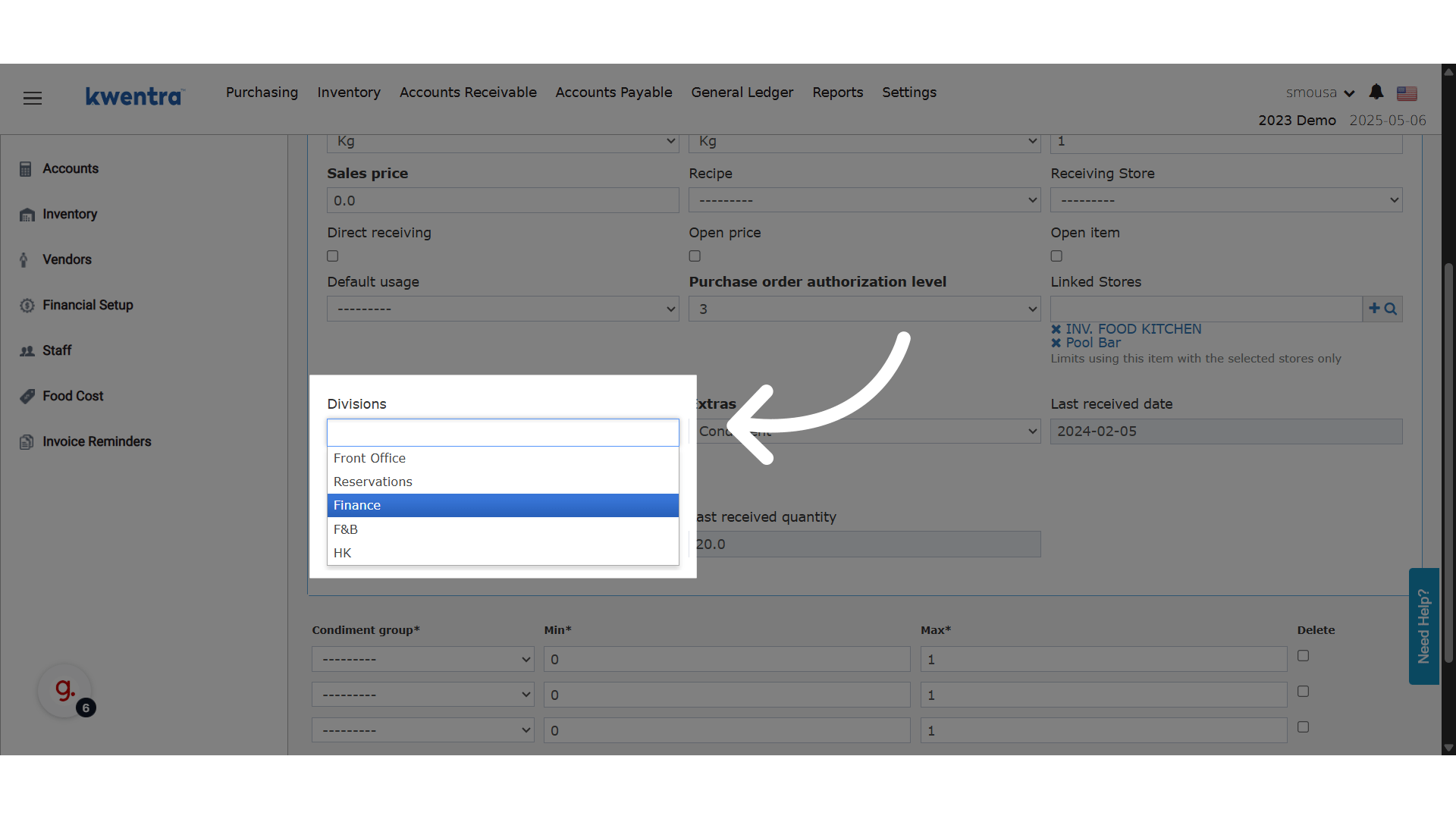 ### **Behavior Based on Multi-Select Setup**
* **No divisions selected**
* **The item is usable by all users with proper permissions.**
* **One or more divisions selected**
* **The item is restricted to selected divisions only.**
### **Behavior Based on Multi-Select Setup**
* **No divisions selected**
* **The item is usable by all users with proper permissions.**
* **One or more divisions selected**
* **The item is restricted to selected divisions only.**
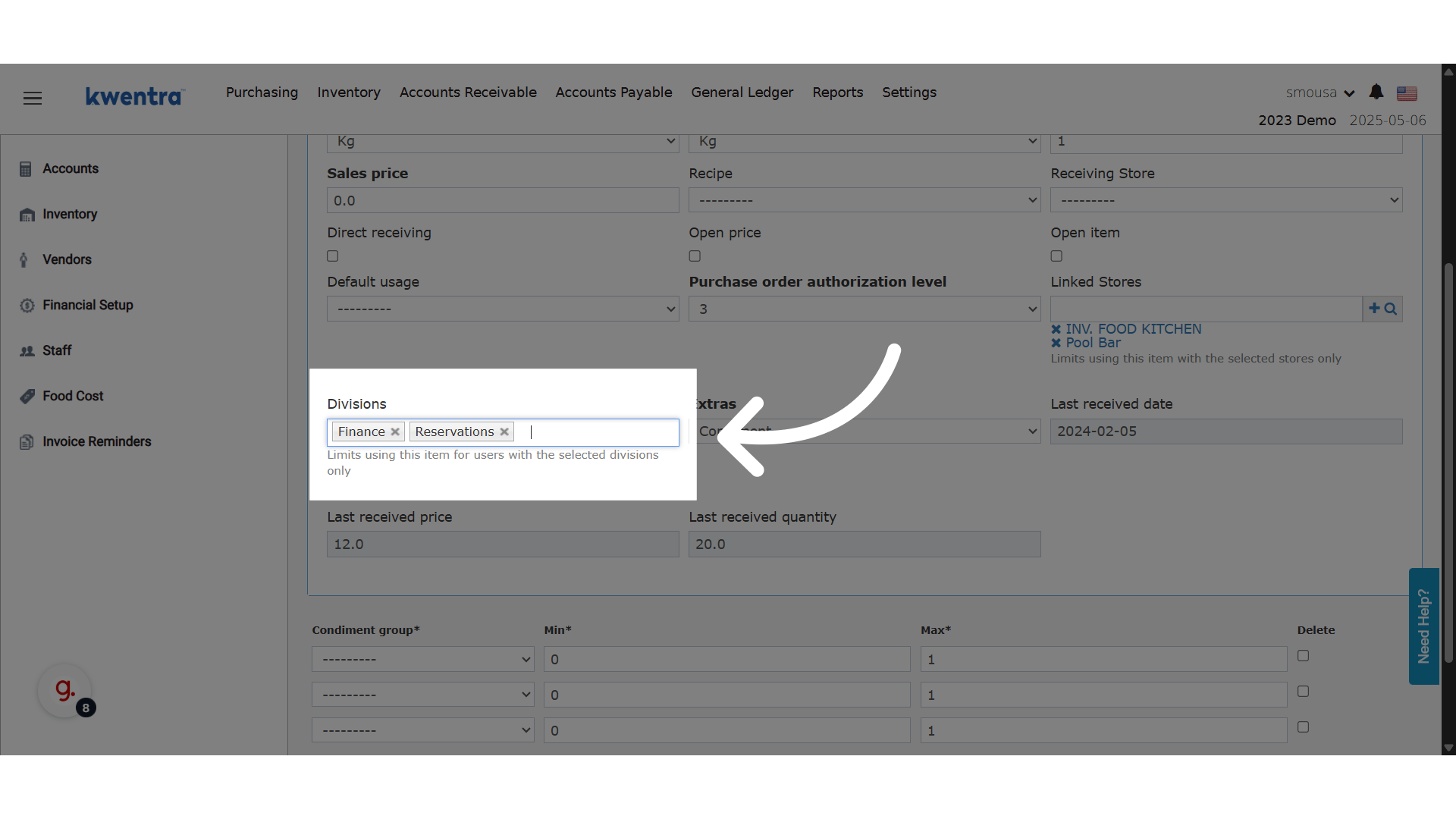 **Save your changes**
 ### **🚫 Restrictions on Item Usage**
Once an item is linked to a division, it **can only be used by users from those divisions** in the following modules:
* ✅ Purchase Requests
* ✅ Receiving Orders
* ✅ Return Requests
* ✅ Store Transfers
* ✅ Store Usage
❌ If a user from a different division attempts to use the item, the system will block the action and show an error message.
### **🔍 Item Filtering for Users**
When users open the item list in the above screens, they will **only see items** that are:
* Either **not linked to any division.**
* Or **explicitly linked to their division.**
### **📥 Items Import/Export Updates**
✅ New Column: **Divisions**
* Included in both import and export templates
Divisions are optional in the import. If left blank, the item remains accessible to all divisions.
### **🚫 Restrictions on Item Usage**
Once an item is linked to a division, it **can only be used by users from those divisions** in the following modules:
* ✅ Purchase Requests
* ✅ Receiving Orders
* ✅ Return Requests
* ✅ Store Transfers
* ✅ Store Usage
❌ If a user from a different division attempts to use the item, the system will block the action and show an error message.
### **🔍 Item Filtering for Users**
When users open the item list in the above screens, they will **only see items** that are:
* Either **not linked to any division.**
* Or **explicitly linked to their division.**
### **📥 Items Import/Export Updates**
✅ New Column: **Divisions**
* Included in both import and export templates
Divisions are optional in the import. If left blank, the item remains accessible to all divisions.