> ## Documentation Index
> Fetch the complete documentation index at: https://help.kwentra.com/llms.txt
> Use this file to discover all available pages before exploring further.
# Accounts Receivable (AR) Aging Report
> Easily monitor all outstanding receivables by aging period, account, and stay on top of collections and financial risk. Business Value Provides a clear snapshot of all money owed to the hotel, cate...
Easily monitor all outstanding receivables by aging period, account, and stay on top of collections and financial risk.
***
### **Business Value**
* Provides a **clear snapshot of all money owed** to the hotel, categorized by how long each debt has been outstanding.
* Helps **prioritize collection efforts** based on overdue status and account.
* Supports **financial planning** by showing potential cash flow risks and aging patterns.
* **Identifies new, growing, or problem accounts** before they impact business.
***
### **Use Cases**
* **Finance/Accounts teams** review this report weekly to manage collection calls.
* **Hotel GMs** use it in monthly meetings to assess debtor risk.
* **Auditors** reference it for end-of-period reviews and aging analysis.
* **Front Office/AR clerks** use it to follow up with clients and credit card processors.
***
### **Report Overview**
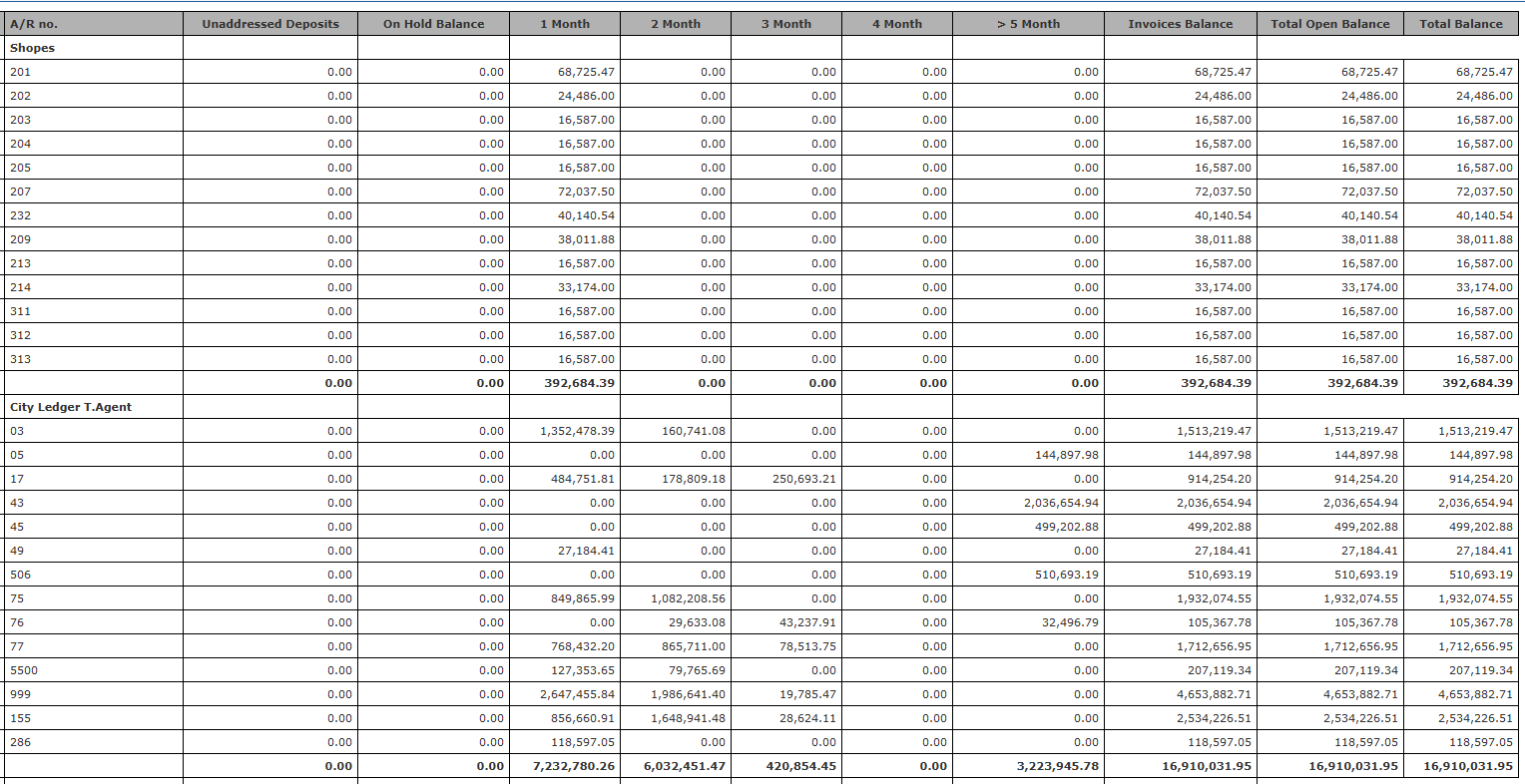
This report lists **the City Ledger Account and all channels' ARs** with open receivables, breaking down the balance into standard “aging buckets” (how long the debt has been open). The report can hide AR accounts with 0 balances and movements.
#### **Columns Explained**
| Column | Explanation |
| -------------------- | ------------------------------------------------------------------------------- |
| A/R | Main AR account number (e.g., Shopes, City Ledger, Credit Cards) |
| A/R no. | Sub-account number within the AR account |
| Unaddressed Deposits | Advance payments not yet applied to invoices |
| On Hold Balance | Amounts placed “on hold” (disputed, pending approval, etc.) |
| 1 Month | Receivables due less than 30 days ago |
| 2 Month | Receivables overdue by 31-60 days |
| 3 Month | Overdue by 61-90 days |
| 4 Month | Overdue by 91-120 days |
| >5 Month | Overdue by more than 120 days |
| Invoices Balance | Sum of all open invoices for the account |
| Total Open Balance | All open (unpaid) balances for the account, including aged balances |
| Total Balance | Full balance (should match “Total Open Balance” unless adjustments are present) |
***
### **How to Read the AR Aging Report**
1. **Each AR account** (like Shopes, City Ledger T.Agent, Credit Cards) is listed with its child sub-accounts or tenants.
2. **All columns are shown for each account:** even if a balance is zero, the column is present.
3. **Aging buckets** show exactly how overdue each part of the balance is.
* Example: *If a client owes 100,000 EGP, and it is overdue by 40 days, it appears in “2 Month.”*
4. **Totals** at the bottom show the overall exposure for the hotel.
5. **No data is hidden or filtered:** You see all open, on-hold, and unapplied deposits, every time.
***
### **Running the Report**
* Go to **Back Office > Reports > Receivables > AR Aging**.
* Select the date for which you need the snapshot (e.g., “2025-09-10”).
* Optionally, choose to **show/hide zero balance accounts**.
* Choose the file type (XLS, XLSX, ODS, PDF).
* Click **Download**, **Preview**, or **Print**.
***
### **Interpreting the Results**
* **If balances move into older buckets over time:** This means debts are not being collected.
* **If new accounts appear:** Monitor for payment reliability.
* **If Credit Card balances spike:** Confirm settlements with the processor.
* **Use totals** to compare exposure vs. previous periods.
***
### **How to Identify Payments in AR Aging Reports**
* **AR Aging reports do NOT show payment transactions directly.**
* **Payments are “implied” if:**
* An account’s total balance decreases from the earlier report to the later one.
* An account or invoice row disappears entirely (balance cleared).
* **If all balances only increase or remain the same, it means no payments were posted—or new invoices outpaced any payments.**
***
### **Where Does the AR Aging Total Appear in Financial Statements?**
* **The “Grand Total” at the bottom of the AR Aging report** (Total Balance column) should **match the “Accounts Receivable” (A/R) balance on your hotel’s Balance Sheet report as of the same date**.
* On the **Balance Sheet**, this amount is usually found under the account type:
* **Accounts Receivable / Debtors** (sometimes called “Trade Receivables” or “Clients – Debit” depending on your chart of accounts setup).
* In hotel charts, this is a **current asset**.
***
### **Why Should These Totals Always Match?**
* The AR Aging report shows a **breakdown of every individual AR account** as of the chosen date.
* The Balance Sheet simply **totals all AR accounts into a single line**.
* Both are generated from the same AR subledger, so, unless there is an error, the totals **must be equal**.
***
### **What To Do If Numbers Do Not Match**
If the **total in the AR Aging report does NOT match the AR figure in the Balance Sheet**, it signals a problem. Here’s how to troubleshoot:
#### **1. Check the Report Dates**: Ensure both reports are run **as of the same date**.
#### **2. Look for Manual Journal Entries**
* Verify if there are **manual journal entries** (in Back Office/General Ledger) posted **directly to AR accounts** that did NOT go through the AR module. These can cause discrepancies.
* All AR adjustments/payments must be posted through proper AR functions (not directly in GL).
#### **3. Unposted or Pending Transactions**: Check for **unposted batches** or **pending transactions** (e.g., credit card batches, unapplied deposits) that are included in one report but not the other.
#### **4. Aging Report Filters**: Confirm that you are **showing all AR accounts** (including zero balances and on-hold accounts) in the AR Aging report. Hidden filters may cause differences.
#### **5. System Errors or Data Corruption**: If all else fails, **report to your IT or finance system admin**—there could be a sync or database error.
***
### **Best Practice**
> Always reconcile the AR Aging report grand total with the Balance Sheet AR account after month-end closing. Any difference must be explained and resolved before financials are finalized.
 ## ***Update: 3rd of December, 2025***
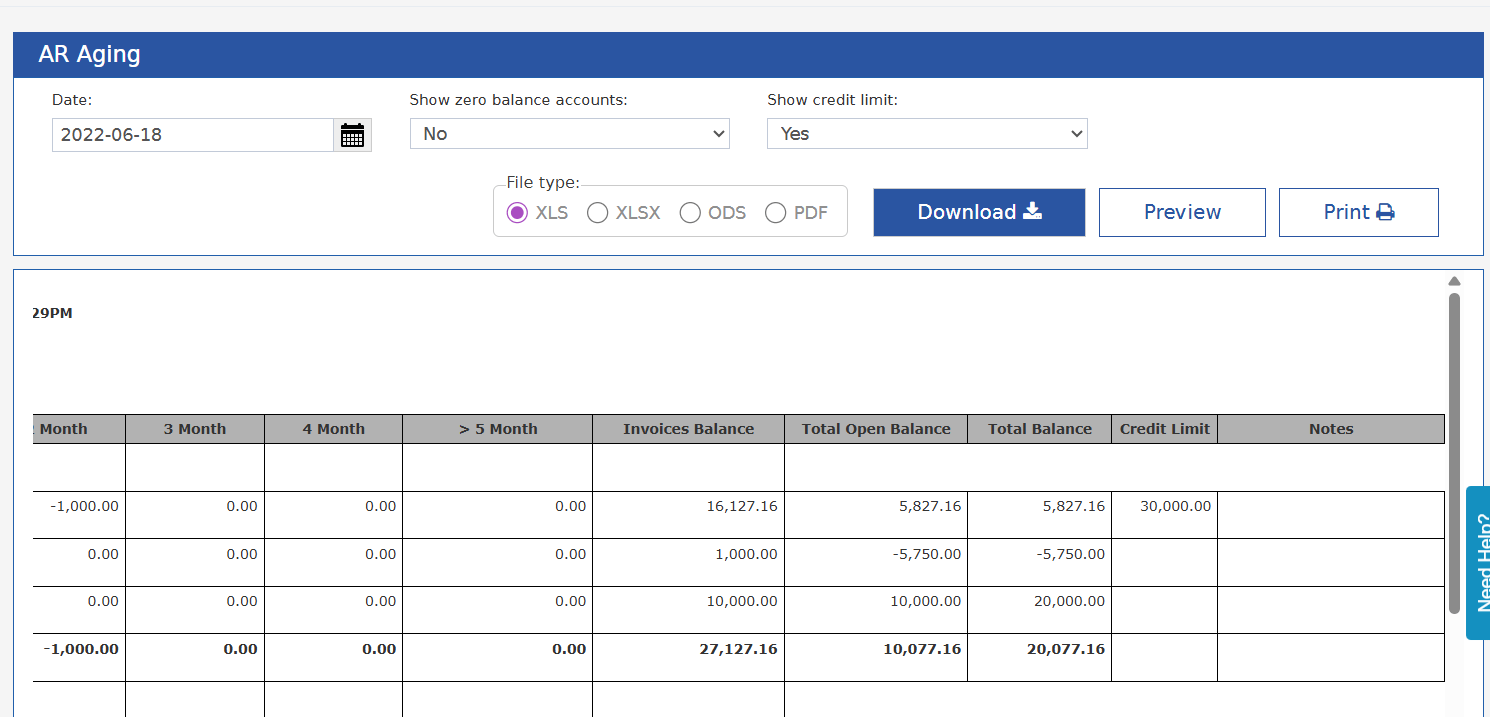
### **Add Credit Limit to the report**
Based on the , the limit added will be shown on the report.
### **New parameter: Show Credit Limit**
* **No (Default)**
* **Yes**
When **Yes** is selected, the report shows two additional columns:
### **Credit Limit**
* Displays the credit limit defined on the AR account
* Displays blank if the AR account has no credit limit set
### **Notes**
* If the total AR balance for the account **exceeds** the credit limit →
**Notes column displays: “Exceeded Credit Limit”**
## ***Update: 3rd of December, 2025***
### **Add Credit Limit to the report**
Based on the , the limit added will be shown on the report.
### **New parameter: Show Credit Limit**
* **No (Default)**
* **Yes**
When **Yes** is selected, the report shows two additional columns:
### **Credit Limit**
* Displays the credit limit defined on the AR account
* Displays blank if the AR account has no credit limit set
### **Notes**
* If the total AR balance for the account **exceeds** the credit limit →
**Notes column displays: “Exceeded Credit Limit”**
 ## ***Update: June, 2026***
### **Currency breakdown for outstanding receivables**
The AR Aging report can now show outstanding receivables broken down by currency, so foreign-currency balances appear in the currency they were transacted in alongside the property's base currency.
#### **New parameter: Show Currency Breakdown**
* **No (Default)** — the report shows balances in the base currency only, as before.
* **Yes** — each AR account's aging buckets are also presented per currency.
When **Yes** is selected:
* Receivables transacted in a foreign currency are shown in their **original currency**, next to the base-currency equivalent.
* The aging buckets (1 Month through >5 Month), on-hold balances, and totals are split by currency for each account.
* Accounts with balances in more than one currency list each currency on its own line under the account.
| Note: The base-currency totals and the report grand total are unchanged — the currency breakdown only adds detail on how each balance is composed. Use it to reconcile foreign-currency exposure account by account. |
| -------------------------------------------------------------------------------------------------------------------------------------------------------------------------------------------------------------------- |
## ***Update: June, 2026***
### **Currency breakdown for outstanding receivables**
The AR Aging report can now show outstanding receivables broken down by currency, so foreign-currency balances appear in the currency they were transacted in alongside the property's base currency.
#### **New parameter: Show Currency Breakdown**
* **No (Default)** — the report shows balances in the base currency only, as before.
* **Yes** — each AR account's aging buckets are also presented per currency.
When **Yes** is selected:
* Receivables transacted in a foreign currency are shown in their **original currency**, next to the base-currency equivalent.
* The aging buckets (1 Month through >5 Month), on-hold balances, and totals are split by currency for each account.
* Accounts with balances in more than one currency list each currency on its own line under the account.
| Note: The base-currency totals and the report grand total are unchanged — the currency breakdown only adds detail on how each balance is composed. Use it to reconcile foreign-currency exposure account by account. |
| -------------------------------------------------------------------------------------------------------------------------------------------------------------------------------------------------------------------- |