> ## Documentation Index
> Fetch the complete documentation index at: https://help.kwentra.com/llms.txt
> Use this file to discover all available pages before exploring further.
# Item Activity Report
> Track all movements, transfers, and quantity changes for a specific item within a specific store. Business Value Gives a full audit trail of how an item quantity changed over time. Supports storeke...
Track all movements, transfers, and quantity changes for a specific item within a specific store.
### **Business Value**
* Gives a **full audit trail** of how an item quantity changed over time.
* Supports storekeepers and cost controllers in monitoring **daily store operations**.
* Useful for reconciling **physical counts vs. system quantities**.
### **How to Run the Item Activity Report**
**Reports → BO → Inventory → Item Activity**
At the top of the screen, you must choose:
* **From date** → Starting point of the report
* **To date** → End point of the report
* **Store** → *Single select* (you can only choose one store)
* **Item** → *Single select* (you can only choose one item)
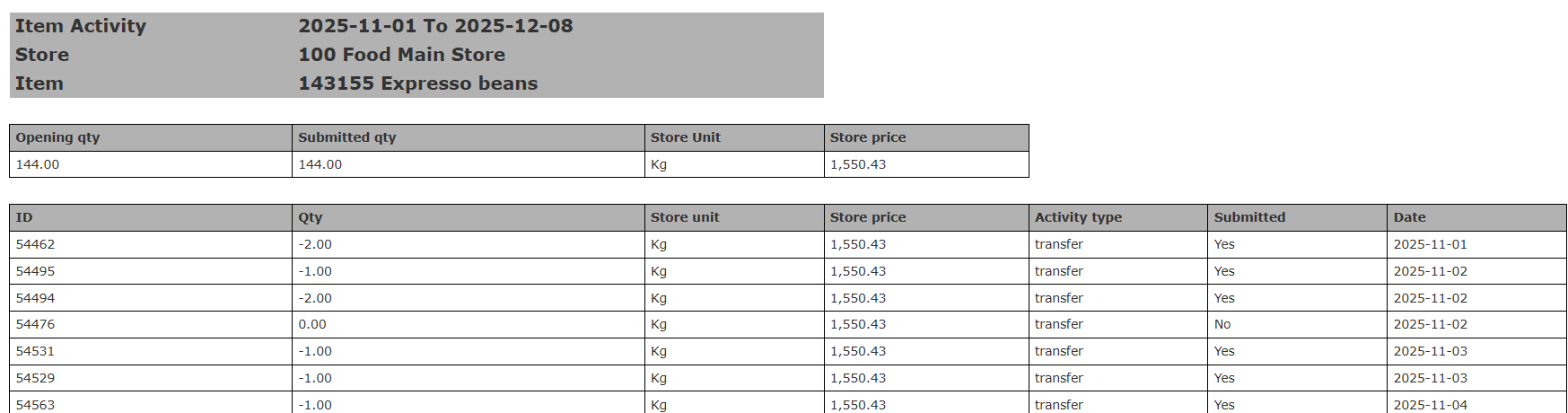
### **Opening & Submitted Quantities (Summary Block)**
* **Opening Qty:** Quantity available in store at the start of the selected period.
* **Submitted Qty:** Total of all quantities submitted during the period (sum of all movements).
* **Store Unit:** The unit in which the item is tracked (e.g., Kg, Ltr, Pc).
* **Store Price:** The cost of the item per unit inside the selected store.
### **Detailed Activity Table**
Each row represents an activity affecting the item:
* **ID** → Transaction reference
* **Qty** → Positive or negative quantity moved
* **Store Unit** → Unit of measurement
* **Store Price**
* **Activity Type**
* transfer
* usage
* receiving
* **Submitted** (Yes/No)
* **Date** of creation
 ### **Closing Quantities (End of Report)**
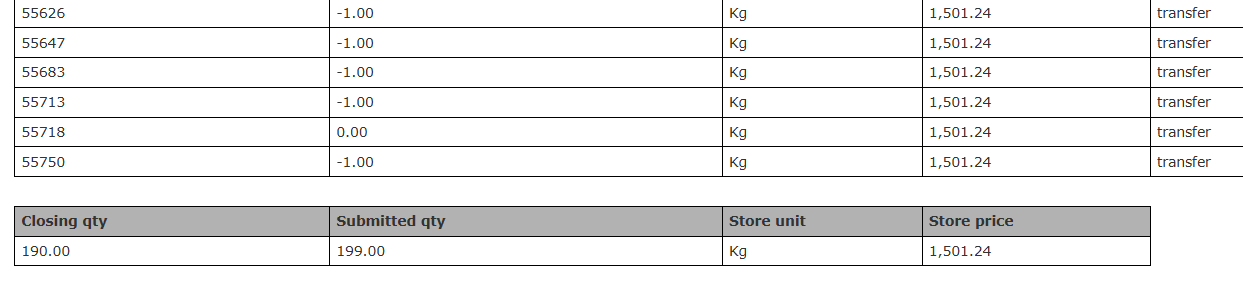
* **Closing Qty:** Final available quantity after all activities within the selected period.
* **Submitted Qty:** Total submitted quantity is summed again for closure validation.
* **Store Unit:** The unit in which the item is tracked (e.g., Kg, Ltr, Pc).
* **Store Price:** The cost of the item per unit inside the selected store.
### **Closing Quantities (End of Report)**
* **Closing Qty:** Final available quantity after all activities within the selected period.
* **Submitted Qty:** Total submitted quantity is summed again for closure validation.
* **Store Unit:** The unit in which the item is tracked (e.g., Kg, Ltr, Pc).
* **Store Price:** The cost of the item per unit inside the selected store.
 ## ***Update: December 2025***
### **Value Column & Transaction Hyperlink**
Easily view the total value of item movements and access each transaction directly from the report.
### **What’s New?**
This update adds **Value Columns** across the report and introduces **clickable transaction IDs** that redirect to the original document.
### **How It Works**
1. Run the report normally from: **Reports → BO → Inventory → Item Activity**
2. The report now displays:
* Opening Qty + Opening Value
* All Movements with Qty, Price, Value
* Closing Qty + Closing Value
3. Click any **Transaction ID** to open the full document.
4. Review, validate, or correct transactions without leaving the report.
## ***Update: June 4, 2026***
### **Items Filter by Selected Store**
The Items parameter now filters to show only items linked to the selected store.
### **What's New?**
When you select a store, the Items dropdown is filtered dynamically so you only see items that actually exist in that store — preventing empty report rows from items that don't belong to the store.
### **How It Works**
1. Run the report from **Reports → BO → Inventory → Item Activity**.
2. Select a **Store** — the Items dropdown filters automatically to items linked to that store.
3. If you change the Store after selecting items:
* Items still valid for the new store remain selected.
* Items no longer valid are removed automatically, and a small inline notice informs you of the change.
The report layout, columns, and output are unchanged.
| Note: Which items appear for a store depends on how items are linked to that store. See [Link Inventory Stores to Items](/back-office/back-office-settings/link-inventory-stores-to-items#link-inventory-stores-to-items). |
| -------------------------------------------------------------------------------------------------------------------------------------------------------------------------------------------------------------------------- |
## ***Update: December 2025***
### **Value Column & Transaction Hyperlink**
Easily view the total value of item movements and access each transaction directly from the report.
### **What’s New?**
This update adds **Value Columns** across the report and introduces **clickable transaction IDs** that redirect to the original document.
### **How It Works**
1. Run the report normally from: **Reports → BO → Inventory → Item Activity**
2. The report now displays:
* Opening Qty + Opening Value
* All Movements with Qty, Price, Value
* Closing Qty + Closing Value
3. Click any **Transaction ID** to open the full document.
4. Review, validate, or correct transactions without leaving the report.
## ***Update: June 4, 2026***
### **Items Filter by Selected Store**
The Items parameter now filters to show only items linked to the selected store.
### **What's New?**
When you select a store, the Items dropdown is filtered dynamically so you only see items that actually exist in that store — preventing empty report rows from items that don't belong to the store.
### **How It Works**
1. Run the report from **Reports → BO → Inventory → Item Activity**.
2. Select a **Store** — the Items dropdown filters automatically to items linked to that store.
3. If you change the Store after selecting items:
* Items still valid for the new store remain selected.
* Items no longer valid are removed automatically, and a small inline notice informs you of the change.
The report layout, columns, and output are unchanged.
| Note: Which items appear for a store depends on how items are linked to that store. See [Link Inventory Stores to Items](/back-office/back-office-settings/link-inventory-stores-to-items#link-inventory-stores-to-items). |
| -------------------------------------------------------------------------------------------------------------------------------------------------------------------------------------------------------------------------- |