> ## Documentation Index
> Fetch the complete documentation index at: https://help.kwentra.com/llms.txt
> Use this file to discover all available pages before exploring further.
# Receiving Orders Report
> Track all items received across your warehouses by date, vendor, or item group — now includes Invoice Number for direct AP reconciliation. Business Value Review all receiving orders within any date...
Track all items received across your warehouses by date, vendor, or item group — now includes Invoice Number for direct AP reconciliation.
**Business Value**
* Review all receiving orders within any date range.
* Filter by vendor to see all receipts from a specific supplier.
* Check receiving order status — posted to warehouse or still pending.
* Group results by vendor or item group for focused analysis.
* Invoice Number column links each receipt to the vendor invoice for AP matching.
* Enables accurate AP reconciliation — trace payments back to source receipts.
**Use Cases**
* Warehouse manager runs the report by date range to review all items received this month.
* AP accountant filters by vendor and uses the Invoice Number column to match receipts against vendor invoices.
* Finance manager groups by item group to identify which categories carry the highest received value.
**How It Works**
**Running the Report**
| **Where:** Back Office → Reports → BO → Inventory → Receiving Orders |
| -------------------------------------------------------------------- |
**From Date / To Date:** Date range to view receiving orders created within that period.
**Vendor:** (Optional) Filter to receiving orders from a specific vendor only.
**Item Group:** (Optional) Filter to receiving orders for a specific item group.
**State:** Filter by status: Submitted (posted to warehouse) or Pending.
**Store:** (Optional) Filter to a specific warehouse or store.
**Group By:** Group results by Vendor or by Item Group.
**Summary:** Set to No to view full line-level detail for every receiving order.
Available actions: Download | Preview | Print
**Grouping Logic**
* Group by Vendor: all receiving orders per vendor → broken down by store → then by item group.
* Group by Item Group: all receiving orders per item group → broken down by store → then by vendor.
* Subtotals appear at the end of each item group and each store. A Grand Total covers all vendors and stores.
**Report Columns**
Run in Detail mode (Summary = No) to see all line-level data.
| **Column** | **Description** | **Example** |
| ------------------------ | -------------------------------------------------------------------------------------------------------- | ------------------------ |
| PO Number | Purchase order number linked to this receiving order. | 13 |
| Receiving Number | System-generated serial number for the receiving order. No two orders share the same number. | 37 |
| **✦ NEW** Invoice Number | **✦ NEW** Vendor invoice reference entered on the receiving order. Blank if not recorded. | **✦ NEW** INV-2024-00512 |
| Date | Date the receiving order was created. | 2025-09-18 |
| Receiving Description | Comments or notes added on the receiving order. | Monthly dairy delivery |
| Item Number | System item code for the received product. | 103009 |
| Item Description | Name of the received item. | Lanah Gallon 3 KG |
| Store | Warehouse or store the items were received into. | INV. FOOD KITCHEN |
| Store Unit | Unit of measure for the item (e.g. Gallon, Can, KG, piece). | Gallon |
| Qty | Received quantity per item line. | 2.00 |
| Submitted Qty | Quantity submitted to the warehouse. Matches Qty if posted; shows 0 if receiving order is still Pending. | 2.00 |
| Receiving Price | Price per unit for the item. | 250.00 |
| Gross Value | Qty × Receiving Price. Subtotals print per item group and per store. Grand Total covers all vendors. | 500.00 |
| Note: The Invoice Number column is blank for receiving orders created before this feature or where no invoice number was entered. Report currency follows your system's base currency. |
| -------------------------------------------------------------------------------------------------------------------------------------------------------------------------------------- |
## ***Update: June 14, 2026***
### **Status Parameter & Status Column**
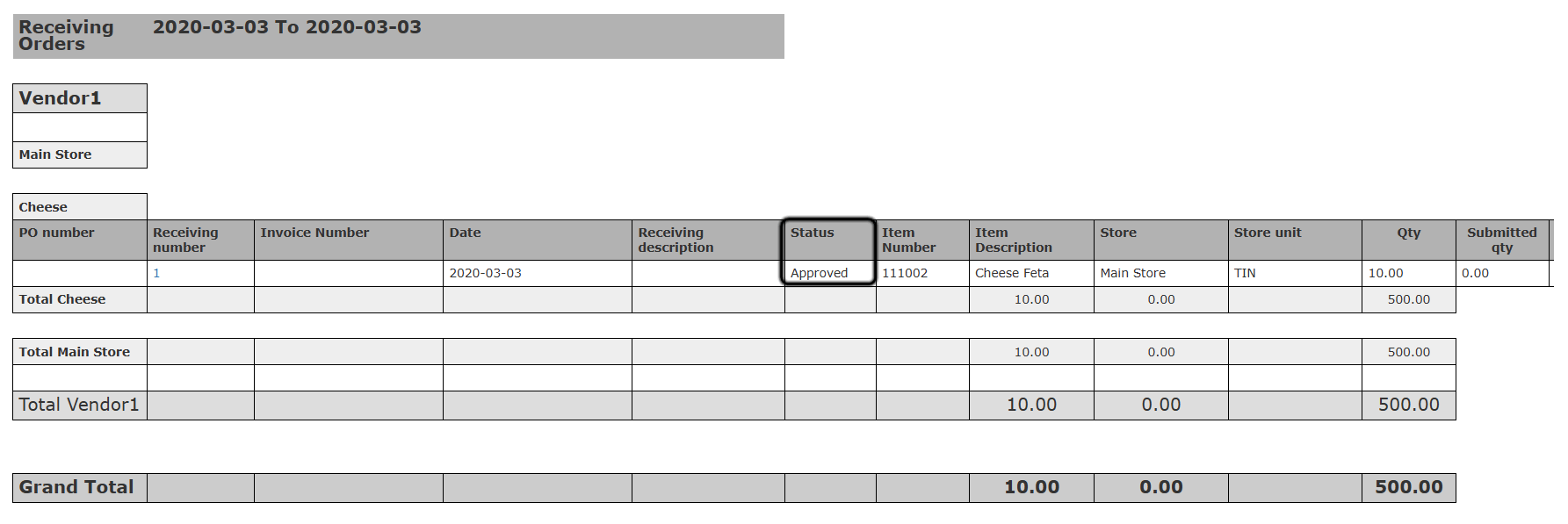
Filter the Receiving Orders Report by one or more order statuses, and see each order's current status in the output.
### **What's New?**
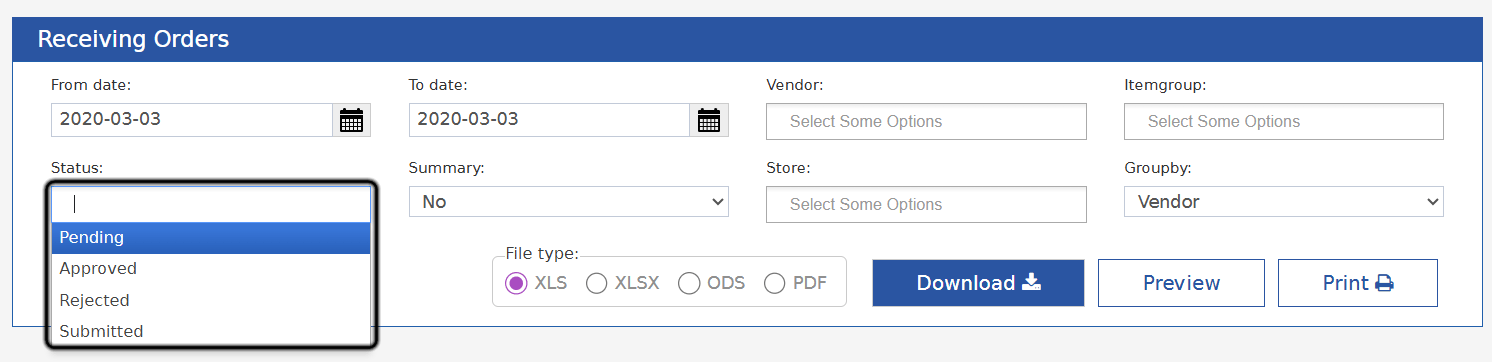
The old **State** filter (Pending / Submitting only) is replaced by a multi-select **Status** filter that covers every receiving order status, and a new **Status** column is added to the report output.
### **How It Works**
* The **State** parameter is renamed to **Status** and changed to an autocomplete multi-select field.
* It is empty by default, which returns receiving orders of **all** statuses.
* Available statuses: **Pending**, **Approved**, **Rejected**, and **Submitted** — select any combination.
* A new **Status** column appears after the **Receiving Description** column, showing each receiving order's current status.