> ## Documentation Index
> Fetch the complete documentation index at: https://help.kwentra.com/llms.txt
> Use this file to discover all available pages before exploring further.
# Stock Usage Report
> Track, analyze, and export store usage for any date range, grouped and detailed by your operational needs. Report Business Value: Provides a transparent breakdown of how inventory is consumed acros...
### Track, analyze, and export store usage for any date range, grouped and detailed by your operational needs.
***
### **Report Business Value:**
* Provides a transparent breakdown of how inventory is consumed across departments and stores.
* Facilitates tighter cost control by highlighting major consumption areas and unusual variances.
* Enables data-driven purchasing, budgeting, and inventory decisions with flexible filtering and grouping.
* Supports both summary and detailed analysis, ideal for operational reviews and audit trails.
* Exportable in multiple formats for further analysis or regulatory compliance.
***
### **Use Case:**
* Monthly review of stock consumption per department (e.g., F\&B, HK, Engineering)
* Identifying high-usage items or unexpected consumption spikes
* Cross-checking store issues versus expense accounts for audit
* Preparing cost allocation reports for department heads
* Exporting detailed usage records for regulatory submission
### **How it works?**
**[Reports → BO → Inventory → Stock Usage](https://manage.kwentra.com/reports/Inventory/Stock%20Usage/)**
* **From date / To date:** Pick the reporting period (e.g., 2025-10-01 to 2025-10-31).
* **Group by:** Choose how to group the data (From Store, Expense Account, Item Group, Usage Department).
* **Detail:** Choose report level (Summary, Itemized, Detailed).
* **State:** Filter by state (Submitted / Pending).
* **From Store, Expense Account, Usage Department:** Filter for specific stores, accounts, or departments.
* **Item family, category, group:** Further refine your item selection.
* **Show zero values:** Decide whether to show items with zero usage.
* **Export Options:**
* Select file type (XLS, XLSX, ODS, PDF), then click **Download** to export, **Preview** to view, or **Print** for a hard copy.
**Report Column Outcome:**
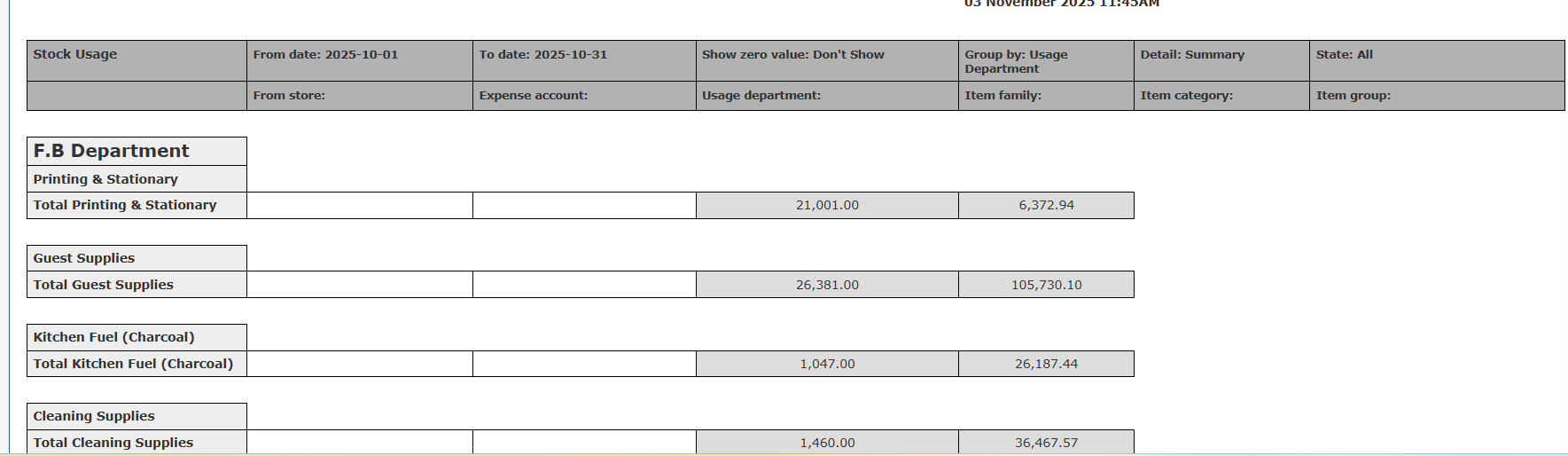
In the **Summary** view, the report shows total quantities and values consumed per department/item group.
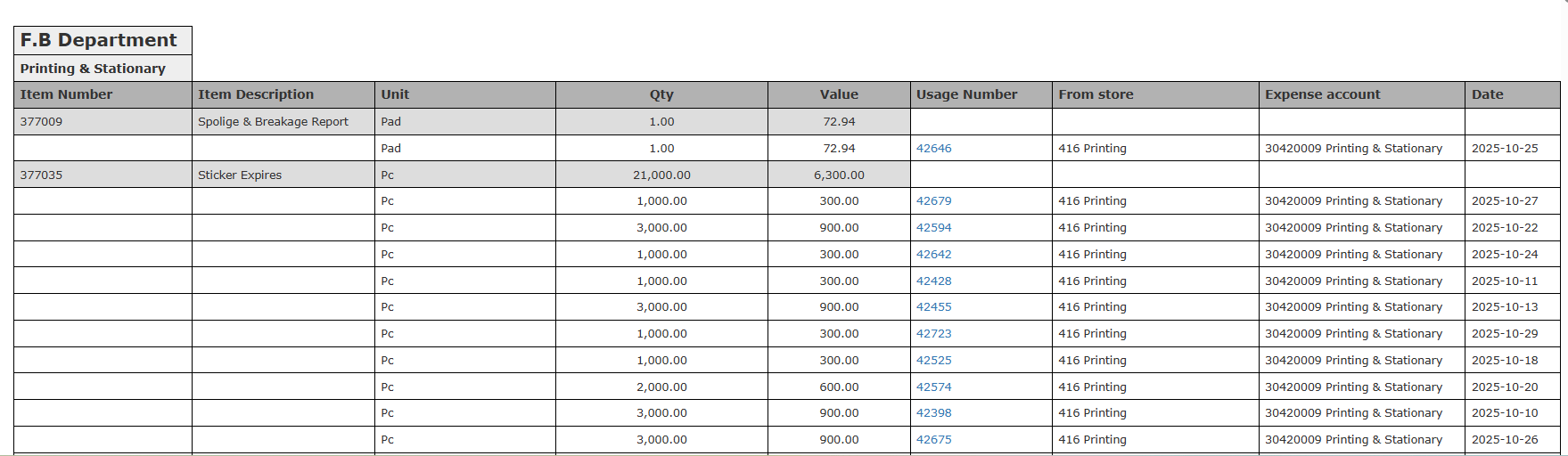
 In the **Detailed** view, it lists every item usage, including: Item Number, Description, Unit, Quantity, Value, Usage Number, From Store, Expense Account, and Date.
 ## ***Update: 29th of October, 2025***
### **Store Usage Report Enhancement: Group by Expense Account within Usage Department**
Quickly see your stock usage totals by both department and expense account in the summary report.
***
### **Use Cases**
* A Cost Controller wants to see how much Housekeeping spent on Guest Supplies versus Cleaning Supplies in a glance.
* The finance team needs to prepare department-level budgets and verify how expenses are distributed per account.
* Department heads review their own consumption and cost split by account.
***
### **How does it work?**
1. **Group by “Usage Department”** as usual.
2. The report now displays, for each usage department:
* A **total per department** (with the department name).
* A **breakdown by expense account** within the department, with totals for each expense account.
3. The **Usage Department header** is now in a larger font than the expense account headers for clarity.
4. **“Total”** label now reads **“Total Usage Department”** (e.g., “Total Housekeeping Department”) instead of just “Total”.
## ***Update: 29th of October, 2025***
### **Store Usage Report Enhancement: Group by Expense Account within Usage Department**
Quickly see your stock usage totals by both department and expense account in the summary report.
***
### **Use Cases**
* A Cost Controller wants to see how much Housekeeping spent on Guest Supplies versus Cleaning Supplies in a glance.
* The finance team needs to prepare department-level budgets and verify how expenses are distributed per account.
* Department heads review their own consumption and cost split by account.
***
### **How does it work?**
1. **Group by “Usage Department”** as usual.
2. The report now displays, for each usage department:
* A **total per department** (with the department name).
* A **breakdown by expense account** within the department, with totals for each expense account.
3. The **Usage Department header** is now in a larger font than the expense account headers for clarity.
4. **“Total”** label now reads **“Total Usage Department”** (e.g., “Total Housekeeping Department”) instead of just “Total”.
