> ## Documentation Index
> Fetch the complete documentation index at: https://help.kwentra.com/llms.txt
> Use this file to discover all available pages before exploring further.

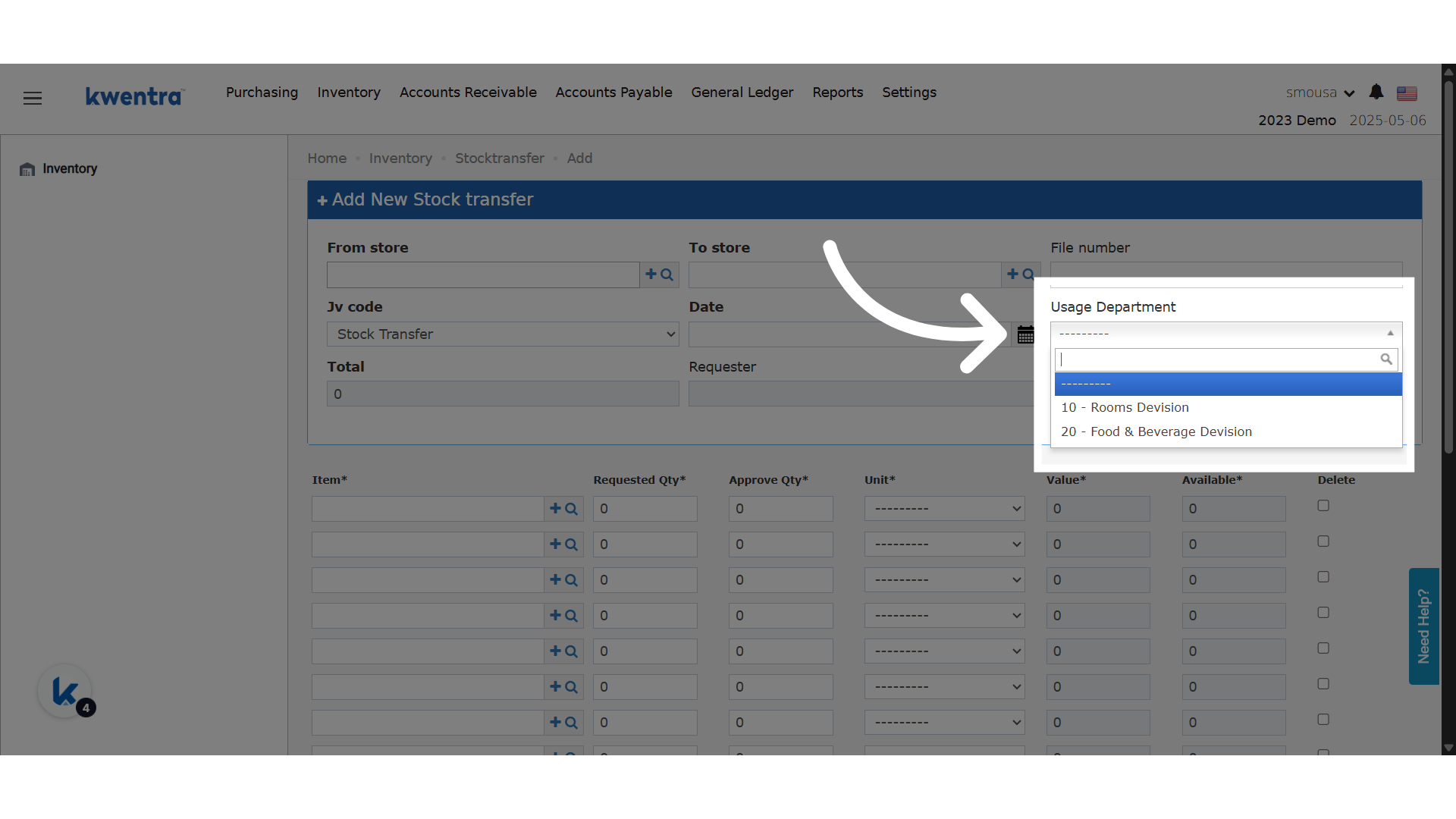
# Usage Department Field in Store Transfers with Division-Based Filtering

> New Usage Department Field in Store Transfers with Division-Based Filtering 💡 Business Value This enhancement ensures that store transfers are properly categorized and restricted based on departmen...

New Usage Department Field in Store Transfers with Division-Based Filtering

### **💡 Business Value**

This enhancement ensures that store transfers are properly categorized and restricted based on departmental structure. It gives teams clearer traceability of which departments are requesting transfers and enforces access control by linking the available departments to the user’s division. This results in fewer errors, improved accountability, and a tighter audit trail.

### **📌 Use Cases**

* The **engineering team** can only create or view store transfers for their department.
* A **user from the Housekeeping division** cannot assign a Kitchen usage department.
* Auditors can filter and track inventory movement by department with greater precision.

**Go to [manage.kwentra.com](https://manage.kwentra.com/)**

**Click "Back Office"**
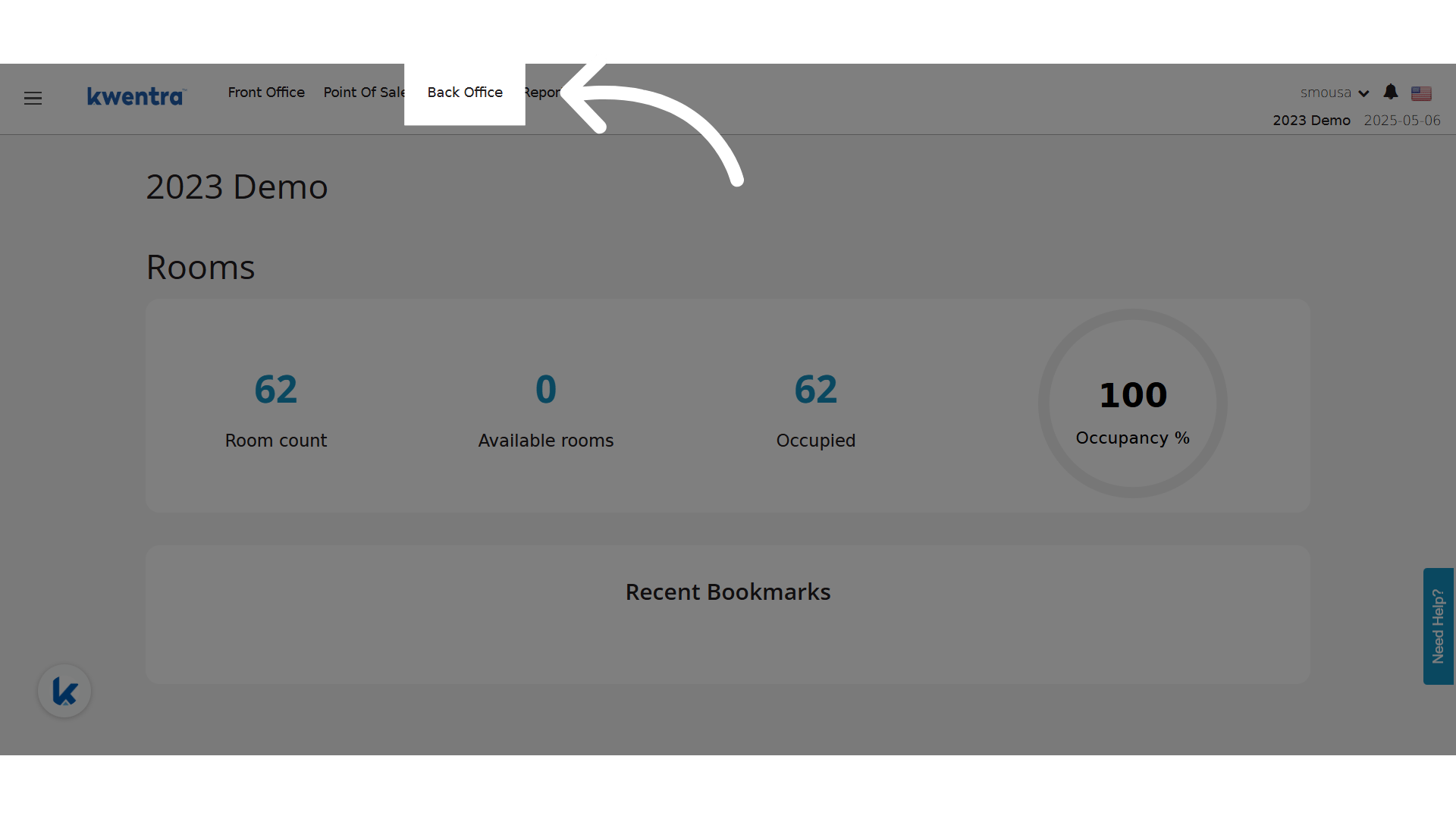
<img src="https://mintcdn.com/kwentra/3e0d2UvFkkEgL_9Q/images/back-office/inventory/usage-department-field-in-store-transfers-with-division-based-filtering/fdd4f401ab.png?fit=max&auto=format&n=3e0d2UvFkkEgL_9Q&q=85&s=61ec1da412cd4ca017047aeb4606d735" alt="preview" width="1920" height="1080" data-path="images/back-office/inventory/usage-department-field-in-store-transfers-with-division-based-filtering/fdd4f401ab.png" />

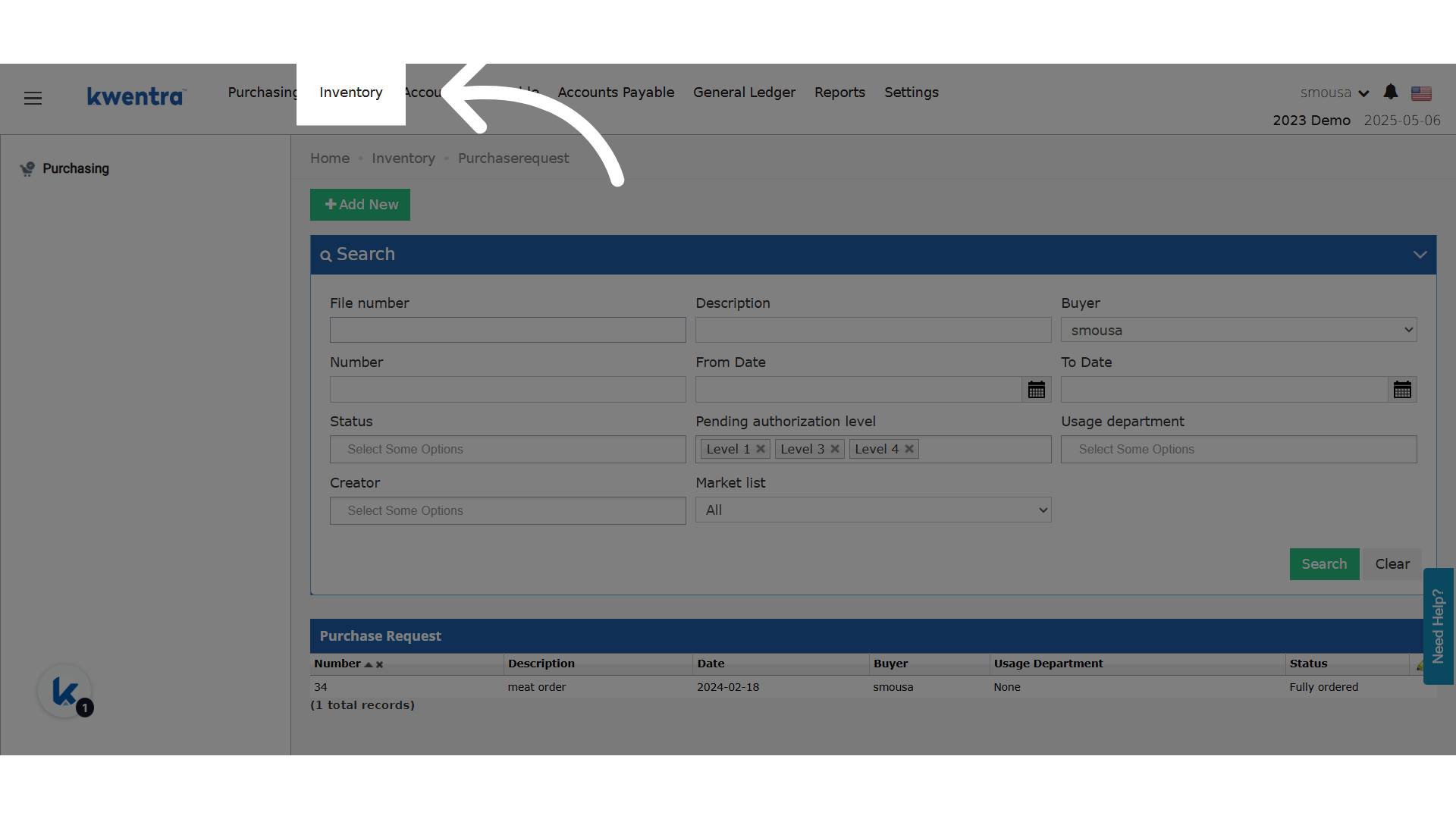
**Click "Inventory"**

<img src="https://mintcdn.com/kwentra/3e0d2UvFkkEgL_9Q/images/back-office/inventory/usage-department-field-in-store-transfers-with-division-based-filtering/26cd369966.png?fit=max&auto=format&n=3e0d2UvFkkEgL_9Q&q=85&s=8c174da4e82fee0ba7bc22b357620343" alt="preview" width="1920" height="1080" data-path="images/back-office/inventory/usage-department-field-in-store-transfers-with-division-based-filtering/26cd369966.png" />

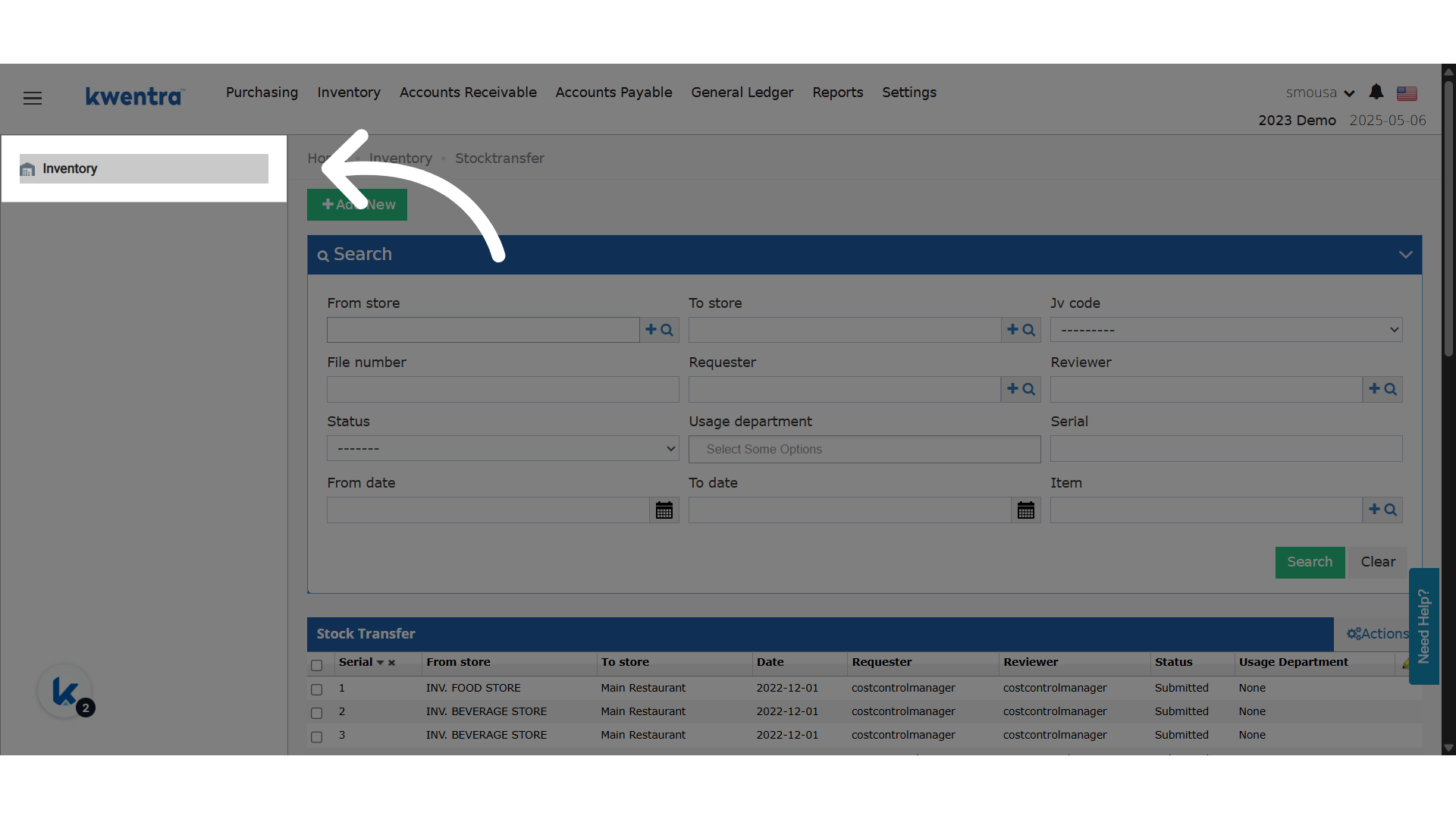
**Click "Inventory"**

<img src="https://mintcdn.com/kwentra/3e0d2UvFkkEgL_9Q/images/back-office/inventory/usage-department-field-in-store-transfers-with-division-based-filtering/958537afbd.png?fit=max&auto=format&n=3e0d2UvFkkEgL_9Q&q=85&s=d0e98908f39727727f94eff083398f50" alt="preview" width="1920" height="1080" data-path="images/back-office/inventory/usage-department-field-in-store-transfers-with-division-based-filtering/958537afbd.png" />

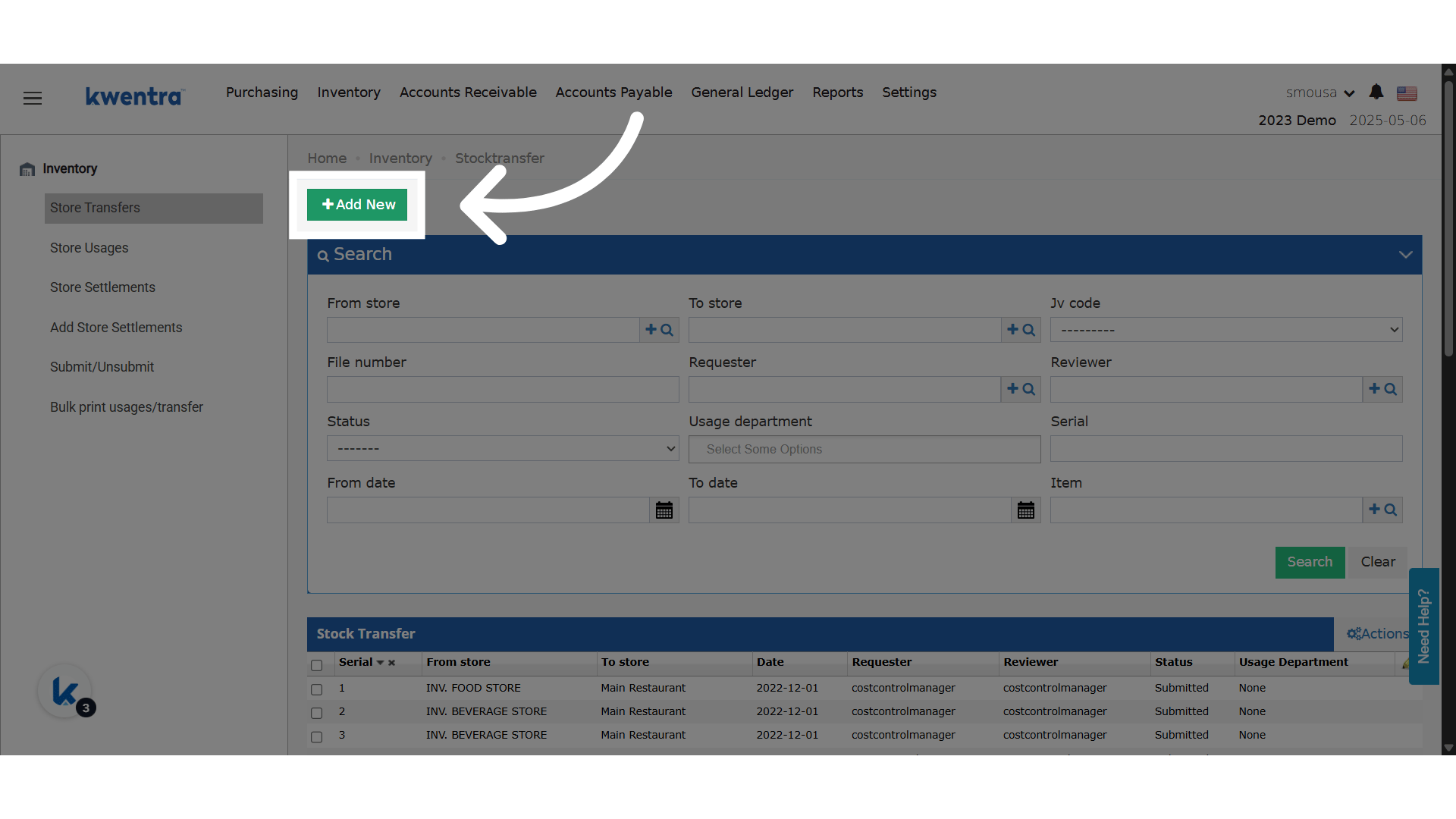
**Click "Add New"**

<img src="https://mintcdn.com/kwentra/3e0d2UvFkkEgL_9Q/images/back-office/inventory/usage-department-field-in-store-transfers-with-division-based-filtering/64d16c98d3.png?fit=max&auto=format&n=3e0d2UvFkkEgL_9Q&q=85&s=9ff89c003698e97decc67dc3cca4d302" alt="preview" width="1920" height="1080" data-path="images/back-office/inventory/usage-department-field-in-store-transfers-with-division-based-filtering/64d16c98d3.png" />

**Learn how to add Divisions to the system.**

Read more about
<img src="https://mintcdn.com/kwentra/3e0d2UvFkkEgL_9Q/images/back-office/inventory/usage-department-field-in-store-transfers-with-division-based-filtering/67a6a08e1a.png?fit=max&auto=format&n=3e0d2UvFkkEgL_9Q&q=85&s=2149fd1d11947dc15938a8d01b7e3505" alt="preview" width="1920" height="1080" data-path="images/back-office/inventory/usage-department-field-in-store-transfers-with-division-based-filtering/67a6a08e1a.png" />