> ## Documentation Index
> Fetch the complete documentation index at: https://help.kwentra.com/llms.txt
> Use this file to discover all available pages before exploring further.
# Add VAT Amount & Gross Amount to Purchase and Receiving Orders
> Quickly see VAT and gross amounts per item line in your PO and RO screens. 💡Business Value This enhancement provides better clarity and accuracy when managing taxes and order totals. By breaking do...
Quickly see VAT and gross amounts per item line in your PO and RO screens.
### **💡Business Value**
This enhancement provides better clarity and accuracy when managing taxes and order totals. By breaking down VAT and gross amounts per item, users can easily:
* Reconcile vendor invoices with system entries.
* Verify tax calculations at a glance.
* Ensure that order totals match the line-by-line breakdown.
### **🧭 Use Cases**
* **Purchasing Teams** can quickly validate the VAT charged by suppliers without needing external tools.
* **Finance Teams** can verify that the total VAT posted at the order level equals the sum of individual line VATs.
* **Auditors** get a more transparent breakdown of gross amounts.
**Go to [manage.kwentra.com](https://manage.kwentra.com/)**
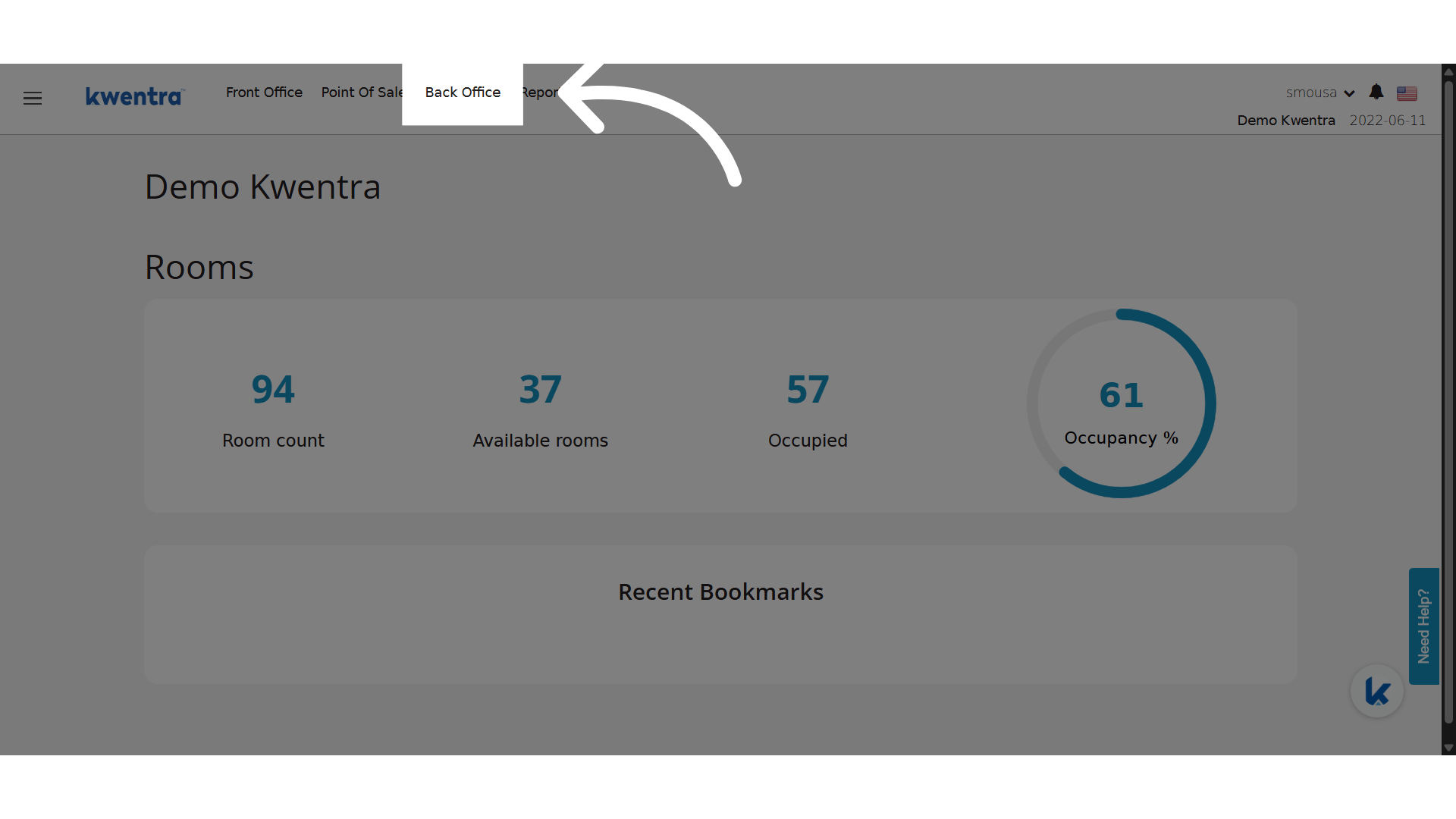
**Click "Back Office"**
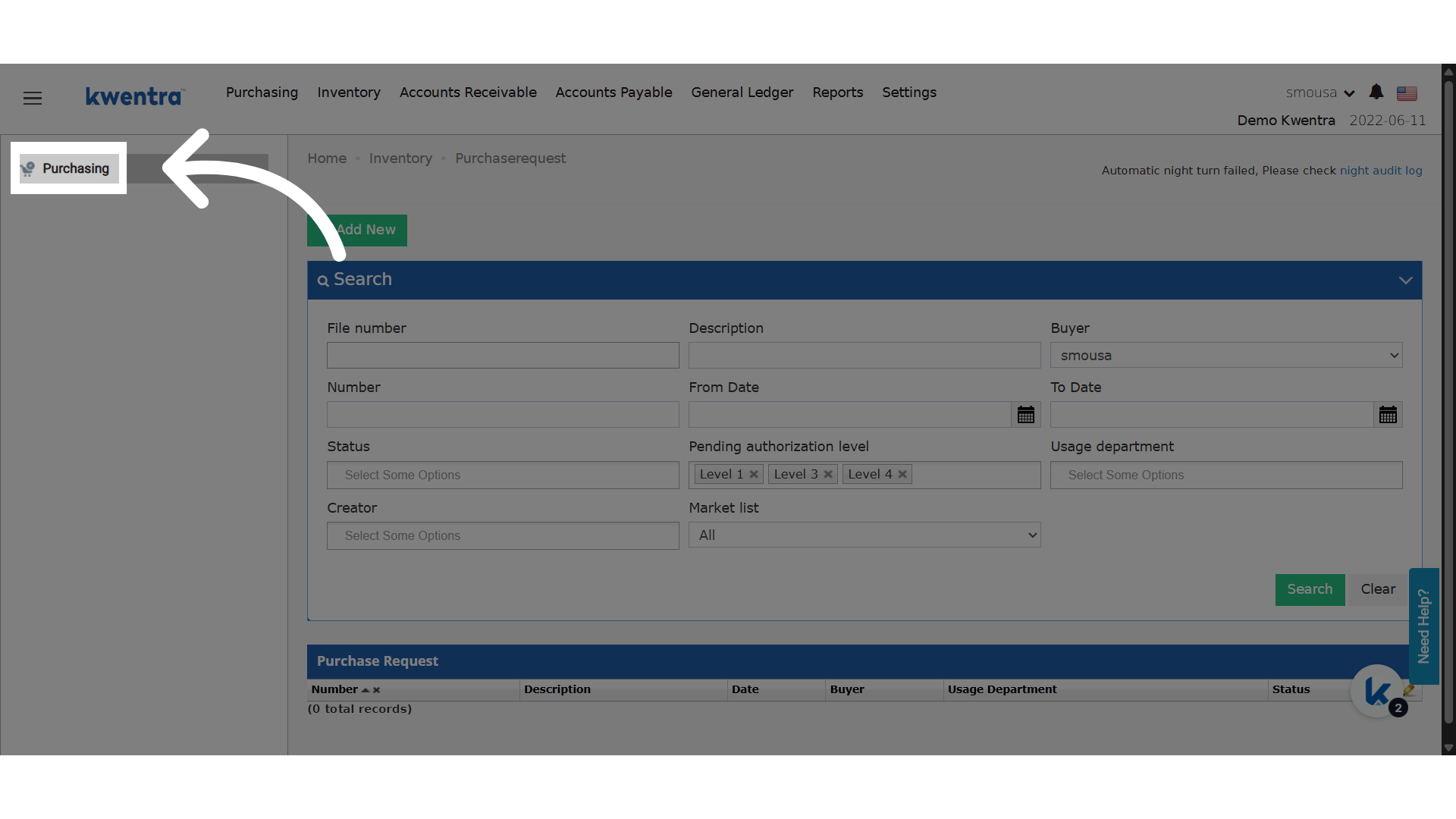
 **Click "Purchasing"**
This update affects the following processes:
* Back Office → Purchasing → Purchase Order
* Back Office → Purchasing → Receiving Order
**Click "Purchasing"**
This update affects the following processes:
* Back Office → Purchasing → Purchase Order
* Back Office → Purchasing → Receiving Order
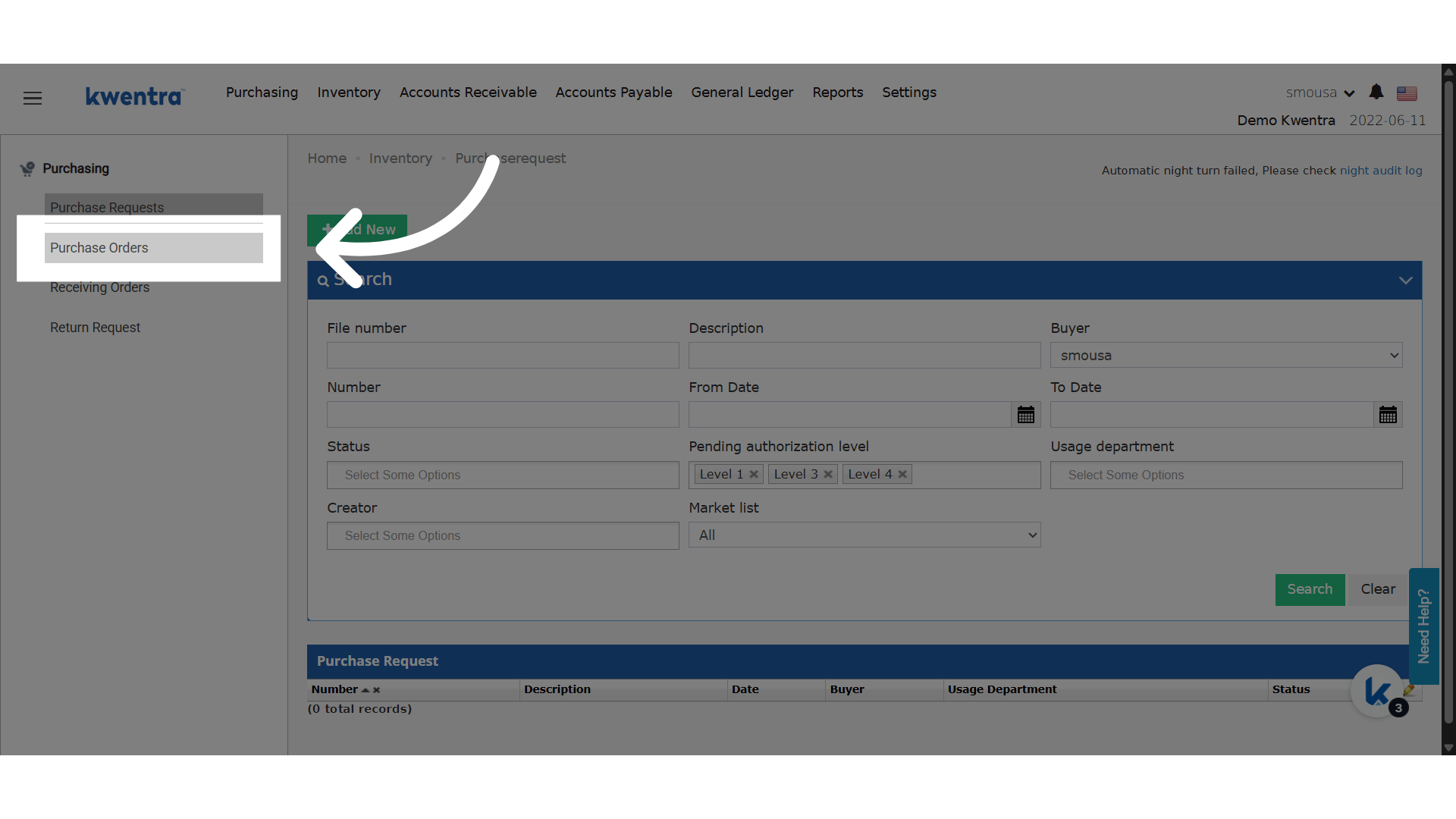
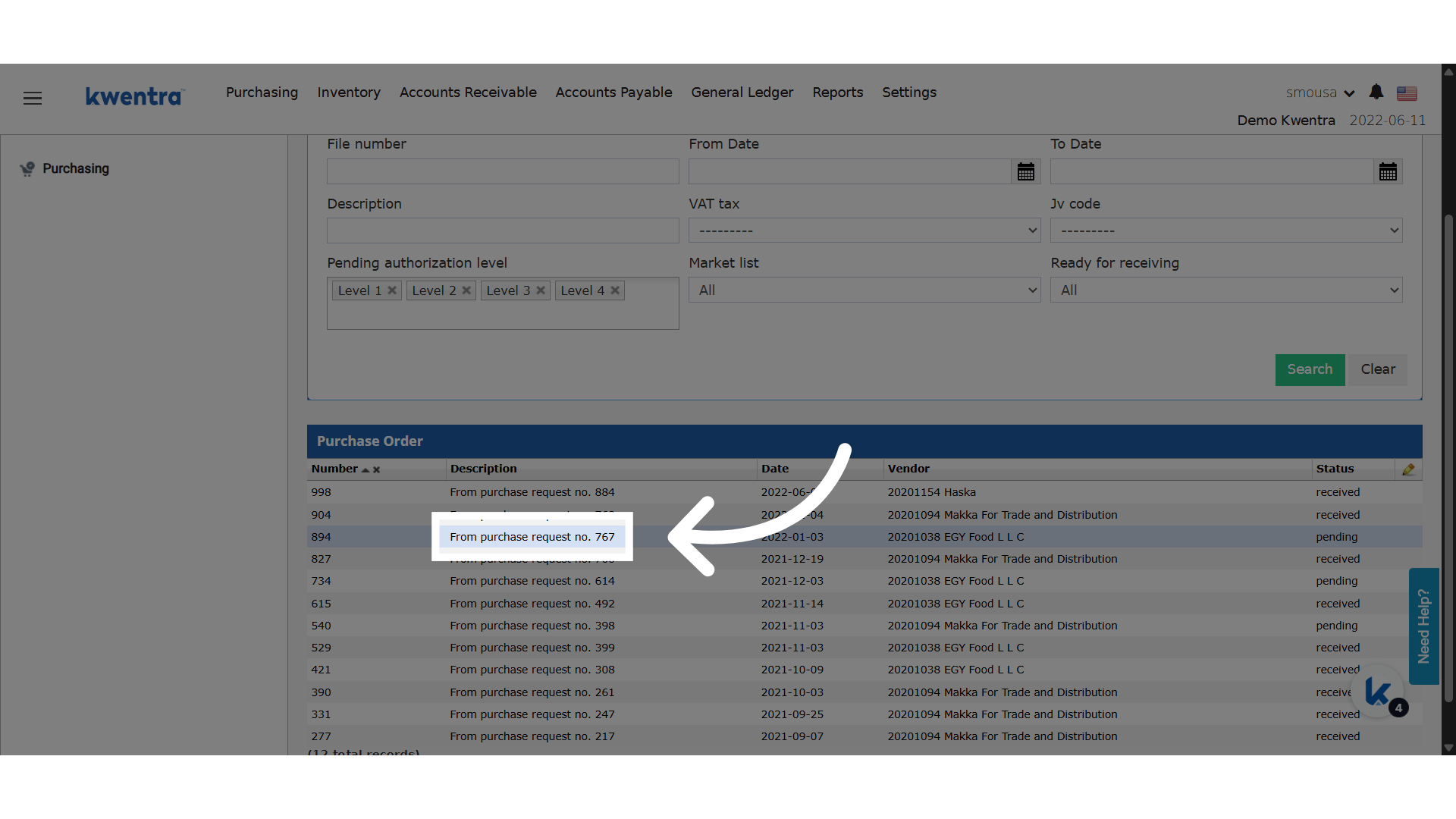
 **Click "Purchase Orders"**
 **Choose a PO**
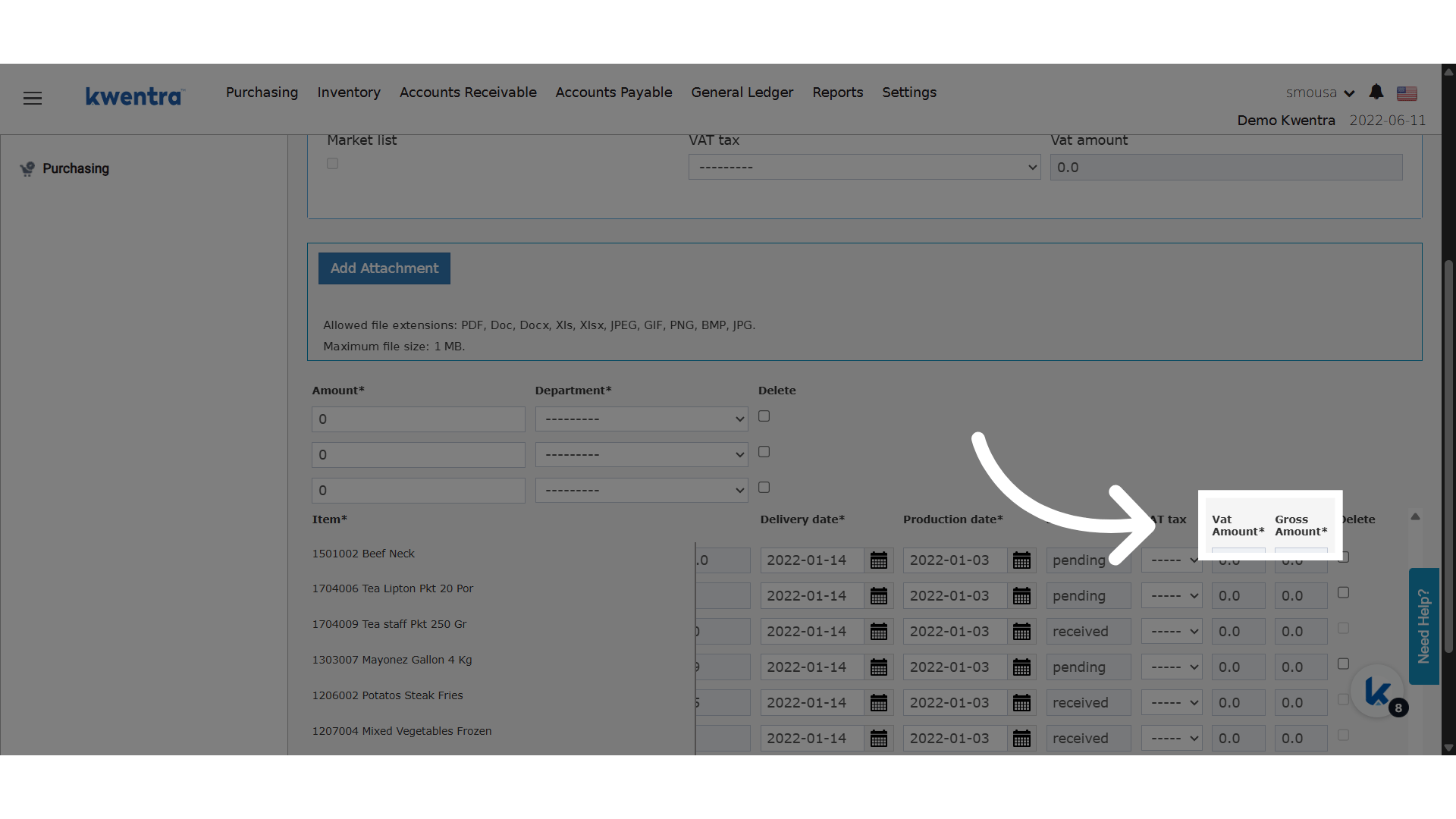
 ### **🆕 New Columns Added to Each Line Item:**
1. **VAT Amount**
* Shows the calculated VAT per item.
* **Read-only** field.
* Automatically derived from the VAT rate and item total.
* The sum of all VAT Amounts = “VAT Amount” at the order level.
2. **Gross Amount**
* Equals **Item Total Price + VAT Amount**.
* **Read-only** field.
* The sum of all Gross Amounts = “Total Store Amount” at the order level.
### **🆕 New Columns Added to Each Line Item:**
1. **VAT Amount**
* Shows the calculated VAT per item.
* **Read-only** field.
* Automatically derived from the VAT rate and item total.
* The sum of all VAT Amounts = “VAT Amount” at the order level.
2. **Gross Amount**
* Equals **Item Total Price + VAT Amount**.
* **Read-only** field.
* The sum of all Gross Amounts = “Total Store Amount” at the order level.