> ## Documentation Index
> Fetch the complete documentation index at: https://help.kwentra.com/llms.txt
> Use this file to discover all available pages before exploring further.
# Create a Purchase Order (PO)
> A Purchase Order or a PO is a document created by the Buyer for the seller which includes a list of the items you want to buy and the agreed upon prices in yourPurchase Request. A purchase order is...
A Purchase Order (PO) is a document created by the hotel (the buyer) for a supplier, listing all items you wish to purchase and their agreed-upon prices from your
A purchase order is created directly from your purchase requests. This means that any quantity or price added to the purchase request will be the same details that the PO will be created with.
### **How to Create a Purchase Order**
The process always starts from a Purchase Request.
**[Back Office → Purchasing → Purchase Requests → Select a Purchase Request](https://manage.kwentra.com/inventory/purchaserequest/)**
1. Select the Purchase Request you want to use to create your PO
2. Highlight the items you want to include in the new PO
3. Click **Create PO** (top right of the screen)
4. The PO is created with your selected items—you can now view and edit it
5. Review and confirm all items, quantities, and prices
6. Click **Save and Edit** when done
7. To print, click **Print** (top right)
8. You can choose which item statuses to display (approved, pending, or rejected)
9. Once items are delivered, start the
## ***UPDATE: 7th of September, 2025***
### **New Status “Partially Received” on Purchase Orders**
### **Operational Example**
You ordered 8 kitchen items. 5 arrived and are marked “Received,” 3 are still pending.
→ The PO will now show “Partially Received.”
→ The team knows at a glance which POs need follow-up.
### **What's New?**
* A new PO status: **Partially Received**.
* The system will show “Partially Received” when some line items in the PO are received, but at least one item is still pending.
* This status makes it easy to track which orders are still missing items—especially helpful for stores and finance teams.
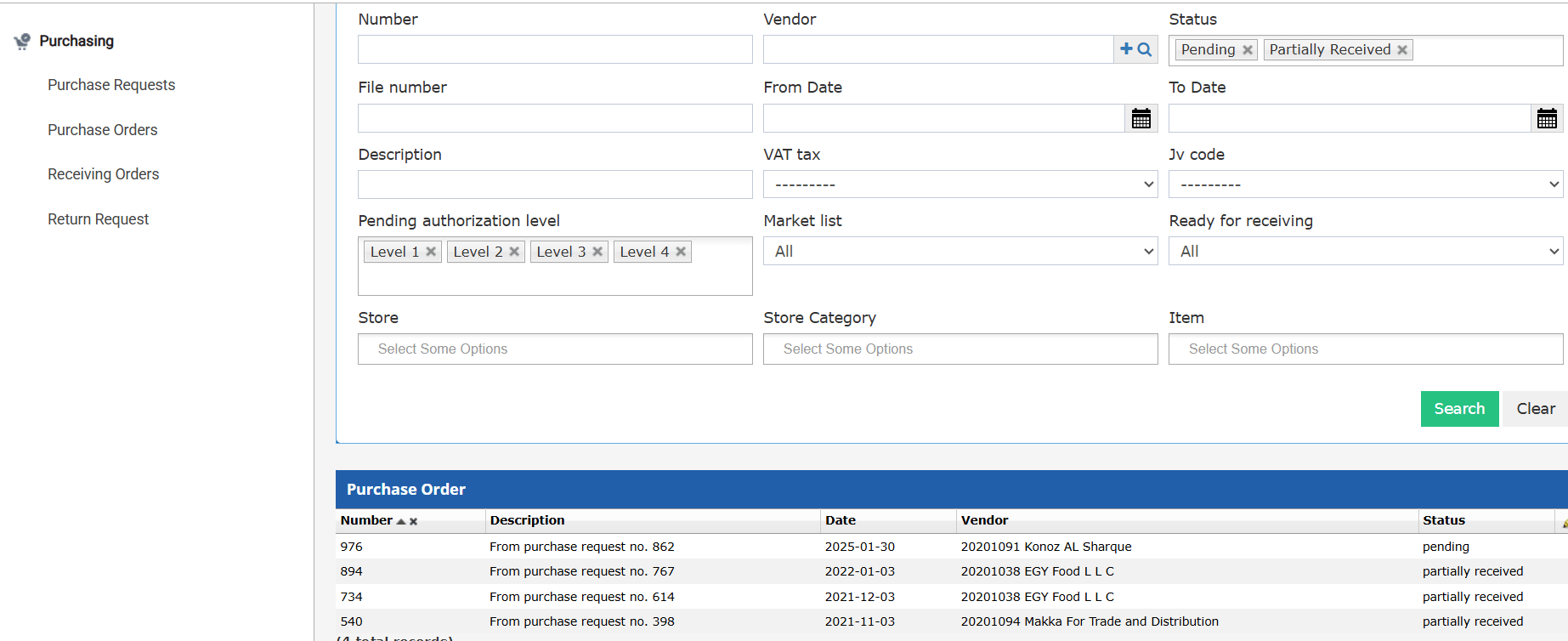
* You’ll see this status in the PO list and inside each PO. New filters allow you to view **Pending** and **Partially Received** orders directly.
### **PO Statuses Now Available:**
* ### **Pending:** All items pending, or some pending and some closed.
* **Received:** All items received.
* **Closed:** All items cancelled or not needed anymore.
* **Partially Received:** Some items received, and at least one item is still pending (others may be closed/cancelled).
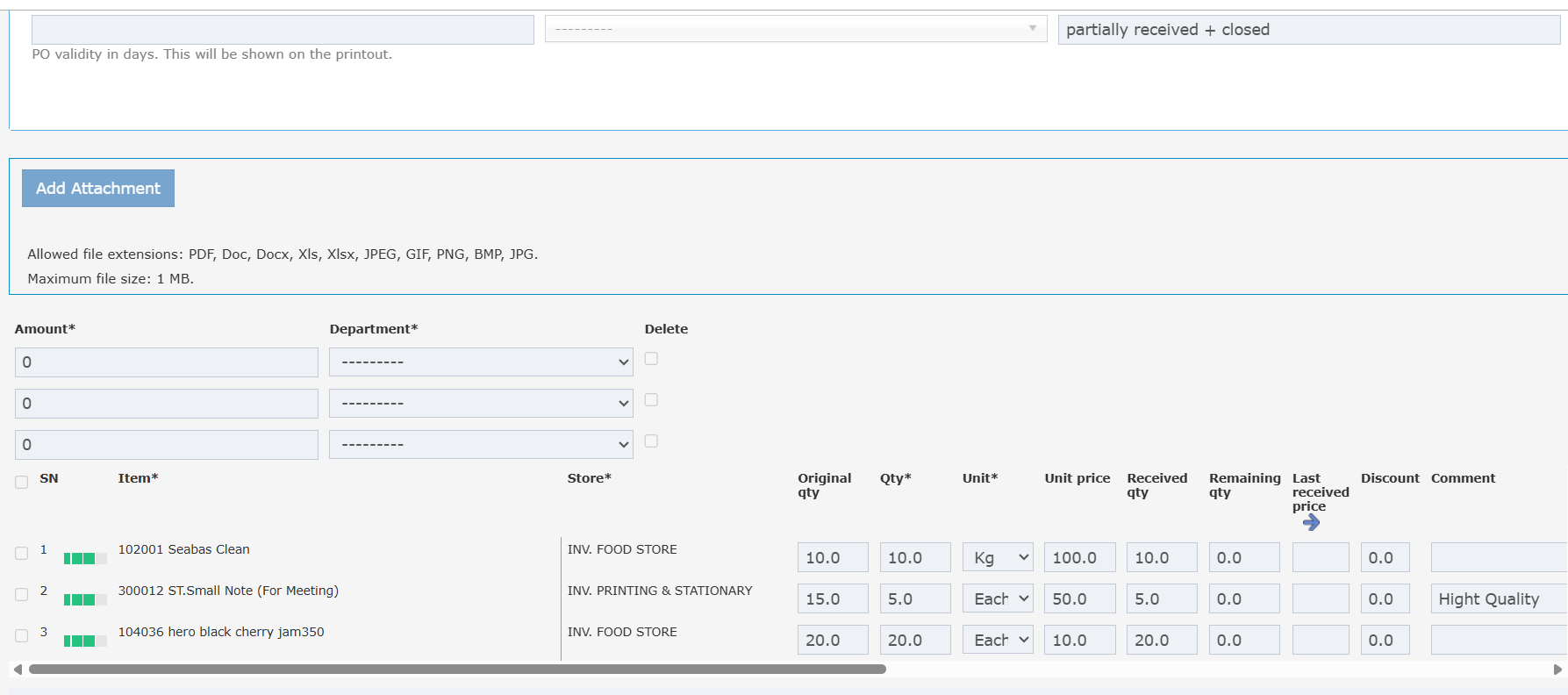
* **Partially Received + Closed:** Some items received, others closed.
 ## ***Update: 7th of December, 2025***
### **Purchase Order: Remaining Quantity Column**
**How it Works:**
* **New Column:** “Remaining Qty” appears next to “Qty” (ordered) and “Received Qty”.
* **Calculation:**
* Remaining Qty = Qty – Received Qty
* If Received Qty > Qty (allowed for market list items), Remaining Qty = 0 (never negative)
## ***Update: 7th of December, 2025***
### **Purchase Order: Remaining Quantity Column**
**How it Works:**
* **New Column:** “Remaining Qty” appears next to “Qty” (ordered) and “Received Qty”.
* **Calculation:**
* Remaining Qty = Qty – Received Qty
* If Received Qty > Qty (allowed for market list items), Remaining Qty = 0 (never negative)