> ## Documentation Index
> Fetch the complete documentation index at: https://help.kwentra.com/llms.txt
> Use this file to discover all available pages before exploring further.

# How to set a validity period for a purchase order?

> Easily add and track the validity period for each Purchase Order, with clear print and audit logging. Business Value: Clearly communicates how long a PO is valid to vendors and stakeholders. Reduce...

Easily add and track the validity period for each Purchase Order, with clear print and audit logging.

### **Business Value:**

* Clearly communicates how long a PO is valid to vendors and stakeholders.
* Reduces the risk of vendors fulfilling outdated or expired orders.
* Enables automated tracking and auditing of any changes to PO validity.
* Ensures procurement process compliance and transparency.

### **Use Cases:**

* A procurement manager wants to ensure a supplier is aware that the PO is only valid for 30 days from its date.
* An auditor checks the PO history to see if/when the validity period was updated or removed.
* The finance team references printed POs to verify that orders were placed and fulfilled within the validity period.

**Go to [manage.kwentra.com](https://manage.kwentra.com/)**

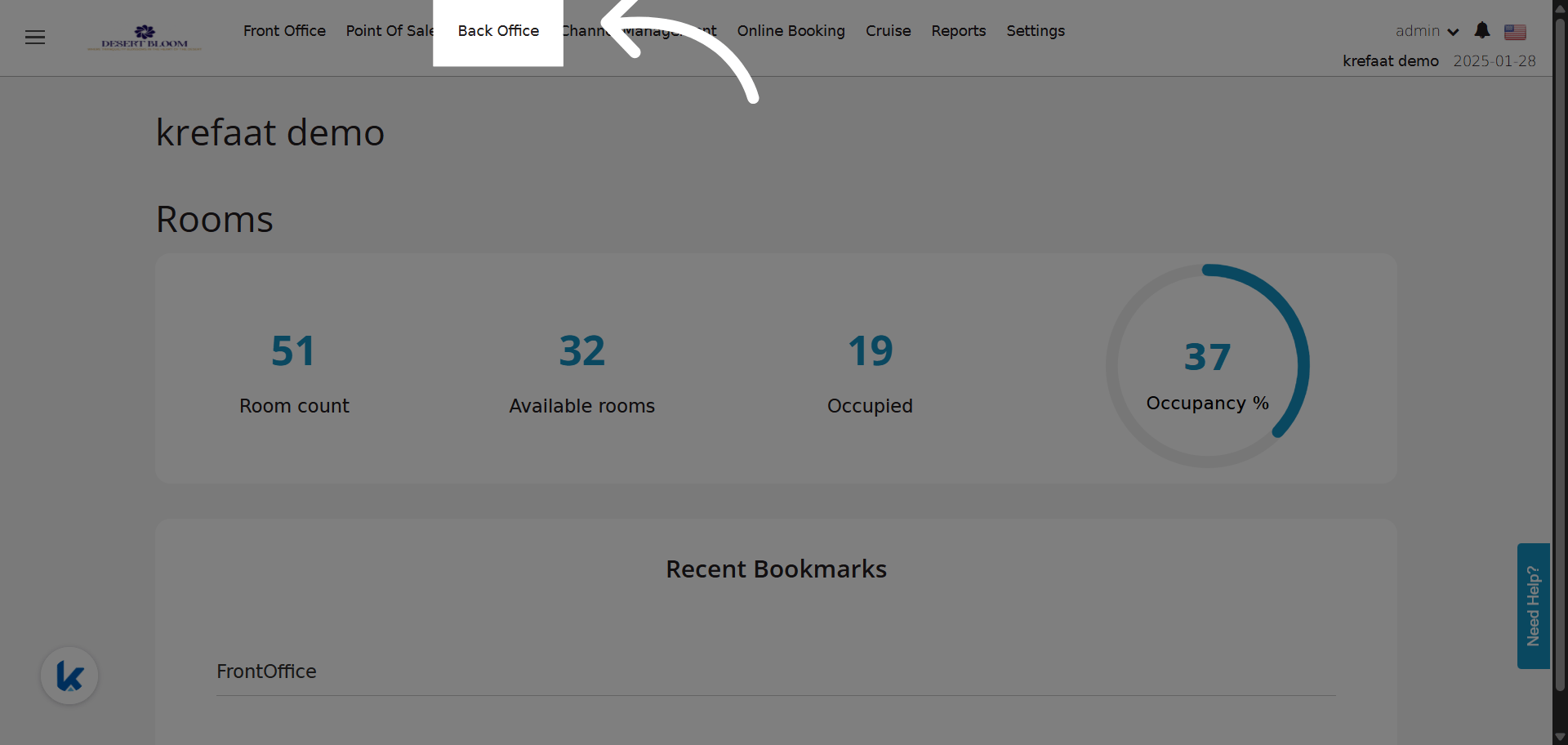
**Click "Back Office"**
<img src="https://mintcdn.com/kwentra/_A00lzToQoxuud5b/images/back-office/purchasing/how-to-set-a-validity-period-for-a-purchase-order/34a84e8fd1.png?fit=max&auto=format&n=_A00lzToQoxuud5b&q=85&s=80c71bc030c633876cbf5e7401d71294" alt="preview" width="1920" height="912" data-path="images/back-office/purchasing/how-to-set-a-validity-period-for-a-purchase-order/34a84e8fd1.png" />

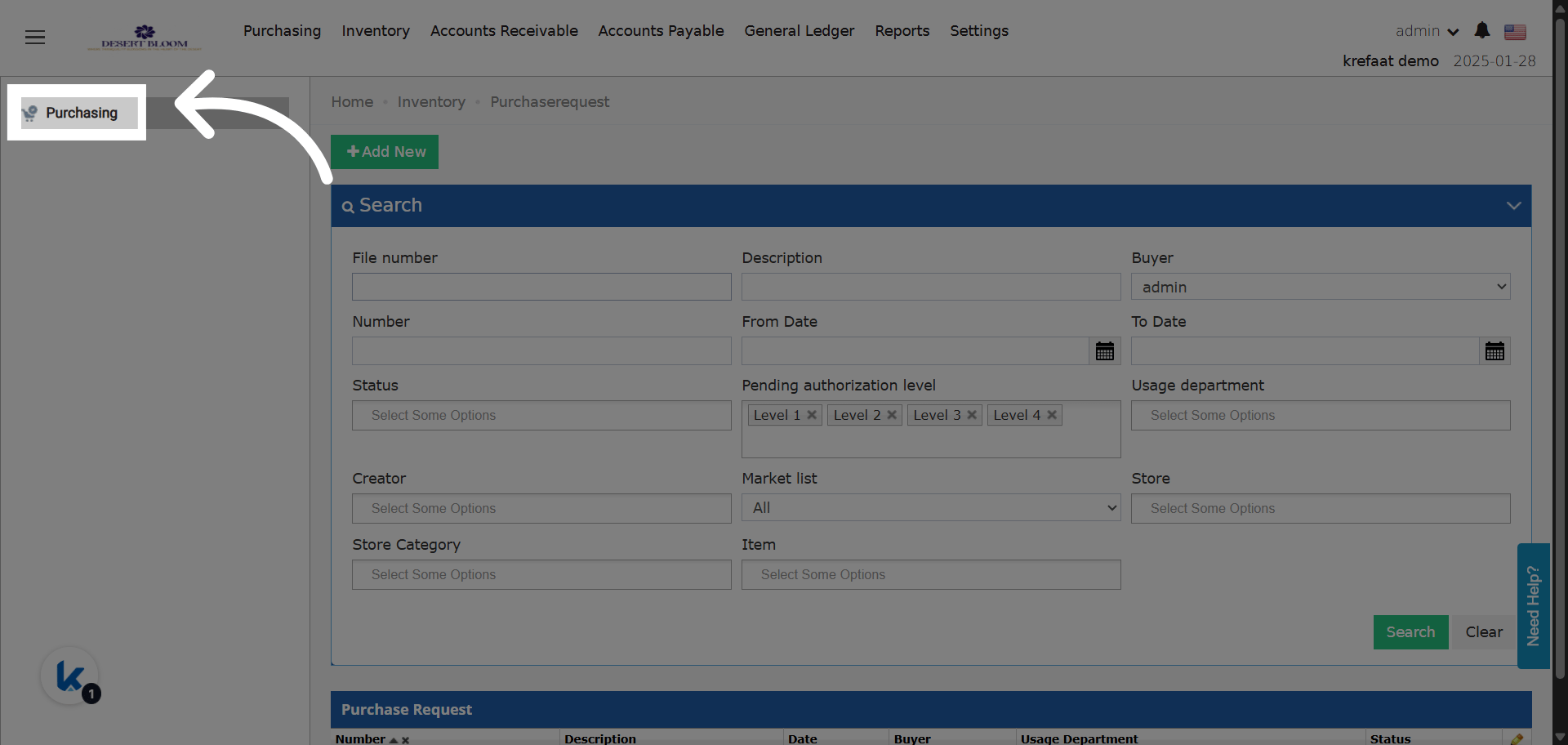
Go to "Purchasing"

<img src="https://mintcdn.com/kwentra/_A00lzToQoxuud5b/images/back-office/purchasing/how-to-set-a-validity-period-for-a-purchase-order/b943198460.png?fit=max&auto=format&n=_A00lzToQoxuud5b&q=85&s=04b7ae9ce10dc090c777aaf2b8e61c18" alt="preview" width="1920" height="912" data-path="images/back-office/purchasing/how-to-set-a-validity-period-for-a-purchase-order/b943198460.png" />

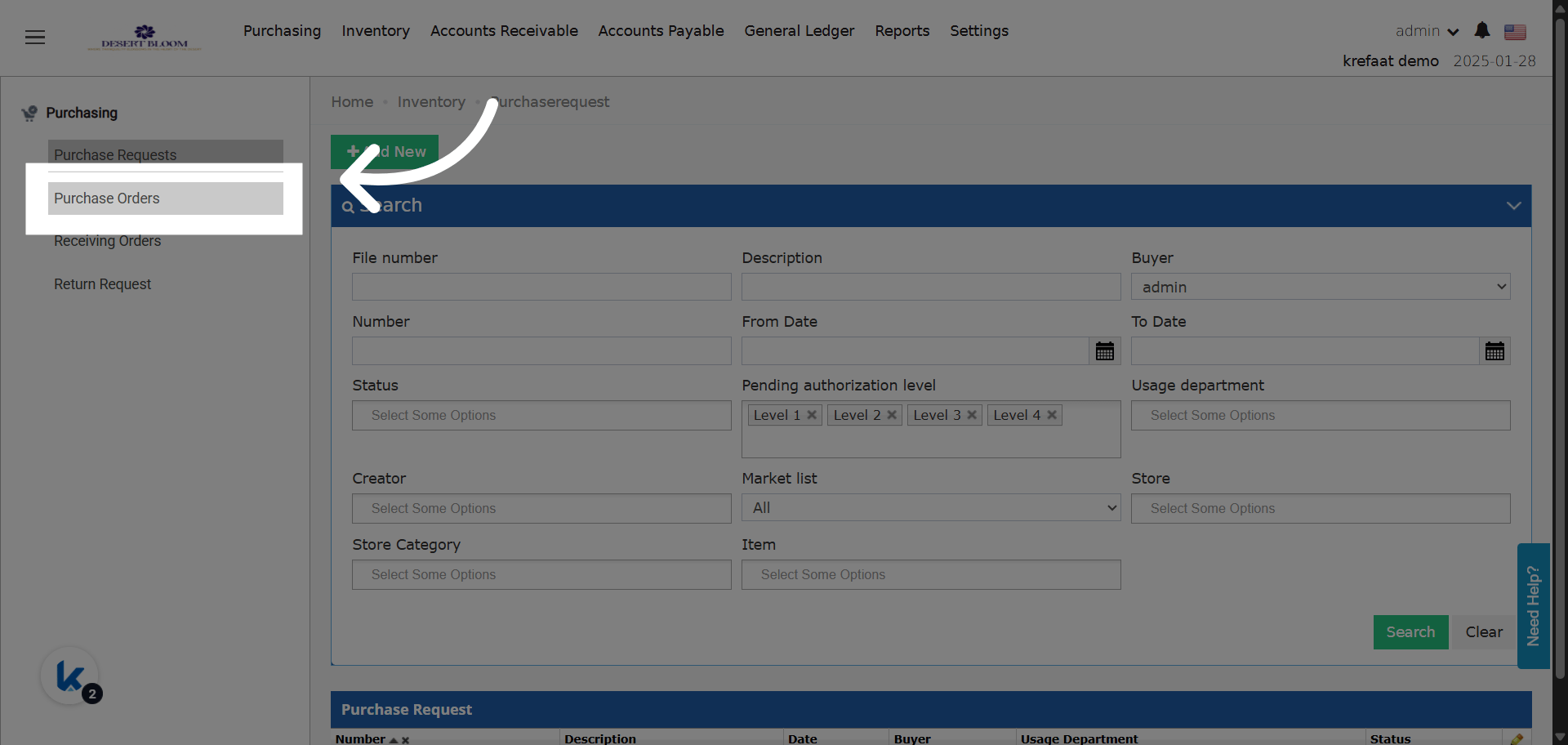
Click "Purchase Orders"

<img src="https://mintcdn.com/kwentra/_A00lzToQoxuud5b/images/back-office/purchasing/how-to-set-a-validity-period-for-a-purchase-order/3bd08cdb9c.png?fit=max&auto=format&n=_A00lzToQoxuud5b&q=85&s=255112c62402aac6bbb290edff790415" alt="preview" width="1920" height="912" data-path="images/back-office/purchasing/how-to-set-a-validity-period-for-a-purchase-order/3bd08cdb9c.png" />

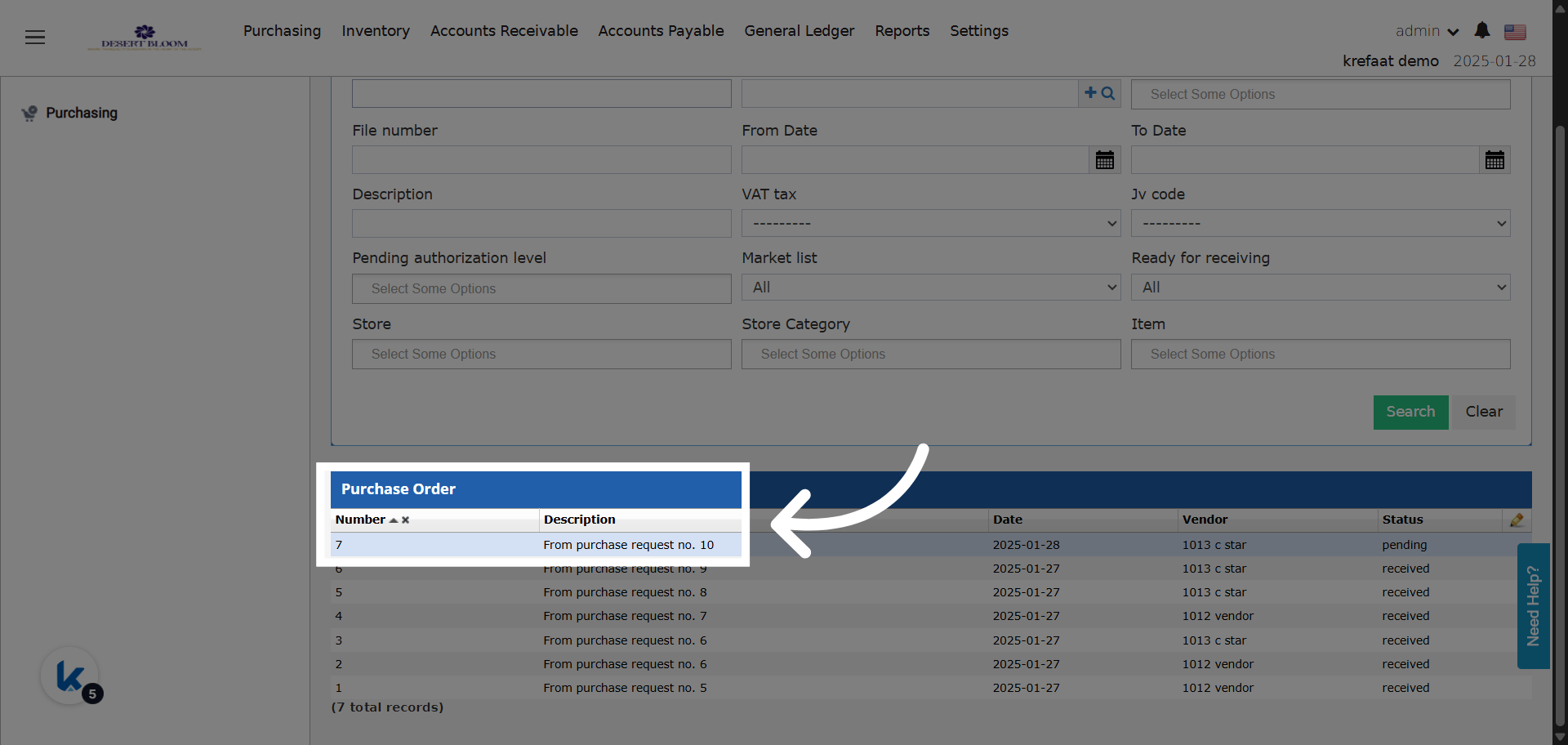
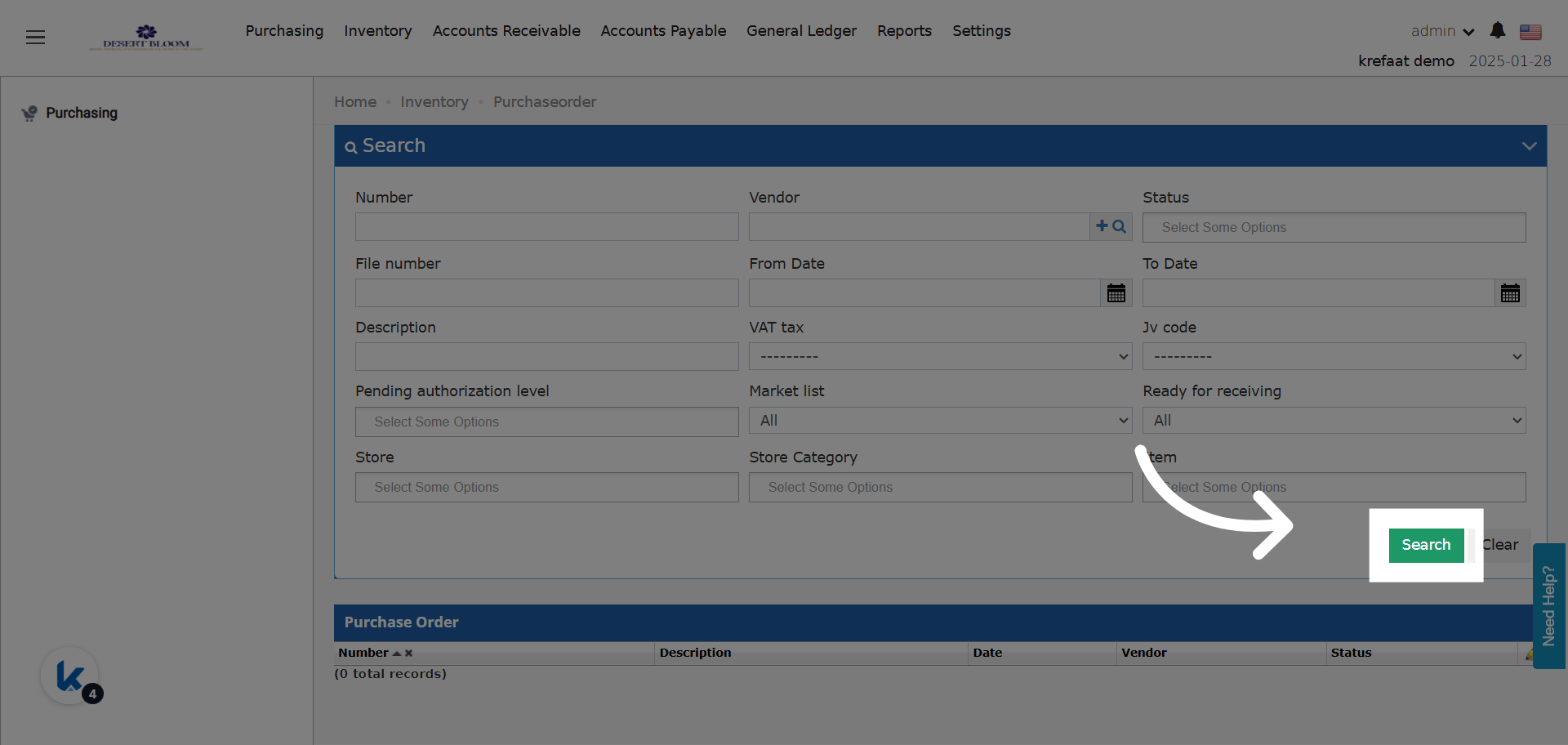
Search for any PO

You might need to clear the search first to get all the data you need.
<img src="https://mintcdn.com/kwentra/_A00lzToQoxuud5b/images/back-office/purchasing/how-to-set-a-validity-period-for-a-purchase-order/cf410abcaa.png?fit=max&auto=format&n=_A00lzToQoxuud5b&q=85&s=6f5560d64bf9ece58153fca8ab60ab37" alt="preview" width="1920" height="912" data-path="images/back-office/purchasing/how-to-set-a-validity-period-for-a-purchase-order/cf410abcaa.png" />

Open PO

<img src="https://mintcdn.com/kwentra/_A00lzToQoxuud5b/images/back-office/purchasing/how-to-set-a-validity-period-for-a-purchase-order/e855697d6c.png?fit=max&auto=format&n=_A00lzToQoxuud5b&q=85&s=a0545d7f3cfc6bfe3c044d4503b7847f" alt="preview" width="1920" height="912" data-path="images/back-office/purchasing/how-to-set-a-validity-period-for-a-purchase-order/e855697d6c.png" />

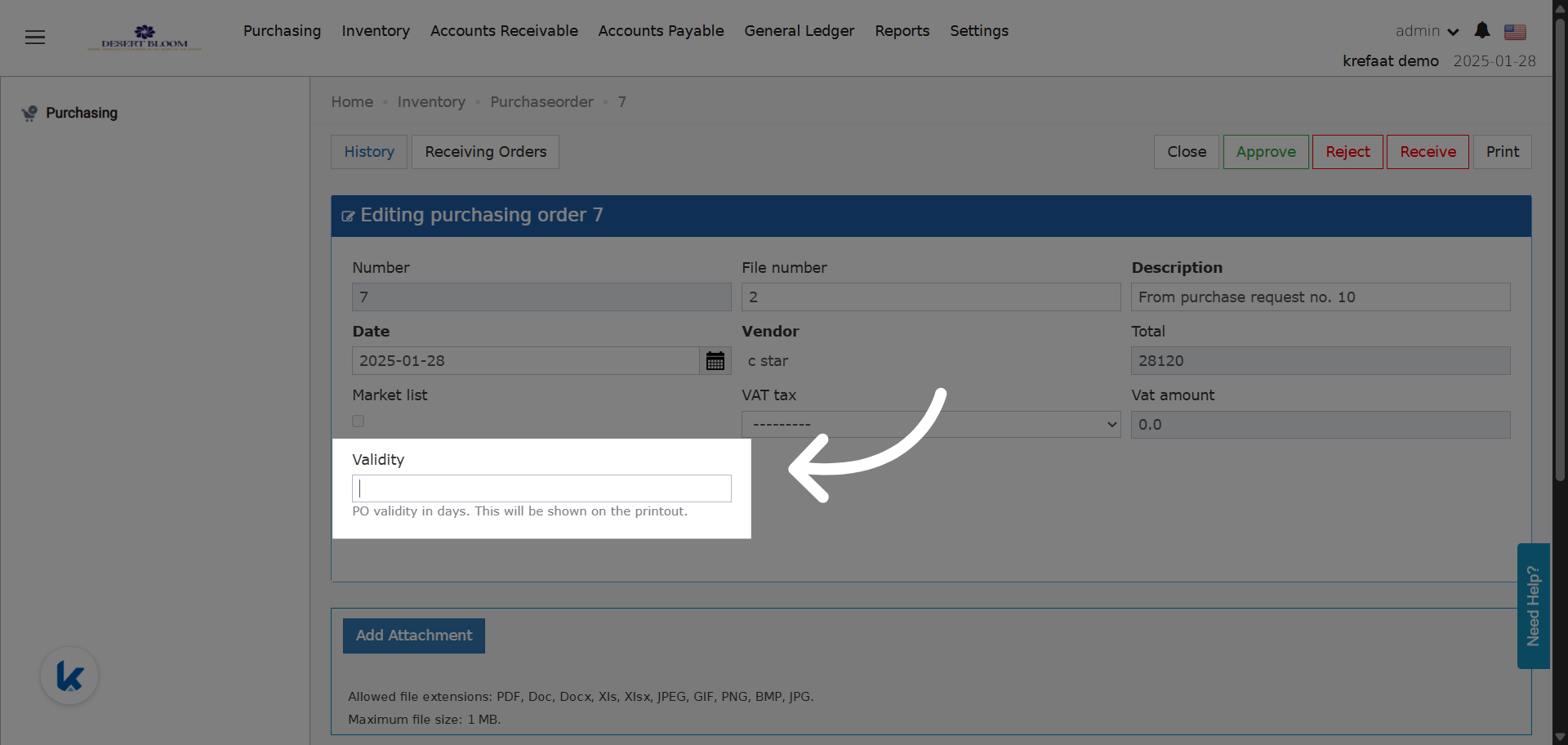
### **New Validity Field!**

**Field Behavior:**

* **Field Name:** Validity
* **Type:** Number field (accepts only positive integers).
* **Function:**

  * When a number is entered, it indicates how many days the PO is valid from the PO date.
  * If left empty, no validity period is displayed or applied.

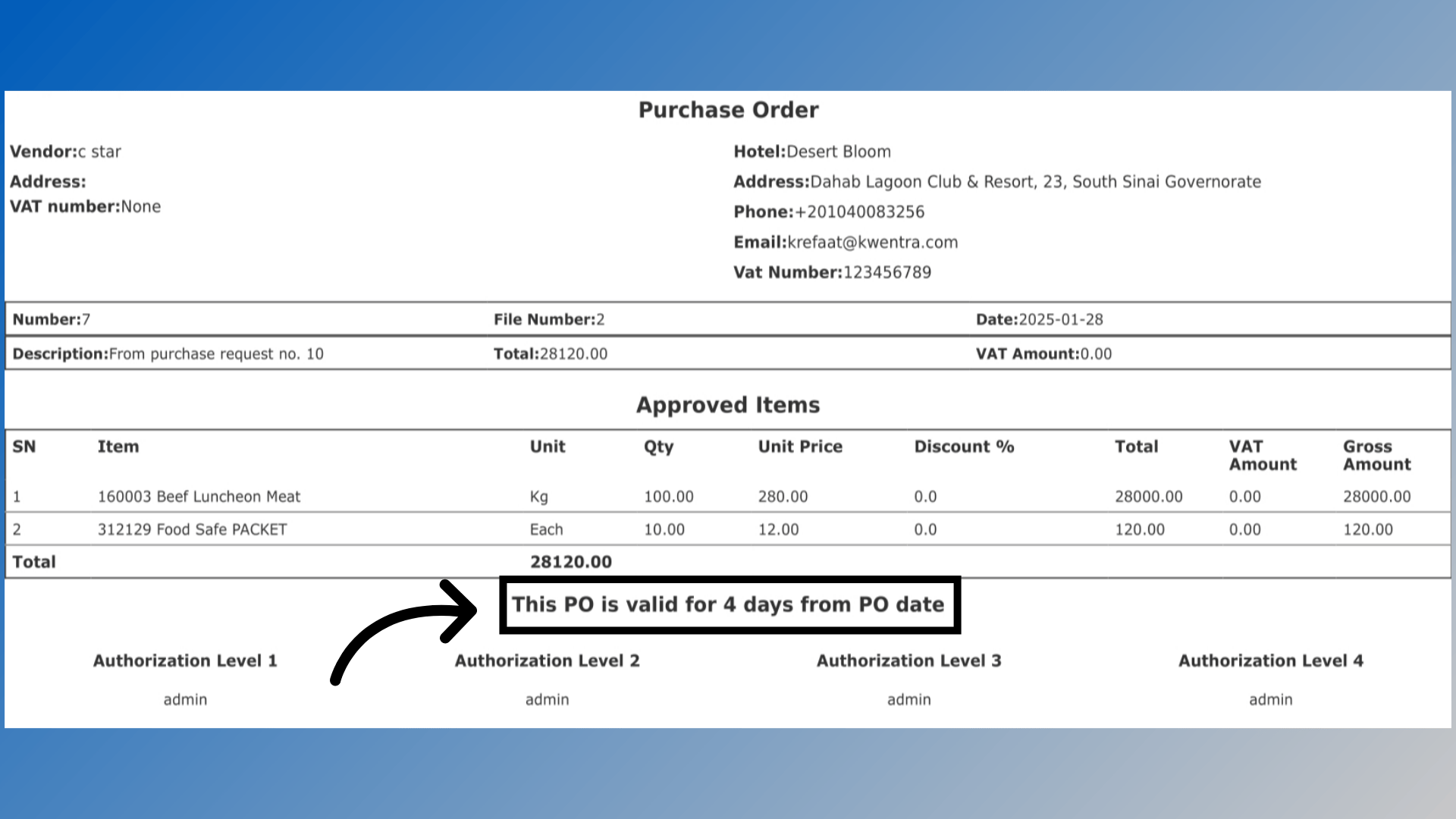
**Printing Changes:**

* **If Validity is entered:**

  * PO printout will include a new line (under the items table, before signatures):

    > “This PO is valid for **X** days from PO date.”
* **If left empty:**

  * This line is not shown on the printout.
<img src="https://mintcdn.com/kwentra/_A00lzToQoxuud5b/images/back-office/purchasing/how-to-set-a-validity-period-for-a-purchase-order/e850d8c0a8.png?fit=max&auto=format&n=_A00lzToQoxuud5b&q=85&s=bf95c58b4bc905295c533142e74f372f" alt="preview" width="1920" height="912" data-path="images/back-office/purchasing/how-to-set-a-validity-period-for-a-purchase-order/e850d8c0a8.png" />

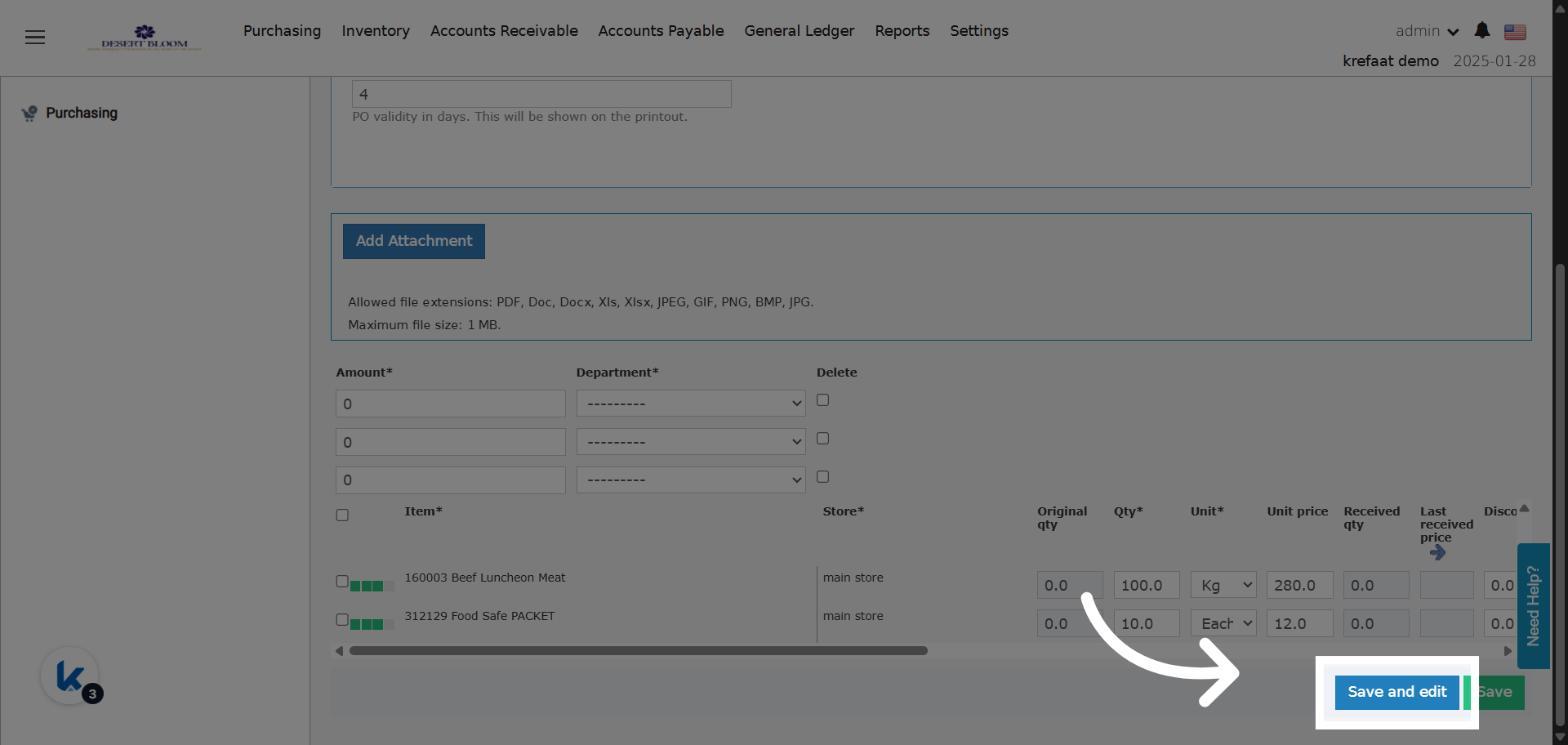
You must save your changes

<img src="https://mintcdn.com/kwentra/_A00lzToQoxuud5b/images/back-office/purchasing/how-to-set-a-validity-period-for-a-purchase-order/579763aaab.png?fit=max&auto=format&n=_A00lzToQoxuud5b&q=85&s=5dbac2e7c52976721ffff7422a5da4fe" alt="preview" width="1920" height="912" data-path="images/back-office/purchasing/how-to-set-a-validity-period-for-a-purchase-order/579763aaab.png" />

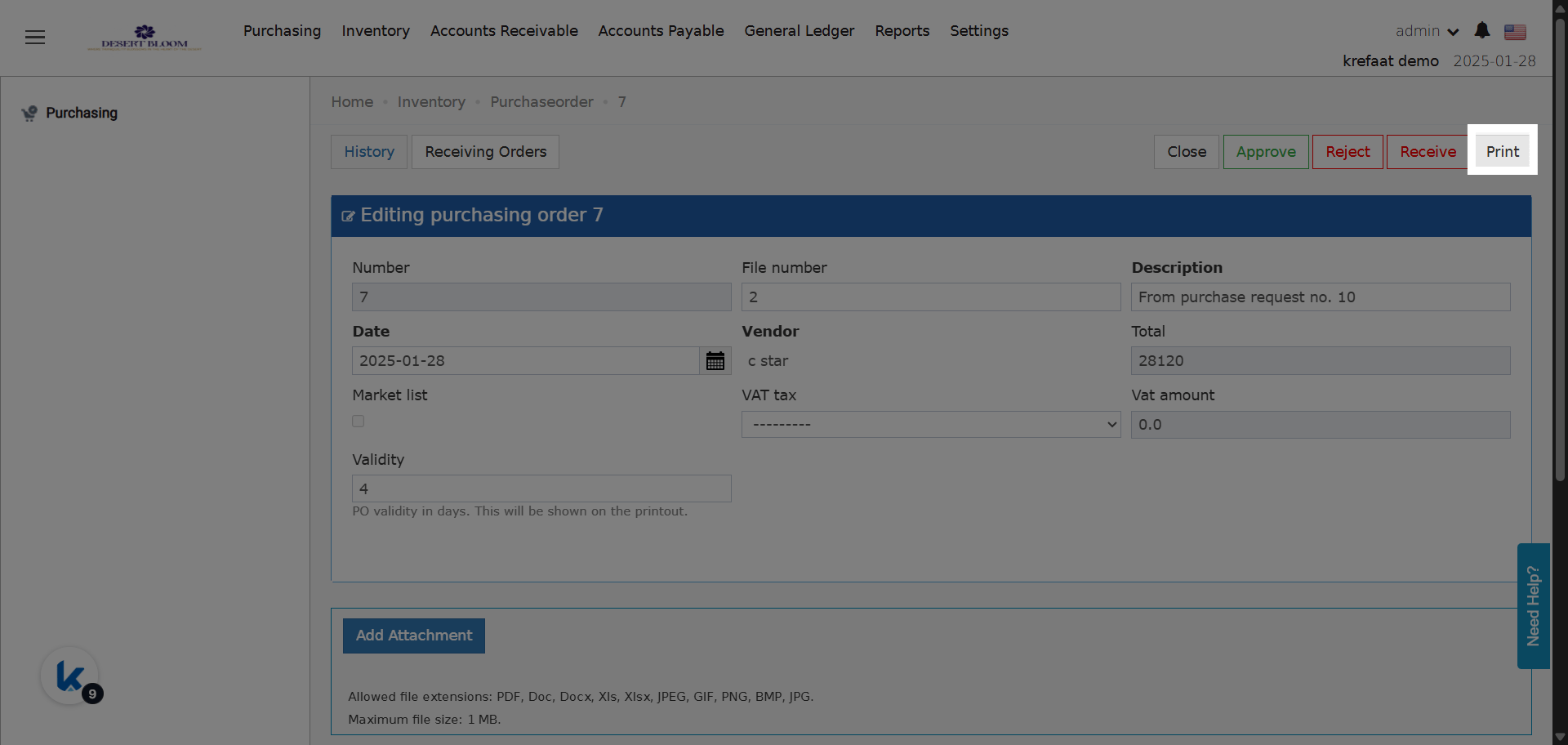
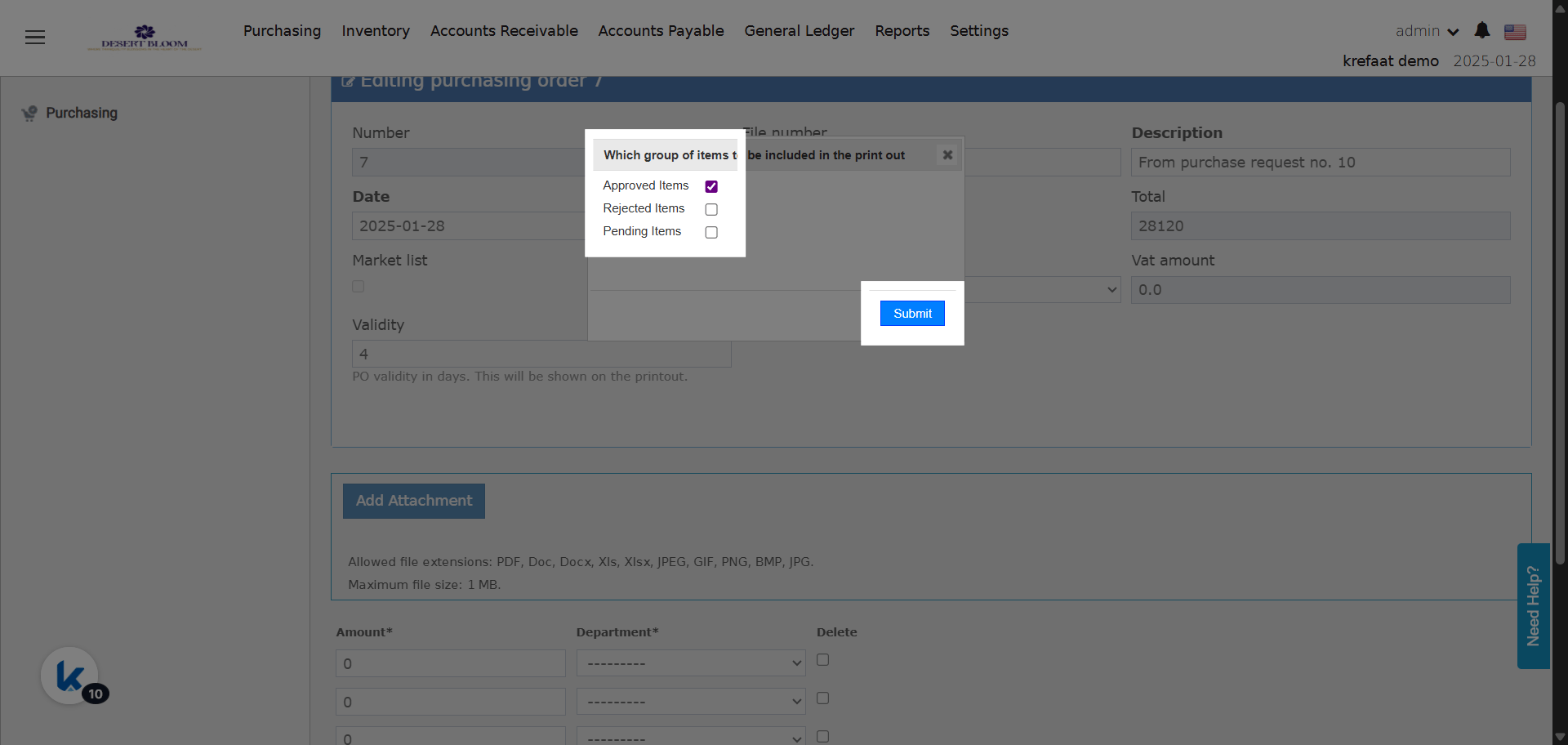
Open the Print Dialogue

<img src="https://mintcdn.com/kwentra/_A00lzToQoxuud5b/images/back-office/purchasing/how-to-set-a-validity-period-for-a-purchase-order/519c56ec52.png?fit=max&auto=format&n=_A00lzToQoxuud5b&q=85&s=04b27112effb2be4617d21bd814671d4" alt="preview" width="1920" height="912" data-path="images/back-office/purchasing/how-to-set-a-validity-period-for-a-purchase-order/519c56ec52.png" />

Choose the items you want to show in the printout, then **Submit**
<img src="https://mintcdn.com/kwentra/_A00lzToQoxuud5b/images/back-office/purchasing/how-to-set-a-validity-period-for-a-purchase-order/33f6c9a2ba.png?fit=max&auto=format&n=_A00lzToQoxuud5b&q=85&s=e637cee63a49c2826420b32b40baf890" alt="preview" width="1920" height="912" data-path="images/back-office/purchasing/how-to-set-a-validity-period-for-a-purchase-order/33f6c9a2ba.png" />

PO Printout with its validity duration in days
<img src="https://mintcdn.com/kwentra/_A00lzToQoxuud5b/images/back-office/purchasing/how-to-set-a-validity-period-for-a-purchase-order/c1e9b902d3.png?fit=max&auto=format&n=_A00lzToQoxuud5b&q=85&s=f8f1fccc75f6ee63d02ff3f2ef51ba40" alt="preview" width="1920" height="1080" data-path="images/back-office/purchasing/how-to-set-a-validity-period-for-a-purchase-order/c1e9b902d3.png" />

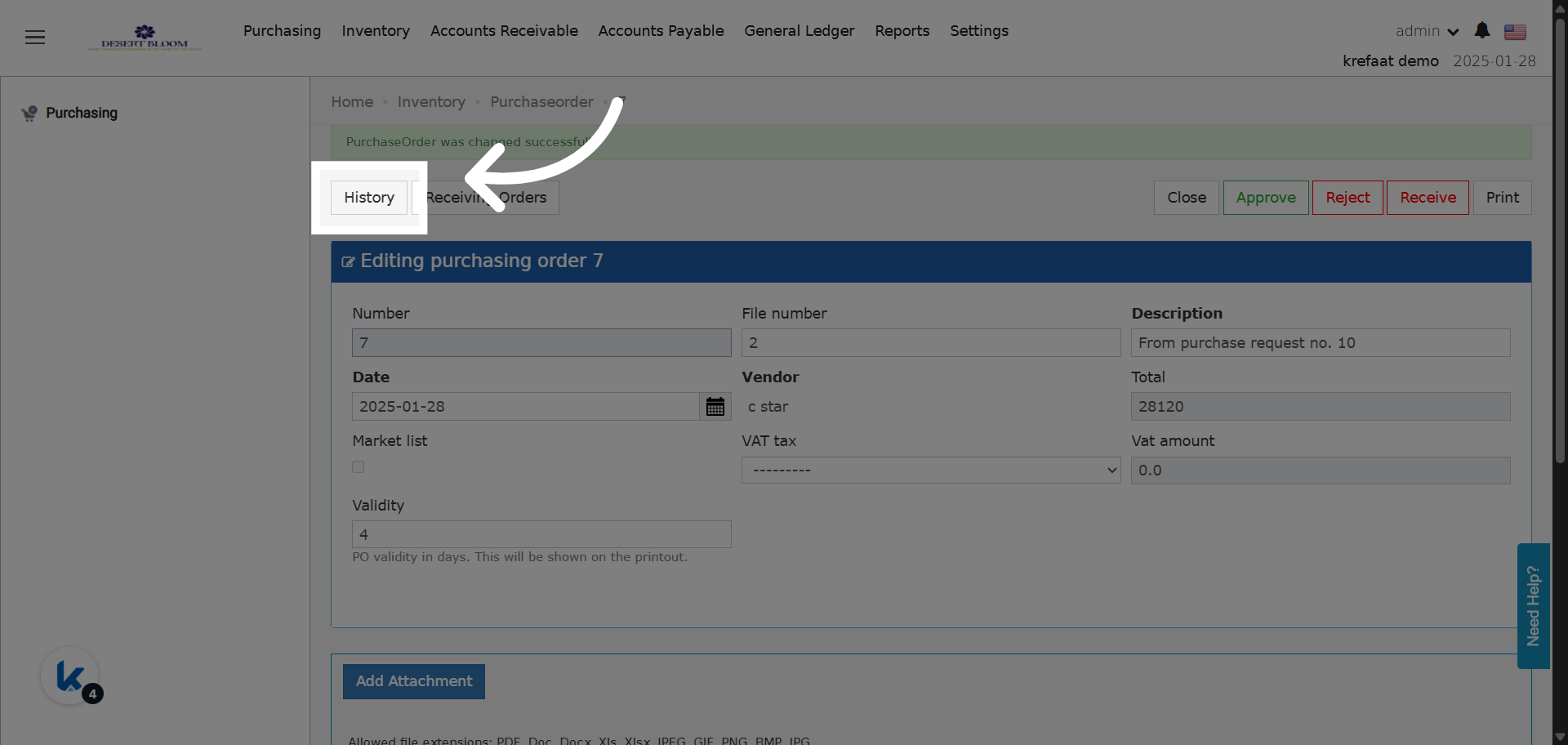
### **Audit Logging**

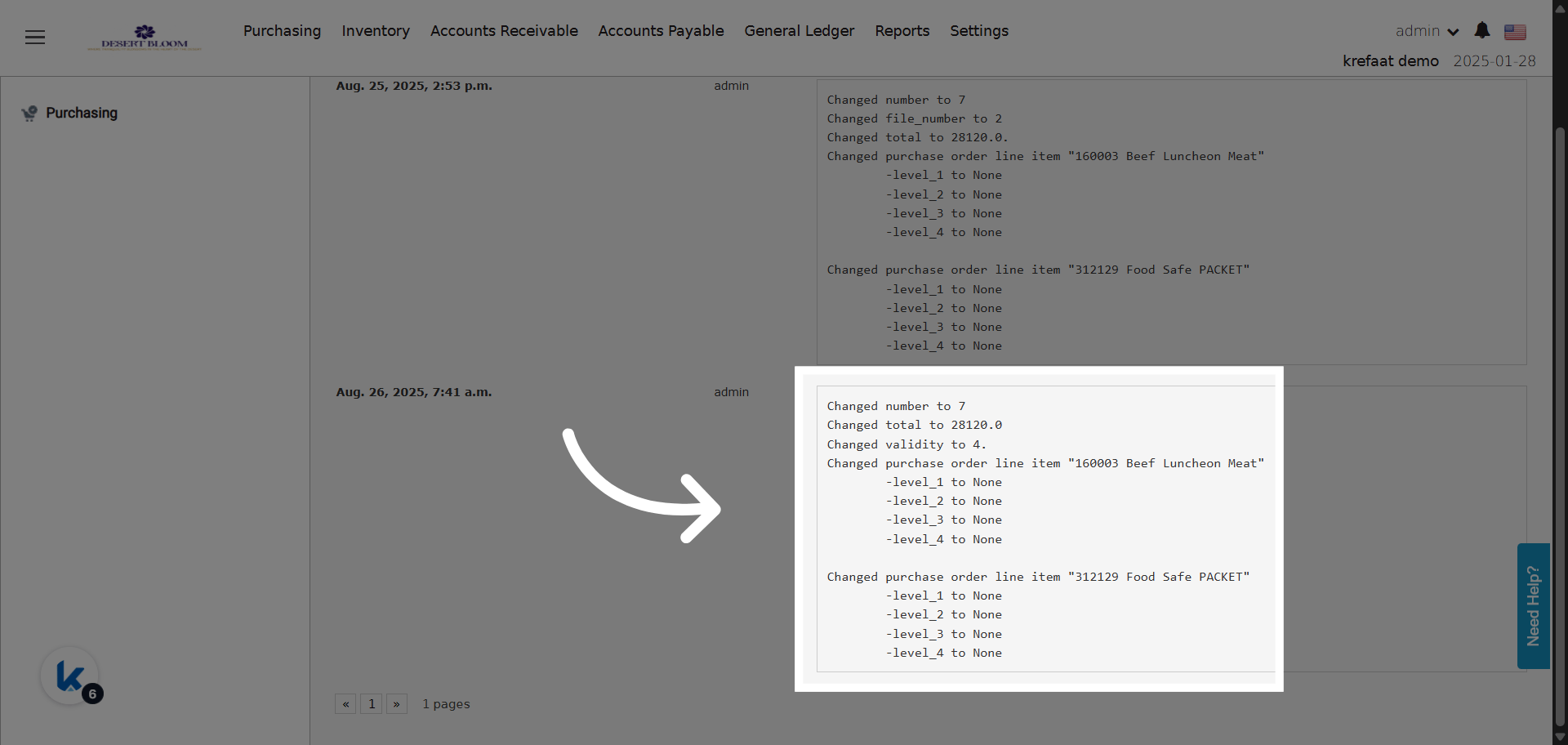
* Any changes to the Validity field (adding, removing, or editing the number) are **logged in the PO history** with a timestamp and user info.
<img src="https://mintcdn.com/kwentra/_A00lzToQoxuud5b/images/back-office/purchasing/how-to-set-a-validity-period-for-a-purchase-order/a622cd03df.png?fit=max&auto=format&n=_A00lzToQoxuud5b&q=85&s=b9306a9ce35dcbd61f79d5e3f2829cd1" alt="preview" width="1920" height="912" data-path="images/back-office/purchasing/how-to-set-a-validity-period-for-a-purchase-order/a622cd03df.png" />

PO changes and logs

<img src="https://mintcdn.com/kwentra/_A00lzToQoxuud5b/images/back-office/purchasing/how-to-set-a-validity-period-for-a-purchase-order/e1dd5bc584.png?fit=max&auto=format&n=_A00lzToQoxuud5b&q=85&s=005c1ece020ad97073ea61972bf5fbde" alt="preview" width="1920" height="912" data-path="images/back-office/purchasing/how-to-set-a-validity-period-for-a-purchase-order/e1dd5bc584.png" />