> ## Documentation Index
> Fetch the complete documentation index at: https://help.kwentra.com/llms.txt
> Use this file to discover all available pages before exploring further.
# Receiving Order — Approve and Reject Workflow
> Receiving Orders now require manager approval before AP can submit them, with a full status trail and a reject option that keeps a record. Business Value Prevents AP from submitting receiving orders...
Receiving Orders now require manager approval before AP can submit them, with a full status trail and a reject option.
### **Business Value**
* Prevents AP from submitting receiving orders that a manager hasn't reviewed.
* Preserves rejected ROs as read-only records for a full audit trail instead of deleting them.
* Posts stock to the store at approval, making goods available for issuance before the JV is created.
* New Approve and Reject permissions give managers precise control at each stage.
* Automatically reverts the linked Purchase Order status when a receiving order is rejected.
### **Use Cases**
* Department head reviews a Pending receiving order, approves it, and goods become immediately available in the store for issuance.
* Cost controller rejects a receiving order with a written reason — the reason is logged in the RO history and the PO status reverts accordingly.
* AP accountant opens only Approved receiving orders to submit them, since Submit is hidden on Pending ROs.
### **How It Works**
| **Where:** Back Office → Inventory → Receiving Order |
| ---------------------------------------------------- |
#### **New Statuses**
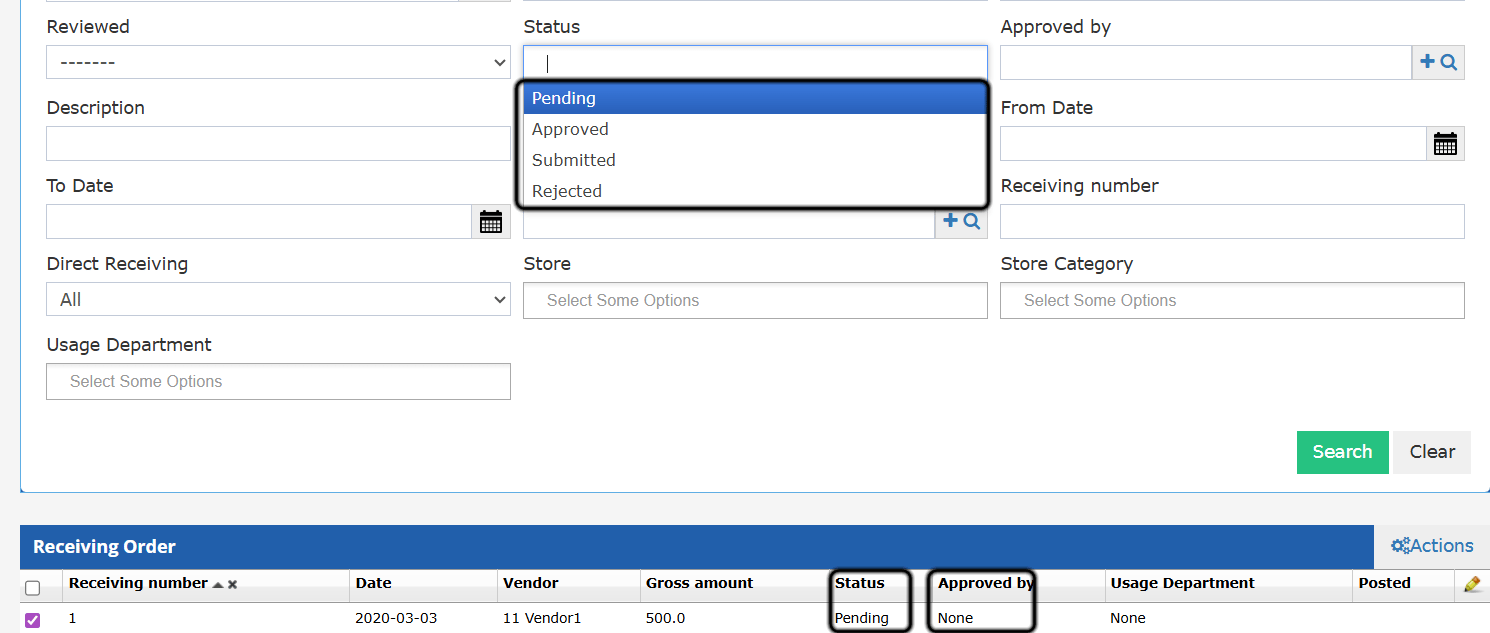
* **Pending** — newly created; awaiting manager approval. Submit is hidden.
* **Approved** — approved by a manager; ready for AP to submit. Stock is posted at this point.
* **Submitted** — JV created. Un-Submit returns the RO to Approved (not Pending).
* **Rejected** — terminal state; the RO is read-only and excluded from the Receiving Orders and Received Items reports.
The status appears on the RO list page and the RO edit page, and is available as a filter on the list.
 #### **Approve**
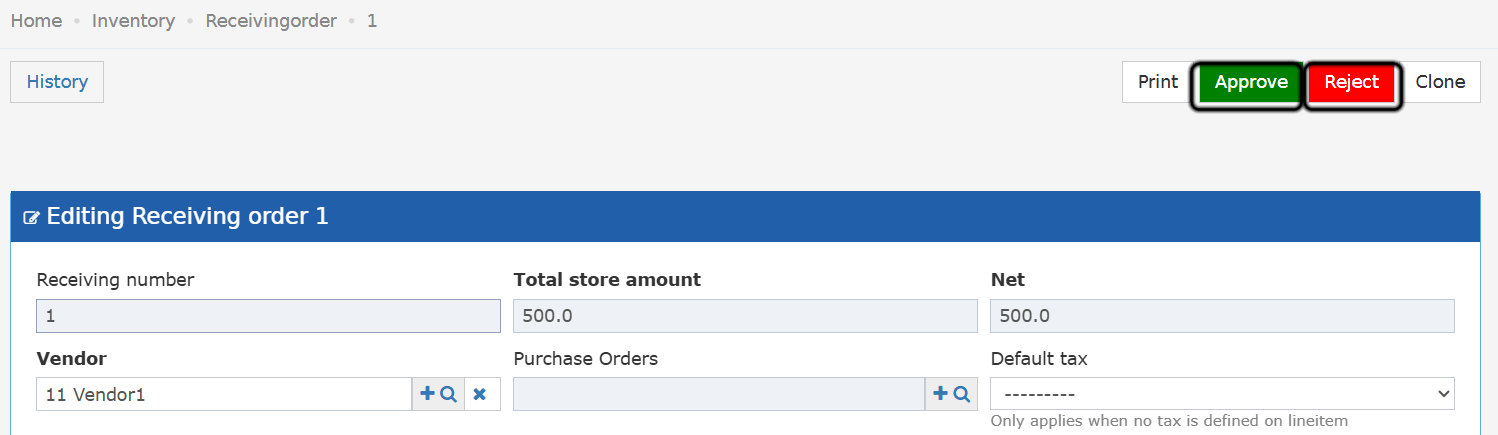
The green **Approve** button appears on Pending ROs. Clicking it moves the RO to Approved, posts the line-item quantities to store stock, and records the approver and timestamp in the RO change history. Requires the Approve Receiving Order permission.
#### **Reject**
The red **Reject** button appears on Pending and Approved ROs. A confirmation dialog requires a Cancellation Reason (up to 150 characters). On confirm: the RO moves to Rejected, line-item quantities are set to 0, and the linked PO status is recalculated. The reason, user, and timestamp are saved in the RO change history. Requires the Reject Receiving Order permission.
#### **Approve**
The green **Approve** button appears on Pending ROs. Clicking it moves the RO to Approved, posts the line-item quantities to store stock, and records the approver and timestamp in the RO change history. Requires the Approve Receiving Order permission.
#### **Reject**
The red **Reject** button appears on Pending and Approved ROs. A confirmation dialog requires a Cancellation Reason (up to 150 characters). On confirm: the RO moves to Rejected, line-item quantities are set to 0, and the linked PO status is recalculated. The reason, user, and timestamp are saved in the RO change history. Requires the Reject Receiving Order permission.
 #### **Edit Window**
* **Pending** — fully editable.
* **Approved** — read-only (the approver and users with the Edit Approved RO permission can edit).
* **Submitted / Rejected** — read-only.
| Existing un-submitted receiving orders are migrated to Approved status. Rejected ROs are excluded from the Receiving Orders Report and Received Items Report. |
| ------------------------------------------------------------------------------------------------------------------------------------------------------------- |
#### **Edit Window**
* **Pending** — fully editable.
* **Approved** — read-only (the approver and users with the Edit Approved RO permission can edit).
* **Submitted / Rejected** — read-only.
| Existing un-submitted receiving orders are migrated to Approved status. Rejected ROs are excluded from the Receiving Orders Report and Received Items Report. |
| ------------------------------------------------------------------------------------------------------------------------------------------------------------- |