> ## Documentation Index
> Fetch the complete documentation index at: https://help.kwentra.com/llms.txt
> Use this file to discover all available pages before exploring further.
# Approve and Reject Receiving Orders
> Approve receiving orders with up to four approval levels, reject them with a reason, and approve or reject many at once from the list.
Receiving orders need approval before the goods reach the store and AP can submit them.
### **Business Value**
* Stops AP from submitting a receiving order no one has reviewed.
* Asks for up to four approvals, set per property.
* Adds stock to the store only after the last approval.
* Keeps rejected orders as read-only records for audits.
* Approves or rejects many orders in one action.
### **Use Cases**
* A storekeeper gives the first approval, and the cost controller gives the last one.
* A cost controller rejects a wrong receiving order with a reason. The purchase order status updates.
* A cost controller selects a day's pending orders and approves them all at once.
### **How It Works**
| **Where:** Back Office → Purchasing → Receiving Orders, and Back Office → Settings → Inventory → Approval Levels |
| - |
To create a receiving order, see [Create Receiving Orders](/back-office/purchasing/create-receiving-orders).
### **Statuses**
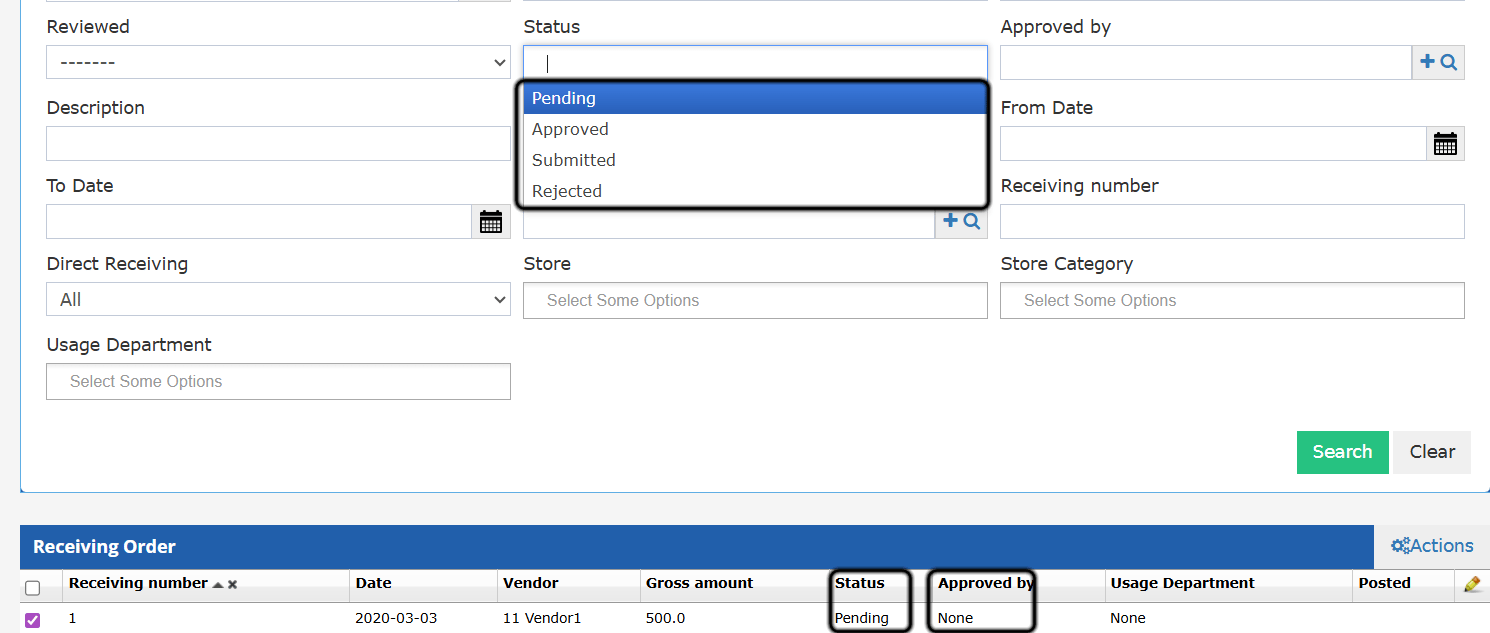
* **Pending**: new, waiting for approval. **Submit** is hidden.
* **Approved**: fully approved and ready for AP to submit. Stock is added at this point.
* **Submitted**: the JV is created. **Un-Submit** returns the order to **Approved**, not Pending.
* **Rejected**: final. The order is read-only. It is left out of the Receiving Orders and Received Items reports.
The status shows on the list and on the order. You can filter the list by status.
 | **Note:** Receiving orders that were not yet submitted when this workflow started were moved to **Approved**. |
| - |
### **Approve**
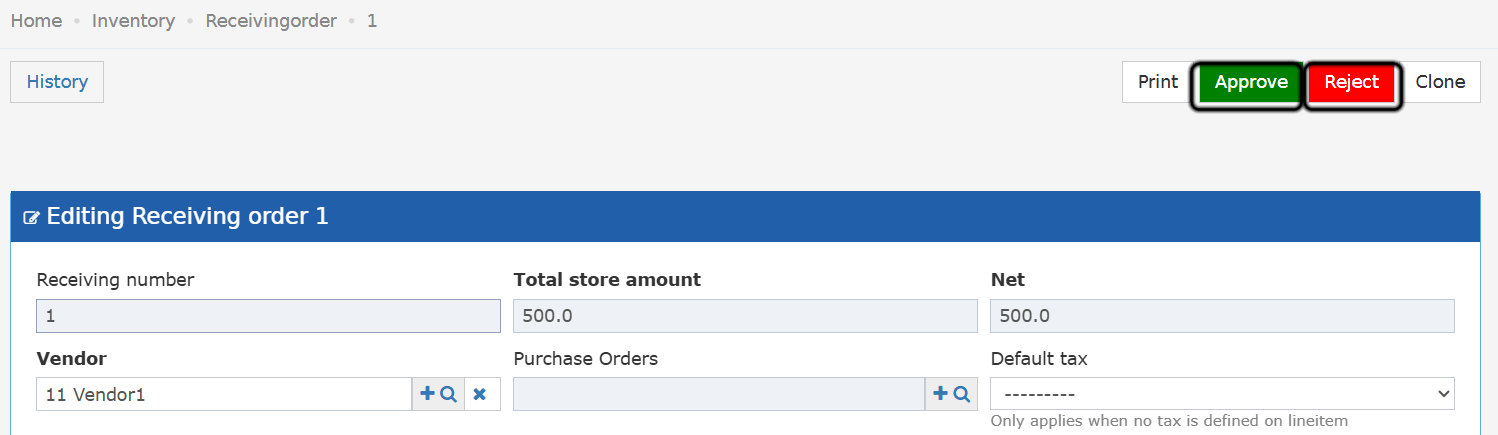
The green **Approve** button shows on **Pending** orders. The last approval:
* Moves the order to **Approved**.
* Adds the line quantities to store stock. The goods can be issued before the JV is created.
* Saves the approver and the time in the order history.
| **Note:** Receiving orders that were not yet submitted when this workflow started were moved to **Approved**. |
| - |
### **Approve**
The green **Approve** button shows on **Pending** orders. The last approval:
* Moves the order to **Approved**.
* Adds the line quantities to store stock. The goods can be issued before the JV is created.
* Saves the approver and the time in the order history.
 ### **Approval Levels**
A property can ask for 1, 2 or 3 approvals, in order. [Store transfers](/back-office/inventory/store-transfers-multi-level-approval-workflow) and [store usage](/back-office/inventory/store-usage-multi-level-approval-workflow) work the same way. A fourth level was added later; see the update below.
#### **Set the Number of Approvals**
1. Go to Back Office → Settings → Inventory → **Approval Levels**.
2. On the **Receiving Order** row, choose **1**, **2** or **3**.
3. Click **Save**.
The setting applies to the whole property.
| **Note:** The default is **1** approval. If you change nothing, receiving orders work as before. |
| - |
#### **The Approval Steps**
The number of approvals is fixed when you create the order. Changing the setting later does not affect existing orders.
For an order that needs three approvals:
1. Create the order. The status is **Pending**.
2. The Level 1 approver clicks **Approve**. The order stays **Pending**. No stock is added.
3. The Level 2 approver clicks **Approve**. The order stays **Pending**. No stock is added.
4. The Level 3 approver clicks **Approve**. The order becomes **Approved**, and the goods are added to the store.
Rules:
* Approvals go in order: Level 1, then Level 2, then Level 3.
* **Approve** shows for anyone with any approval level.
* **Approve** is greyed out when it is not your turn. The tooltip shows *Awaiting level 1 approval.*
* A level that is already approved cannot be approved again.
* **Approved by** shows the person who gave the last approval.
#### **The Approvals Block**
* The order shows an **Approvals** block as soon as you create it.
* The block has one row for each required approval.
* Each row shows the level, its status, the approver and the date.
* Once an approval is recorded, the print shows the same block above the signatures row.
* The username counts as the signature.
#### **Two Approvers at the Same Time**
If two approvers click **Approve** on the same level at once, only one approval counts. The order moves up one level. The second approver gets a message that the level is already approved.
#### **Orders From Before Approval Levels**
* Existing orders keep their status.
* An approved order shows a Level 1 approval with the name of the person who approved it.
* These approvers can still edit the orders they approved.
### **Reject**
The red **Reject** button shows on **Pending** and **Approved** orders. You need the **Can reject receiving order** permission. There is no turn order for Reject.
A pop-up asks for a **Cancellation Reason** (up to 150 characters). When you confirm:
* The order moves to **Rejected**.
* Line quantities are set to 0.
* The linked purchase order status is worked out again.
* The reason, user and time are saved in the order history.
* Approvals already given stay on the order as history.
### **Edit Rules**
| Status | Who can edit |
| - | - |
| **Pending** | Anyone who can edit receiving orders, until the last approval. |
| **Approved** | Anyone who approved any level, the admin user, or a user with **Can edit approved receiving order**. |
| **Submitted** / **Rejected** | No one. Read-only. |
* To change a quantity on an **Approved** order, you also need **Can edit receiving order qty**.
| **Note:** Quantities and prices can change after Level 1 approves. The next approver may see different values. |
| - |
### **Bulk Approve**
1. Select one or more orders in the list.
2. Open **Actions** at the start of the list and choose **Approve**.
### **Approval Levels**
A property can ask for 1, 2 or 3 approvals, in order. [Store transfers](/back-office/inventory/store-transfers-multi-level-approval-workflow) and [store usage](/back-office/inventory/store-usage-multi-level-approval-workflow) work the same way. A fourth level was added later; see the update below.
#### **Set the Number of Approvals**
1. Go to Back Office → Settings → Inventory → **Approval Levels**.
2. On the **Receiving Order** row, choose **1**, **2** or **3**.
3. Click **Save**.
The setting applies to the whole property.
| **Note:** The default is **1** approval. If you change nothing, receiving orders work as before. |
| - |
#### **The Approval Steps**
The number of approvals is fixed when you create the order. Changing the setting later does not affect existing orders.
For an order that needs three approvals:
1. Create the order. The status is **Pending**.
2. The Level 1 approver clicks **Approve**. The order stays **Pending**. No stock is added.
3. The Level 2 approver clicks **Approve**. The order stays **Pending**. No stock is added.
4. The Level 3 approver clicks **Approve**. The order becomes **Approved**, and the goods are added to the store.
Rules:
* Approvals go in order: Level 1, then Level 2, then Level 3.
* **Approve** shows for anyone with any approval level.
* **Approve** is greyed out when it is not your turn. The tooltip shows *Awaiting level 1 approval.*
* A level that is already approved cannot be approved again.
* **Approved by** shows the person who gave the last approval.
#### **The Approvals Block**
* The order shows an **Approvals** block as soon as you create it.
* The block has one row for each required approval.
* Each row shows the level, its status, the approver and the date.
* Once an approval is recorded, the print shows the same block above the signatures row.
* The username counts as the signature.
#### **Two Approvers at the Same Time**
If two approvers click **Approve** on the same level at once, only one approval counts. The order moves up one level. The second approver gets a message that the level is already approved.
#### **Orders From Before Approval Levels**
* Existing orders keep their status.
* An approved order shows a Level 1 approval with the name of the person who approved it.
* These approvers can still edit the orders they approved.
### **Reject**
The red **Reject** button shows on **Pending** and **Approved** orders. You need the **Can reject receiving order** permission. There is no turn order for Reject.
A pop-up asks for a **Cancellation Reason** (up to 150 characters). When you confirm:
* The order moves to **Rejected**.
* Line quantities are set to 0.
* The linked purchase order status is worked out again.
* The reason, user and time are saved in the order history.
* Approvals already given stay on the order as history.
### **Edit Rules**
| Status | Who can edit |
| - | - |
| **Pending** | Anyone who can edit receiving orders, until the last approval. |
| **Approved** | Anyone who approved any level, the admin user, or a user with **Can edit approved receiving order**. |
| **Submitted** / **Rejected** | No one. Read-only. |
* To change a quantity on an **Approved** order, you also need **Can edit receiving order qty**.
| **Note:** Quantities and prices can change after Level 1 approves. The next approver may see different values. |
| - |
### **Bulk Approve**
1. Select one or more orders in the list.
2. Open **Actions** at the start of the list and choose **Approve**.
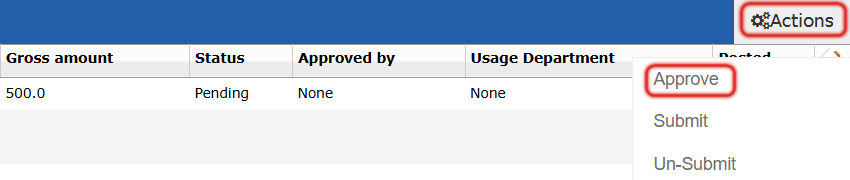 3. A pop-up asks **"Approve the selected receiving orders?"**. **Yes** approves them. **No** closes the pop-up with no changes.
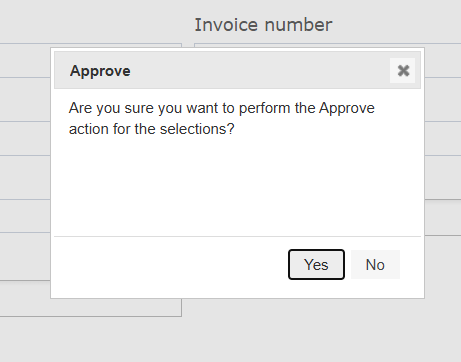 * It works only on **Pending** orders. Orders in other statuses do not change.
* Users without permission to approve do not see the action.
* Each selected order moves up **one** level.
* Only orders that reach their last level become **Approved**. Stock is added for these only.
* If you cannot approve the next level of an order, it is skipped. A message shows the order and the level.
* The other selected orders still move up.
### **Bulk Reject**
1. Select one or more orders in the list.
2. Open **Actions** at the start of the list and choose **Reject**.
3. A pop-up asks **"Reject the selected receiving orders?"**. **No** closes it with no changes.
4. **Yes** opens a pop-up for the reason. Enter it and confirm. The same reason applies to all selected orders.
* It works only on **Pending** or **Approved** orders. Orders in other statuses do not change.
* Users without permission to reject do not see the action.
* A rejection may make an item's store quantity negative. The action is then blocked with this message: **"Receiving orders \[IDs] have items that will cause negative stock when rejected."**
## ***Update: October 6, 2026***
You can now ask for a **fourth** approval on a receiving order.
#### **Choose Four Approvals**
1. Go to Back Office → Settings → Inventory → **Approval Levels**.
2. On the **Receiving Order** row, choose **4**.
The default is still **1**. Nothing changes for a property that does not pick 4.
#### **The Level 4 Permission**
| Level | Permission | Group |
| - | - | - |
| 4 | Can approve receiving order - level 4 | Receiving Order Approval Level 4 |
* No existing group holds level 4. Give the group to your own approvers.
* A level 4 approver has the same rights as levels 1 to 3.
#### **How the Fourth Approval Works**
* Level 4 signs after level 3.
* With 4 approvals set, the order stays **Pending** until level 4 approves.
* The level 4 approval sets the order to **Approved** and moves the stock.
* **Approve** is greyed out while level 3 is still waiting. The tooltip shows *Awaiting level 3 approval.*
* The **Approvals** table and the print get a fourth row for level 4.
| **Note:** Purchase orders and purchase requests keep their own approval levels. This change does not apply to them. |
| - |
This documentation is built and hosted on [Mintlify](https://mintlify.com), a developer documentation platform.
* It works only on **Pending** orders. Orders in other statuses do not change.
* Users without permission to approve do not see the action.
* Each selected order moves up **one** level.
* Only orders that reach their last level become **Approved**. Stock is added for these only.
* If you cannot approve the next level of an order, it is skipped. A message shows the order and the level.
* The other selected orders still move up.
### **Bulk Reject**
1. Select one or more orders in the list.
2. Open **Actions** at the start of the list and choose **Reject**.
3. A pop-up asks **"Reject the selected receiving orders?"**. **No** closes it with no changes.
4. **Yes** opens a pop-up for the reason. Enter it and confirm. The same reason applies to all selected orders.
* It works only on **Pending** or **Approved** orders. Orders in other statuses do not change.
* Users without permission to reject do not see the action.
* A rejection may make an item's store quantity negative. The action is then blocked with this message: **"Receiving orders \[IDs] have items that will cause negative stock when rejected."**
## ***Update: October 6, 2026***
You can now ask for a **fourth** approval on a receiving order.
#### **Choose Four Approvals**
1. Go to Back Office → Settings → Inventory → **Approval Levels**.
2. On the **Receiving Order** row, choose **4**.
The default is still **1**. Nothing changes for a property that does not pick 4.
#### **The Level 4 Permission**
| Level | Permission | Group |
| - | - | - |
| 4 | Can approve receiving order - level 4 | Receiving Order Approval Level 4 |
* No existing group holds level 4. Give the group to your own approvers.
* A level 4 approver has the same rights as levels 1 to 3.
#### **How the Fourth Approval Works**
* Level 4 signs after level 3.
* With 4 approvals set, the order stays **Pending** until level 4 approves.
* The level 4 approval sets the order to **Approved** and moves the stock.
* **Approve** is greyed out while level 3 is still waiting. The tooltip shows *Awaiting level 3 approval.*
* The **Approvals** table and the print get a fourth row for level 4.
| **Note:** Purchase orders and purchase requests keep their own approval levels. This change does not apply to them. |
| - |
This documentation is built and hosted on [Mintlify](https://mintlify.com), a developer documentation platform.