> ## Documentation Index
> Fetch the complete documentation index at: https://help.kwentra.com/llms.txt
> Use this file to discover all available pages before exploring further.
# Return items to Supplier
> In the scenario where you need to return a certain item to your vendor and want to financially document the process of return, we use the Return Request feature from our Back Office Purchasing Sub-...
In the scenario where you need to return a certain item to your vendor and want to financially document the process of return, we use the **Return Request** feature from our Back Office Purchasing Sub-Module.
**Back office → Purchasing → Return Request → Add New**
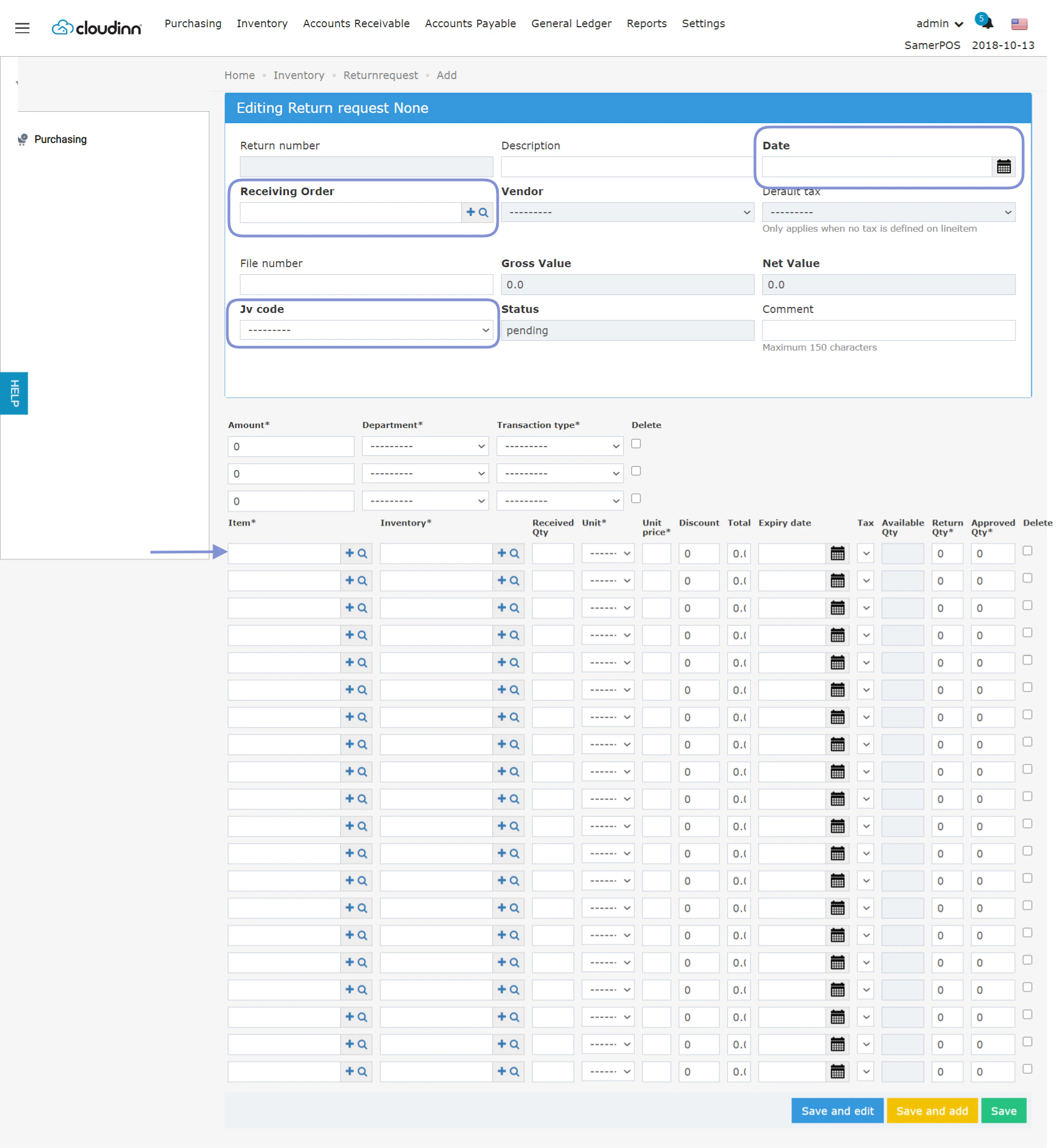 To add a successful Return Request, the below data needs to be added to the form first:
* Date of Return
* The Receiving Order you wish to return from
* The Journal Voucher Code dedicated for returns
* The items you wish to return.
*Selecting the Receiving order would automatically populate the vendor you received from.*
Clicking **Save and Edit** would help you take further actions on the request.
*In the below scenario we're returning 1 bottle to Vendor 1 which was received on Receiving Order #34.*
To add a successful Return Request, the below data needs to be added to the form first:
* Date of Return
* The Receiving Order you wish to return from
* The Journal Voucher Code dedicated for returns
* The items you wish to return.
*Selecting the Receiving order would automatically populate the vendor you received from.*
Clicking **Save and Edit** would help you take further actions on the request.
*In the below scenario we're returning 1 bottle to Vendor 1 which was received on Receiving Order #34.*
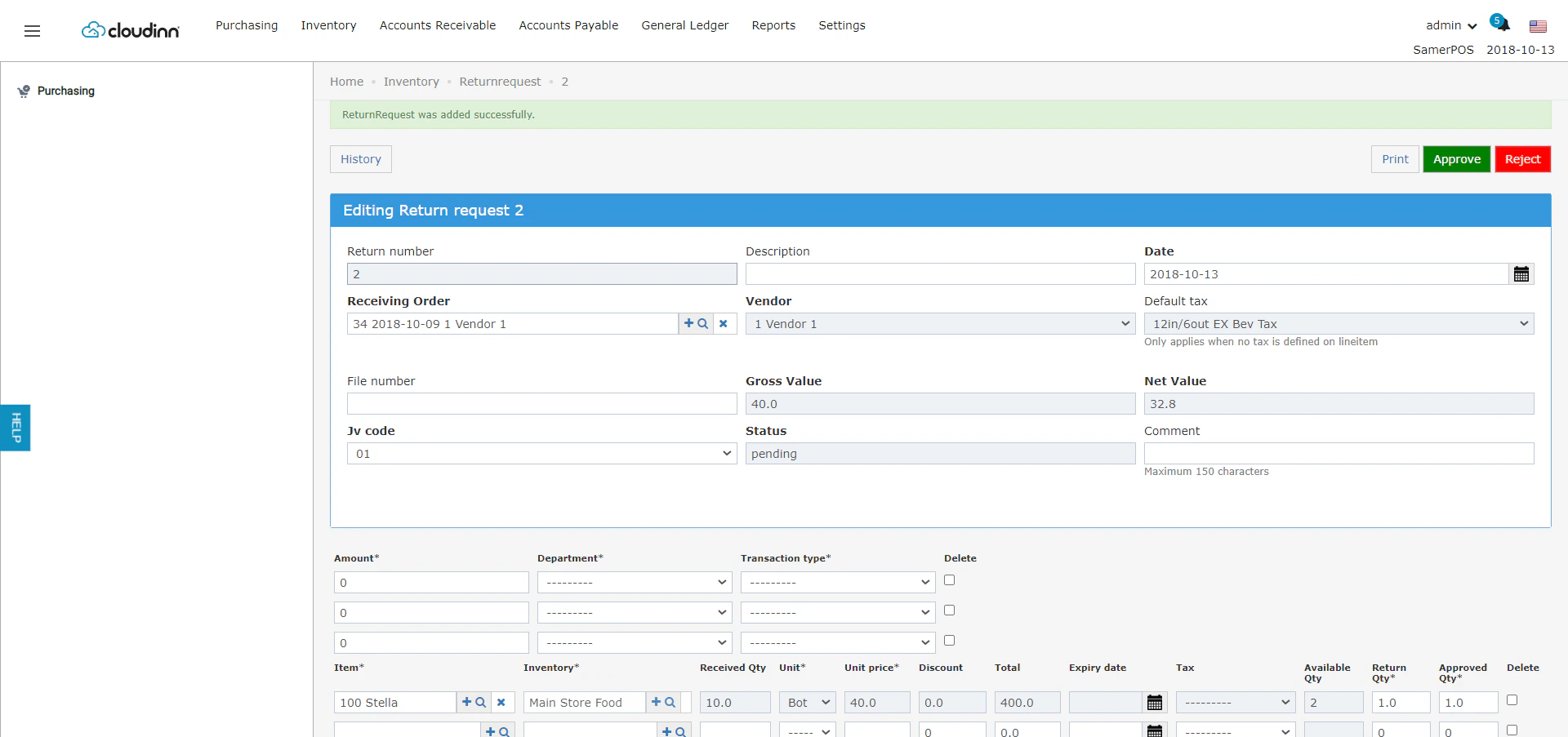 Just like any Purchasing Action on Back Office, it can be either approved or rejected.
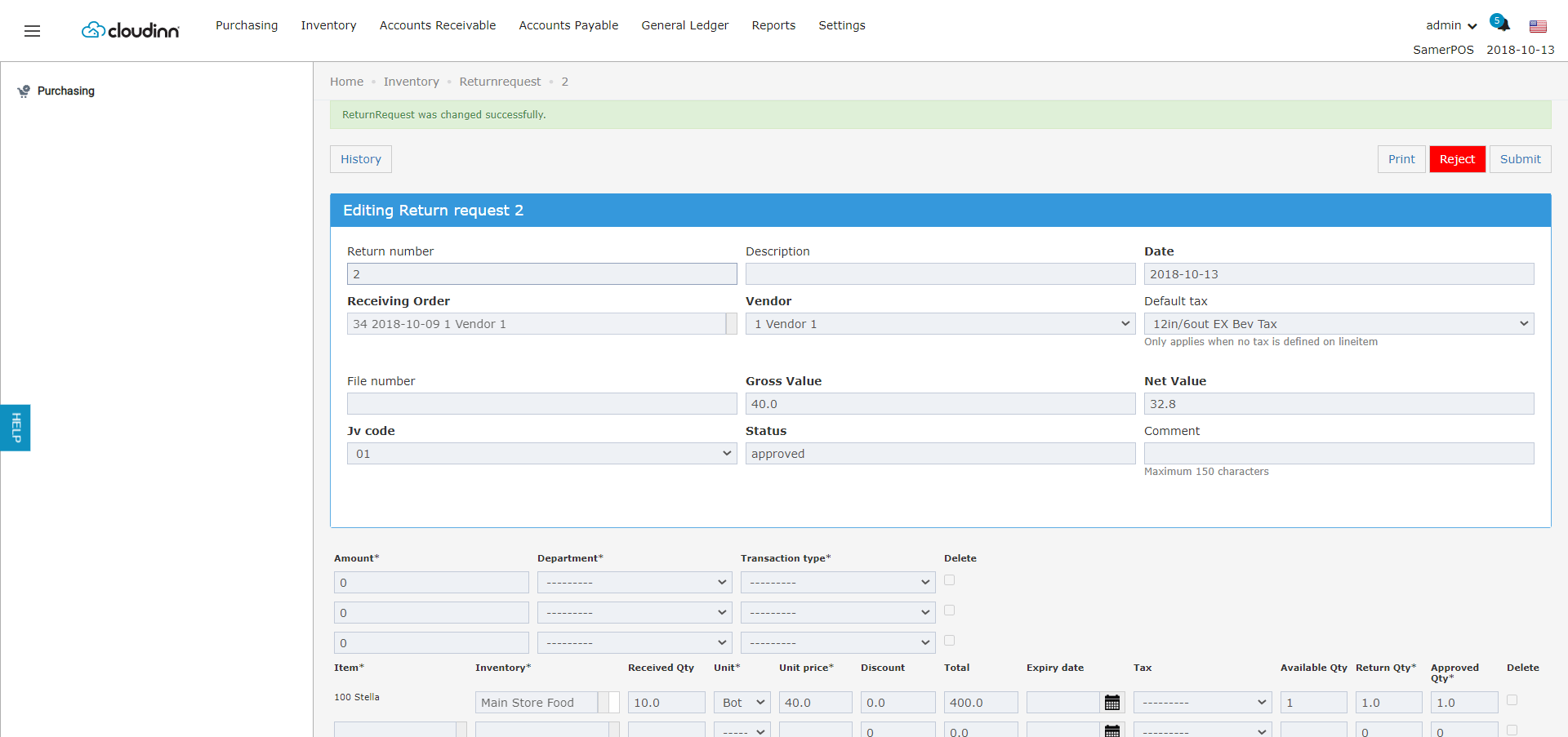
The return request would look like the below in case of Approval, in case of rejection the new status of the request shall be **Rejected** and the available quantity won't decrease.
Just like any Purchasing Action on Back Office, it can be either approved or rejected.
The return request would look like the below in case of Approval, in case of rejection the new status of the request shall be **Rejected** and the available quantity won't decrease.
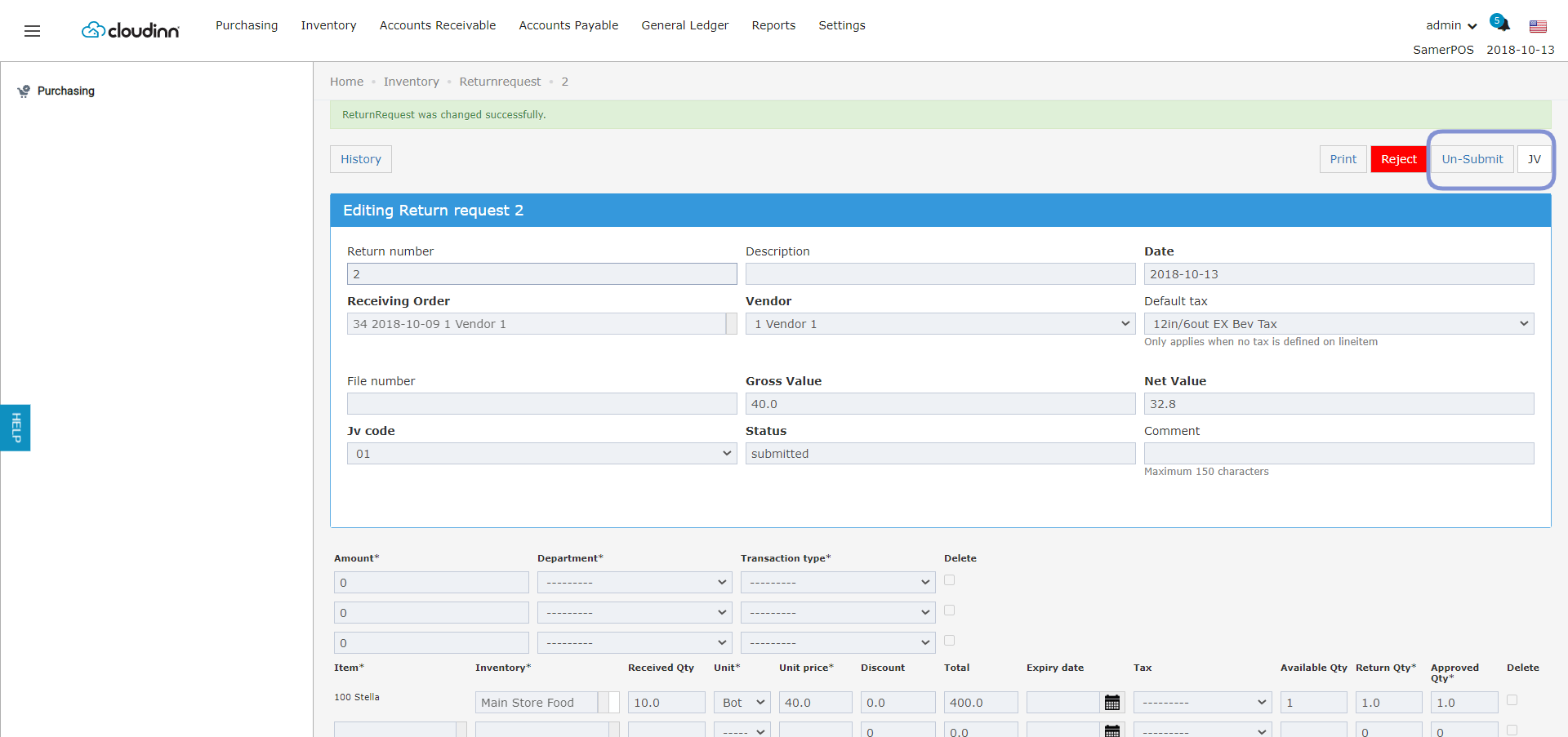
 The final step is to submit the return request and post your Journal Voucher in General Ledger, this can simply happen by clicking **Submit.**
Clicking **Submit** will trigger the button for **JV** to appear so you can post your Journal Voucher right away after revision.
The final step is to submit the return request and post your Journal Voucher in General Ledger, this can simply happen by clicking **Submit.**
Clicking **Submit** will trigger the button for **JV** to appear so you can post your Journal Voucher right away after revision.
 **Jounral Voucher Posting:**
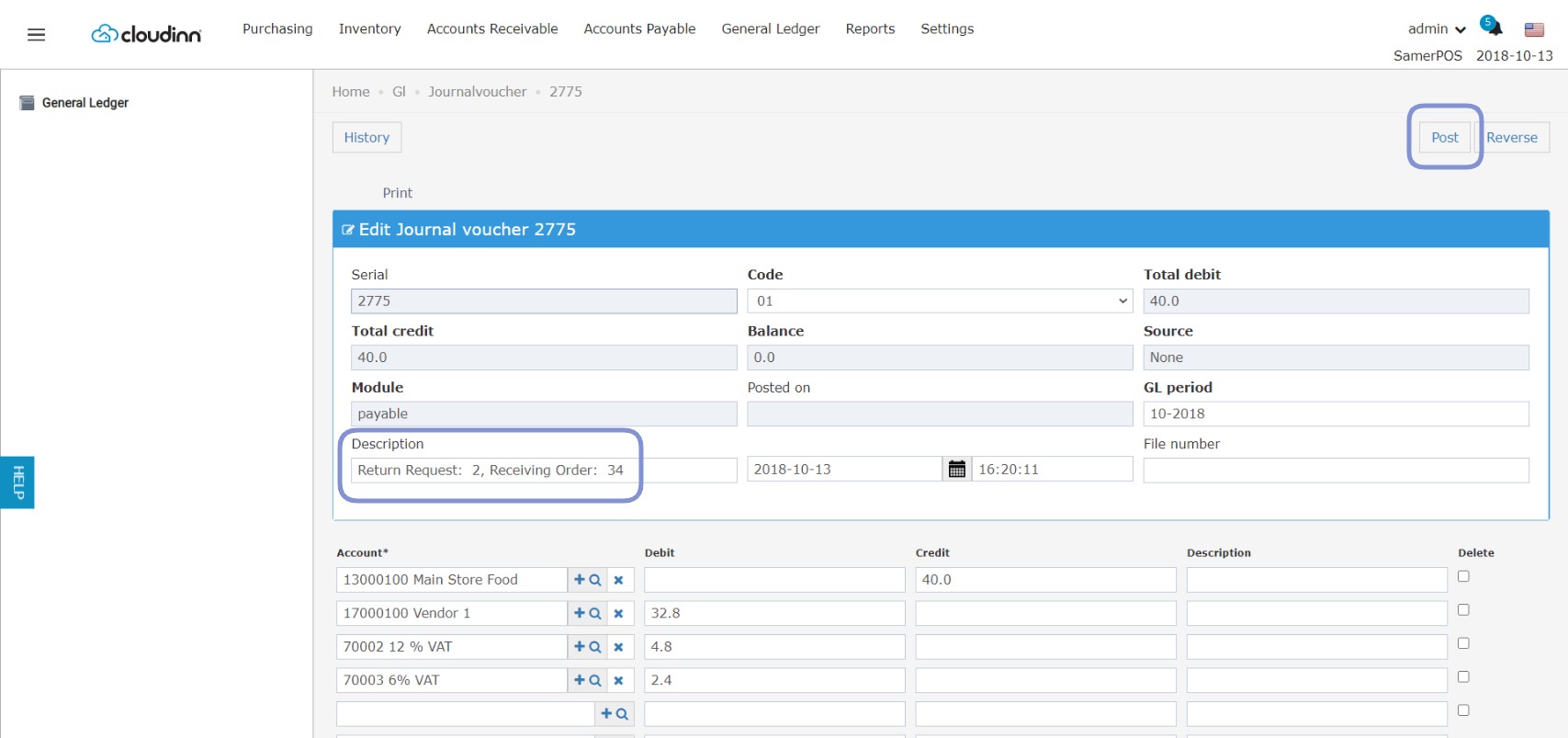 In the scenario where everything has been posted till the JV and you want to reverse the financial transaction of this return request, we should follow the below steps:
1. **Unpost** the related JV to reverse it financially
2. Go to return request, **Unsubmit** the request once you open it.
3. **Reject Return Request.**
By doing the above, you would successfully reverse the return request.
**Return Requests Report:**
You can historically track Return Requests by running its report:
**Reports → BO → Inventory → Return Requests**
1. Put the date range you desire to see return requests within
2. Optional: choose the vendor you would like to see their returns, will render back all vendors if you did not specify
3. Optional: select the status of the return request
In the scenario where everything has been posted till the JV and you want to reverse the financial transaction of this return request, we should follow the below steps:
1. **Unpost** the related JV to reverse it financially
2. Go to return request, **Unsubmit** the request once you open it.
3. **Reject Return Request.**
By doing the above, you would successfully reverse the return request.
**Return Requests Report:**
You can historically track Return Requests by running its report:
**Reports → BO → Inventory → Return Requests**
1. Put the date range you desire to see return requests within
2. Optional: choose the vendor you would like to see their returns, will render back all vendors if you did not specify
3. Optional: select the status of the return request