> ## Documentation Index
> Fetch the complete documentation index at: https://help.kwentra.com/llms.txt
> Use this file to discover all available pages before exploring further.
# Work with Purchase Orders
> Set a PO's validity, check its columns and status, find POs on the list, then print or email them to the vendor.
Set up, track, find, print and email your purchase orders.
### **Business Value**
* Tell vendors how many days a PO is valid.
* See stock and what is still to receive on every line.
* See at a glance which POs still miss items.
* Find POs that still wait for approval with one filter.
* Email a PO to the vendor from the print preview.
### **Use Cases**
* Purchasing manager sets a 30-day validity and emails the PO to the vendor.
* Store manager filters Partially Received POs to follow up on missing deliveries.
* Financial controller picks Fully Authorized POs for payment and audit.
### **How It Works**
| **Where:** Back Office → Purchasing → Purchase Orders |
| - |
This article covers a PO after you create it. To create one, see [Create a Purchase Order](/back-office/purchasing/create-a-purchase-order-po).
### **PO Fields**
#### **Validity**
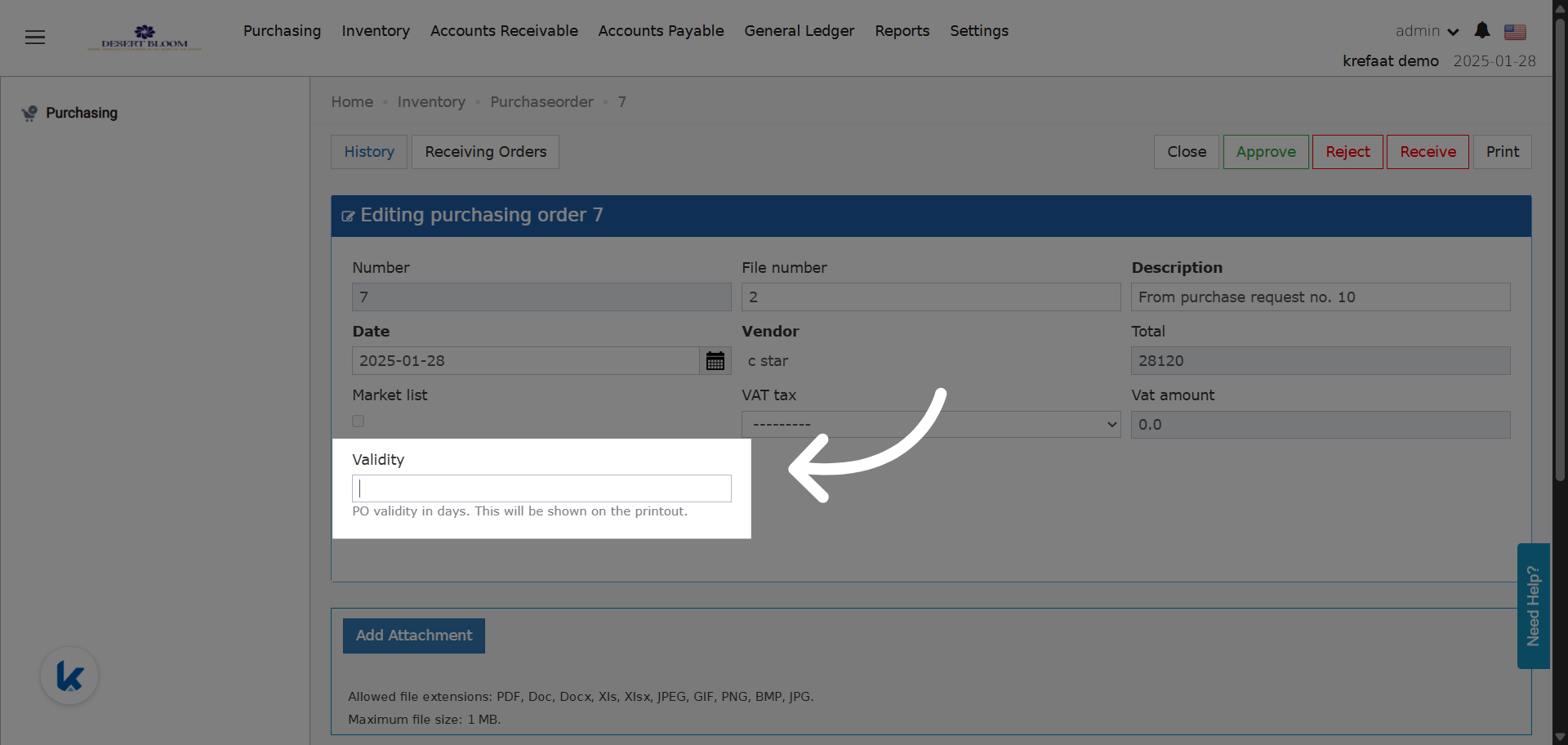
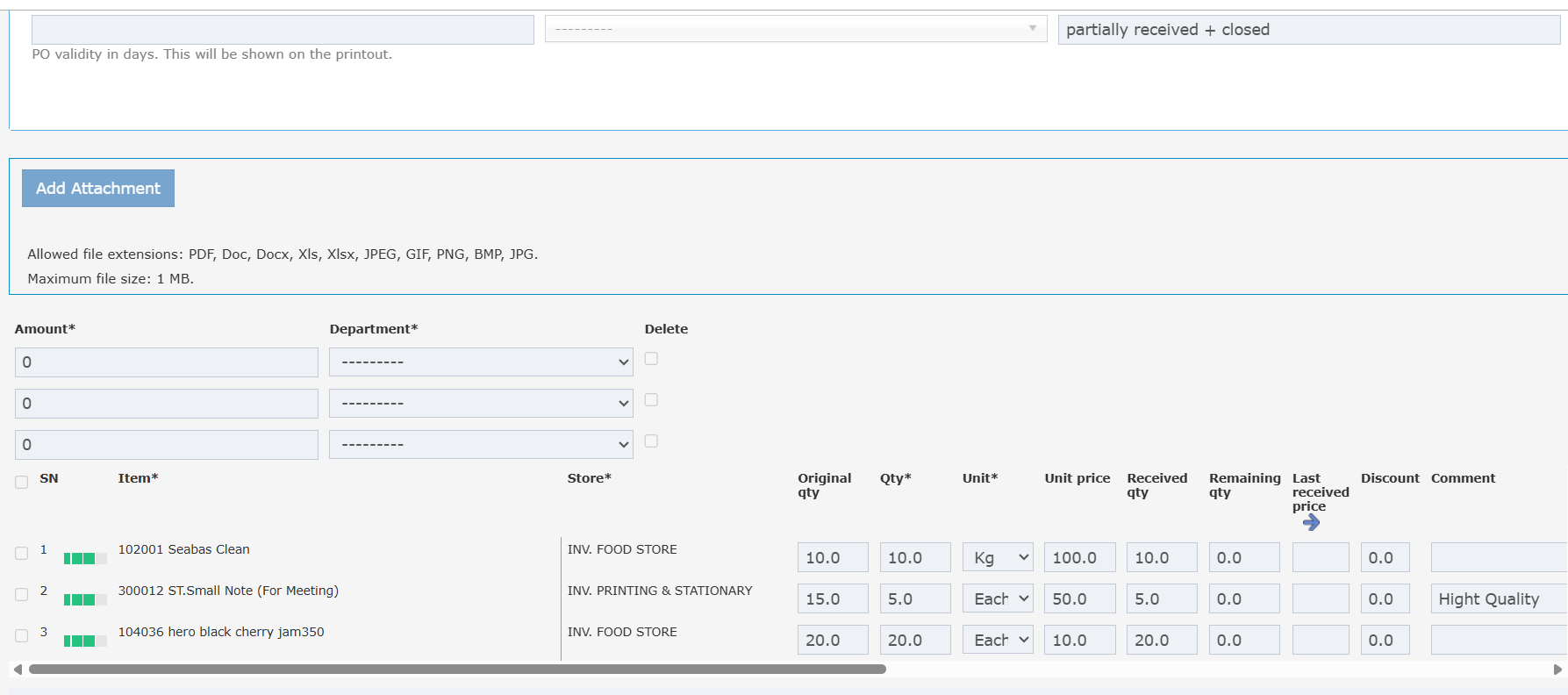
**Validity** is how many days the PO is valid from the PO date.
* Enter a whole number above zero.
* Leave it empty for no validity period.
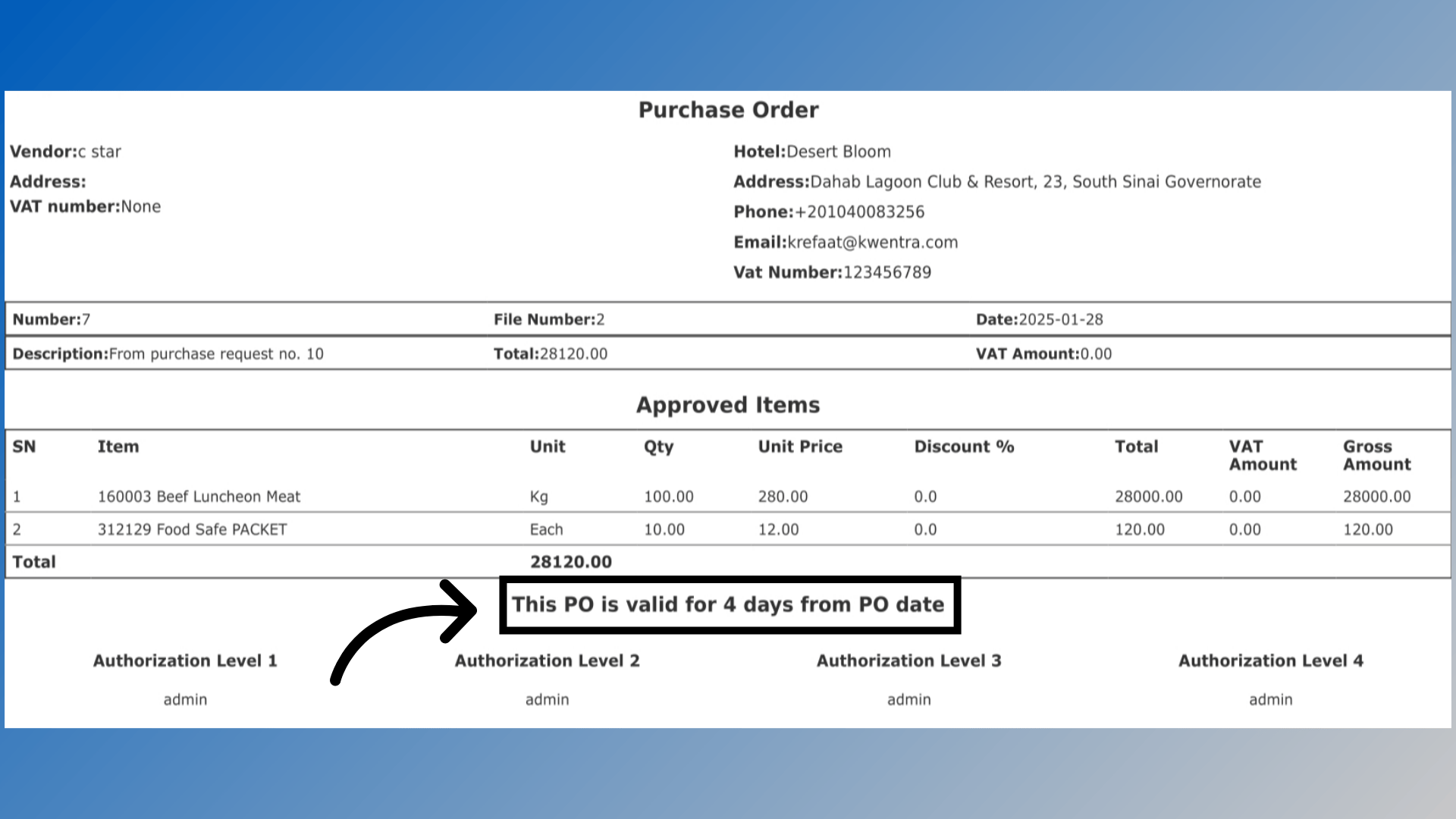
* With a value, the printout shows this line under the items, before the signatures:
> This PO is valid for **X** days from PO date.
* When it is empty, the line does not print.
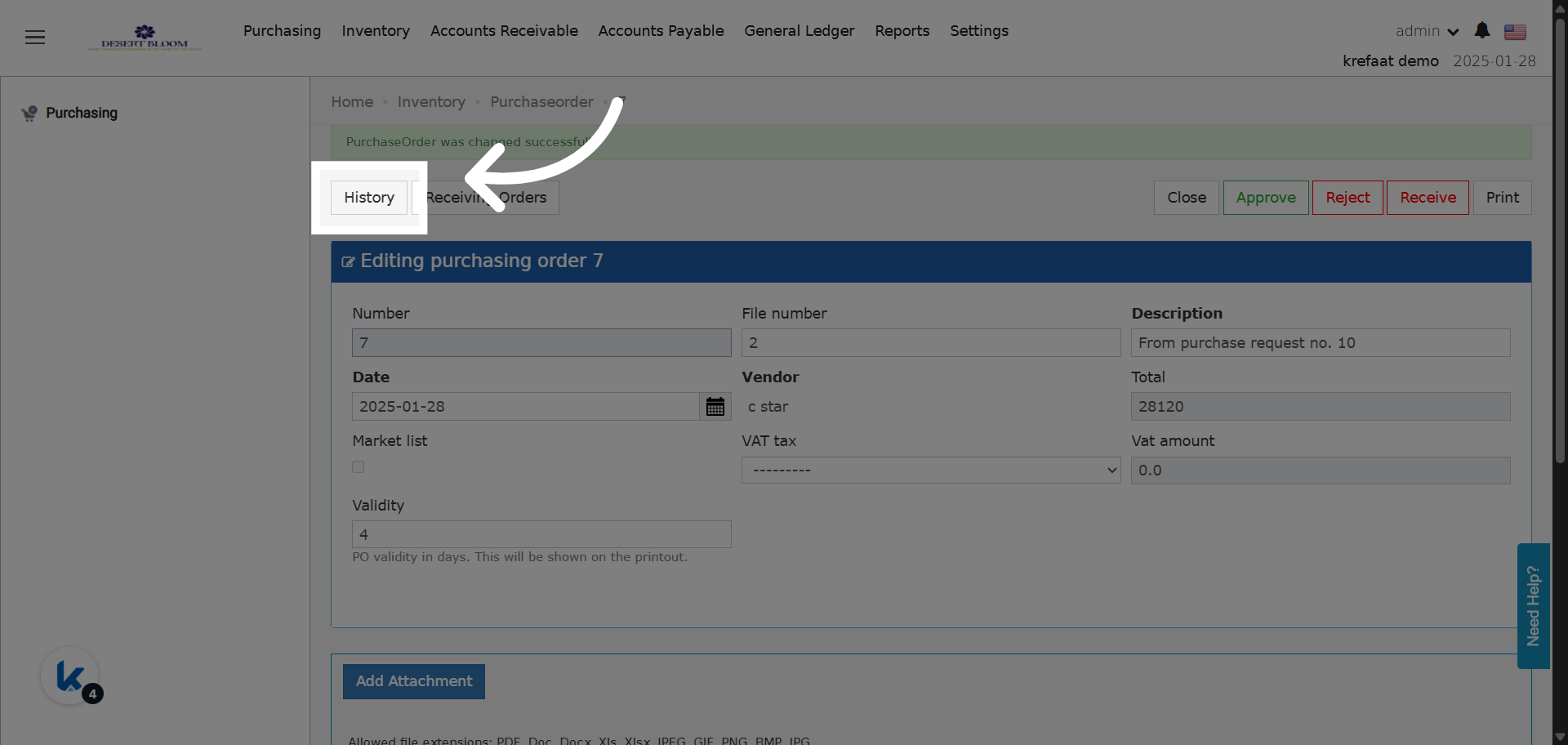
* Every change is saved in the PO history, with the time and user.
 #### **Usage Department**
* **Usage Department** is read-only.
* It is copied from the linked purchase request, if there is one.
* It shows on the PO print and export.
To filter the list by it, see [Usage Department Filter](#usage-department-filter).
### **Line Columns**
| Column | What it shows |
| - | - |
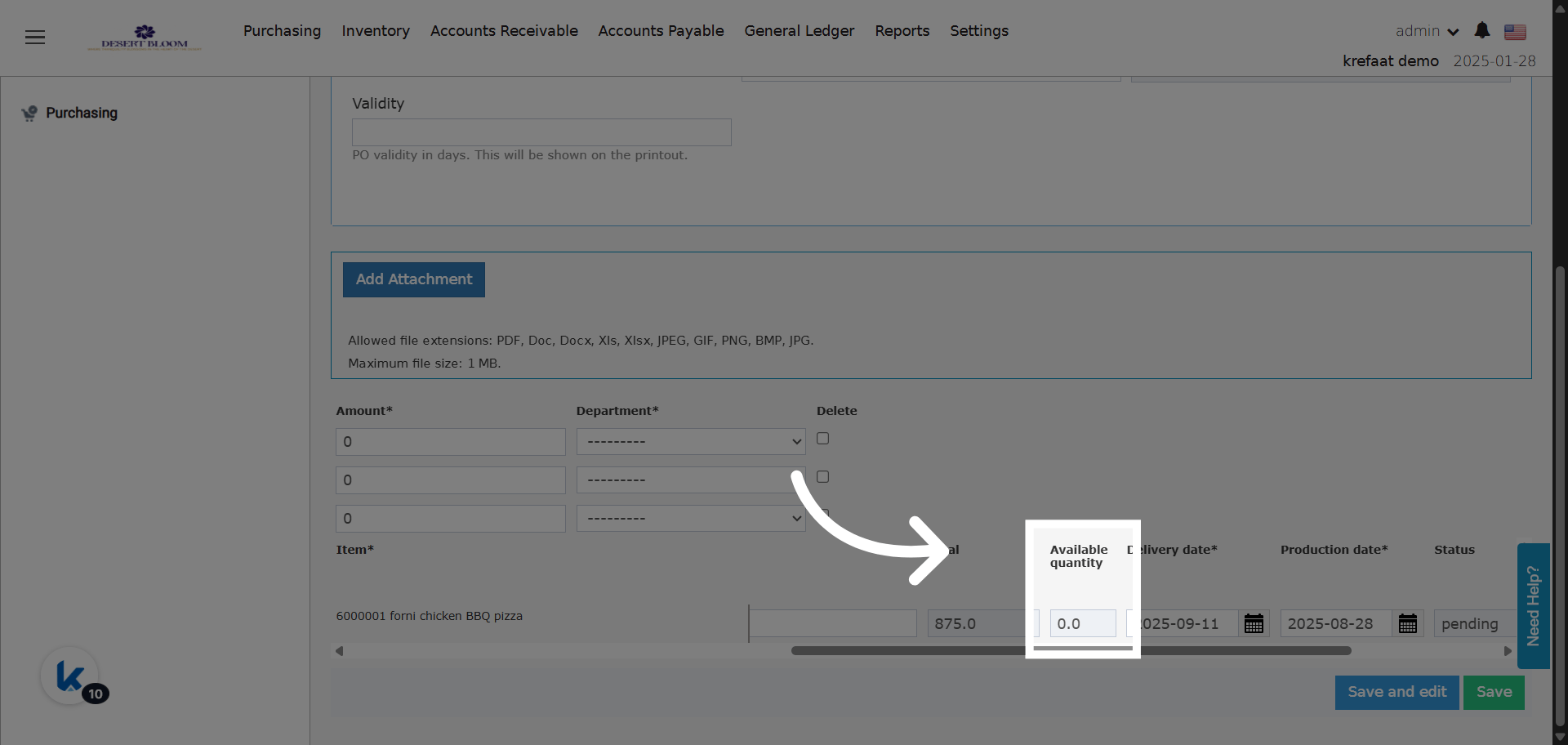
| **Available Quantity** | The live stock of the item in its store on the PO date. It comes after **Total**. |
| **Remaining Qty** | Qty minus Received Qty. It comes next to **Qty** and **Received Qty**. |
* Both columns are read-only.
* **Available Quantity** is the same as **Available** on purchase requests.
* **Remaining Qty** is never negative. If Received Qty is more than Qty, it shows 0.
* Receiving more than you ordered is allowed only for [market list](/back-office/purchasing/purchasing-market-list) items.
For the VAT Amount and Gross Amount columns, see [VAT Amount & Gross Amount](/back-office/purchasing/add-vat-amount-gross-amount-to-purchase-and-receiving-orders).
#### **Usage Department**
* **Usage Department** is read-only.
* It is copied from the linked purchase request, if there is one.
* It shows on the PO print and export.
To filter the list by it, see [Usage Department Filter](#usage-department-filter).
### **Line Columns**
| Column | What it shows |
| - | - |
| **Available Quantity** | The live stock of the item in its store on the PO date. It comes after **Total**. |
| **Remaining Qty** | Qty minus Received Qty. It comes next to **Qty** and **Received Qty**. |
* Both columns are read-only.
* **Available Quantity** is the same as **Available** on purchase requests.
* **Remaining Qty** is never negative. If Received Qty is more than Qty, it shows 0.
* Receiving more than you ordered is allowed only for [market list](/back-office/purchasing/purchasing-market-list) items.
For the VAT Amount and Gross Amount columns, see [VAT Amount & Gross Amount](/back-office/purchasing/add-vat-amount-gross-amount-to-purchase-and-receiving-orders).
 ### **PO Statuses**
| Status | When |
| - | - |
| **Pending** | All items are pending, or some are pending and the rest closed. |
| **Received** | All items are received. |
| **Closed** | All items are cancelled or no longer needed. |
| **Partially Received + Closed** | Some items are received. The other items were rejected or not received. |
| **Partially Received** | Some items are received and at least one is still pending. Others may be closed or cancelled. |
| **Note:** A **Partially Received** PO still waits for items. A **Partially Received + Closed** PO waits for nothing more. |
| - |
You see the status in the PO list and inside each PO.
**Example:** You order 8 kitchen items. 5 arrive and 3 are still pending. The PO shows **Partially Received**.
### **PO Statuses**
| Status | When |
| - | - |
| **Pending** | All items are pending, or some are pending and the rest closed. |
| **Received** | All items are received. |
| **Closed** | All items are cancelled or no longer needed. |
| **Partially Received + Closed** | Some items are received. The other items were rejected or not received. |
| **Partially Received** | Some items are received and at least one is still pending. Others may be closed or cancelled. |
| **Note:** A **Partially Received** PO still waits for items. A **Partially Received + Closed** PO waits for nothing more. |
| - |
You see the status in the PO list and inside each PO.
**Example:** You order 8 kitchen items. 5 arrive and 3 are still pending. The PO shows **Partially Received**.
 #### **Status in the Linked POs Popup**
| **Where:** Back Office → Purchasing → Purchase Requests → open a request → Linked POs |
| - |
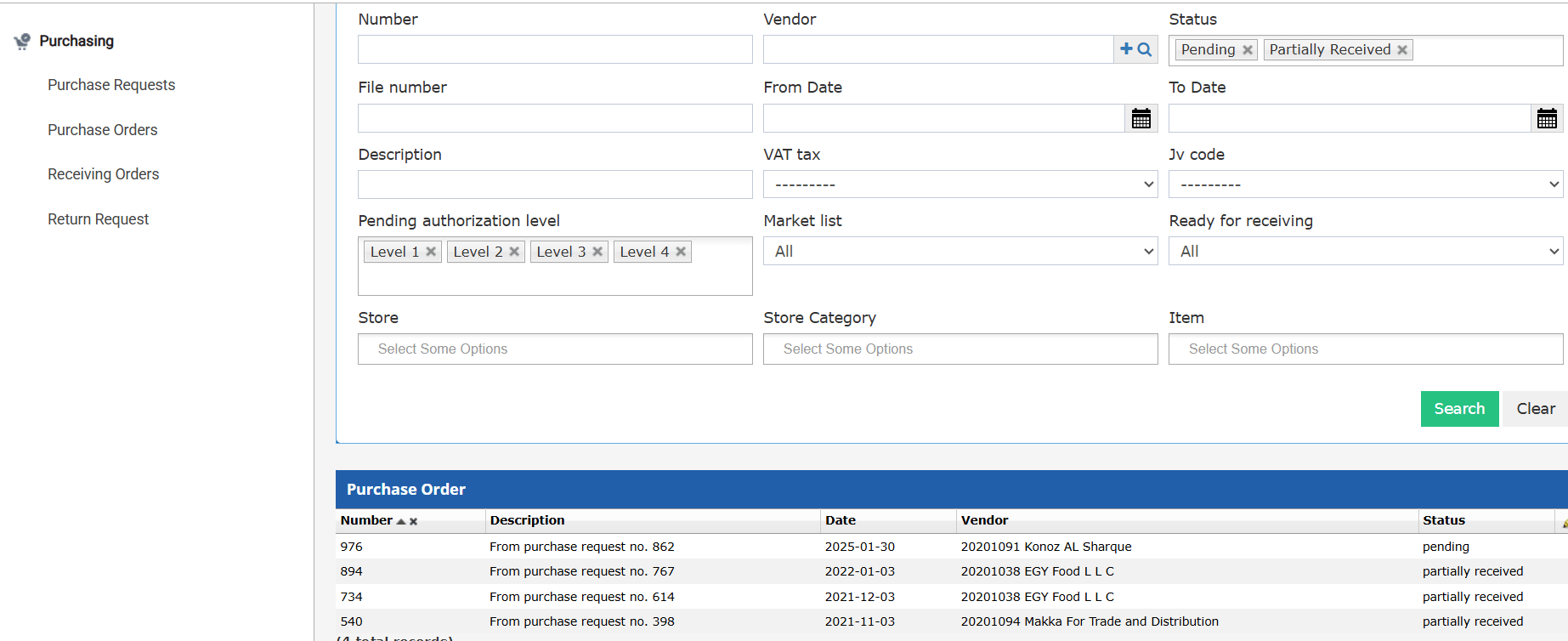
The **Linked POs** popup has a **Status** column. It shows the current status of each PO linked to the request. You do not need to open each PO.
#### **Status in the Linked POs Popup**
| **Where:** Back Office → Purchasing → Purchase Requests → open a request → Linked POs |
| - |
The **Linked POs** popup has a **Status** column. It shows the current status of each PO linked to the request. You do not need to open each PO.
 ### **Find POs on the List**
#### **Status Filters**
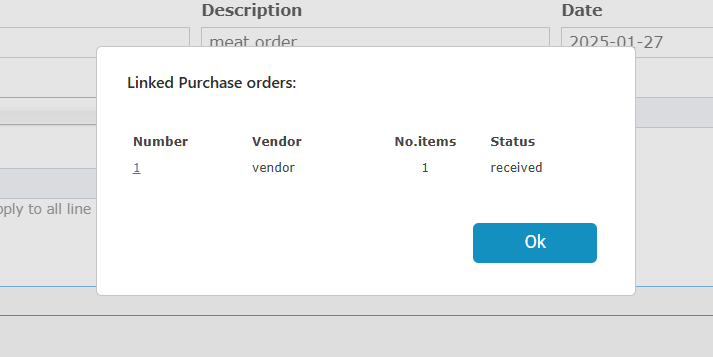
Filter the list by **Pending** or **Partially Received** to see orders that still miss items.
#### **Authorization Status**
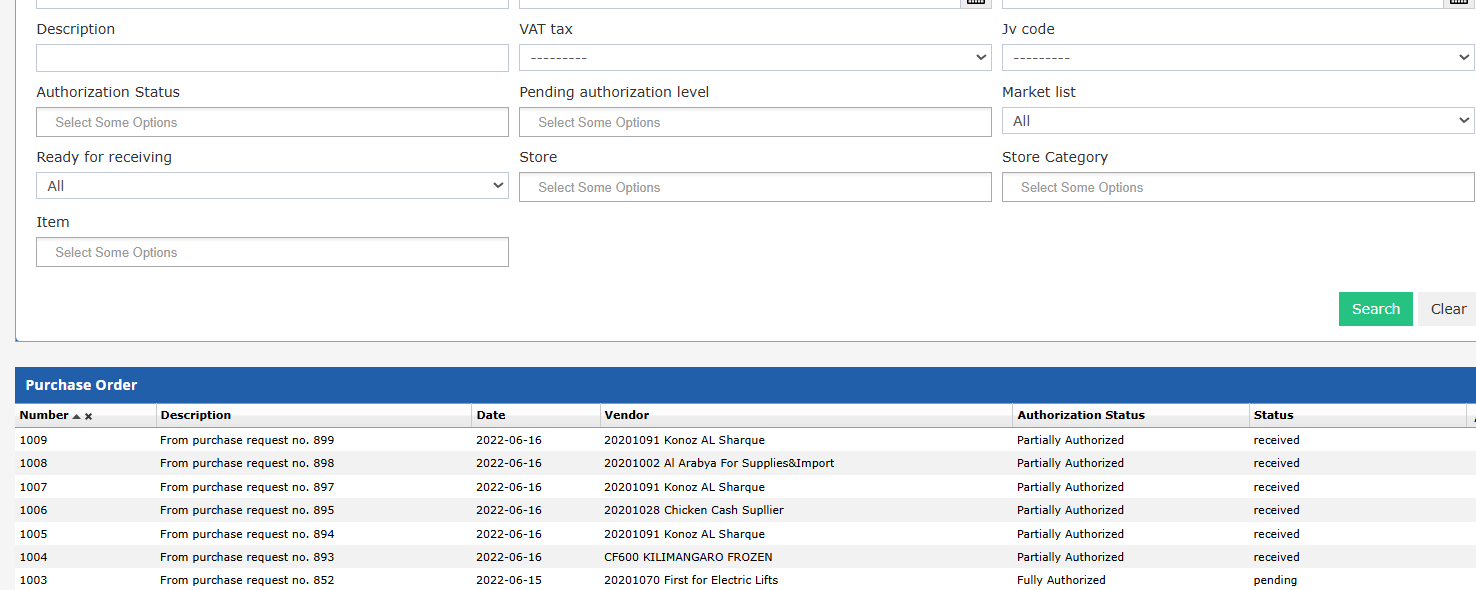
The PO list has an **Authorization Status** filter and column. You can pick more than one value.
| Value | Meaning |
| - | - |
| **Pending Authorization** | No line is fully authorized yet. |
| **Partially Authorized** | Some lines are fully authorized, others are not. |
| **Fully Authorized** | All lines are fully authorized. |
* A line is fully authorized when it is approved or rejected.
* Items with no approval workflow count as **Fully Authorized**.
* Closed lines are ignored. They do not change the status.
* A **Closed** PO always counts as **Fully Authorized**.
### **Find POs on the List**
#### **Status Filters**
Filter the list by **Pending** or **Partially Received** to see orders that still miss items.
#### **Authorization Status**
The PO list has an **Authorization Status** filter and column. You can pick more than one value.
| Value | Meaning |
| - | - |
| **Pending Authorization** | No line is fully authorized yet. |
| **Partially Authorized** | Some lines are fully authorized, others are not. |
| **Fully Authorized** | All lines are fully authorized. |
* A line is fully authorized when it is approved or rejected.
* Items with no approval workflow count as **Fully Authorized**.
* Closed lines are ignored. They do not change the status.
* A **Closed** PO always counts as **Fully Authorized**.
 #### **Usage Department Filter**
* The list has a **Usage Department** filter and column.
* The filter fills in with the usage departments you can access.
* You see only the POs of your own departments.
* Clearing the filter shows all POs you can access. Other departments' POs stay hidden.
### **Print and Email**
| **Where:** Back Office → Purchasing → Purchase Orders → open a PO → Print |
| - |
#### **Print a PO**
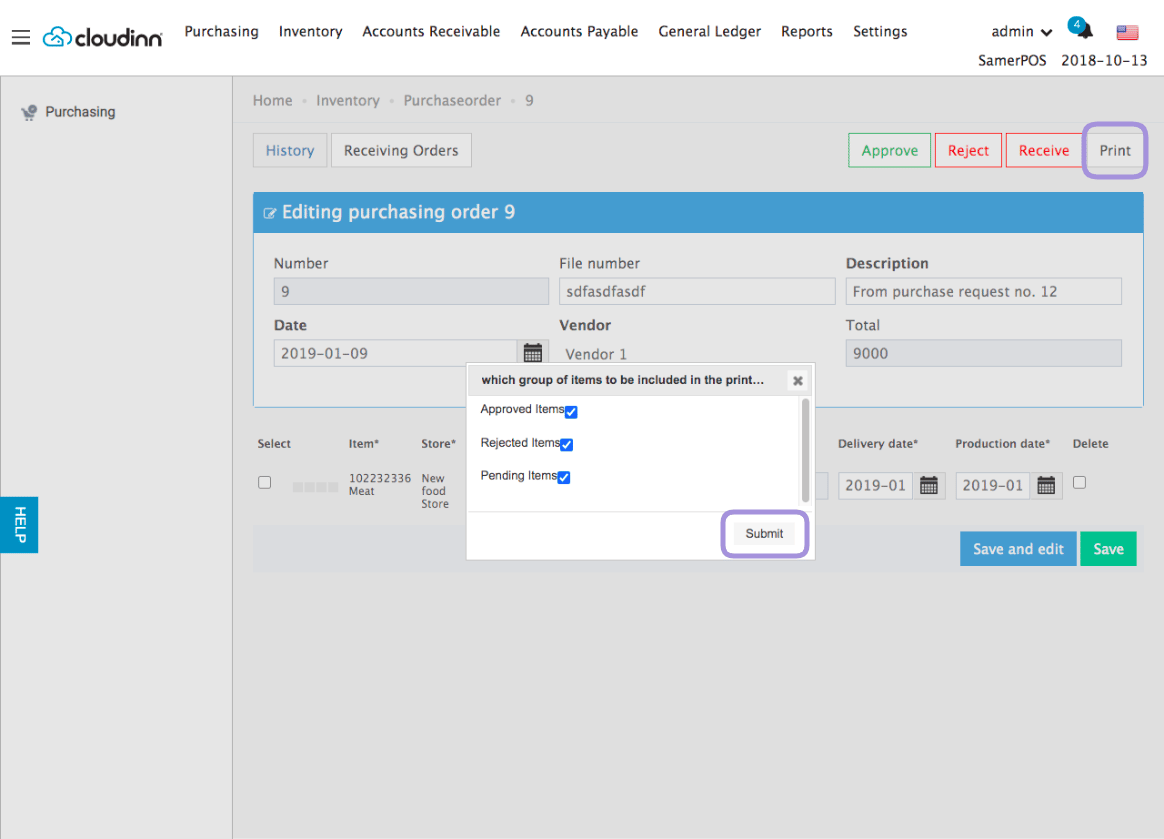
1. Open the PO and click **Print** (top right).
2. Choose which items to show: approved, pending, or rejected.
3. Click **Submit**.
#### **Usage Department Filter**
* The list has a **Usage Department** filter and column.
* The filter fills in with the usage departments you can access.
* You see only the POs of your own departments.
* Clearing the filter shows all POs you can access. Other departments' POs stay hidden.
### **Print and Email**
| **Where:** Back Office → Purchasing → Purchase Orders → open a PO → Print |
| - |
#### **Print a PO**
1. Open the PO and click **Print** (top right).
2. Choose which items to show: approved, pending, or rejected.
3. Click **Submit**.
 To hide the approvers' signatures on the printout, see [Show or Hide Approvers' Signatures](/back-office/purchasing/show-approvers-signatures-on-purchase-request-and-order-printouts).
#### **Send a PO by Email**
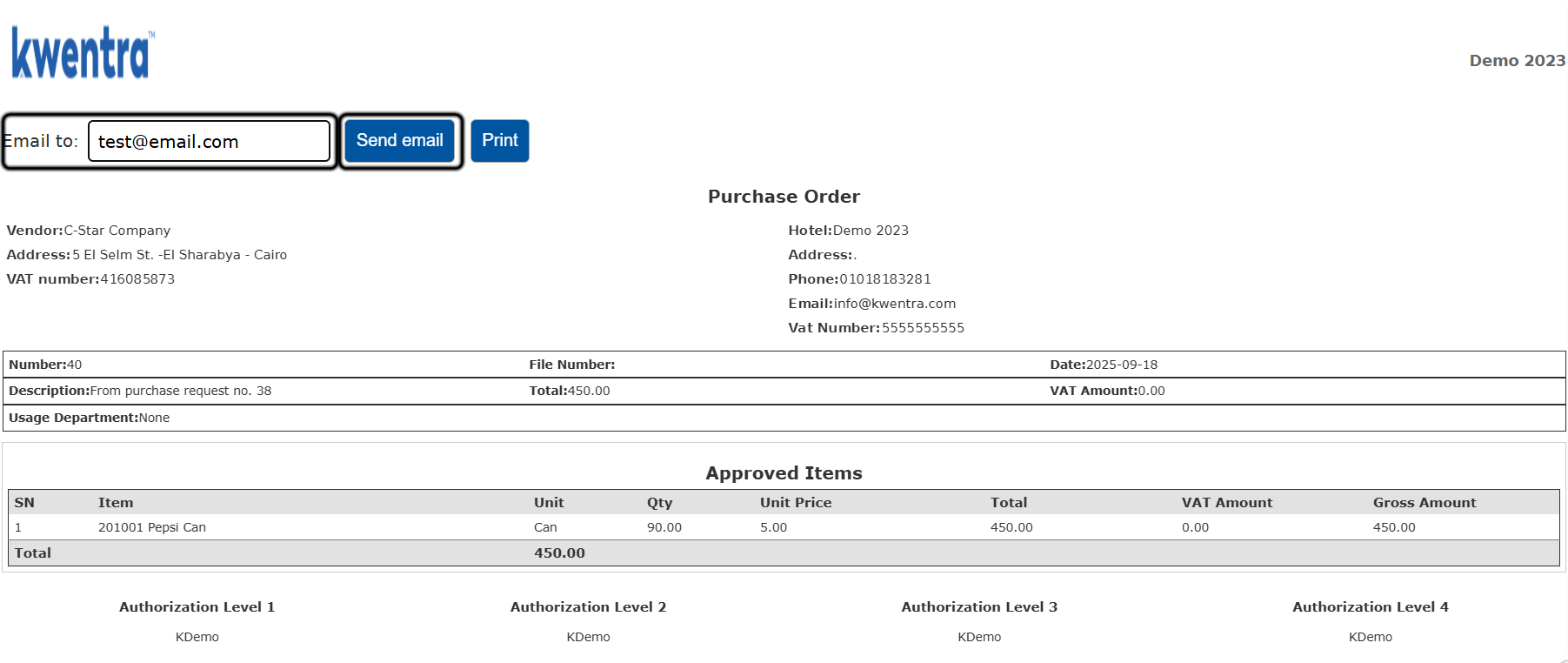
1. Open the PO and click **Print**. The print preview has an **Email to** field and a **Send email** button, next to **Print**.
2. **Email to** fills in with the email on the vendor profile. If the profile has none, the field stays empty.
3. You can always change **Email to**.
4. Click **Send email**.
To hide the approvers' signatures on the printout, see [Show or Hide Approvers' Signatures](/back-office/purchasing/show-approvers-signatures-on-purchase-request-and-order-printouts).
#### **Send a PO by Email**
1. Open the PO and click **Print**. The print preview has an **Email to** field and a **Send email** button, next to **Print**.
2. **Email to** fills in with the email on the vendor profile. If the profile has none, the field stays empty.
3. You can always change **Email to**.
4. Click **Send email**.
 * The email goes out in your account's default language.
* The PO is attached as a PDF. It also shows in the email body.
* The subject and body use a fixed template. You cannot edit them.
**Subject:** `Purchase Order #{po_number} - {property_name}`
**Body:**
> Dear `{vendor_name}`,
>
> Please find attached our Purchase Order #`{po_number}` dated `{po_date}`.
>
> `{Embedded HTML Purchase Order}`
>
> Best regards,
> `{property_name}`
| **Note:** **Send email** is greyed out when **Email to** is empty or not a valid email address. |
| - |
This documentation is built and hosted on [Mintlify](https://mintlify.com), a developer documentation platform.
* The email goes out in your account's default language.
* The PO is attached as a PDF. It also shows in the email body.
* The subject and body use a fixed template. You cannot edit them.
**Subject:** `Purchase Order #{po_number} - {property_name}`
**Body:**
> Dear `{vendor_name}`,
>
> Please find attached our Purchase Order #`{po_number}` dated `{po_date}`.
>
> `{Embedded HTML Purchase Order}`
>
> Best regards,
> `{property_name}`
| **Note:** **Send email** is greyed out when **Email to** is empty or not a valid email address. |
| - |
This documentation is built and hosted on [Mintlify](https://mintlify.com), a developer documentation platform.