> ## Documentation Index
> Fetch the complete documentation index at: https://help.kwentra.com/llms.txt
> Use this file to discover all available pages before exploring further.
# kwentra Guest Portal
> CloudInn have created a Guest Portal for your guests to log in on and take actions on their own reservation prior to their arrival. Your guests can do the following from CloudInn Guest Portal: * Up...
kwentra have created a Guest Portal for your guests to log in on and take actions on their own reservation prior to their arrival.
Your guests can do the following from kwentra Guest Portal:
* Update their Guest Profile Information
* Cancel their reservation
*You need to contact [support@kwentra.com](mailto:support@kwentra.com) to activate the guest portal feature for your hotel.*
When the reservation is made, 3 days prior to their arrival at your hotel, your guests will receive a similar email to the below that contains the **link to kwentra Guest Portal and a Pin** to securly confirm their identity.
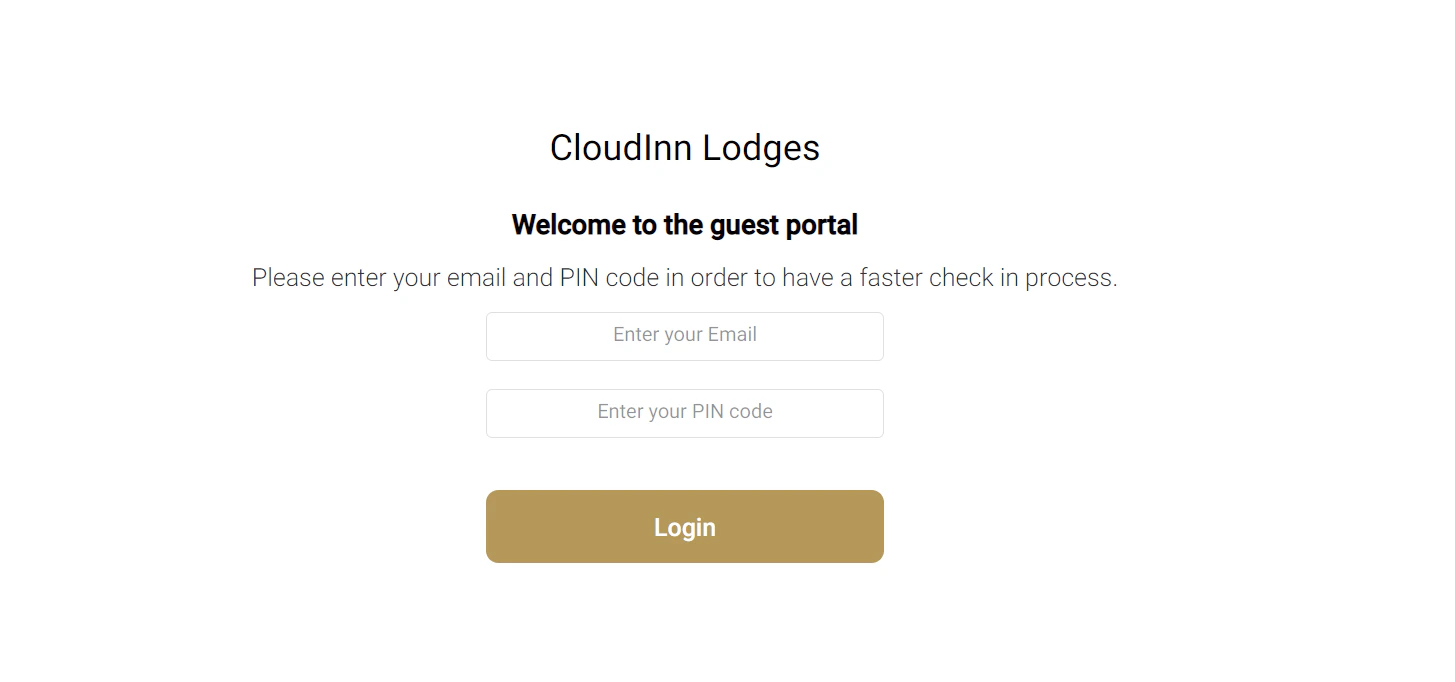
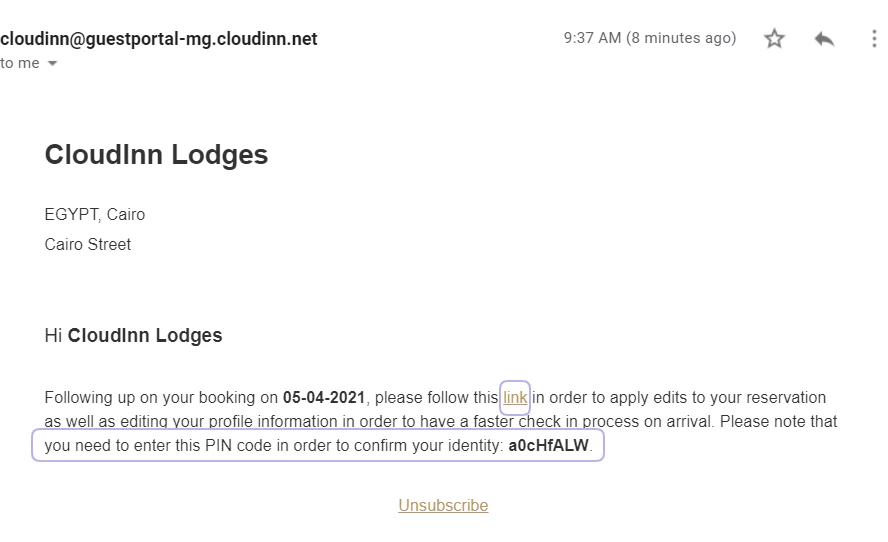 Once they click on the link they need to login using their email they received the **Pre-Arrival Email** on and the Pin provided in the same email.
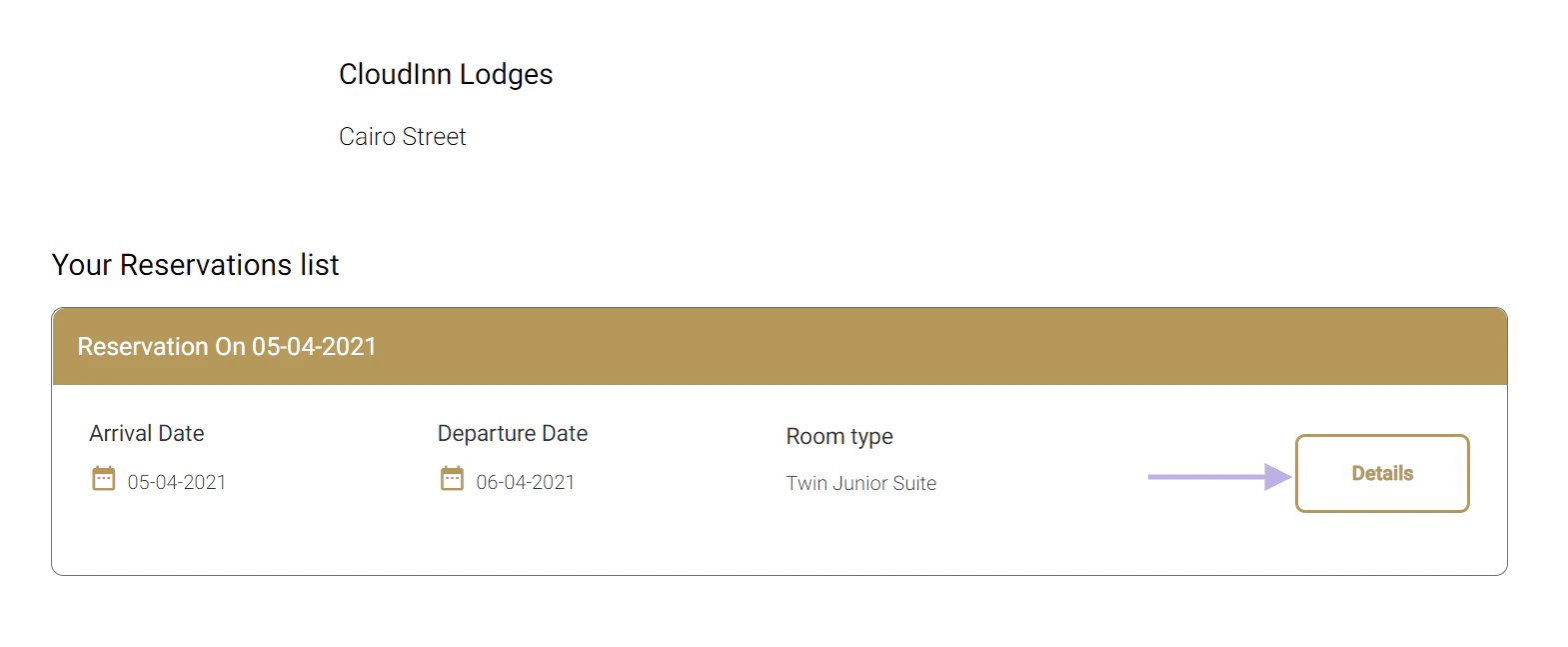
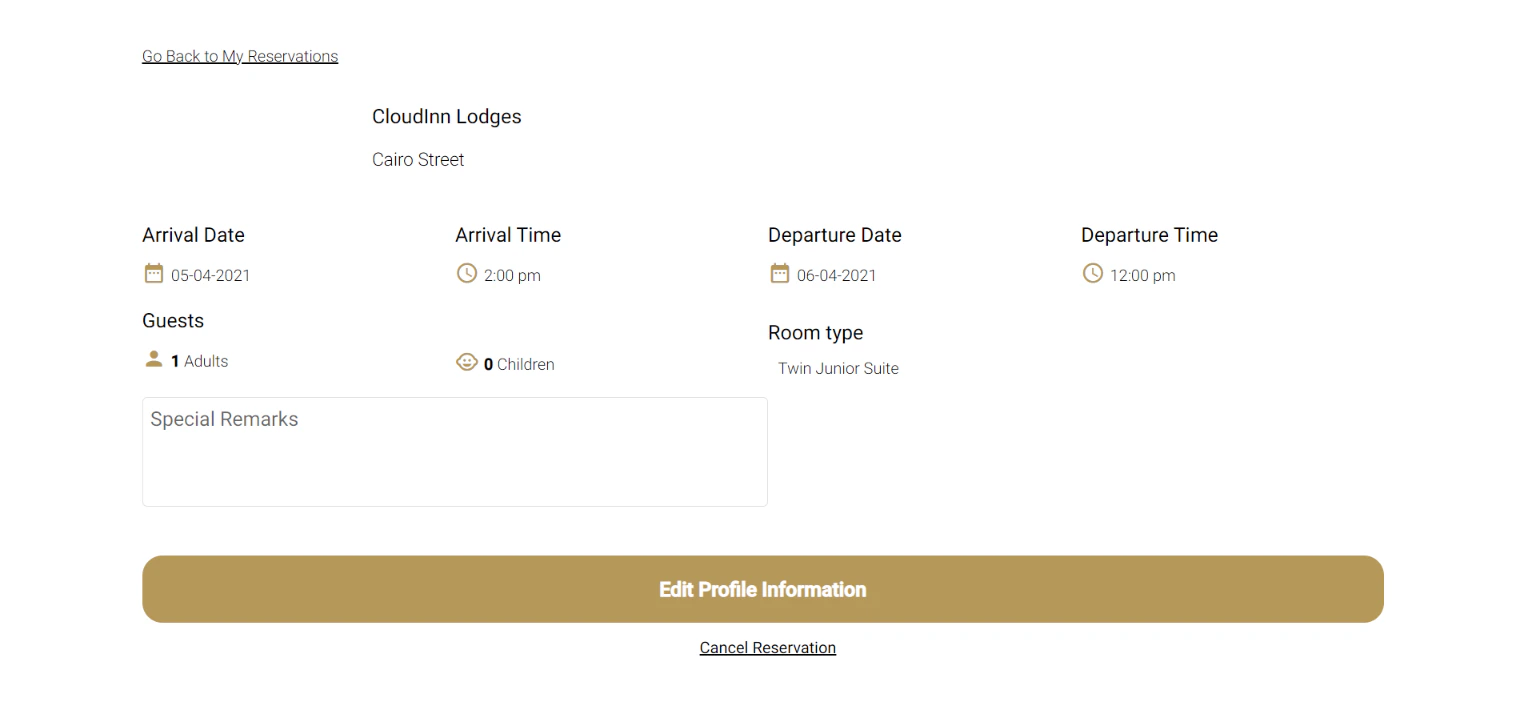
 Once they login, they get to see their reservation details, clicking on **Details** will give your guests more options to use.
 From here your guests get the option to complete and update their profile information or to choose to cancel the reservation.
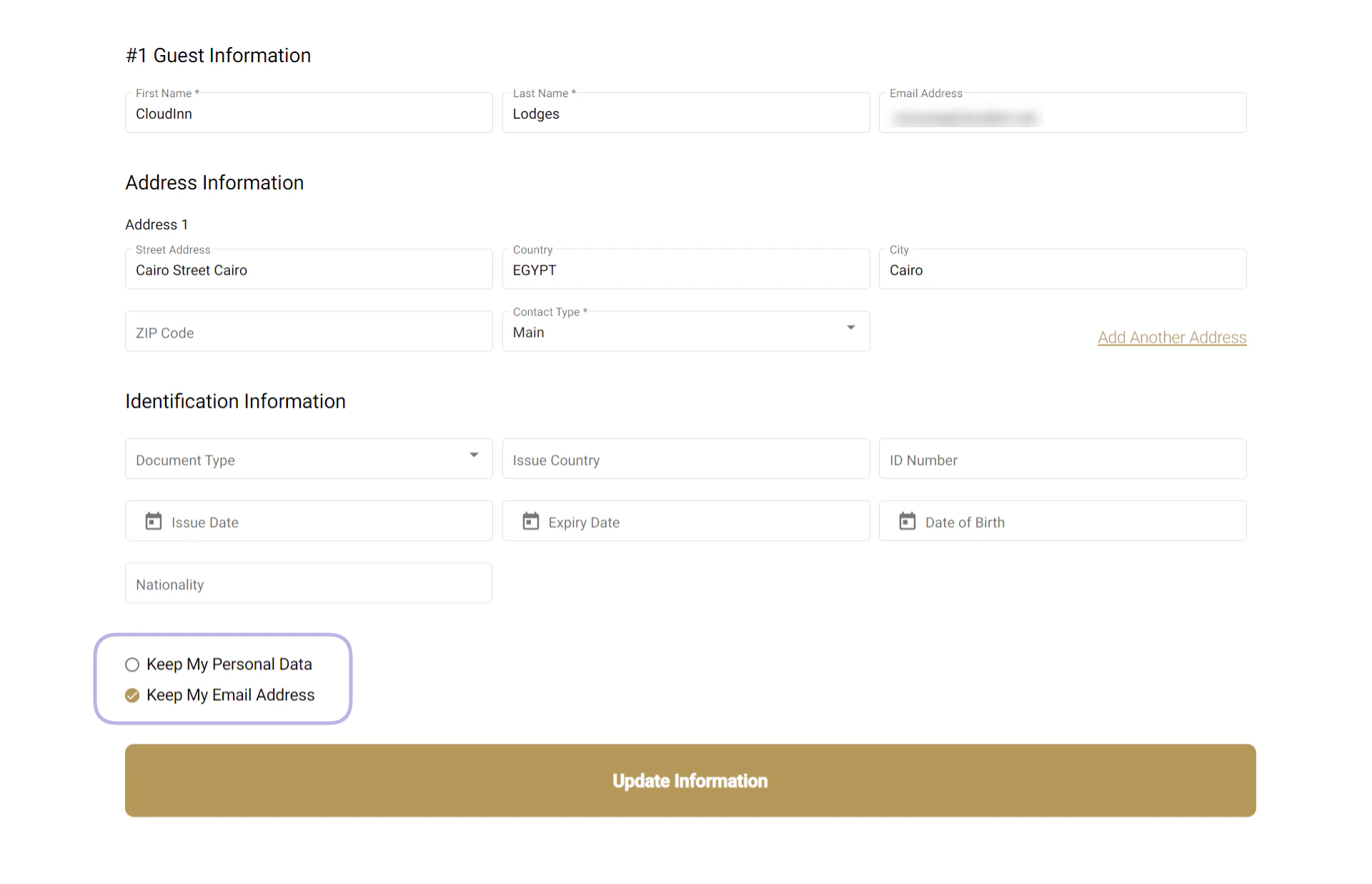
 Editing profile info will automatically reflect on your Front Office so when printing the Registration Card, the Check-In Process would be a lot easier.
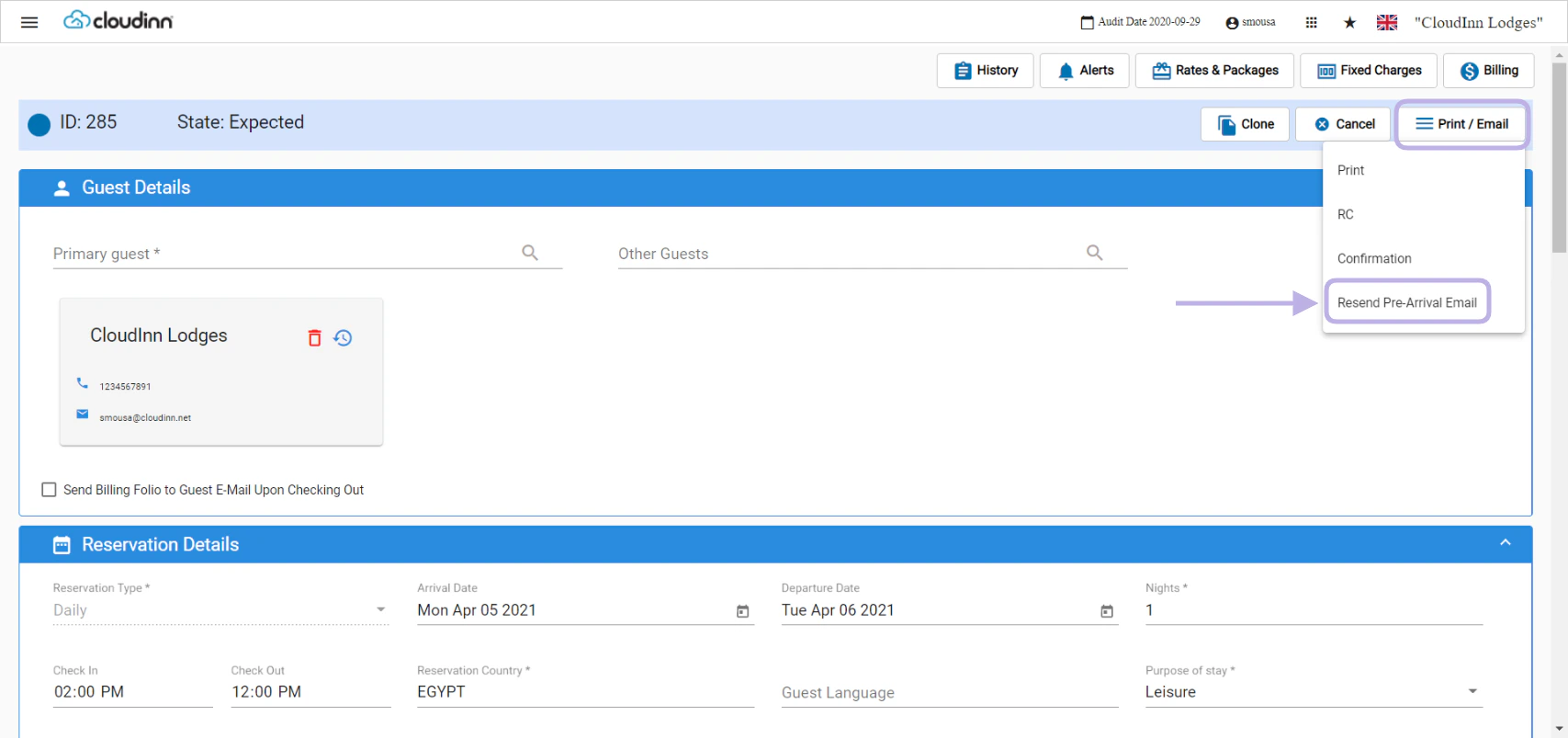
 If your guest did not receive the **Pre-Arrival Email** or you would like to resend it again, you have the option from the reservation's screen to resend.