> ## Documentation Index
> Fetch the complete documentation index at: https://help.kwentra.com/llms.txt
> Use this file to discover all available pages before exploring further.
# Kwentra Pay — Hyperpay Integration
> Connect your property to Hyperpay to generate SAR payment links directly from reservations and track all transactions — available for Saudi Arabia properties only. Business Value Enables Saudi prop...
Connect your property to Hyperpay to generate SAR payment links directly from reservations and track all transactions — available for Saudi Arabia properties only.
**Business Value**
* Enables Saudi properties to generate payment links directly from reservations — supporting MADA, Visa, and Mastercard.
* Automates guest payment collection: name, email, mobile, and amount are pulled from the reservation automatically.
* Successful payments are reflected back into the reservation automatically via webhook — no manual entry required.
* All Hyperpay transactions appear in the Kwentra Pay logs alongside other payment gateways for unified tracking.
* Multiple payment departments can be configured with different currencies and button labels for different use cases.
**Use Cases**
* Front desk sends a payment link to a guest's mobile or email directly from the reservation for an advance deposit.
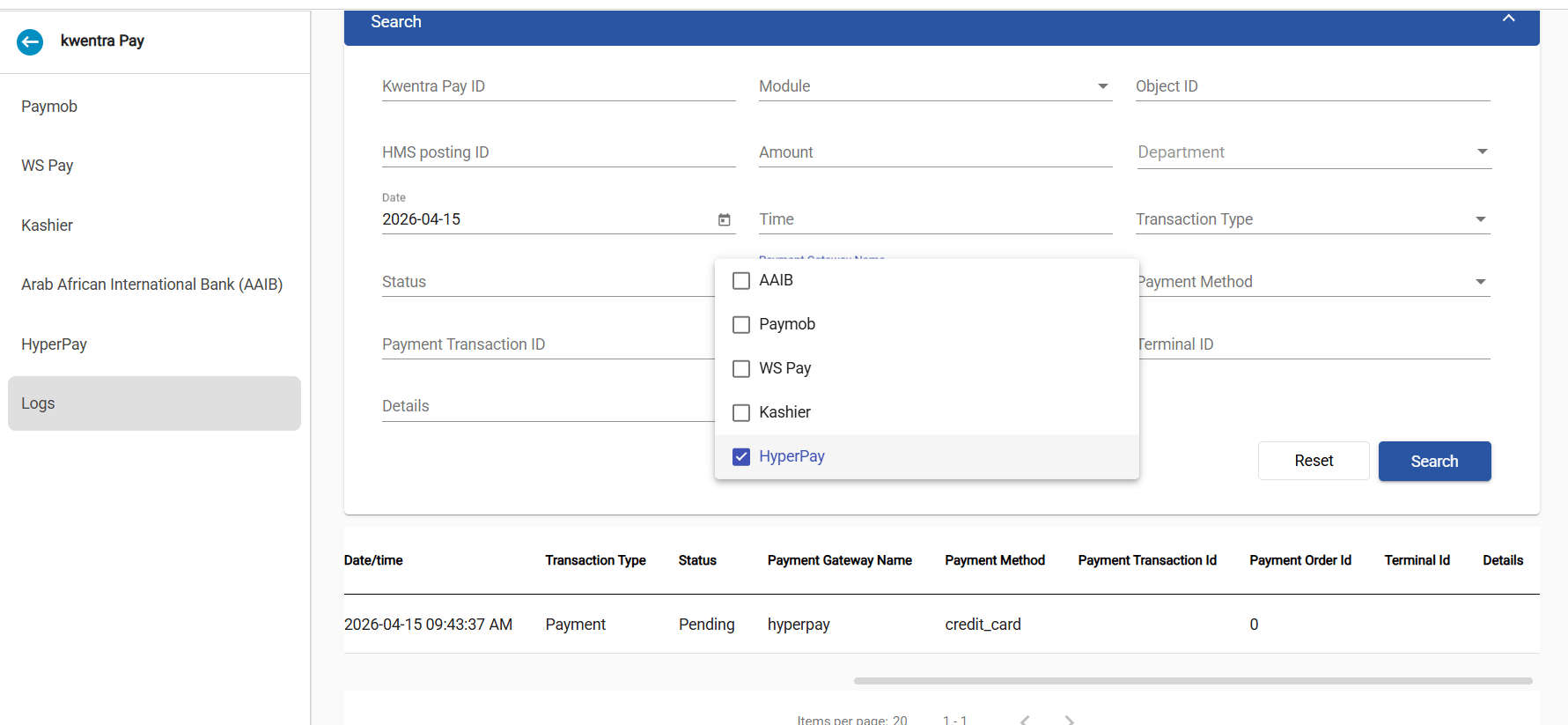
* Accounts team searches the Kwentra Pay logs filtered by "Hyperpay" and "Details" to locate a specific transaction.
* Hotel admin sets up two payment cards — one for Front Office SAR collections, each linked to a different credit department.
**How It Works**
**1. Settings Screen**
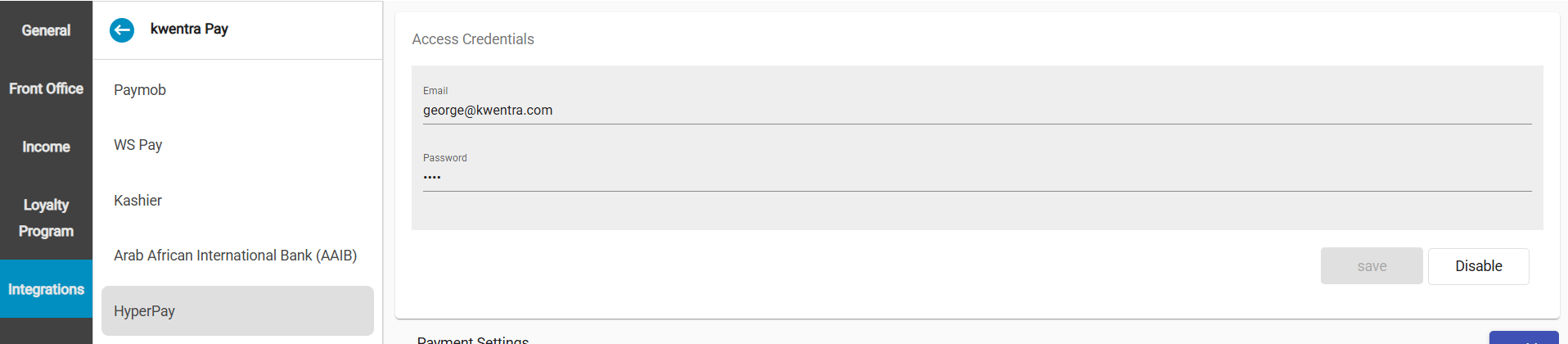
**Where:** Front Office → Settings → Integrations → Kwentra Pay → Hyperpay
**Important:** The Hyperpay integration is only available for properties configured with Saudi Arabia as their country.
**Access Credentials**
| **Field** | **Details** |
| ------------- | ----------------------------------------------------------------------------- |
| Email Address | Mandatory. Your Hyperpay account email. |
| Password | Mandatory. Hidden — not returned from the database on page load for security. |
 **Payment Settings**
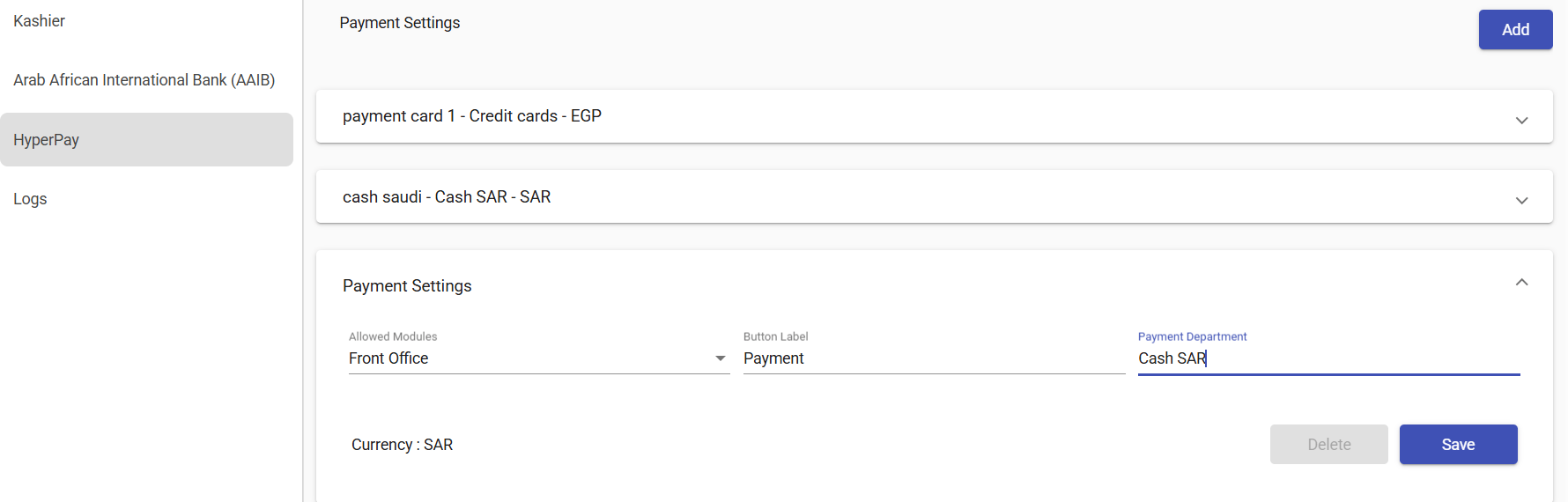
Use the **Add** button to configure one or more payment cards. Each card requires:
| **Field** | **Details** |
| ------------------ | --------------------------------------------------------------------------------------------- |
| Payment Department | Dropdown — credit type departments only. Links payments to the correct accounting department. |
| Currency | Auto-populated label based on the selected department's currency. |
| Button Label | The text shown to users when initiating a Hyperpay payment (e.g., "Pay Now"). |
| Allowed Modules | Multiselect — select Front Office to show the payment option there. |
**Note:** If the selected department has no currency set, the system will prevent saving and show: "Cannot save the form as the department \[NAME] does not include a currency. Please set a default currency for the department or select a different department."
**Payment Settings**
Use the **Add** button to configure one or more payment cards. Each card requires:
| **Field** | **Details** |
| ------------------ | --------------------------------------------------------------------------------------------- |
| Payment Department | Dropdown — credit type departments only. Links payments to the correct accounting department. |
| Currency | Auto-populated label based on the selected department's currency. |
| Button Label | The text shown to users when initiating a Hyperpay payment (e.g., "Pay Now"). |
| Allowed Modules | Multiselect — select Front Office to show the payment option there. |
**Note:** If the selected department has no currency set, the system will prevent saving and show: "Cannot save the form as the department \[NAME] does not include a currency. Please set a default currency for the department or select a different department."
 **Enabling the Integration**
1. Fill in Access Credentials and configure at least one Payment Settings card.
2. Click **Save**.
3. Click **Enable Integration**. The system calls Hyperpay to verify your credentials.
4. If successful: integration activates. If credentials are wrong: "Wrong Credentials — Data is not saved & integration is not enabled."
**Note:** Once enabled, the button label changes to "Disable Integration". Click it at any time to deactivate.
**Enabling the Integration**
1. Fill in Access Credentials and configure at least one Payment Settings card.
2. Click **Save**.
3. Click **Enable Integration**. The system calls Hyperpay to verify your credentials.
4. If successful: integration activates. If credentials are wrong: "Wrong Credentials — Data is not saved & integration is not enabled."
**Note:** Once enabled, the button label changes to "Disable Integration". Click it at any time to deactivate.
 **2. Generating a Payment Link**
**Where:** Front Office → Individual Reservations → Billing → Tools Menu → Payment → kwentra Pay | Front Office → Paymaster → Billing
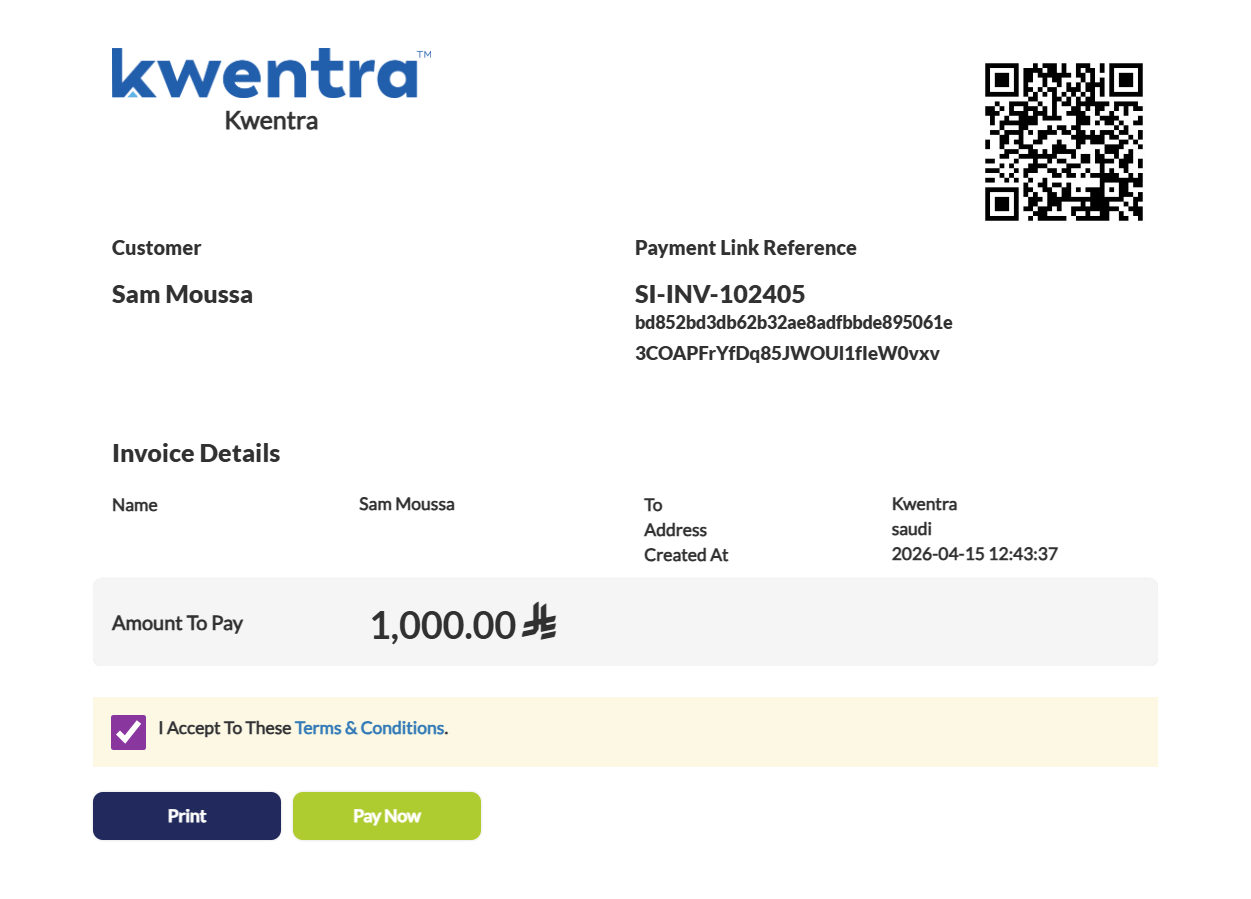
When a payment is initiated via the Kwentra Pay button, Hyperpay automatically generates a payment link using the following data from the reservation:
**2. Generating a Payment Link**
**Where:** Front Office → Individual Reservations → Billing → Tools Menu → Payment → kwentra Pay | Front Office → Paymaster → Billing
When a payment is initiated via the Kwentra Pay button, Hyperpay automatically generates a payment link using the following data from the reservation:
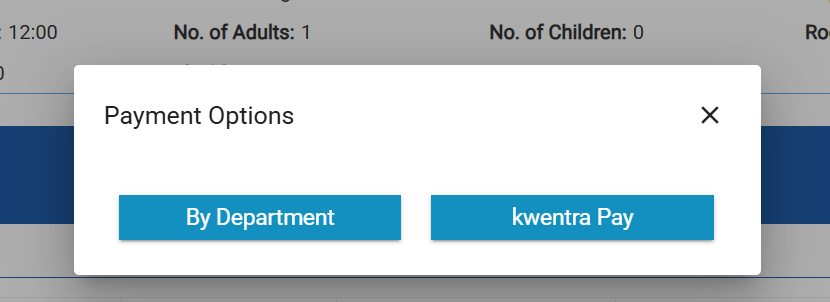
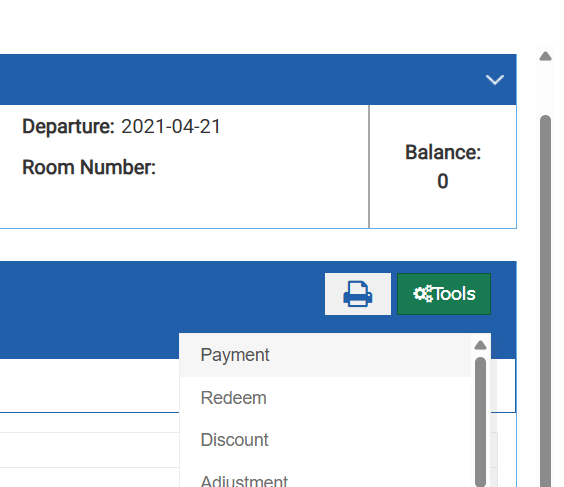 Choose kwentra Pay
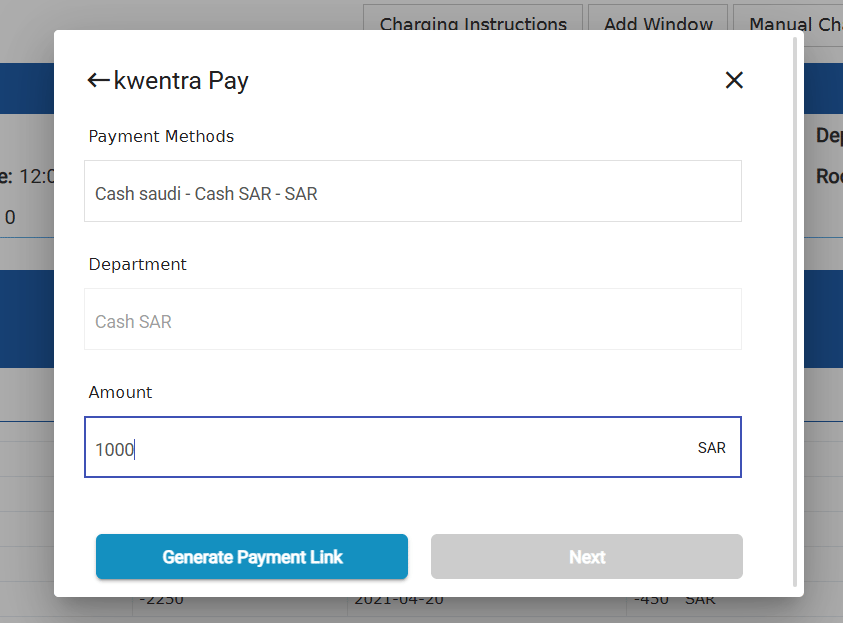
 Choose the payment department that will record the payment for the payment link, and add the amount for the reservation
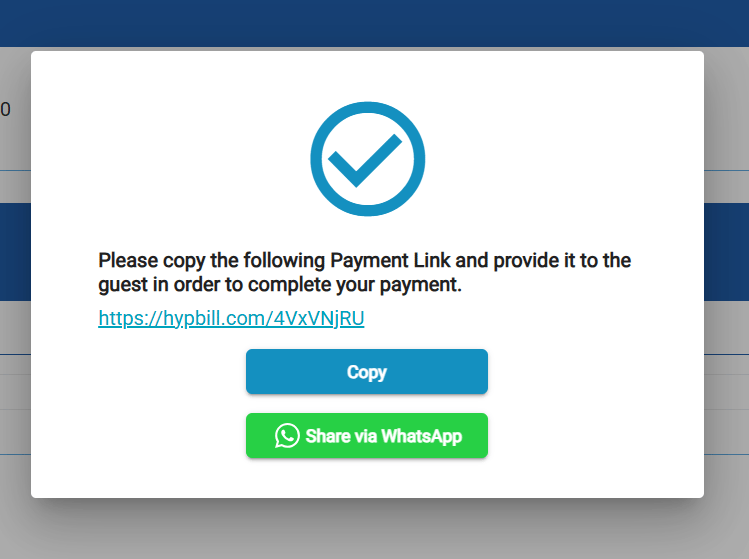
 The generated link can be copied or sent directly via WhatsApp
 Initial Payment Screen:
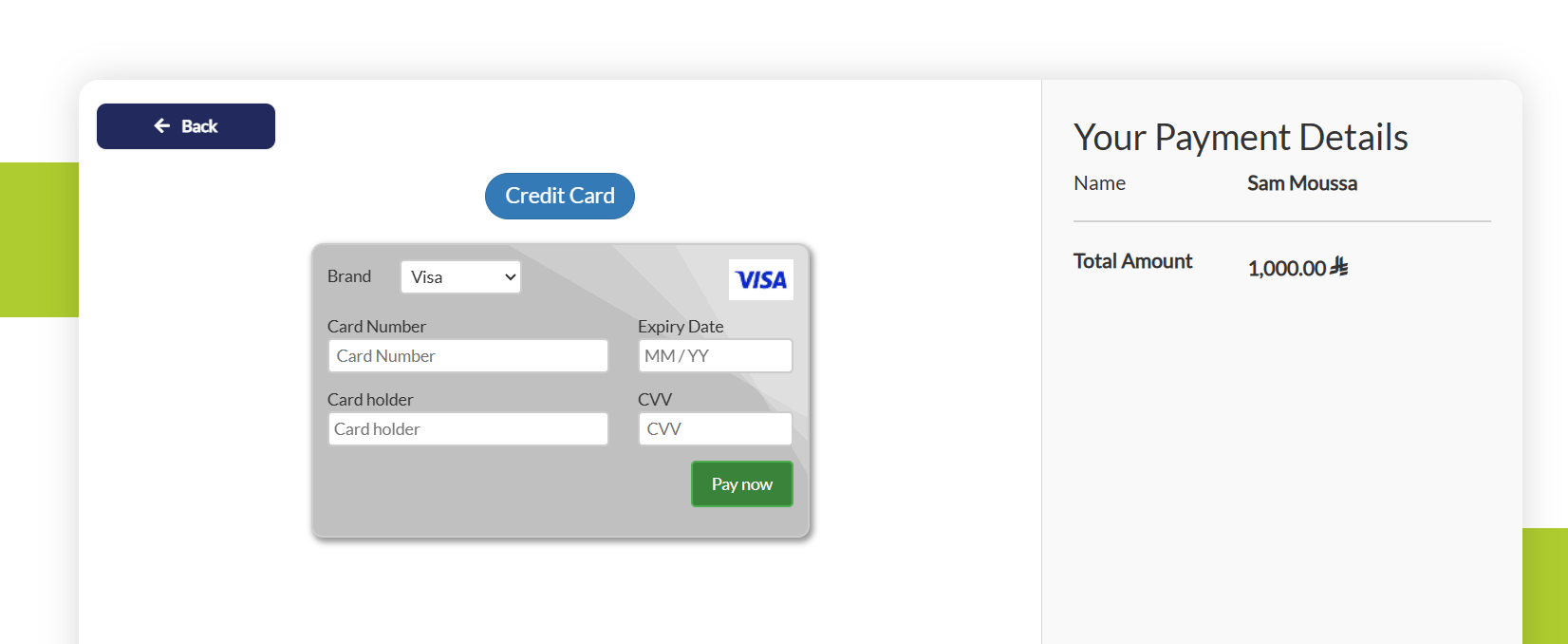
 Credit Card details
 | **Field Sent to Hyperpay** | **Source in Kwentra** |
| -------------------------- | --------------------------------------------------------------- |
| Guest Name | Main Guest Profile — First Name + Last Name (or Paymaster name) |
| Email | Main Guest Profile → Email (defaults to placeholder if empty) |
| Mobile | Main Guest Profile → Mobile (defaults to placeholder if empty) |
| Amount | Total amount due on the reservation |
| Currency | Currency of the configured payment department |
| Language | Reservation language: Arabic → "ar", English → "en" (default) |
| Payment Type | Always "DB" (debit) |
The generated link supports **MADA, Visa, and Mastercard**. The guest opens the link and completes payment. Once paid, Hyperpay sends a webhook and the payment is automatically recorded in the reservation.
**Note:** If the guest has no email or mobile on file, the system sends a placeholder value — this is required by the Hyperpay API and does not affect payment processing.
**3. Transaction Logs**
**Where:** Front Office → Settings → Integrations → Kwentra Pay → Logs
All Hyperpay transactions are recorded in the Kwentra Pay logs. Updates to the logs screen include:
* **Payment Gateway Name** — now a multiselect filter. Select "Hyperpay" to view only Hyperpay transactions.
* **Details column** — now visible in the logs table, showing transaction-specific data returned from Hyperpay.
* **Details filter** — search and filter log entries by any string within the Details field.
| **Field Sent to Hyperpay** | **Source in Kwentra** |
| -------------------------- | --------------------------------------------------------------- |
| Guest Name | Main Guest Profile — First Name + Last Name (or Paymaster name) |
| Email | Main Guest Profile → Email (defaults to placeholder if empty) |
| Mobile | Main Guest Profile → Mobile (defaults to placeholder if empty) |
| Amount | Total amount due on the reservation |
| Currency | Currency of the configured payment department |
| Language | Reservation language: Arabic → "ar", English → "en" (default) |
| Payment Type | Always "DB" (debit) |
The generated link supports **MADA, Visa, and Mastercard**. The guest opens the link and completes payment. Once paid, Hyperpay sends a webhook and the payment is automatically recorded in the reservation.
**Note:** If the guest has no email or mobile on file, the system sends a placeholder value — this is required by the Hyperpay API and does not affect payment processing.
**3. Transaction Logs**
**Where:** Front Office → Settings → Integrations → Kwentra Pay → Logs
All Hyperpay transactions are recorded in the Kwentra Pay logs. Updates to the logs screen include:
* **Payment Gateway Name** — now a multiselect filter. Select "Hyperpay" to view only Hyperpay transactions.
* **Details column** — now visible in the logs table, showing transaction-specific data returned from Hyperpay.
* **Details filter** — search and filter log entries by any string within the Details field.