> ## Documentation Index
> Fetch the complete documentation index at: https://help.kwentra.com/llms.txt
> Use this file to discover all available pages before exploring further.
# Front Office New Settings Screens
> You now have the access to the settings screen from the New Front Office Navigation to make it easier to manage all your settings. The New Screens has all your previously known Front Office Setting...
You now have the access to the settings screen from the New Front Office Navigation to make it easier to manage all your settings.
The New Screens has all your previously known but much more organized and all in one place for easier access.
Below is how to navigate to the new settings screen and how to return back to your main front office navigational menu.
[**Front Office (beta) → New Settings**](https://manage.kwentra.com/settings/)
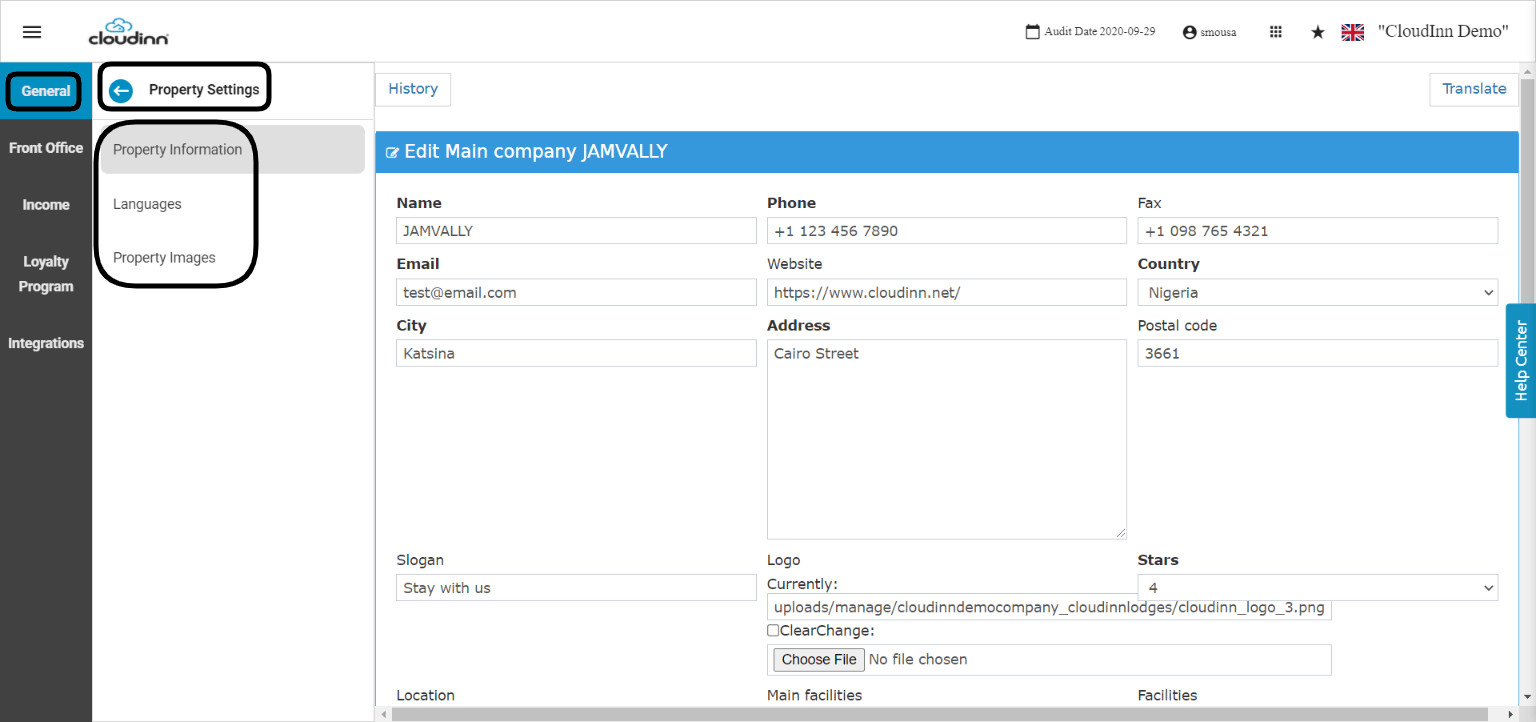
Once you open the new settings screen you will get the below main tabs on the left side:
* General
* Front Office
* Income
* Loyalty Program
* Integrations
**General Tab:**
* The main that reflects on your email confirmation and produced invoices.
* Your system's languages.
* The main property photos.
 **Front Office Tab:**
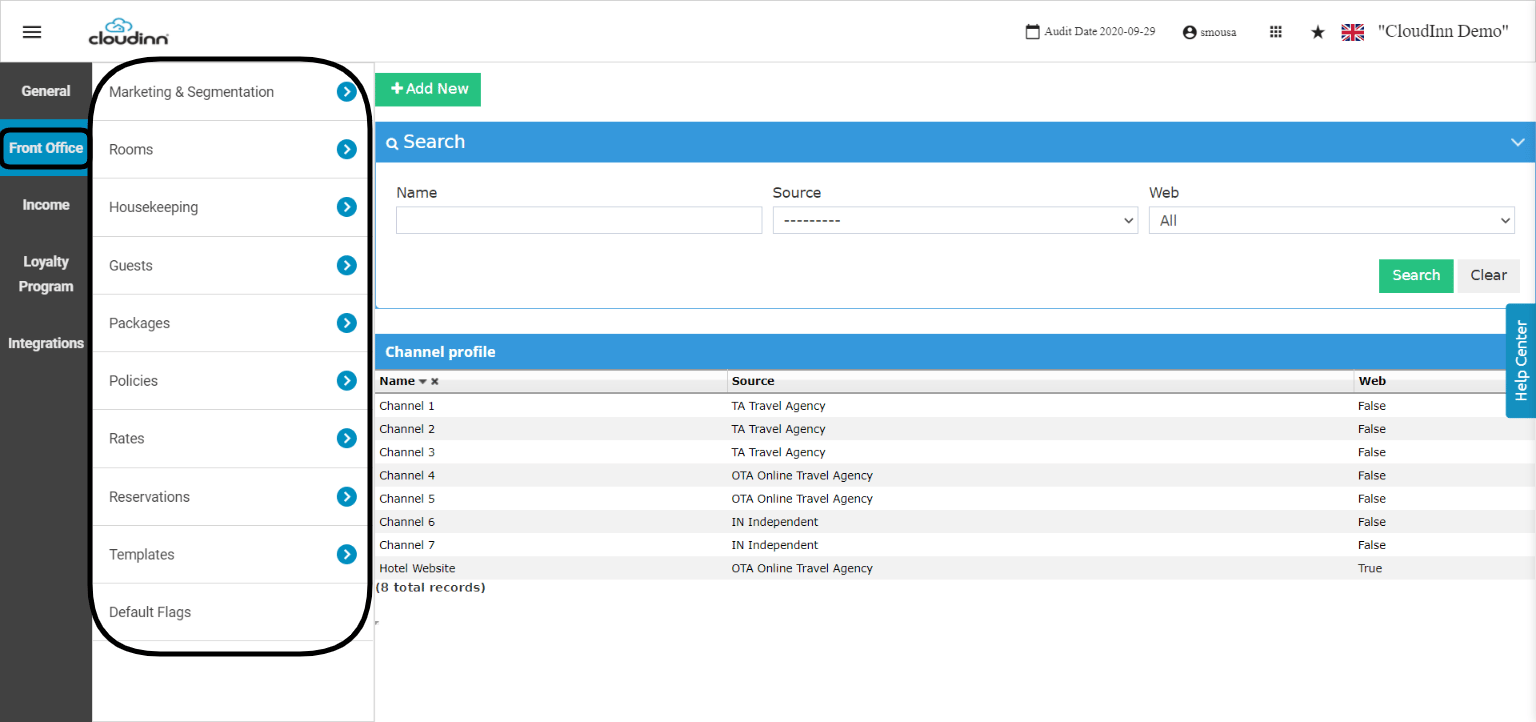
This tab is very important as it has all the settings for muliple features that reflect directly to your front office and its setup:
Examples to what you can do from the below tab:
* Add new channels to link them with rates
* Update rooms information
* Add new housekeeping tasks
* Add new packages to link them to rates
* Add or update your rates
* Create derived rates
* Add rate restrictions
You can find articles about the above actions through our
**Front Office Tab:**
This tab is very important as it has all the settings for muliple features that reflect directly to your front office and its setup:
Examples to what you can do from the below tab:
* Add new channels to link them with rates
* Update rooms information
* Add new housekeeping tasks
* Add new packages to link them to rates
* Add or update your rates
* Create derived rates
* Add rate restrictions
You can find articles about the above actions through our
 **Income Tab:**
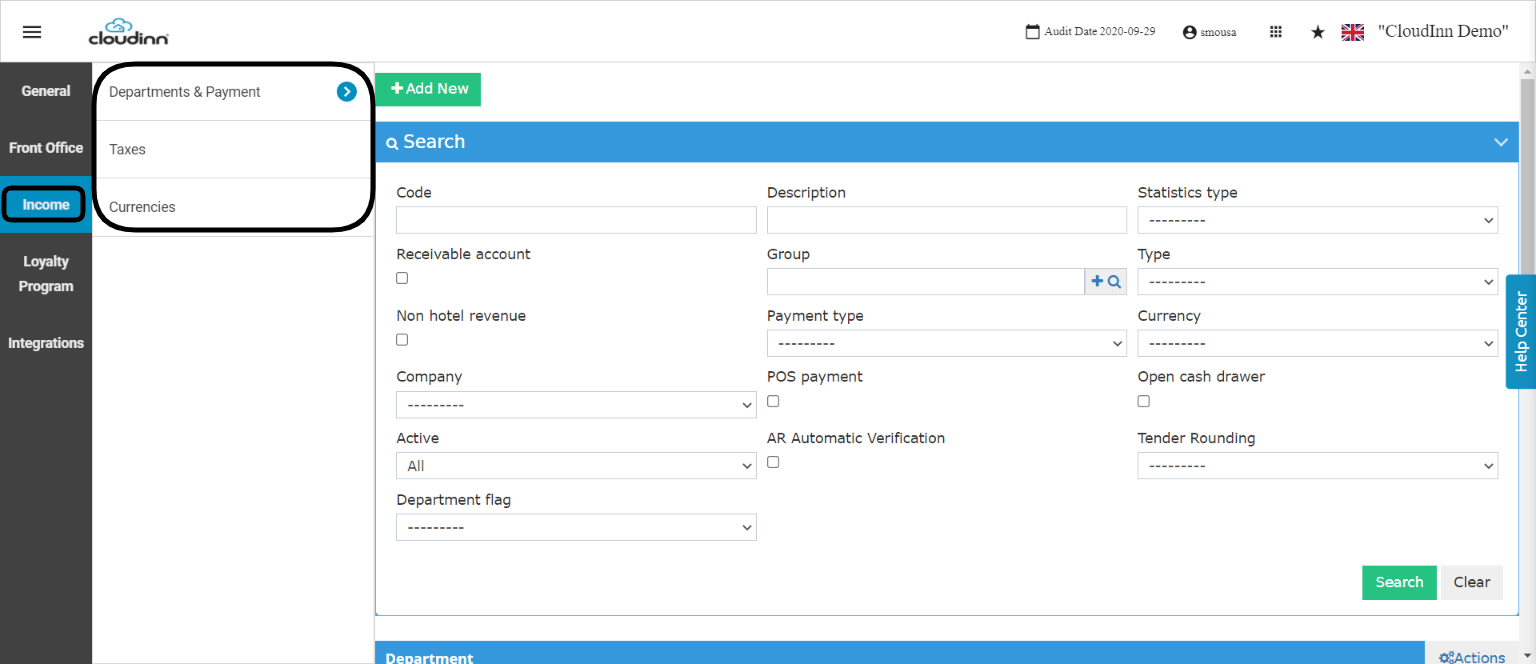
* Add new or new
* Manage your taxes definition
* Add/update
**Income Tab:**
* Add new or new
* Manage your taxes definition
* Add/update
 The above tabs are the most important ones to give you full hands on to your front office easily from the New Front Office Navigational Screen.