> ## Documentation Index
> Fetch the complete documentation index at: https://help.kwentra.com/llms.txt
> Use this file to discover all available pages before exploring further.
# How do I add divisions on the system?
> What are divisions? Divisions are the different functions and departments that work for a particular property; examples of different departments are below: Management Reservations Team Front Desk T...
### **What are divisions?**
Divisions are the different functions and departments that work for a particular property; examples of different departments are below:
* Management
* Reservations Team
* Front Desk Team
* Finance Department
* Food and Beverage
* Housekeeping Department
* Maintenance Department
### **Why would I need to create divisions in the system?**
Creating divisions would allow you to or that would only pop up for the users under this division.
Divisions can be used on account families to create usage departments on purchase requests.
### **How do we create divisions?**
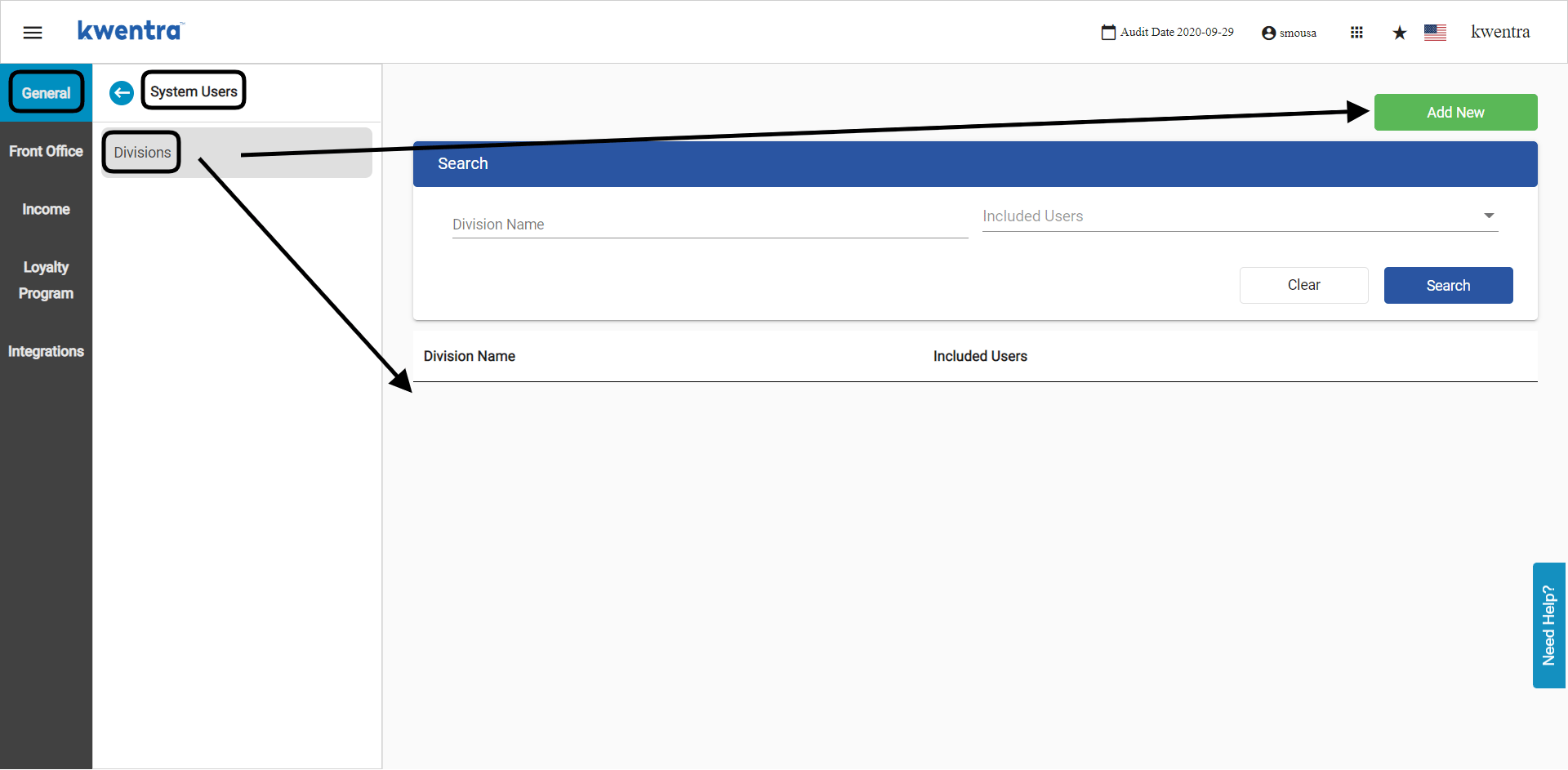
[**Front Office → Settings Gear Sign → General → System Users → Divisions**](https://manage.kwentra.com/settings/#/general/divisions)
All your divisions and the users under each one would be under this screen. To add a new division, click **Add New.**
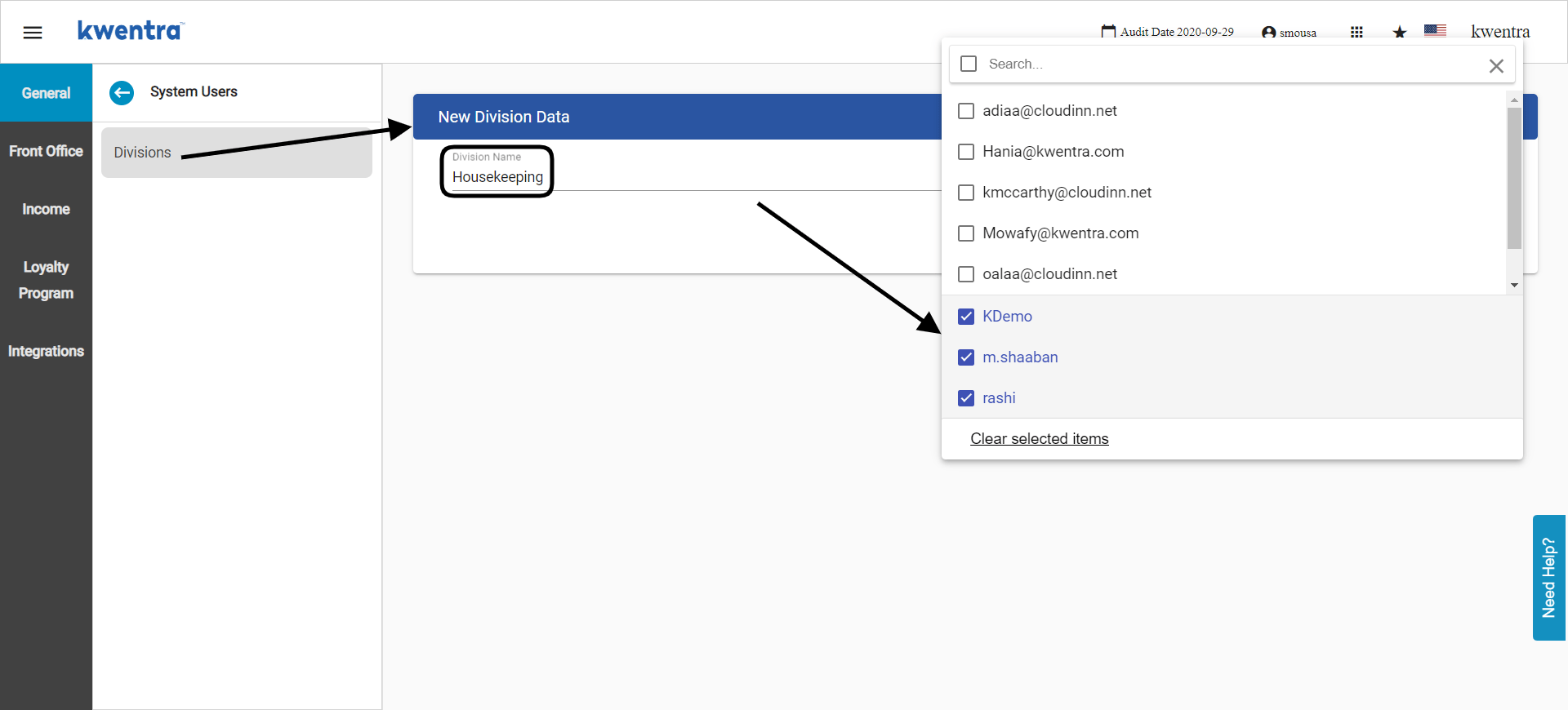
 1. Enter the **division name** you would like to appear when adding an alert—for example, housekeeping or front desk.
2. Select the usernames you would like to include under this new division.
3. Click **Save.**
1. Enter the **division name** you would like to appear when adding an alert—for example, housekeeping or front desk.
2. Select the usernames you would like to include under this new division.
3. Click **Save.**
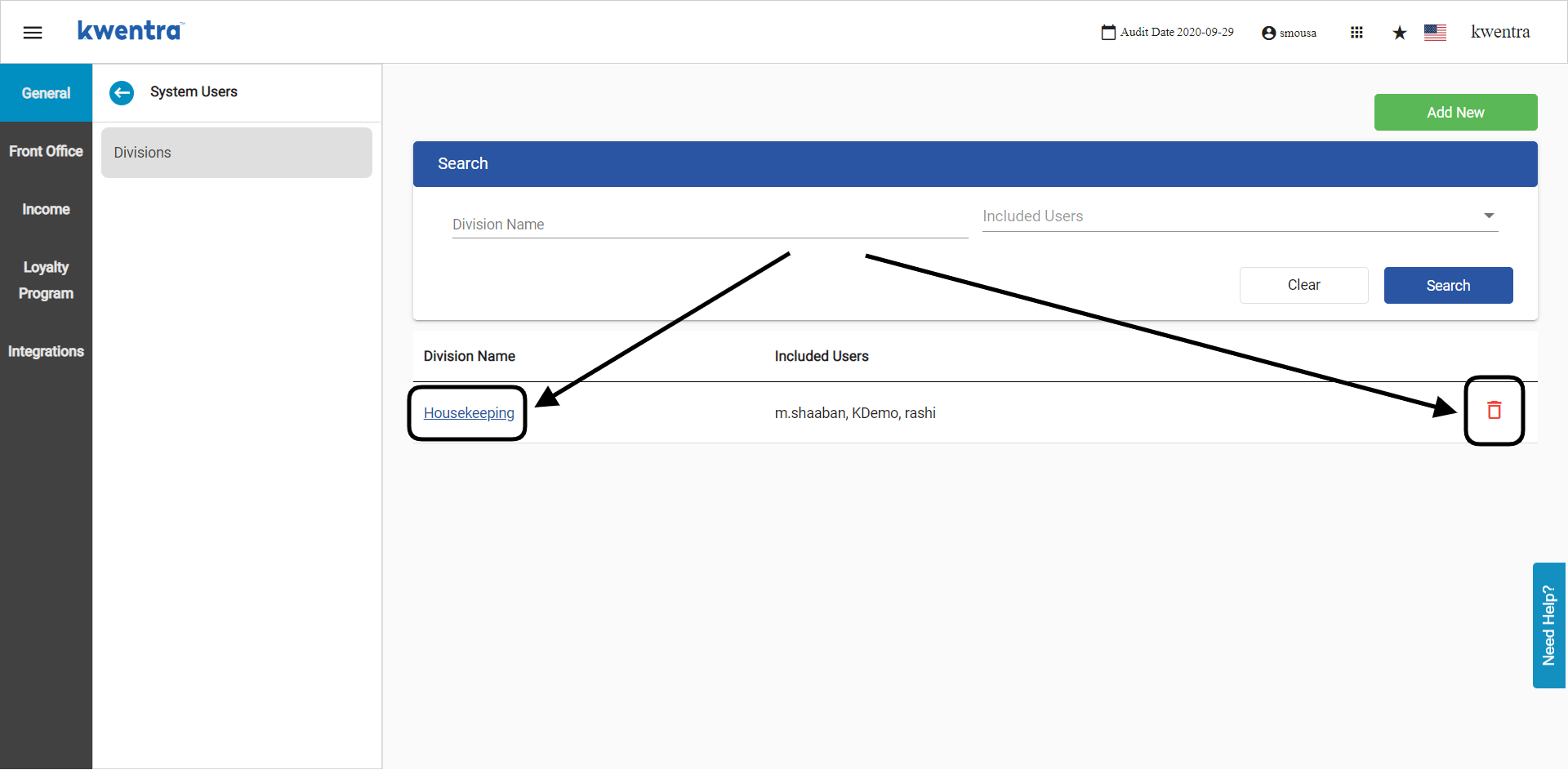
 You can easily edit the division after creation by clicking on the division name or deleting any division you would like.
 You can find the new division when creating a new alert for either or reservations. These popup alerts will only appear to the users included under the division to which the alert was assigned.