> ## Documentation Index
> Fetch the complete documentation index at: https://help.kwentra.com/llms.txt
> Use this file to discover all available pages before exploring further.
# Add a New Revenue Center - Revenue Departments
> Revenue (Debit) Departments are responsible to document your revenue generating services at your hotel to be able to charge your guests for them, a simple example for revenue departments is your ro...
Revenue (Debit) Departments are responsible to document your revenue generating services at your hotel to be able to charge your guests for them, a simple example for revenue departments is your room charges.
Adding Revenue Departments helps you and your staff to add charges to your guests' bills using them.
**How to add a new revenue center?**
**[Front Office → Settings Gear Sign → Income → Departments & Payment → Departments → Add New](https://manage.kwentra.com/settings/#/hms/departments)**
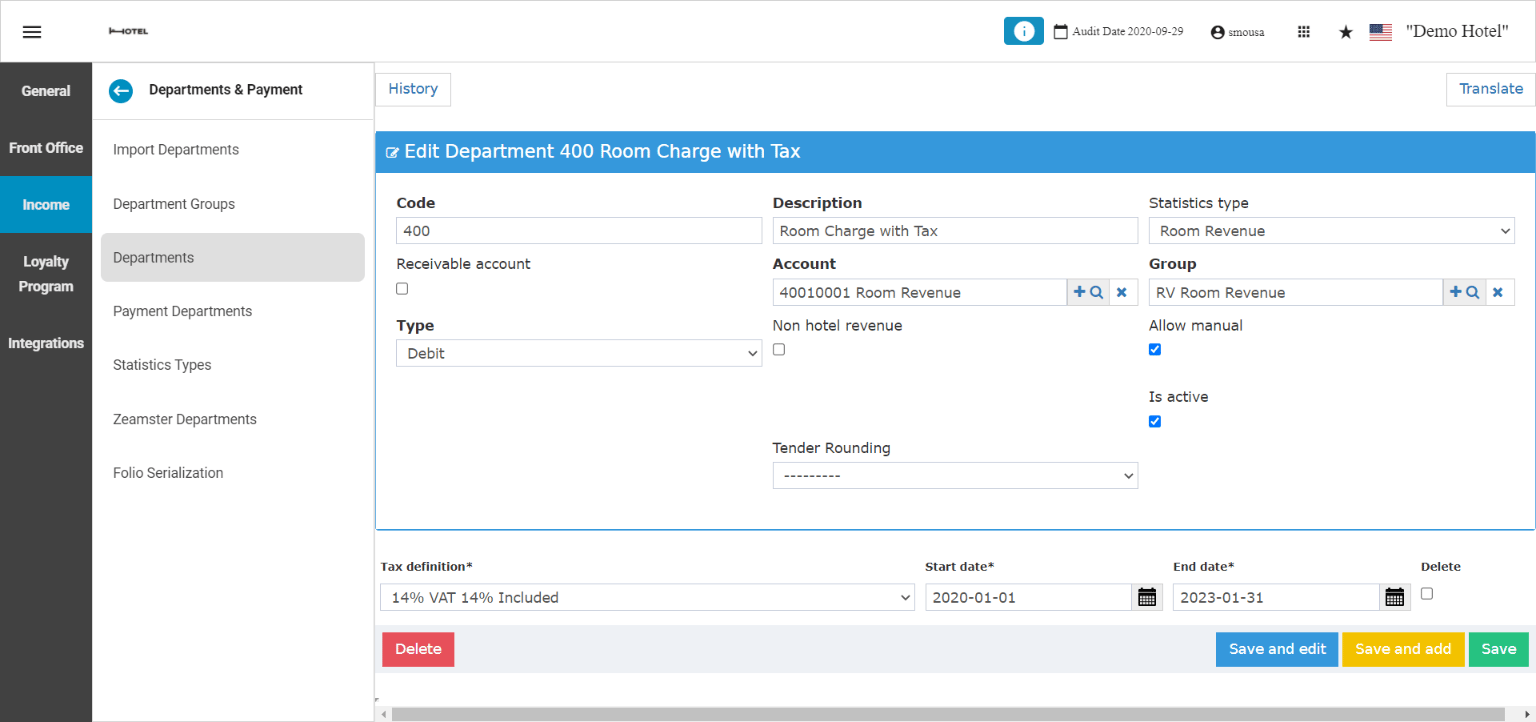
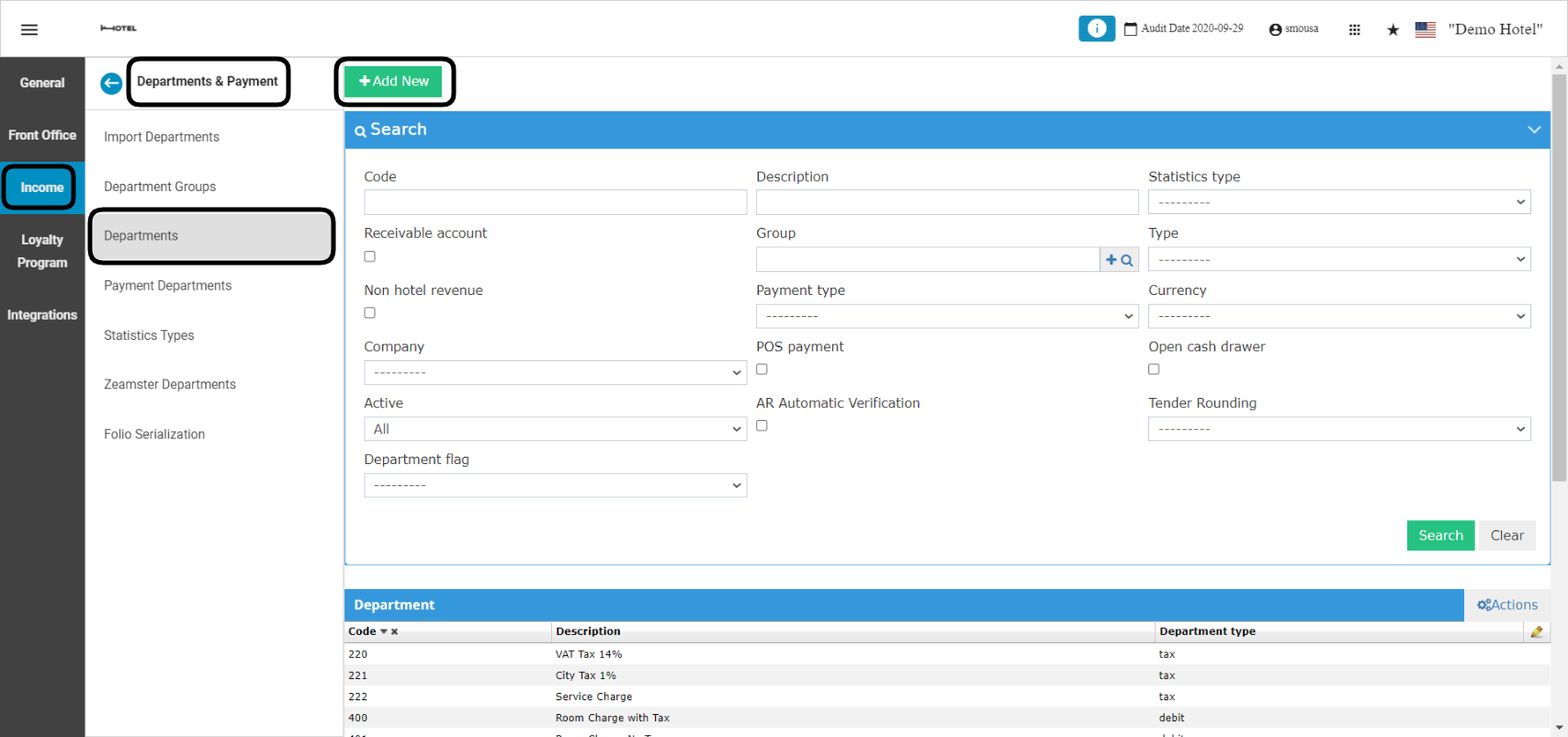 All the mandatory information are written in **Bold:**
* **Code:** a serial number for the revenue department, make sure to follow the serialization of your revenue centers in order to have everything organized correctly.
* **Description:** the name or the explanation for the new revenue generating service that will appear on the guests' billing screen and their printed out invoices. i.e. Package charges, breakfast charge.
* **Statistic type:**
* **Receivable account:** only use this option when the revenue department will be used in your AR accounts sub-module from back office.
* **Account:** linking your revenue department to a revenue account from your chart of accounts is very important, debit departments are to be linked to revenue accounts only.
* **Group:** select the revenue account group that the account you selected belongs to in the chart of accounts.
* **Type:** department type should be always debit for your revenue centers.
* **Allow Manual:** use this checkbox when you would like to use this revenue department to apply it as a manual charge on a reservation.
* **Active:** since you cannot delete departments, you can activate or deactivate revenue departments when you desire.
**Optional:** select the tax definition you would like to apply whenever you use this revenue department. Select the date range you would like this tax definition to be applied.
Don't forget to **Save** your changes to be able to use the new revenue department in your Front Office Billing screens.
All the mandatory information are written in **Bold:**
* **Code:** a serial number for the revenue department, make sure to follow the serialization of your revenue centers in order to have everything organized correctly.
* **Description:** the name or the explanation for the new revenue generating service that will appear on the guests' billing screen and their printed out invoices. i.e. Package charges, breakfast charge.
* **Statistic type:**
* **Receivable account:** only use this option when the revenue department will be used in your AR accounts sub-module from back office.
* **Account:** linking your revenue department to a revenue account from your chart of accounts is very important, debit departments are to be linked to revenue accounts only.
* **Group:** select the revenue account group that the account you selected belongs to in the chart of accounts.
* **Type:** department type should be always debit for your revenue centers.
* **Allow Manual:** use this checkbox when you would like to use this revenue department to apply it as a manual charge on a reservation.
* **Active:** since you cannot delete departments, you can activate or deactivate revenue departments when you desire.
**Optional:** select the tax definition you would like to apply whenever you use this revenue department. Select the date range you would like this tax definition to be applied.
Don't forget to **Save** your changes to be able to use the new revenue department in your Front Office Billing screens.
 ***Update: 29th of March, 2022***
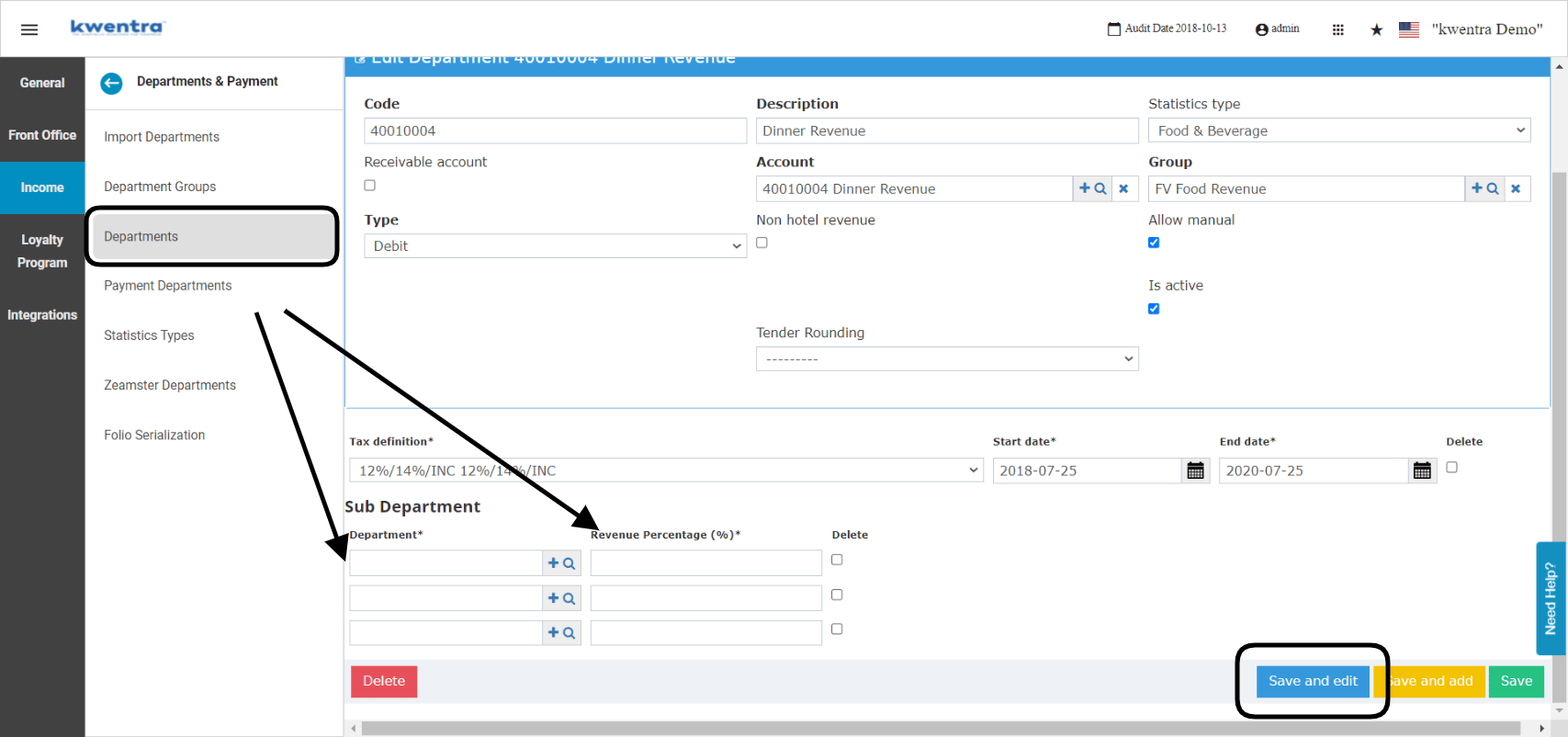
With the new sub-departments feature you can link sub-revenue departments to the main one in order to divide the revenue recorded on more than one code.
Example: you offer transportation to your guests in which the transportation provider gets 30% from the generated revenue.
In the above scenario if the transportation costs 100 USD then the billing entry will be divided 30 USD going to the sub department code and 70 USD going to the main department code.
***Important Notes:***
* *You cannot apply this feature to departments that are linked to rate plans I.E. Room Charges or Room Revenue.*
* *You cannot apply this feature to departments that are linked to packages "included packages or add-on packages".*
* *You can only apply this feature to departments that will be used as manual charges or fixed charges.*
**How does it work?**
**[Front Office → Settings Gear Sign → Income → Departments & Payment → Departments](https://manage.kwentra.com/settings/#/hms/departments)**
1. Select the Revenue Department you would like to apply the sub-departments to.
2. Insert the department code you want in the sub-department field.
3. Write the revenue percentage you want to apply for this sub department.
4. Click **Save** so as not to lose the changes you made.
***Update: 29th of March, 2022***
With the new sub-departments feature you can link sub-revenue departments to the main one in order to divide the revenue recorded on more than one code.
Example: you offer transportation to your guests in which the transportation provider gets 30% from the generated revenue.
In the above scenario if the transportation costs 100 USD then the billing entry will be divided 30 USD going to the sub department code and 70 USD going to the main department code.
***Important Notes:***
* *You cannot apply this feature to departments that are linked to rate plans I.E. Room Charges or Room Revenue.*
* *You cannot apply this feature to departments that are linked to packages "included packages or add-on packages".*
* *You can only apply this feature to departments that will be used as manual charges or fixed charges.*
**How does it work?**
**[Front Office → Settings Gear Sign → Income → Departments & Payment → Departments](https://manage.kwentra.com/settings/#/hms/departments)**
1. Select the Revenue Department you would like to apply the sub-departments to.
2. Insert the department code you want in the sub-department field.
3. Write the revenue percentage you want to apply for this sub department.
4. Click **Save** so as not to lose the changes you made.
 **What if the main sub department has taxes applied to it?**
When you apply a sub-department setting on a revenue department, the division of the revenue percentage applies first prior to the tax application.
**Example:** Transportation charges 100 USD, transportation provider sub-department revenue is 30%, 10% tax is applied on Transportation charges.
100 USD - 30 USD = 70 USD
70 USD \* 10% = 7 USD
Therefore the transportation charges after taxes is 77 USD.
The above example applies the same if the sub department has a tax definition linked to it.
***Update: 29th of May, 2022***
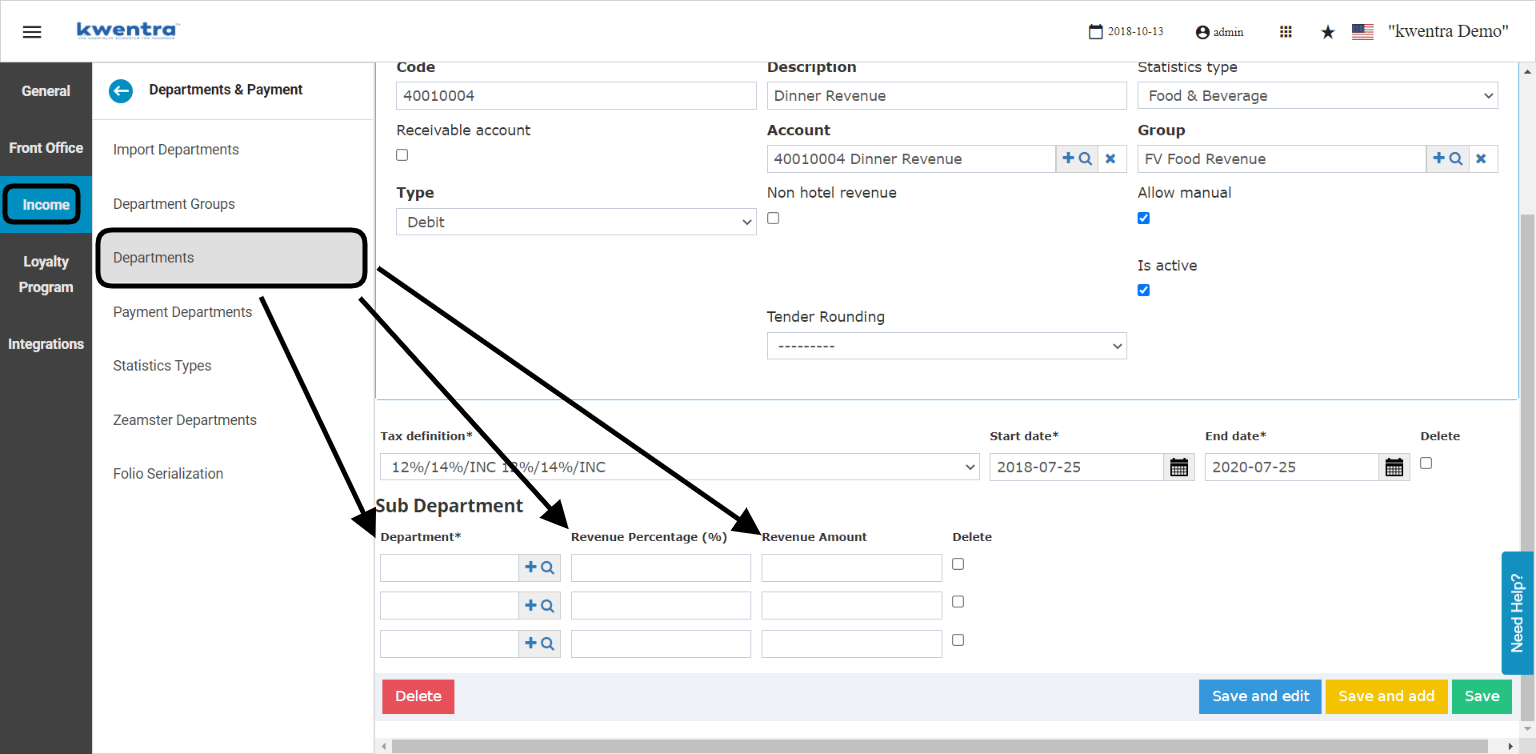
The new sub-department setting now has the option to either divide a percentage or an amount from the original charge you will add on the guest's bill.
**How does it work?**
**[Front Office → Settings Gear Sign → Income → Departments & Payment → Departments](https://manage.kwentra.com/settings/#/hms/departments)**
1. Select the Revenue Department you would like to apply the sub-departments to.
2. Insert the department code you want in the sub-department field.
3. Write the revenue percentage or amount you want to apply for this sub department.
4. Click **Save** so as not to lose the changes you made.
**Example:** Transportation Charges are 100 USD, transportation provider sub-department is always 20 USD regardless of the original amount, 14% VAT applies on the hotel's revenue from the transportation and 12% service charge applies to the transportation providor.
100 USD - 20 USD = 80 USD
12% service charge that applies on the providor: 20 USD \* 12% = 2.4 USD
14% VAT that applies to the hotel's transportation charges: 80 USD \* 14% = 11.2 USD
* Transportation Providor's charges after taxes: 22.4 USD
* Hotel's income from transportation after taxes: 91.2 USD
Therefore the whole charge added on the guest's bill is 113.6 USD
**What if the main sub department has taxes applied to it?**
When you apply a sub-department setting on a revenue department, the division of the revenue percentage applies first prior to the tax application.
**Example:** Transportation charges 100 USD, transportation provider sub-department revenue is 30%, 10% tax is applied on Transportation charges.
100 USD - 30 USD = 70 USD
70 USD \* 10% = 7 USD
Therefore the transportation charges after taxes is 77 USD.
The above example applies the same if the sub department has a tax definition linked to it.
***Update: 29th of May, 2022***
The new sub-department setting now has the option to either divide a percentage or an amount from the original charge you will add on the guest's bill.
**How does it work?**
**[Front Office → Settings Gear Sign → Income → Departments & Payment → Departments](https://manage.kwentra.com/settings/#/hms/departments)**
1. Select the Revenue Department you would like to apply the sub-departments to.
2. Insert the department code you want in the sub-department field.
3. Write the revenue percentage or amount you want to apply for this sub department.
4. Click **Save** so as not to lose the changes you made.
**Example:** Transportation Charges are 100 USD, transportation provider sub-department is always 20 USD regardless of the original amount, 14% VAT applies on the hotel's revenue from the transportation and 12% service charge applies to the transportation providor.
100 USD - 20 USD = 80 USD
12% service charge that applies on the providor: 20 USD \* 12% = 2.4 USD
14% VAT that applies to the hotel's transportation charges: 80 USD \* 14% = 11.2 USD
* Transportation Providor's charges after taxes: 22.4 USD
* Hotel's income from transportation after taxes: 91.2 USD
Therefore the whole charge added on the guest's bill is 113.6 USD