> ## Documentation Index
> Fetch the complete documentation index at: https://help.kwentra.com/llms.txt
> Use this file to discover all available pages before exploring further.
# Apply Manual Charges to Multiple Reservations and PayMasters
> Use the Bulk Charging option on the Cashiering screen to add manual charges to several reservations or PayMasters at once instead of one by one.
In the scenario wherein your busy operations prevented you from adding the manual charges to your reservations on each reservation, you can utilize the Bulk Charging option from the **Cashiering Screen.**
**Front Office → Income → Bulk Charges / Cashiering**
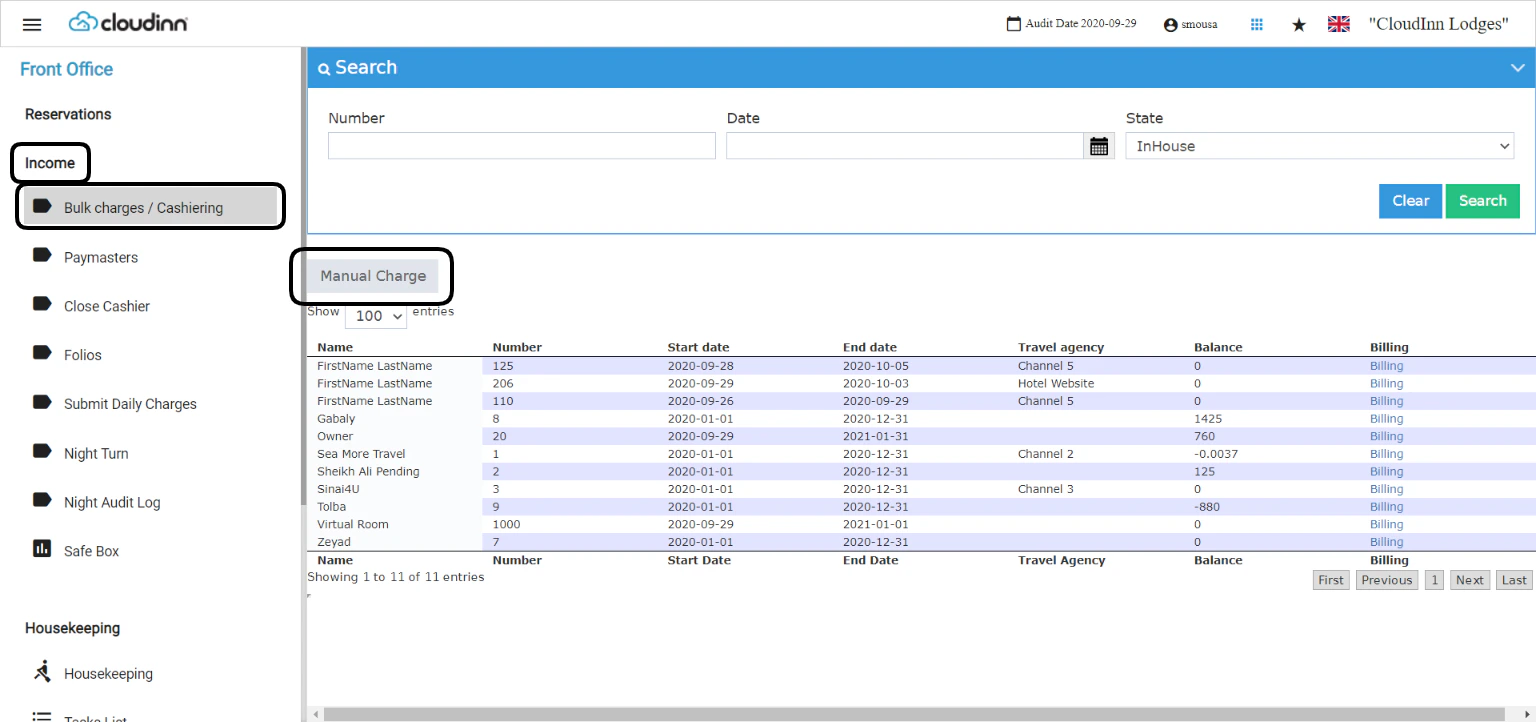 To apply multiple manual charges to multiple reservations or paymasters click on **Manual Charge.**
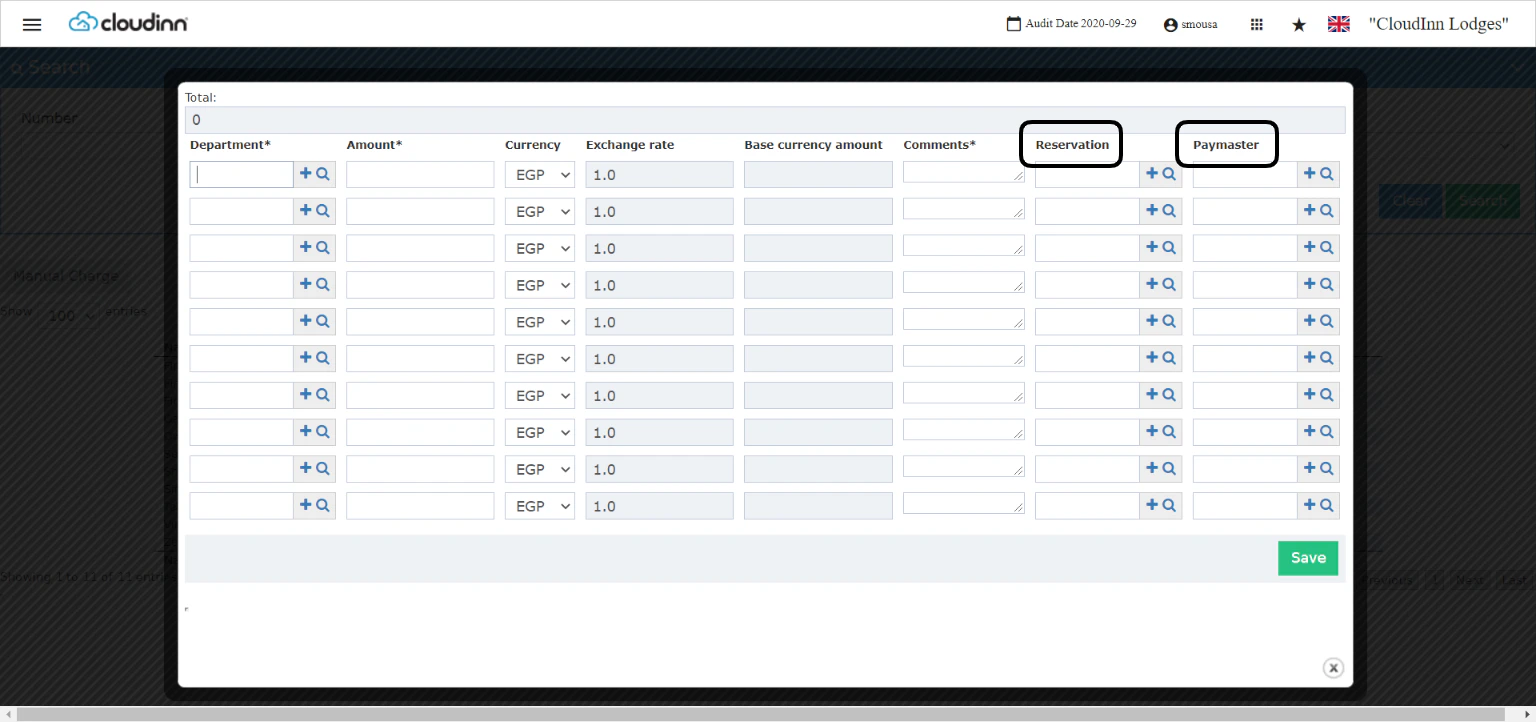 1. Select the **Revenue Department** you need to apply the charges on, use the autocomplete option or use the magnifying glass to search for the revenue department you desire.
2. Insert the **amount** and the **currency** of the charge.
3. Your **Comments** on the manual charge is mandatory, you can insert inputs like reference numbers etc.
4. Select either a room number **Reservation** Or A **PayMaster** so the charges go to them directly.
5. Click **Save** for charges to go to their designated place.
1. Select the **Revenue Department** you need to apply the charges on, use the autocomplete option or use the magnifying glass to search for the revenue department you desire.
2. Insert the **amount** and the **currency** of the charge.
3. Your **Comments** on the manual charge is mandatory, you can insert inputs like reference numbers etc.
4. Select either a room number **Reservation** Or A **PayMaster** so the charges go to them directly.
5. Click **Save** for charges to go to their designated place.
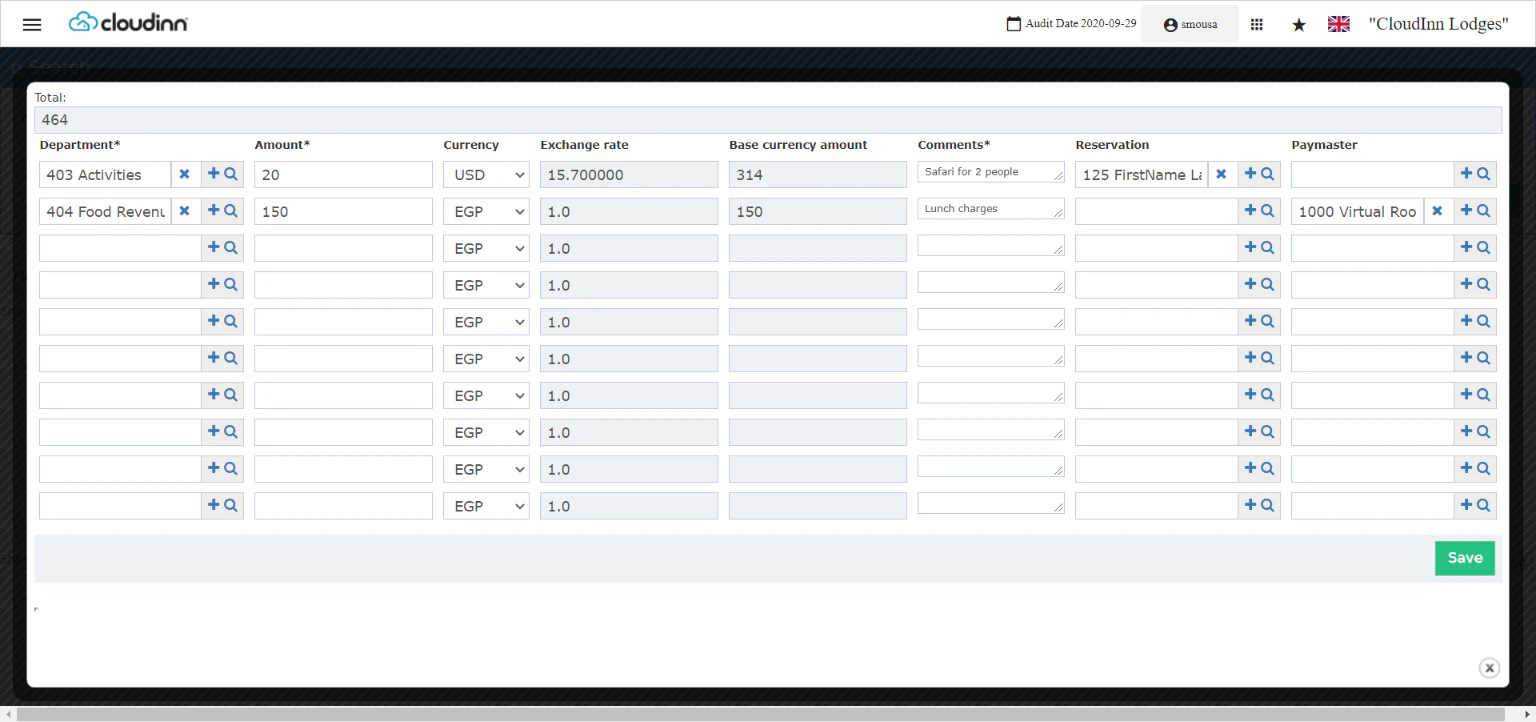 In order to check that the charges reflected properly, you should follow the below steps:
**Front office → Individual Reservations → Search with room number → Billing**
**Front Office → Income → Paymasters → Select Paymaster → Billing**
In order to check that the charges reflected properly, you should follow the below steps:
**Front office → Individual Reservations → Search with room number → Billing**
**Front Office → Income → Paymasters → Select Paymaster → Billing**