> ## Documentation Index
> Fetch the complete documentation index at: https://help.kwentra.com/llms.txt
> Use this file to discover all available pages before exploring further.
# Reservation Management Screens
> Through the previous Front Office Navigation, you used to follow the below steps in order to reach the Front Desk Reservations screens: * Click on Front Office after login. * Click on Front Desk fr...
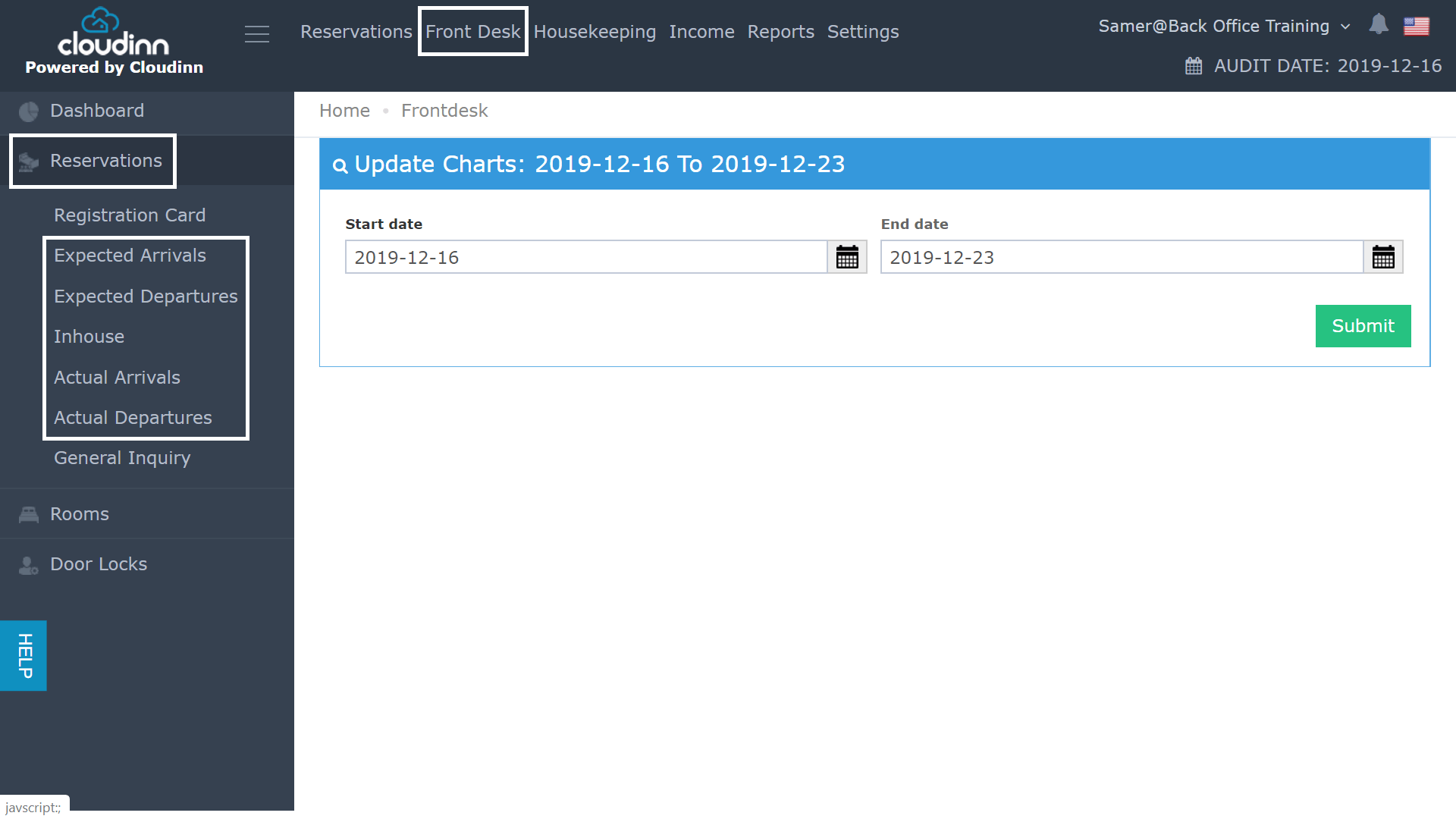
Through the previous Front Office Navigation, you used to follow the below steps in order to reach the Front Desk Reservations screens:
* Click on **Front Office** after login.
* Click on **Front Desk** from the top.
* Click on **Reservations.**
* Select the reservation state you would like to check **.**
 It used to take numerous clicks to reach your destination, with the new FO navigation you can reach the same screens with less clicks as below:
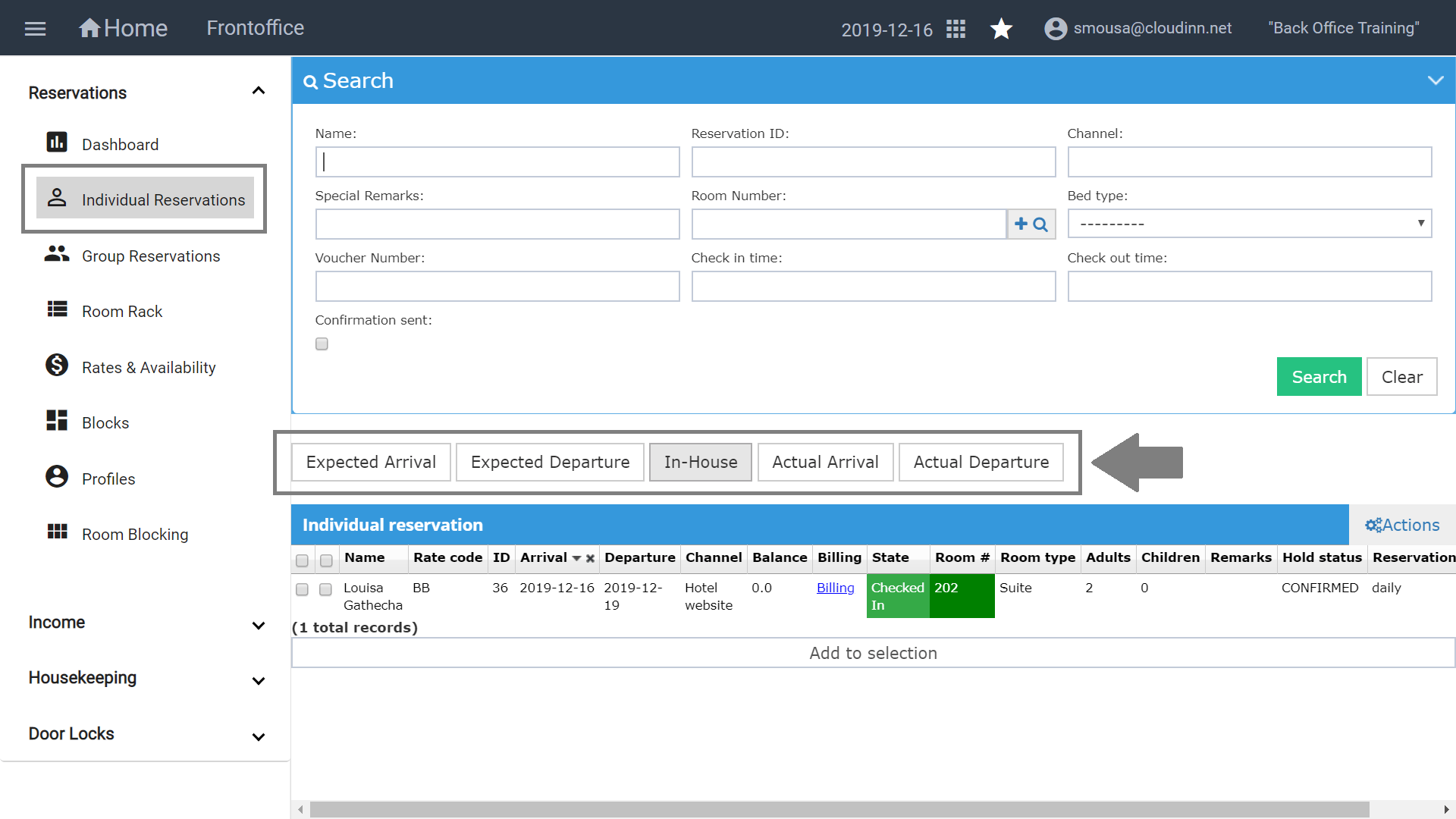
Once you open the Front Office Module and select **Individual Reservations** you would gain access to all your reservations categorized as per their current state.
It used to take numerous clicks to reach your destination, with the new FO navigation you can reach the same screens with less clicks as below:
Once you open the Front Office Module and select **Individual Reservations** you would gain access to all your reservations categorized as per their current state.