> ## Documentation Index
> Fetch the complete documentation index at: https://help.kwentra.com/llms.txt
> Use this file to discover all available pages before exploring further.
# Exchange Rate Report
> Easily track all currency exchange rate changes, with full audit history and user tracking, across active and inactive currencies. Business Value Full visibility into all currency rates and their c...
Easily track all currency exchange rate changes, with full audit history and user tracking, across active and inactive currencies.
***
### **Business Value**
* Full visibility into all currency rates and their changes over time.
* Supports financial audits and compliance with a detailed audit trail (date, rate, user).
* Ensures accurate conversions for all historical transactions.
* Empowers Front Office and Audit teams to monitor and validate currency application.
***
### **Use Cases**
* A Night Auditor needs to confirm which user changed the EUR exchange rate last week, and what value was applied.
* A Front Office Manager needs to verify all historical rates for inactive currencies used in legacy transactions.
* A finance team wants to review all exchange rate changes for a specific date to resolve reconciliation issues.
***
### **Technical Know-How**
#### **Where to Find the Exchange Rate Report:**
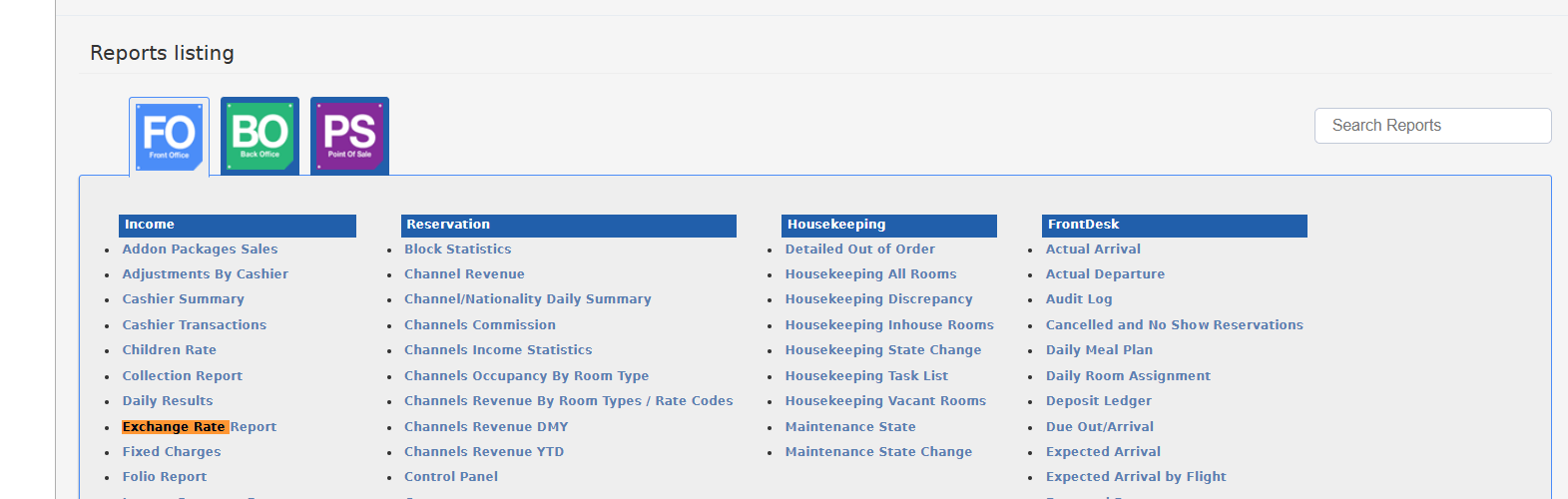
1. Go to **Reports** from the main menu.
2. Select **FO (Front Office)** at the top of the reports screen.
3. Under the **Income** section, click on **Exchange Rate Report**.
 * **Select the Date**
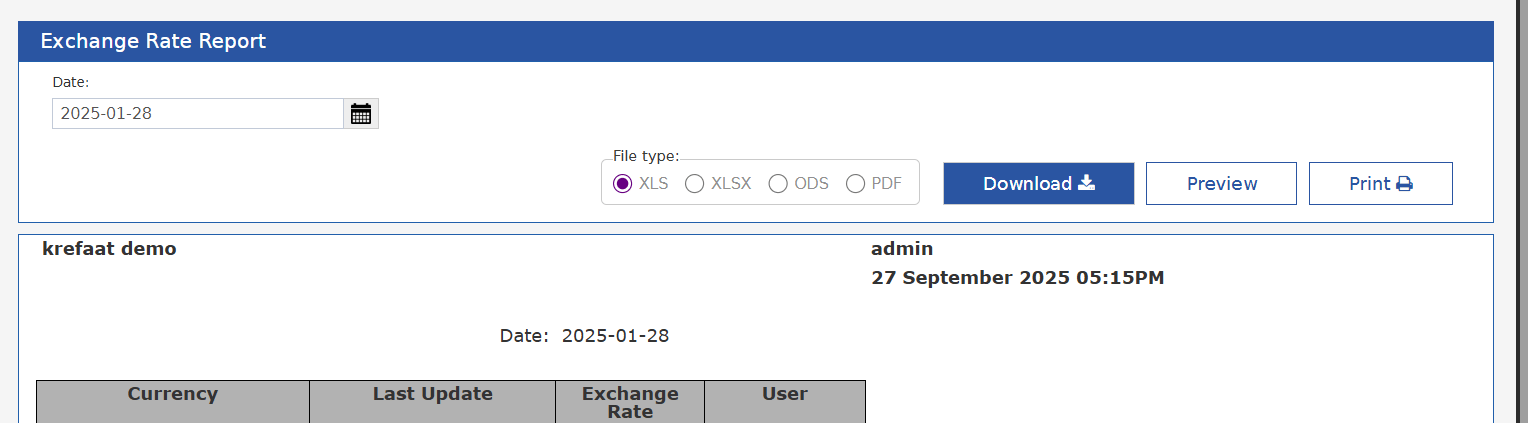
* On the Exchange Rate Report screen, use the calendar picker to choose the required **Date** for the rates you want to view.
* **Choose File Type**
* Select the desired **file type** for export:
* XLS, XLSX, ODS, or PDF.
* **Download, Preview, or Print**
* Click **Download** to export the report in your chosen format.
* Or, click **Preview** to view it on screen before exporting.
* Or, click **Print** to send directly to a printer.
***
When you run the Exchange Rate Report, the following columns will appear:
| **Column** | **Description** |
| ----------------- | ----------------------------------------------------------------------- |
| **Currency** | The currency code (e.g., USD, EUR, EGP) for which the rate is recorded. |
| **Last Update** | The date and time when the exchange rate was last updated. |
| **Exchange Rate** | The rate used for currency conversion on the selected date. |
| **User** | The username of the person who last updated the rate. |
* **Select the Date**
* On the Exchange Rate Report screen, use the calendar picker to choose the required **Date** for the rates you want to view.
* **Choose File Type**
* Select the desired **file type** for export:
* XLS, XLSX, ODS, or PDF.
* **Download, Preview, or Print**
* Click **Download** to export the report in your chosen format.
* Or, click **Preview** to view it on screen before exporting.
* Or, click **Print** to send directly to a printer.
***
When you run the Exchange Rate Report, the following columns will appear:
| **Column** | **Description** |
| ----------------- | ----------------------------------------------------------------------- |
| **Currency** | The currency code (e.g., USD, EUR, EGP) for which the rate is recorded. |
| **Last Update** | The date and time when the exchange rate was last updated. |
| **Exchange Rate** | The rate used for currency conversion on the selected date. |
| **User** | The username of the person who last updated the rate. |