> ## Documentation Index
> Fetch the complete documentation index at: https://help.kwentra.com/llms.txt
> Use this file to discover all available pages before exploring further.
# Tax By Date Report
> See the total of each tax for a date range, split by the module it was posted from, with a grand total.
The Tax By Date report shows the total of each tax for a date range, by module.
### **Business Value**
* Shows the total of each tax, such as VAT and city tax.
* Splits the tax by where it was posted: Front Office or POS.
* Adds up each tax across all modules.
* Gives one grand total for the whole period.
### **Use Cases**
* An accountant takes the VAT total for the month for the VAT return.
* An income auditor compares Front Office tax with POS tax for the week.
* A financial controller checks the city tax collected in a date range.
### **How It Works**
| **Where:** [Reports → FO → Income → Tax By date](https://manage.kwentra.com/reports/Income/Tax%20By%20date/) |
| - |
#### **Running the Report**
1. **From date** and **To date**: pick the audit dates to cover. The Hijri date shows under each field.
2. **File type**: **XLS**, **XLSX**, **ODS** or **PDF**.
3. Click **Preview**, **Download** or **Print**.
 #### **Report Layout**
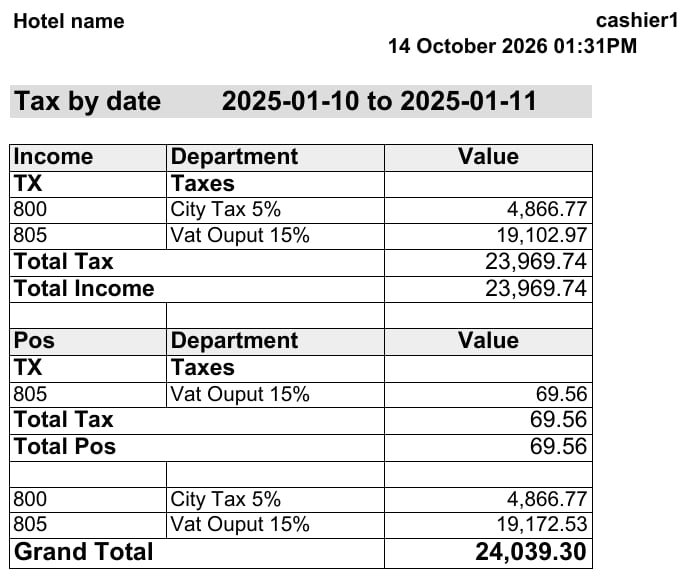
The report has one section for each module the tax was posted from.
* **Income**: tax on Front Office postings.
* **Pos**: tax on POS checks.
* Other modules show in their own section when they have tax in the date range.
Each section lists the tax departments under **TX Taxes**. It ends with two rows:
* **Total Tax**: the tax in that section.
* **Total** + the module name, for example **Total Income**.
After the sections, each tax department shows once more with its total across all modules. The last row, **Grand Total**, adds up all the tax.
#### **Report Layout**
The report has one section for each module the tax was posted from.
* **Income**: tax on Front Office postings.
* **Pos**: tax on POS checks.
* Other modules show in their own section when they have tax in the date range.
Each section lists the tax departments under **TX Taxes**. It ends with two rows:
* **Total Tax**: the tax in that section.
* **Total** + the module name, for example **Total Income**.
After the sections, each tax department shows once more with its total across all modules. The last row, **Grand Total**, adds up all the tax.
 [Download a sample report (XLSX)](/images/front-office/reports/income-reports/tax-by-date-report/tax-by-date-report-sample.xlsx)
| **Note:** The sample uses test data. The hotel and user names are not real. |
| - |
#### **Report Columns**
| Column | Description | Example |
| - | - | - |
| **Income** / **Pos** (first column) | The section name in the header row. On other rows, the tax department code. | 805 |
| **Department** | The tax department name. | Vat Ouput 15% |
| **Value** | The tax amount in the date range. | 19,102.97 |
#### **Example**
In the sample, **Vat Ouput 15%** is 19,102.97 in **Income** and 69.56 in **Pos**. Its total across modules is 19,172.53.
To see the tax on each posting, use the [Tax Report](/front-office/reports/income-reports/tax-report).
This documentation is built and hosted on [Mintlify](https://mintlify.com), a developer documentation platform.
[Download a sample report (XLSX)](/images/front-office/reports/income-reports/tax-by-date-report/tax-by-date-report-sample.xlsx)
| **Note:** The sample uses test data. The hotel and user names are not real. |
| - |
#### **Report Columns**
| Column | Description | Example |
| - | - | - |
| **Income** / **Pos** (first column) | The section name in the header row. On other rows, the tax department code. | 805 |
| **Department** | The tax department name. | Vat Ouput 15% |
| **Value** | The tax amount in the date range. | 19,102.97 |
#### **Example**
In the sample, **Vat Ouput 15%** is 19,102.97 in **Income** and 69.56 in **Pos**. Its total across modules is 19,172.53.
To see the tax on each posting, use the [Tax Report](/front-office/reports/income-reports/tax-report).
This documentation is built and hosted on [Mintlify](https://mintlify.com), a developer documentation platform.