> ## Documentation Index
> Fetch the complete documentation index at: https://help.kwentra.com/llms.txt
> Use this file to discover all available pages before exploring further.
# Capture Visas for Group Reservations
> Quickly upload and link guest visas to group reservations, ensuring all profiles are accurate and compliant. Business Value Bulk visa upload streamlines guest check-in for large groups. File valida...
Quickly upload and link guest visas to group reservations, ensuring all profiles are accurate and compliant.
***
### **Business Value**
* Bulk visa upload streamlines guest check-in for large groups.
* File validation reduces upload errors and ensures compliance.
* Profile fields (nationality, address, identity type) are auto-filled for accuracy and consistency.
* Automation minimizes manual entry, improving operational efficiency and guest experience.
***
### **How to Use Capture Visas**
**Where to find it:**
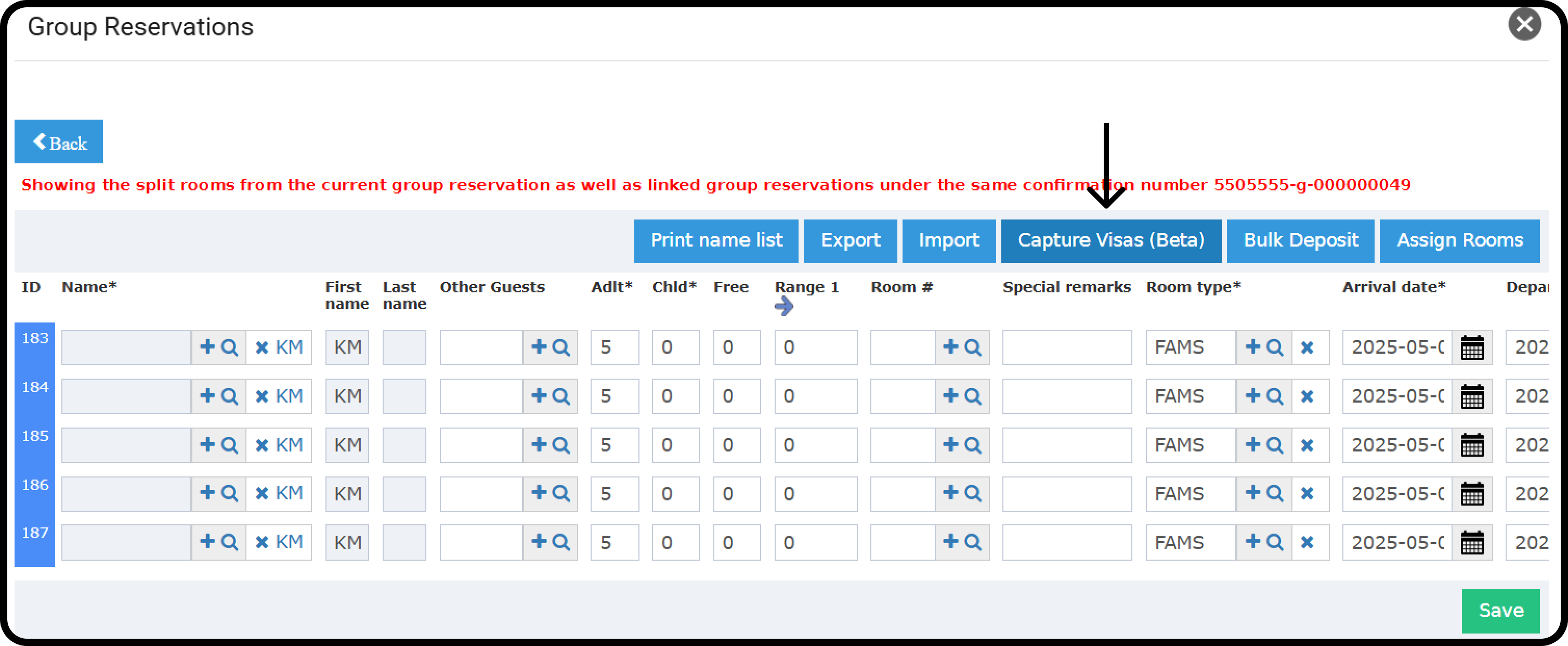
Go to: Group Reservations → Rooming List → Capture Visas
 **Steps:**
1. Click **Capture Visas** for your group.
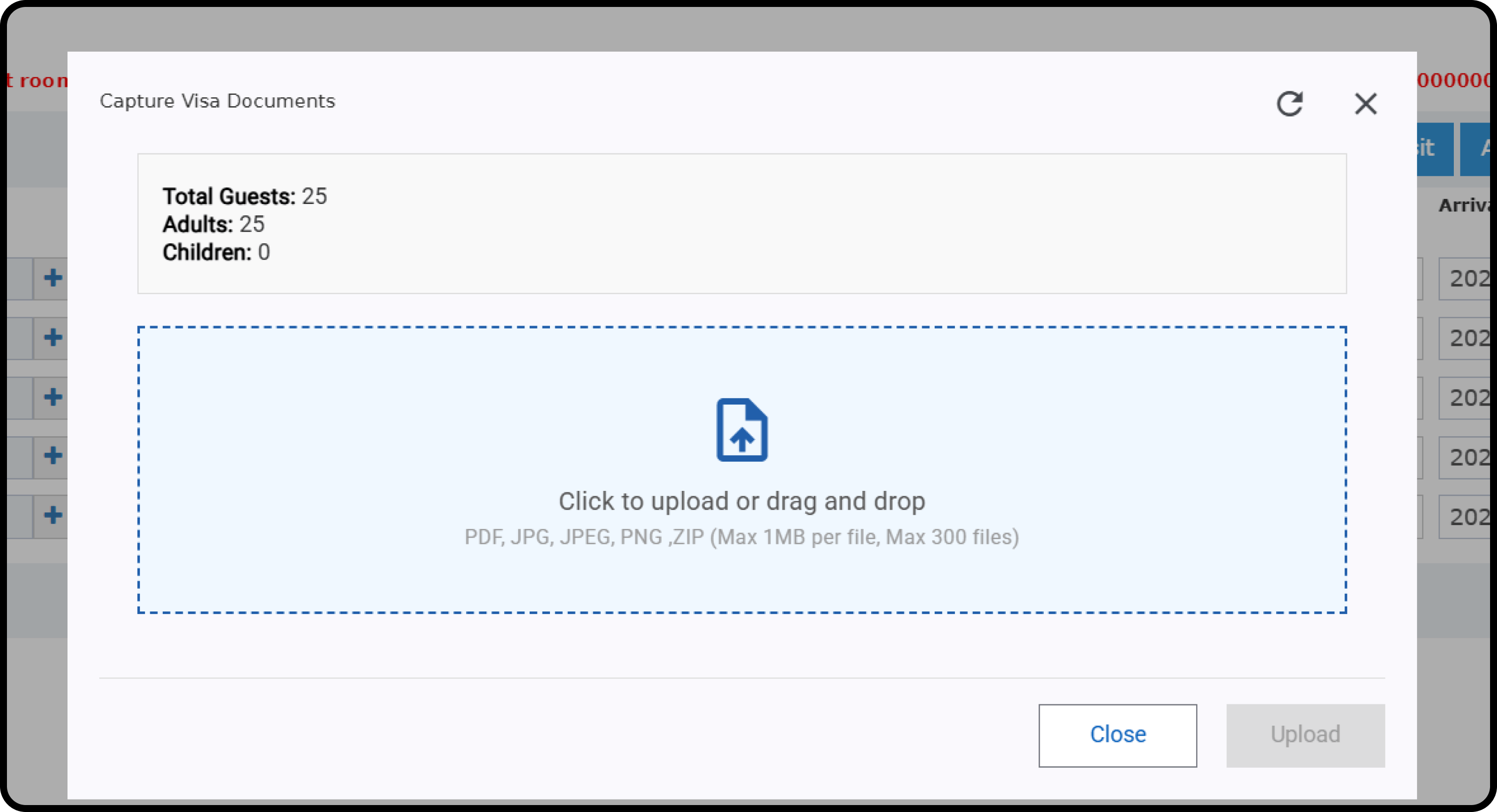
2. Upload your visa files (PDF, JPG, JPEG, ZIP).
* **Limit:** Up to 300 files, each file max 1 MB.
3. Click **Upload**.
**What the system checks:**
* Each file must be 1 MB or less.
* Only checks size per file (not total).
**Steps:**
1. Click **Capture Visas** for your group.
2. Upload your visa files (PDF, JPG, JPEG, ZIP).
* **Limit:** Up to 300 files, each file max 1 MB.
3. Click **Upload**.
**What the system checks:**
* Each file must be 1 MB or less.
* Only checks size per file (not total).
 **What happens next:**
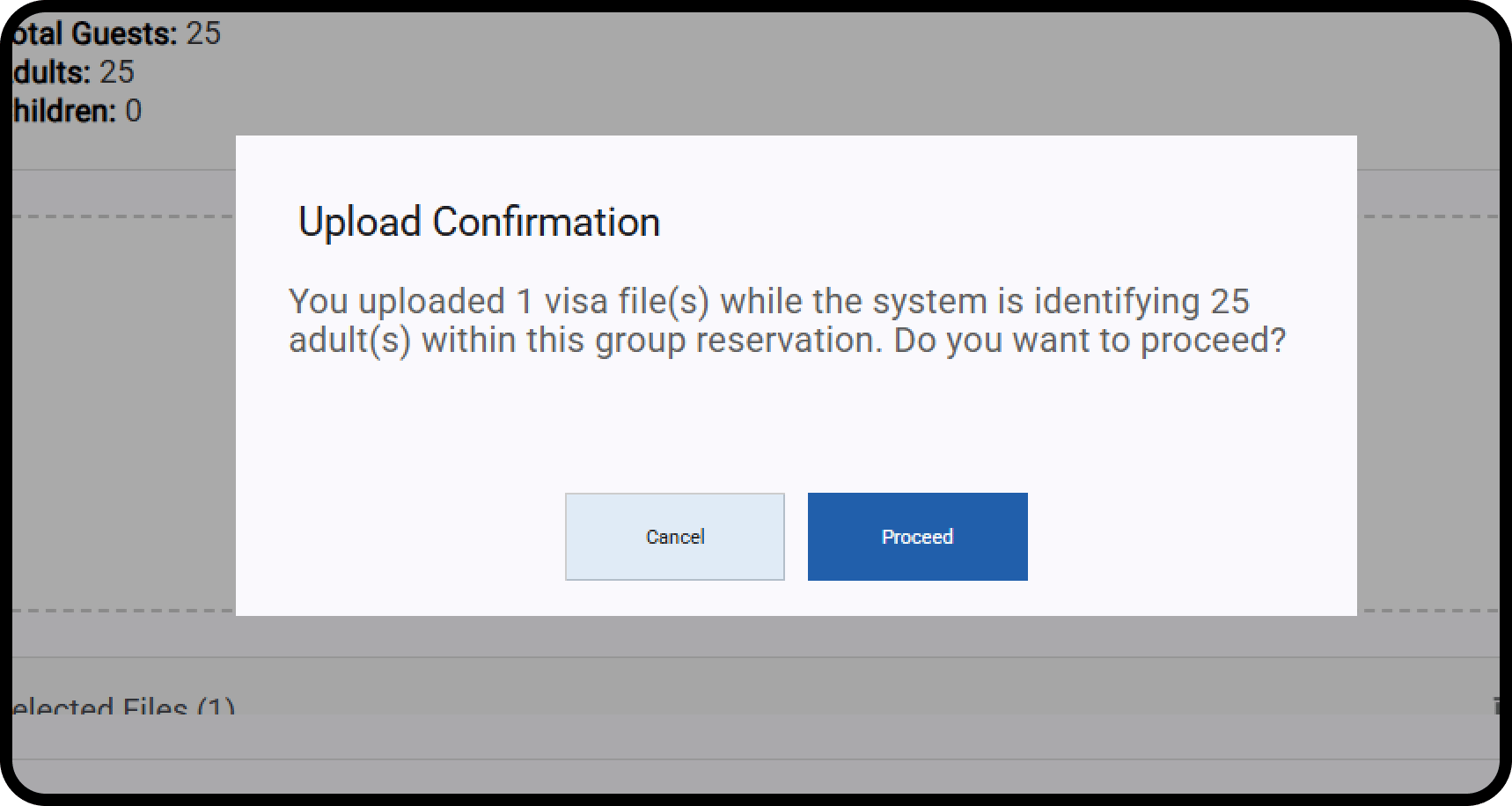
* The system compares how many visas you uploaded to the number of adults and children in the reservation.
* If you uploaded enough files: It matches visas to guest profiles.
* If not enough: You get a warning and can choose to continue or cancel.
**What happens next:**
* The system compares how many visas you uploaded to the number of adults and children in the reservation.
* If you uploaded enough files: It matches visas to guest profiles.
* If not enough: You get a warning and can choose to continue or cancel.
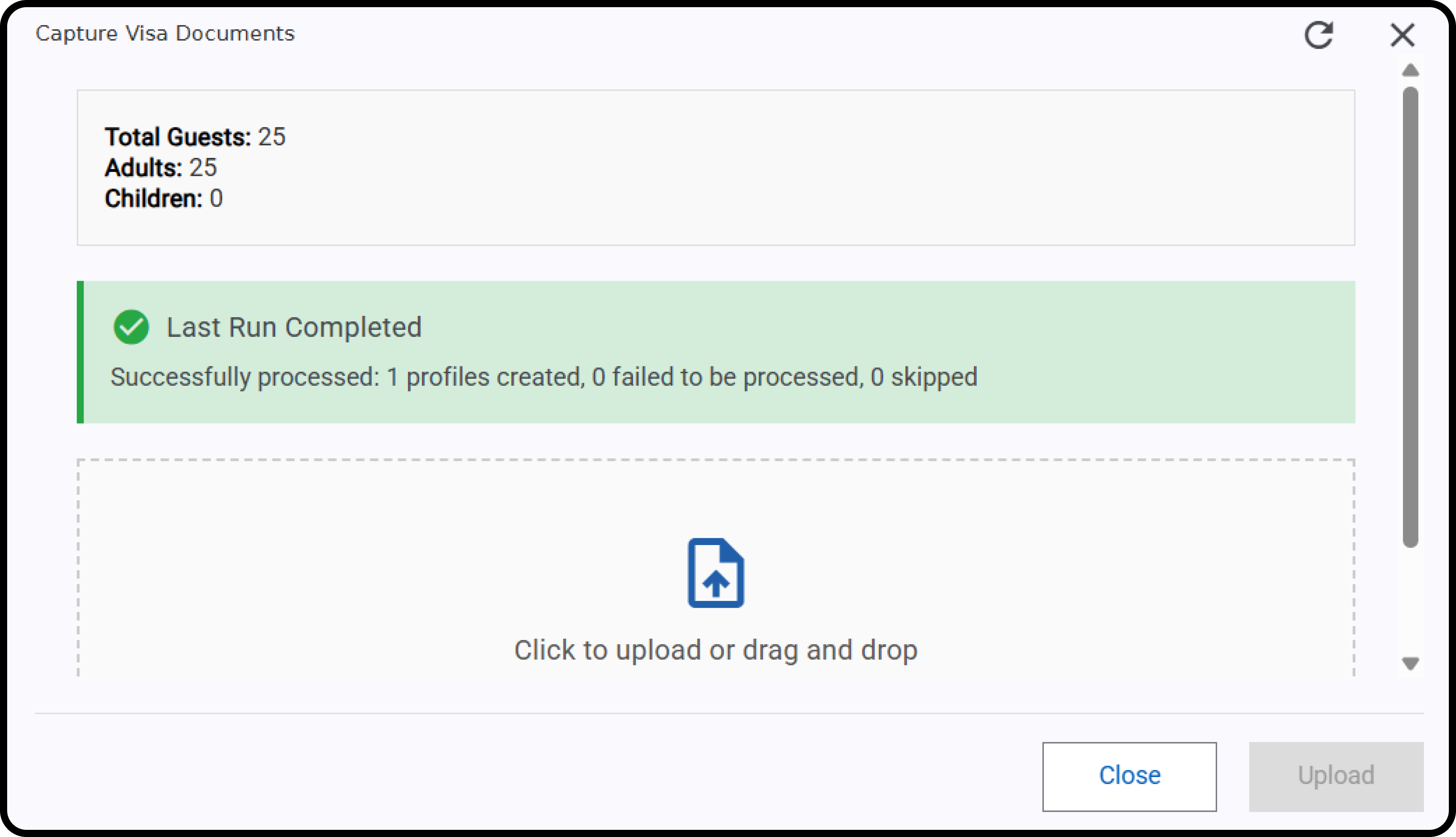
 **How Profiles are created:**
1. It automatically fills in nationality and address (if needed) in the profile.
2. Identity type is always set as **Passport**.
3. The system creates a new profile and links the visa.
4. Each visa gets attached to the right profile.
**Very Important:**
* Created profiles are added randomly to the split individual reservations.
* Make sure to upload all the group's visas, matching the number of adults and children.
* Don't do partial uploads, as it will override previously created profiles.
**How Profiles are created:**
1. It automatically fills in nationality and address (if needed) in the profile.
2. Identity type is always set as **Passport**.
3. The system creates a new profile and links the visa.
4. Each visa gets attached to the right profile.
**Very Important:**
* Created profiles are added randomly to the split individual reservations.
* Make sure to upload all the group's visas, matching the number of adults and children.
* Don't do partial uploads, as it will override previously created profiles.