> ## Documentation Index
> Fetch the complete documentation index at: https://help.kwentra.com/llms.txt
> Use this file to discover all available pages before exploring further.
# Cancel Postings/Charges
> How to cancel postings/charges from billing screen? In the scenario wherein a posting for a charge has been added by mistake or a payment that has been made for the guest and you want to reverse th...
#### **How to cancel postings/charges from billing screen?**
In the scenario wherein a posting for a charge has been added by mistake or a payment that has been made for the guest and you want to reverse this action, you can cancel it easily by following the below:
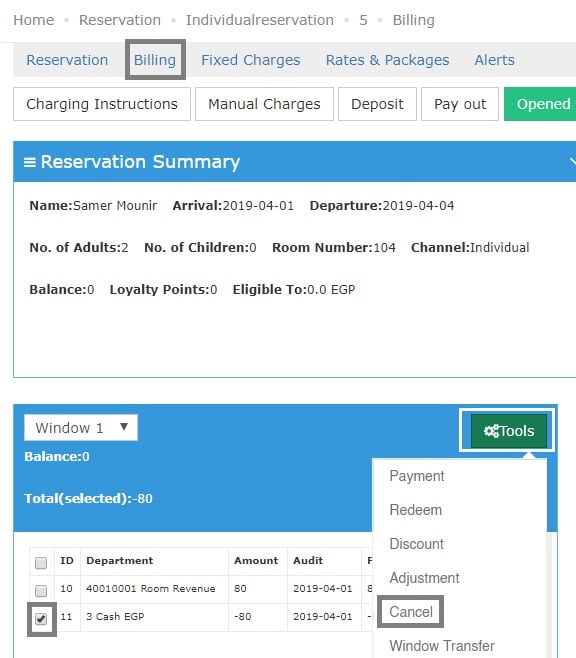
1- Once you reach the reservation page click on **Billing.**
2- Select the posting/charge you would like to cancel.
3- Click on **Tools** then choose **Cancel.**
*Please note that now the balance on the reservation is Zero.*
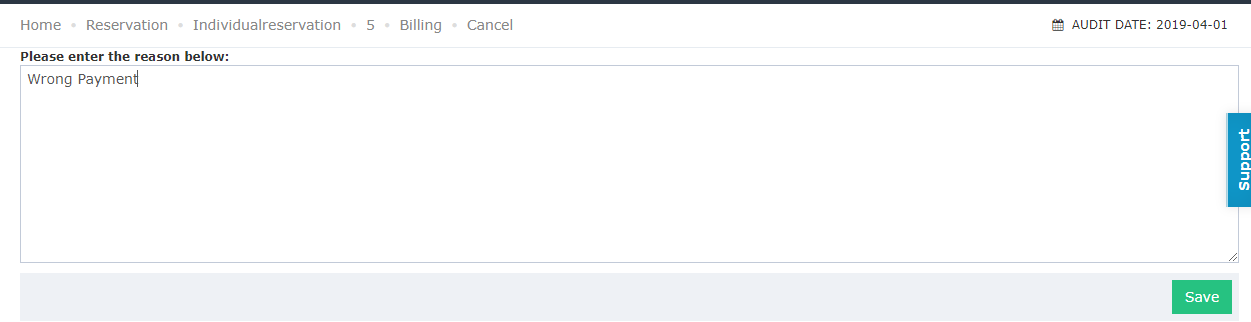
 4- Put in the reason for cancellation then click **Save.**
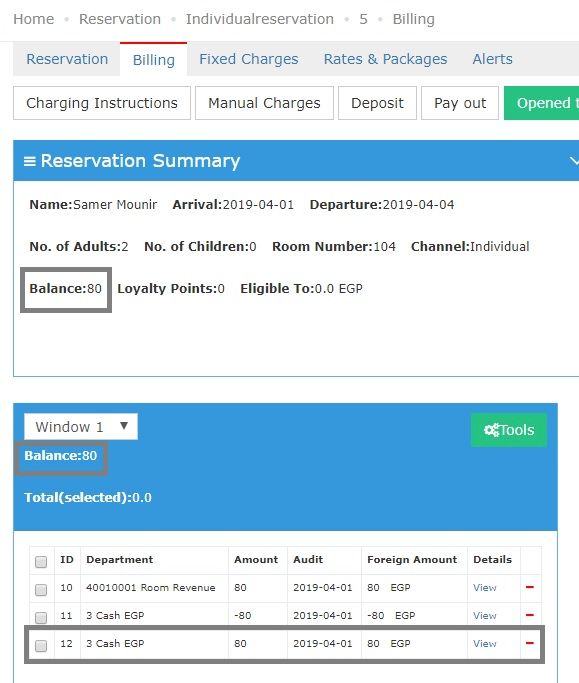
 Once you're done with the above steps, **Billing Screen** would now say that the balance is 80 and you can see the posting for canceling the **Cash Payment of 80 EGP.**
 5- Click on **View** to see the comments and the confirmation of cancellation.
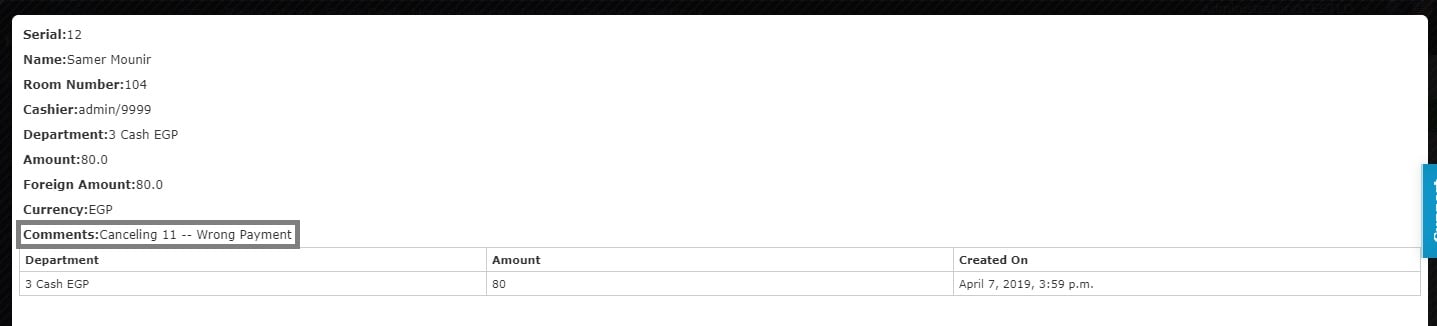 *This proves that there was a payment of 80 EGP which has been done by mistake and you managed to cancel this payment using **billing screen.***
## ***Update: August 3, 2026***
### **Cancel Multiple Postings at Once**
You can now select several postings in the Billing Window and cancel them all in one action.
### **What's New?**
Previously the **Cancel** action handled one posting at a time — selecting more than one and clicking **Cancel** returned an error. Front desk agents fixing a batch of wrongly posted room charges or service fees had to repeat the whole cancellation flow for every line, which was slow and error-prone during checkout. Bulk cancel now works the same way the existing bulk **Transfer** action already does in the same window.
### **How It Works**
| **Where:** Front Office → open a reservation → Billing → select postings → Tools → Cancel |
| ----------------------------------------------------------------------------------------- |
* Tick the checkbox next to each posting you want to cancel. You can select one or many.
* Click **Tools** then **Cancel**, and confirm.
* Enter **one cancellation reason** — it applies to every posting in the selection.
* All selected postings are cancelled in a single action.
#### **Postings That Cannot Be Cancelled**
* If a posting in your selection cannot be cancelled — for example, it belongs to a closed audit date — the operation is not stopped for the whole batch.
* The system reports which postings were cancelled successfully and which failed, so you can act on the failures separately.
| **Note:** Cancelling in bulk follows the same rules as cancelling a single posting. Each cancelled posting still produces its own reversing entry on the folio. |
| --------------------------------------------------------------------------------------------------------------------------------------------------------------- |
*This proves that there was a payment of 80 EGP which has been done by mistake and you managed to cancel this payment using **billing screen.***
## ***Update: August 3, 2026***
### **Cancel Multiple Postings at Once**
You can now select several postings in the Billing Window and cancel them all in one action.
### **What's New?**
Previously the **Cancel** action handled one posting at a time — selecting more than one and clicking **Cancel** returned an error. Front desk agents fixing a batch of wrongly posted room charges or service fees had to repeat the whole cancellation flow for every line, which was slow and error-prone during checkout. Bulk cancel now works the same way the existing bulk **Transfer** action already does in the same window.
### **How It Works**
| **Where:** Front Office → open a reservation → Billing → select postings → Tools → Cancel |
| ----------------------------------------------------------------------------------------- |
* Tick the checkbox next to each posting you want to cancel. You can select one or many.
* Click **Tools** then **Cancel**, and confirm.
* Enter **one cancellation reason** — it applies to every posting in the selection.
* All selected postings are cancelled in a single action.
#### **Postings That Cannot Be Cancelled**
* If a posting in your selection cannot be cancelled — for example, it belongs to a closed audit date — the operation is not stopped for the whole batch.
* The system reports which postings were cancelled successfully and which failed, so you can act on the failures separately.
| **Note:** Cancelling in bulk follows the same rules as cancelling a single posting. Each cancelled posting still produces its own reversing entry on the folio. |
| --------------------------------------------------------------------------------------------------------------------------------------------------------------- |