> ## Documentation Index
> Fetch the complete documentation index at: https://help.kwentra.com/llms.txt
> Use this file to discover all available pages before exploring further.
# Customize the Reservation List
> Choose the columns of your Reservation List, add Paid Amount, Remaining Projected Balance and Confirmation no., and sort by any column.
Choose the columns your Reservation List shows, and sort it by any column.
### **Business Value**
* Shows only the columns you need, so the list is clearer.
* Saves your choice for every hotel you work in.
* Shows payments, balances and confirmation numbers without opening each reservation.
* Sorts by any column on screen, with no Excel export.
### **Use Cases**
* A front desk agent shows arrivals, room types and billing details only.
* A manager sees balance, channel and notes at a glance.
* An accountant audits open balances on group bookings.
* A front desk agent sorts by Balance to see the highest amounts first.
* A receptionist finds a caller's confirmation number straight from the list.
### **How It Works**
| **Where:** Front Office → Individual Reservations → column configuration (tool icon) |
| - |
1. Click the tool icon above the list.
2. Tick the columns you want. Untick the ones you do not need.
3. Click **Save**.
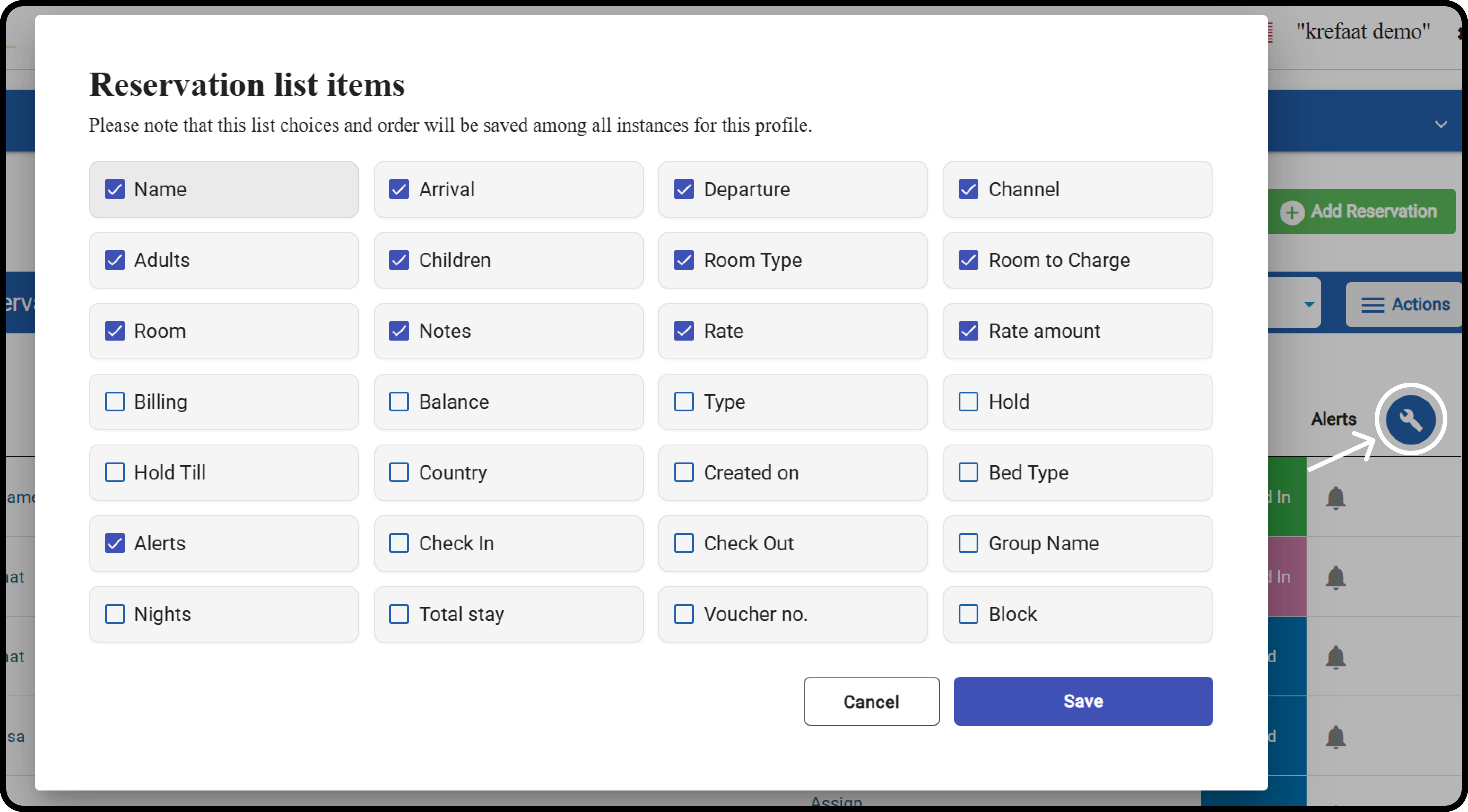 * Your choice is saved against your own user. It does not change what others see.
* It applies to every property you have access to.
* It stays after a refresh, a sign-out and on any browser.
### **Paid Amount and Remaining Projected Balance**
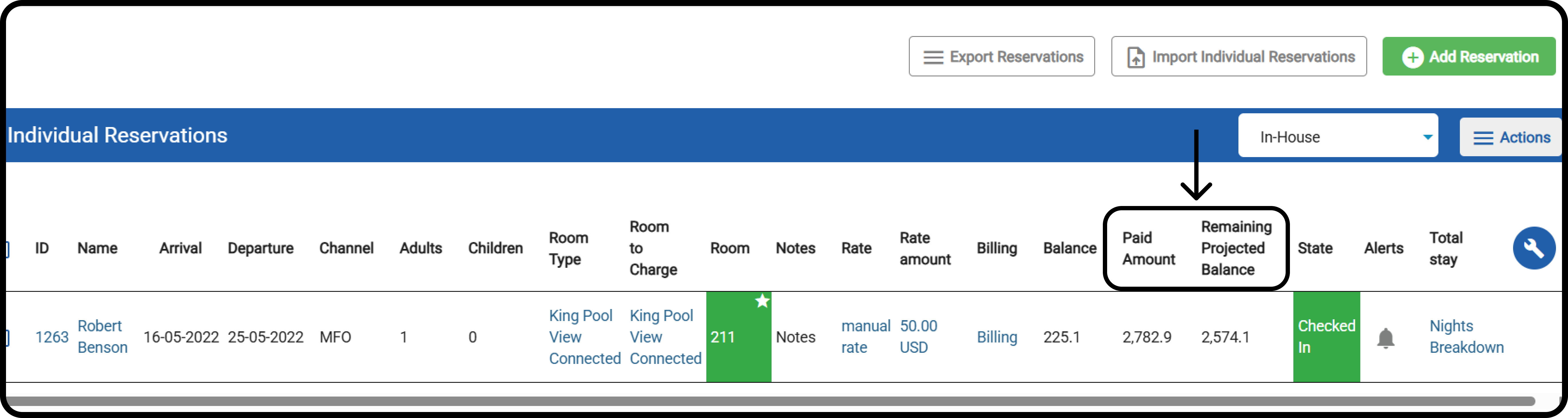
Tick **Paid Amount** and **Remaining Projected Balance** to track payments and open balances.
* Your choice is saved against your own user. It does not change what others see.
* It applies to every property you have access to.
* It stays after a refresh, a sign-out and on any browser.
### **Paid Amount and Remaining Projected Balance**
Tick **Paid Amount** and **Remaining Projected Balance** to track payments and open balances.
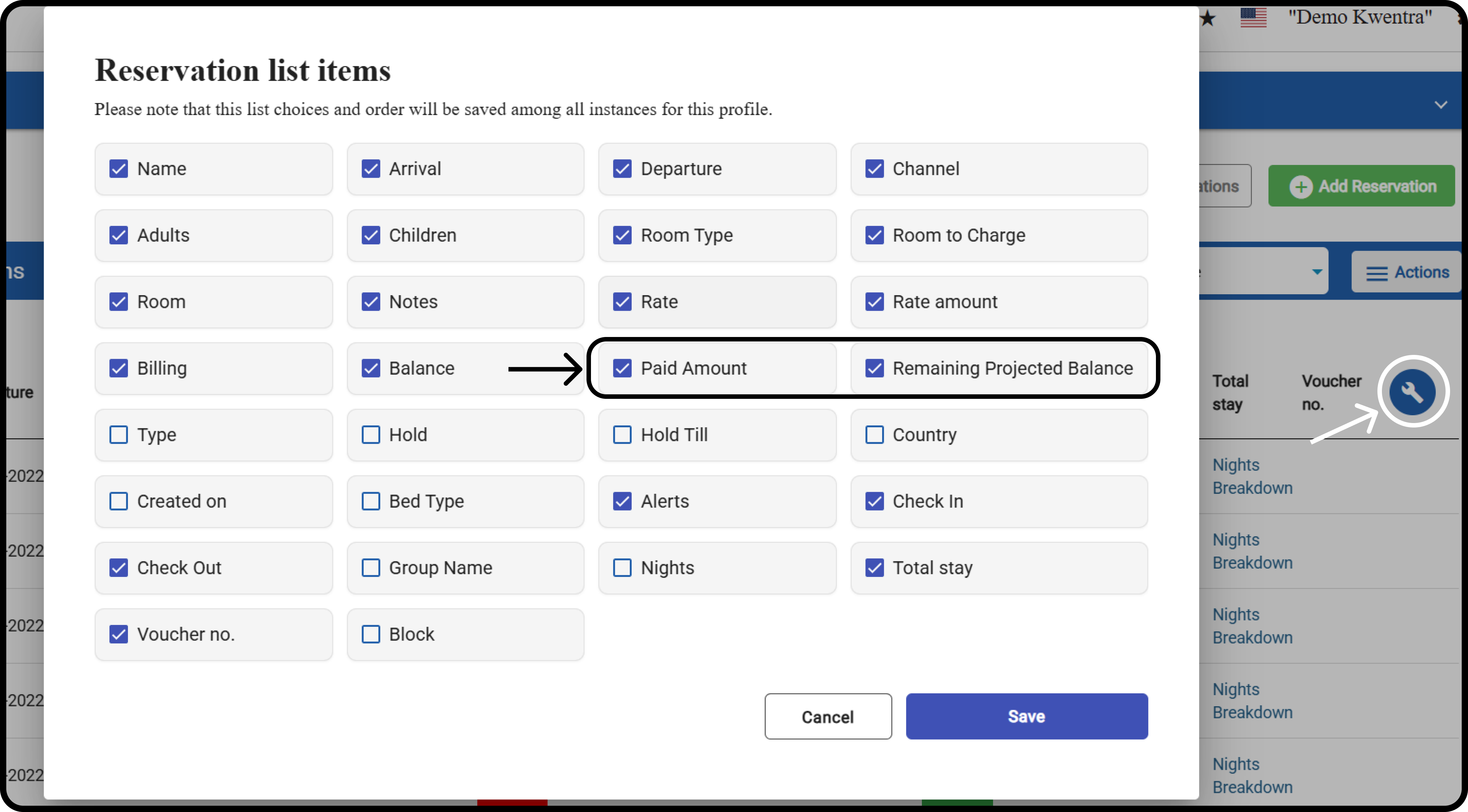 | Column | What it shows |
| - | - |
| **Paid Amount** | The total credit transactions posted on the reservation. |
| **Remaining Projected Balance** | *Projected debits + manual charges – Paid Amount*. |
* Projected debits are all projected debit postings from this reservation.
* They include reservations linked by billing instructions. Duplicates count once.
| Column | What it shows |
| - | - |
| **Paid Amount** | The total credit transactions posted on the reservation. |
| **Remaining Projected Balance** | *Projected debits + manual charges – Paid Amount*. |
* Projected debits are all projected debit postings from this reservation.
* They include reservations linked by billing instructions. Duplicates count once.
 ### **Confirmation Number Column**
Tick **Confirmation no.** to show each reservation's confirmation number. The column is **off by default**.
* A reservation with no confirmation number shows an empty cell.
* Sorting groups reservations with no confirmation number together.
### **Sortable Columns**
| **Where:** Front Office → Individual Reservations |
| - |
1. Click a column header to sort ascending.
2. Click it again to sort descending.
* An arrow shows the active sort column and direction.
* Sorting works with your search filters.
* You can sort by one column at a time.
These calculated columns are sortable too:
* **Room to Charge**
* **Balance**
* **Paid Amount**
* **Remaining Projected Balance**
* **Nights**. Day-use reservations always count as 1.
| **Note:** Calculated values update automatically as postings change. Sorting always uses the current figures. |
| - |
## ***Update: September, 2026***
The Individual Reservations export now includes the confirmation number.
| **Where:** Front Office → Individual Reservations → Export |
| - |
Before, the exported file ended at Voucher no. The **Confirmation no.** column showed on screen only.
* **Confirmation no.** is the **last column**, right after Voucher no.
* It shows the same value as the on-screen column.
* A reservation with no confirmation number exports an empty cell.
* Both **XLSX** and **CSV** exports include it.
* The export follows the listing's active filters and sorting.
| **Note:** Every other column keeps its name and position. Spreadsheets and scripts built on the export keep working. |
| - |
Only users allowed to export reservations can export.
This documentation is built and hosted on [Mintlify](https://mintlify.com), a developer documentation platform.
### **Confirmation Number Column**
Tick **Confirmation no.** to show each reservation's confirmation number. The column is **off by default**.
* A reservation with no confirmation number shows an empty cell.
* Sorting groups reservations with no confirmation number together.
### **Sortable Columns**
| **Where:** Front Office → Individual Reservations |
| - |
1. Click a column header to sort ascending.
2. Click it again to sort descending.
* An arrow shows the active sort column and direction.
* Sorting works with your search filters.
* You can sort by one column at a time.
These calculated columns are sortable too:
* **Room to Charge**
* **Balance**
* **Paid Amount**
* **Remaining Projected Balance**
* **Nights**. Day-use reservations always count as 1.
| **Note:** Calculated values update automatically as postings change. Sorting always uses the current figures. |
| - |
## ***Update: September, 2026***
The Individual Reservations export now includes the confirmation number.
| **Where:** Front Office → Individual Reservations → Export |
| - |
Before, the exported file ended at Voucher no. The **Confirmation no.** column showed on screen only.
* **Confirmation no.** is the **last column**, right after Voucher no.
* It shows the same value as the on-screen column.
* A reservation with no confirmation number exports an empty cell.
* Both **XLSX** and **CSV** exports include it.
* The export follows the listing's active filters and sorting.
| **Note:** Every other column keeps its name and position. Spreadsheets and scripts built on the export keep working. |
| - |
Only users allowed to export reservations can export.
This documentation is built and hosted on [Mintlify](https://mintlify.com), a developer documentation platform.