> ## Documentation Index
> Fetch the complete documentation index at: https://help.kwentra.com/llms.txt
> Use this file to discover all available pages before exploring further.

# How to Use Accommodation Types in Reservations

> Define custom Accommodation Types, apply them to individual reservations, and optionally include them in the Reservation List Report.

You can define and assign **Accommodation Types** to individual reservations, then optionally include this information in the **Reservation List Report**. This gives front office teams more flexibility in classifying guest stays and customizing reports.

**These updates help hotels:**

* Customize how stays are categorized (e.g. long stay, corporate, staff housing).
* Track guest intent more clearly using Accommodation Type.
* Tailor reservation reporting with optional extra details.
* Support operational and audit needs through better data visibility.

**Examples of when to use Accommodation Types:**

* A receptionist creates a reservation and selects "Corporate Stay" from the accommodation types.
* A front office manager defines internal accommodation labels such as "Staff Housing".
* A finance or audit team exports reservation reports including the accommodation type, or hides it when not needed.

## Define accommodation types

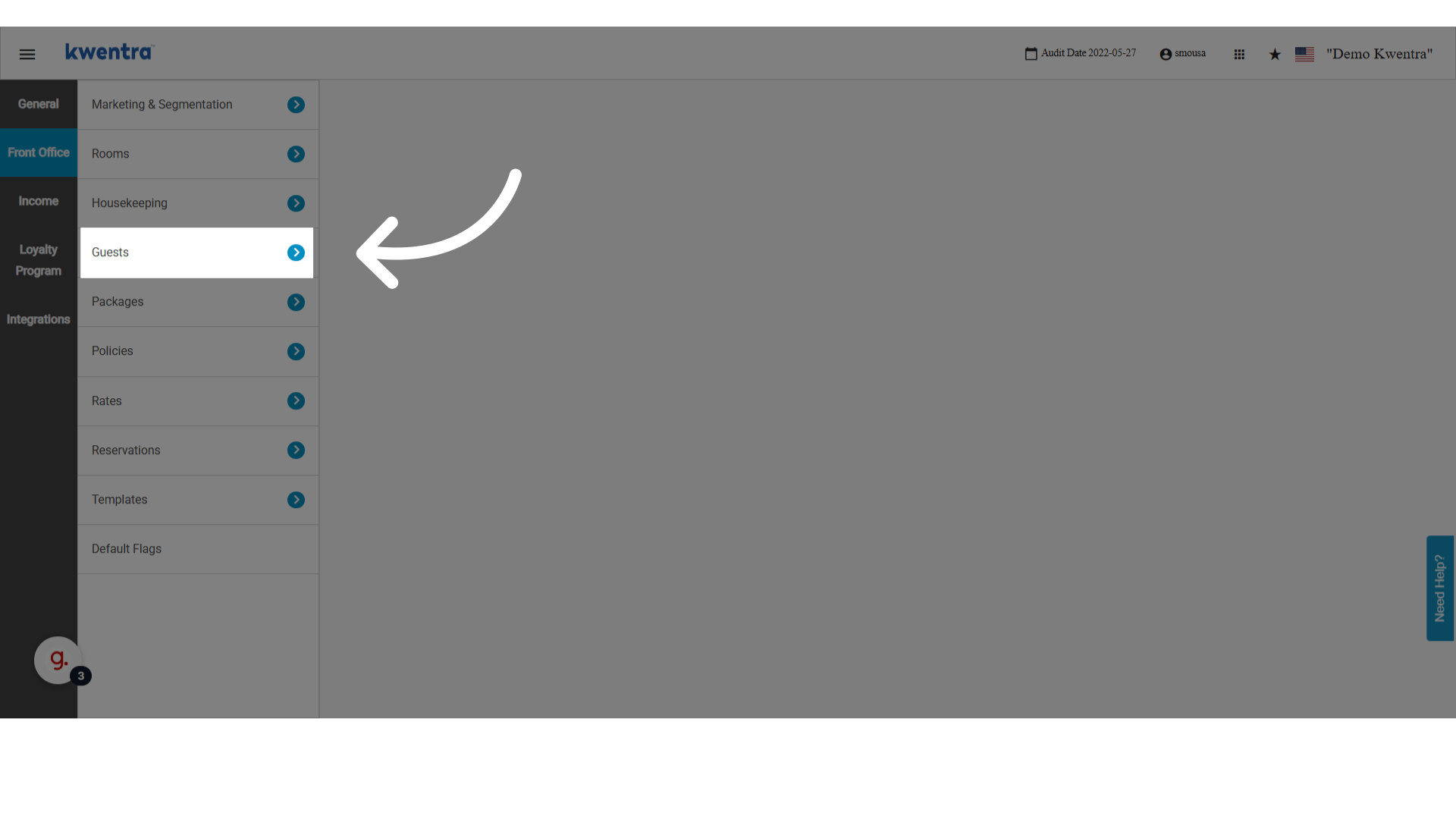
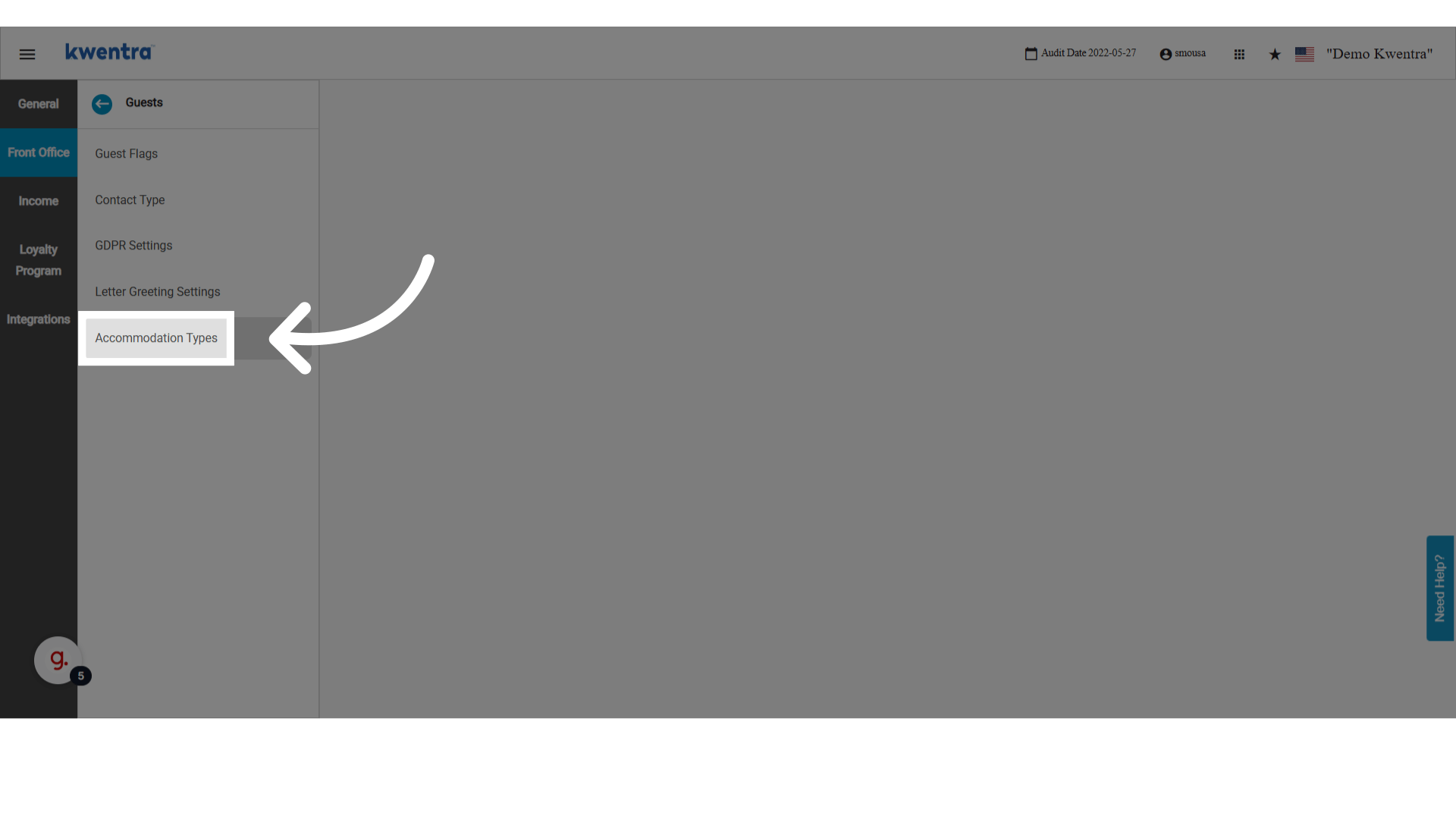
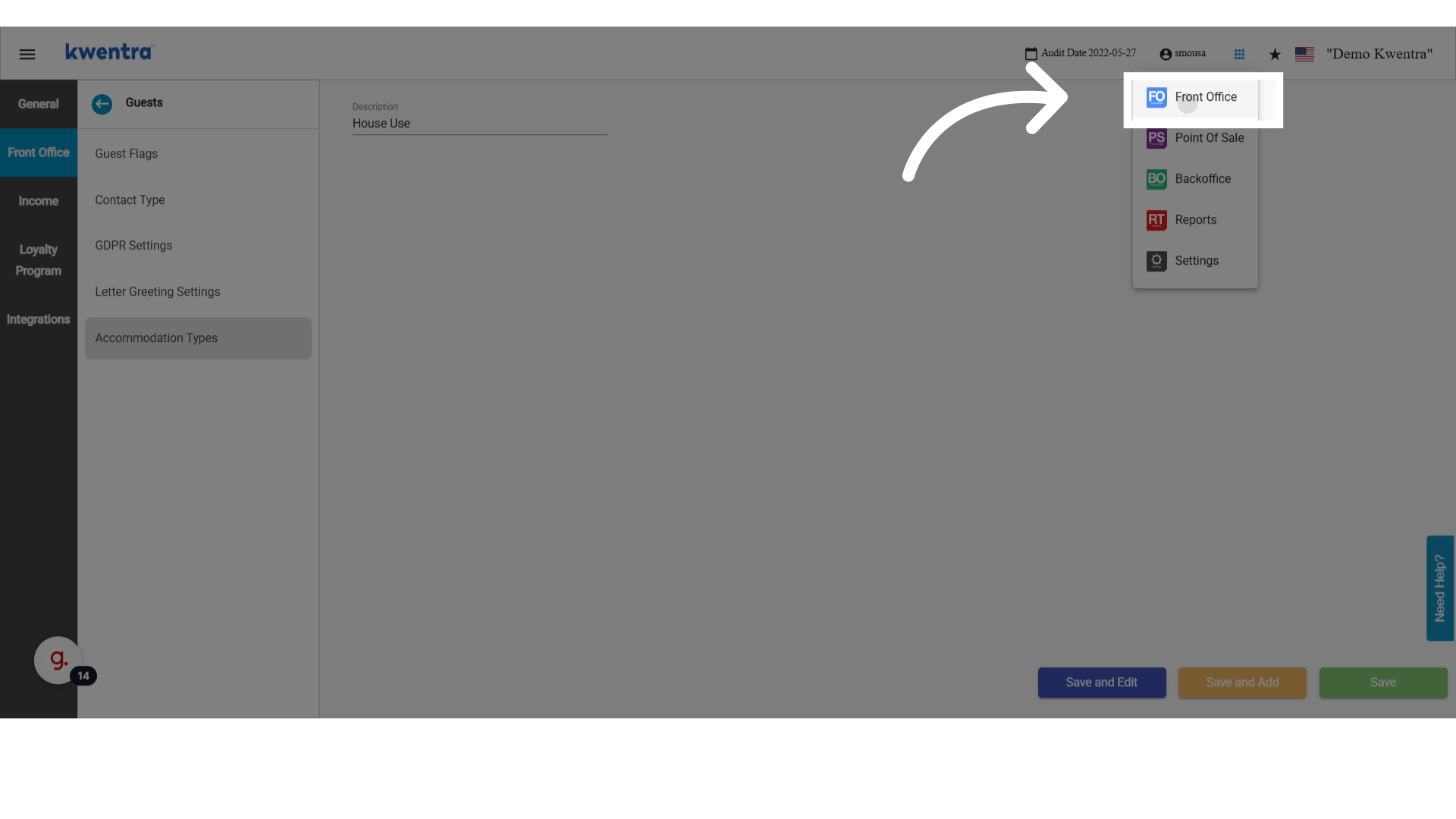
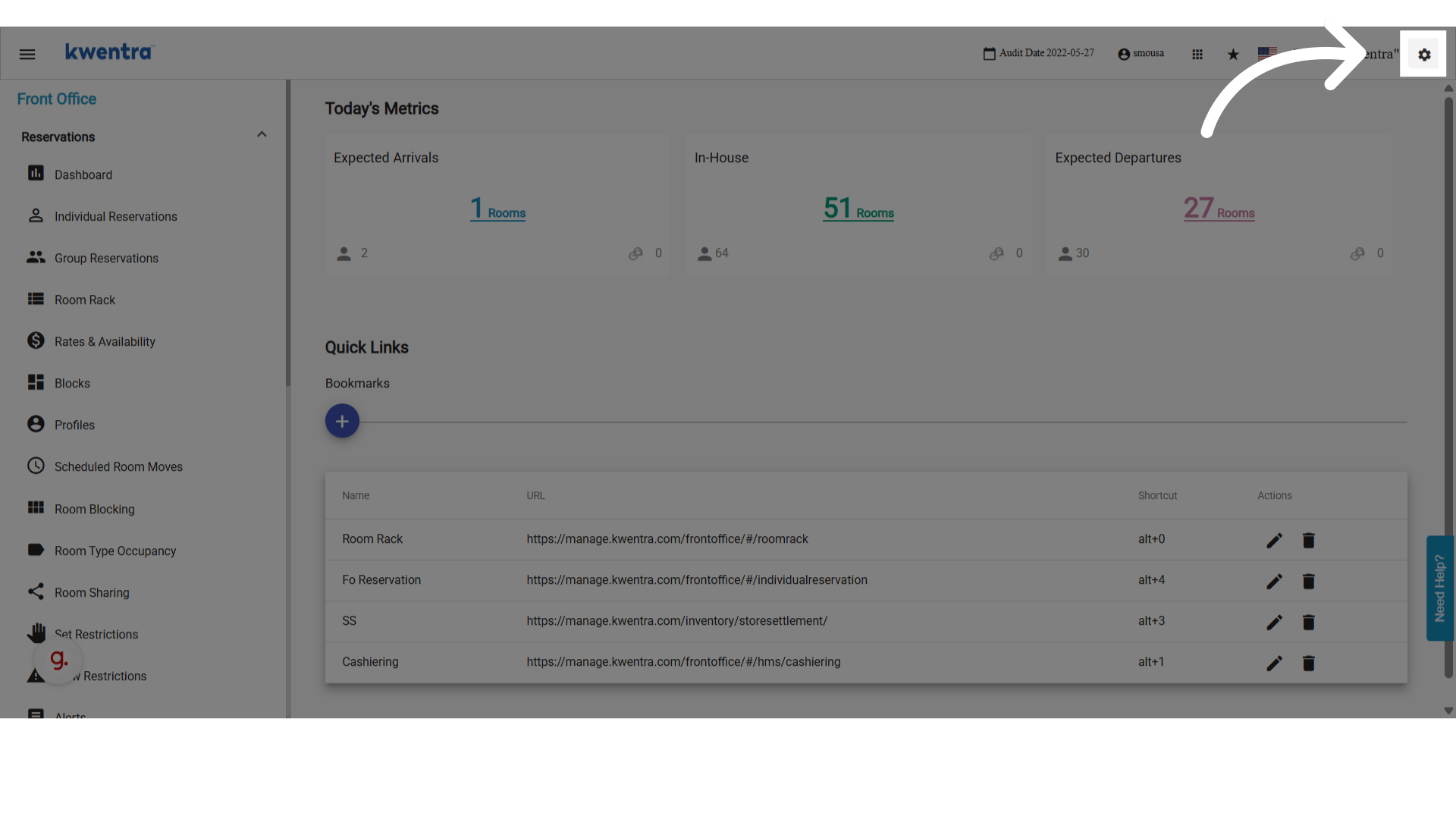
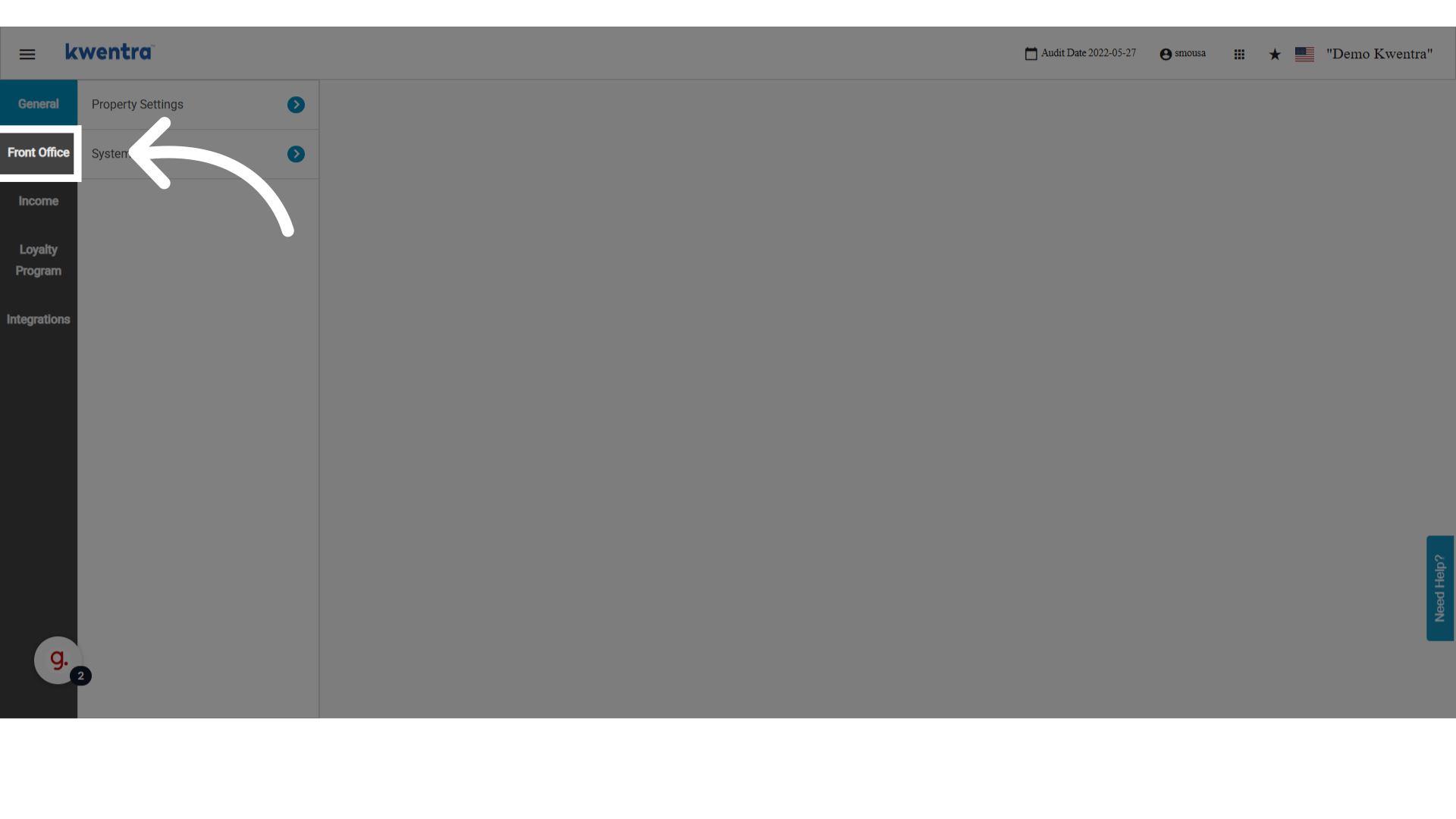
Go to **Settings → Front Office → Guests Settings → Accommodation Types** on [manage.kwentra.com](https://manage.kwentra.com/frontoffice/#/home).
<img src="https://mintcdn.com/kwentra/eCGOv-HfyhNmBRpw/images/front-office/reservations/how-to-use-accommodation-type-in-reservations/15429218d3.png?fit=max&auto=format&n=eCGOv-HfyhNmBRpw&q=85&s=af4d4df03b679963cfc990792e1c9955" alt="preview" width="1920" height="1080" data-path="images/front-office/reservations/how-to-use-accommodation-type-in-reservations/15429218d3.png" />

<img src="https://mintcdn.com/kwentra/eCGOv-HfyhNmBRpw/images/front-office/reservations/how-to-use-accommodation-type-in-reservations/7a606c752f.png?fit=max&auto=format&n=eCGOv-HfyhNmBRpw&q=85&s=a2c7dc430552476eb9887c5ef17f2d26" alt="preview" width="1920" height="1080" data-path="images/front-office/reservations/how-to-use-accommodation-type-in-reservations/7a606c752f.png" />

<img src="https://mintcdn.com/kwentra/ZVsgUU0lwuplLEKf/images/front-office/reservations/how-to-use-accommodation-type-in-reservations/b8f1af5658.png?fit=max&auto=format&n=ZVsgUU0lwuplLEKf&q=85&s=dc20a3aaf7317605e423b3481332ba55" alt="preview" width="1920" height="1080" data-path="images/front-office/reservations/how-to-use-accommodation-type-in-reservations/b8f1af5658.png" />

<img src="https://mintcdn.com/kwentra/eCGOv-HfyhNmBRpw/images/front-office/reservations/how-to-use-accommodation-type-in-reservations/7deaecd411.png?fit=max&auto=format&n=eCGOv-HfyhNmBRpw&q=85&s=06fe1a8dbd8a891c9a90aaa1f160a35b" alt="preview" width="1920" height="1080" data-path="images/front-office/reservations/how-to-use-accommodation-type-in-reservations/7deaecd411.png" />

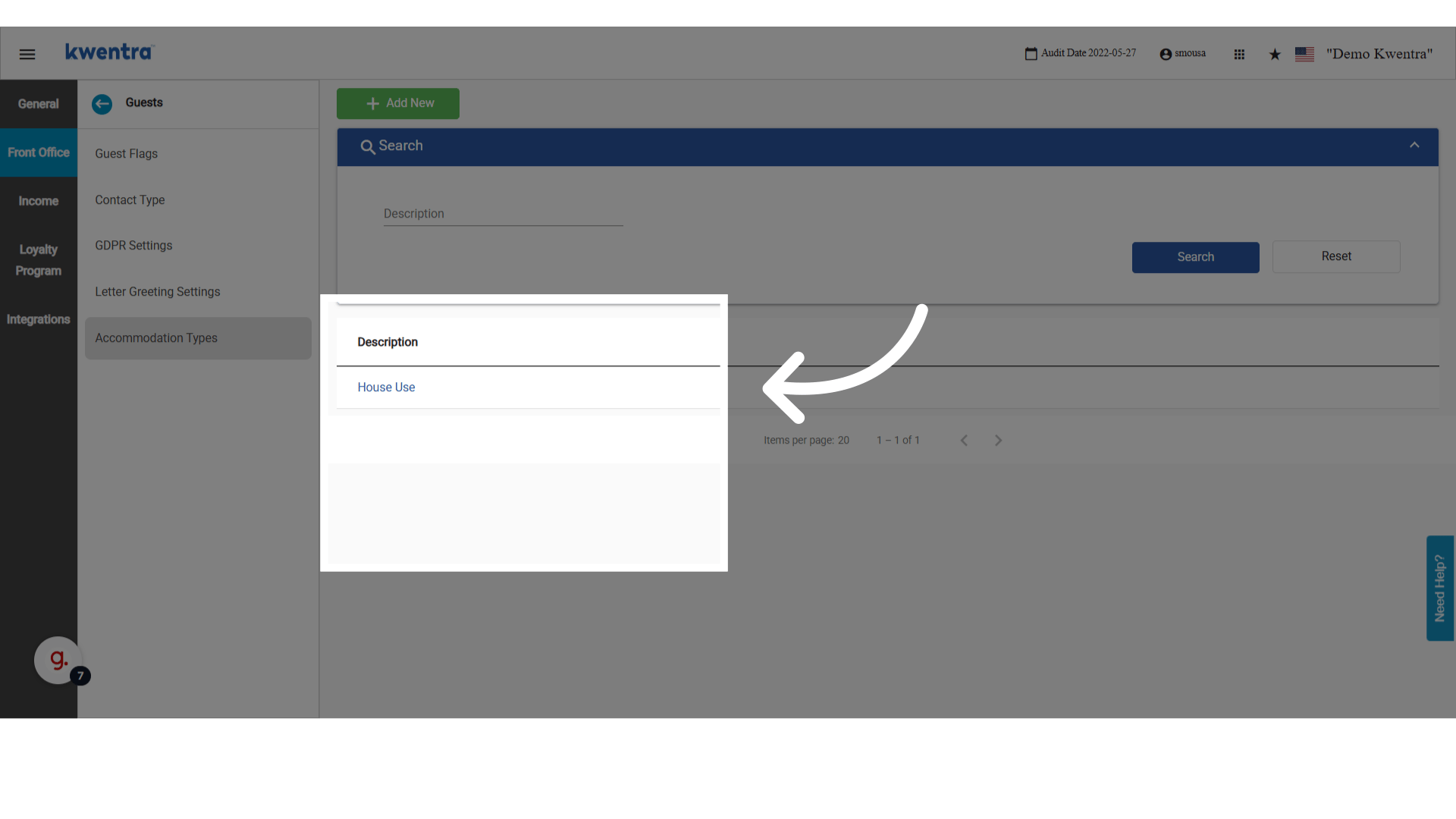
1. Review the existing custom accommodation types — any previously created entries are listed here.
   <img src="https://mintcdn.com/kwentra/ZVsgUU0lwuplLEKf/images/front-office/reservations/how-to-use-accommodation-type-in-reservations/a6072ac83d.png?fit=max&auto=format&n=ZVsgUU0lwuplLEKf&q=85&s=ab977d671454852d56b74dfd58bd5024" alt="preview" width="1920" height="1080" data-path="images/front-office/reservations/how-to-use-accommodation-type-in-reservations/a6072ac83d.png" />

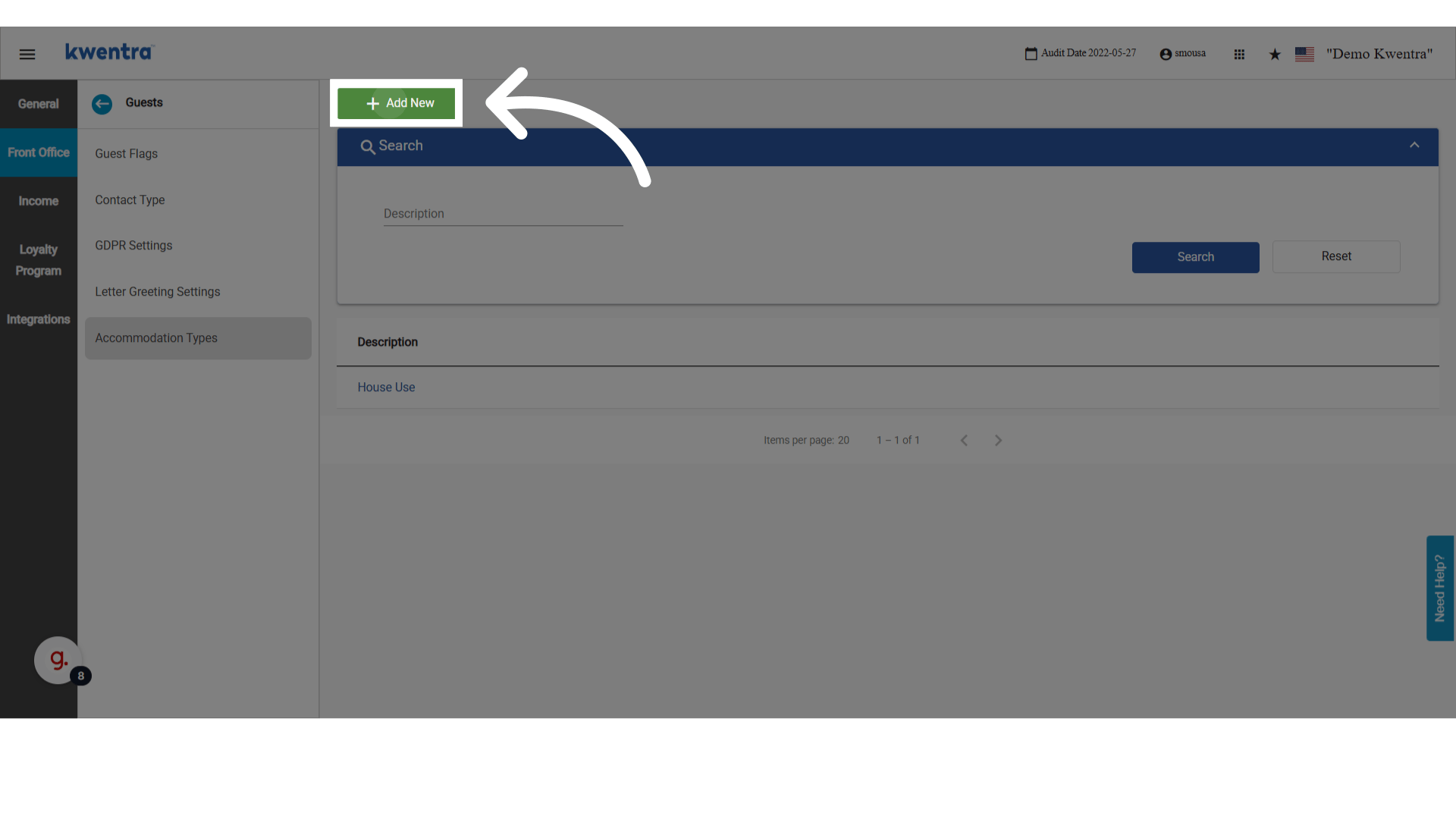
2. Click **Add** to create a new accommodation type.
   <img src="https://mintcdn.com/kwentra/eCGOv-HfyhNmBRpw/images/front-office/reservations/how-to-use-accommodation-type-in-reservations/3f529f4890.png?fit=max&auto=format&n=eCGOv-HfyhNmBRpw&q=85&s=25f194508fa6bb6382fda8c398b08311" alt="preview" width="1920" height="1080" data-path="images/front-office/reservations/how-to-use-accommodation-type-in-reservations/3f529f4890.png" />

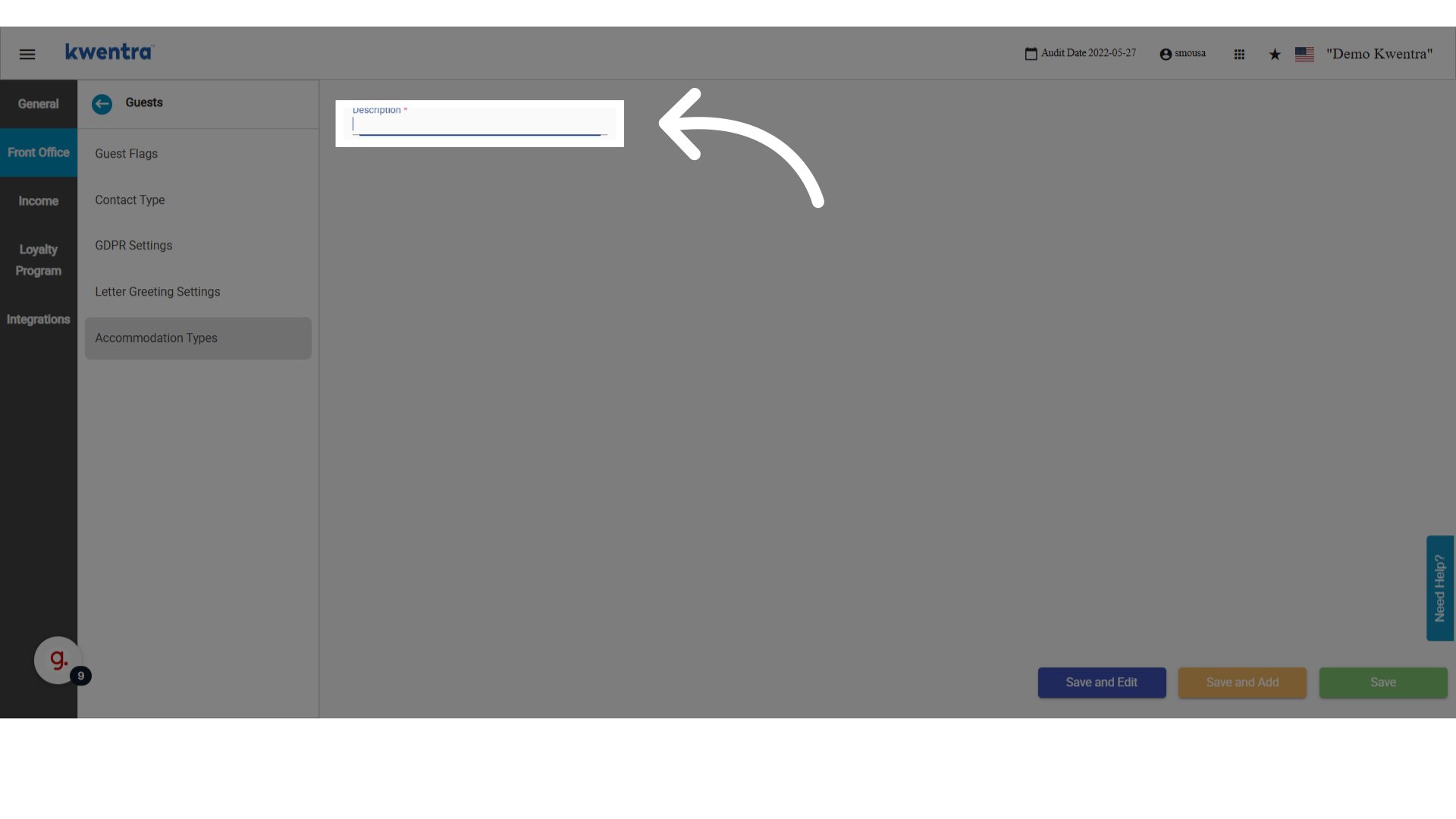
3. Enter a description for the new type (e.g. "Corporate Stay" or "Staff Housing").
   <img src="https://mintcdn.com/kwentra/ZVsgUU0lwuplLEKf/images/front-office/reservations/how-to-use-accommodation-type-in-reservations/b576c7f62c.png?fit=max&auto=format&n=ZVsgUU0lwuplLEKf&q=85&s=27464b791d8da220a579083025786a40" alt="preview" width="1920" height="1080" data-path="images/front-office/reservations/how-to-use-accommodation-type-in-reservations/b576c7f62c.png" />

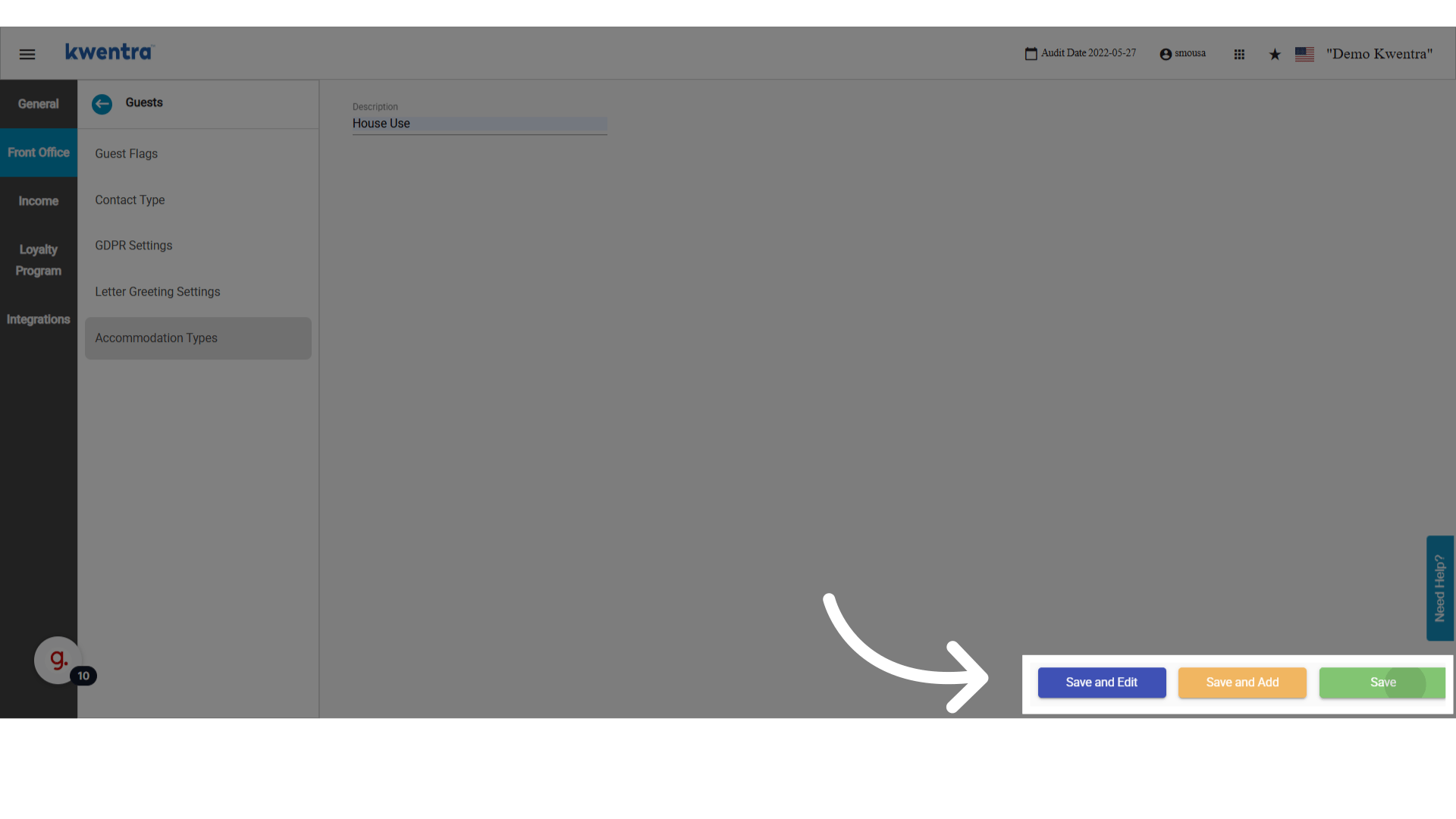
4. Save using one of the available save options.
   <img src="https://mintcdn.com/kwentra/ZVsgUU0lwuplLEKf/images/front-office/reservations/how-to-use-accommodation-type-in-reservations/b563b528f1.png?fit=max&auto=format&n=ZVsgUU0lwuplLEKf&q=85&s=7fa85348d2a7f43655e0e762c93b33a0" alt="preview" width="1920" height="1080" data-path="images/front-office/reservations/how-to-use-accommodation-type-in-reservations/b563b528f1.png" />

<Note>
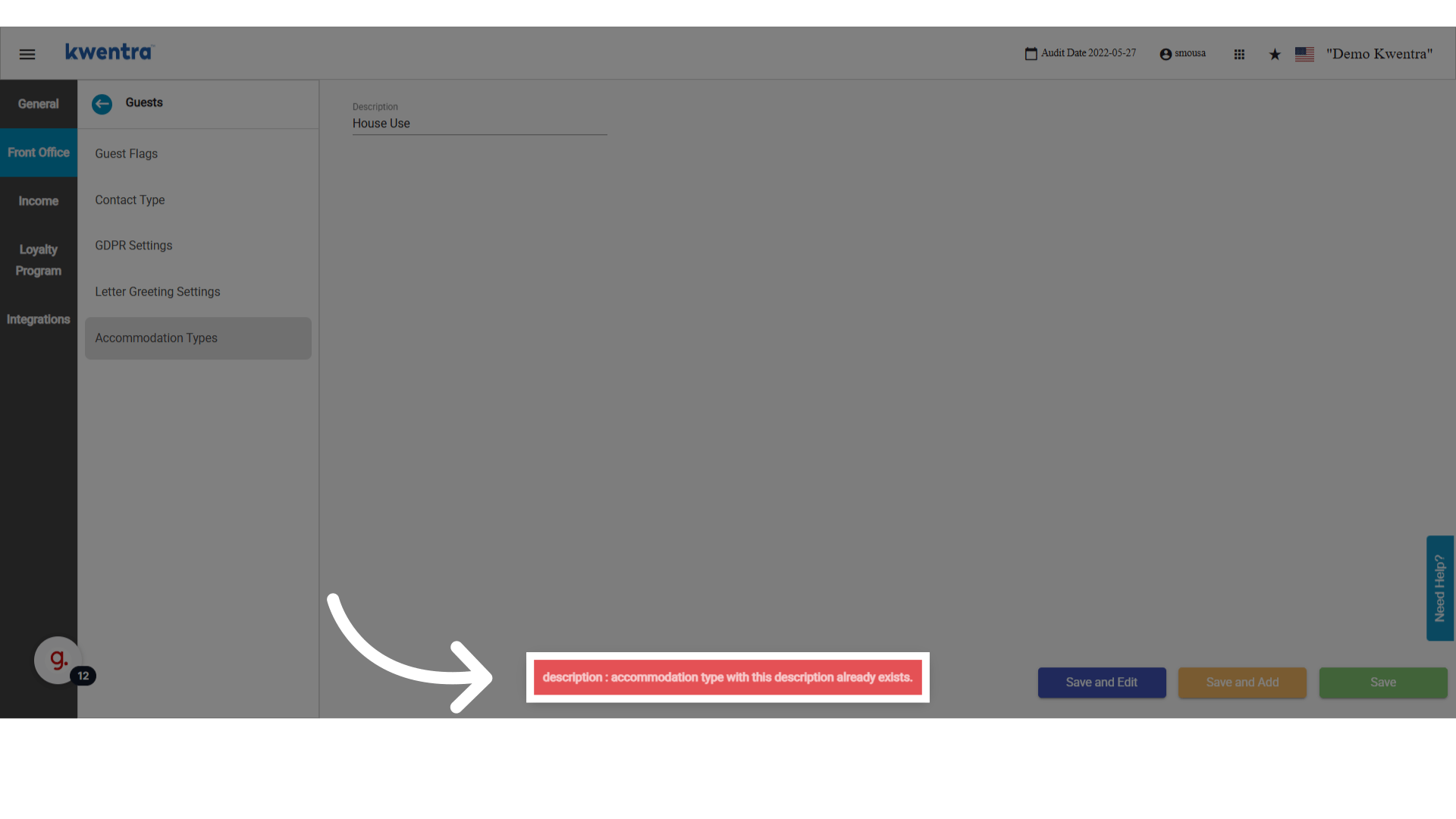
  You cannot add the same description twice — duplicates are rejected on save.
</Note>

<img src="https://mintcdn.com/kwentra/eCGOv-HfyhNmBRpw/images/front-office/reservations/how-to-use-accommodation-type-in-reservations/a1a6784e2b.png?fit=max&auto=format&n=eCGOv-HfyhNmBRpw&q=85&s=5162a318a3a9607c655f104f93caa507" alt="preview" width="1920" height="1080" data-path="images/front-office/reservations/how-to-use-accommodation-type-in-reservations/a1a6784e2b.png" />

## Apply an accommodation type to a reservation

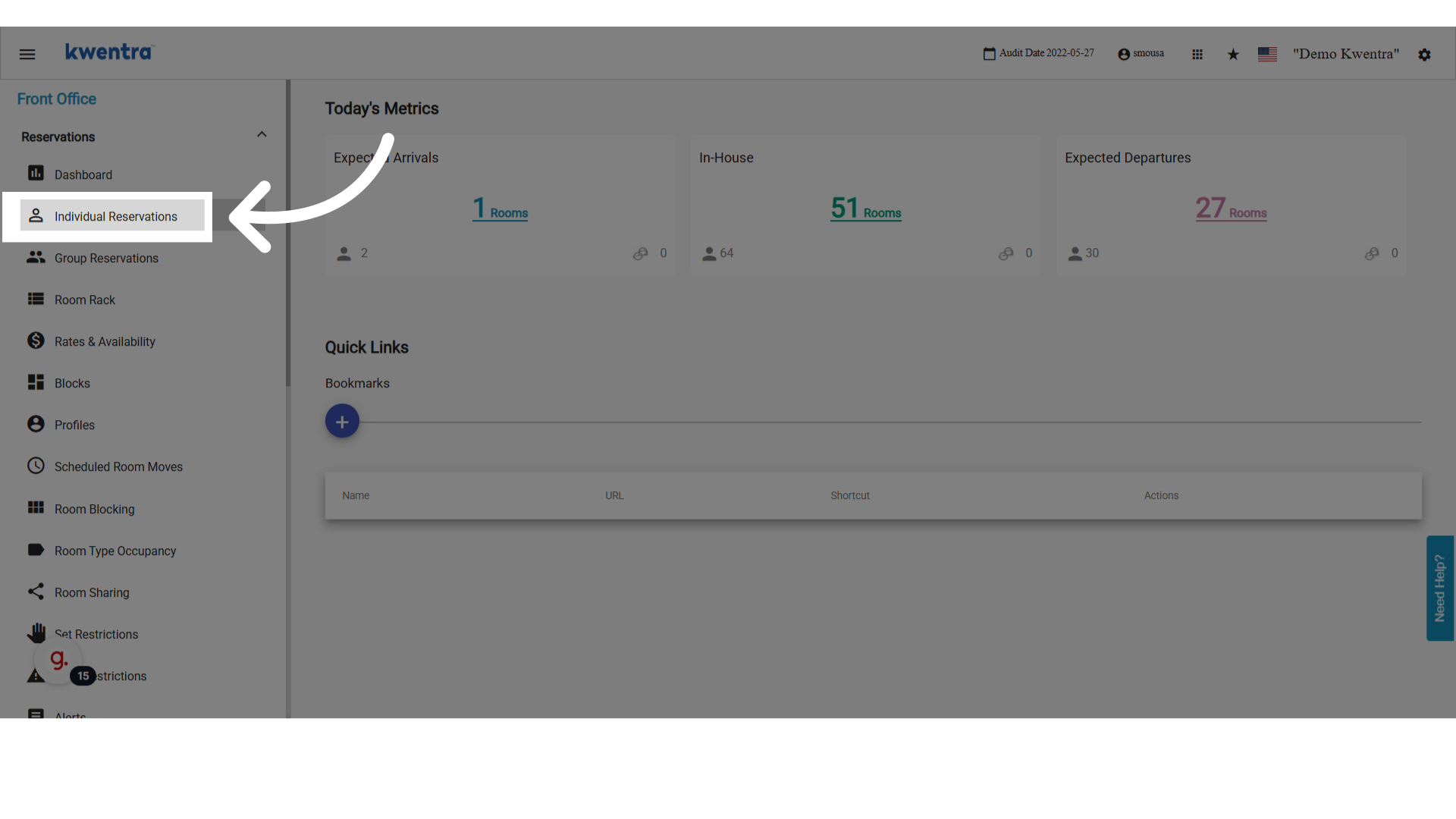
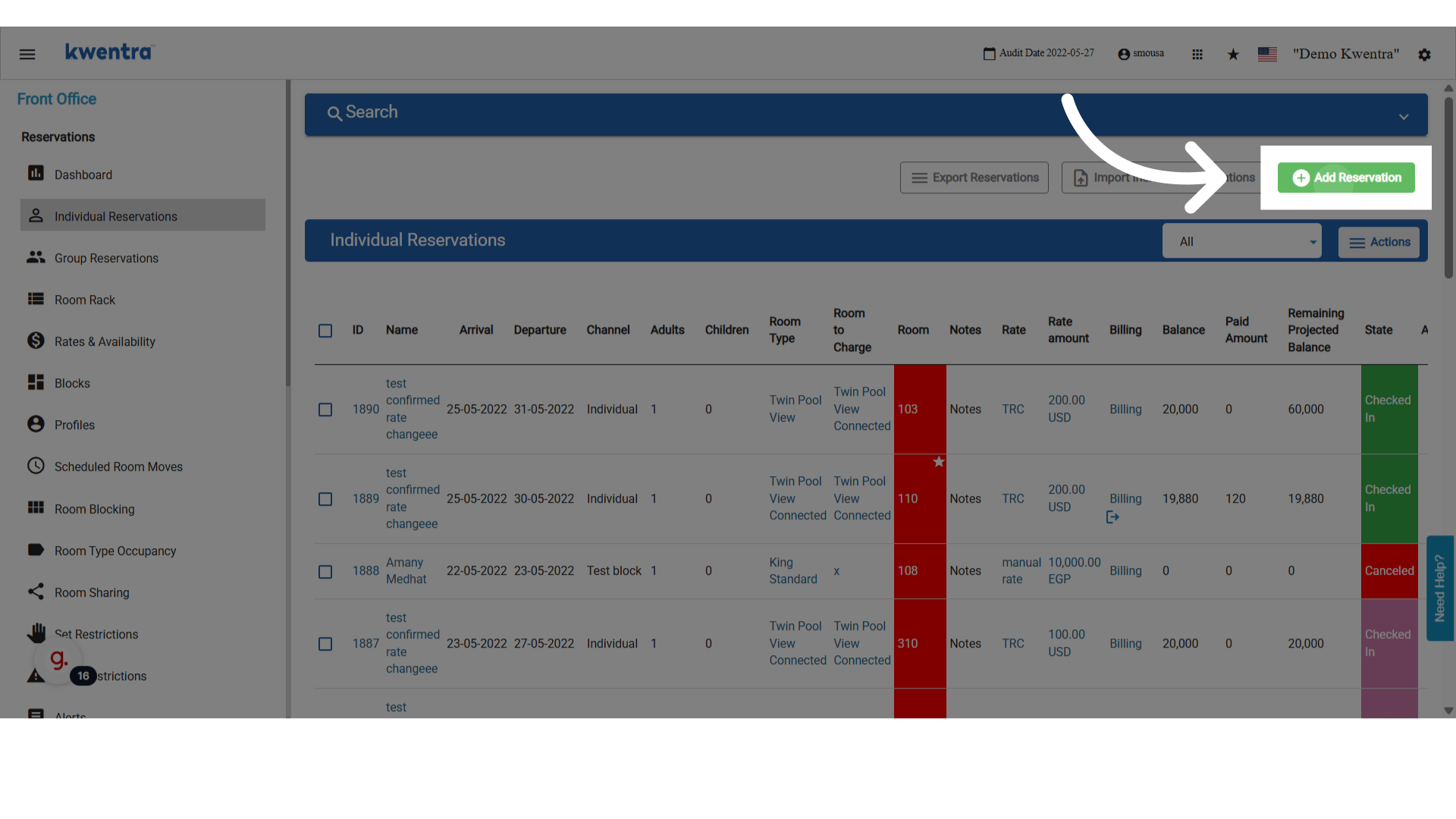
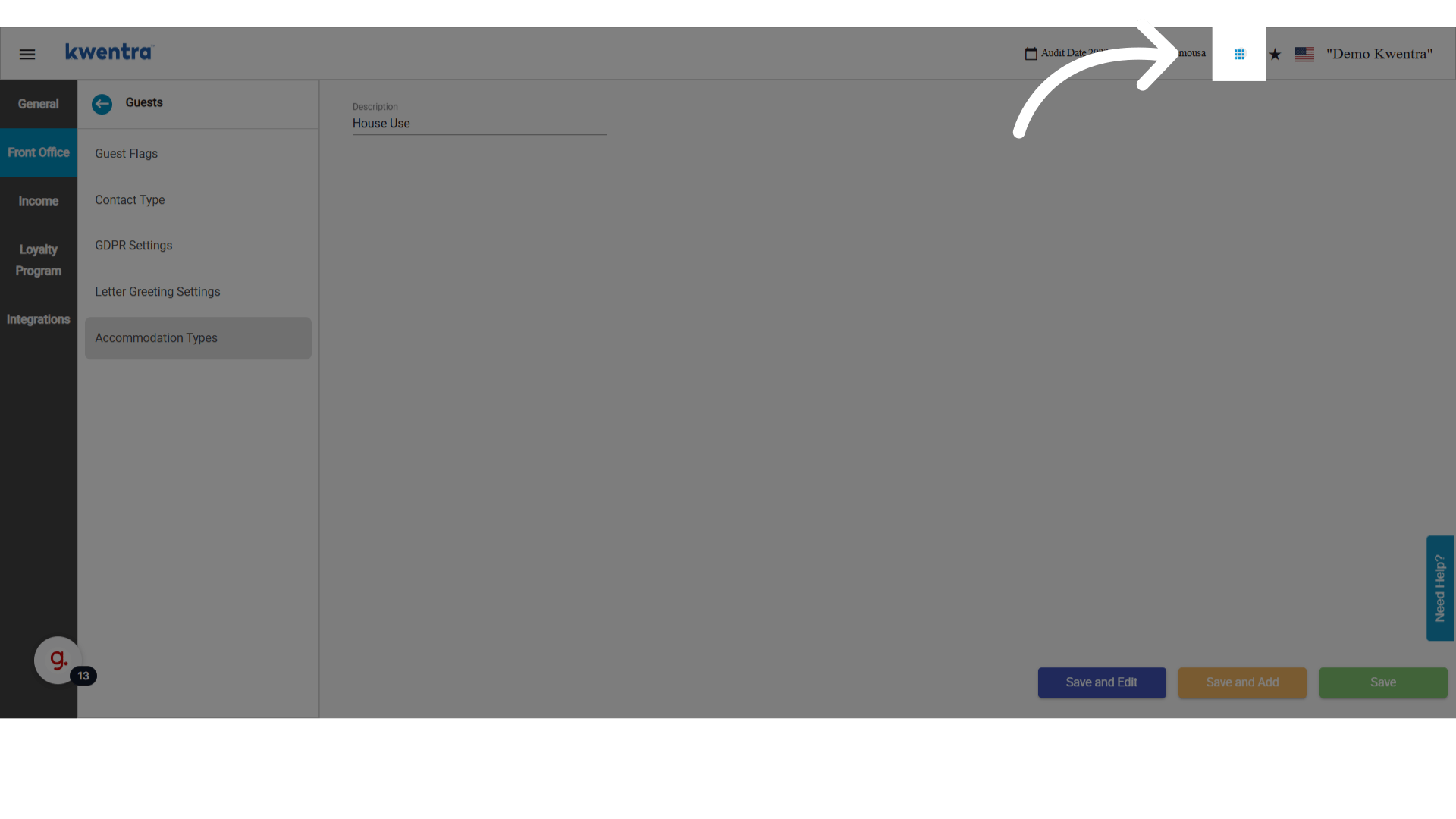
Go to **Modules → Front Office → Individual Reservations**.
<img src="https://mintcdn.com/kwentra/ZVsgUU0lwuplLEKf/images/front-office/reservations/how-to-use-accommodation-type-in-reservations/c0c6c02c57.png?fit=max&auto=format&n=ZVsgUU0lwuplLEKf&q=85&s=20058c83ed3efc70a72d82322345ef89" alt="preview" width="1920" height="1080" data-path="images/front-office/reservations/how-to-use-accommodation-type-in-reservations/c0c6c02c57.png" />

<img src="https://mintcdn.com/kwentra/eCGOv-HfyhNmBRpw/images/front-office/reservations/how-to-use-accommodation-type-in-reservations/0af8f6f55e.png?fit=max&auto=format&n=eCGOv-HfyhNmBRpw&q=85&s=2a962129cfd75f54082de3c2cb0d88b4" alt="preview" width="1920" height="1080" data-path="images/front-office/reservations/how-to-use-accommodation-type-in-reservations/0af8f6f55e.png" />

<img src="https://mintcdn.com/kwentra/eCGOv-HfyhNmBRpw/images/front-office/reservations/how-to-use-accommodation-type-in-reservations/2de7896b09.png?fit=max&auto=format&n=eCGOv-HfyhNmBRpw&q=85&s=5647fa158e5dda43119d9235a8c09c26" alt="preview" width="1920" height="1080" data-path="images/front-office/reservations/how-to-use-accommodation-type-in-reservations/2de7896b09.png" />

1. Click **Add Reservation**.

   <img src="https://mintcdn.com/kwentra/ZVsgUU0lwuplLEKf/images/front-office/reservations/how-to-use-accommodation-type-in-reservations/aa9765a1dd.png?fit=max&auto=format&n=ZVsgUU0lwuplLEKf&q=85&s=35d03b4d7c6759cd4750d5d53712be13" alt="preview" width="1920" height="1080" data-path="images/front-office/reservations/how-to-use-accommodation-type-in-reservations/aa9765a1dd.png" />

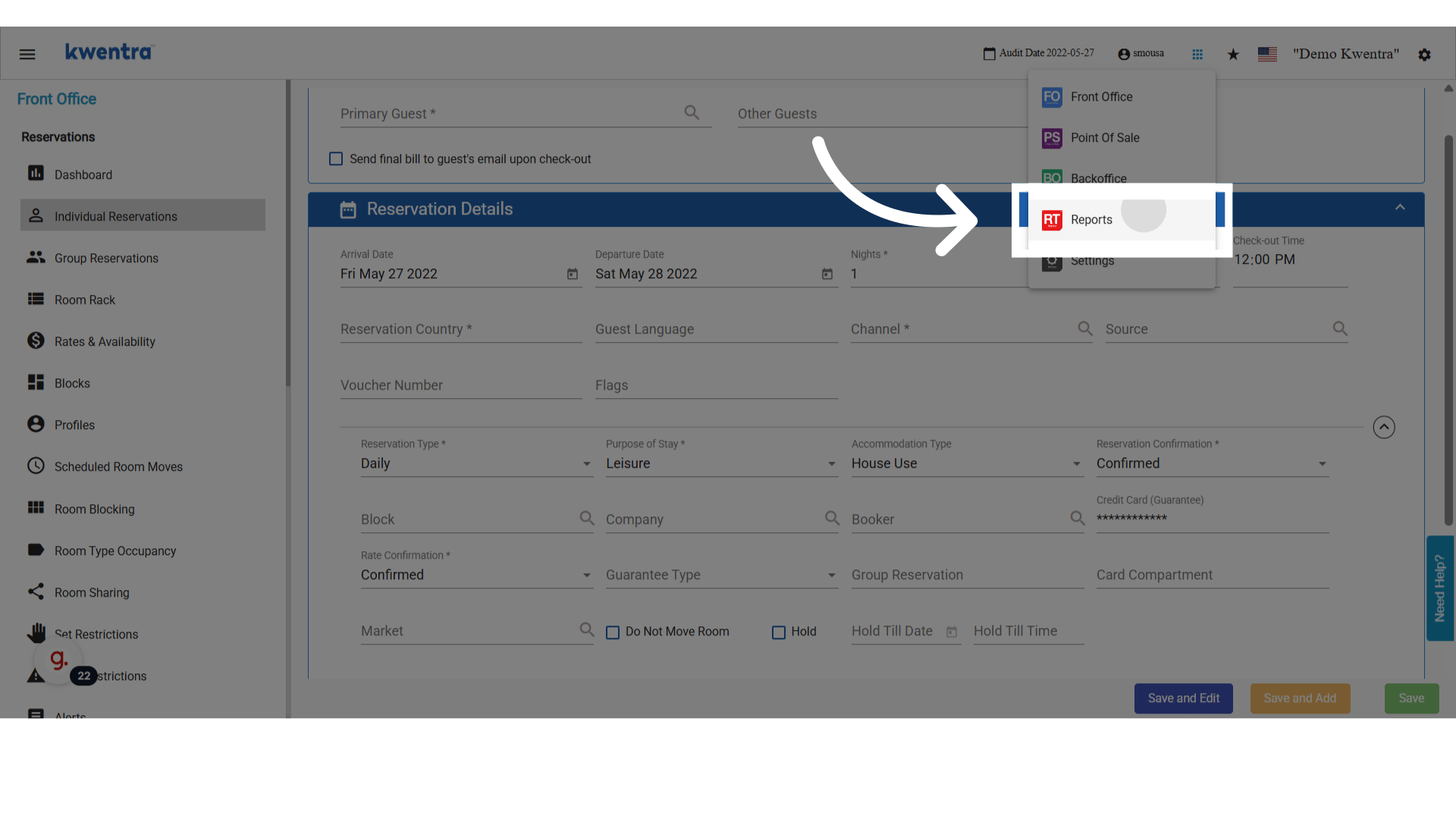
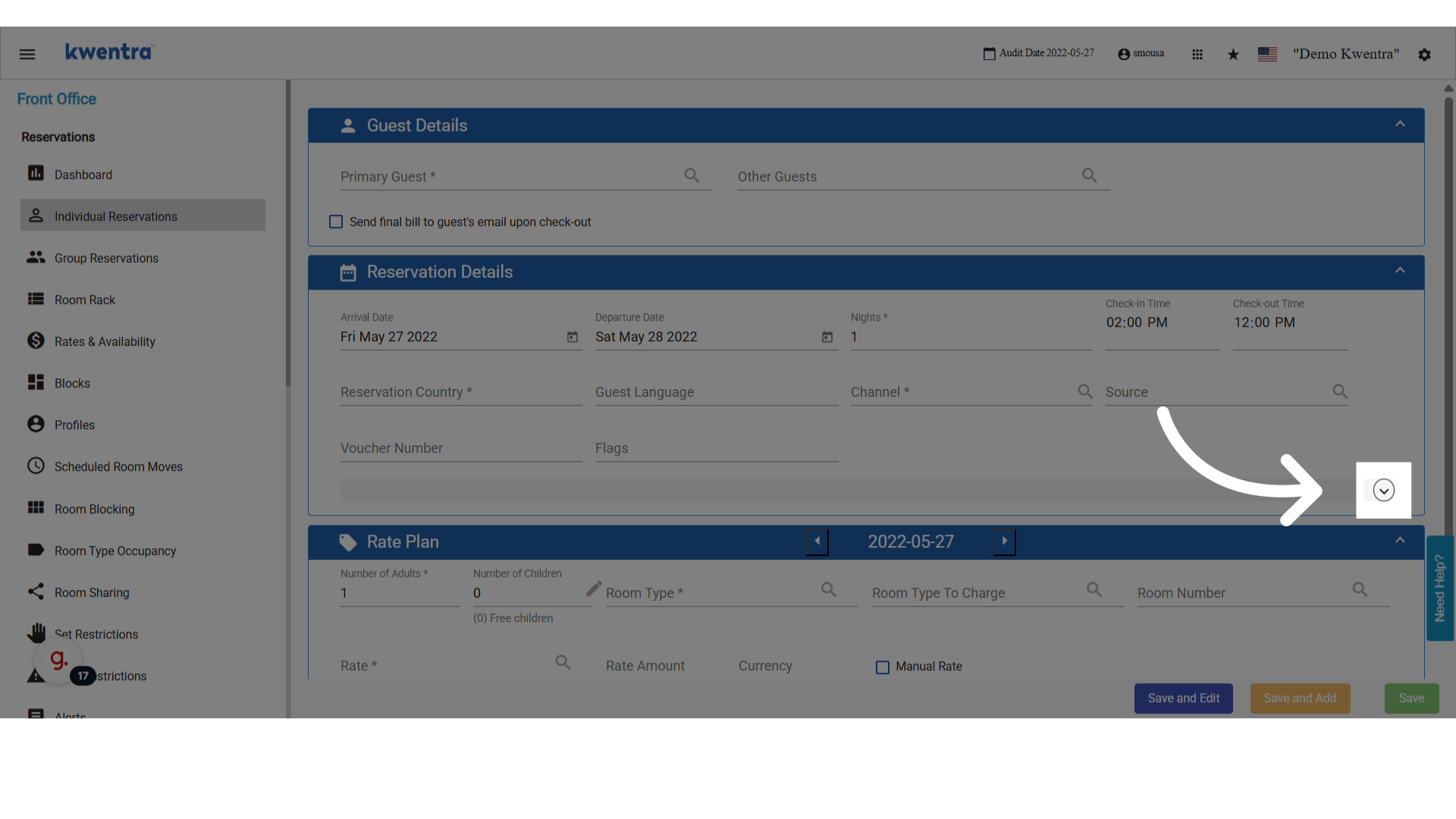
2. Unhide the extra fields to reveal the Accommodation Type selector.
   <img src="https://mintcdn.com/kwentra/eCGOv-HfyhNmBRpw/images/front-office/reservations/how-to-use-accommodation-type-in-reservations/91cea65b07.png?fit=max&auto=format&n=eCGOv-HfyhNmBRpw&q=85&s=10171e9b2d4e0810a4db9b1e109460e3" alt="preview" width="1920" height="1080" data-path="images/front-office/reservations/how-to-use-accommodation-type-in-reservations/91cea65b07.png" />

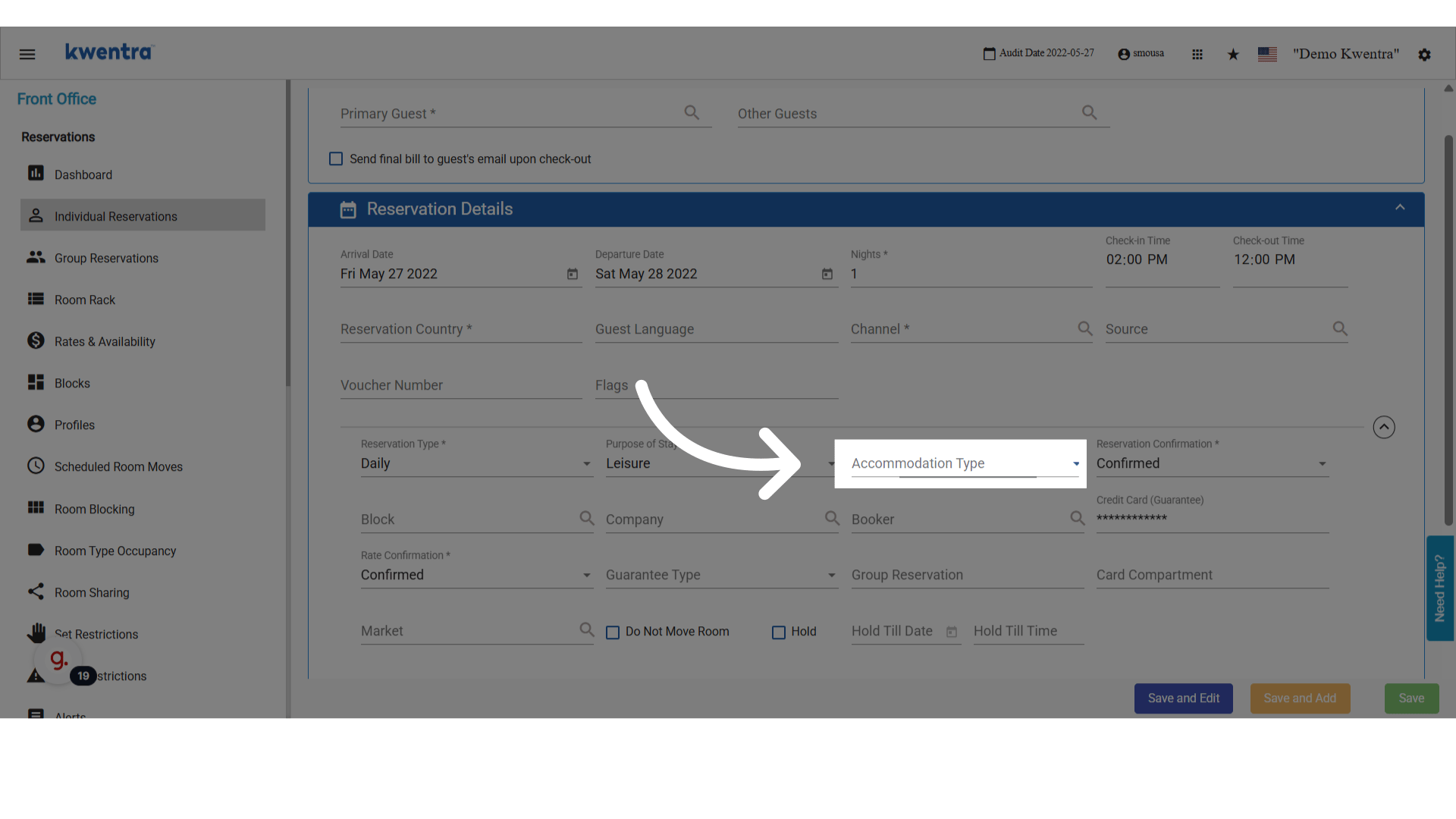
3. Select one of your custom accommodation types from the dropdown.
   <img src="https://mintcdn.com/kwentra/eCGOv-HfyhNmBRpw/images/front-office/reservations/how-to-use-accommodation-type-in-reservations/53db6d50e3.png?fit=max&auto=format&n=eCGOv-HfyhNmBRpw&q=85&s=46b8274dbdd2d276713dcbb5c2626539" alt="preview" width="1920" height="1080" data-path="images/front-office/reservations/how-to-use-accommodation-type-in-reservations/53db6d50e3.png" />

## View accommodation types in the Reservation List Report

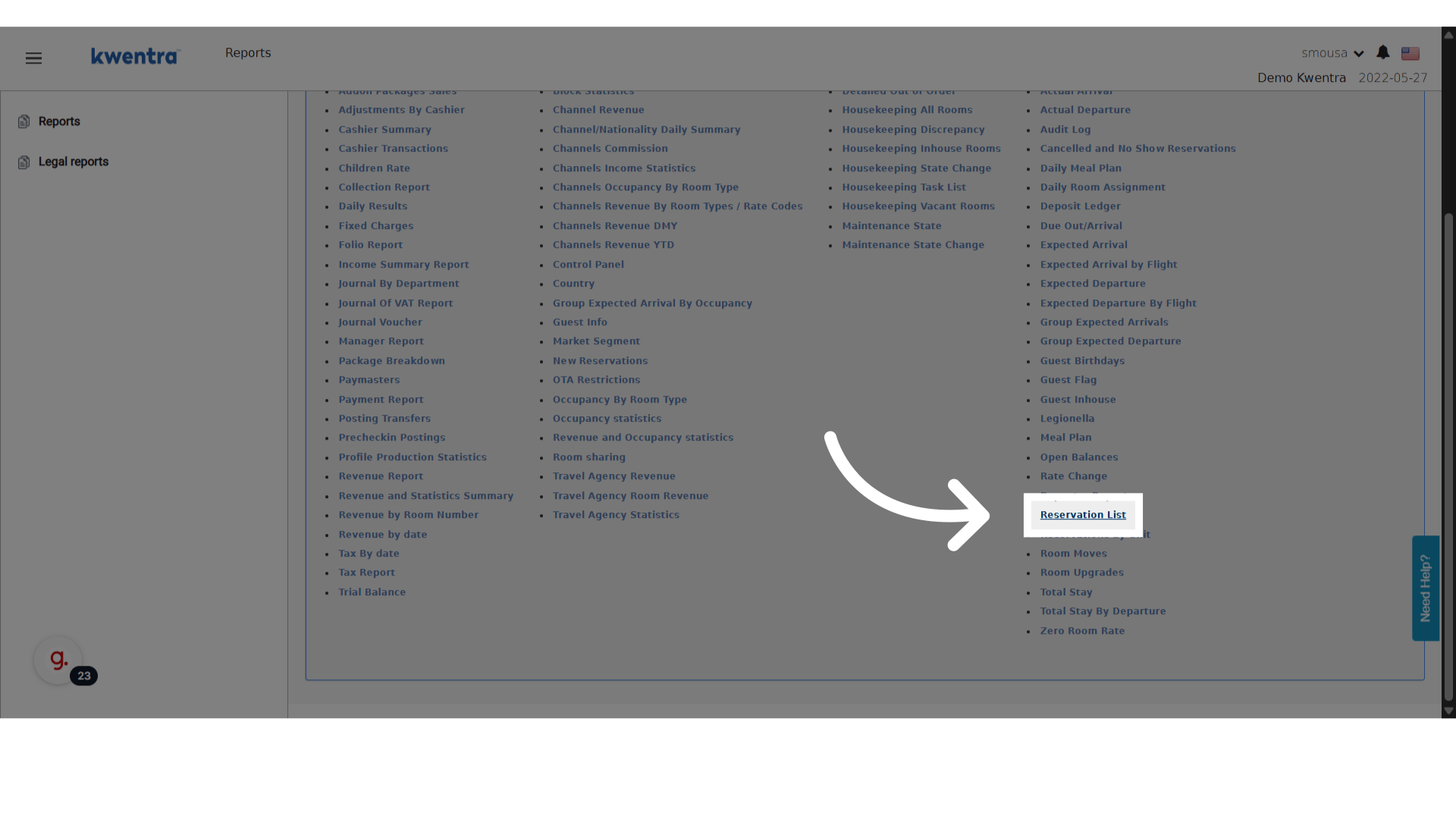
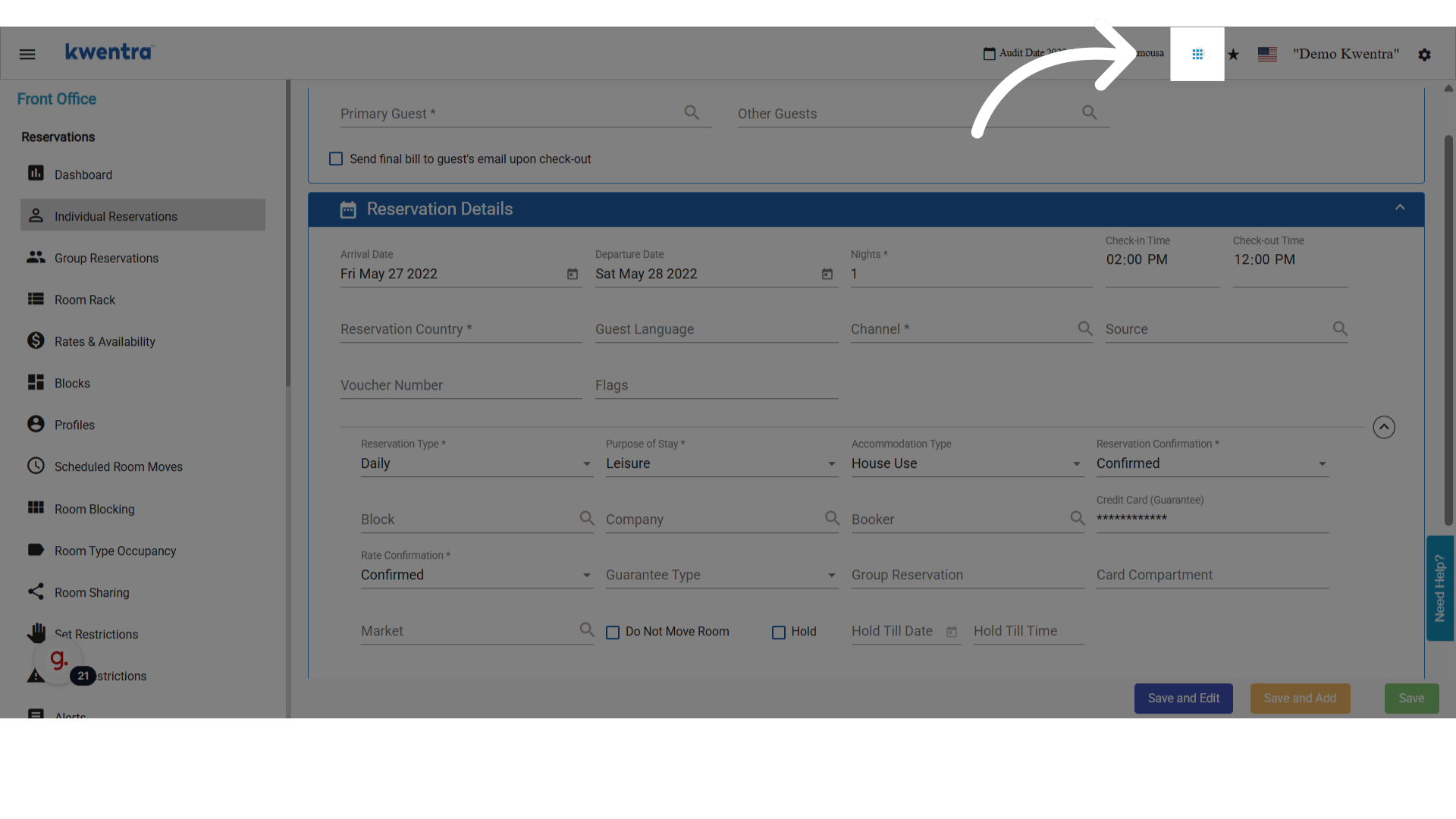
Go to **Modules → Reports → Reservation List**.
<img src="https://mintcdn.com/kwentra/ZVsgUU0lwuplLEKf/images/front-office/reservations/how-to-use-accommodation-type-in-reservations/edbc009152.png?fit=max&auto=format&n=ZVsgUU0lwuplLEKf&q=85&s=94bd1b249b435d098b745b0401dd9d6b" alt="preview" width="1920" height="1080" data-path="images/front-office/reservations/how-to-use-accommodation-type-in-reservations/edbc009152.png" />

<img src="https://mintcdn.com/kwentra/ZVsgUU0lwuplLEKf/images/front-office/reservations/how-to-use-accommodation-type-in-reservations/b4c51befad.png?fit=max&auto=format&n=ZVsgUU0lwuplLEKf&q=85&s=bd5ea381394323cc67481befd050b34f" alt="preview" width="1920" height="1080" data-path="images/front-office/reservations/how-to-use-accommodation-type-in-reservations/b4c51befad.png" />

<img src="https://mintcdn.com/kwentra/eCGOv-HfyhNmBRpw/images/front-office/reservations/how-to-use-accommodation-type-in-reservations/329b13d9bd.png?fit=max&auto=format&n=eCGOv-HfyhNmBRpw&q=85&s=7671710a6cf3182782e5063edb2de398" alt="preview" width="1920" height="1080" data-path="images/front-office/reservations/how-to-use-accommodation-type-in-reservations/329b13d9bd.png" />

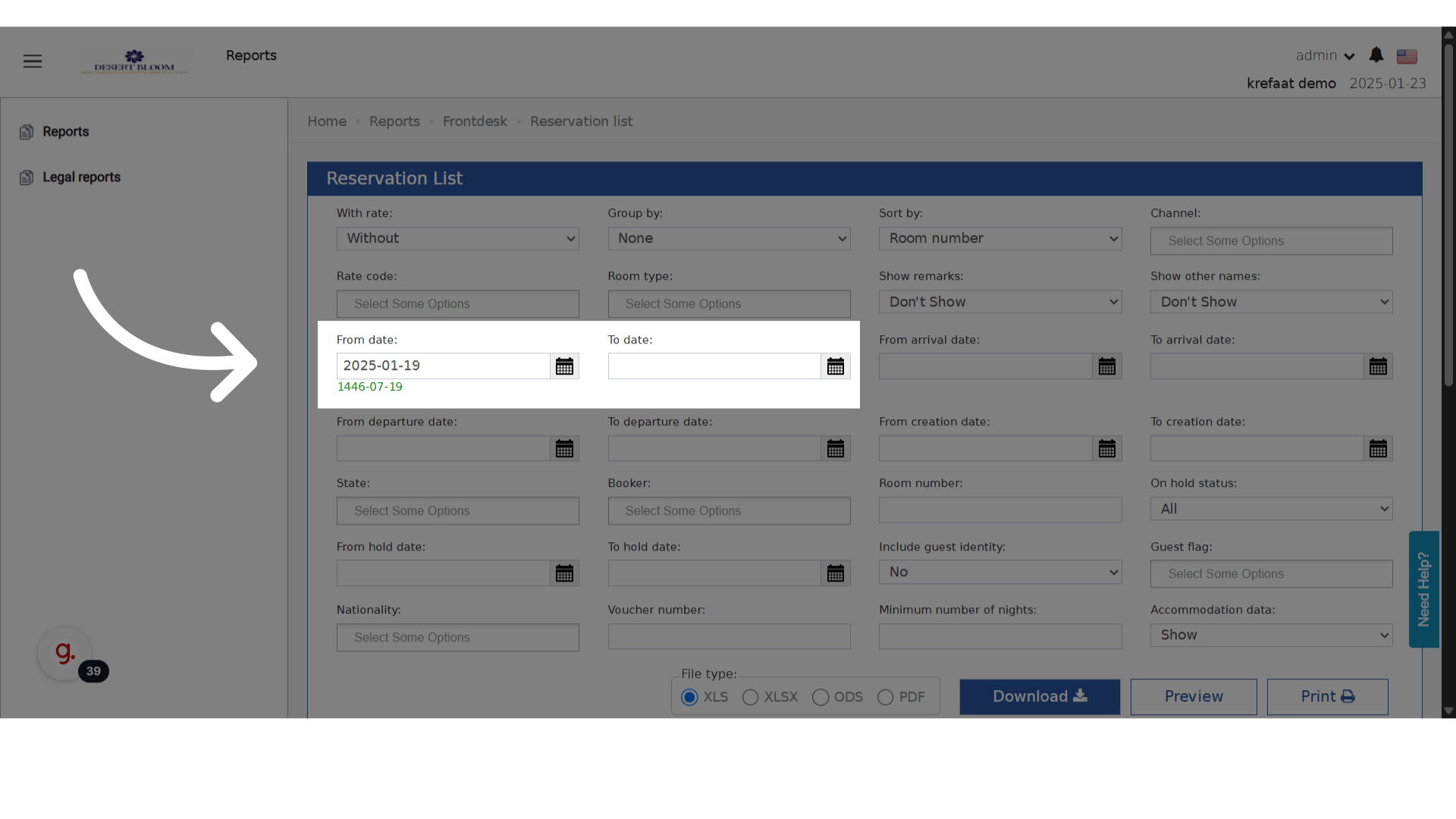
1. Choose your date range.

   <img src="https://mintcdn.com/kwentra/eCGOv-HfyhNmBRpw/images/front-office/reservations/how-to-use-accommodation-type-in-reservations/1ff445bfb7.png?fit=max&auto=format&n=eCGOv-HfyhNmBRpw&q=85&s=d60123a30d7593896f94655eb3d1dfe3" alt="preview" width="1920" height="1080" data-path="images/front-office/reservations/how-to-use-accommodation-type-in-reservations/1ff445bfb7.png" />

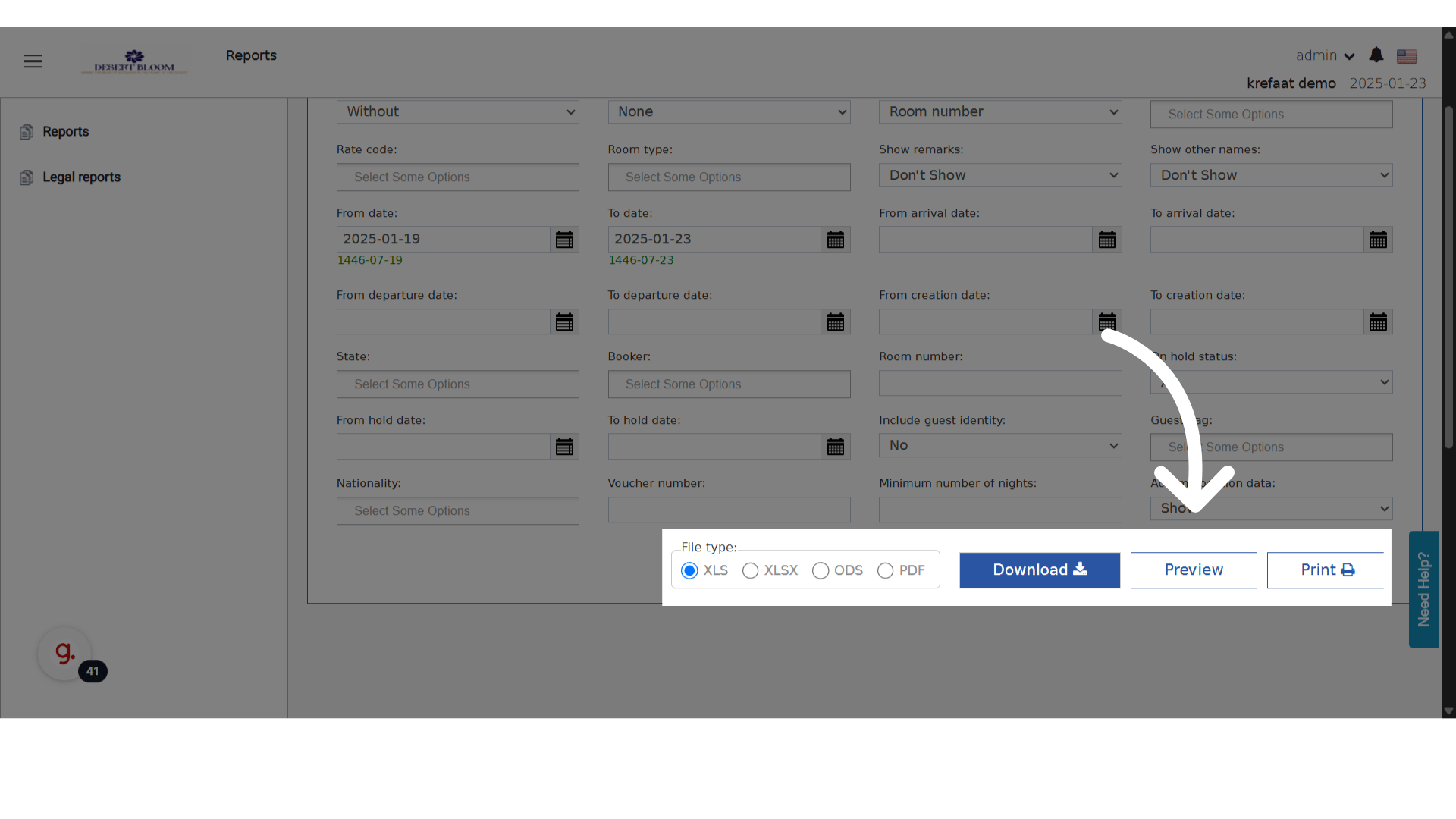
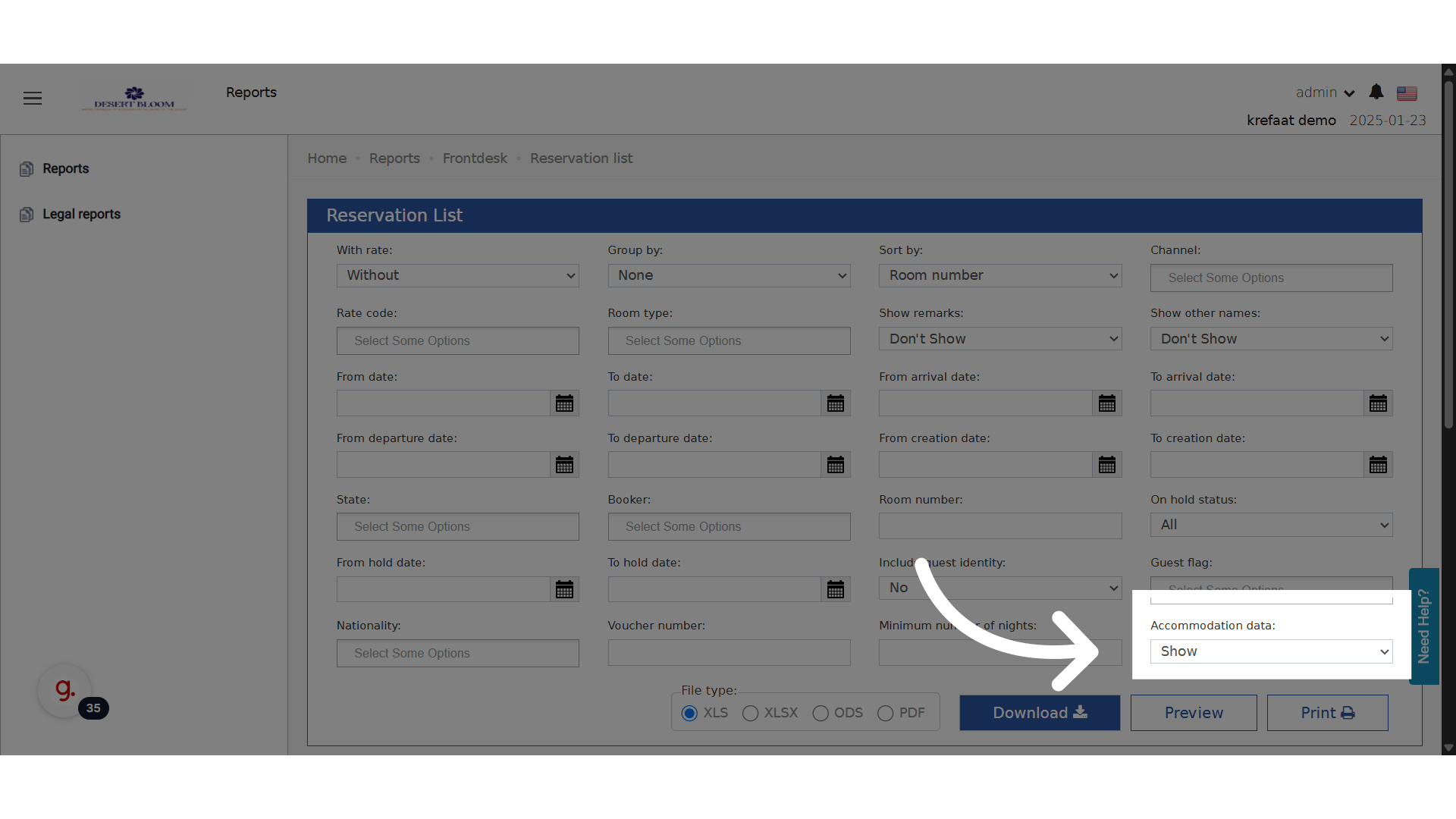
2. Enable **Show Accommodation Data**.
   <img src="https://mintcdn.com/kwentra/eCGOv-HfyhNmBRpw/images/front-office/reservations/how-to-use-accommodation-type-in-reservations/96f7cffd89.png?fit=max&auto=format&n=eCGOv-HfyhNmBRpw&q=85&s=30fed1eef86264a4f0e309ca0b5e5136" alt="preview" width="1920" height="1080" data-path="images/front-office/reservations/how-to-use-accommodation-type-in-reservations/96f7cffd89.png" />

3. Generate the report preview.

   <img src="https://mintcdn.com/kwentra/eCGOv-HfyhNmBRpw/images/front-office/reservations/how-to-use-accommodation-type-in-reservations/59e41ff897.png?fit=max&auto=format&n=eCGOv-HfyhNmBRpw&q=85&s=adadd21c9825fe37e482d71df33eb1f6" alt="preview" width="1920" height="1080" data-path="images/front-office/reservations/how-to-use-accommodation-type-in-reservations/59e41ff897.png" />

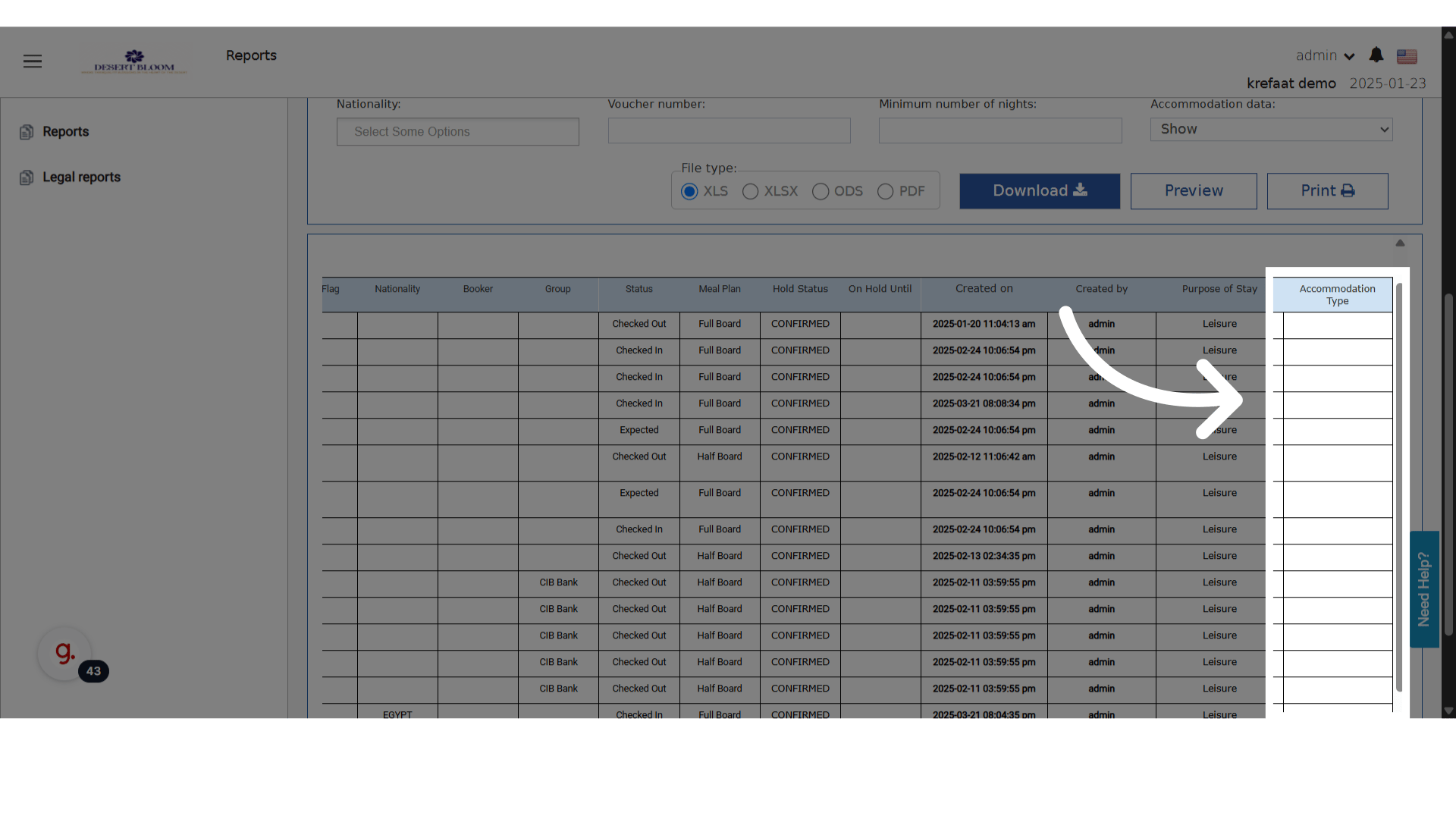
Any reservation that has an Accommodation Type set will display it in the dedicated column of the report.
<img src="https://mintcdn.com/kwentra/eCGOv-HfyhNmBRpw/images/front-office/reservations/how-to-use-accommodation-type-in-reservations/83b90b8d45.png?fit=max&auto=format&n=eCGOv-HfyhNmBRpw&q=85&s=fa00ab74a57297d81c7b190b450dad3e" alt="preview" width="1920" height="1080" data-path="images/front-office/reservations/how-to-use-accommodation-type-in-reservations/83b90b8d45.png" />