> ## Documentation Index
> Fetch the complete documentation index at: https://help.kwentra.com/llms.txt
> Use this file to discover all available pages before exploring further.
# Share Confirmation via WhatsApp
> Send a public confirmation link directly to a guest's WhatsApp from any reservation, or copy the link for manual sharing.
Send a public confirmation link directly to a guest's WhatsApp from any reservation, or copy the link to share it manually.
### **Business Value**
* Speeds up guest communication by sending confirmation links instantly via WhatsApp.
* Reduces manual steps — no need to copy links and open WhatsApp separately.
* Validates and auto-corrects guest mobile numbers based on country code before sending.
* Supports custom confirmation templates, ensuring guests receive a branded confirmation.
* Works for both individual and group reservations from a single consistent flow.
### **Use Cases**
* Front desk agent shares the confirmation link via WhatsApp after a reservation is made — the guest receives it instantly on their phone.
* Reservations manager copies the public confirmation link to paste into an email or messaging platform.
* Group coordinator enters the group contact's mobile number to send the confirmation link for a group booking.
### **How It Works**
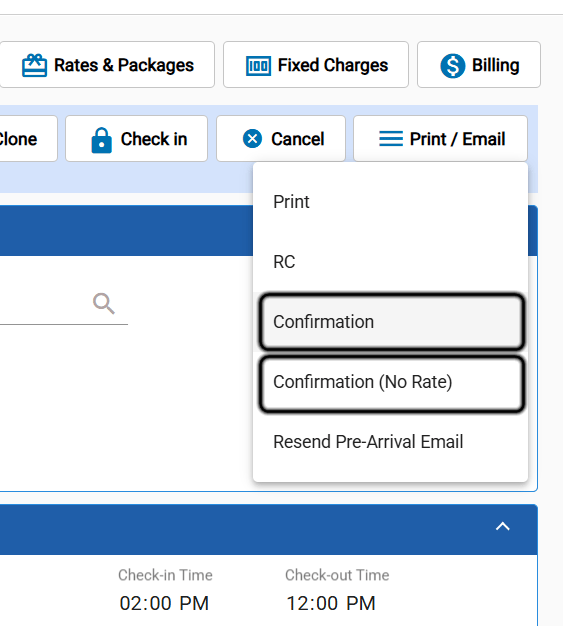
| **Where:** Front Office → Individual Reservations → Select Reservation → Print → Confirmation |
| --------------------------------------------------------------------------------------------- |
| **Also available at:** Front Office → Group Reservations → Select Reservation → Confirmation |
| -------------------------------------------------------------------------------------------- |
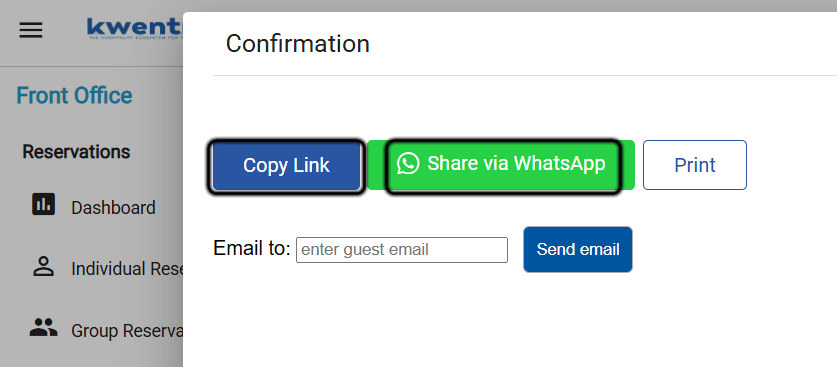
 Two new buttons appear when viewing the Confirmation:
#### **Copy Public Link**
Click **Copy Public Link** to copy the confirmation's public URL to your clipboard. You can then paste it into any channel — email, chat, or SMS.
#### **Share Via WhatsApp**
Click **Share Via WhatsApp** to open a WhatsApp message pre-addressed to the guest's mobile number with the confirmation link as the message text.
Two new buttons appear when viewing the Confirmation:
#### **Copy Public Link**
Click **Copy Public Link** to copy the confirmation's public URL to your clipboard. You can then paste it into any channel — email, chat, or SMS.
#### **Share Via WhatsApp**
Click **Share Via WhatsApp** to open a WhatsApp message pre-addressed to the guest's mobile number with the confirmation link as the message text.
 **For Individual Reservations:**
The system automatically looks up the mobile number from the main guest profile:
1. If the guest profile has a **Mobile** number → uses it directly.
2. If Mobile is empty → falls back to the **Telephone** field.
3. If both are empty → displays a prompt with a **Mobile Number** field and a **Save & Send** button. Enter the number and click **Save & Send** to save it to the guest profile and send.
**For Group Reservations:**
A **Mobile Number** field is displayed for you to enter the number that should receive the WhatsApp message.
**Mobile Number Formatting**
The system automatically corrects common formatting issues before sending:
| **Number format** | **Action** |
| ------------------------------------- | --------------------------------------------------- |
| Starts with `00` | Replaced with `+` (e.g., `0020` → `+20`) |
| Starts with a digit (no country code) | Country code added based on the guest's nationality |
| Starts with `+` | Used as-is |
| Note: If the instance has a custom confirmation template, the shared public link renders that custom template for the guest. |
| ---------------------------------------------------------------------------------------------------------------------------- |
**For Individual Reservations:**
The system automatically looks up the mobile number from the main guest profile:
1. If the guest profile has a **Mobile** number → uses it directly.
2. If Mobile is empty → falls back to the **Telephone** field.
3. If both are empty → displays a prompt with a **Mobile Number** field and a **Save & Send** button. Enter the number and click **Save & Send** to save it to the guest profile and send.
**For Group Reservations:**
A **Mobile Number** field is displayed for you to enter the number that should receive the WhatsApp message.
**Mobile Number Formatting**
The system automatically corrects common formatting issues before sending:
| **Number format** | **Action** |
| ------------------------------------- | --------------------------------------------------- |
| Starts with `00` | Replaced with `+` (e.g., `0020` → `+20`) |
| Starts with a digit (no country code) | Country code added based on the guest's nationality |
| Starts with `+` | Used as-is |
| Note: If the instance has a custom confirmation template, the shared public link renders that custom template for the guest. |
| ---------------------------------------------------------------------------------------------------------------------------- |