> ## Documentation Index
> Fetch the complete documentation index at: https://help.kwentra.com/llms.txt
> Use this file to discover all available pages before exploring further.
# Transfer A Group To Another Property
> The Group Reservation Transfer feature allows hotels under the same company to easily move group bookings between properties. It helps balance room availability, improve guest experience, and simpl...
The **Group Reservation Transfer** feature allows hotels under the same company to easily move group bookings between properties. It helps **balance room availability, improve guest experience, and simplify reservation management**, ensuring smooth operations across multiple locations.
#### **How This Helps Your Business:**
* **Improves Booking Flexibility** – Move group bookings based on occupancy, guest preferences, or operational needs.
* **Enhances Centralized Management** – Gives reservation teams control over booking allocation across multiple hotels.
* **Reduces Manual Effort & Errors** – Automates data transfer, reducing mistakes and saving time.
* **Optimizes Revenue & Room Use** – Prevents overbooking and ensures better room distribution.
#### **When to Use the Group Transfer Feature:**
* **Rebalancing Bookings** – Move groups when one hotel reaches full capacity.
* **Operational Issues** – Transfer guests if a hotel is under maintenance or facing service disruptions.
* **Centralized Reservations** – Adjust bookings to suit corporate or group needs better.
#### **How do you transfer a group reservation?**
**[Front Office → Group Reservations → Select Expected Group Reservation](https://manage.kwentra.com/frontoffice/#/groupreservation)**
The button is **enabled only if**:
* The user has **"Transfer Group Reservation"** permission.
* The user has access to **multiple properties**.
* Group status is **"Expected"**, and it’s not a split reservation, even 1 room split.
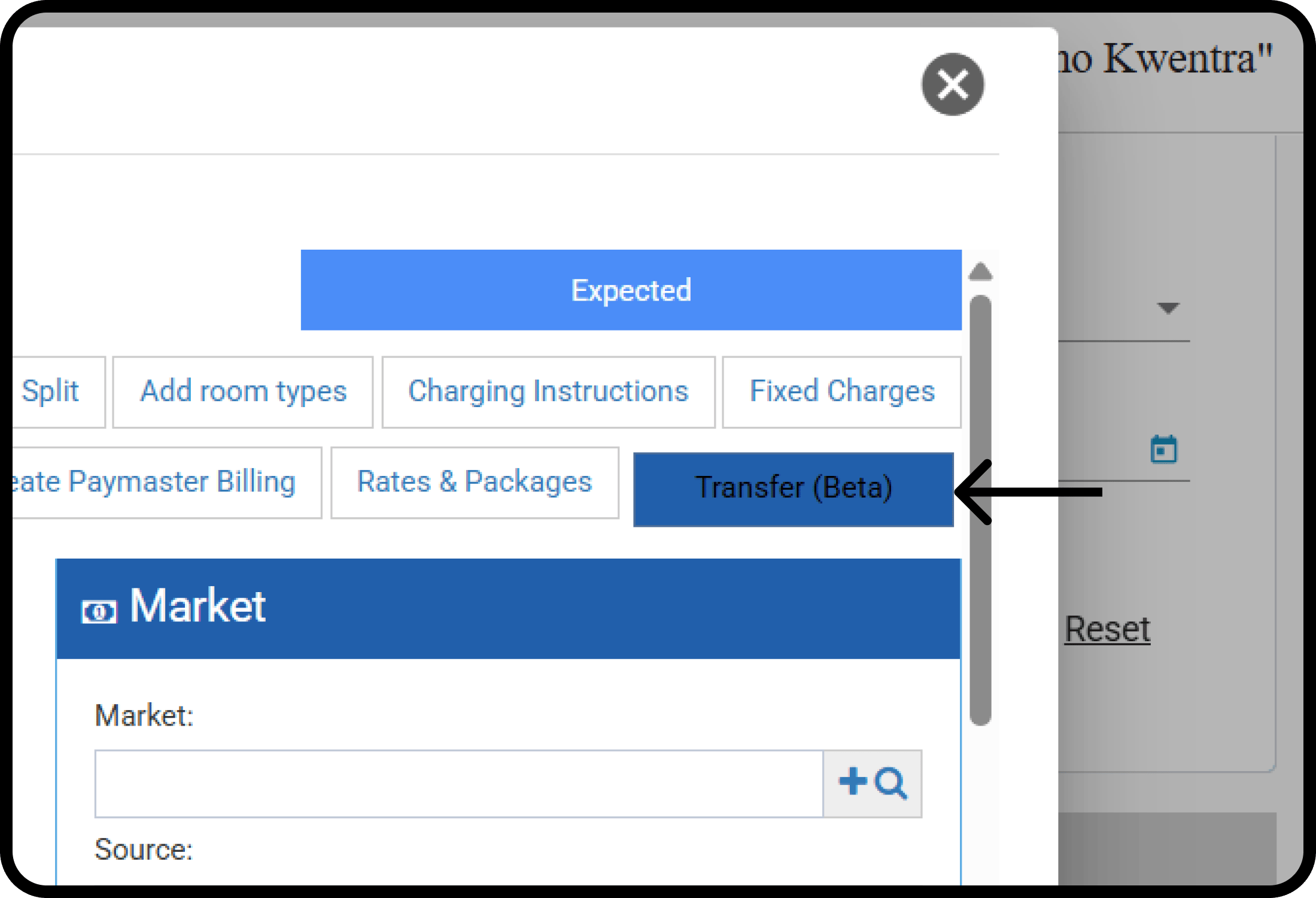 Clicking **Transfer** opens the dialogue below to select the destination property.
Select then click **Next.**
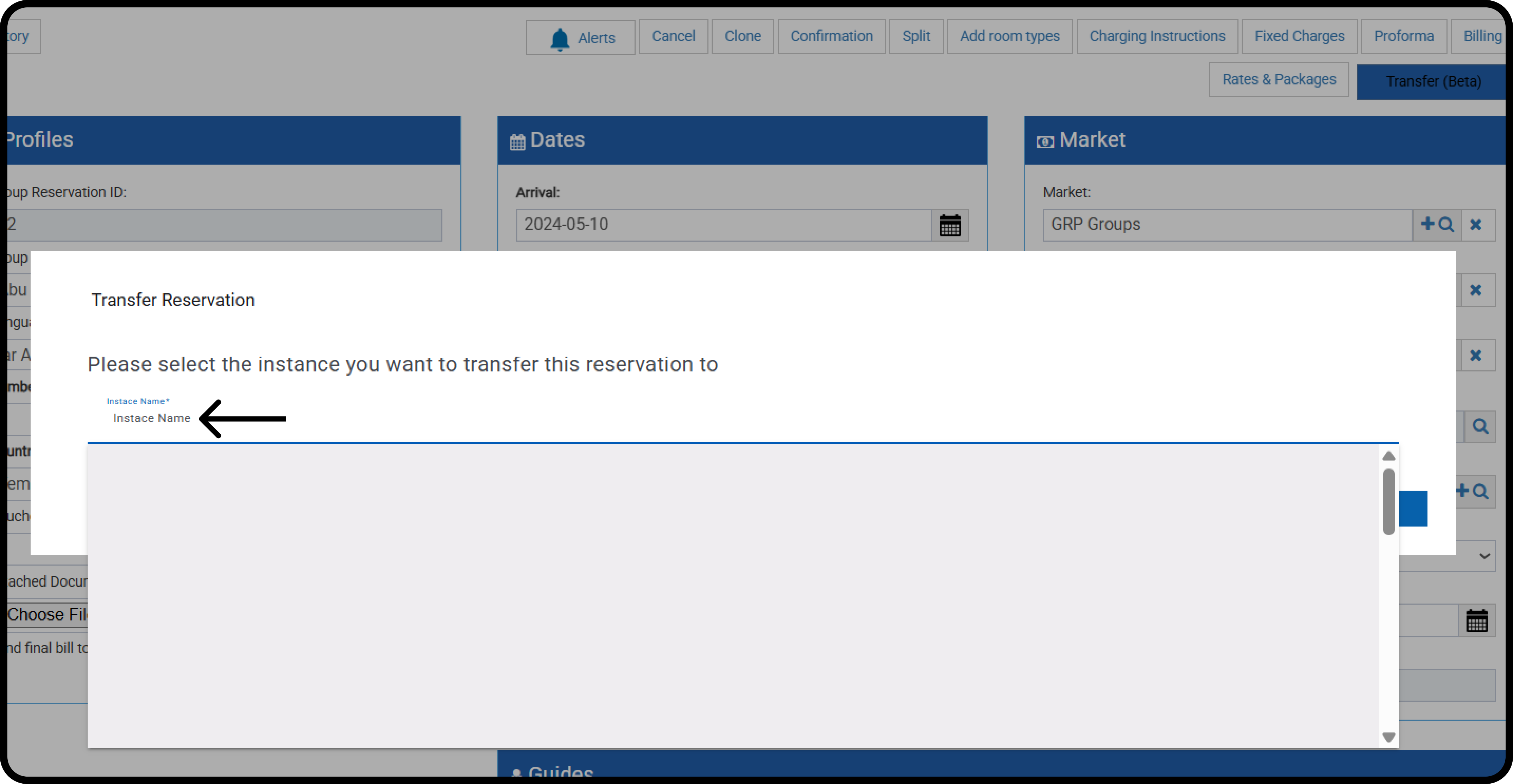
Clicking **Transfer** opens the dialogue below to select the destination property.
Select then click **Next.**
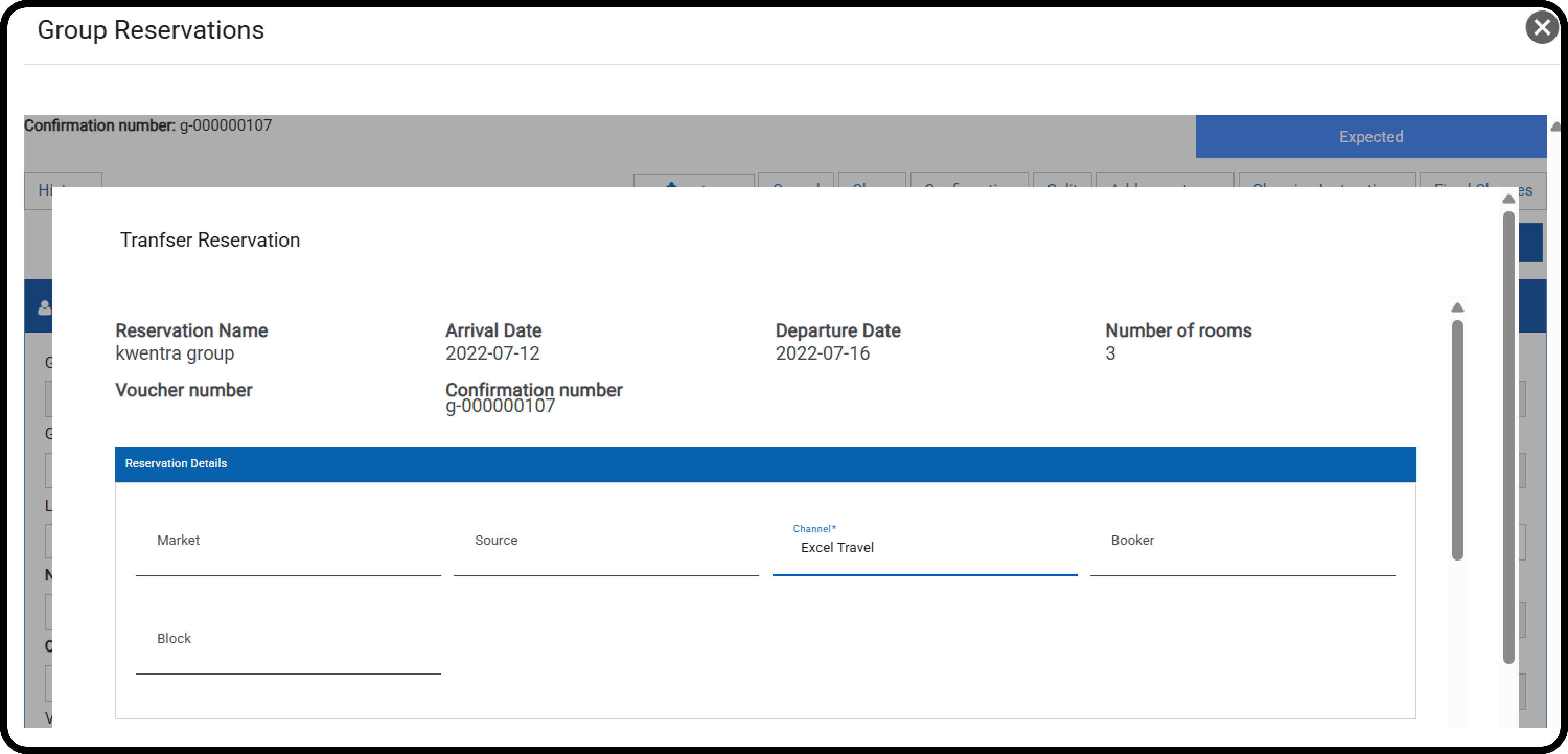
 The reservation details below will be read-only:
* Group Name
* Arrival & Departure Dates
* Number of rooms
* Voucher
* Group Confirmation number
Channel selection from the destination property is mandatory.
Selecting the market, source, and/or block is optional.
The reservation details below will be read-only:
* Group Name
* Arrival & Departure Dates
* Number of rooms
* Voucher
* Group Confirmation number
Channel selection from the destination property is mandatory.
Selecting the market, source, and/or block is optional.
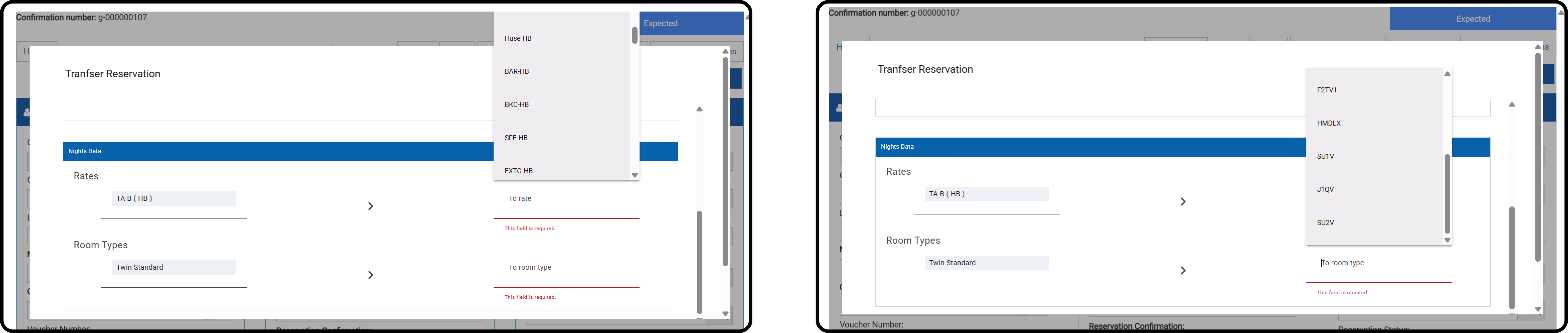
 Select the Rate Plan and Room Type from the destination property.
Click **Transfer.**
Select the Rate Plan and Room Type from the destination property.
Click **Transfer.**
 The user must confirm the transfer, acknowledging that **addons, payments, and documents won’t be transferred**.
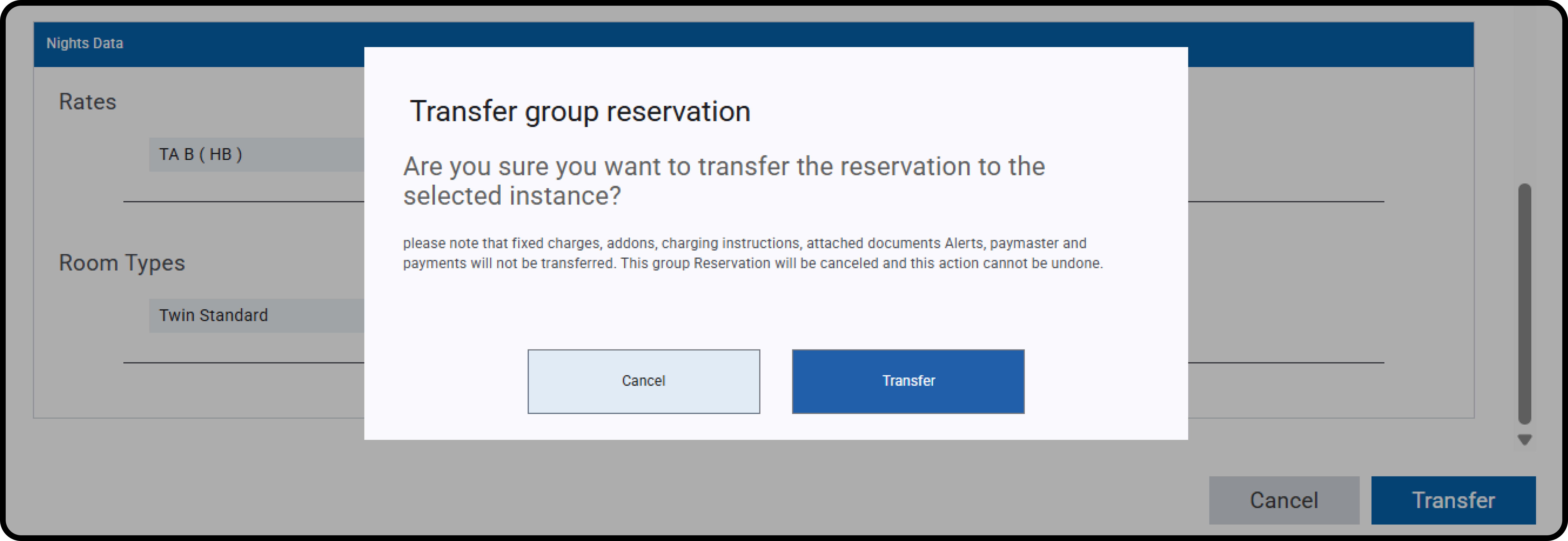 On success:
* A new group reservation is created in the destination instance.
* The source reservation is canceled.
* Logs and internal notes are added for tracking.
*Logs are added to the history in both Arabic and English with a notification of payment on the source property.*
This reservation was transferred from Hotel 1 to Hotel 2 by central reservation on 2020-03-01
Reservation is paid on Hotel 1 paid amount: 100.0 SAR
The above operation won't apply unless the below conditions are met:
* **Source and destination property dates:** Both properties should be following the same audit date
* **Rate Coverage**: Ensures the selected rate has rate details in the destination property that covers the reservation dates.
* **Occupancy Check**: Confirms the number of guests and matches the room type occupancy for adults/children.
* **Overbooking Warning**: Allows transfer with a notification.
On success:
* A new group reservation is created in the destination instance.
* The source reservation is canceled.
* Logs and internal notes are added for tracking.
*Logs are added to the history in both Arabic and English with a notification of payment on the source property.*
This reservation was transferred from Hotel 1 to Hotel 2 by central reservation on 2020-03-01
Reservation is paid on Hotel 1 paid amount: 100.0 SAR
The above operation won't apply unless the below conditions are met:
* **Source and destination property dates:** Both properties should be following the same audit date
* **Rate Coverage**: Ensures the selected rate has rate details in the destination property that covers the reservation dates.
* **Occupancy Check**: Confirms the number of guests and matches the room type occupancy for adults/children.
* **Overbooking Warning**: Allows transfer with a notification.