> ## Documentation Index
> Fetch the complete documentation index at: https://help.kwentra.com/llms.txt
> Use this file to discover all available pages before exploring further.
# Add or Remove Restaurant Tables - Restaurant Layout
> When you need to add or remove tables from your restaurant and you want the restaurant layout to match the real scene, you should follow the below steps: Point of Sale → Settings → Outlets → Select...
When you need to add or remove tables from your restaurant and you want the restaurant layout to match the real scene, you should follow the below steps:
**[Point of Sale → Settings → Outlets → Select Outlet](https://manage.kwentra.com/inventory/store/?borderless=1)**
*When removing tables* *make sure that they don't have any open invoices so you don't face any errors*
Once you are in the outlet settings you get to manage the number of tables available for your restaurant.
You can also manage how the restaurant would look like for your waiters and cashiers to match the real scene.
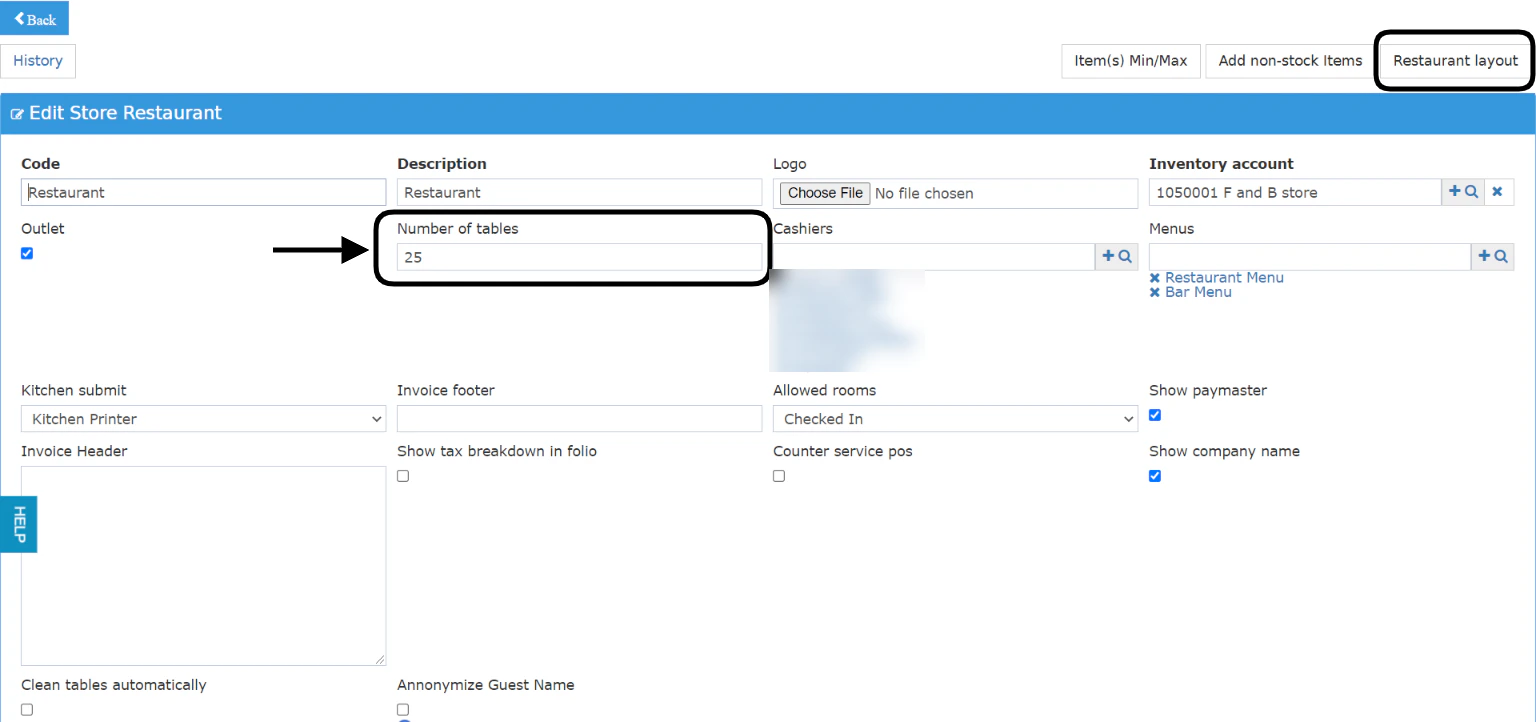 When you go to your Restaurant Layout you get to choose the below and change them:
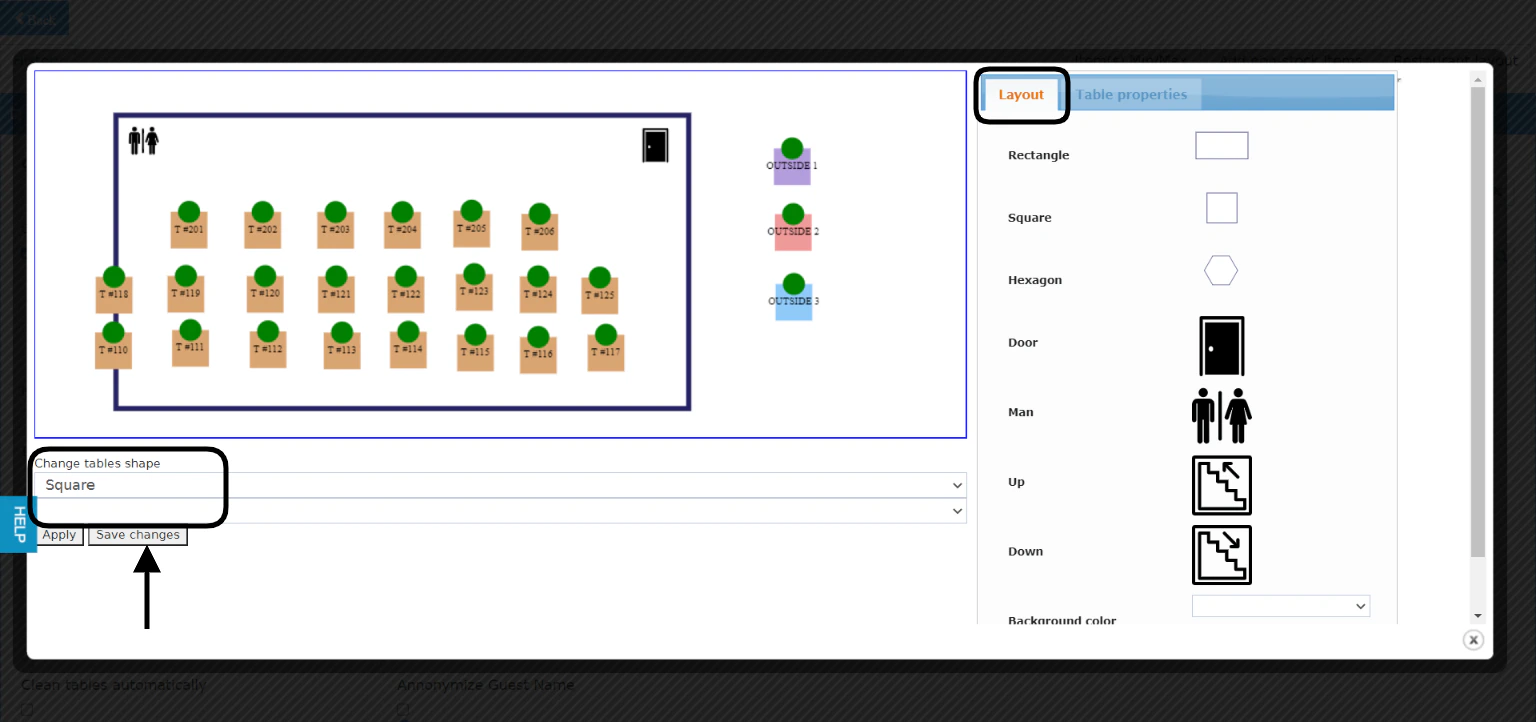
From Layout Tab:
* Add your restaurant Shape
* Add doors
* Add bathrooms
* Add stairs
* Change the background's color
You can change all table properties at once using the bulk **Change tables shape & color.**
Click **Apply** to see the changes you made, click **Save changes** when you are ready to finalize the layout.
When you go to your Restaurant Layout you get to choose the below and change them:
From Layout Tab:
* Add your restaurant Shape
* Add doors
* Add bathrooms
* Add stairs
* Change the background's color
You can change all table properties at once using the bulk **Change tables shape & color.**
Click **Apply** to see the changes you made, click **Save changes** when you are ready to finalize the layout.
 If you would like to change the properties of 1 table only, select the table and go to **Table Properties.**
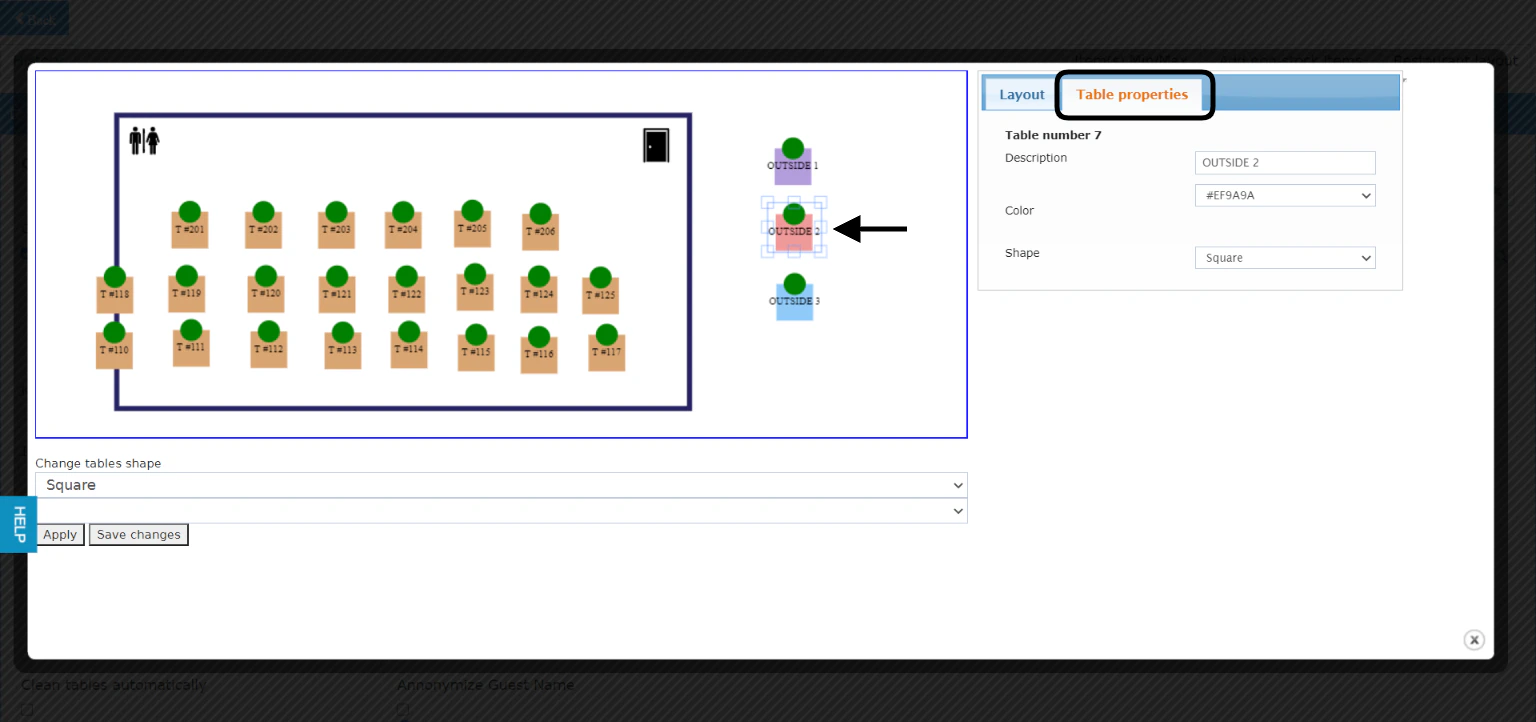 Don't forget to **Save changes** for your layout to reflect for your waiters and cashiers to follow.