> ## Documentation Index
> Fetch the complete documentation index at: https://help.kwentra.com/llms.txt
> Use this file to discover all available pages before exploring further.
# Loyalty Points Redemption from POS
> Users can now settle the guest’s invoice directly from the Redeem Screen of the loyalty points,the system should generate a pop-up window that allows the user to settle the invoice directly instead...
Users can now settle the guest’s invoice directly from the **Redeem Screen** of the **loyalty points,** the system should generate a pop-up window that allows the user to settle the invoice directly instead of clicking **No Payment** after redemption.
Point of Sale => Cashiering => Select an Outlet => Terminal => Table => Redeem
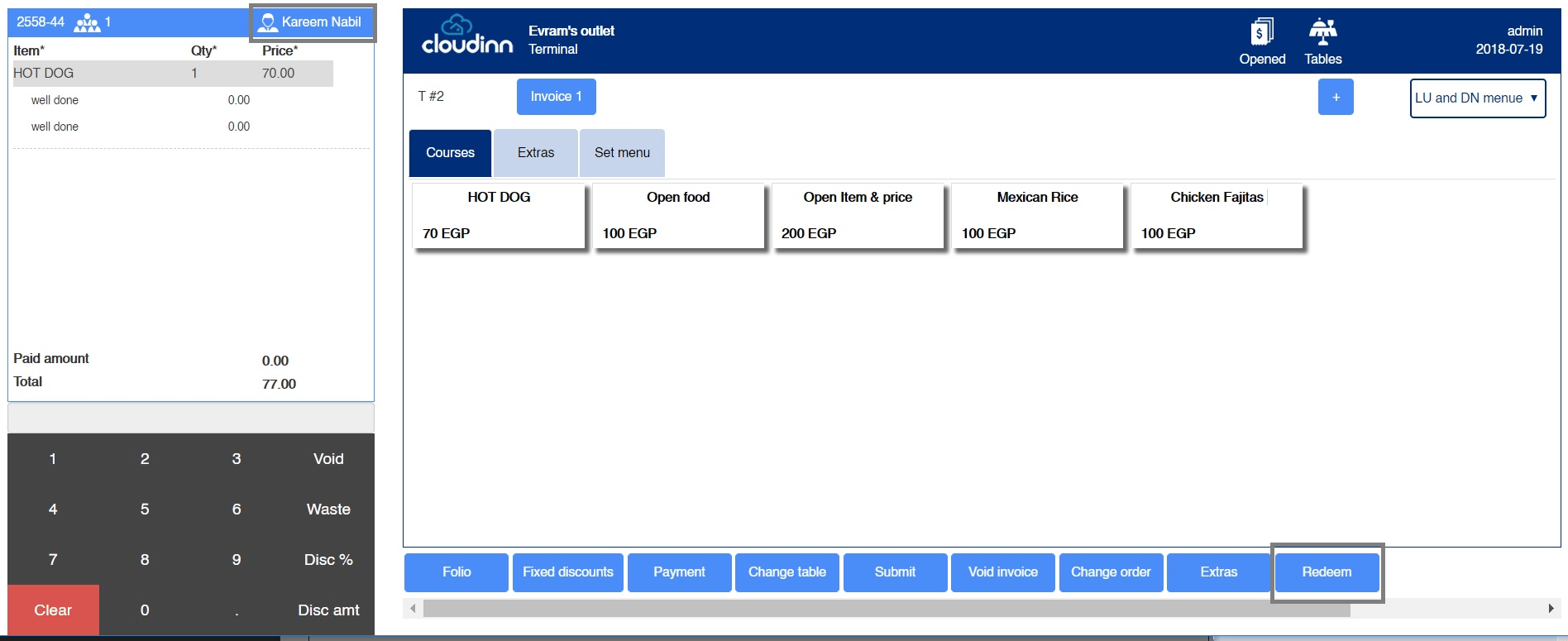
The new feature **Redeem** won’t be available unless both conditions below are met:
* *The bill is linked to an Existing Guest that has Loyalty Points.*
* *There are items available in the receipt.*
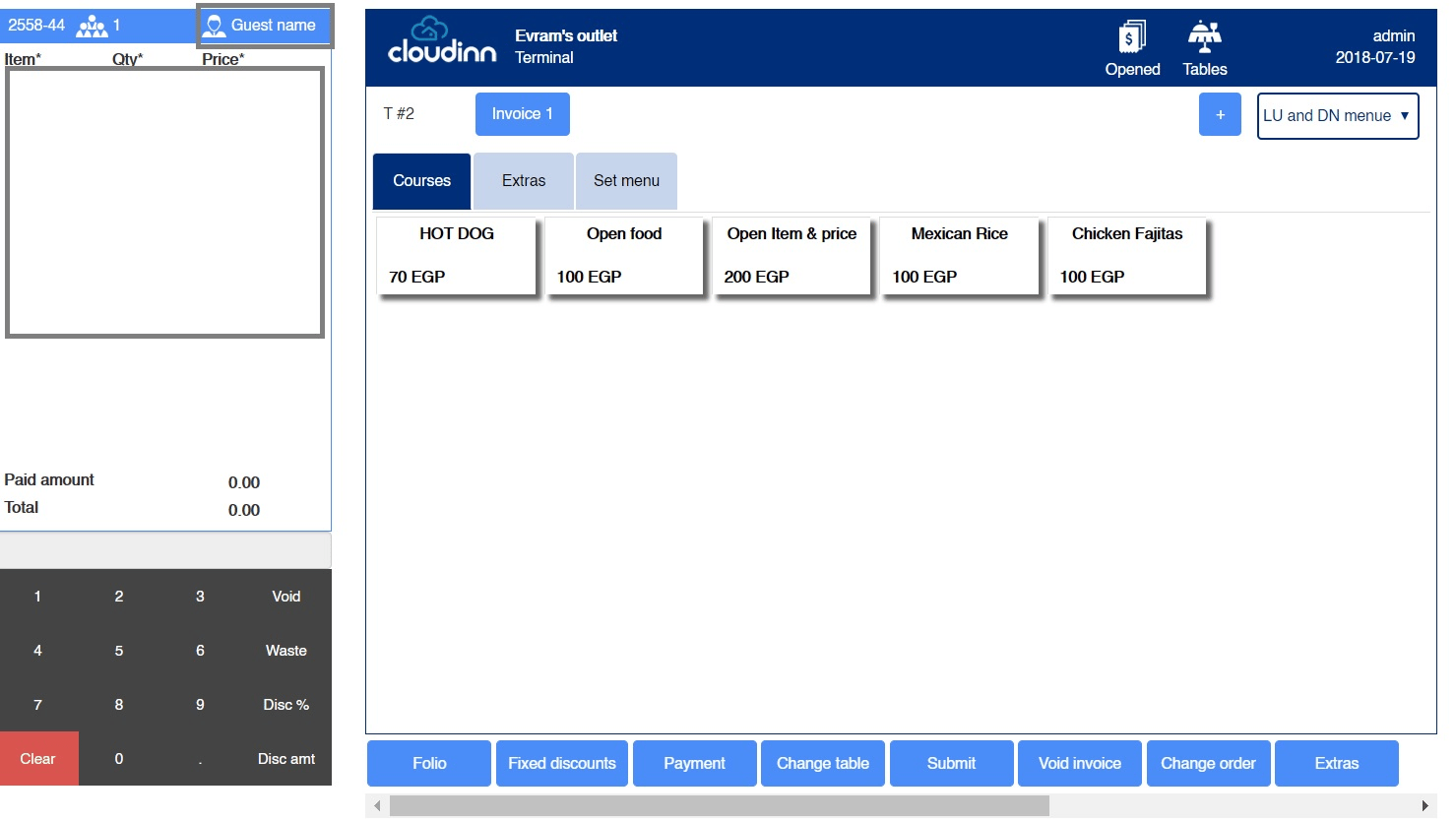 1. Click on **Guest Name** from top left of the page.
* **Room Number:** adding the bill to a reserved room in the hotel.
* **Walk-in Name:** adding the bill to a new guest, not necessarily staying at the hotel.
* **Individual Profile:** linking the bill to an existing guest profile that may have Loyalty Points also works under auto-complete basis.
1. Click on **Guest Name** from top left of the page.
* **Room Number:** adding the bill to a reserved room in the hotel.
* **Walk-in Name:** adding the bill to a new guest, not necessarily staying at the hotel.
* **Individual Profile:** linking the bill to an existing guest profile that may have Loyalty Points also works under auto-complete basis.
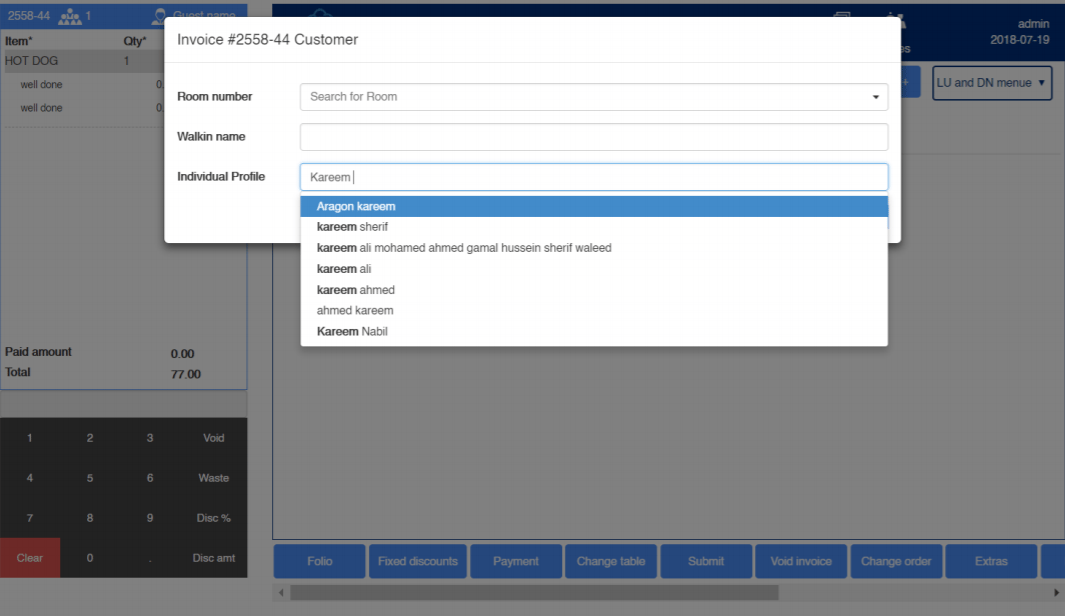 2. After selecting the **Individual Profile** we desire and adding items to the bill as below, we can find the **Redeem** option available.
 3. Once we click **Redeem** the below pop-up appears:
* **Remaining Loyalty Points:** guests’ available points that they can use.
* **Price:** Item’s price in Money Amounts.
* **Price in points:** the equivalent amount of points for the item’s price.
* **Amount to pay:** the desired amount the guest wants to pay from his loyalty points, the guest has the liberty to pay whichever amount from his loyalty points.
3. Once we click **Redeem** the below pop-up appears:
* **Remaining Loyalty Points:** guests’ available points that they can use.
* **Price:** Item’s price in Money Amounts.
* **Price in points:** the equivalent amount of points for the item’s price.
* **Amount to pay:** the desired amount the guest wants to pay from his loyalty points, the guest has the liberty to pay whichever amount from his loyalty points.
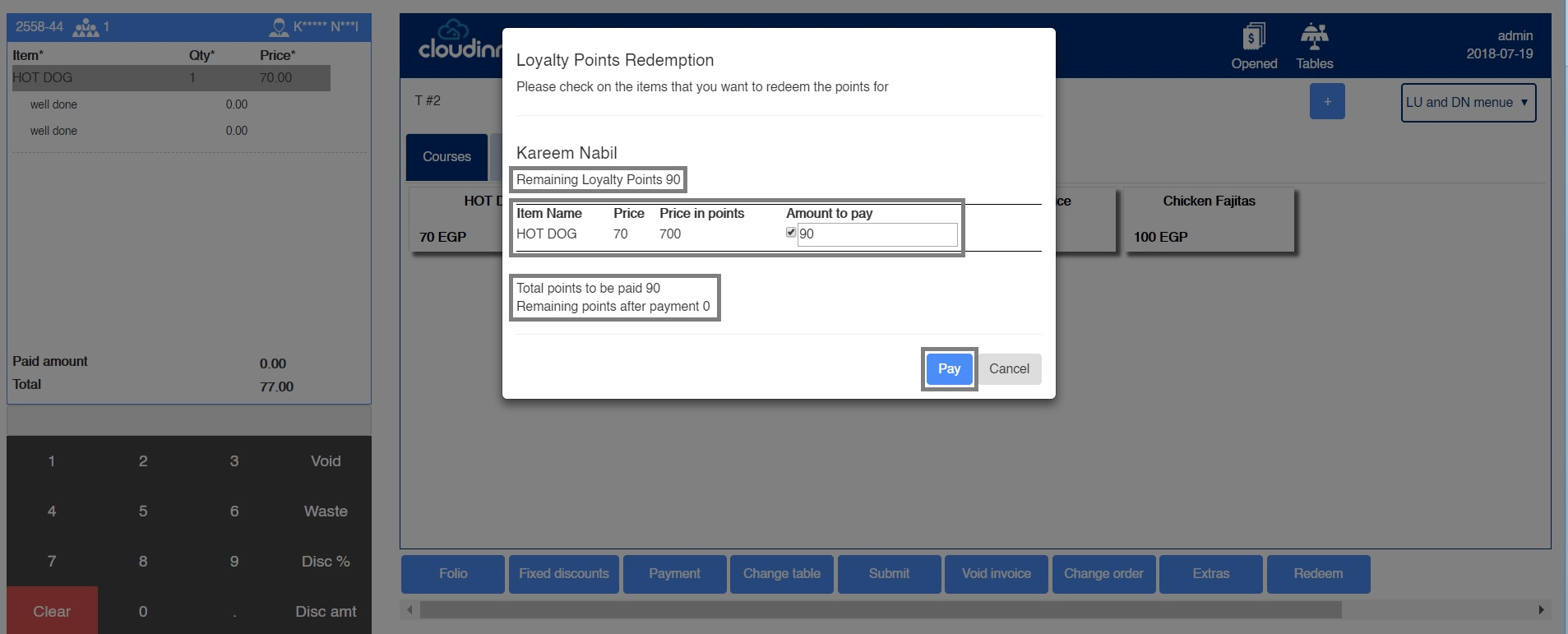 Once we click **Pay** we would see the discount happening on the bill from the left side.
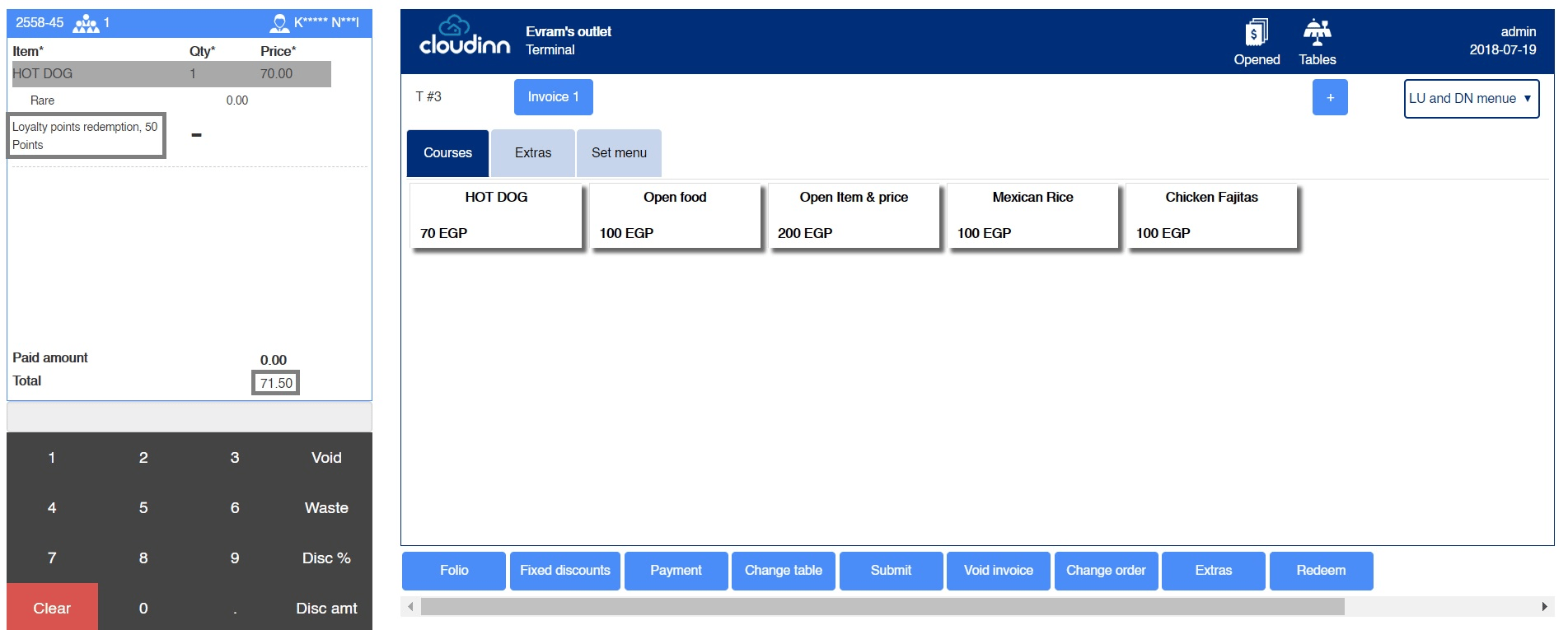 Now we can settle the payment for the remaining of the bill amount using any other form of payment by clicking on **Payment.**