> ## Documentation Index
> Fetch the complete documentation index at: https://help.kwentra.com/llms.txt
> Use this file to discover all available pages before exploring further.
# Add/Edit a kwentra User
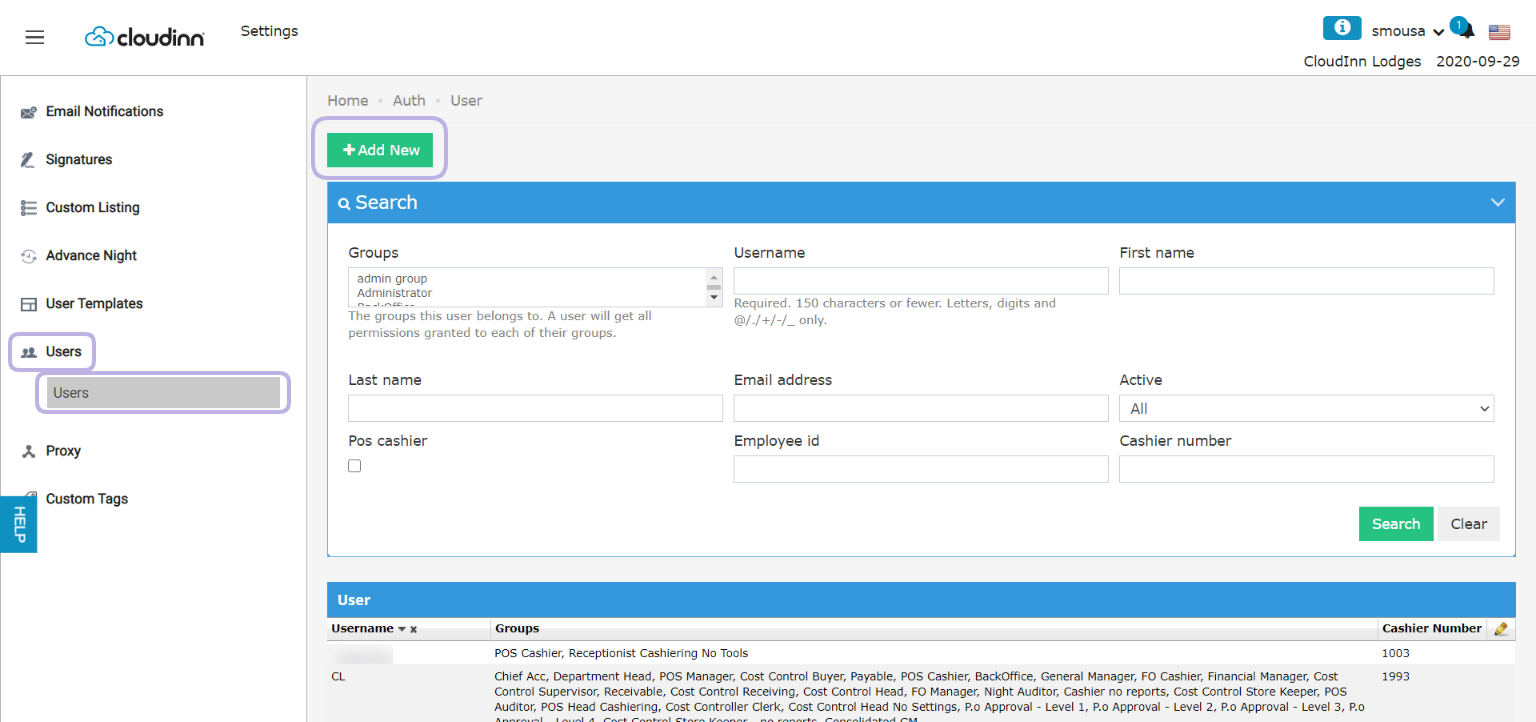
> Adding a new user to your system is only allowed for General Managers and other officers at your hotel. Follow the below steps to successfully add a user to your system. Settings → Users → Add New...
Adding a new user to your system is only allowed for General Managers and other officers at your hotel. Follow the below steps to successfully add a user to your system.
**Settings → Users → Add New**
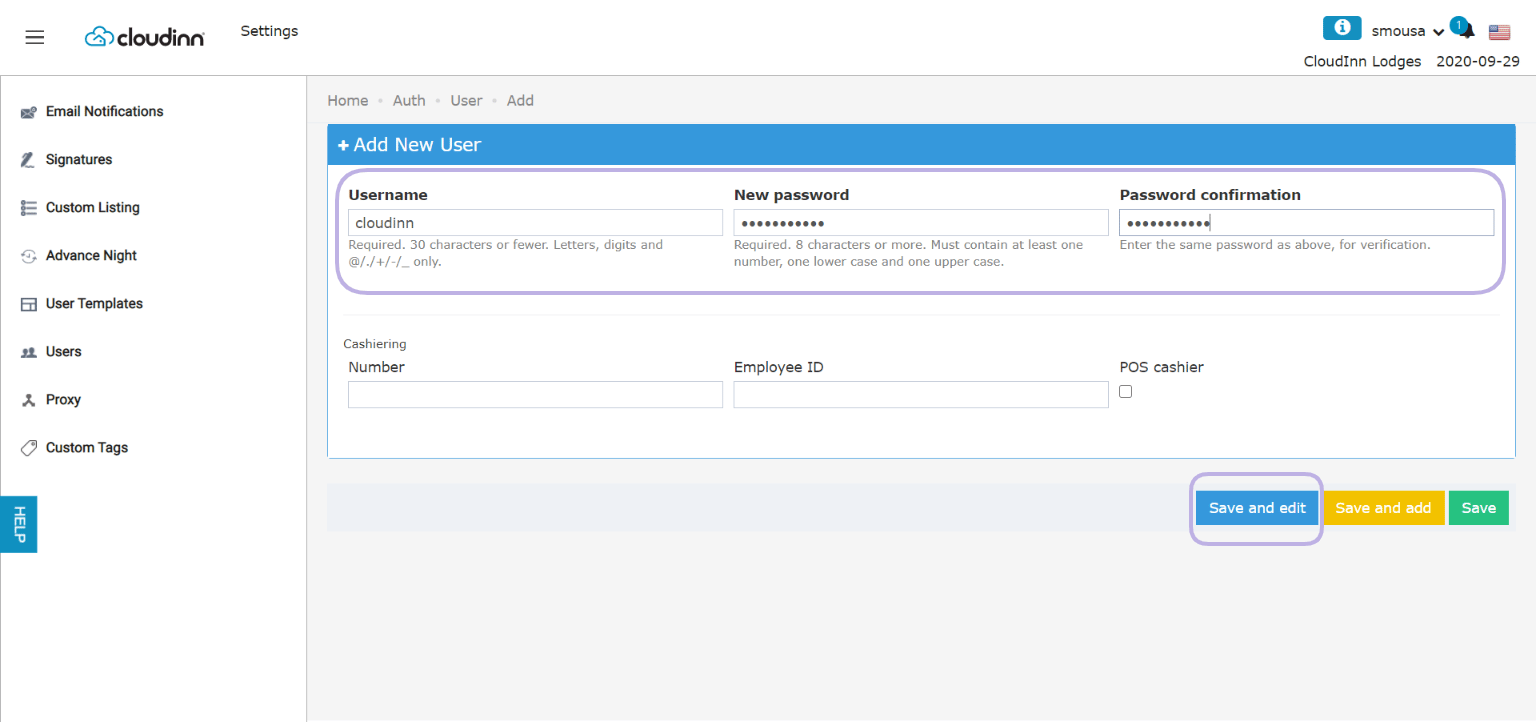
 First, you will need to add the below mandatory information only to create the new user:
* **Username:** to provide to your new user to log in.
* **New Password:** 8 characters long, must contain 1 number, 1 lower case letter and 1 upper case letter.
* **Password Confirmation:** match the password and confirmation identically.
* Click **Save and Edit.**
First, you will need to add the below mandatory information only to create the new user:
* **Username:** to provide to your new user to log in.
* **New Password:** 8 characters long, must contain 1 number, 1 lower case letter and 1 upper case letter.
* **Password Confirmation:** match the password and confirmation identically.
* Click **Save and Edit.**
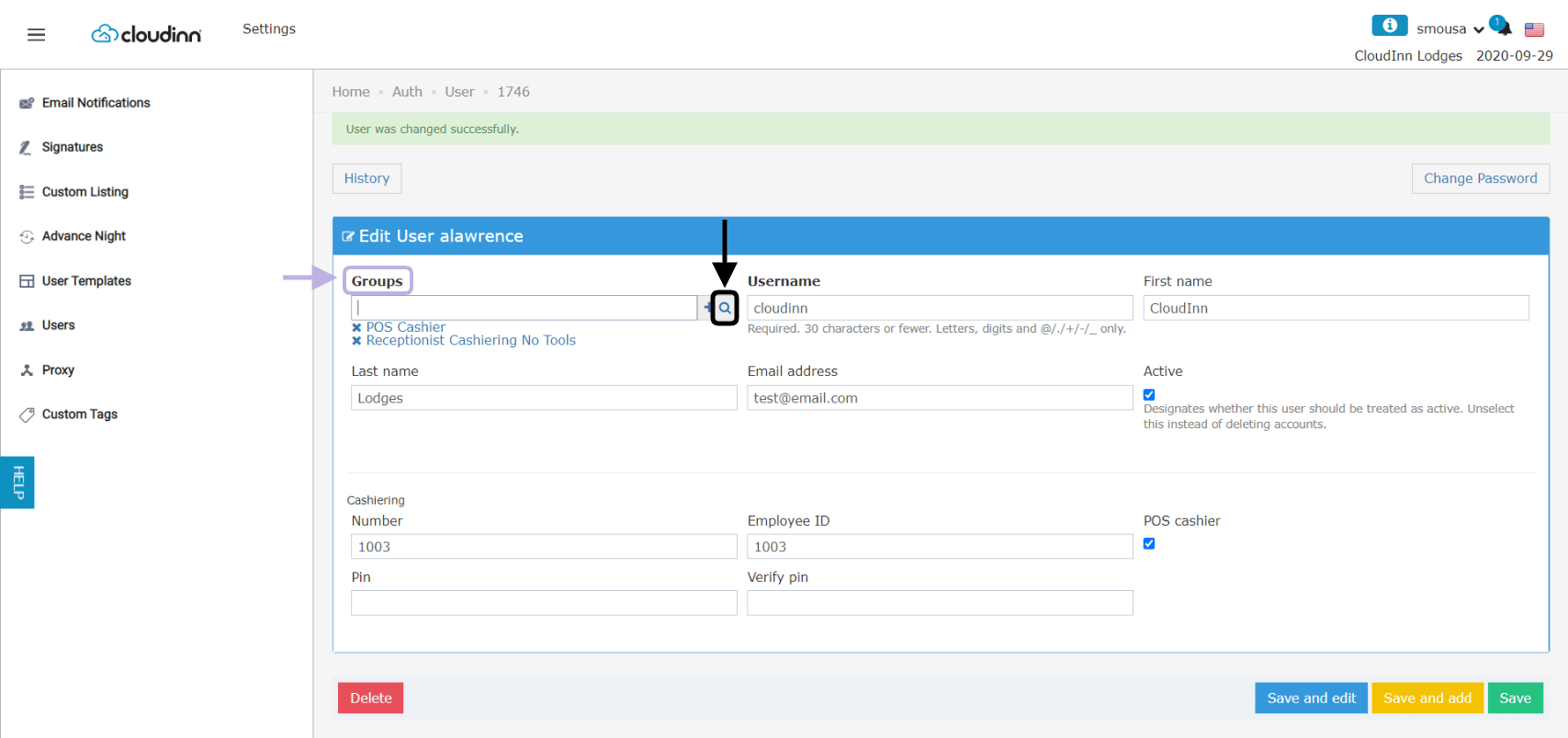
 Once the user is created you get to manage their role and their activity status.
**1. Allow users' permissions on CloudInn:**
Depending on the staff's role at your hotel, select user groups like below.
You can use the autocomplete option or click the magnifying glass to multi-select the user groups you need.
**Settings → Users → Select User → Groups**
Once the user is created you get to manage their role and their activity status.
**1. Allow users' permissions on CloudInn:**
Depending on the staff's role at your hotel, select user groups like below.
You can use the autocomplete option or click the magnifying glass to multi-select the user groups you need.
**Settings → Users → Select User → Groups**
 **2. Associate a User to be a Cashier:**
* First, you need to make sure the user is given the correct user groups for cashiers i.e. **FO Cashier, Receptionist Cashiering.**
* In order for a user to have a cashier access, user should have a cashier number "cash drawer number".
* Click Save and edit.
**2. Associate a User to be a Cashier:**
* First, you need to make sure the user is given the correct user groups for cashiers i.e. **FO Cashier, Receptionist Cashiering.**
* In order for a user to have a cashier access, user should have a cashier number "cash drawer number".
* Click Save and edit. 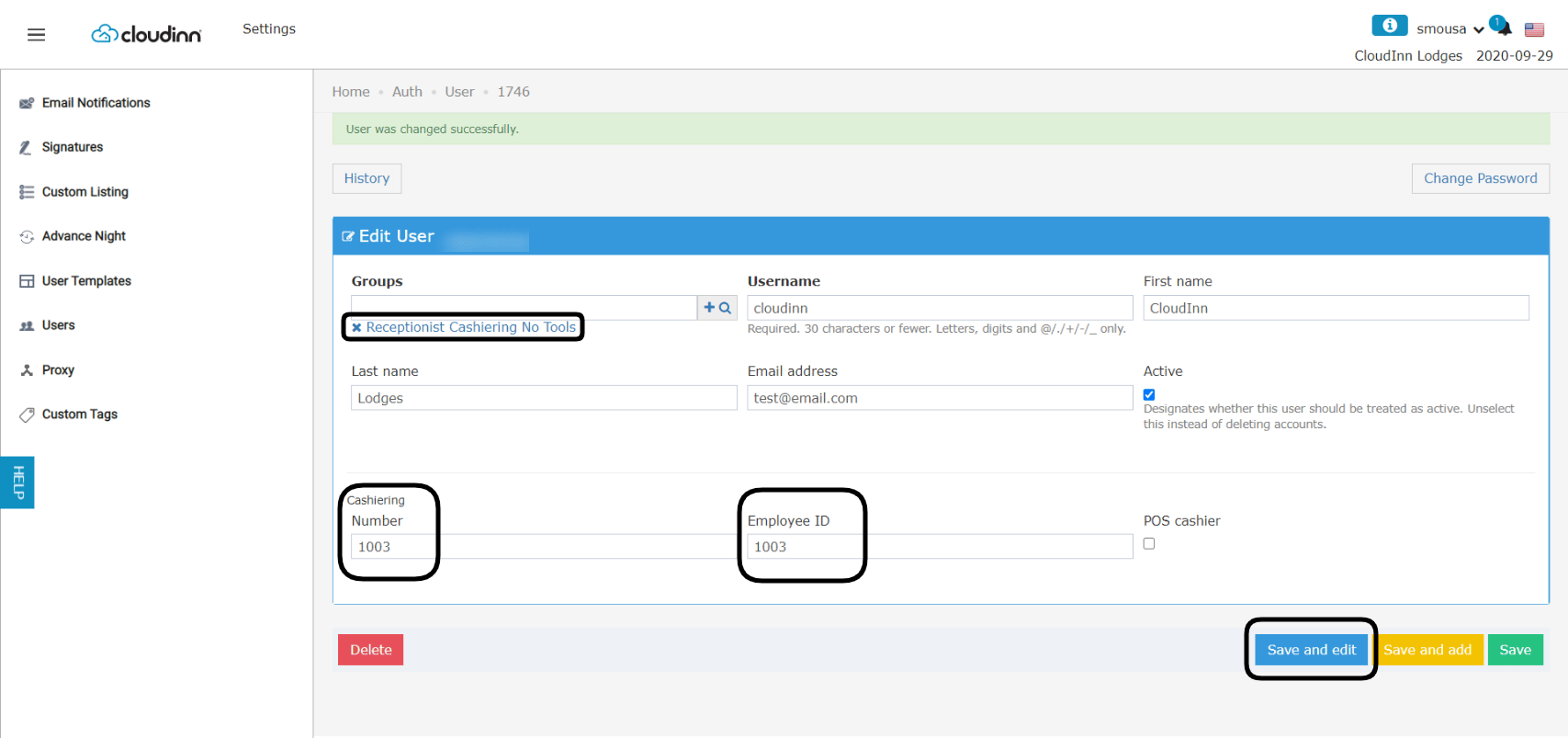 **3. Associate User to be a POS Cashier/Change POS Cashier PIN:**
* First, you need to make sure the user is given the correct user groups for POS cashiers i.e. **POS Cashier.**
* In order for a user to have a cashier access, user should have a cashier number "cash drawer number".
* POS Cashier check box should be checked.
* POS Cashier PIN is a 4 digit code that can be changed for the user from here.
* Click Save and edit.
**3. Associate User to be a POS Cashier/Change POS Cashier PIN:**
* First, you need to make sure the user is given the correct user groups for POS cashiers i.e. **POS Cashier.**
* In order for a user to have a cashier access, user should have a cashier number "cash drawer number".
* POS Cashier check box should be checked.
* POS Cashier PIN is a 4 digit code that can be changed for the user from here.
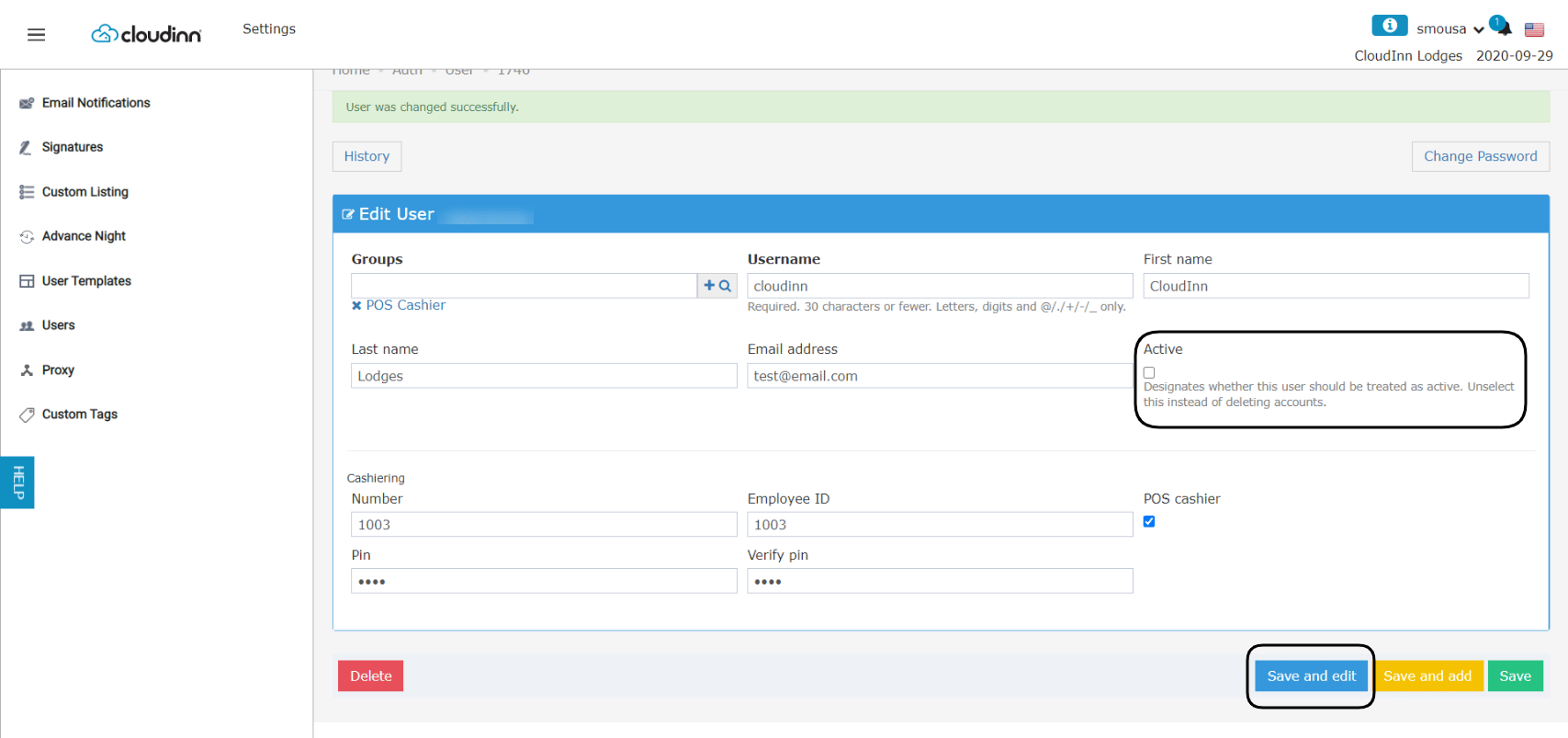
* Click Save and edit. 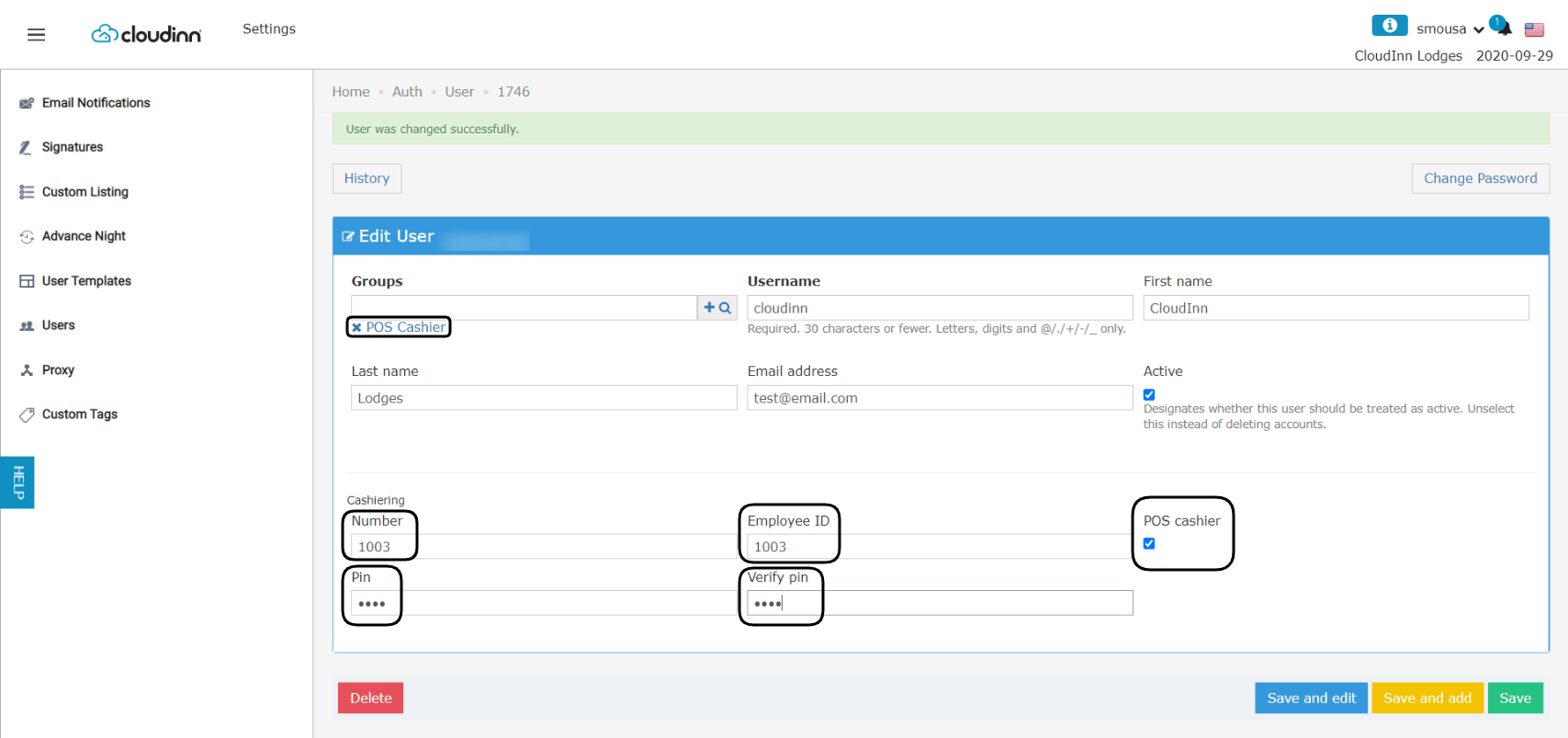 **4. Deactivate a User:**
Rather than deleting unwanted users, we set their status to be deactivated.
**Settings → Users → Select User → Active**
* Unmark the **Active Status.**
* Click Save and edit.
**4. Deactivate a User:**
Rather than deleting unwanted users, we set their status to be deactivated.
**Settings → Users → Select User → Active**
* Unmark the **Active Status.**
* Click Save and edit.