> ## Documentation Index
> Fetch the complete documentation index at: https://help.kwentra.com/llms.txt
> Use this file to discover all available pages before exploring further.
# Turn On Two-Factor Authentication (2FA)
> Link your Kwentra user to the Google Authenticator app. Then log in with your password and a 6-digit code from the app.
Link your Kwentra user to the Google Authenticator app. After that, you log in with your password and a code from the app.
Lost the app or your phone? Ask an admin to [reset your 2FA](/settings/general-settings/manage-system-users#two-factor-authentication).
### **Before You Start**
* A smartphone.
* Your Kwentra username and password.
### **How It Works**
| **Where:** manage.kwentra.com → your username (top right) → Account security |
| - |
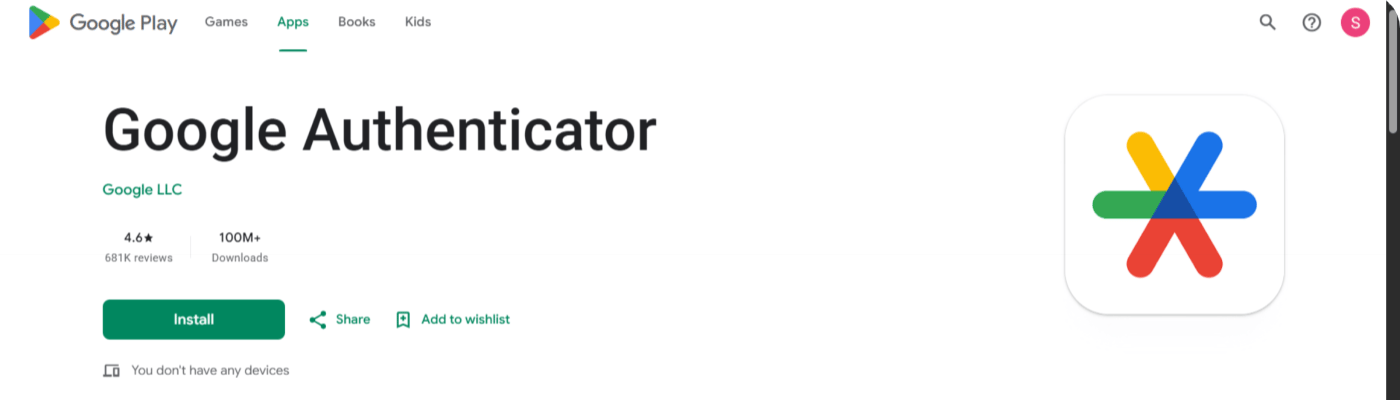
#### **1. Install Google Authenticator on Your Phone**
1. Open **Google Play** (Android) or the **App Store** (iPhone).
2. Search for **Google Authenticator** by **Google LLC**.
3. Install the app.
 | **Tip:** The setup page also shows **Google Play** and **App Store** buttons for the app. |
| - |
#### **2. Turn On 2FA in Kwentra**
1. Go to [manage.kwentra.com](https://manage.kwentra.com).
2. Click your **username** at the top right. The user menu opens.
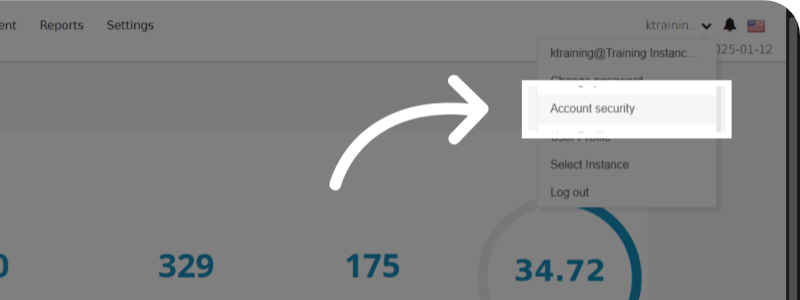
3. Click **Account security**.
| **Tip:** The setup page also shows **Google Play** and **App Store** buttons for the app. |
| - |
#### **2. Turn On 2FA in Kwentra**
1. Go to [manage.kwentra.com](https://manage.kwentra.com).
2. Click your **username** at the top right. The user menu opens.
3. Click **Account security**.
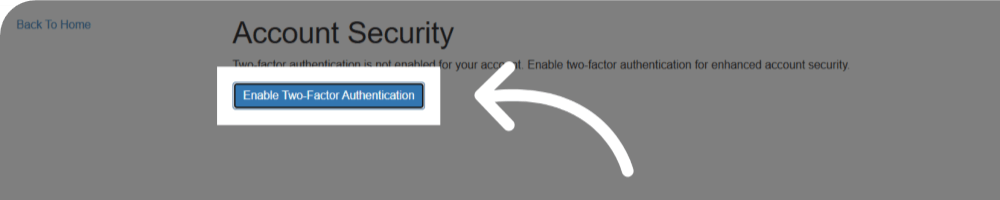
 4. The **Account Security** page says 2FA is not enabled for your account. Click **Enable Two-Factor Authentication**.
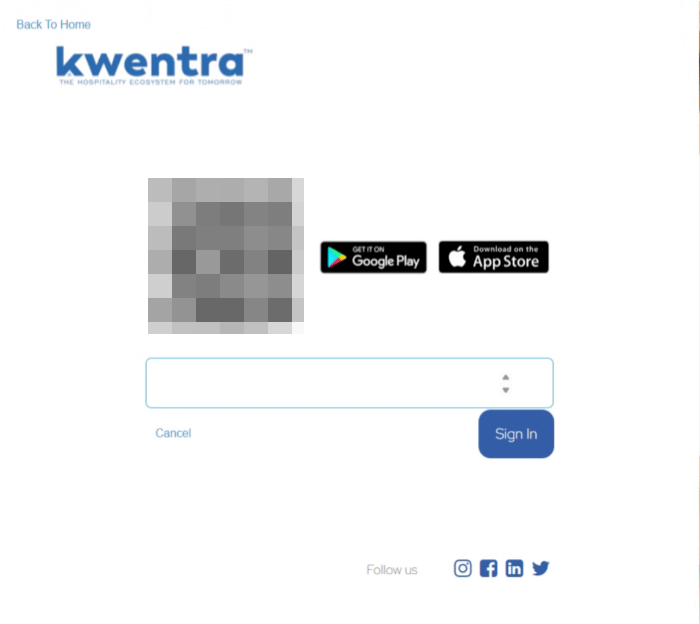
 5. If the next page shows only **Sign In** and **Cancel**, click **Sign In**. A QR code appears.
#### **3. Scan the QR Code and Confirm**
1. Open Google Authenticator on your phone.
2. Tap **+**, then **Scan a QR code**.
3. Point your camera at the QR code on the Kwentra screen. The app adds your Kwentra user and shows a 6-digit code.
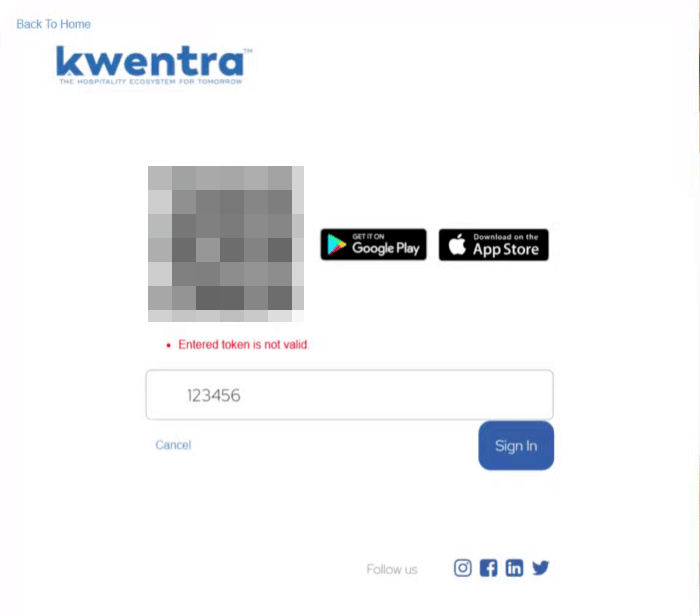
4. Type the 6-digit code in the field under the QR code.
5. Click **Sign In**.
6. When setup is done, click **Back To Home**.
5. If the next page shows only **Sign In** and **Cancel**, click **Sign In**. A QR code appears.
#### **3. Scan the QR Code and Confirm**
1. Open Google Authenticator on your phone.
2. Tap **+**, then **Scan a QR code**.
3. Point your camera at the QR code on the Kwentra screen. The app adds your Kwentra user and shows a 6-digit code.
4. Type the 6-digit code in the field under the QR code.
5. Click **Sign In**.
6. When setup is done, click **Back To Home**.
 | **Note:** If the code is wrong or has expired, you see **Entered token is not valid**. The code changes every few seconds. Type the code the app shows now and click **Sign In** again. |
| - |
| **Note:** If the code is wrong or has expired, you see **Entered token is not valid**. The code changes every few seconds. Type the code the app shows now and click **Sign In** again. |
| - |
 #### **4. Log In with 2FA**
From now on, every login has two steps.
1. Enter your username and password. Click **Sign In**.
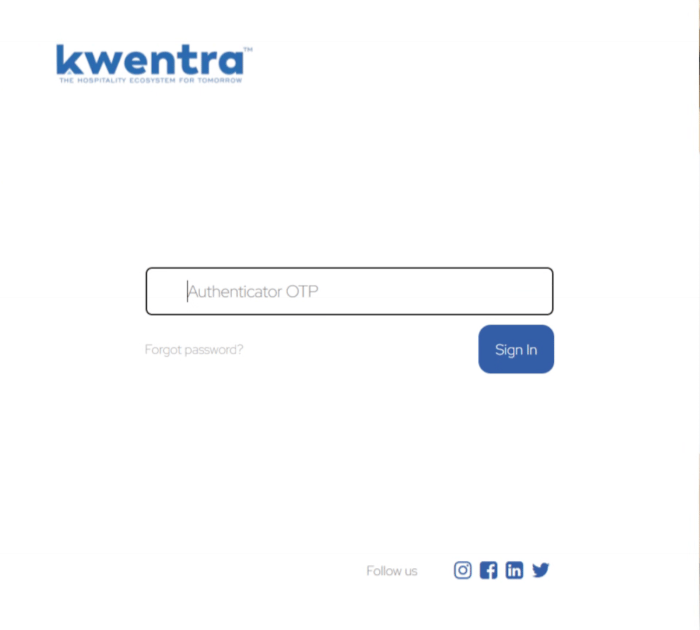
2. The **Authenticator OTP** field opens.
3. Open Google Authenticator and type the 6-digit code for Kwentra.
4. Click **Sign In**.
#### **4. Log In with 2FA**
From now on, every login has two steps.
1. Enter your username and password. Click **Sign In**.
2. The **Authenticator OTP** field opens.
3. Open Google Authenticator and type the 6-digit code for Kwentra.
4. Click **Sign In**.
 5. On the **Welcome Back** page, choose where to go: **Dashboard**, **Multi Property**, or an instance.
6. If you pick an instance, click **Get Started**.
This documentation is built and hosted on [Mintlify](https://mintlify.com), a developer documentation platform.
5. On the **Welcome Back** page, choose where to go: **Dashboard**, **Multi Property**, or an instance.
6. If you pick an instance, click **Get Started**.
This documentation is built and hosted on [Mintlify](https://mintlify.com), a developer documentation platform.