
Documentation Index

Fetch the complete documentation index at: https://help.kwentra.com/llms.txt

Use this file to discover all available pages before exploring further.

What is a room block? A block of rooms is a pool we create on the system for a certain channel(s) in which those are the only rooms allowed for this channel. A block is used to allocate certain rooms to specific tour operator depending on the contract agreed upon with them. This means that you can allocate a specific number of rooms to a specific travel agency as a part of your agreement with them. How can blocks benefit my hotel? Blocks are a mandatory step when linking your front office with your direct website or channel manager as you have to pool your rooms in a block in order for the connectivity to work. Blocks help control the contribution of reservations coming from each channel and controls overbooking as it defines a specific number of rooms from the total room count to each channel. What are the types of blocks on the system?
  • Free Sale Blocks:
We create a free sale block to allocate the full room count of the hotel to the channel with no specific allocation of rooms, meaning that the channel is allowed to book on any room with no restriction.
  • Tentative Blocks:
A tentative block means that the allocated rooms to this block would not be deducted from the hotel’s availability unless an actual reservation was created, meaning that the hotel’s total occupancy won’t get affected unless a reservation has been made from the channel.
  • Definite Blocks:
A Definite block means that the allocated rooms to this block are reserved and put aside for this specific channel and deducted from the availability whether there’s a reservation or not, meaning that the rooms allocated to a definite block are considered reserved for this specific channel and affects the hotel’s total occupancy . How to add a block? When adding a block make sure to understand that you only get to link 1 block only per channel which means you cannot add the same channel to 2 different blocks. Front Office → Blocks → Add New
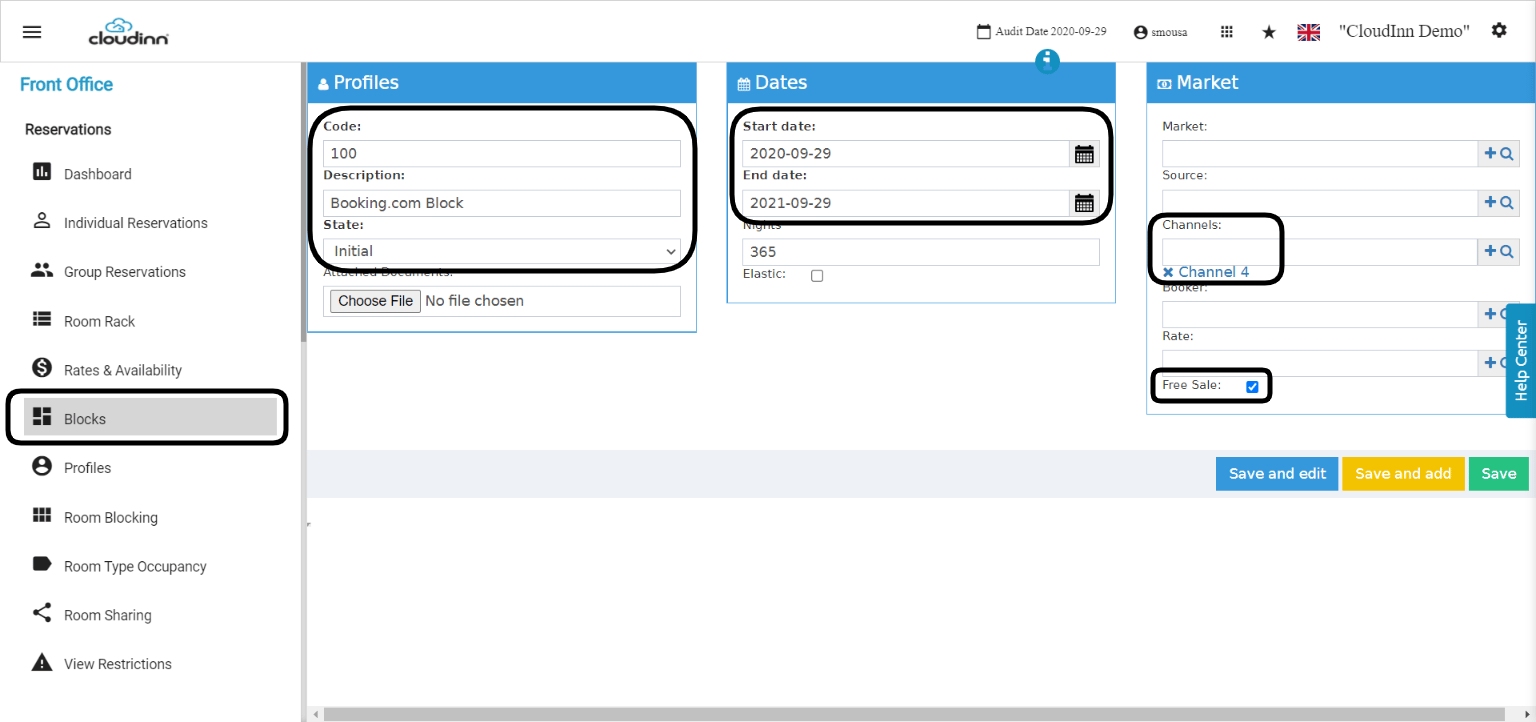
  1. Code: a unique numerical code for the block to use it when creating reservations from front office.
  2. Description: a description describing the block you are creating.
  3. State: the block takes the Initial state in which can be changed later after creation to Open for tentative pickup or Open for definite pickup.
  4. Start & End Date: the dates in which this block should be available, depending on the contract or your need for the block you are creating.
  5. Channels: depending on the need for the block, select the channels you would like to have access to this block you are creating.
What to do when you would like to add a block for all OTA channels and your direct website?
  1. Create the channels you desire,
  2. Create a block with the state open for tentative pick up.
  3. Select the start & end dates of the block for as long as you would like to have the rooms pushed to your OTAs/Website.
  4. In the channel field, select all the OTA channels and the channel for your direct website.
  5. Mark on the Free Sale Checkbox .
With the above setup you are putting all your rooms of your hotel in 1 pool “block” in which all the OTAs and your direct website can pick up rooms from with no restrictions at all.