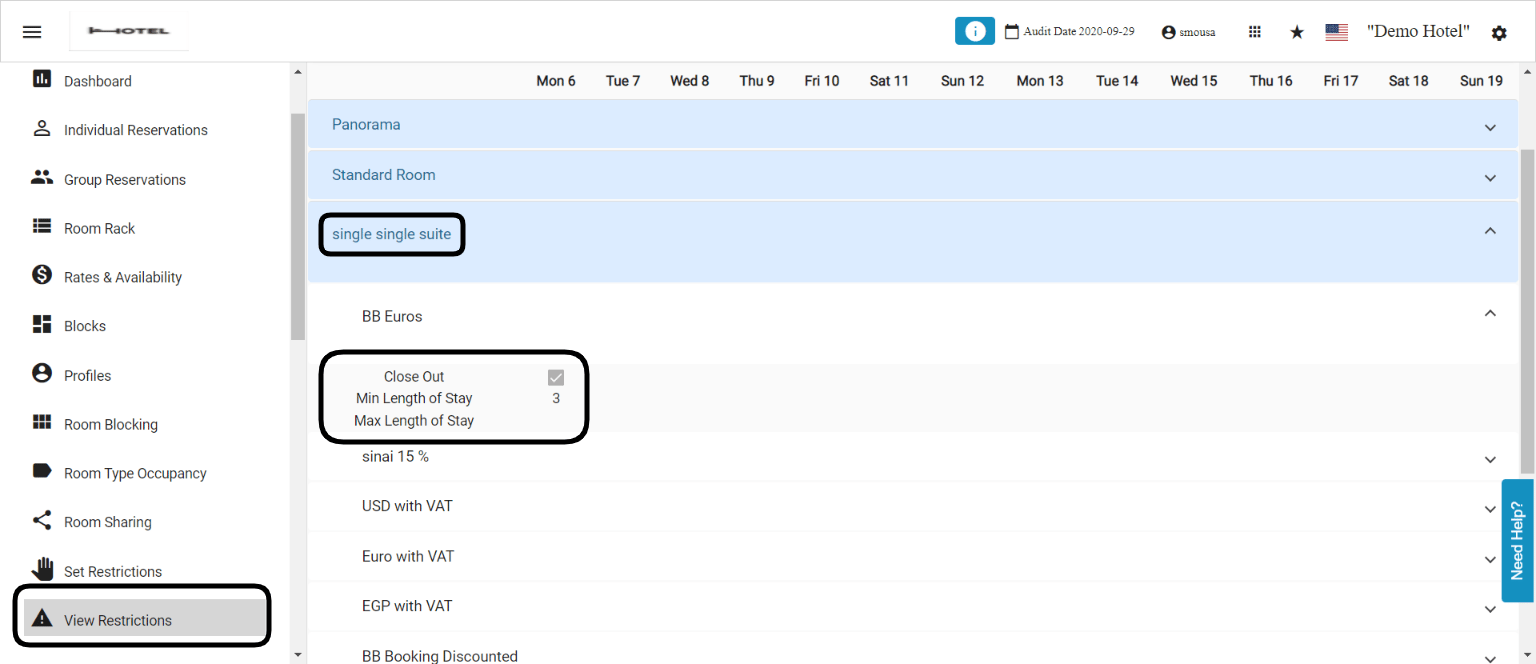
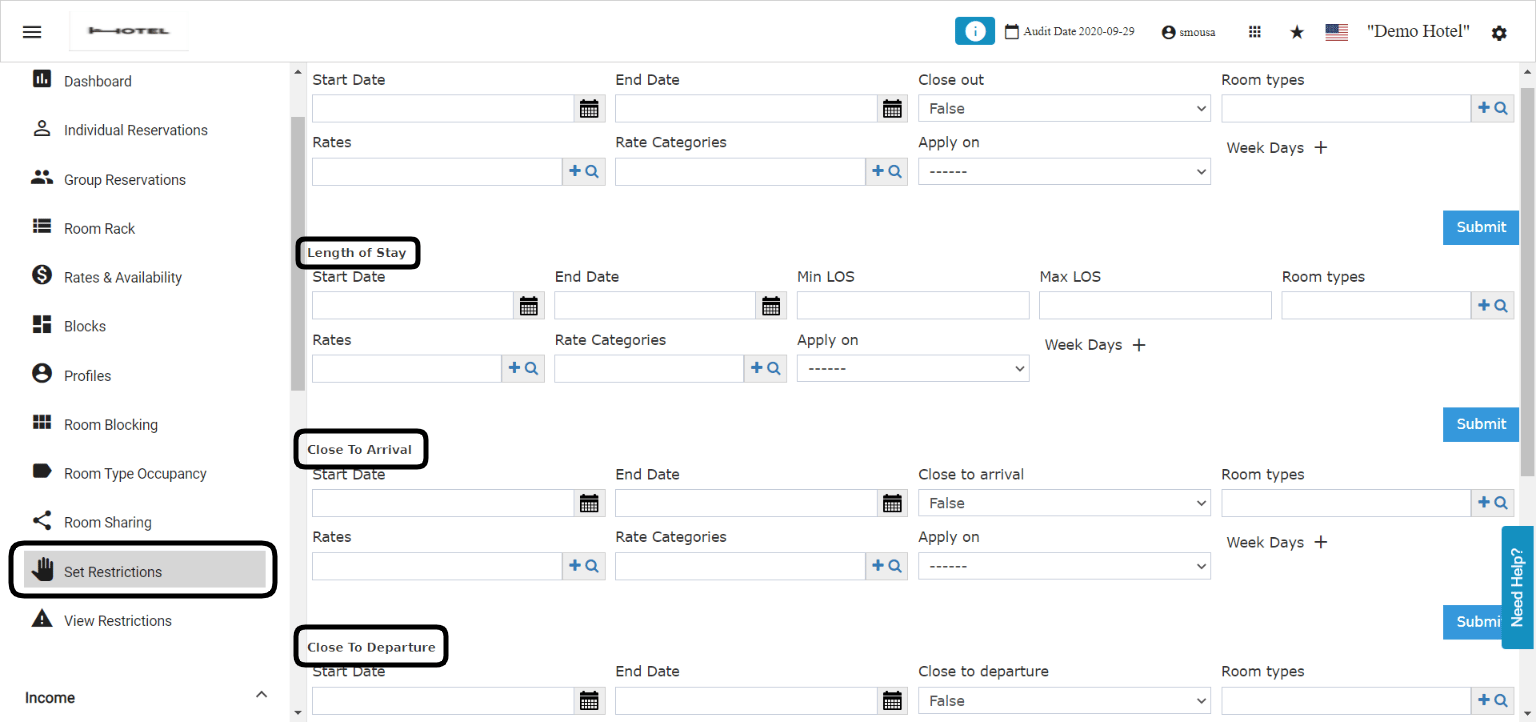
Room Type & Rate Restrictions are an easy way to control reservations creation on certain room types or certain rates where you restrict the new creation of reservations based on certain criteria. Before understanding how to apply the restrictions first we need to understand what does those restrictions mean. Types of Restrictions: Close Out: or Stop Sell is a very common restriction where you prevent new reservations to be created between 2 selected dates, when Close Out is True it means that you can’t create new reservations. Length of stay: this restriction allows you to sell rooms for a minimum/maximum number of nights between 2 selected dates, when you desire to maximize revenue by selling a minimum number of nights between 2 selected dates Close to Arrival: Hotels use this restriction to prevent new reservations or new check ins between two selected dates, which controls certain periods like high seasons and weekends. Close to Departure: Hotels use this restriction to prevent the guests from checking out on certain dates which eventually leads for the guest to extend his stay to cover the period he desires in the hotel. Stay Through: this restriction is similar to the Length of Stay yet it differs because it prevents reservations staying through 2 dates to have a specific minimum/maximum number of nights How to apply the restriction? Front Office → Set RestrictionsDocumentation Index
Fetch the complete documentation index at: https://help.kwentra.com/llms.txt
Use this file to discover all available pages before exploring further.
- Choose the restriction you desire.
- Select the dates of the restriction.
- To activate the restriction, select true from the drop-down menu.
- Select which room types you would like the restriction to be applied on, you can select more than 1.
- Select the rates/rate categories you want the restriction to be applied on, you can select more than 1.
- You get to choose whether to apply the restriction on Internal Reservations, Your Website Reservations or both.
- You can select the restrictions to apply on certain days of the week,
- Click Submit.
How can I view my restrictions?:
1- From the View Restrictions Screen:
2- You can download the OTA Restrictions Report to check all restrictions applied on your Front Office.
How can I remove a restriction “reverse a restriction”?:
In order to apply a reverse restriction you need to apply the same steps above but rather than selecting True for the restriction type you chose you need to select False and apply it to the same dates of the restriction you previously created.
Update: 9th of October, 2022
The rate plans that has a close out restriction applied on it won’t be available to show when staff members are creating reservations and selecting a rate from the rate selection grid.