

Business Value
- Shows every room and reservation in one view.
- Finds free rooms for any dates in seconds.
- Books, moves and checks in guests without leaving the screen.
- Flags guests and rooms that need attention at a glance.
Use Cases
- A receptionist filters vacant rooms for next weekend and books one with Quick Add.
- A shift leader drags a reservation to another room when the guest asks to move.
- A housekeeping supervisor sets a room out of order and assigns a cleaning task.
How It Works
Room Rack Basics
This video covers the basics, including check-in and undoing a check-in.Find Rooms
Search
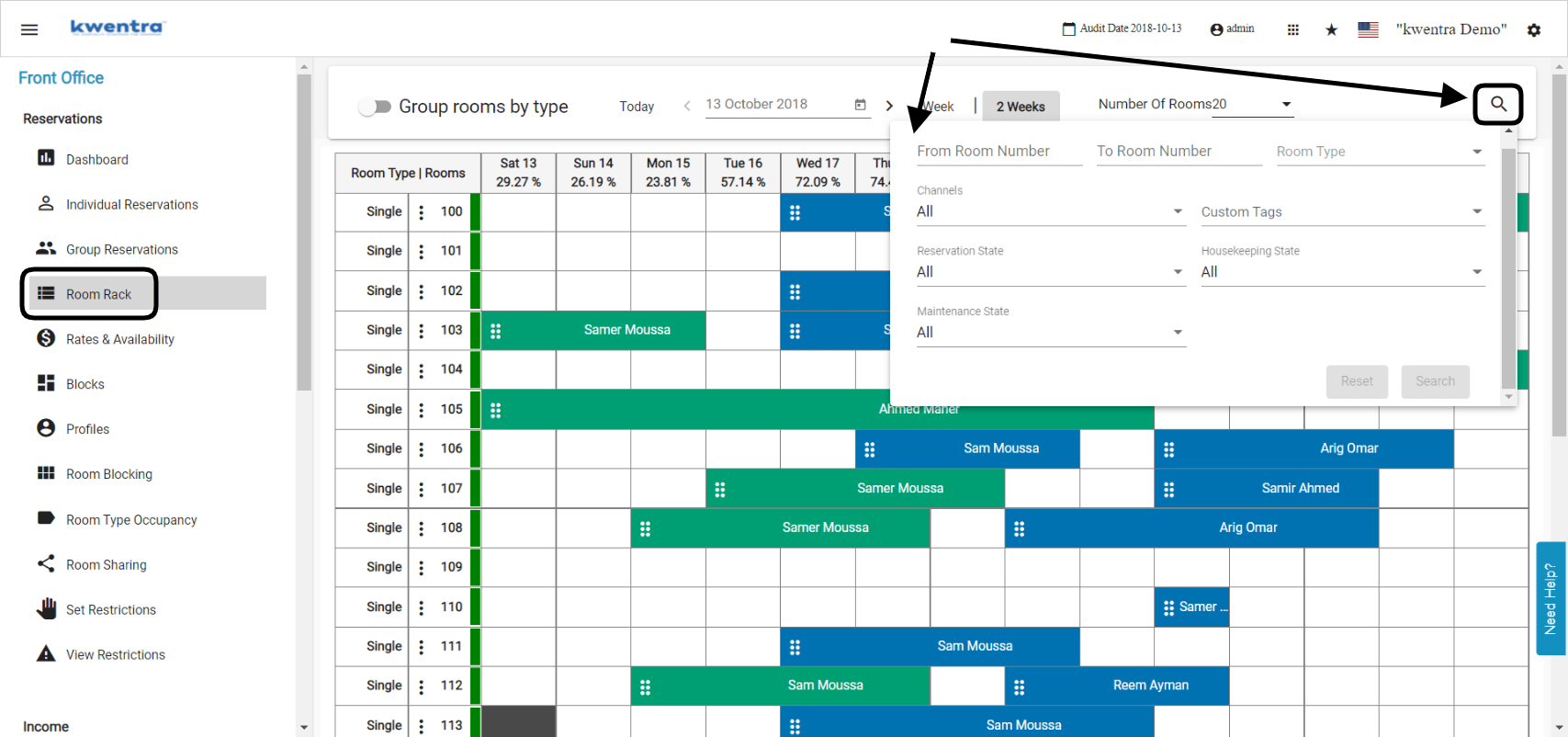
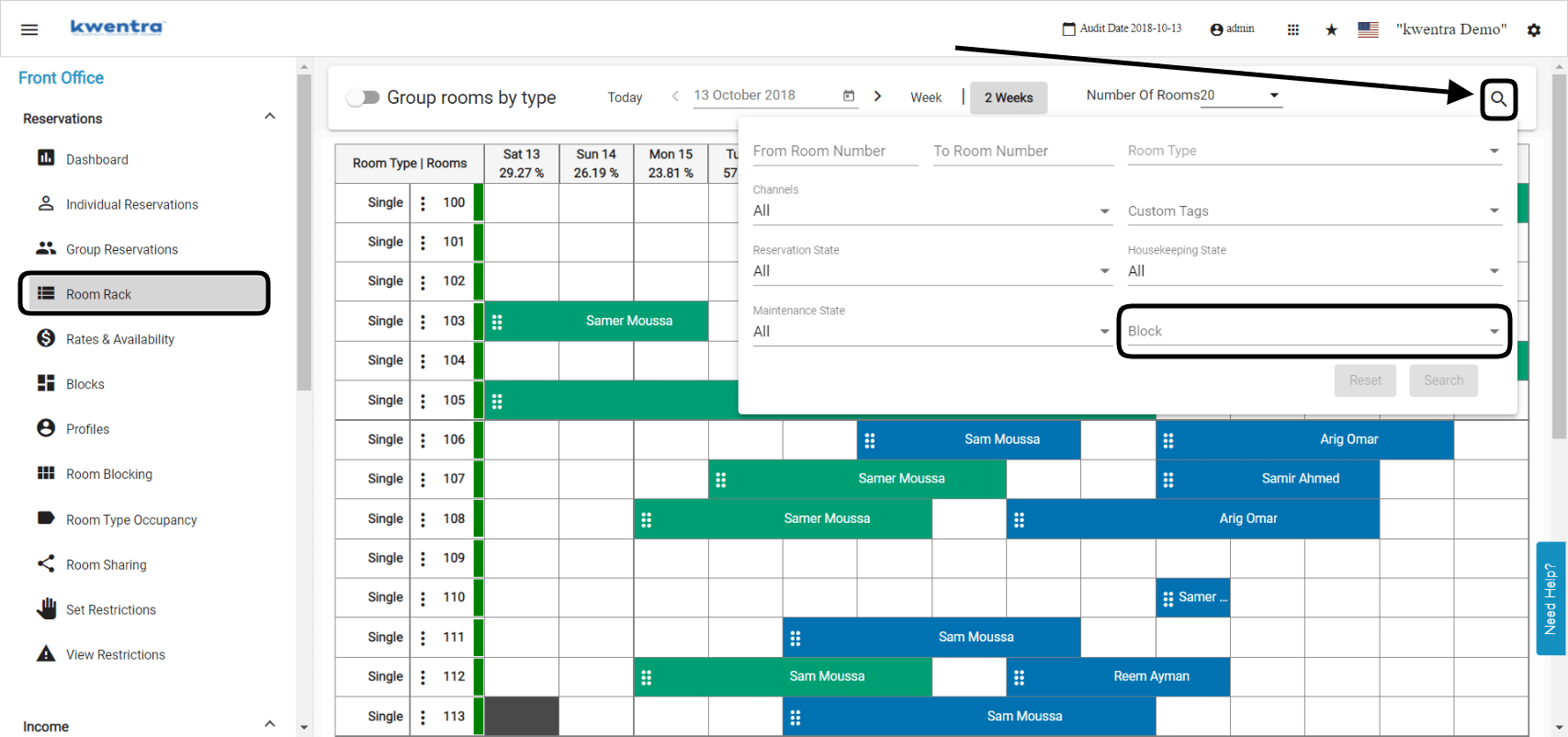
Click the magnifying glass on the Room Rack. You can search by:- Room numbers: a range, from room x to room y.
- Room type
- Channel: the channel or travel agency.
- Reservation state: expected or checked in.
- Housekeeping state: dirty, clean and so on.
- Maintenance state: all your out of order rooms.
- Housekeeping block: the block the rooms are assigned to.
Show Vacant Rooms Only
The Show Vacant Rooms Only filter shows only the rooms that are free between two dates.- The selected dates are highlighted in blue.
- Occupied rooms are hidden.
- Use it to book rooms back to back.
- You can combine it with other filters and searches.
Room and Room Type Features
- Click a room number to see that room’s features.
- Click a room type to see the features of all rooms of that type.
Number of Rooms
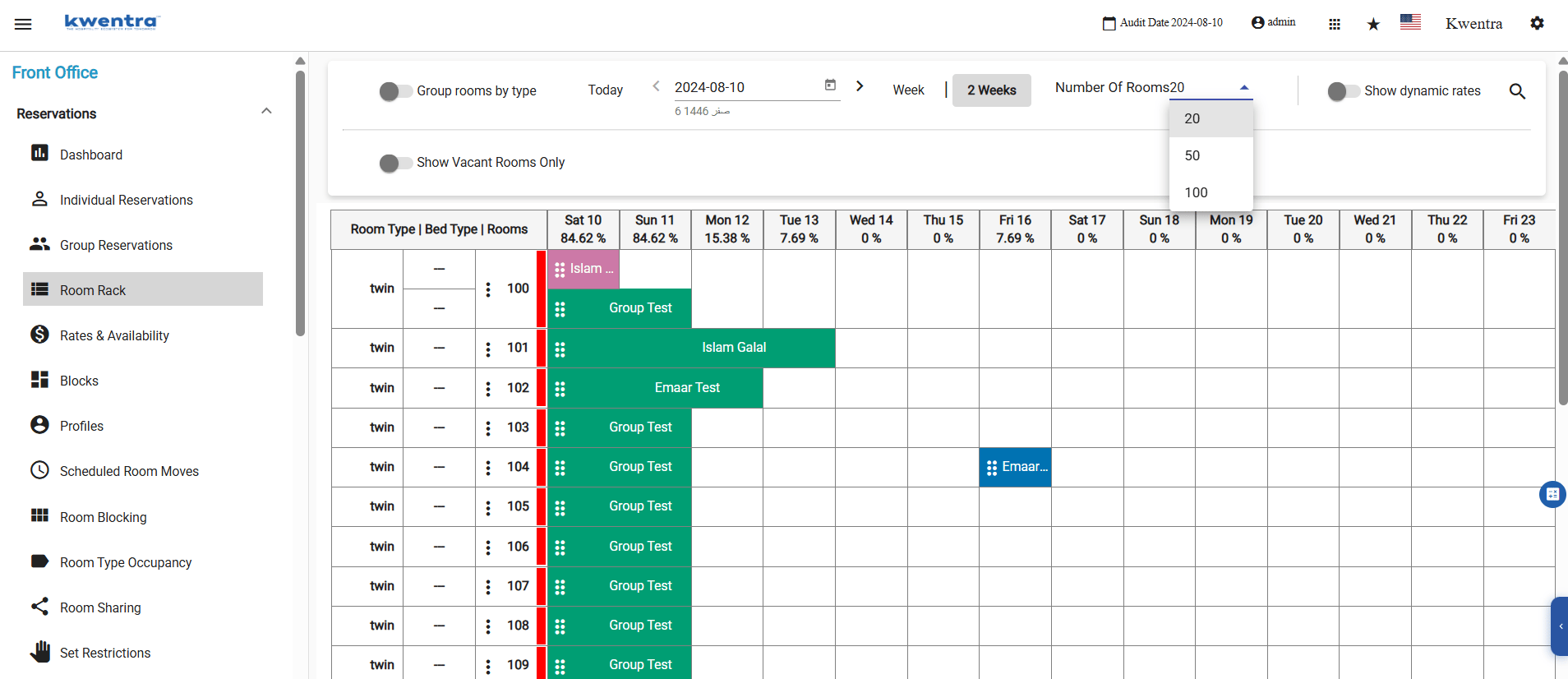
Use the Number of Rooms list to choose how many rooms the rack shows.- The rack opens with 100 rooms.
- You can show up to 200 rooms at once.
Add a Reservation
Quick Add
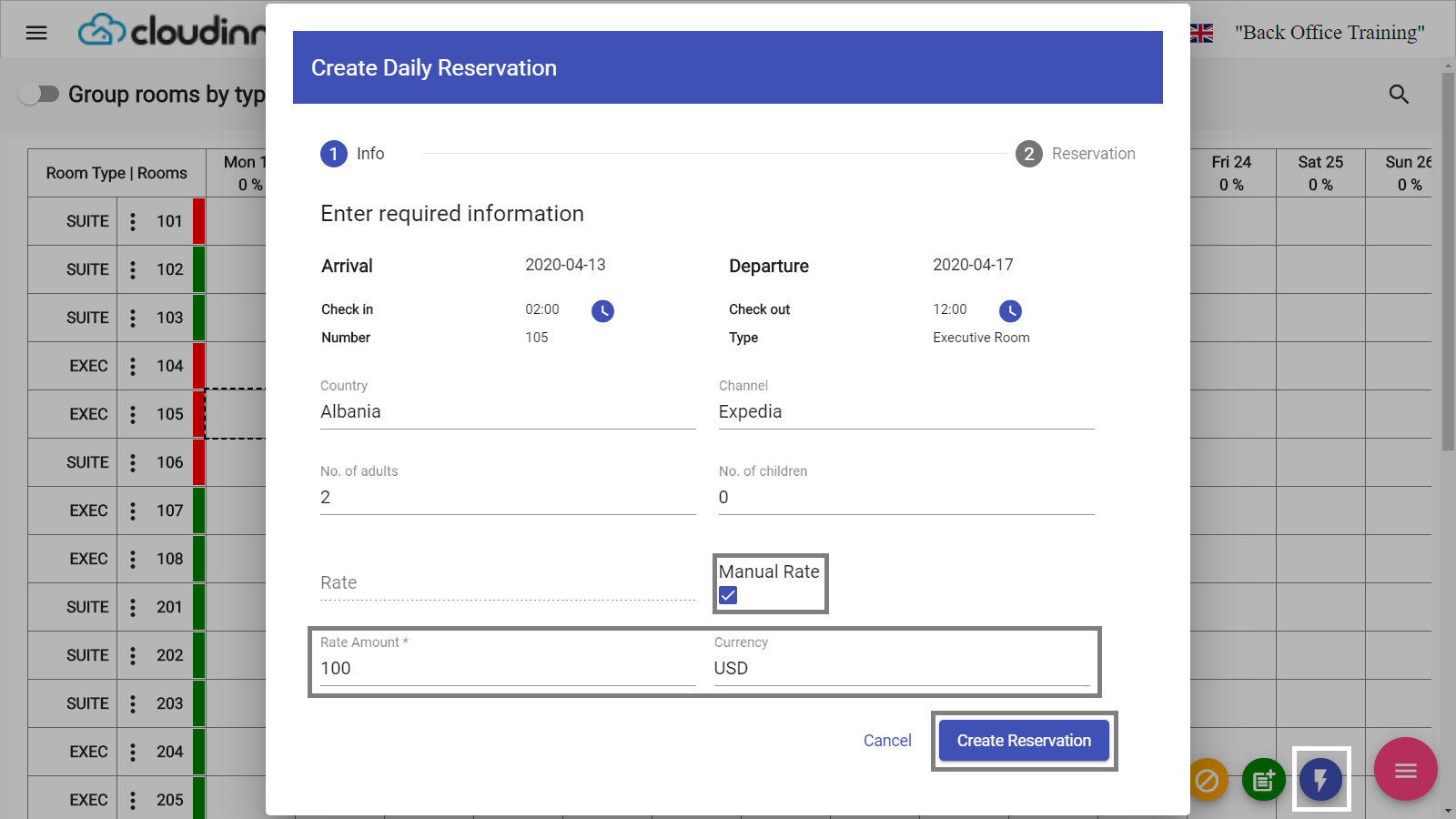
Select dates on the rack, then Options → Quick Add. The room rate shows per night before you continue with the rest of the reservation.Manual Rate
In Quick Add, you can mark the reservation as a manual rate. The option shows after you pick the channel.- Rate Amount and Currency apply to all nights.
- You cannot create the reservation until both are filled.
Add a New Reservation
Add a Reservation With an Add-on Package
Advance Add
Advance Add creates a reservation with more detail than Quick Add.Manage Reservations
Check In a Guest
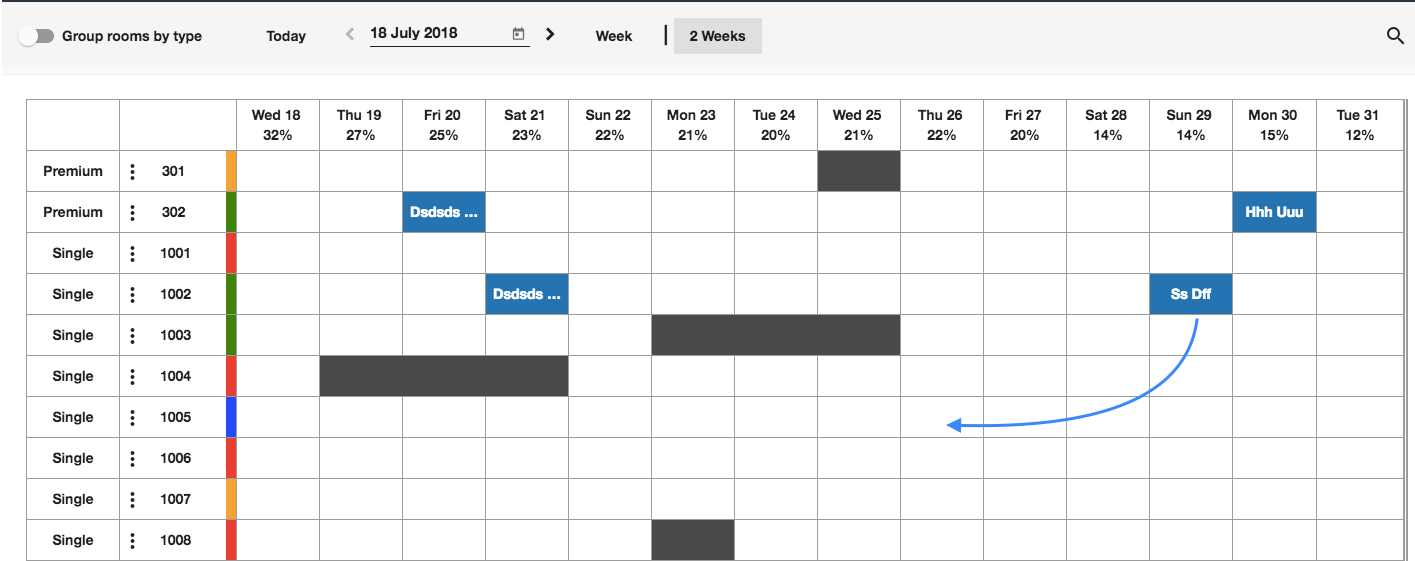
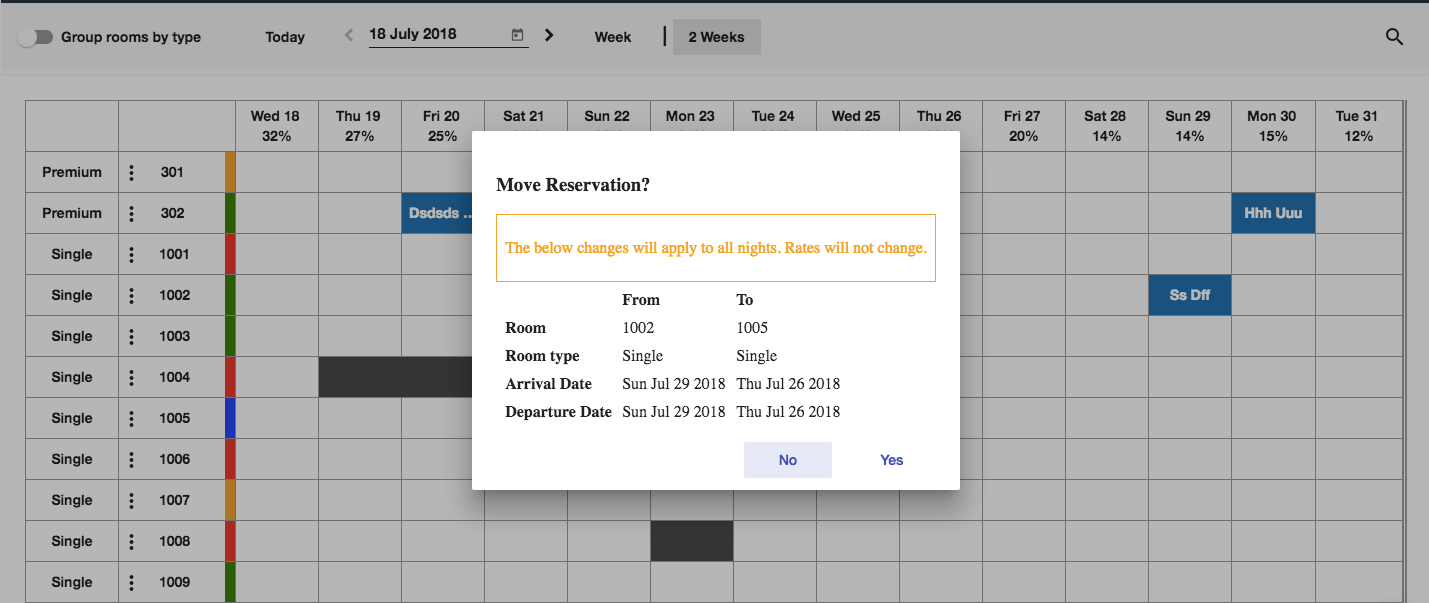
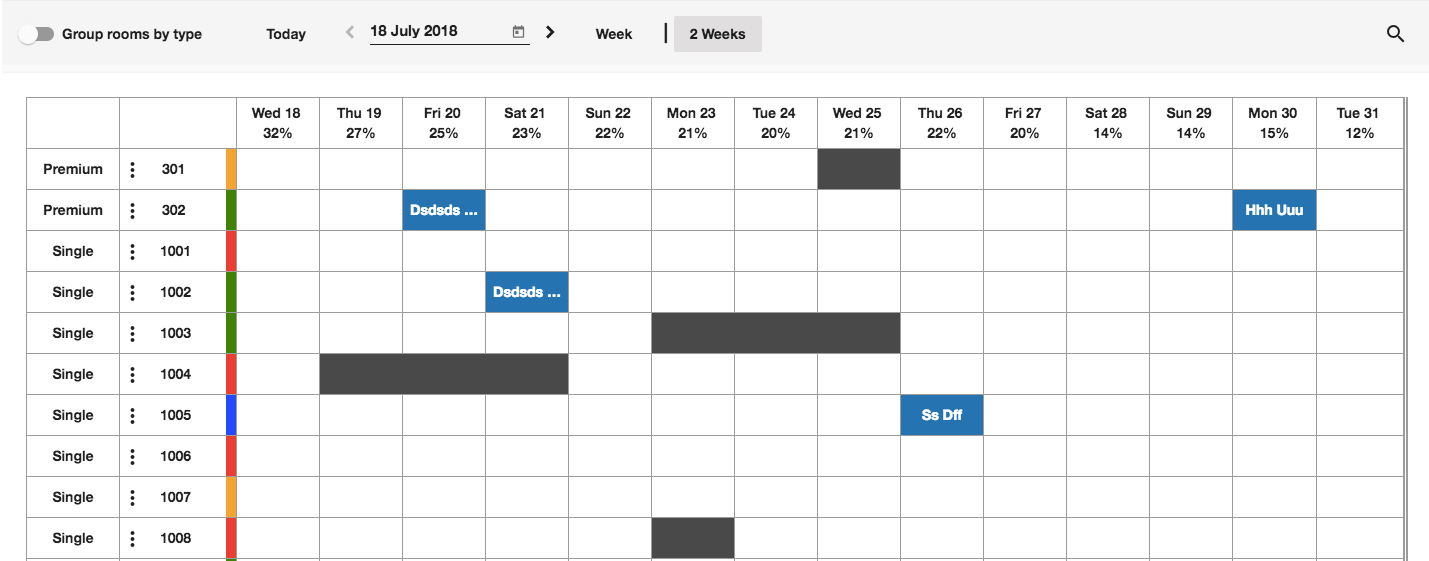
Move a Reservation
Drag a reservation to change its dates, its room type, or both.- Find the reservation you want to change.
- Click and hold it, then drag it to the new place on the rack.
- Confirm the change details.
Cancel a Reservation
Manage Rooms
Set a Room Out of Order
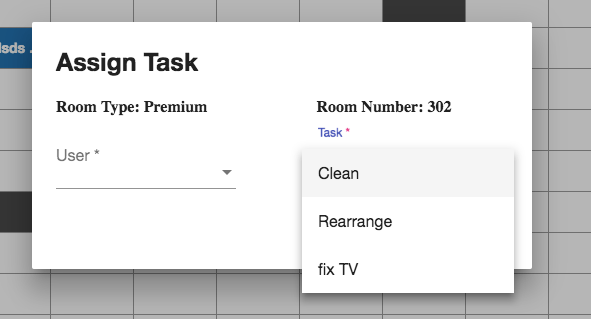
Assign Housekeeping Tasks
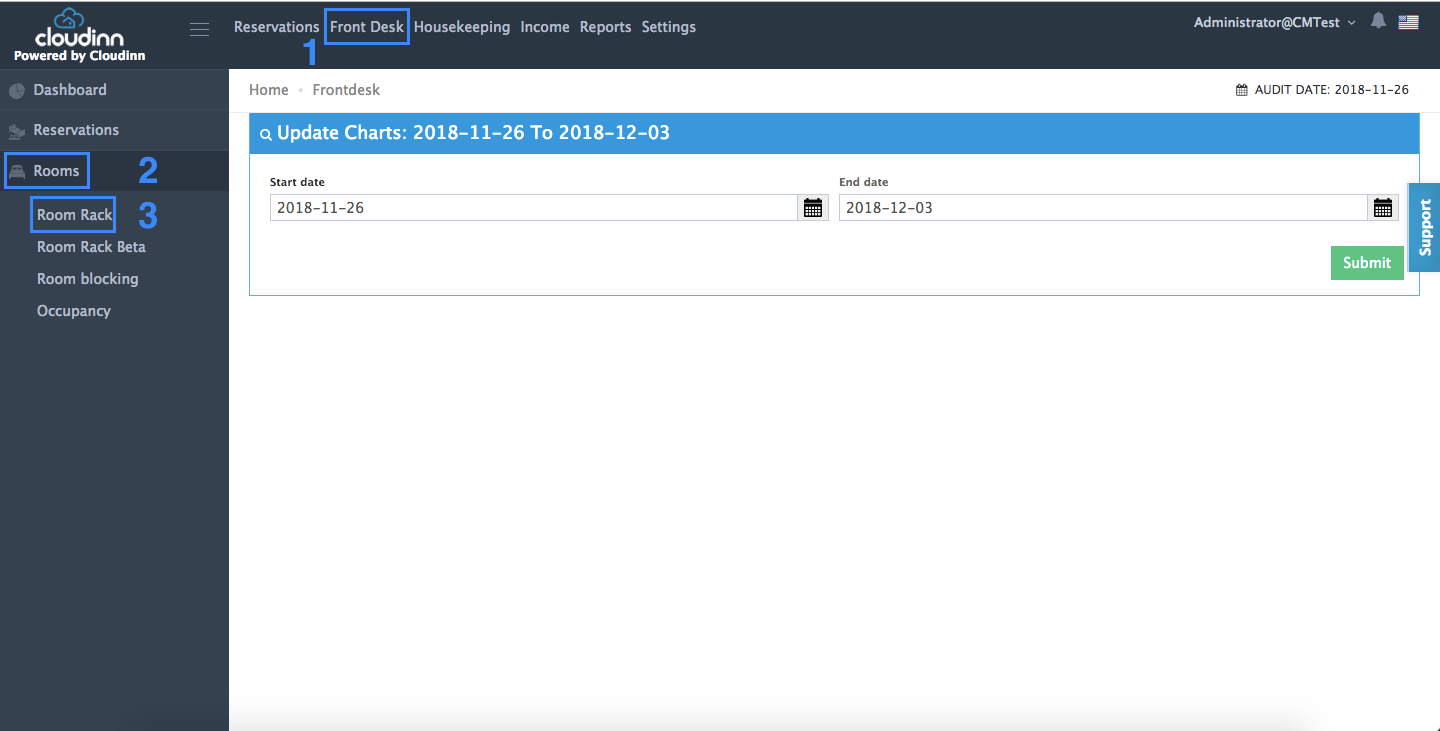
- Click the three dots next to the room number.
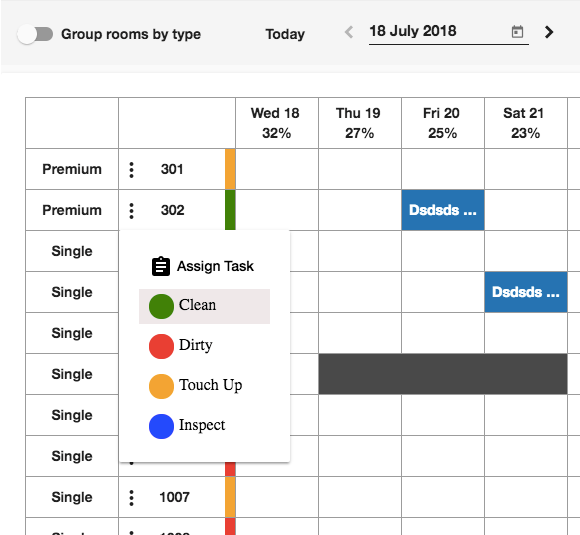
- Choose the action you need, then click Assign Task.
- Select the staff member.
- Select the task.
- Click Save.
Guest Flag Icon
A reservation bar shows a colored flag icon when its guest has a guest flag.- The icon has the color set for that guest flag.
- Hover over it to see the flag’s description, for example Booking.com.
- It shows in both the daily and hourly views.
- Guests with no flag show as before.
- A reservation with an alert and a flagged guest shows both icons.
- Reservation bar colors do not change. They still show the reservation state.