

Business Value
- Frees a departing guest’s room at once for a waiting arrival.
- Keeps the moved guest’s open bill running on the new reservation.
- Shows moves planned for any day, past or future.
- Finds and cancels an old move that still blocks a room.
- Shows who is behind a blocked room on the Room Rack.
Use Cases
- A front office manager frees a room so an early arrival checks in now.
- A shift leader moves a late-departing guest to another room for the day.
- A front desk agent searches next week’s moves and gets the rooms ready.
- A duty manager finds yesterday’s missed move and cancels it.
- A receptionist points at a blocked room and sees which guest is moving in.
How It Works
There are two kinds of room move:Departure Day Room Move
A guest due to depart today may still be on property. Their room stays occupied and blocks the next arrival.
Room Move checks the guest out of that room. It re-books them on another room as a day-use stay.
The move ends with two reservations:
- The original reservation, Checked Out.
- A new day-use reservation, Checked In on the new room.
When the action is available
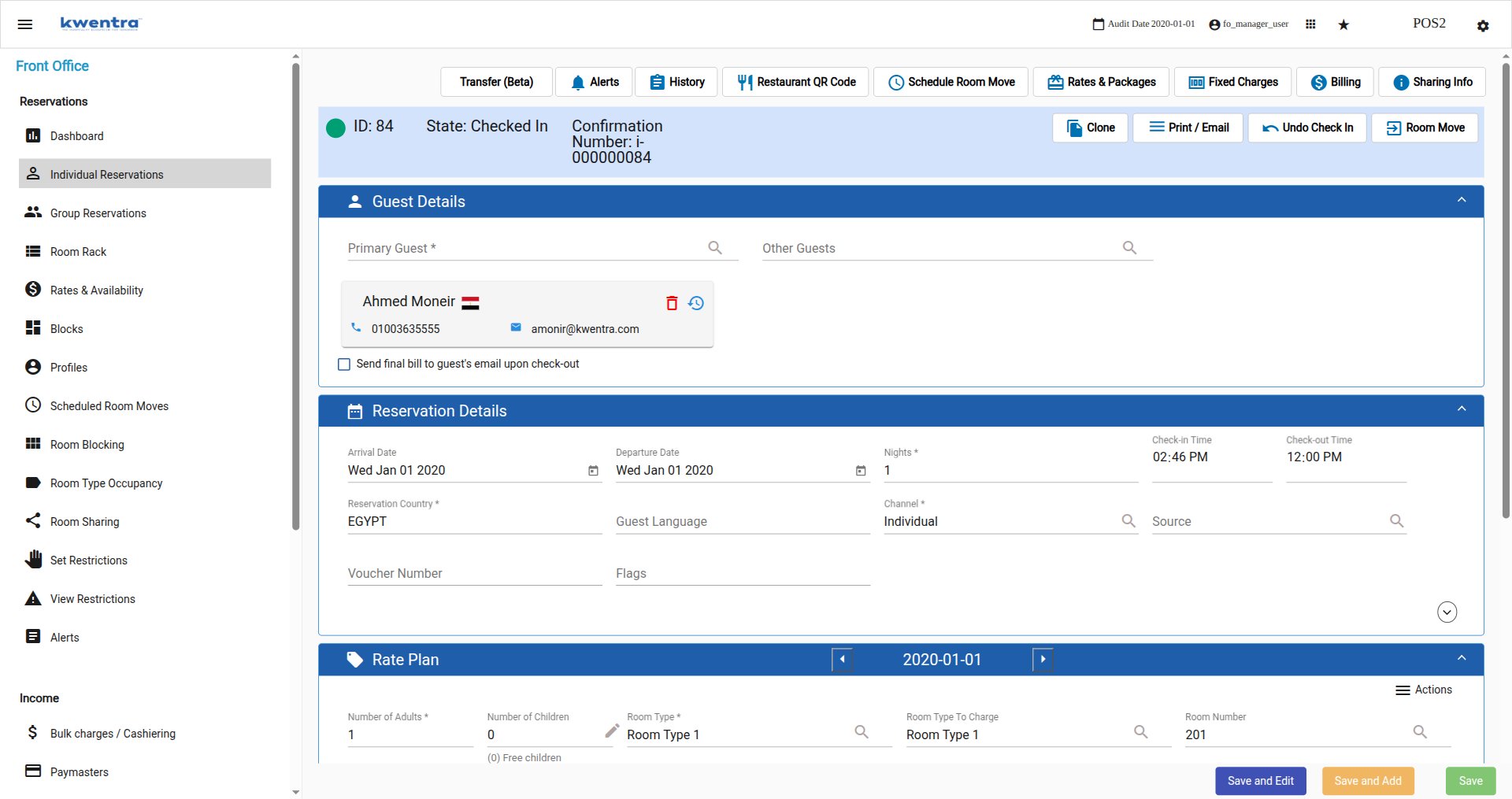
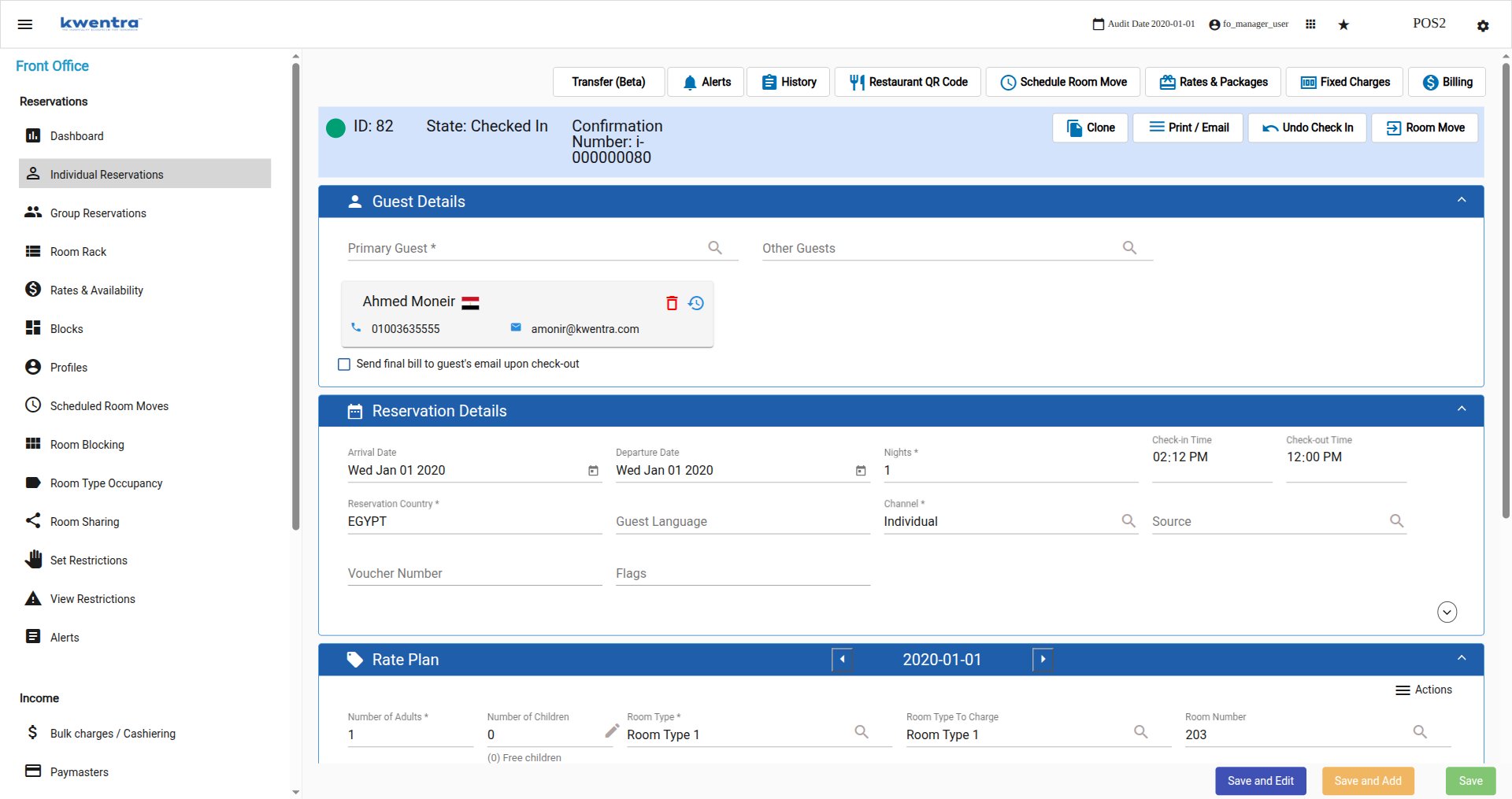
Room Move sits in the reservation header, next to Undo Check In. It shows only when all of these are true:- The displayed night is the last night of the reservation.
- The departure date is the current audit date.
- The reservation state is Checked In.
- You are associated with a cashier.
Moving the guest
The dialog opens as Departure Day Room Move — guest name. It explains what will happen.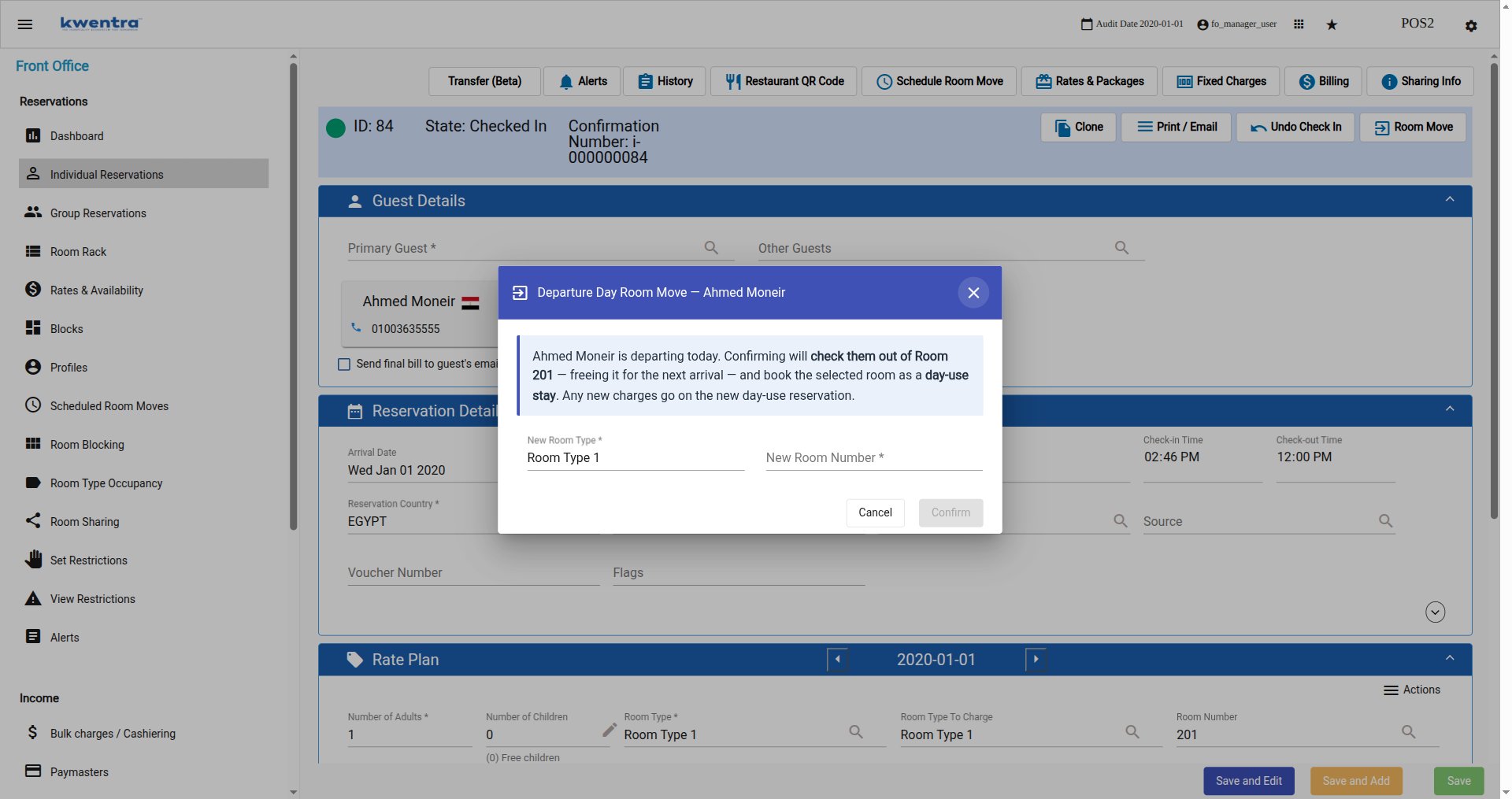
- Select a New Room Type. It starts on the current room type.
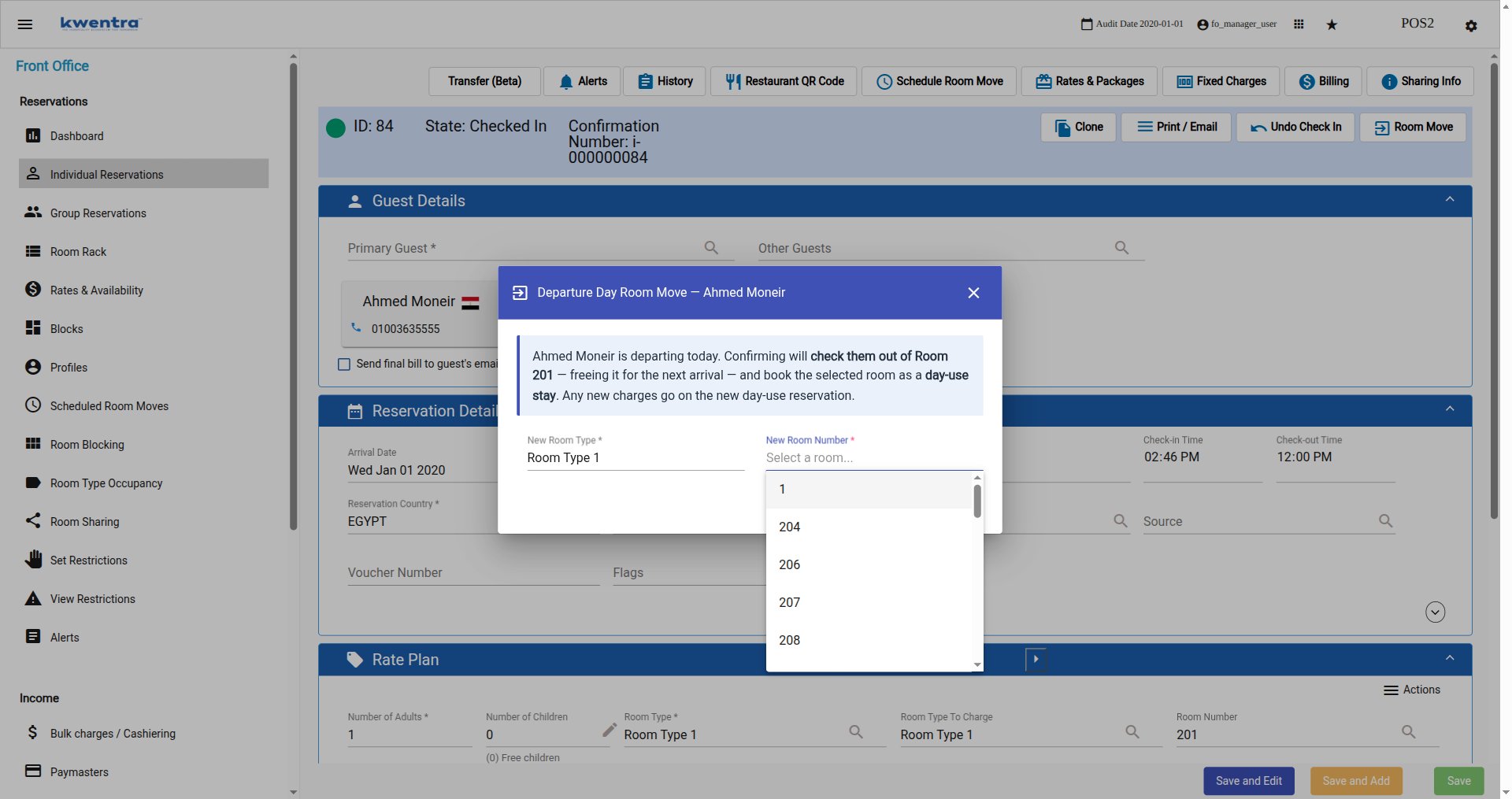
- Select a New Room Number.
- Select Confirm. It stays disabled until you pick a room number.
The open bill moves with the guest
The guest does not have to settle their bill first. On Confirm, before checkout:- The open bill moves to the new day-use reservation.
- Every window on the original reservation ends at balance 0.
- The original reservation then checks out normally.
- Transferred items keep their window numbers on the day-use reservation.
- Both reservations show the transfer in their billing history.
- The guest settles the bill on the day-use reservation at final departure.
What happens after you confirm
A Move completed popup sums up both results. Click Open day-use reservation to go to the new booking.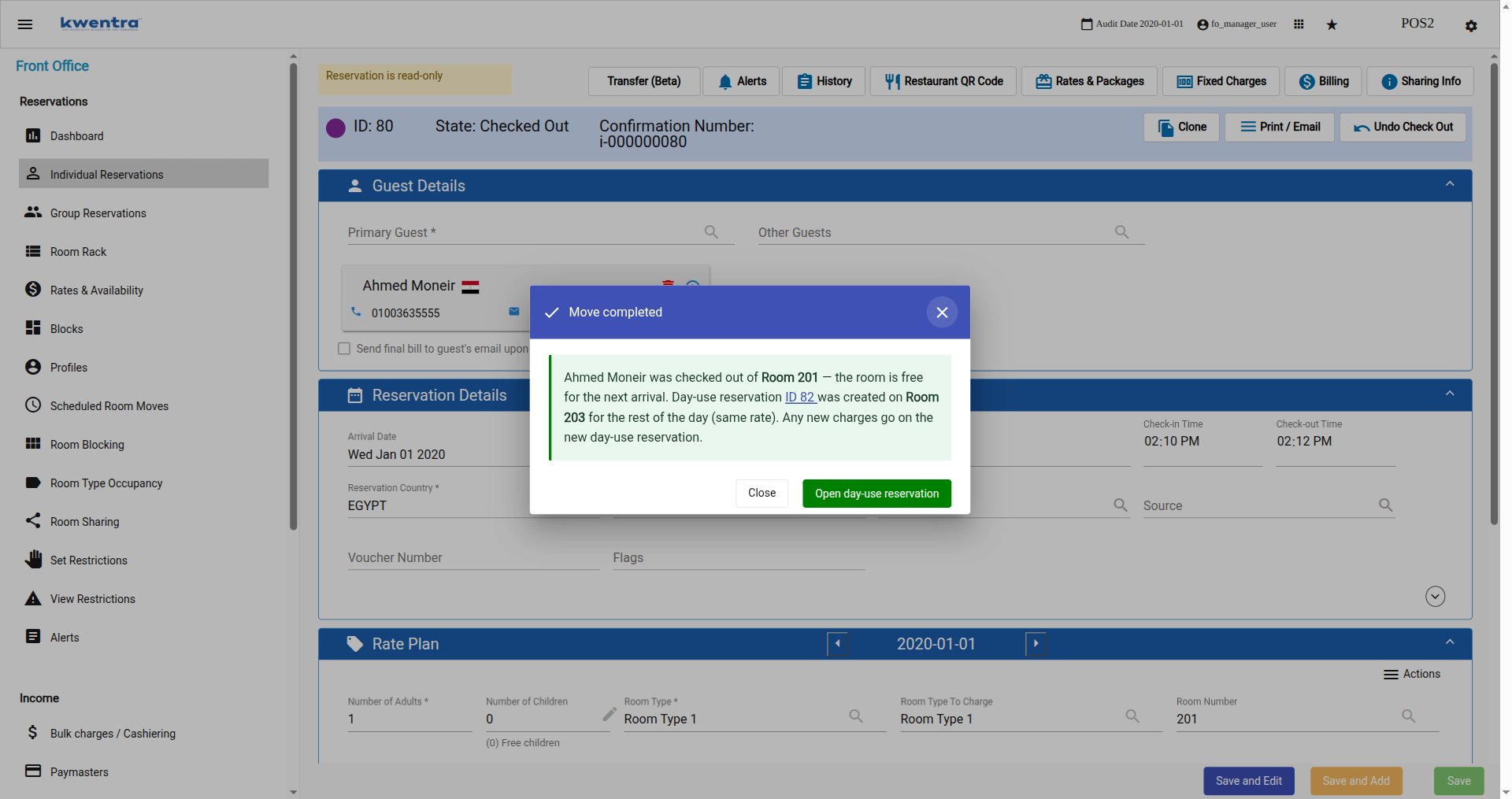
- The original reservation is Checked Out. Its room is free for the next arrival.
- A new day-use reservation is checked in on the selected room.
- Its arrival and departure are both today. It keeps the original rate.
- It carries the same confirmation number as the original.
- The guest counts normally in occupancy, today’s arrivals and day-use statistics.
Tracing the move
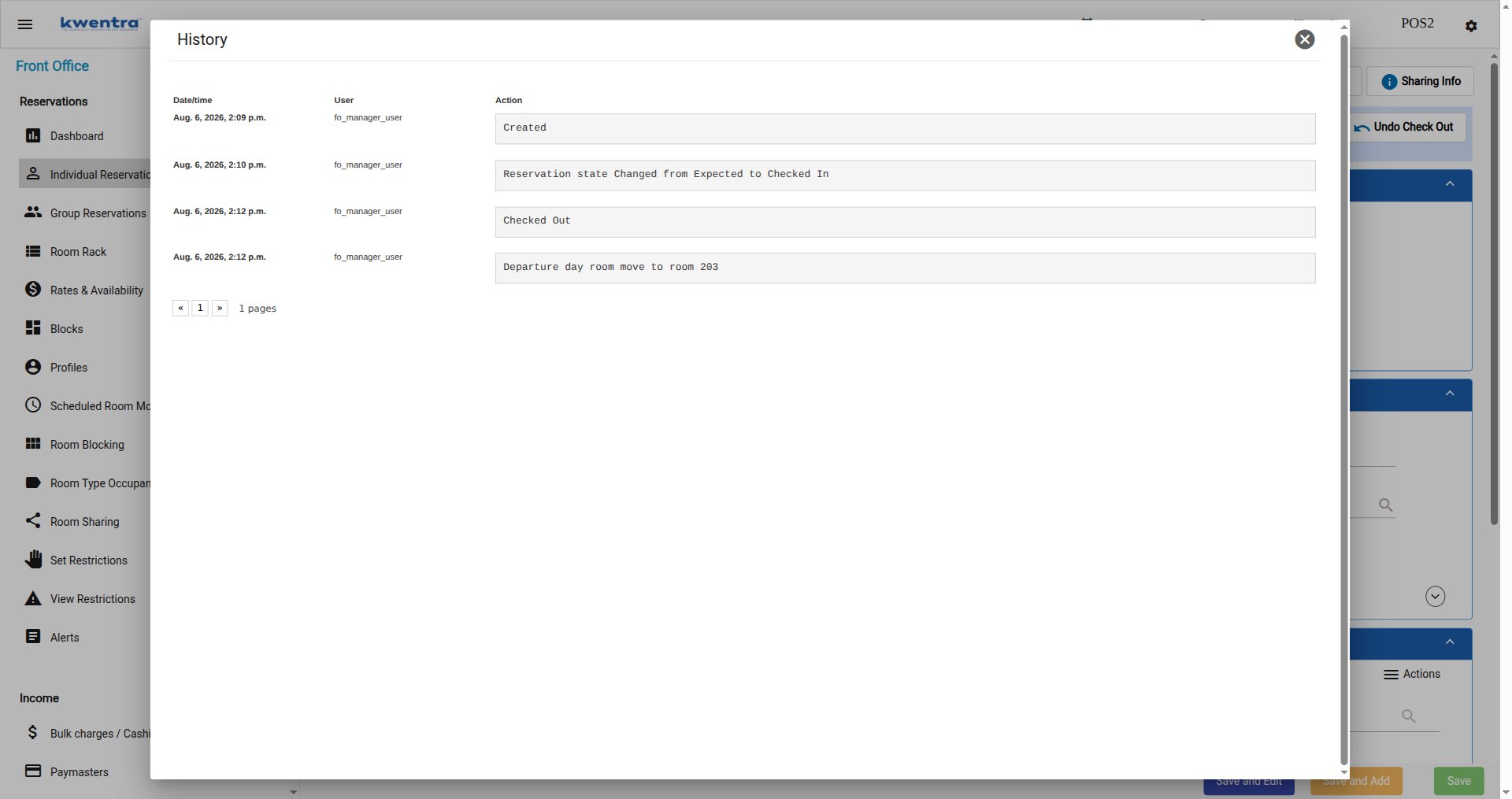
Both reservations record the move in their History. Open it from the reservation toolbar. On the original reservation, Checked Out is followed byDeparture day room move to room {room number}:
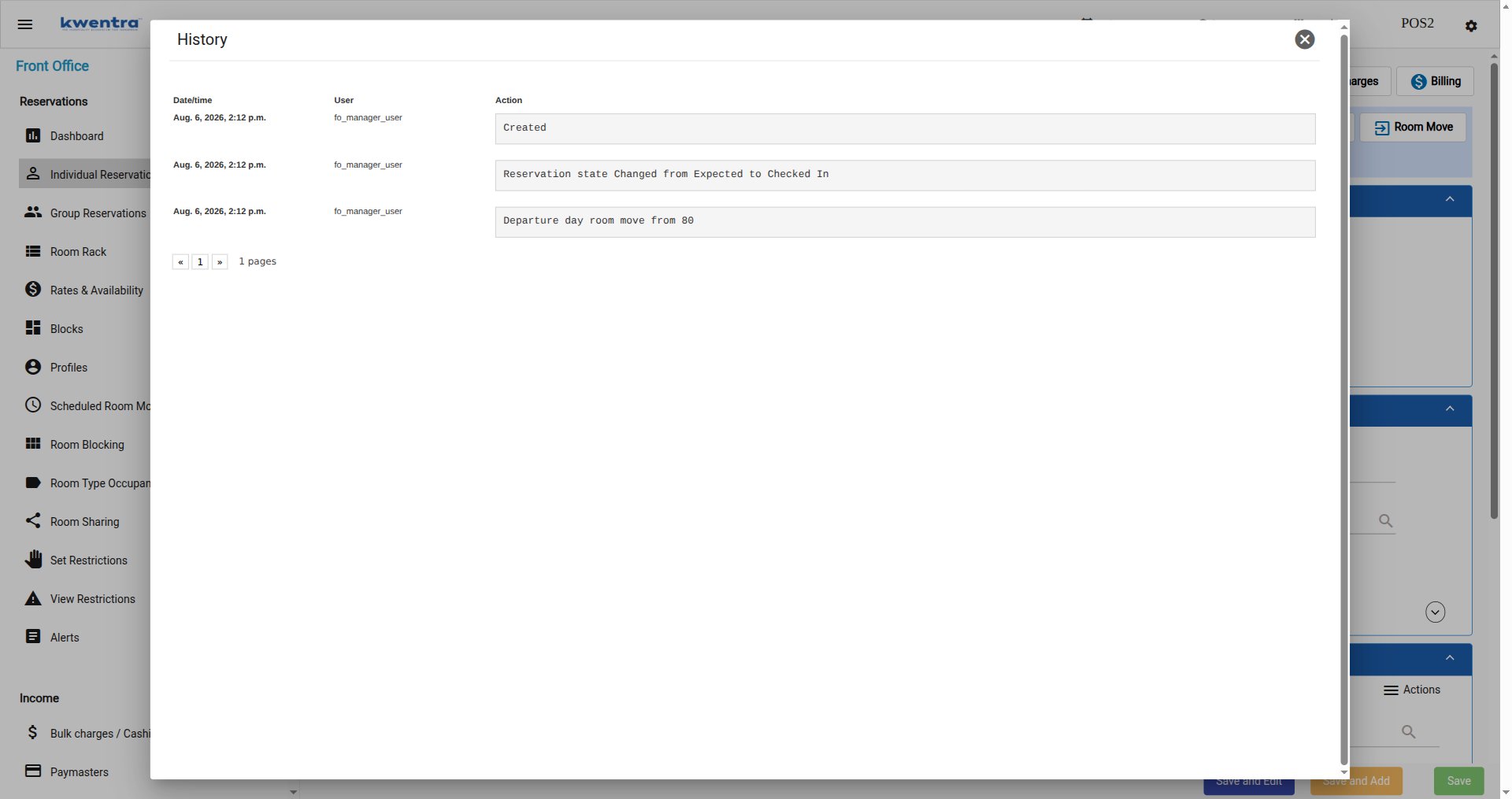
Departure day room move from {original reservation ID}:
Permissions
A dedicated permission controls this action. Front Office Manager and Shift Leader have it by default. Users without it do not see the action.Scheduled Room Moves
Search room moves over a date range. Cancel a move that never happened.
Search by Date
- Both start on the audit date.
- You can pick past and future dates.
- The oldest move comes first.
- Reset clears every filter, dates included. The list then shows every move.
Filter by Room
Use Scheduled Room Number to pick one room or more.The List
- The Moving Date column shows the date of each move.
- Reservation ID opens the reservation in a new tab.
- The list has pages. Click a page number to see more rows.
Do a Move
The Move button works only on the audit date. On other dates, it is greyed out.Cancel a Move
Each row has a cancel action. Use it to remove a move you no longer need.Scheduled Room Moves on the Room Rack
A scheduled move blocks its new room on the Room Rack. The blocked cells show a colour.
- See the reservation: point at a blocked cell. The tooltip shows the reservation ID and guest name.
- Open the reservation: click a blocked cell. The reservation opens in a new browser tab.
- All moves show: the Room Rack loads every scheduled move in the dates on screen.
Update: August 16, 2026
The Open Bill Now Moves With the Guest
A departing guest no longer has to settle their bill before the room is freed. The open bill moves to the day-use reservation.What’s New?
A late-departing guest usually still has an open bill. They pay when they finally leave. Before this update, every billing window had to be at zero balance. Otherwise, Confirm showed this error and nothing changed: This reservation can’t be moved until it passes checkout. Check-out cannot be completed, please settle pending balance first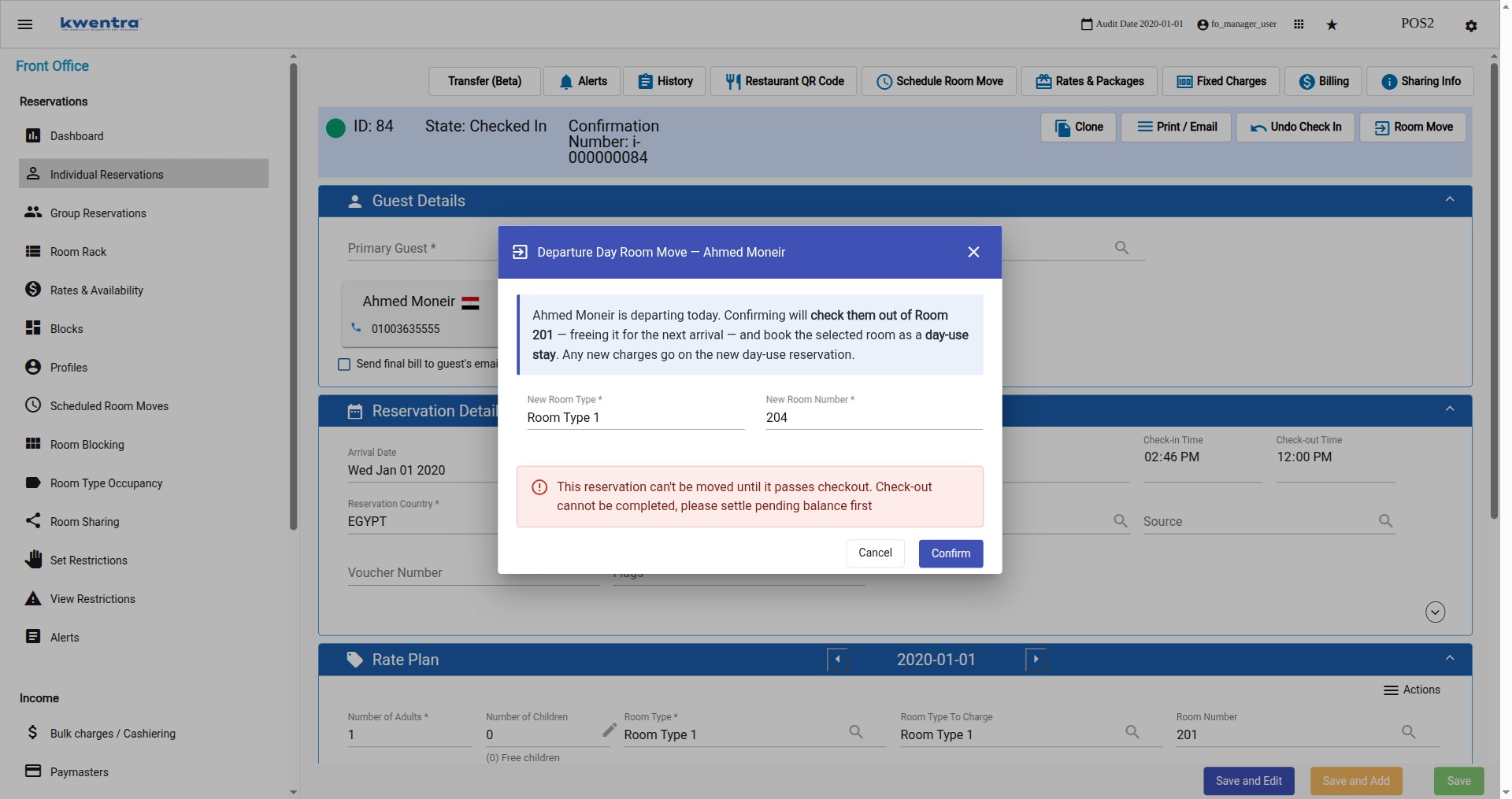
How It Works
- Room Move now shows for eligible reservations, whatever their window balances.
- The action now requires you to be associated with a cashier.
- On Confirm, the open bill moves to the day-use reservation first. See The open bill moves with the guest.