Documentation Index

Fetch the complete documentation index at: https://help.kwentra.com/llms.txt

Use this file to discover all available pages before exploring further.

Check-In Procedure: In order to check-in a guest there are certain conditions and criteria in order to do this task:
  • Check-in date must be equal to Audit Date.
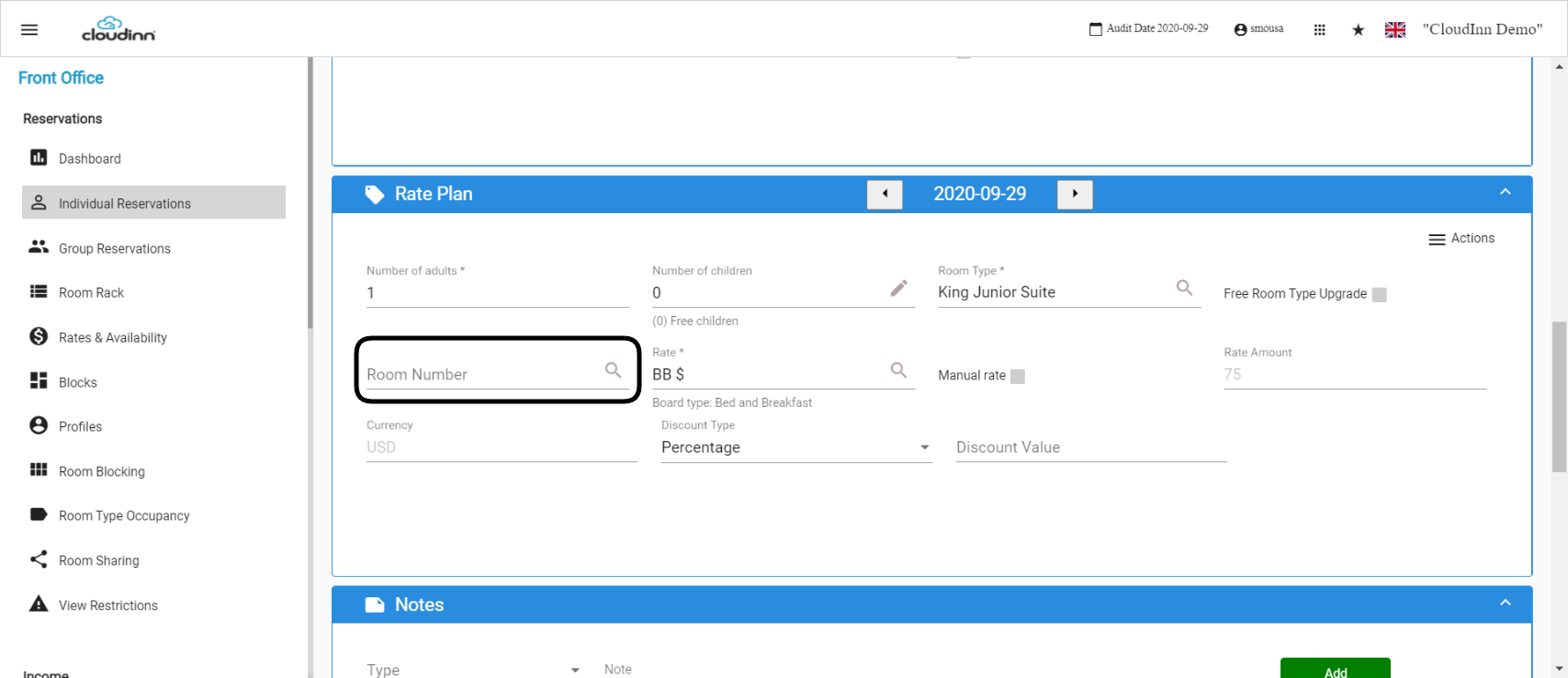
  • Room number should be added on the reservation.
How to add a room number to an Expected Reservation?
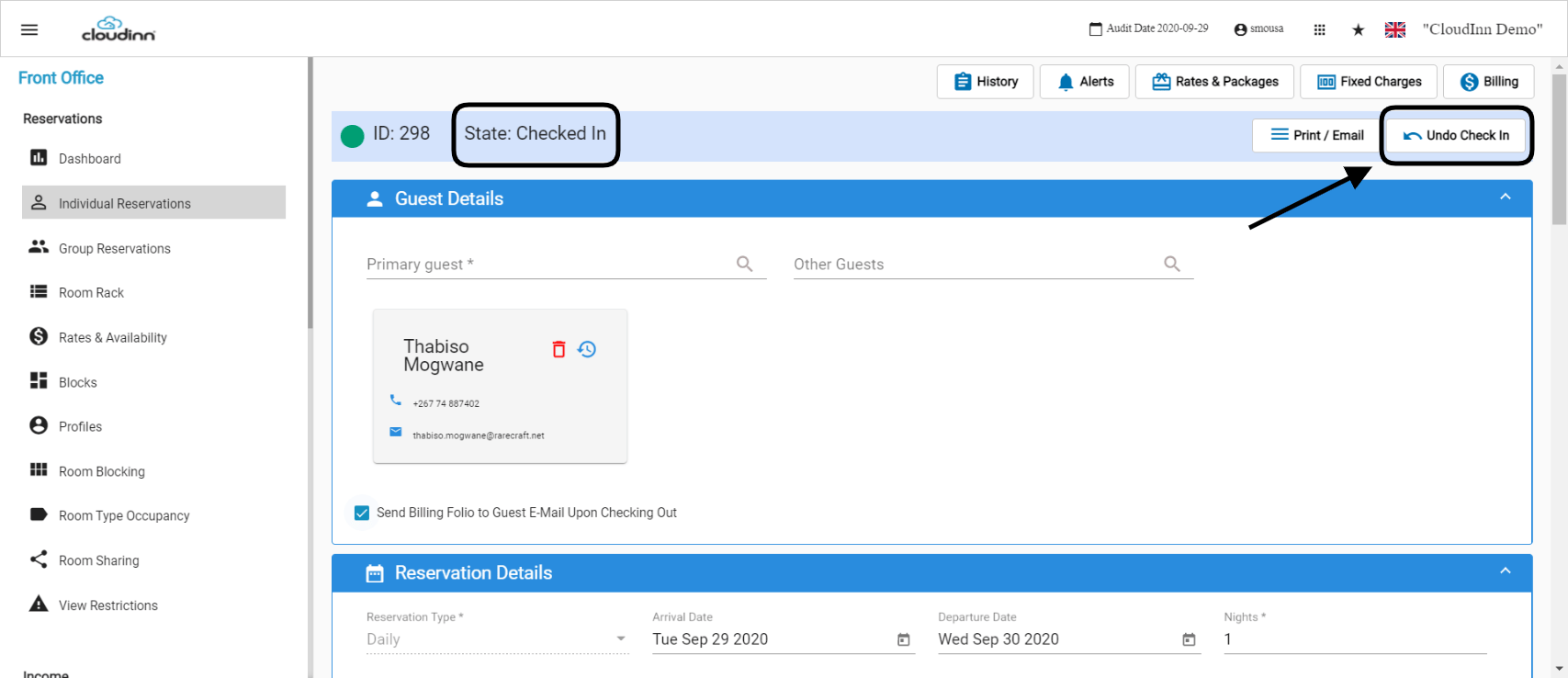
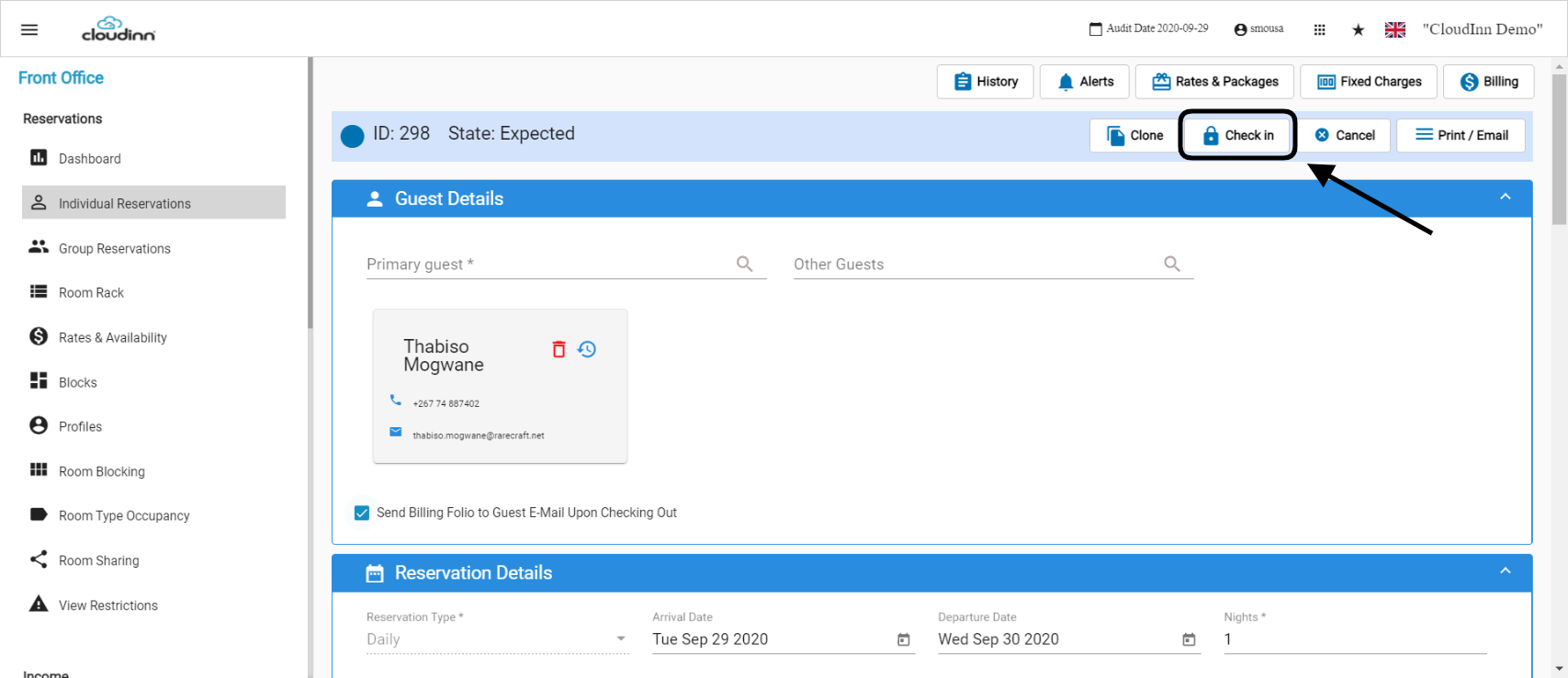
First, we need to locate and open the reservation to be able to add the room number. 1- Search for the reservation you would like to check-in and open it. 2- From Rate Plan section, assign the room number using the autocomplete optoin or use the magnifying glass. 3- After assigning the room to the reservation, go to the Check In option on the top of the reservation. 4- Once the reservation is checked in, you would find the new reservation state mentioned on the top of the reservation. You will also get the option to undo the check-in you just did, this will reverse the action you just made and returns the reservation to the Expected State.
When can you use Undo Check-in?
Undo Check in comes in handy when we accidentally check-in a reservation and we want to reverse this action.
  1. Search for the reservation and open it.
  2. Click on “undo check in” from top right of the page.
  3. Click “save” from the bottom of the page.
By doing the above you reverse the reservation’s status from Checked in to Expected.