

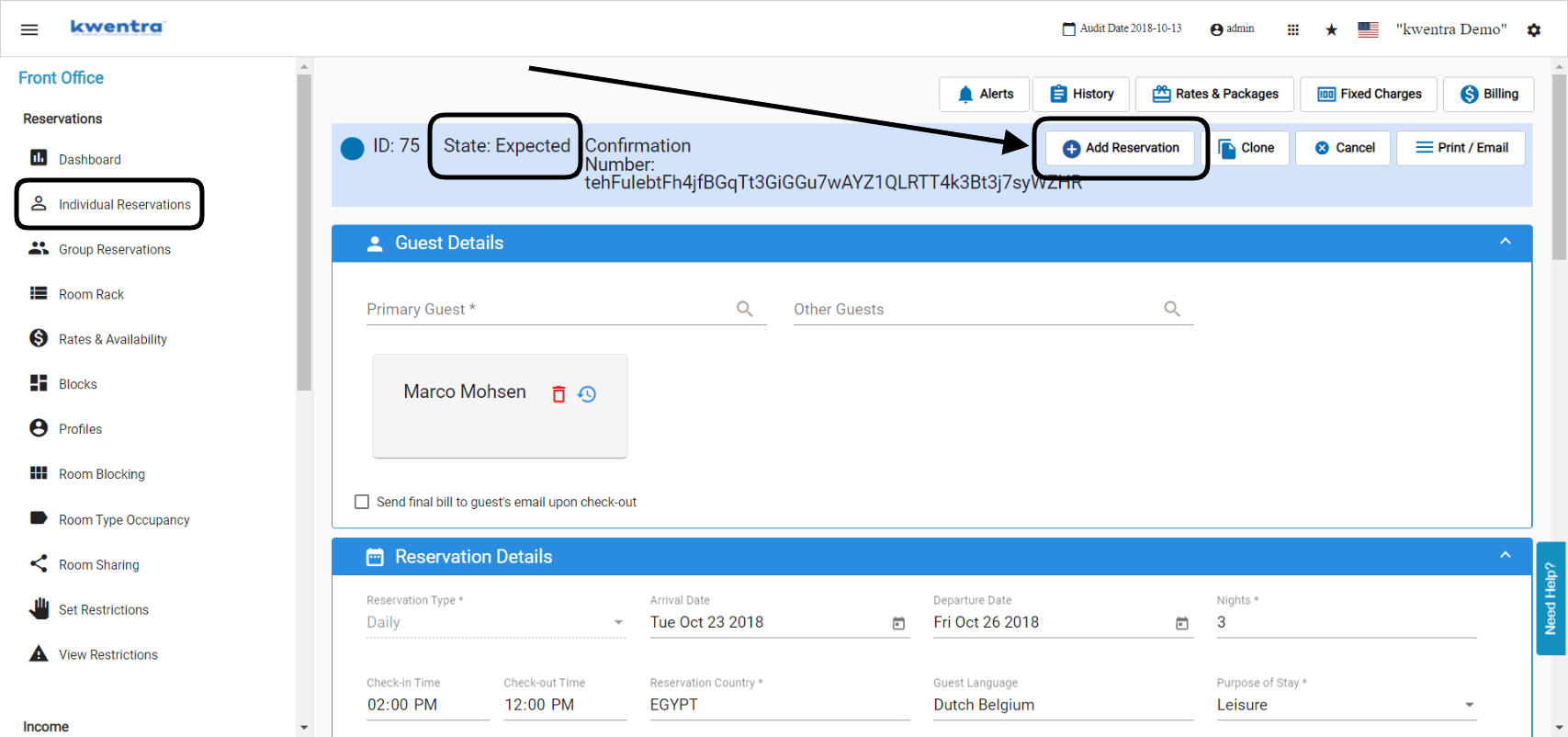
- Click on Add Reservation.
- Select whether you want to copy other profiles, add-on packages or fixed charges to the new reservations.
- Write in numbers how many reservations you want to add to the reservation you are creating from.
- Click Continue.
Update: September 22, 2026
Number of Reservations Is Capped at 50
You can now add up to 50 reservations at once. Entering a higher number blocks you from continuing.What’s New?
- Number of Reservations accepts a maximum of 50 per request. The limit is the same for every property.
- Entering more than 50 shows: Number of reservations can’t exceed 50. Continue does not submit until you lower the number.
- The limit is checked first. Confirming the overbooking warning does not bypass it.
- 1 to 50 reservations work as they did before.
- This includes the overbooking warning and the copy options: Other Profiles, Fixed Charges, Add-On Packages.
How It Works
- To add more than 50 rooms, repeat Add Reservation in batches of 50 or fewer.