- Customize how stays are categorized (e.g. long stay, corporate, staff housing).
- Track guest intent more clearly using Accommodation Type.
- Tailor reservation reporting with optional extra details.
- Support operational and audit needs through better data visibility.
- A receptionist creates a reservation and selects “Corporate Stay” from the accommodation types.
- A front office manager defines internal accommodation labels such as “Staff Housing”.
- A finance or audit team exports reservation reports including the accommodation type, or hides it when not needed.
Define accommodation types
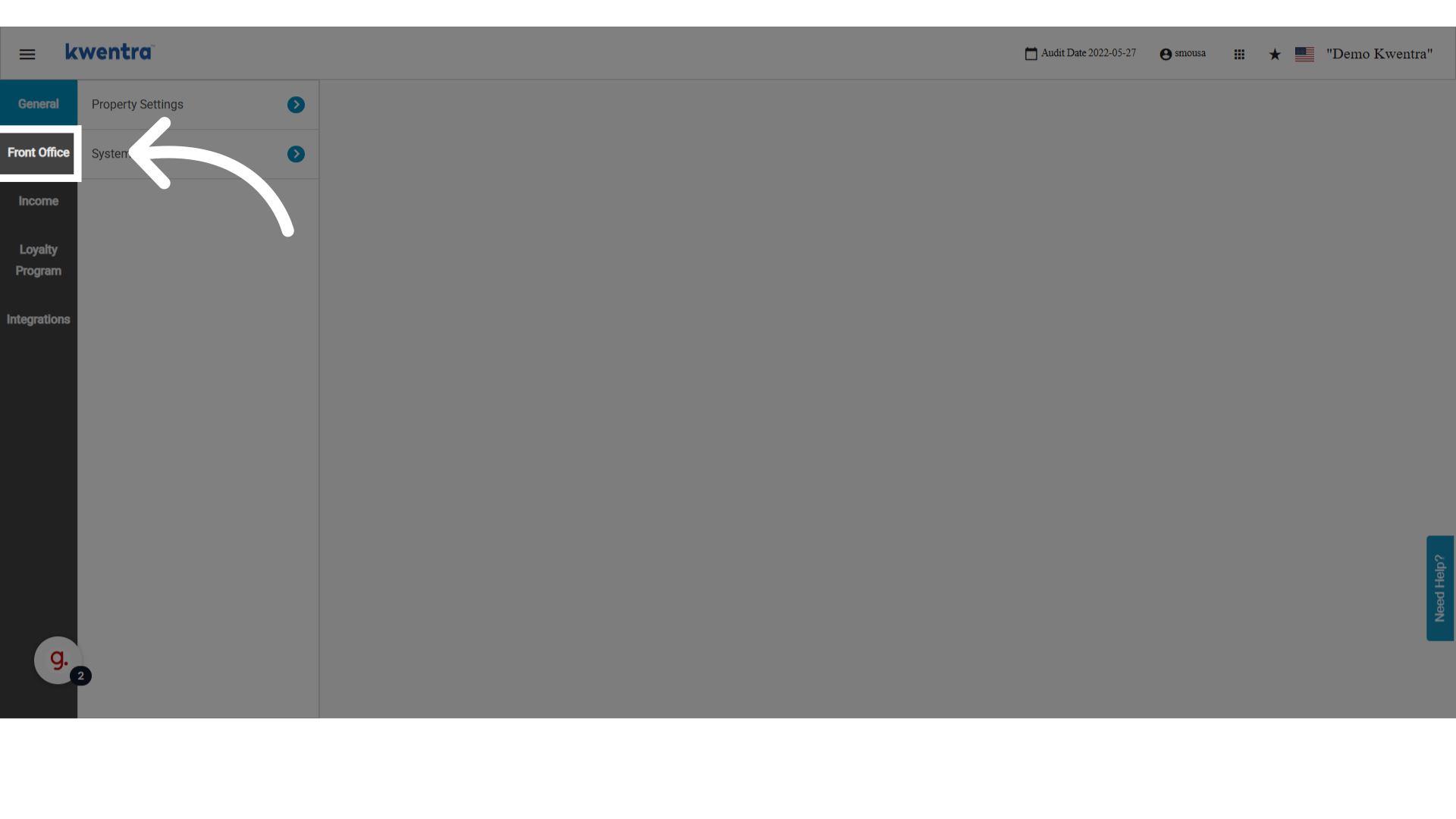
Go to Settings → Front Office → Guests Settings → Accommodation Types on manage.kwentra.com.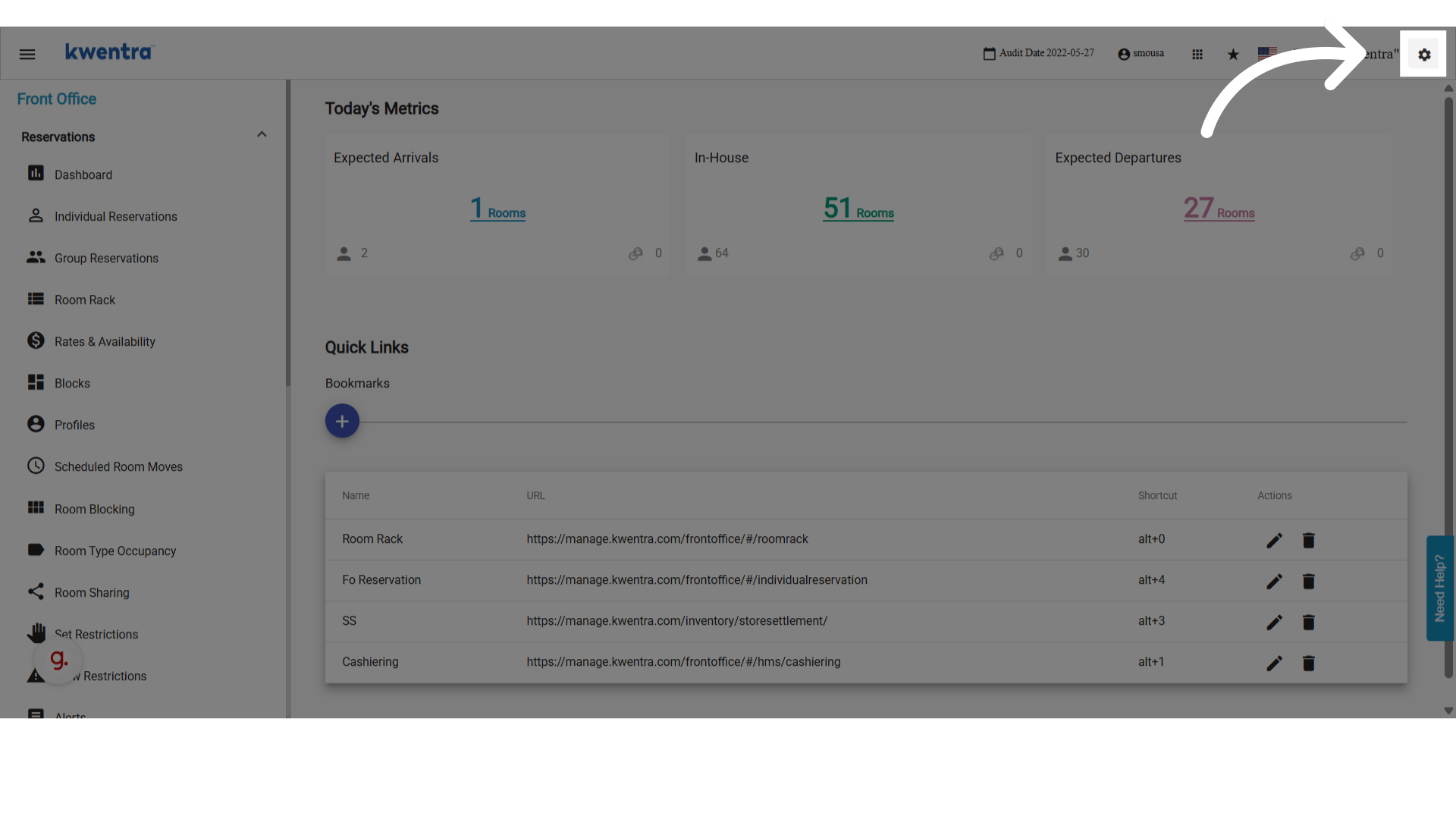
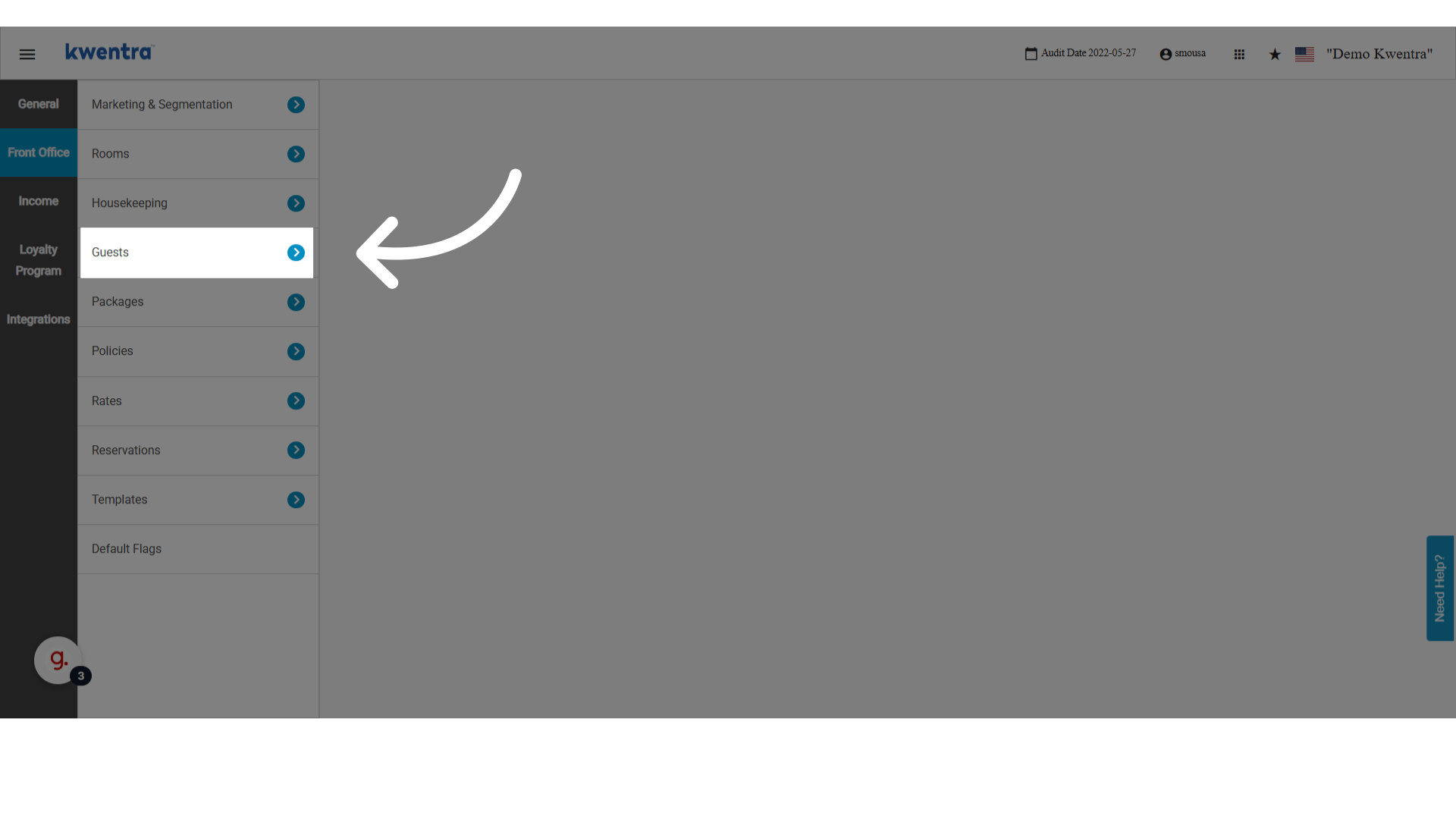
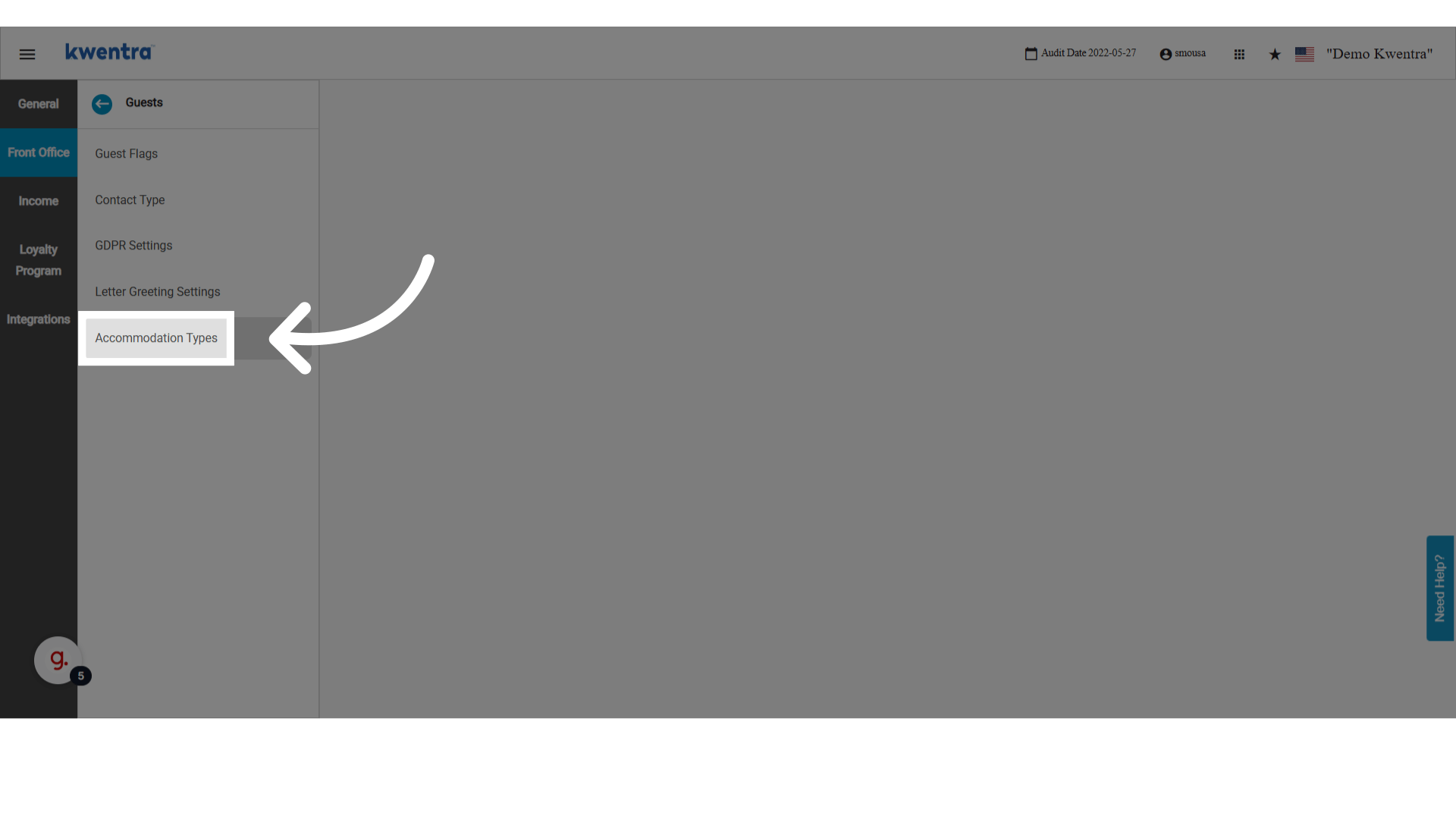
-
Review the existing custom accommodation types — any previously created entries are listed here.
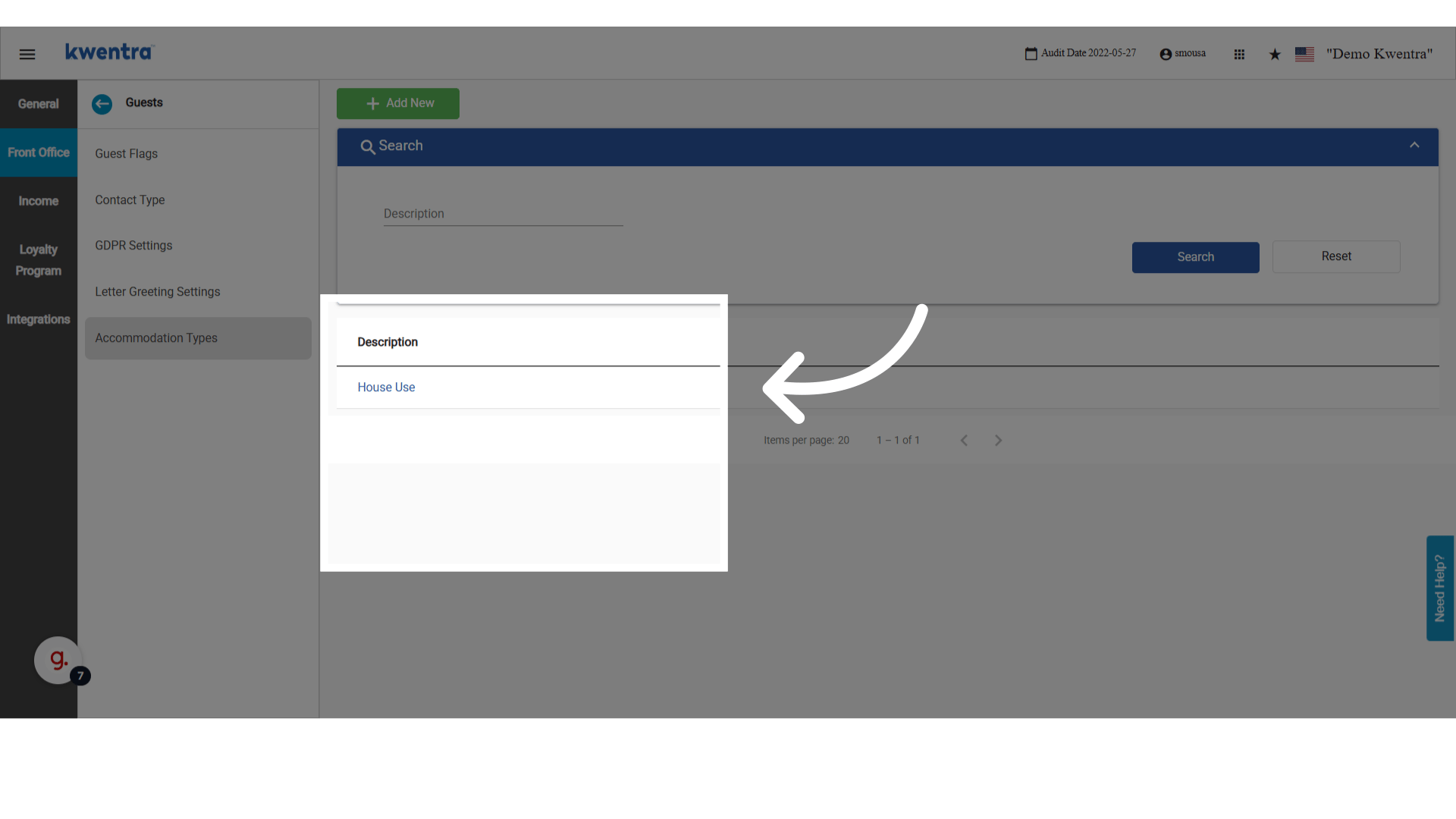
-
Click Add to create a new accommodation type.
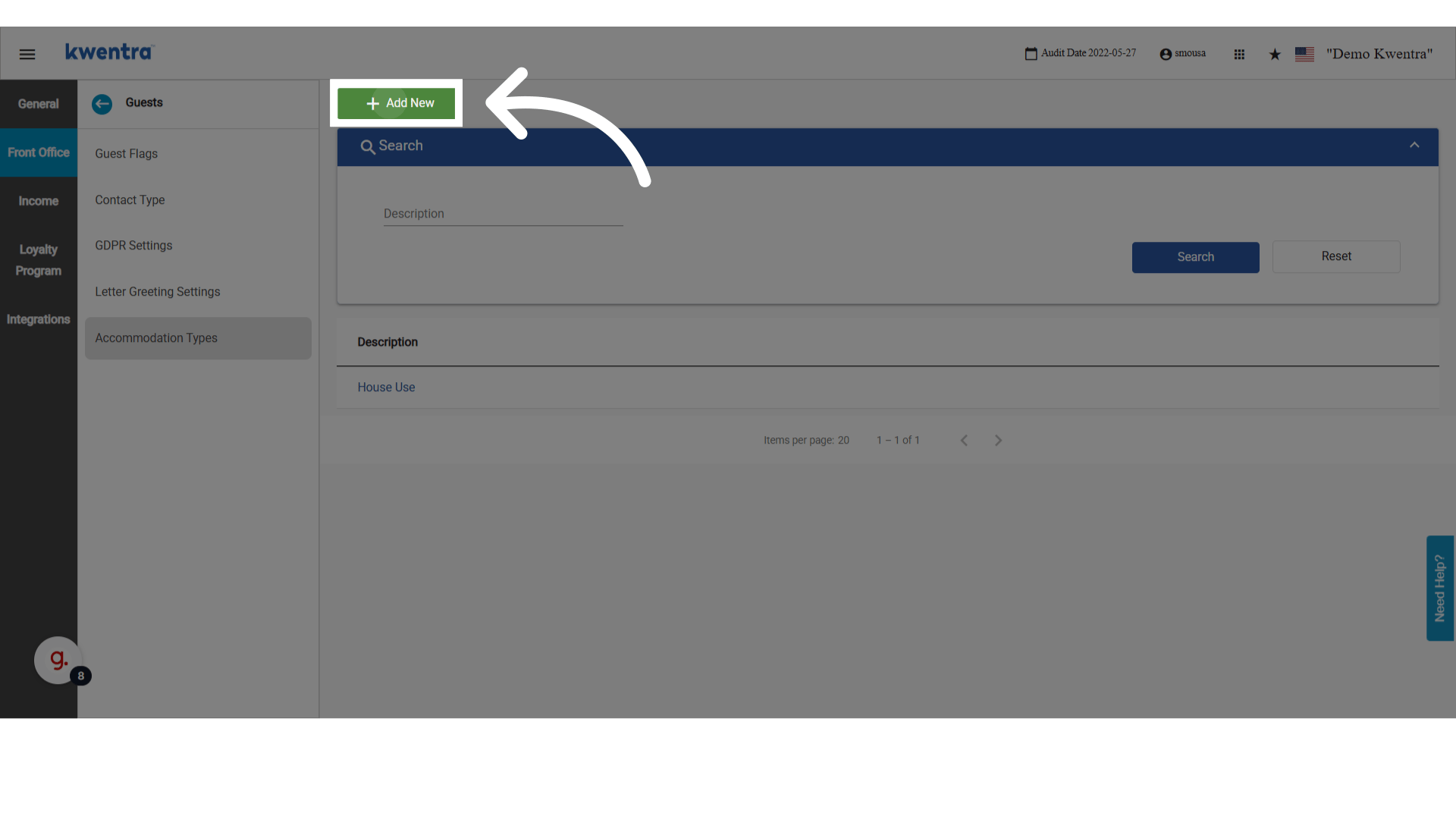
-
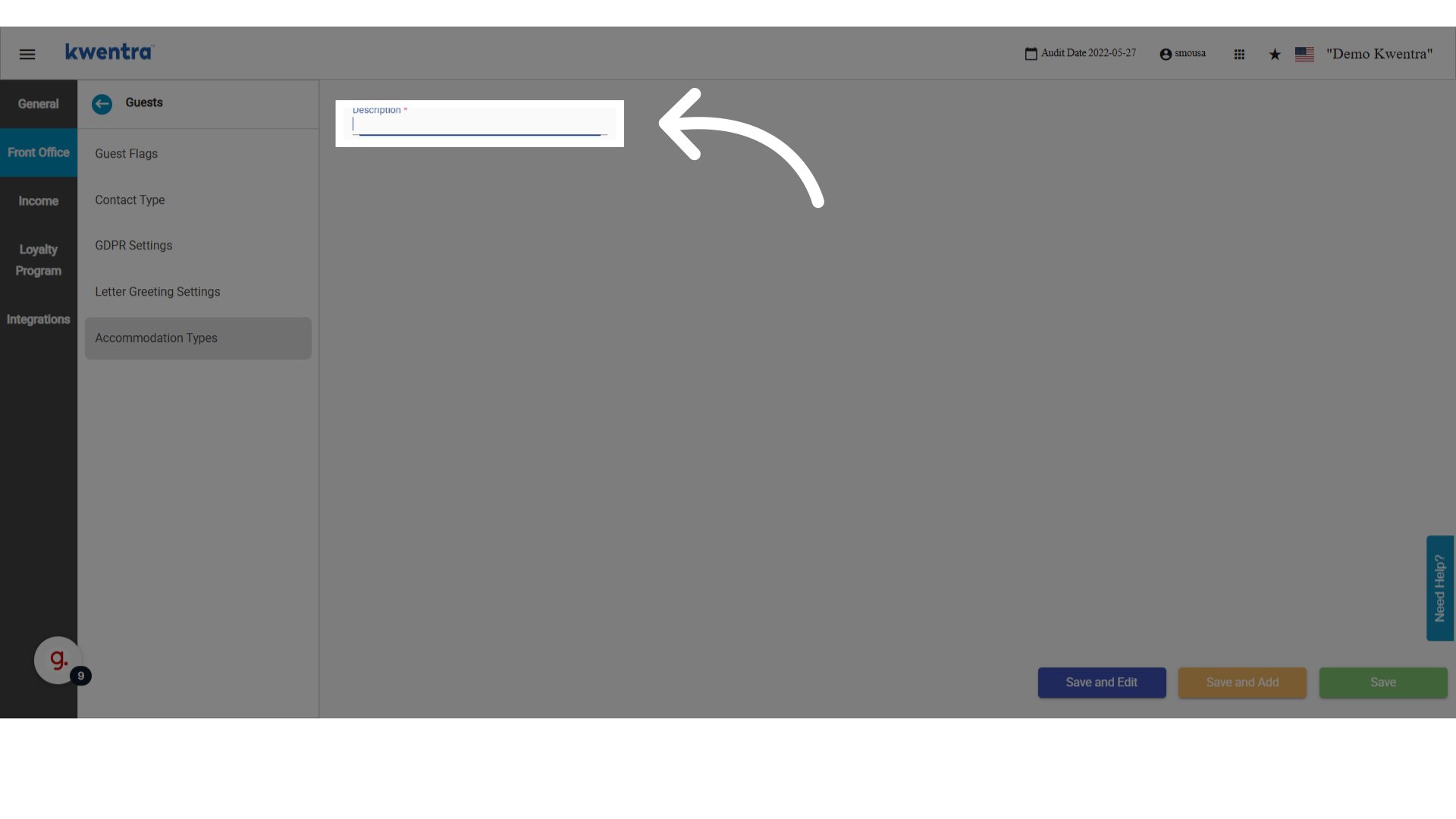
Enter a description for the new type (e.g. “Corporate Stay” or “Staff Housing”).
-
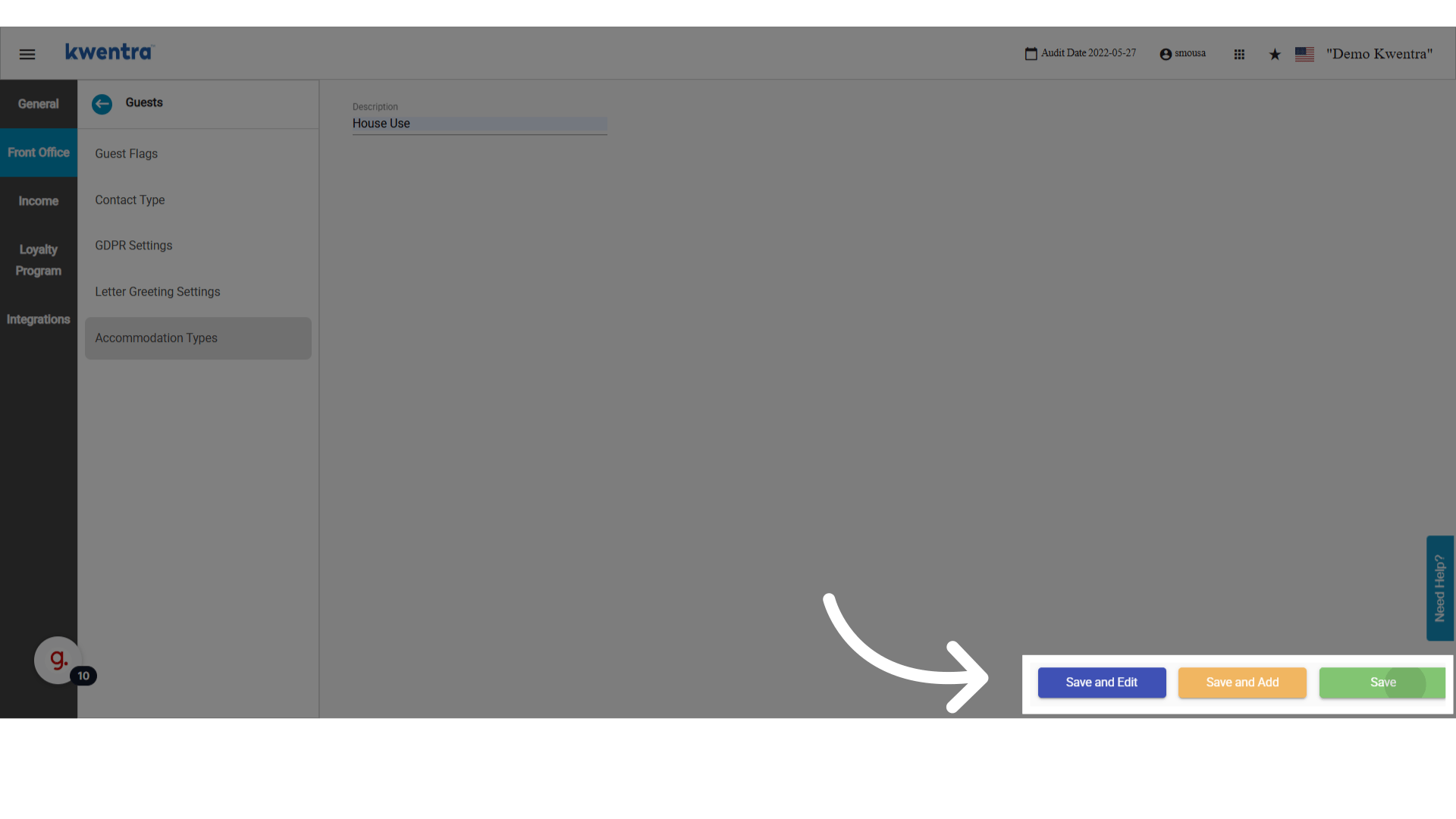
Save using one of the available save options.
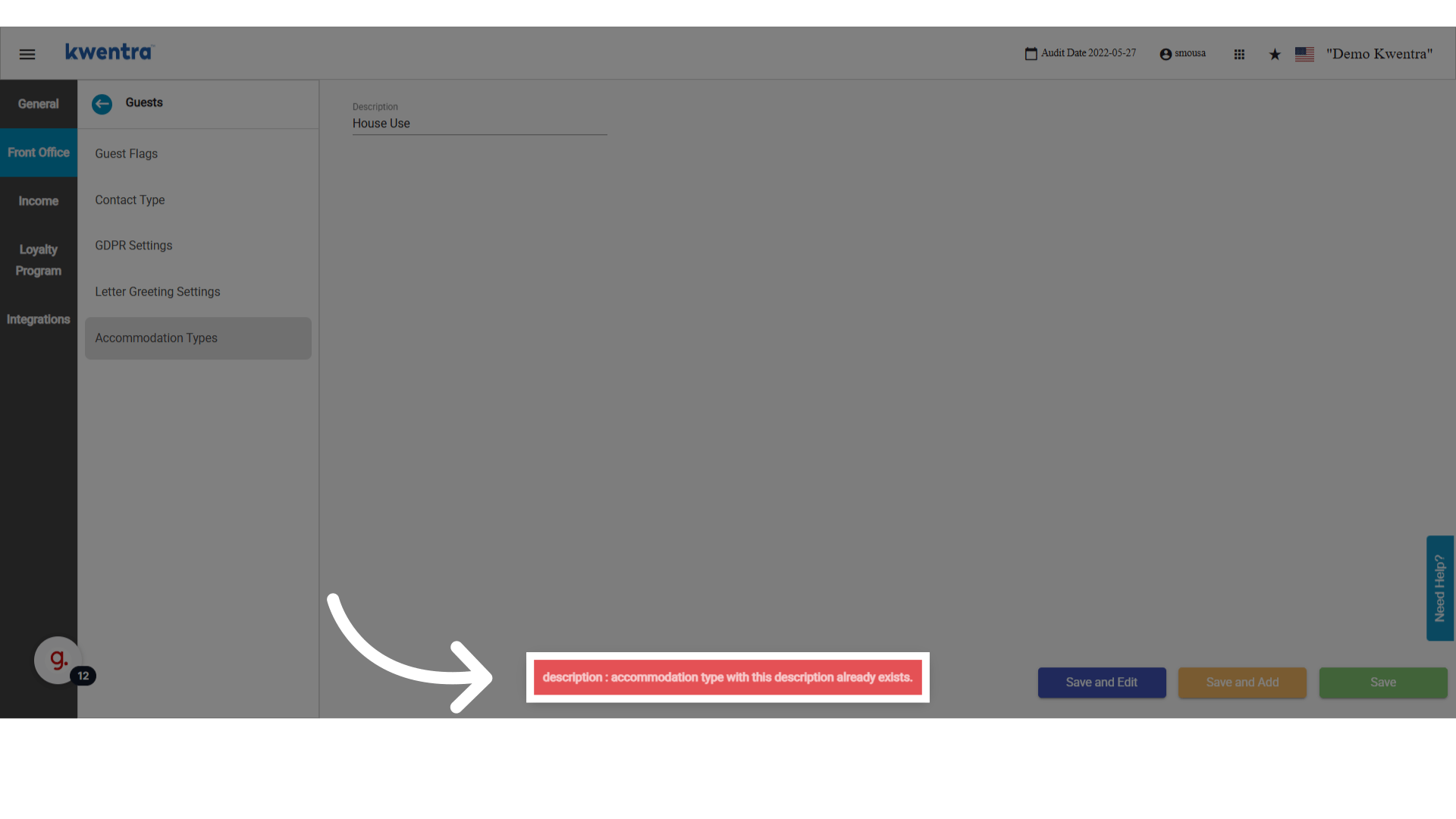
You cannot add the same description twice — duplicates are rejected on save.
Apply an accommodation type to a reservation
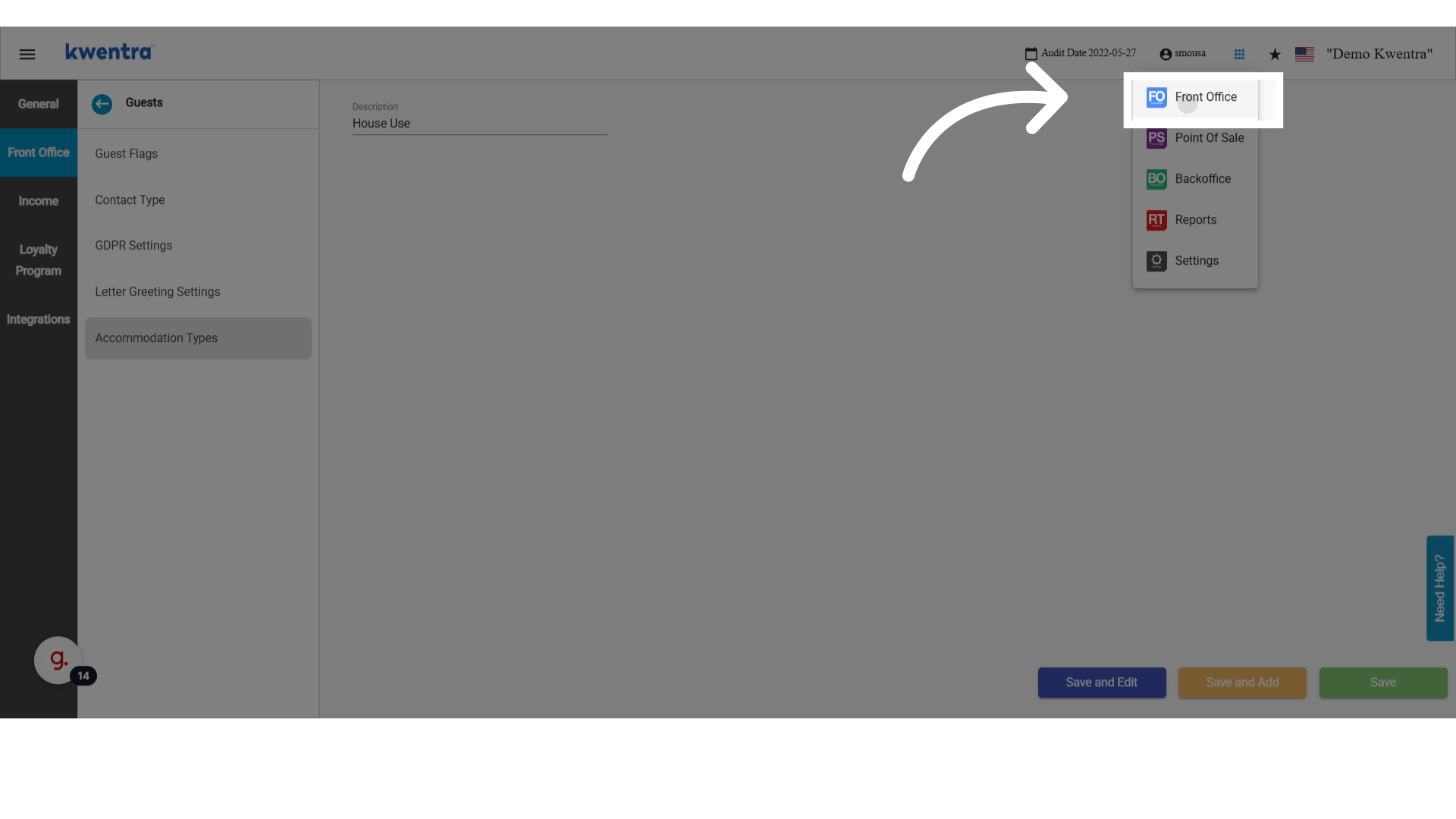
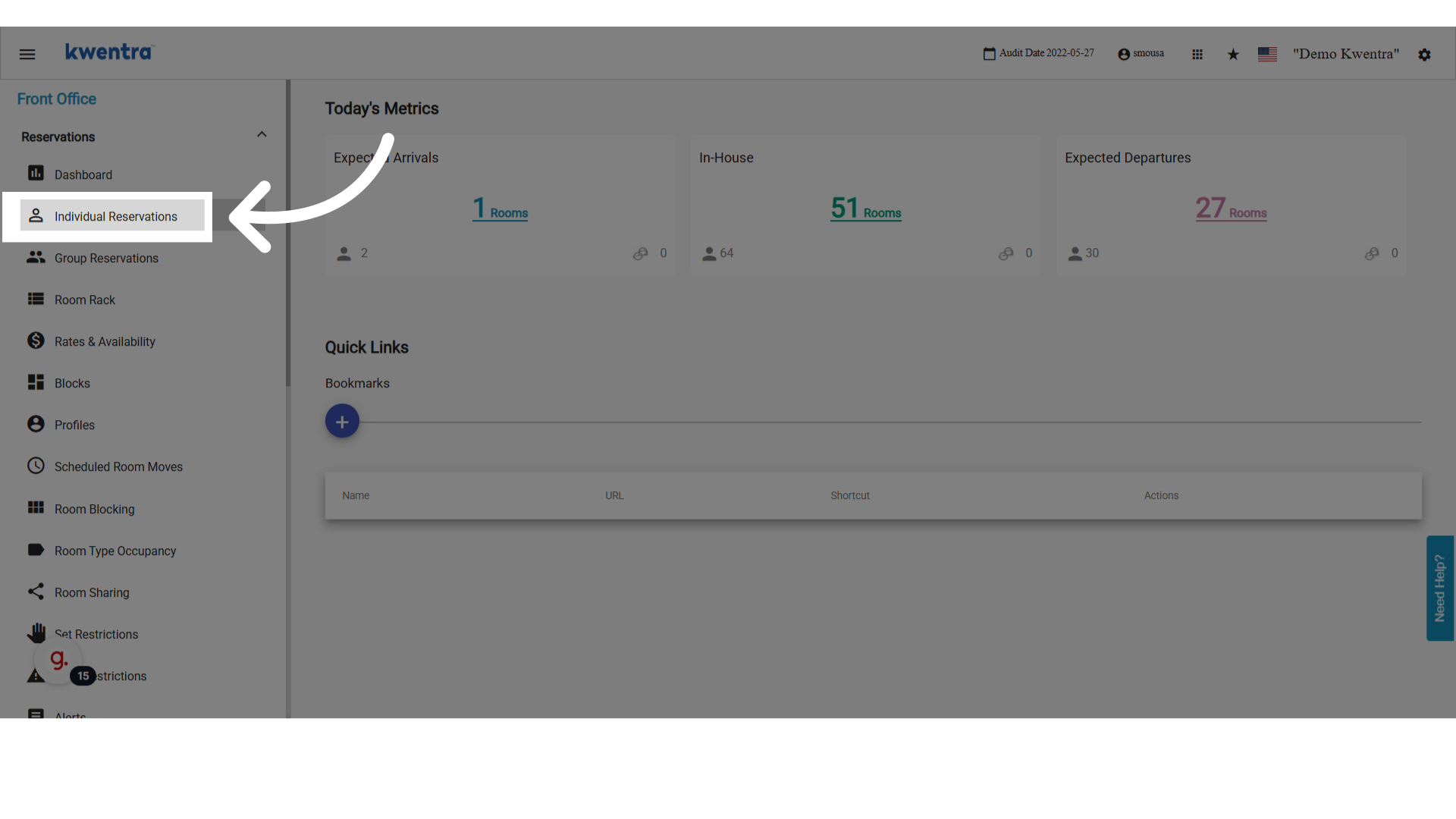
Go to Modules → Front Office → Individual Reservations.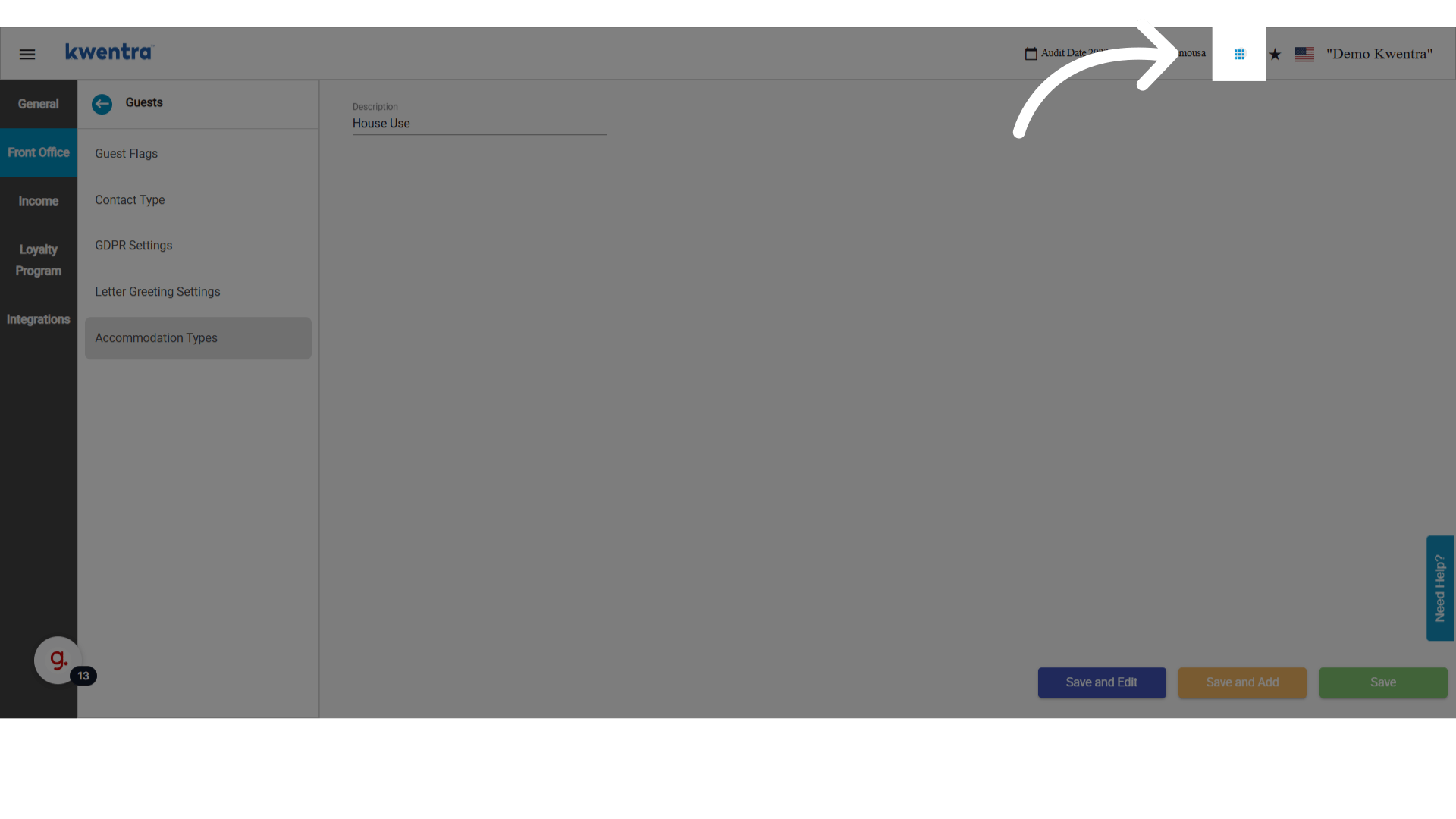
-
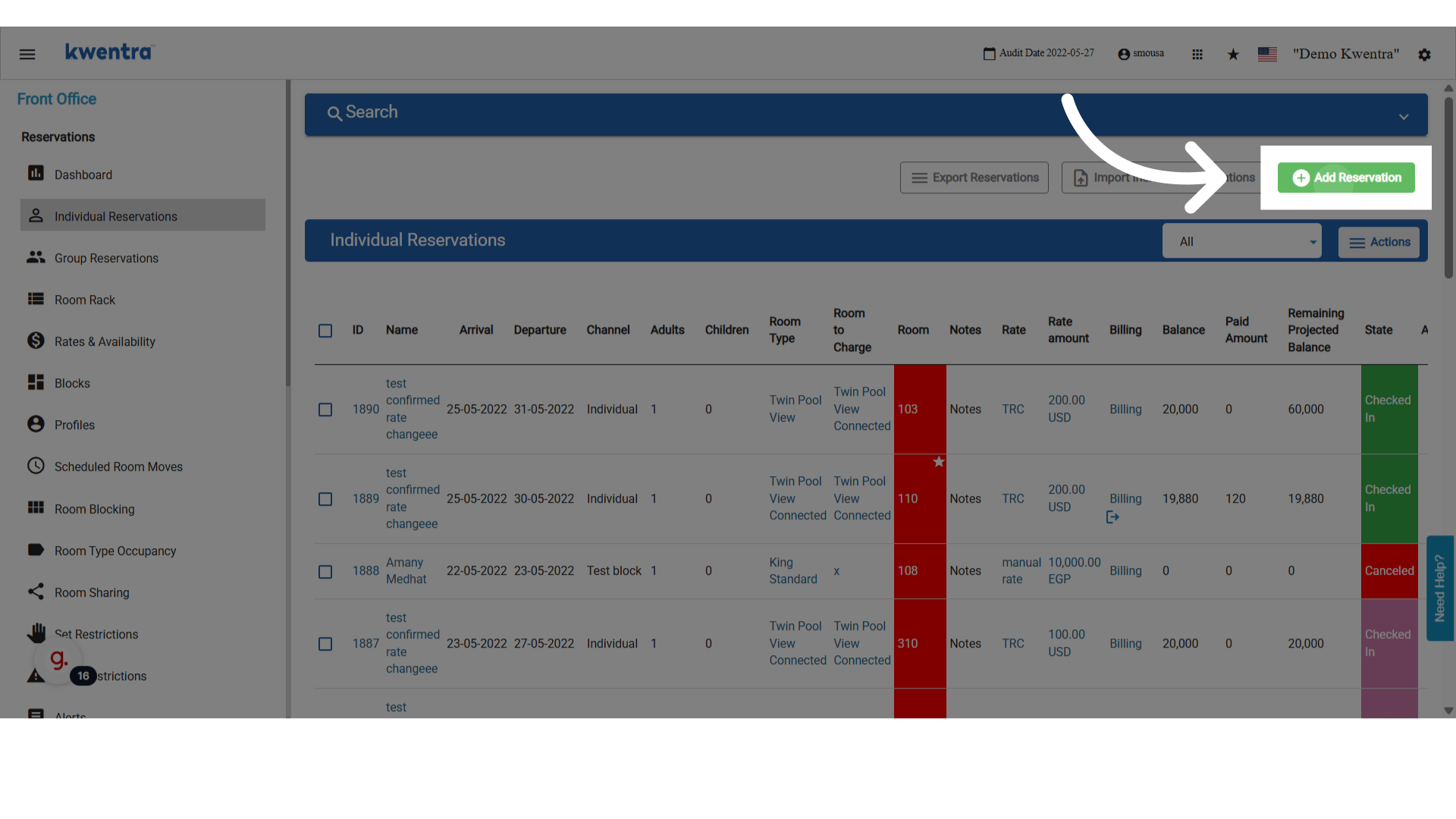
Click Add Reservation.
-
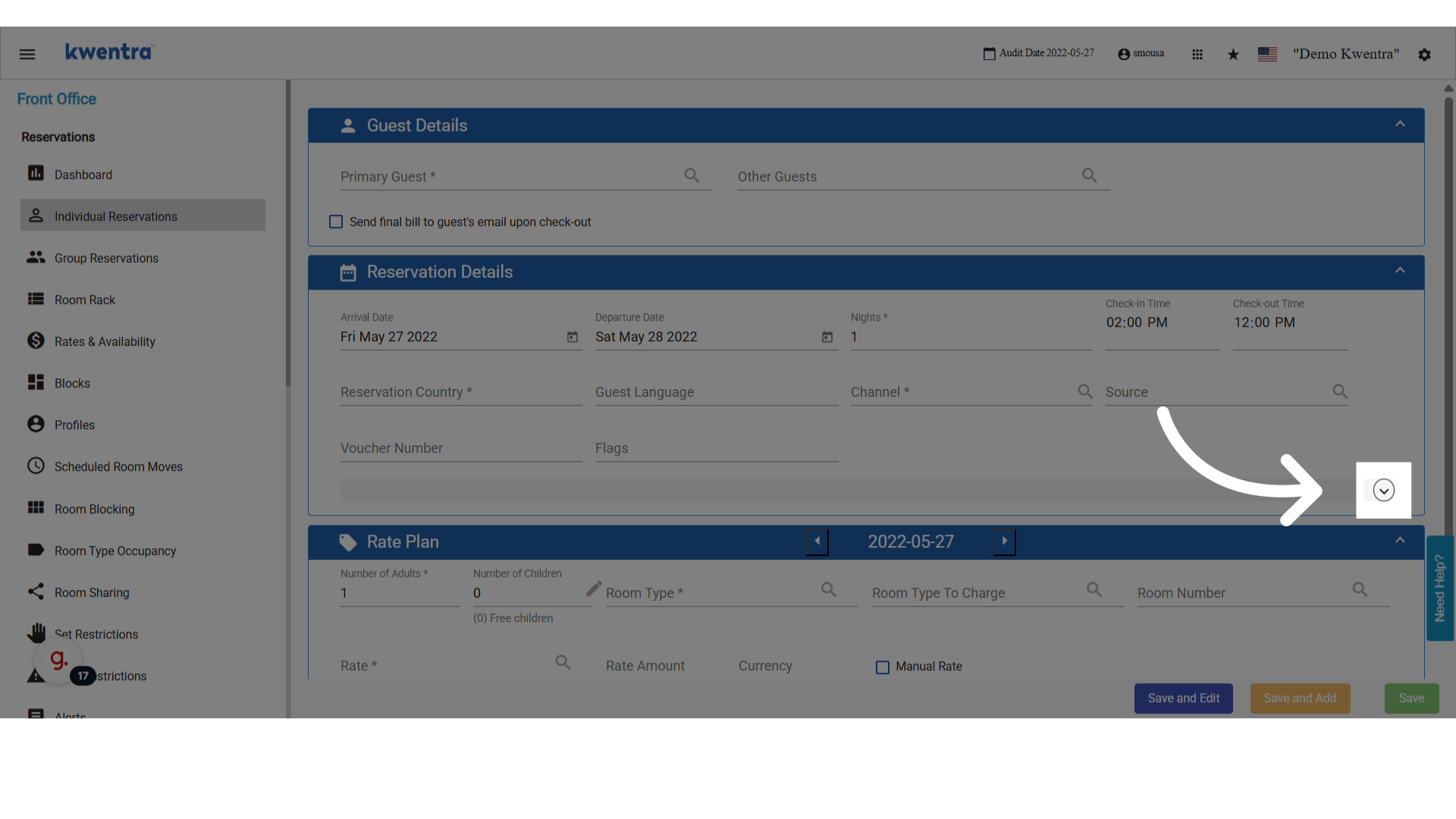
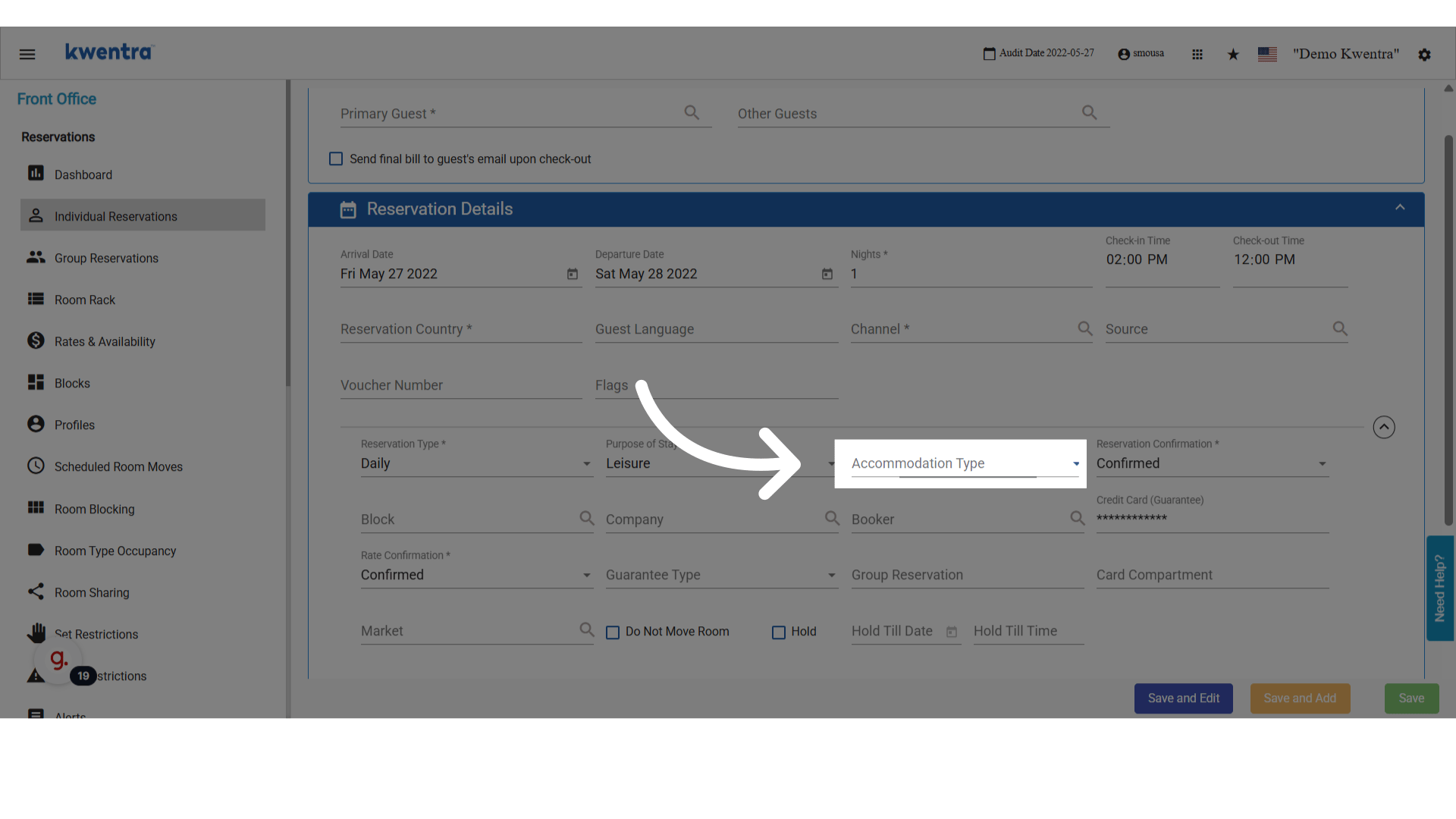
Unhide the extra fields to reveal the Accommodation Type selector.
-
Select one of your custom accommodation types from the dropdown.
View accommodation types in the Reservation List Report
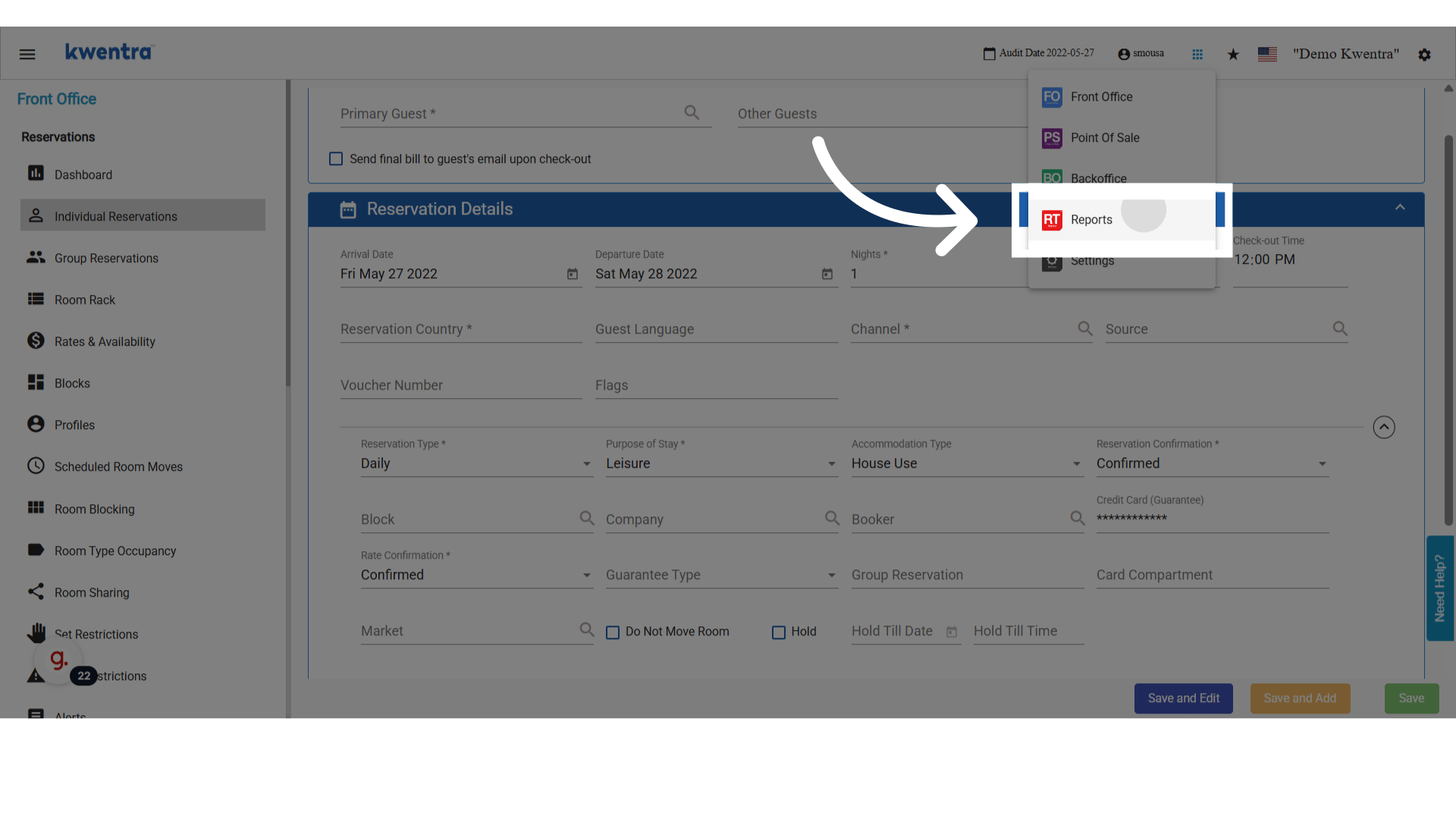
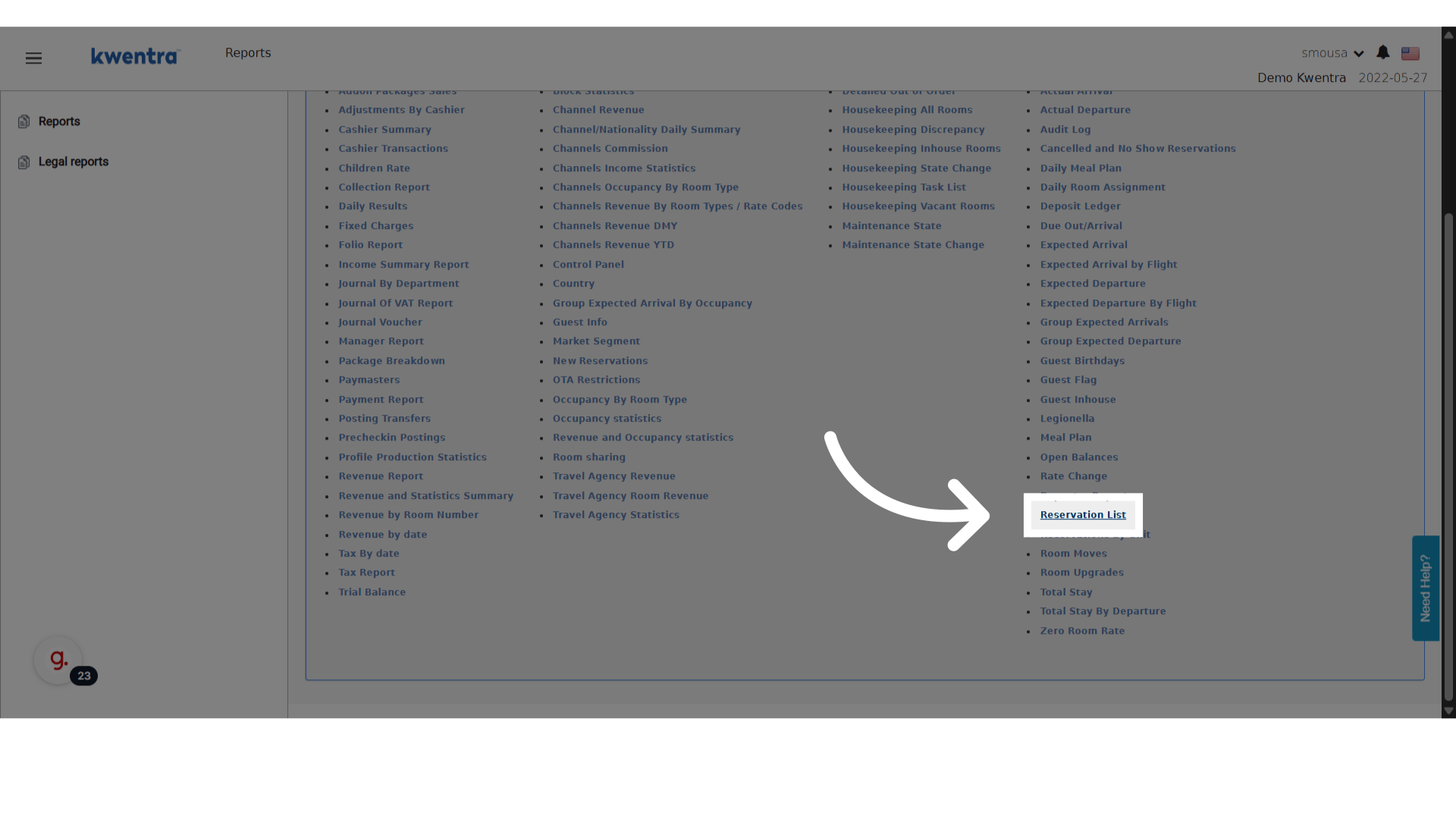
Go to Modules → Reports → Reservation List.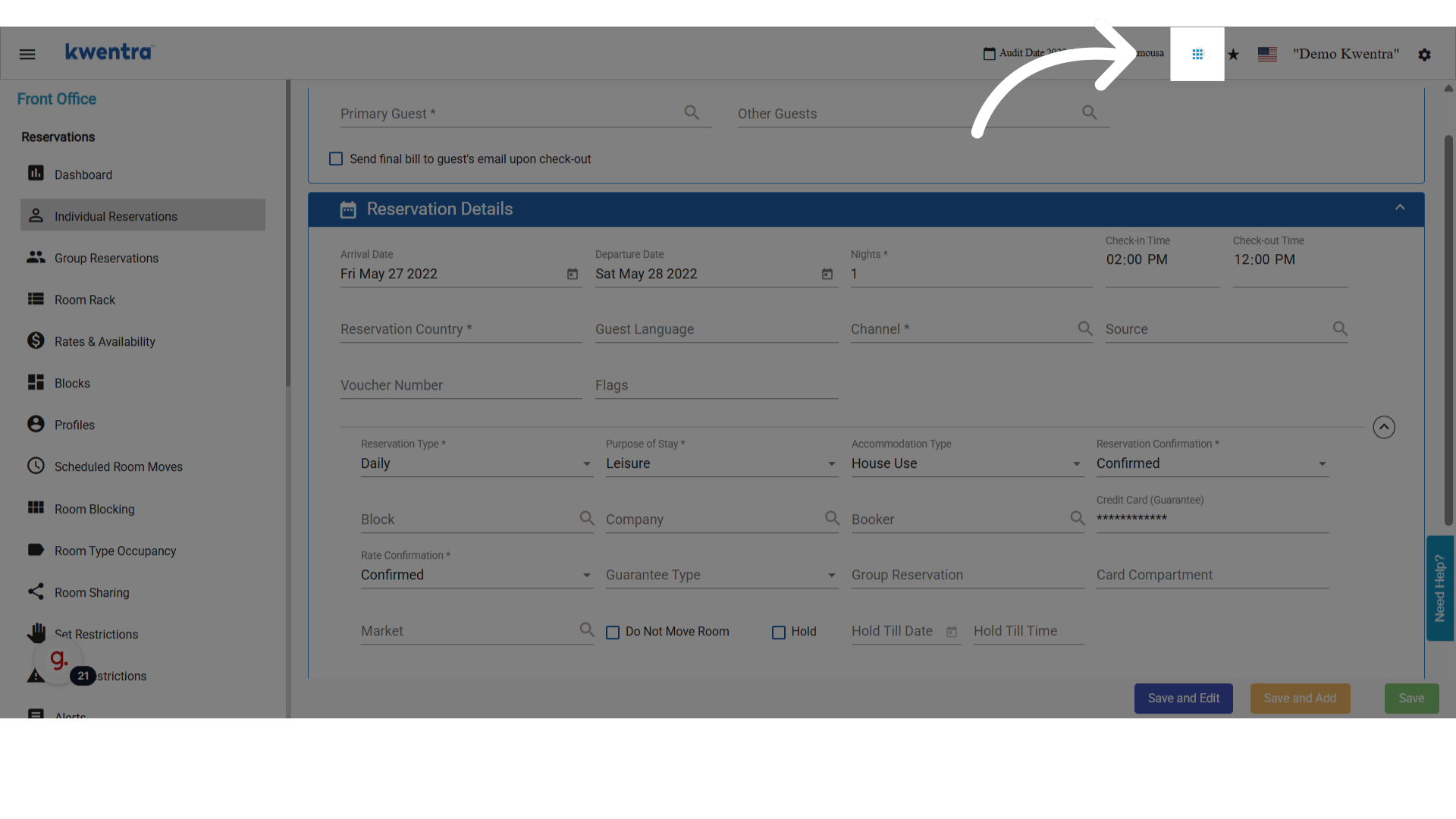
-
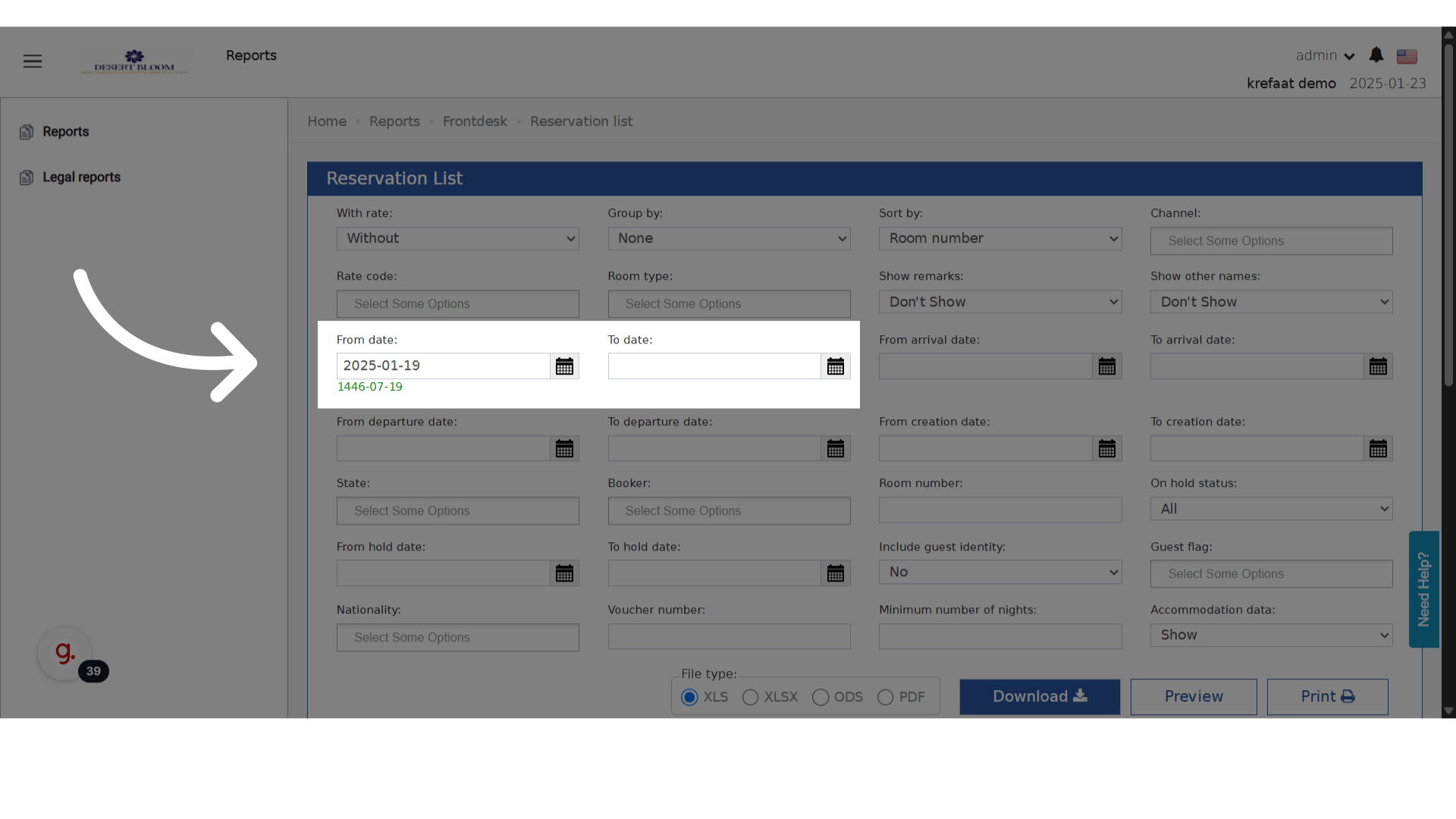
Choose your date range.
-
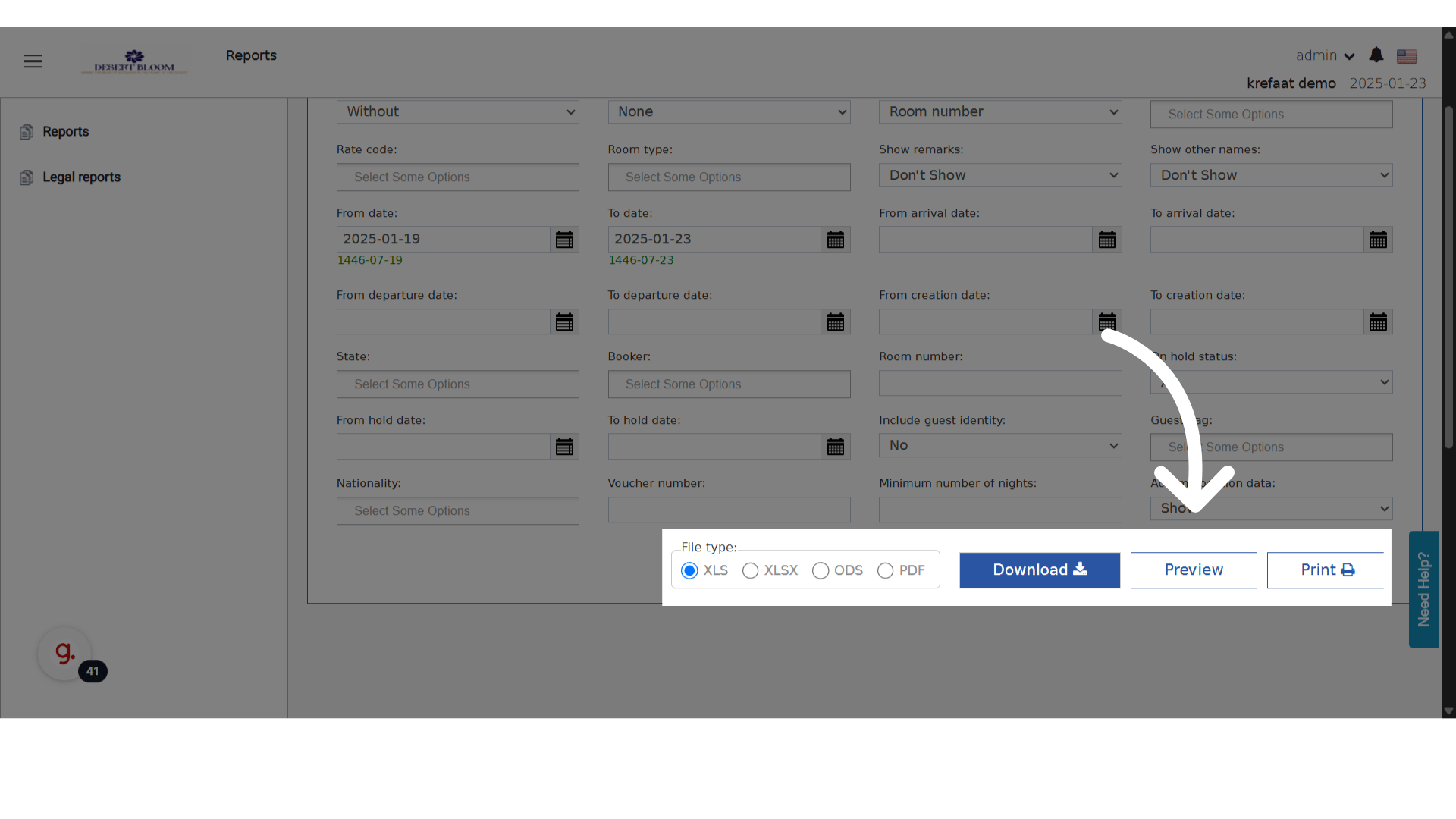
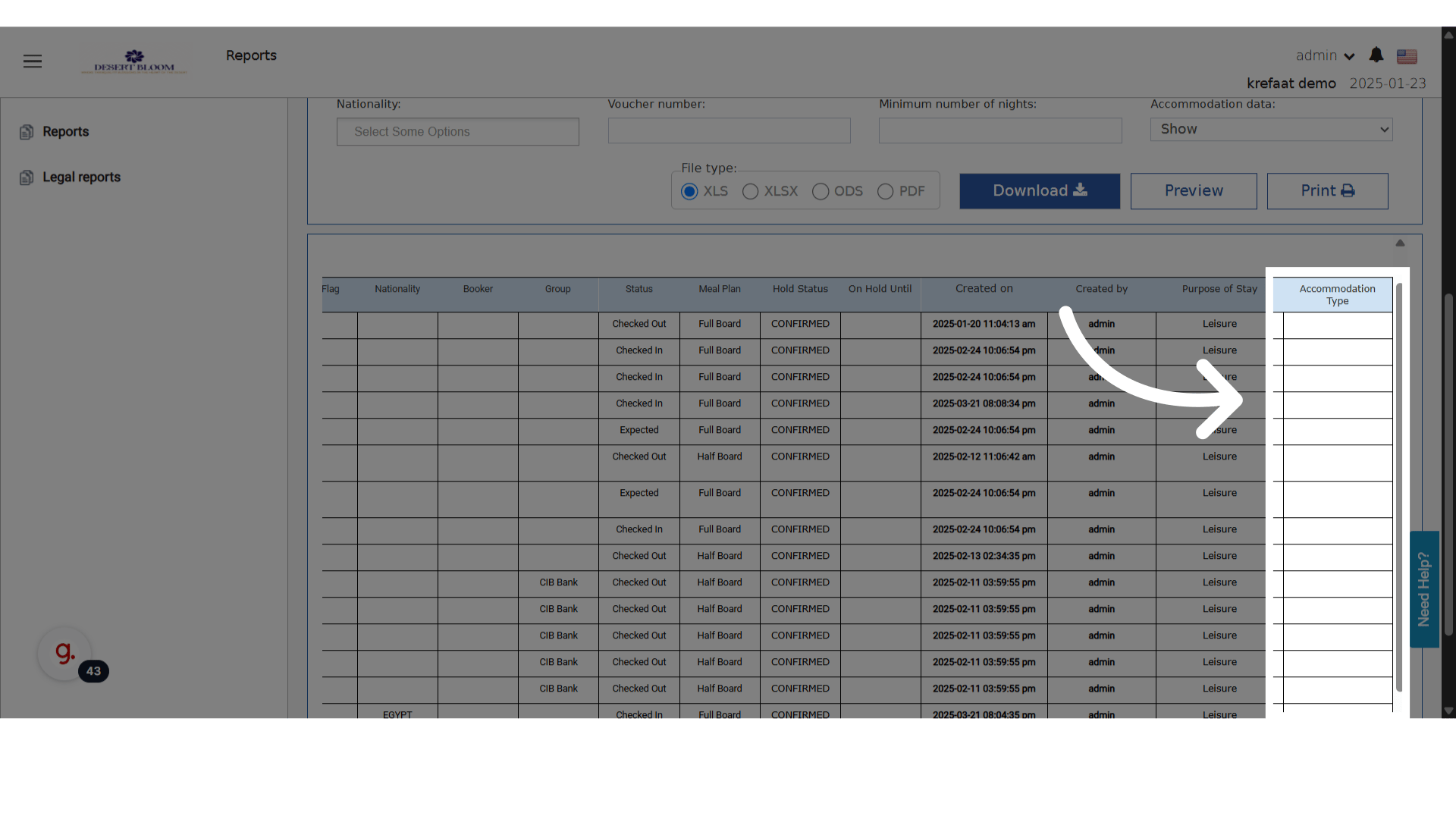
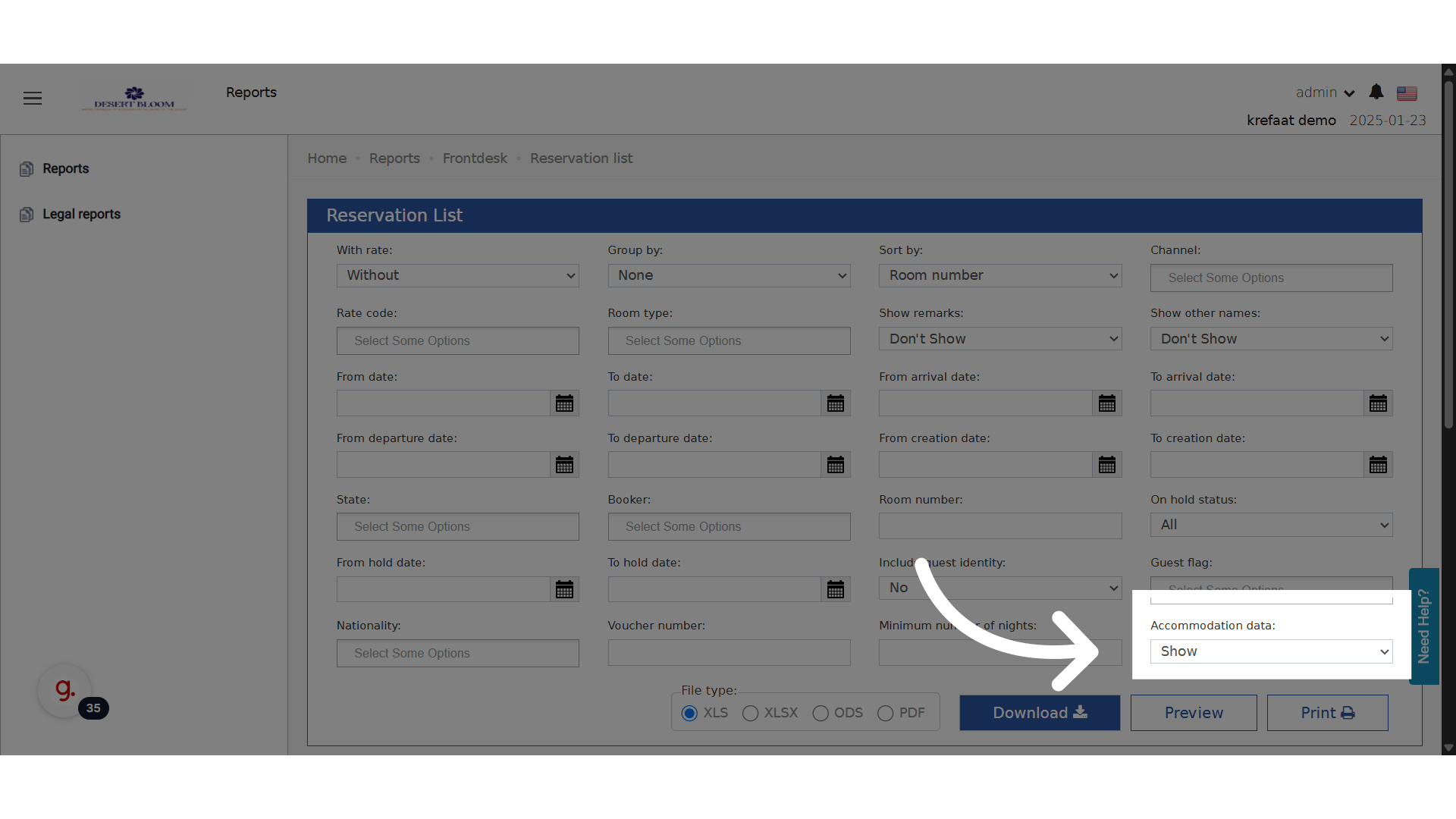
Enable Show Accommodation Data.
-
Generate the report preview.