Business Value
- Saves significant time by applying discounts to multiple reservations in one action
- Reduces the risk of missing reservations when applying group or promotional discounts
- Supports both percentage and fixed-amount discount types for flexible pricing
- Logs every bulk discount action in each reservation’s history for full auditability
Use Cases
- Revenue manager applies a 10% promotional discount to all reservations for a group — selects them all from the listing, uses Bulk Edit → Discount, and completes the task in seconds.
- Front desk agent applies a fixed-amount discount only to future unposted nights — the system automatically skips already-posted charges.
- Night auditor reviews which reservations received a bulk discount by checking the reservation history log.
How It Works
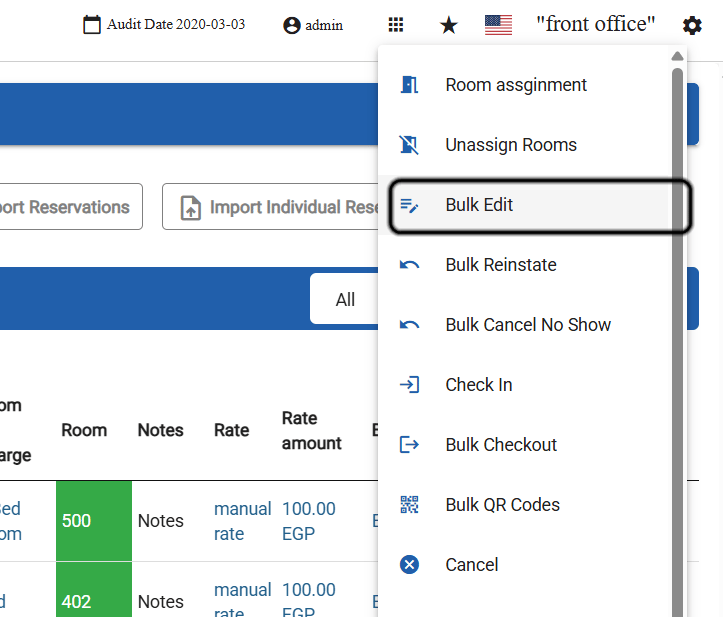
- In the Individual Reservations listing, select one or more reservations using the checkboxes.
- Click Actions and choose Bulk Edit.
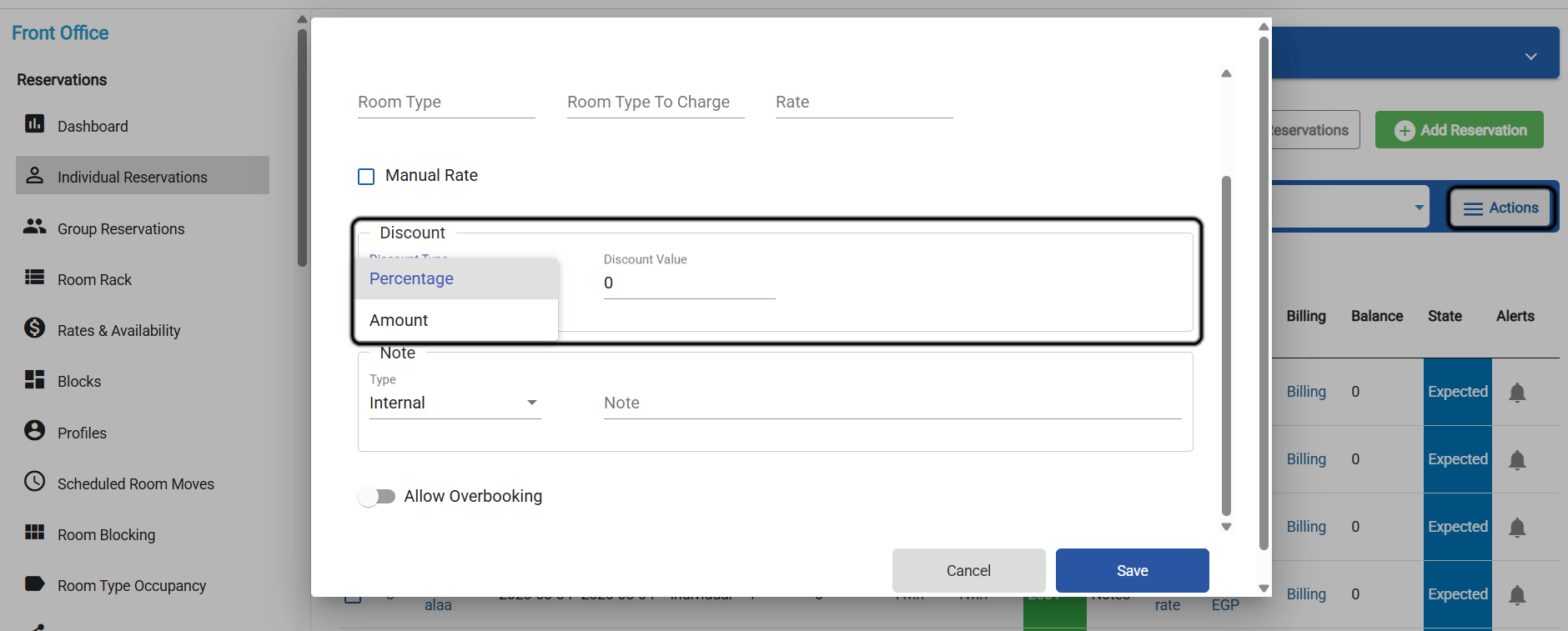
- In the Bulk Edit pop-up, select the Discount option.
- Set the Discount Type:
- Percentage (default) — enter a value between 0 and 100
- Amount — enter a fixed value that does not exceed the nightly rate of any night in any selected reservation
- Enter the Discount Value (default: 0).
- Confirm to apply. The system processes each reservation individually and displays the result per reservation.