

Business Value
- Reuses the original reservation for a late-arriving guest.
- Lets you choose whether to charge the missed first night.
- Restores many cancelled or no-show bookings in one step, with one reason.
- Lists the bookings that could not be restored, and why.
Use Cases
- A receptionist checks in a guest who arrived after the night turn.
- A front desk agent reinstates all cancelled reservations of a group.
- A reservations manager cancels No Show on several bookings whose guests arrived next morning.
How It Works
A No Show reservation is marked in yellow. It shows a Cancel No Show option.
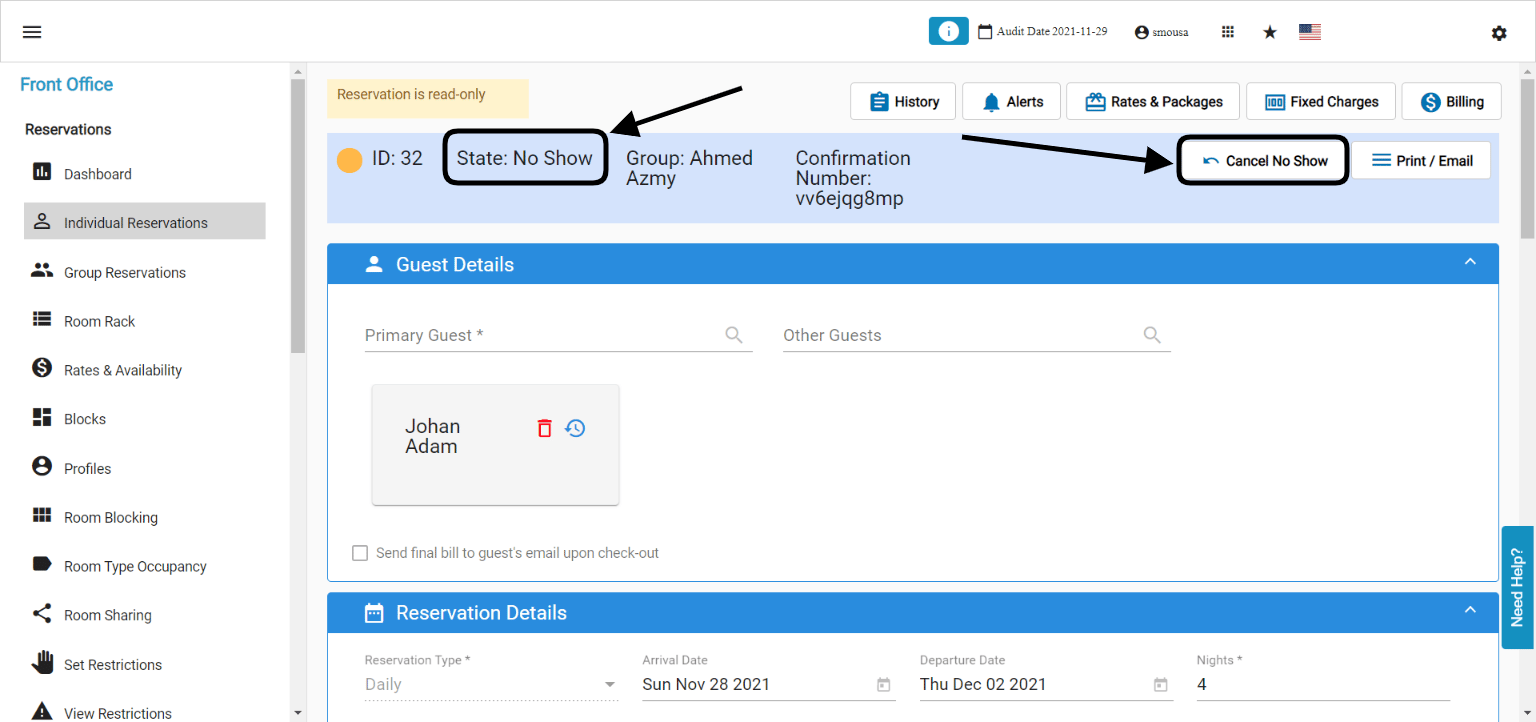
- Click Cancel No Show.
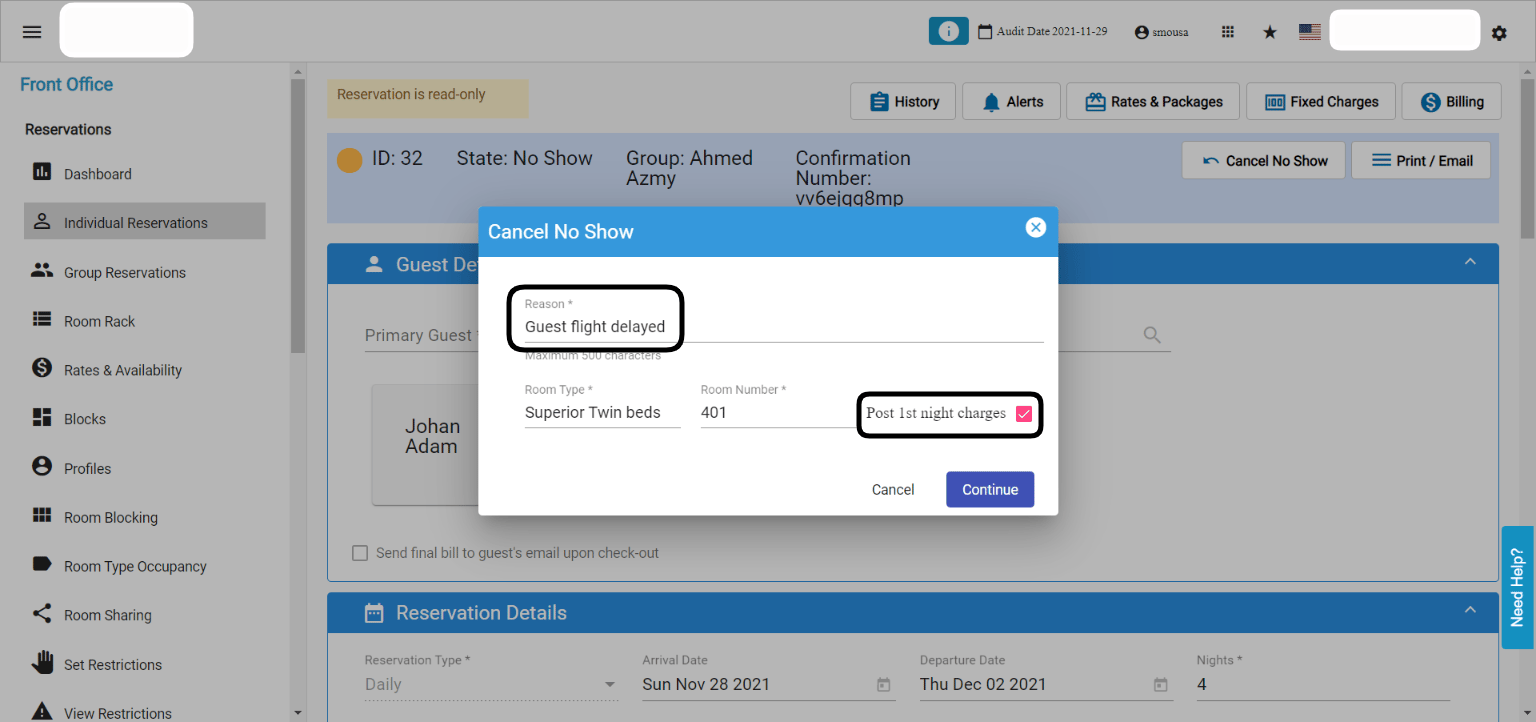
- Enter a reason.
- Tick Post 1st night charges only to charge the missed first night.
- Click Continue.
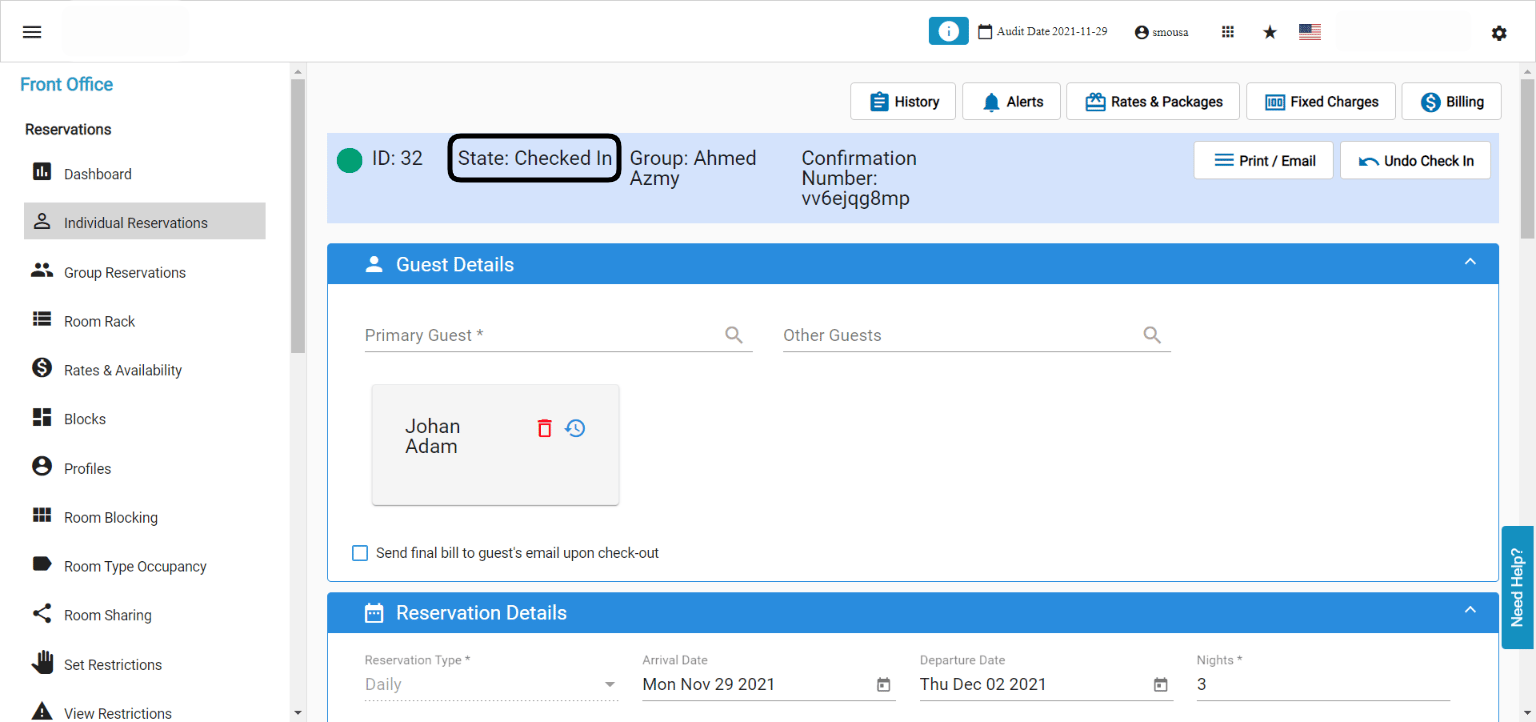
- Not every user can cancel No Show. To get access, contact support@kwentra.com.
- This works for the first No Show night only.
- If the guest arrives two days later, create a new reservation instead.
Bulk Reinstate and Cancel No Show
Reinstate Cancelled Reservations
- Select several Cancelled reservations.
- Click Actions → Reinstate.
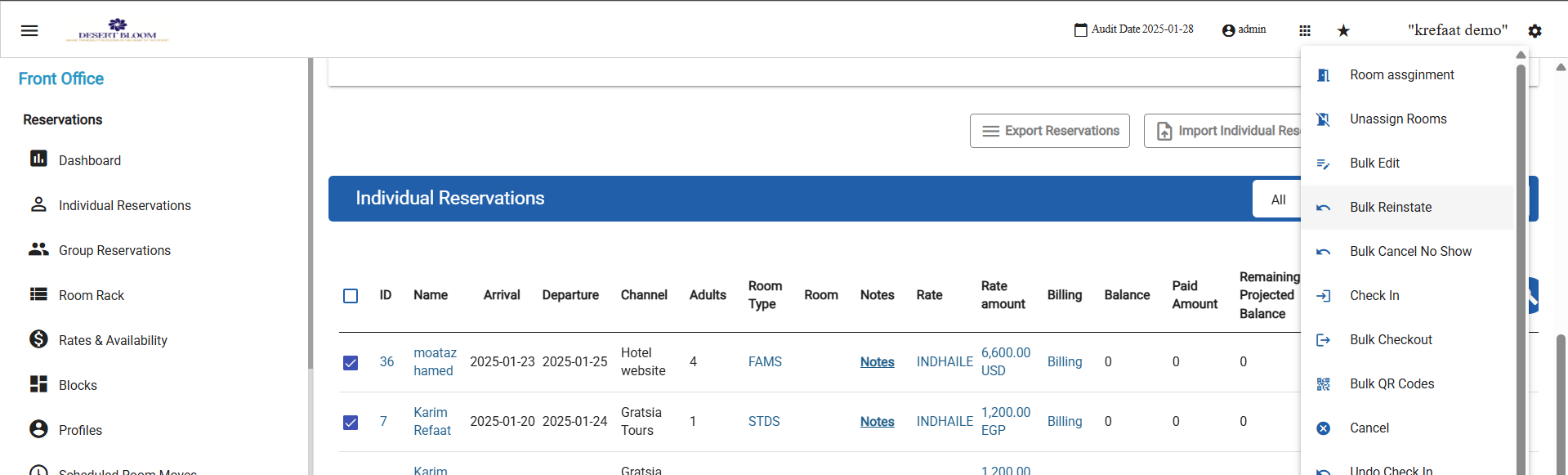
- Enter one reason. It applies to all selected bookings.
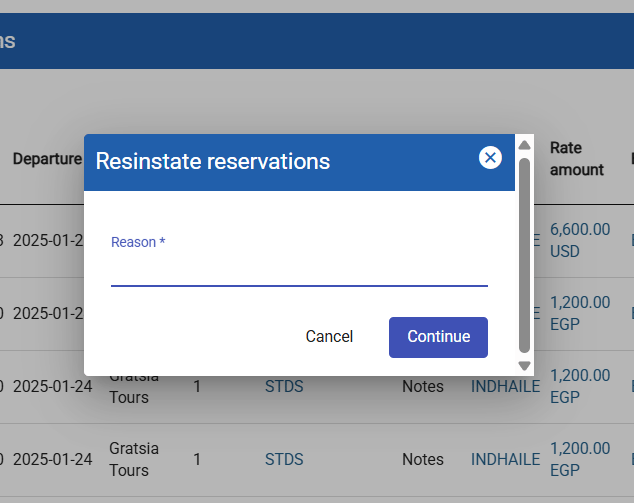
- Eligible bookings change to Expected.
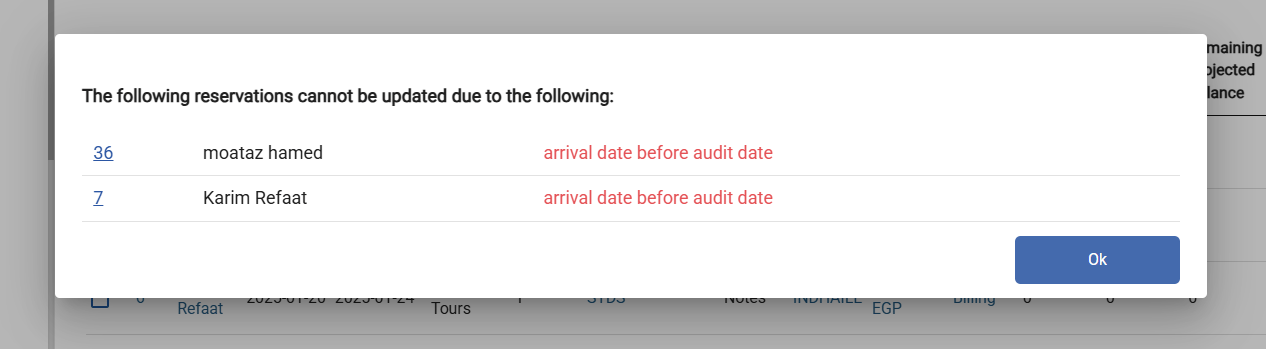
- A booking with an arrival date before the audit date is not reinstated.
Cancel No Show in Bulk
- Select several No Show reservations.
- Click Actions → Cancel No Show.
- Enter a reason. It is required.
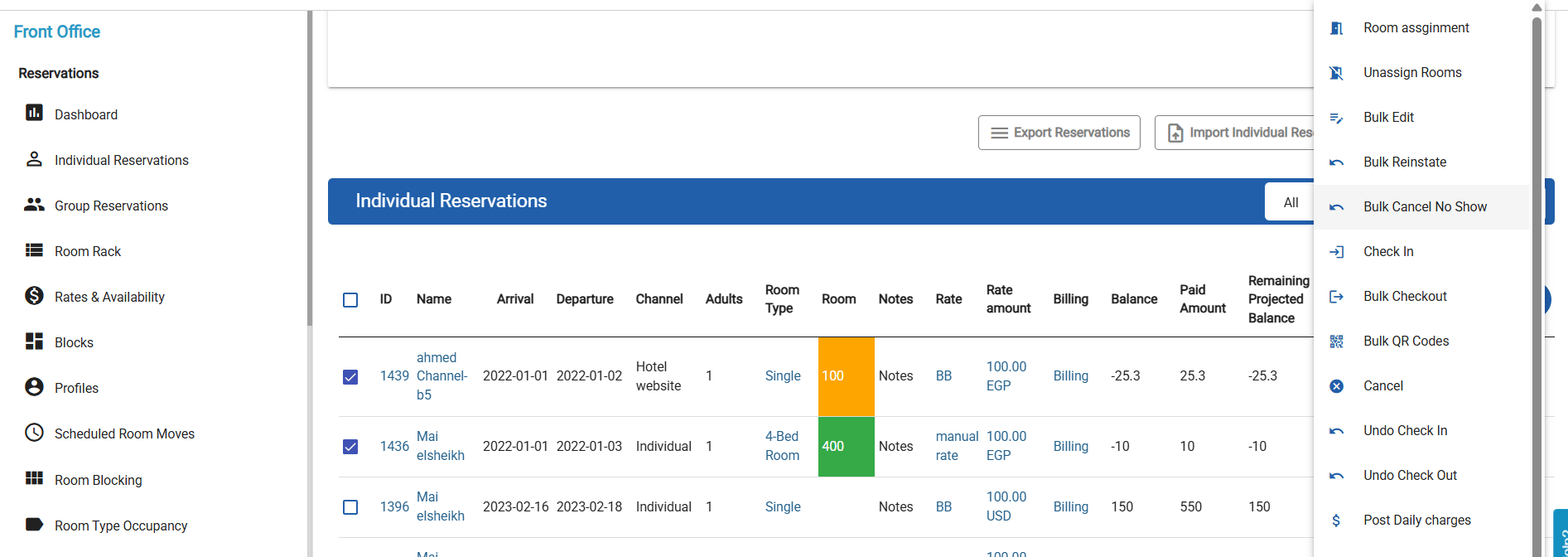
- Each booking’s arrival date is set to today.
- Each booking changes to Expected.
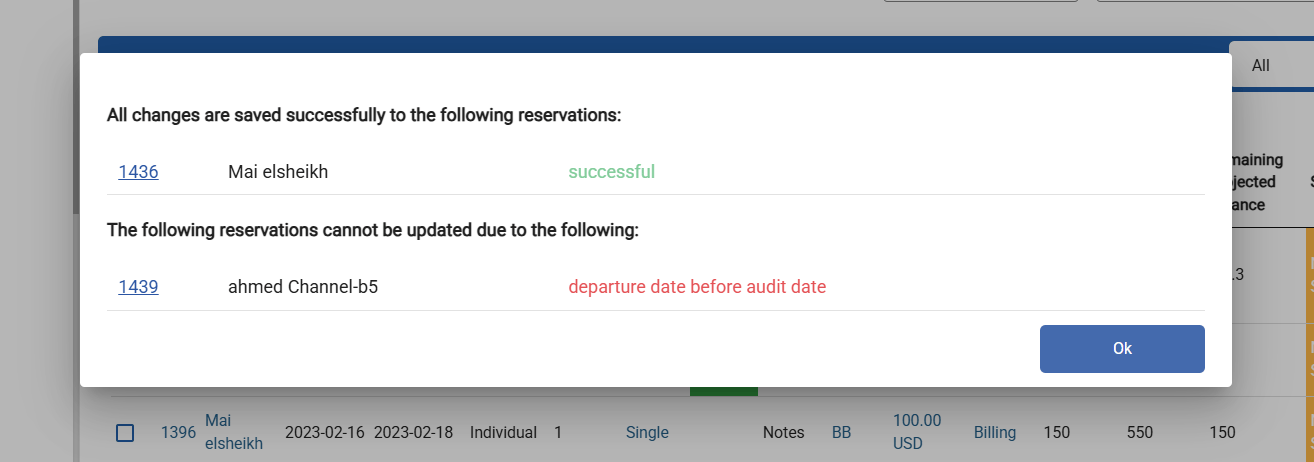
- A booking with a departure date before the audit date is not changed.
Results
A pop-up confirms the update. It lists every booking that was not updated, with:- The reservation ID, as a link.
- The guest name.
- The exact reason, such as Arrival date before audit date.