Business Value
- Share folios with guests instantly through WhatsApp without leaving the system.
- Copy a public folio link to the clipboard to share it through any channel.
- Auto-fills the guest’s mobile number from the main guest profile for individual reservations.
- Saves a manually entered mobile number back to the guest profile automatically.
- Permission-controlled — only users who can view folios can generate the link.
Use Cases
- Front desk cashier opens a guest’s folio and sends the link over WhatsApp to the main guest’s saved mobile number in one click.
- Cashier copies the public folio link and pastes it into an existing guest conversation.
- Cashier handling a Paymaster enters the recipient’s mobile number directly in the share dialog to send the folio.
How It Works
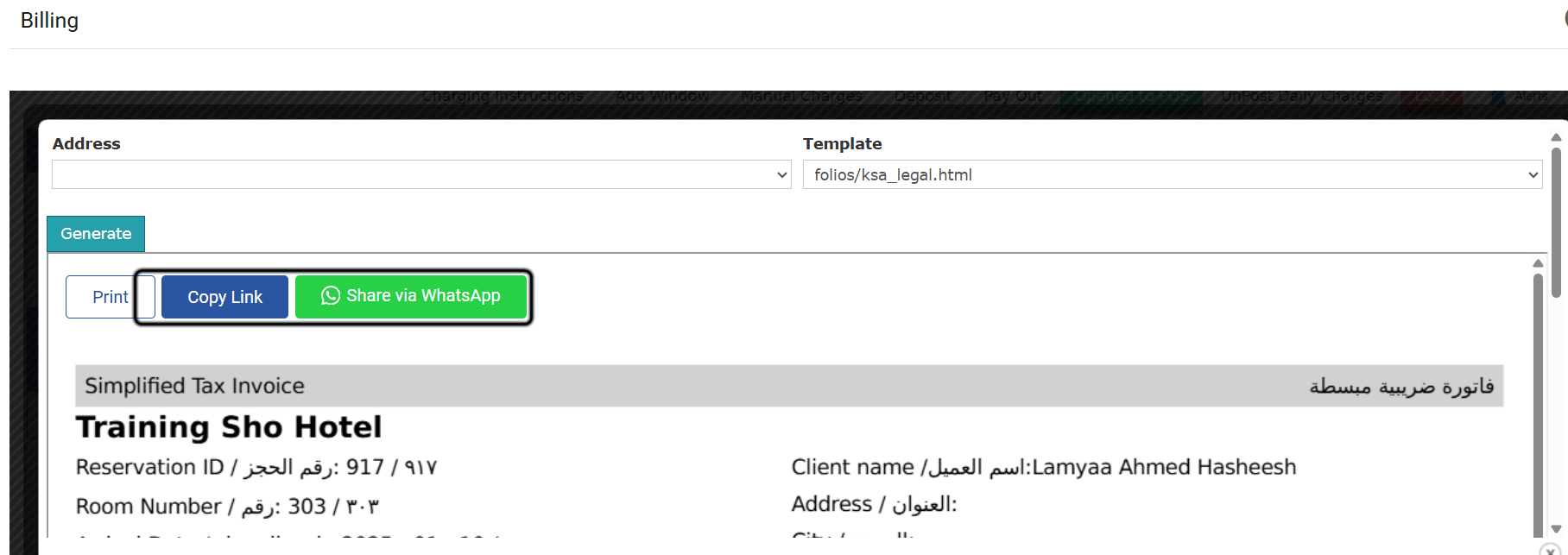
| Where: Front Office → Individual Reservations → [Open Reservation] → Billing → Tools → Folio | | Front Office → Income → Folios → [Selected Folio] |Copy Public Link
When viewing a folio, click Copy Link to copy the public folio link to your clipboard. The link is generated when you click Copy Link or Share via WhatsApp.Share via WhatsApp
Click Share via WhatsApp to open WhatsApp in a new tab with the folio link ready to send.- Individual reservation: The number is taken from the main guest profile’s Mobile field. If Mobile is empty, the system checks the Telephone field. If both are empty, you’re prompted to enter a Mobile Number and click Save & Send — the number is saved back to the main guest profile automatically.
- Group reservation or Paymaster: A Mobile Number field is shown so you can enter the number that should receive the WhatsApp message.