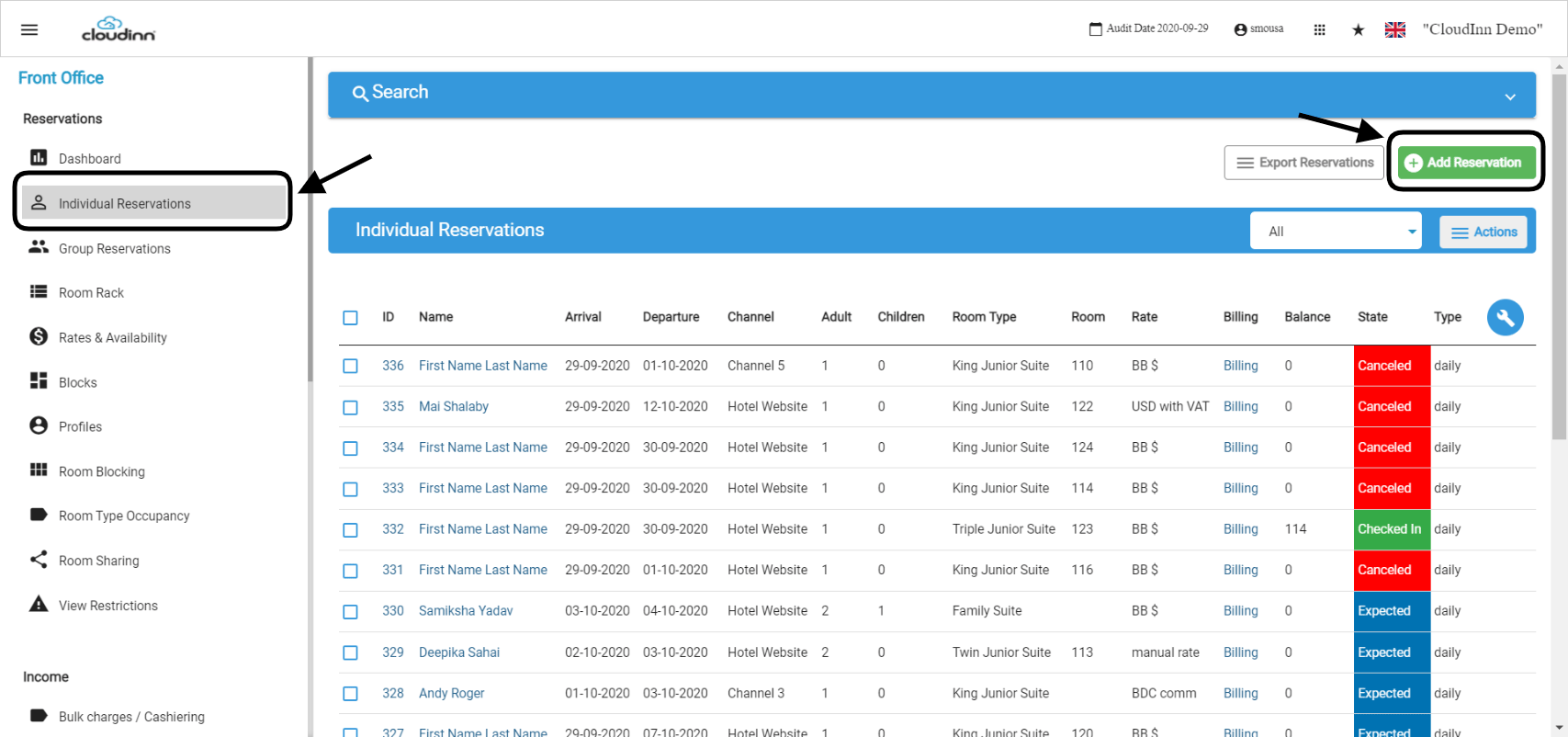
To add an individual reservation for 1 room from our new front office simply navigate to the below URL and follow the instructions: Front Office → Individual Reservations → Add NewDocumentation Index
Fetch the complete documentation index at: https://help.kwentra.com/llms.txt
Use this file to discover all available pages before exploring further.
There are 3 main sections in the screen you will get that has mandatory information to fill in order to finalize your reservation:
- Guest Details
- Reservation Details
- Rate Plan
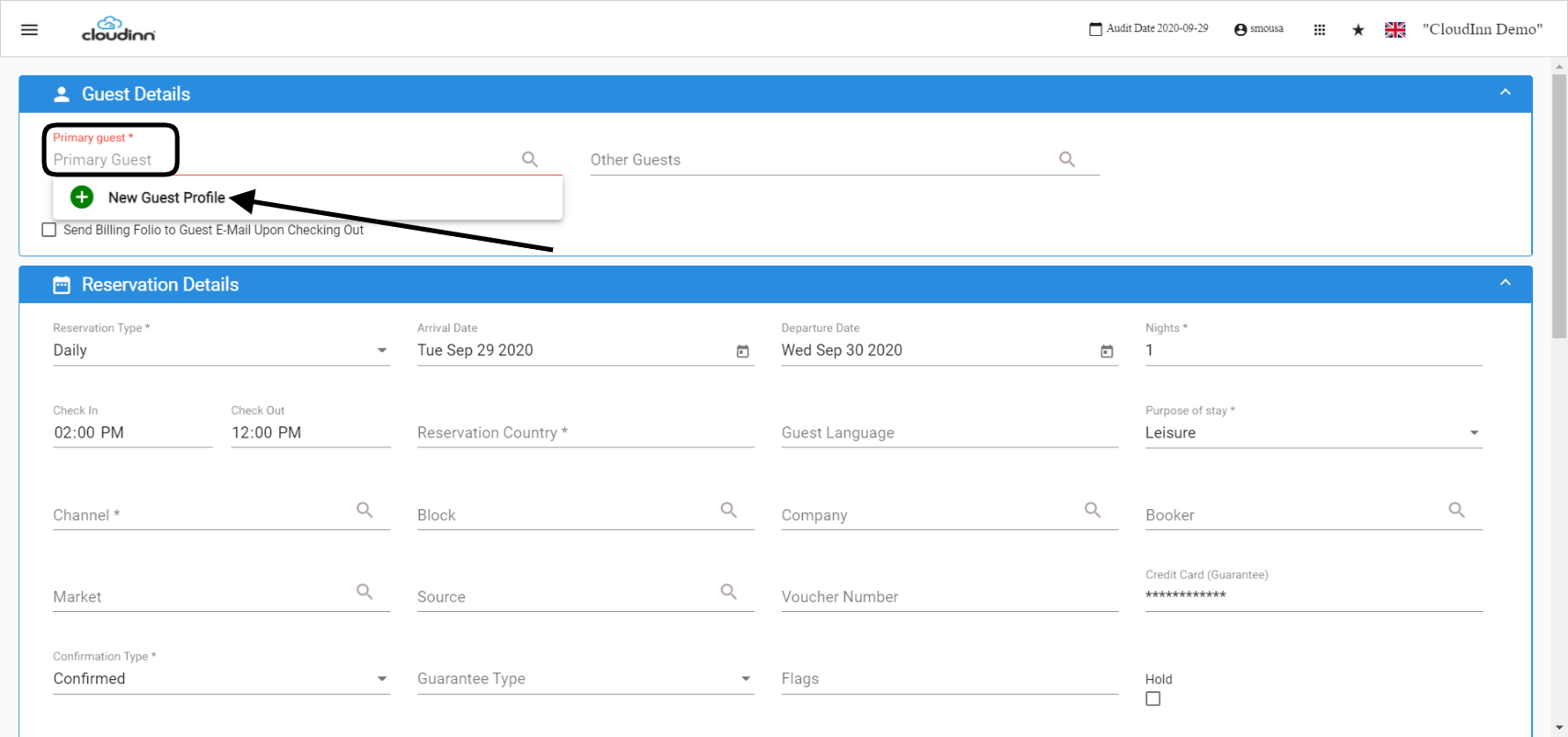
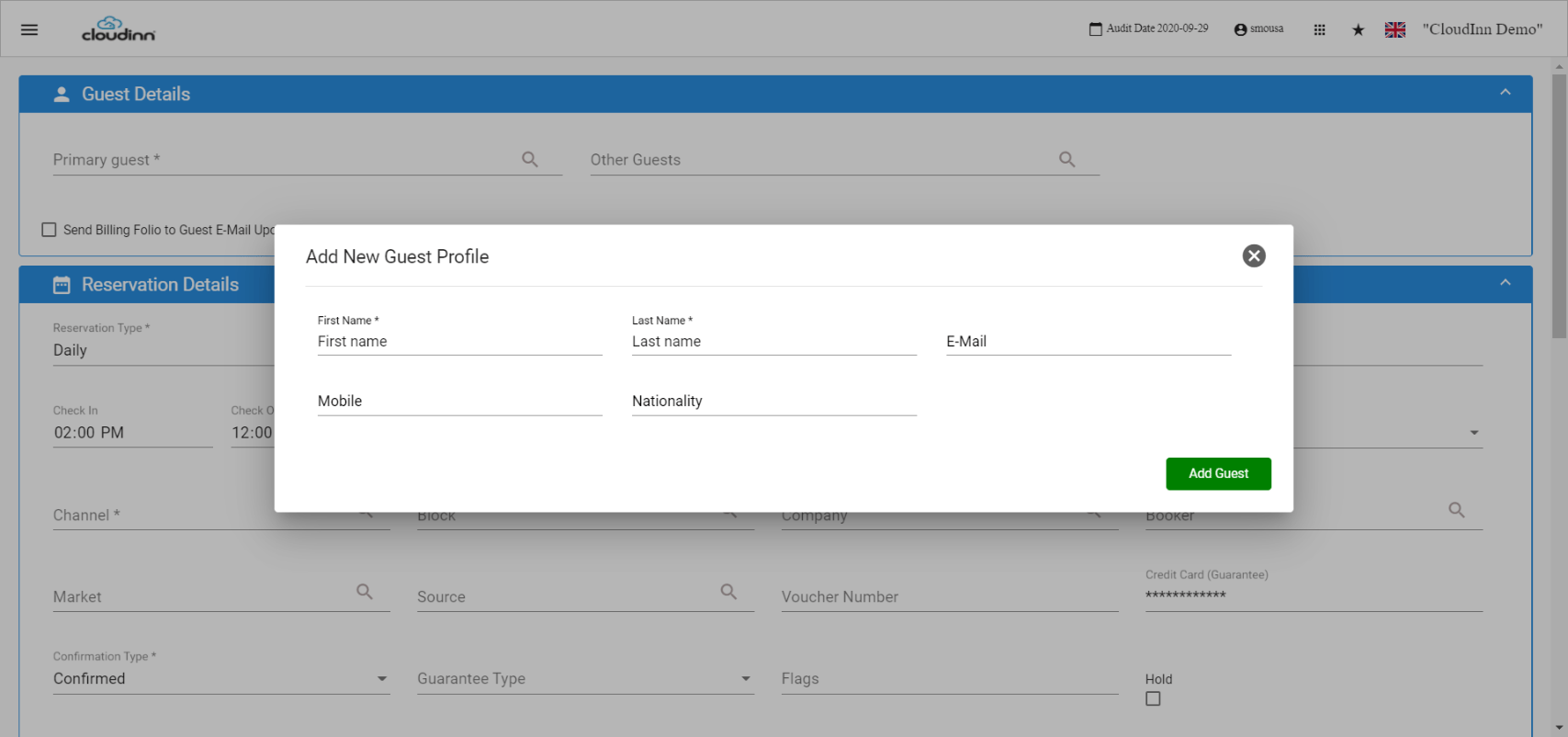
All you need to add a new guest to your database is the first and last name, you can add the remaining information as reference later.
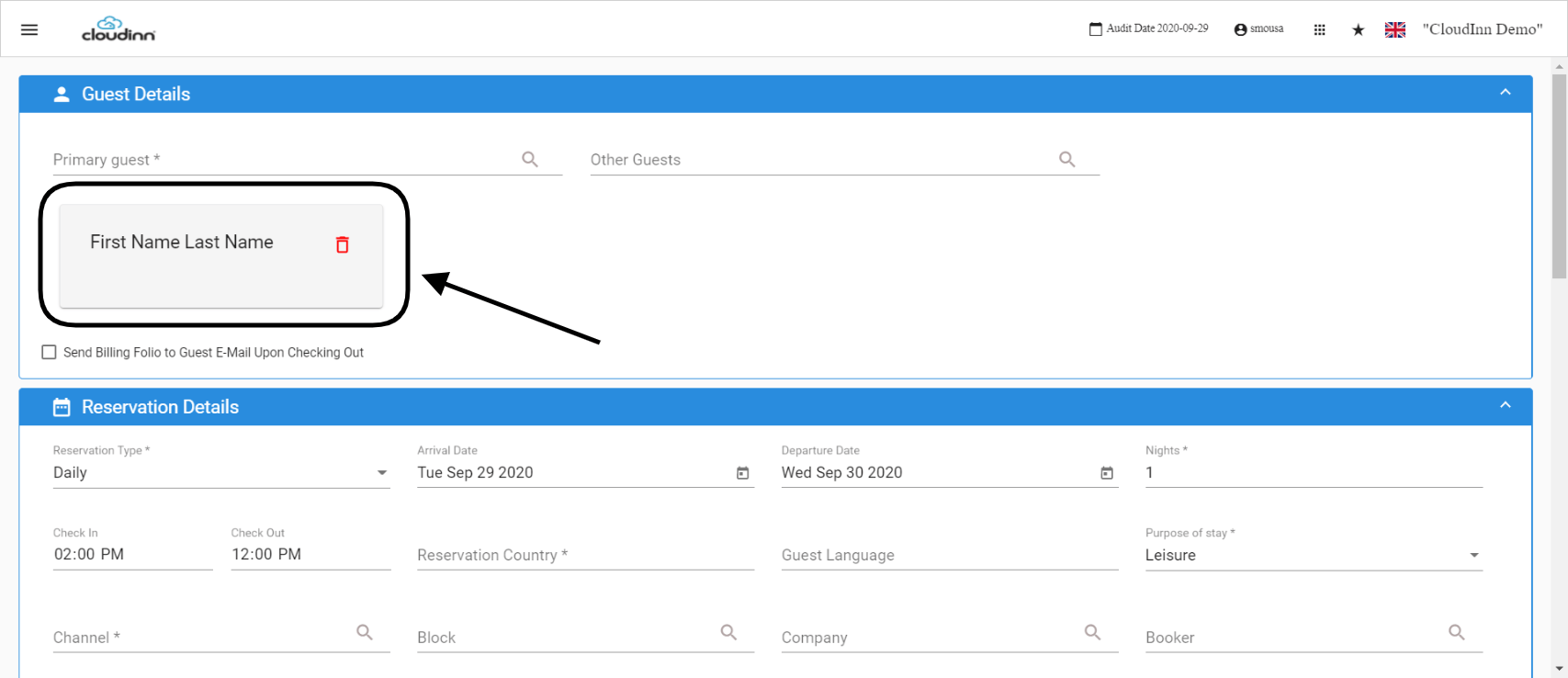
Once the guest is added you can see their details on the reservation, clicking on the guest card will open the full profile for info update continuity.
Reservation Details:
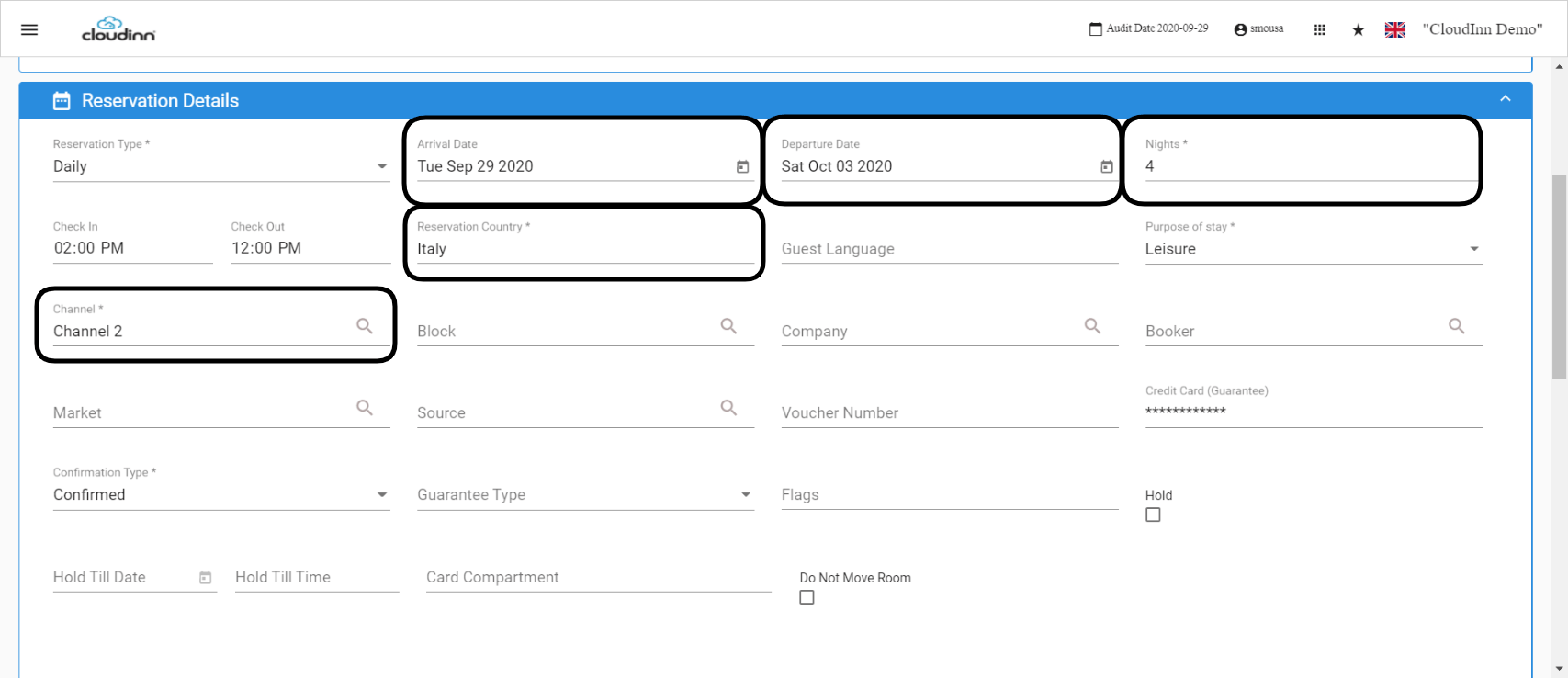
The mandatory information to finalize the reservation details section are below:
- Arrival & Departure Dates
- Reservation Country: Which country is this reservation coming from.
- Channel: the source of booking i.e. Walk In, Call In, E-mail etc.
Update: 27th of February, 2022
Selecting the Channel will automatically populate the source and market that they are linked to in order to enhance your reporting and segmentation for each reservation.
Rate Plan:
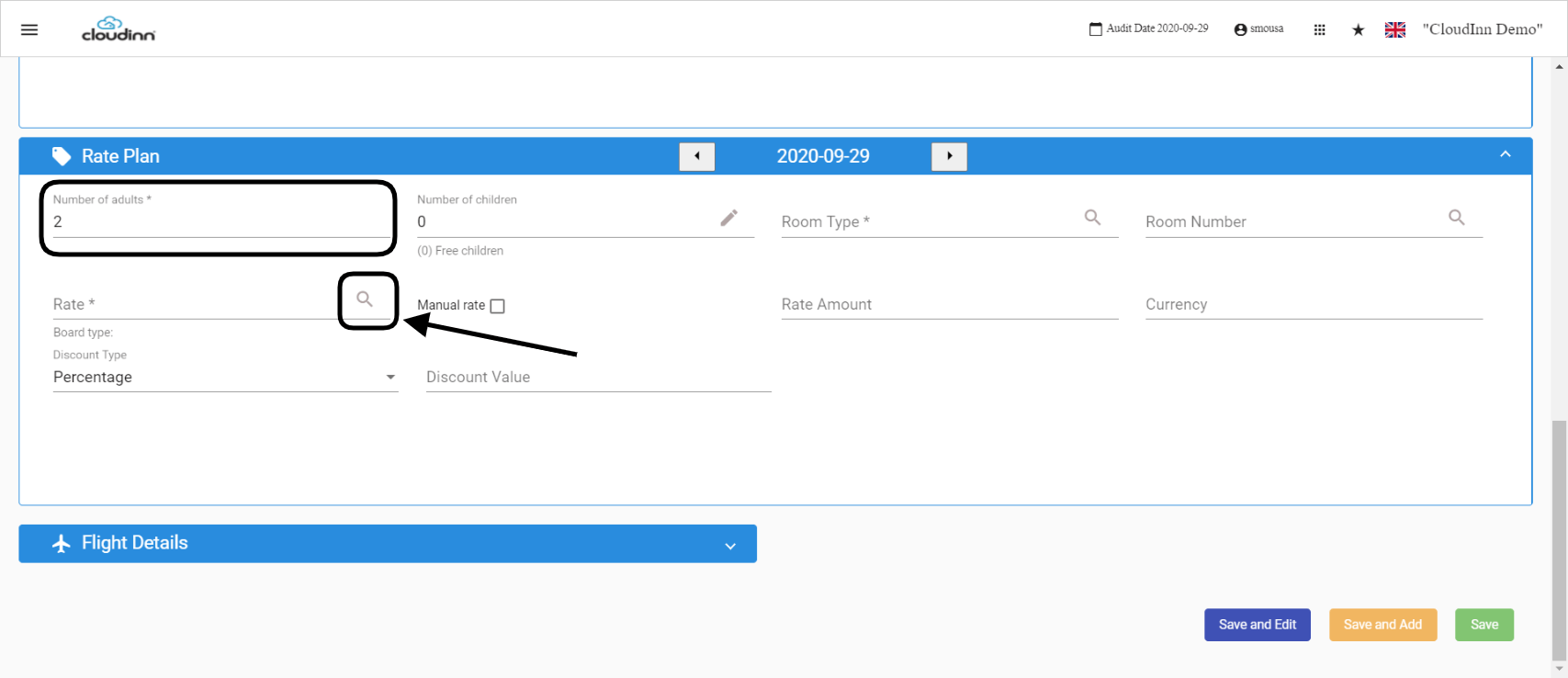
In the Rate Plan section all you need to do is adjust the number of adults and children to correctly calculate the room charges.
Click on the magnifying glass next to the Rate Field to select the room type and its charge automcatically.
Selecting a Room Type & Rate:
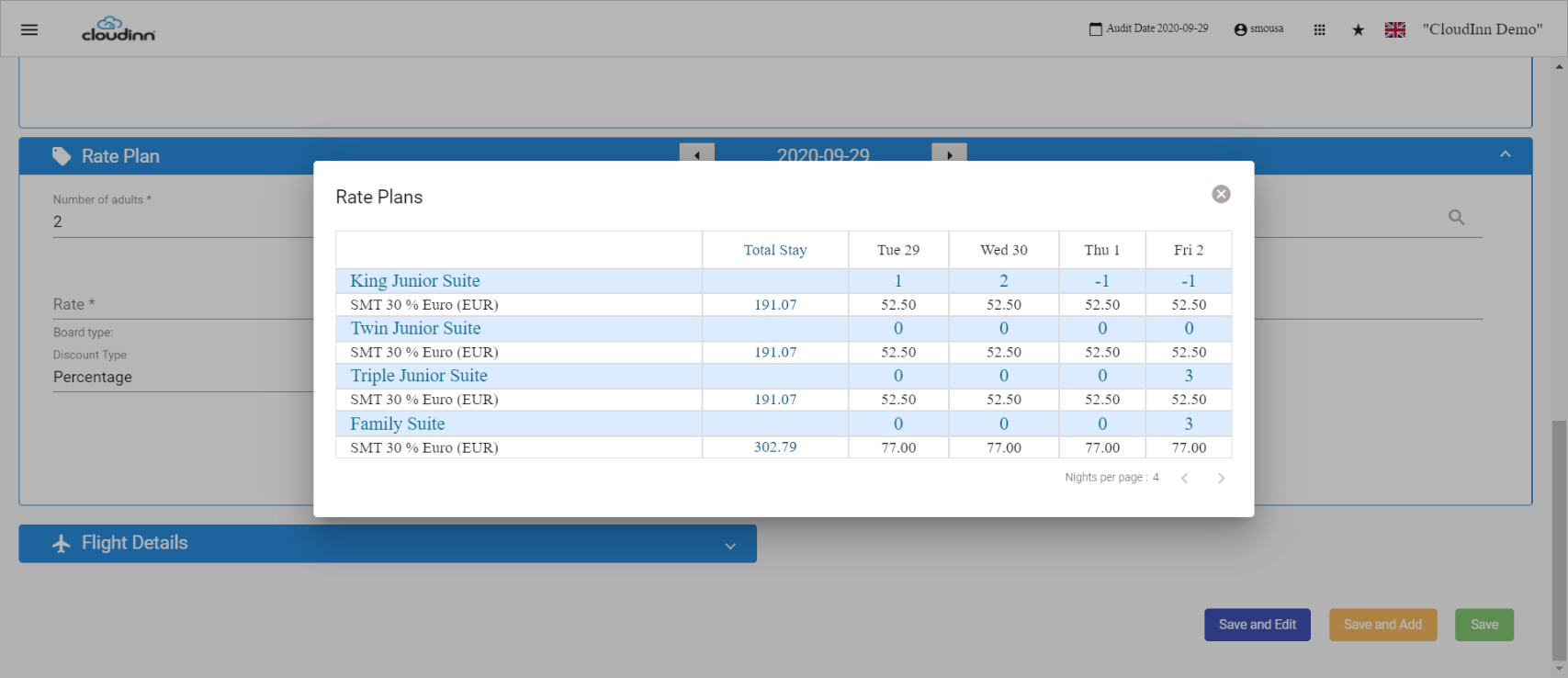
The Rate Plans Pop-up gives you each room type your hotel is offering, its charge per night and the total charge for the reservation dates you selected resepecting the number of adults/children on the reservation.
Clicking on the rate will directly select the charges and add it to the reservation.
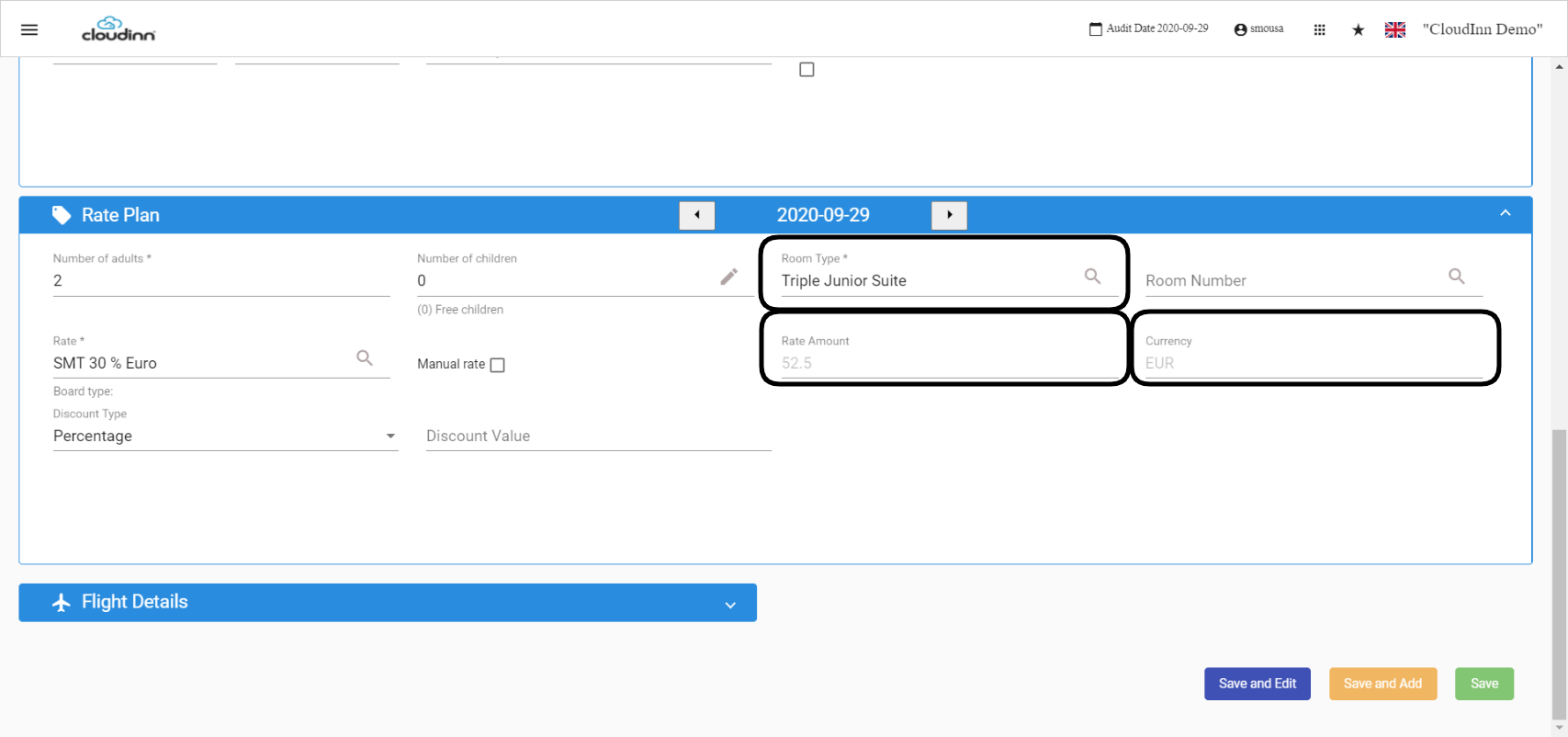
After Selecting the Rate you will find that the room type, rate amount per night and the currency are added automatically and cannot be edited.
What is a Manual Rate?
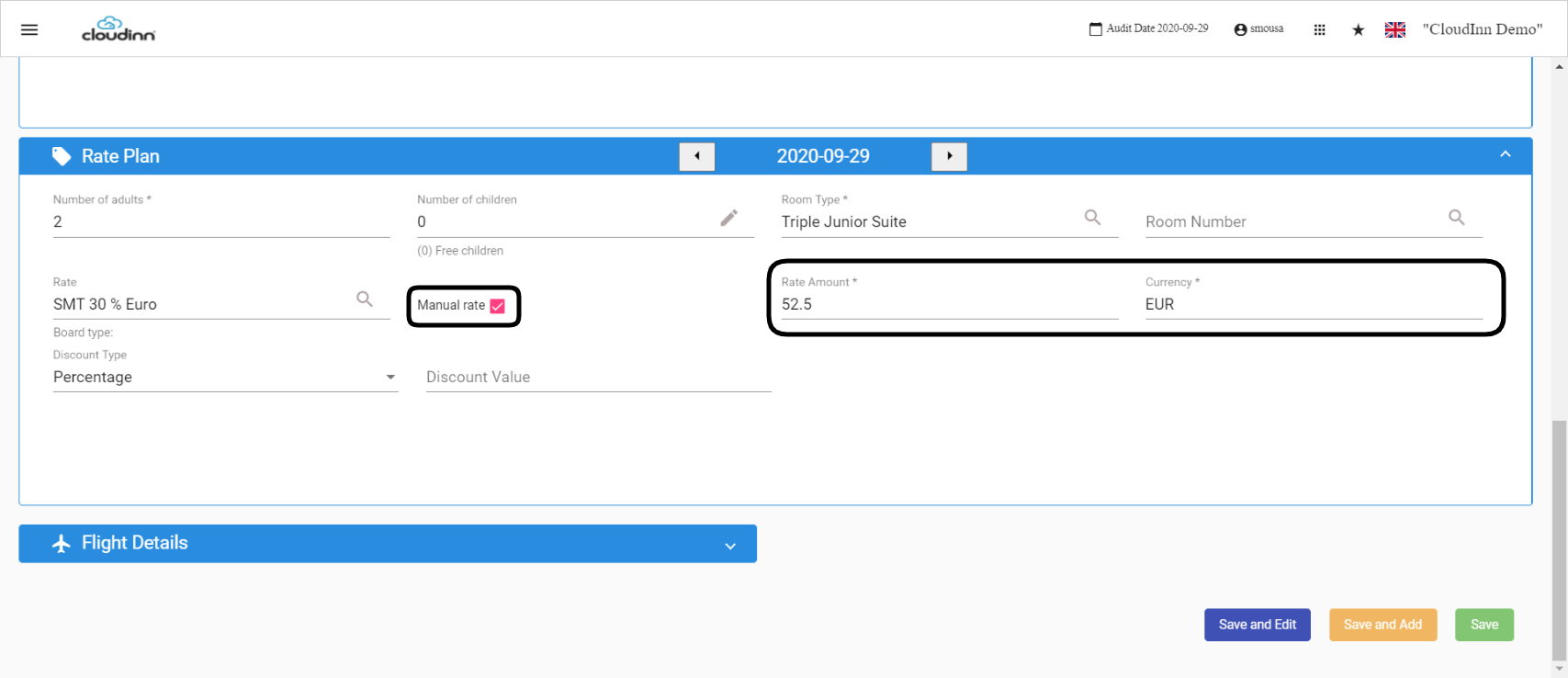
A Manual Rate is a method to apply the rate amount, currency you desire for special scenarios and needs, using a manual rate will bypass the rate plan definition you have set up and allows you to edit the Rate Amount and Currency fields.
Click on Save and Edit just to see how the reservation would look like after saving.
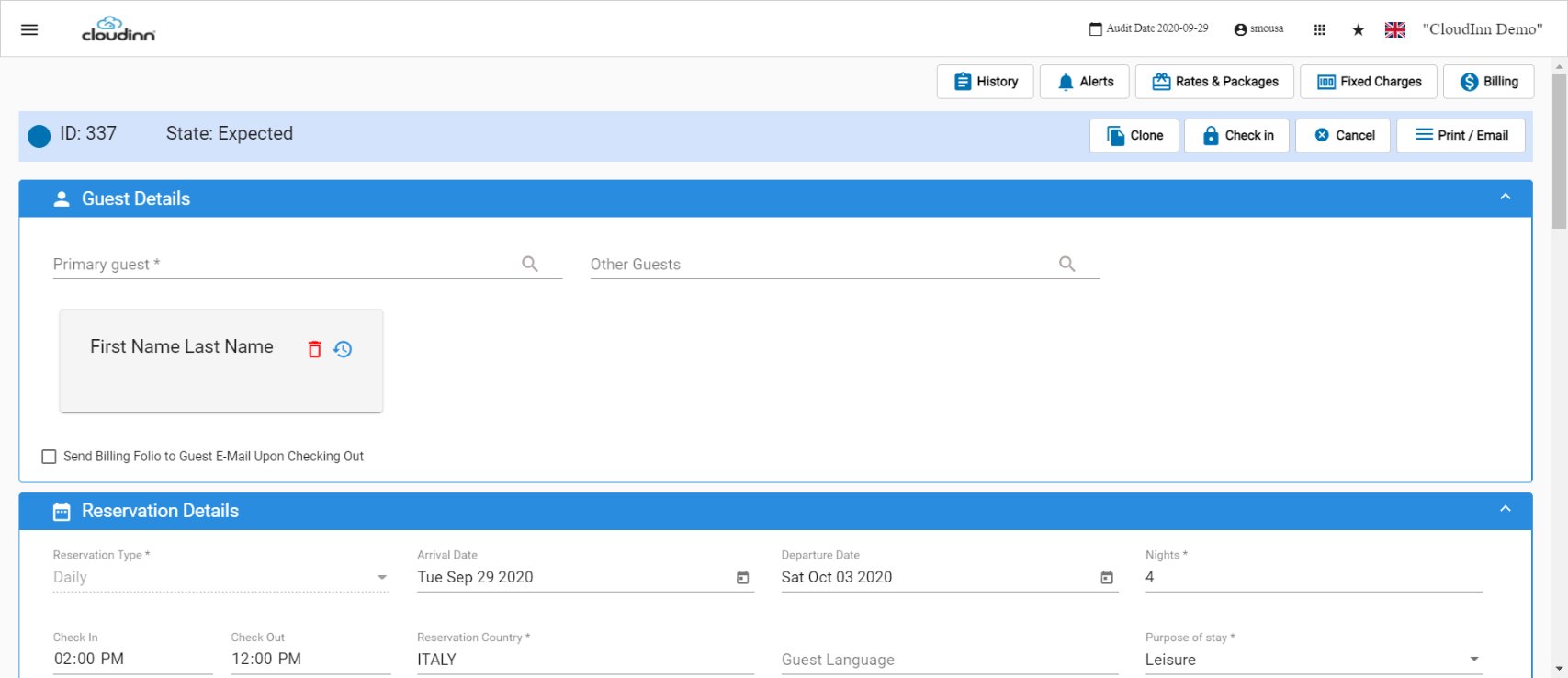
Below is how the reservation would look like after saving, the state of all newly created reservation would have the state Expected.
Update: 27th of February, 2022
If you are adding a reservation for 1 room however this reservation belongs to a previously added group reservation.
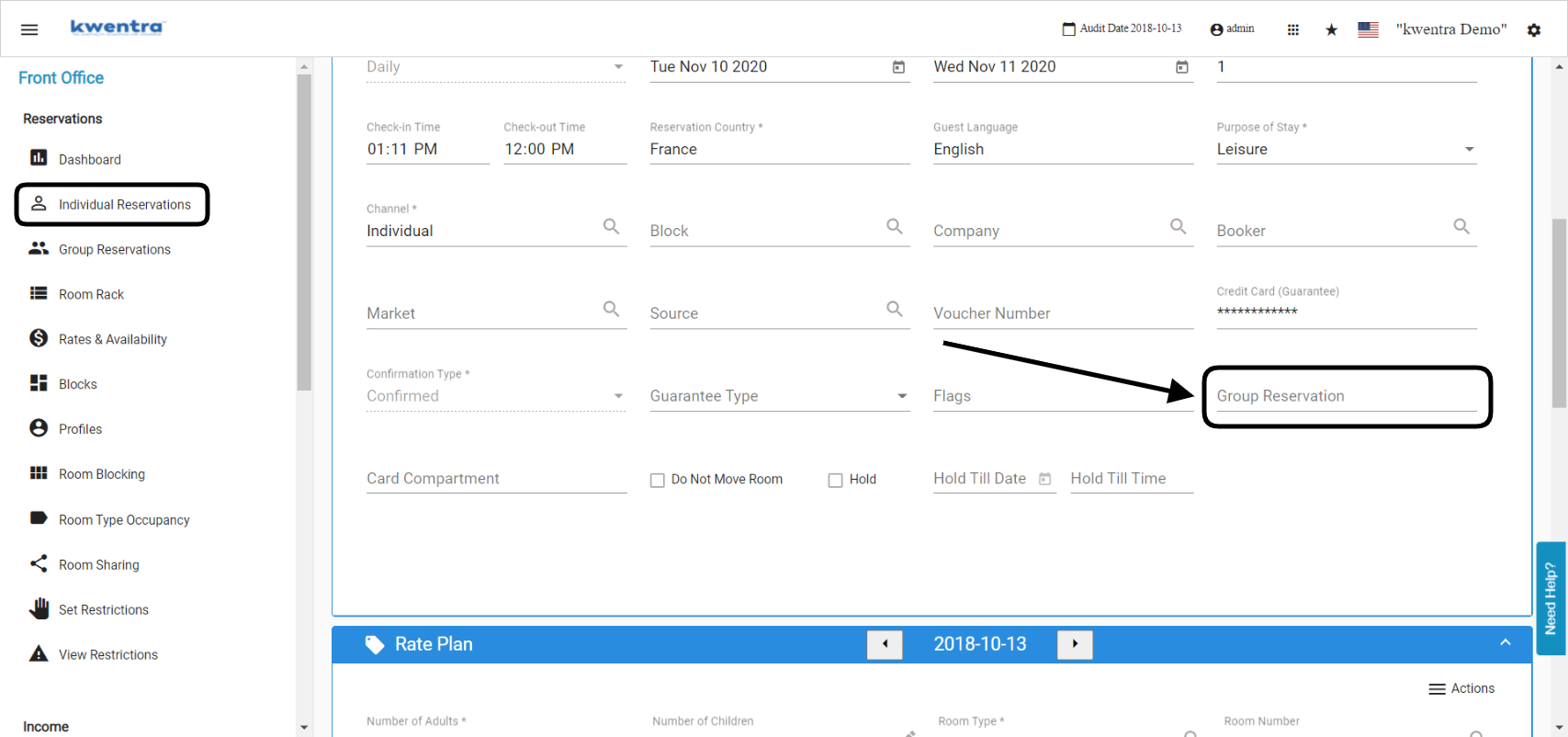
If you would like this new reservation to be included with the group you can add the group name to the reservation details.
Front Office → Individual Reservations → Add New
From the field below you can add the group you want to link this new reservation to.