Business Value
- Splits a guest’s bill into separate windows, such as room and extras.
- Sends set charges to another room or a paymaster automatically.
- Links a window to a travel agency for city ledger settlement.
- Applies the same instructions to many reservations in one step.
Use Cases
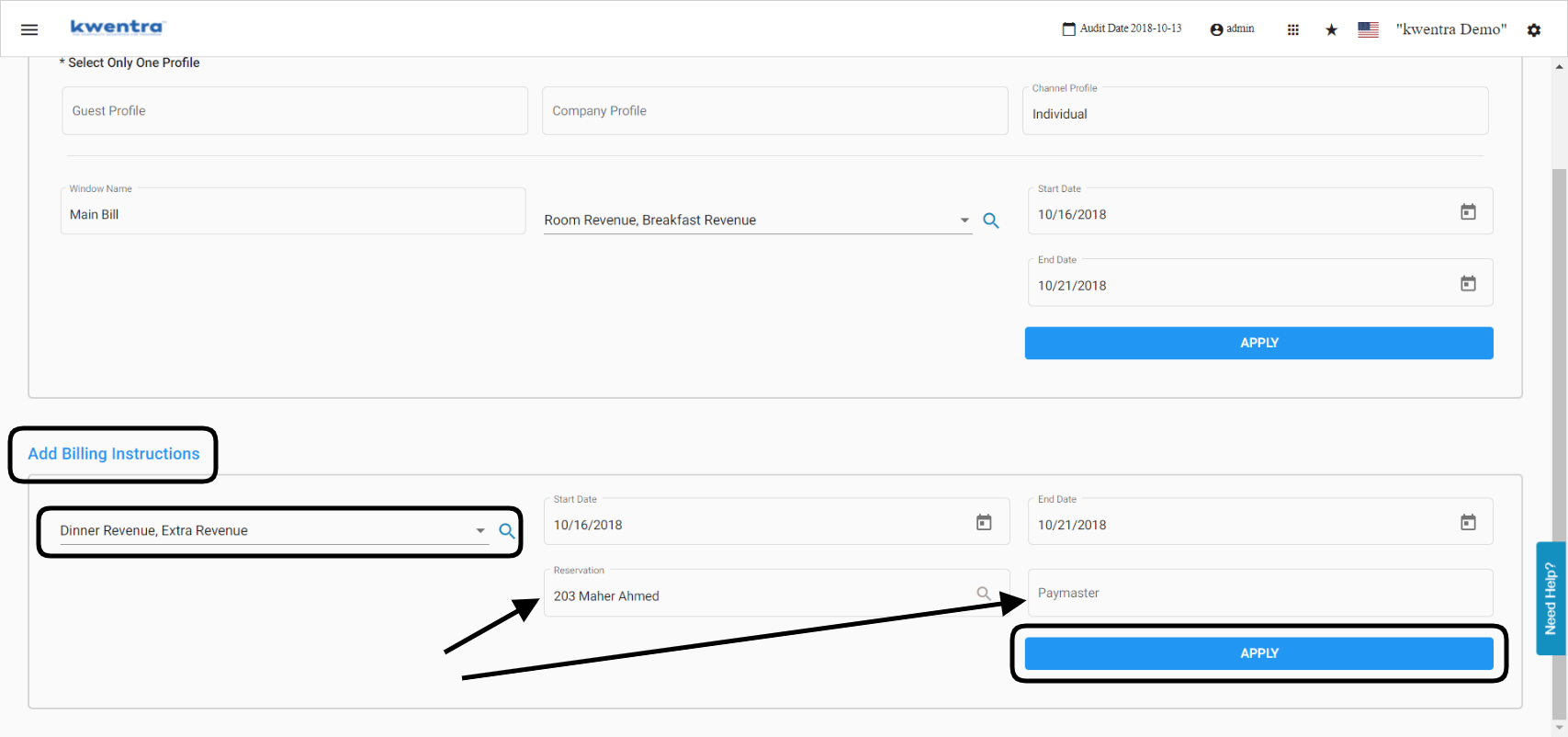
- A receptionist moves room and breakfast charges to a “Main Bill” window.
- A front desk agent sends one guest’s dinner charges to room 203.
- A cashier links a window to a travel agency and settles it by city ledger.
- A reservations agent applies the same window to a whole group at once.
How It Works
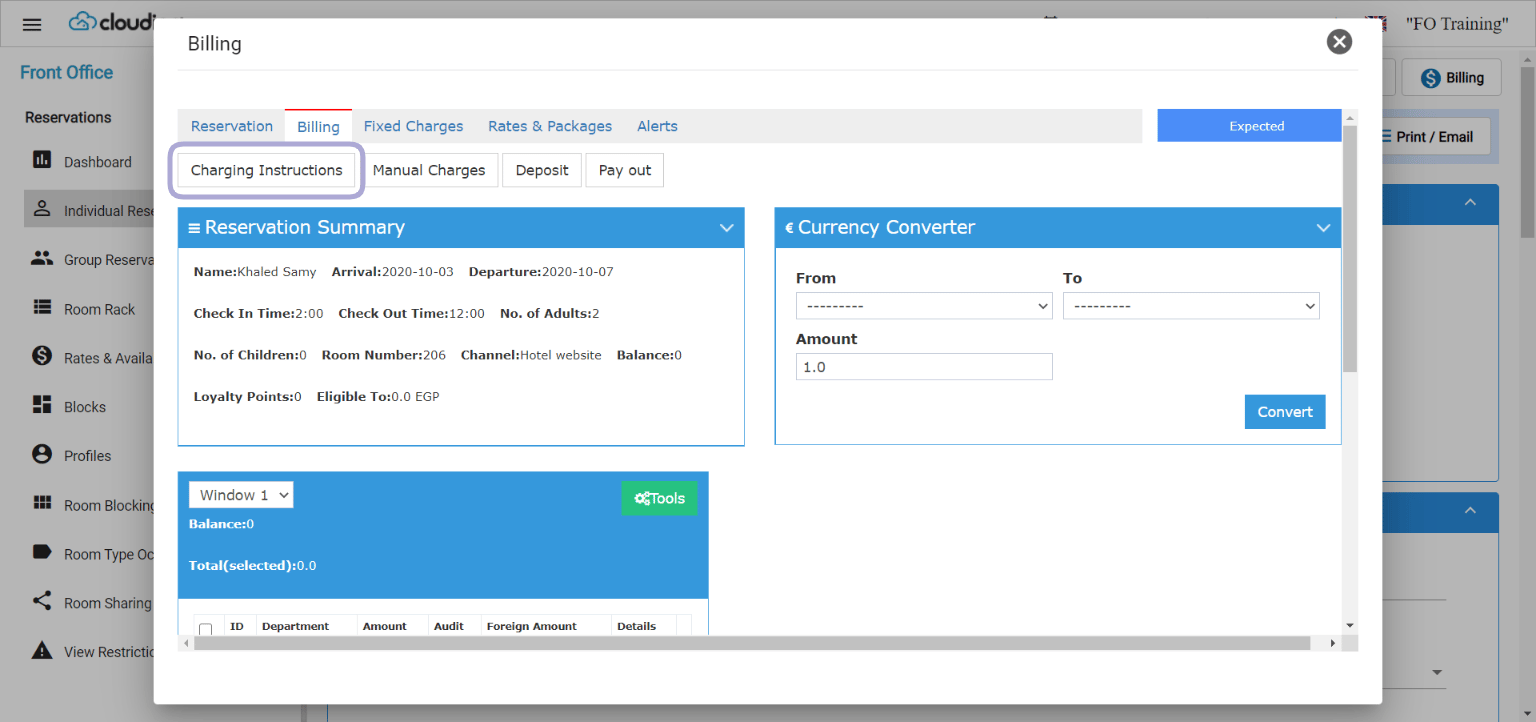
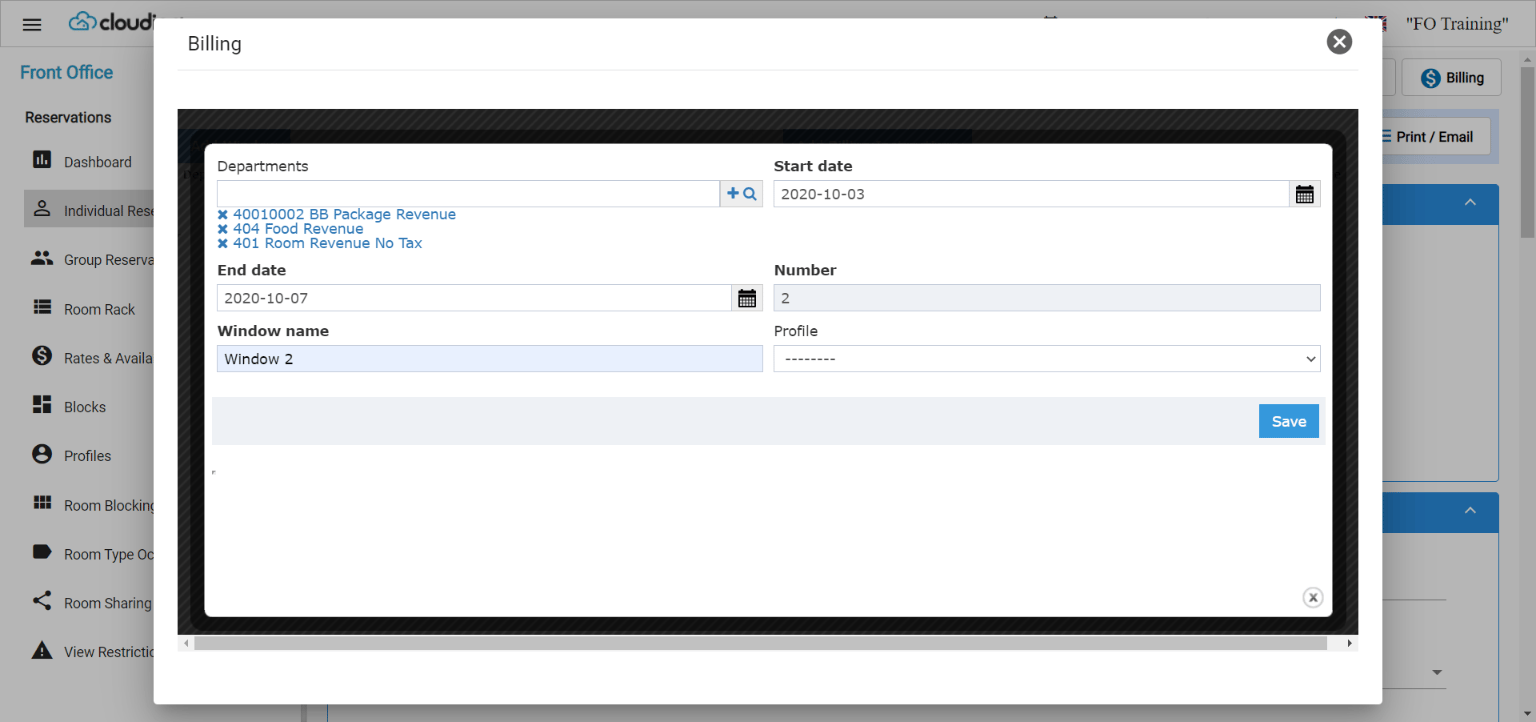
Add a Billing Window
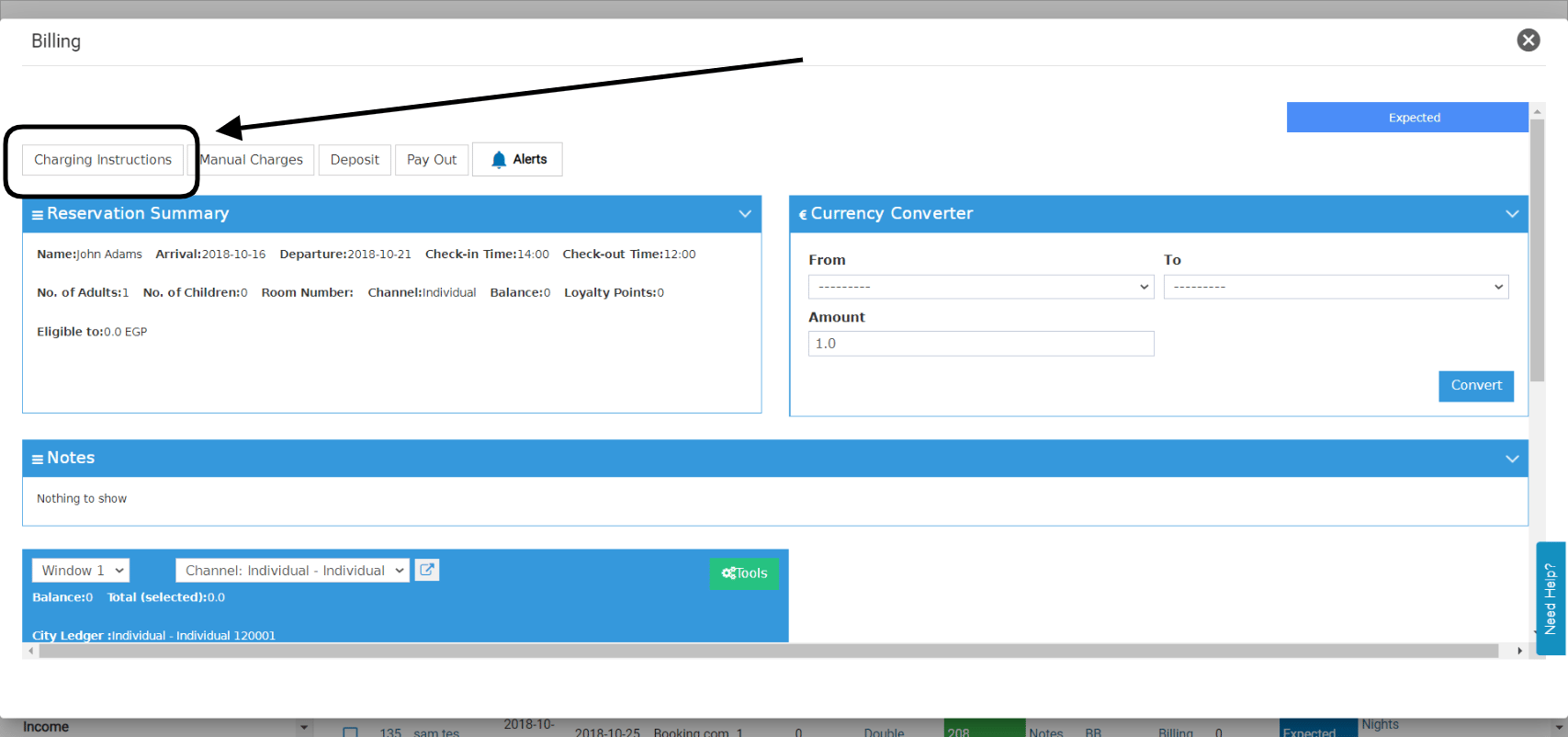
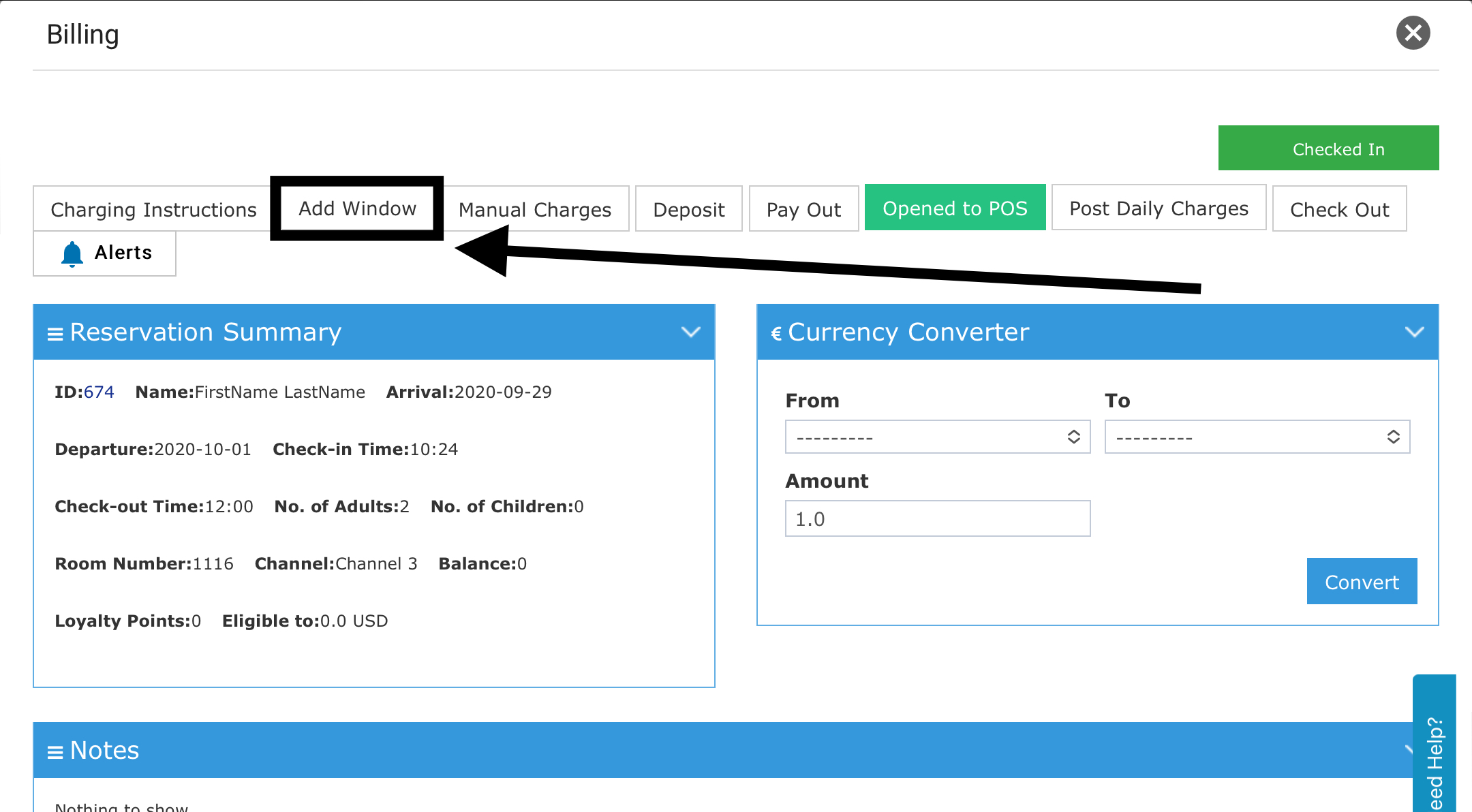
- Open Charging Instructions.
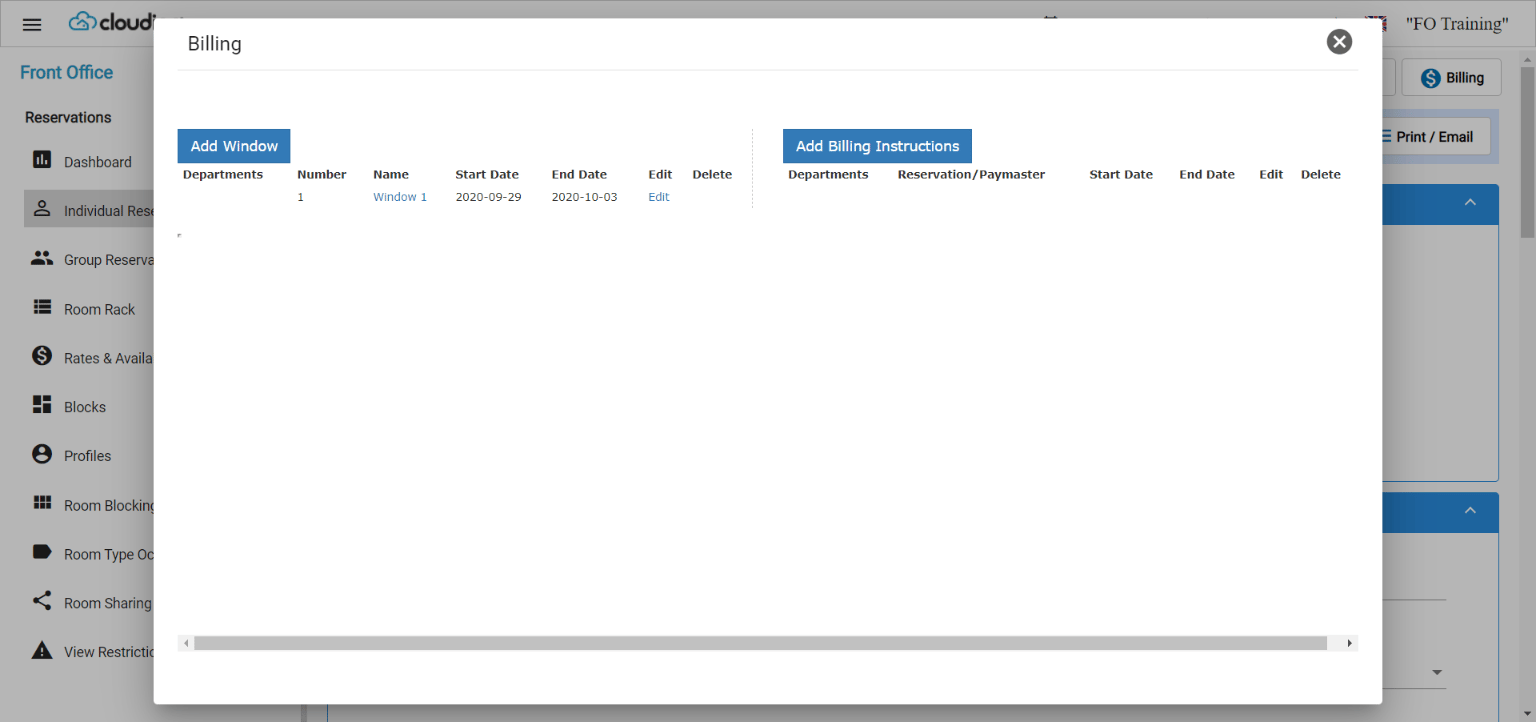
- Click Add Window.
- Send set postings to the new window automatically.
- Link the window to a channel profile for City Ledger Settlement.
Link a Window to a Travel Agency
Link a window to the travel agency’s AR account. You can then settle its charges by City Ledger Payment.
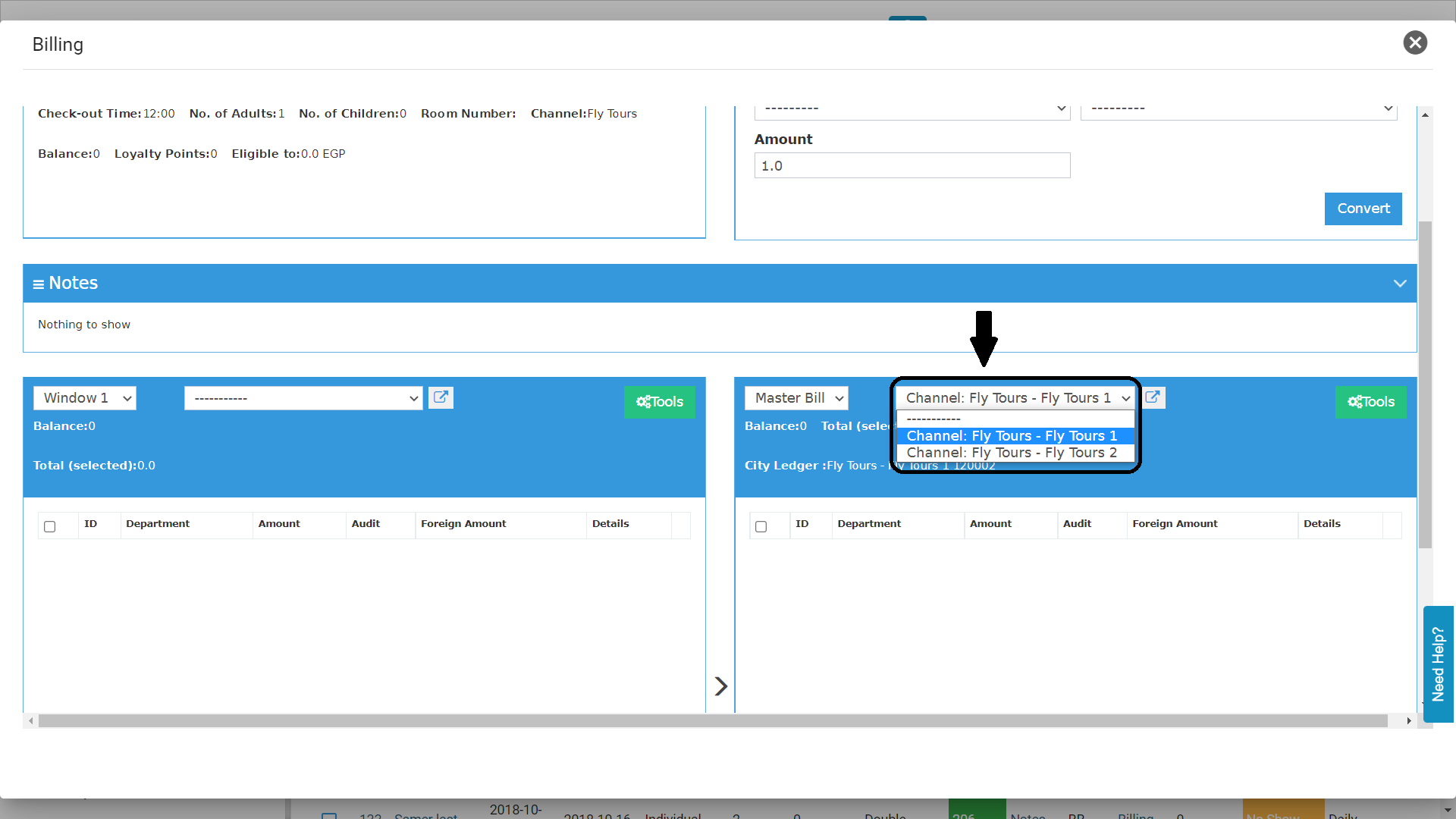
- If the agency has branches, pick the branch from the dropdown. The invoice prints with that branch’s address and phone.
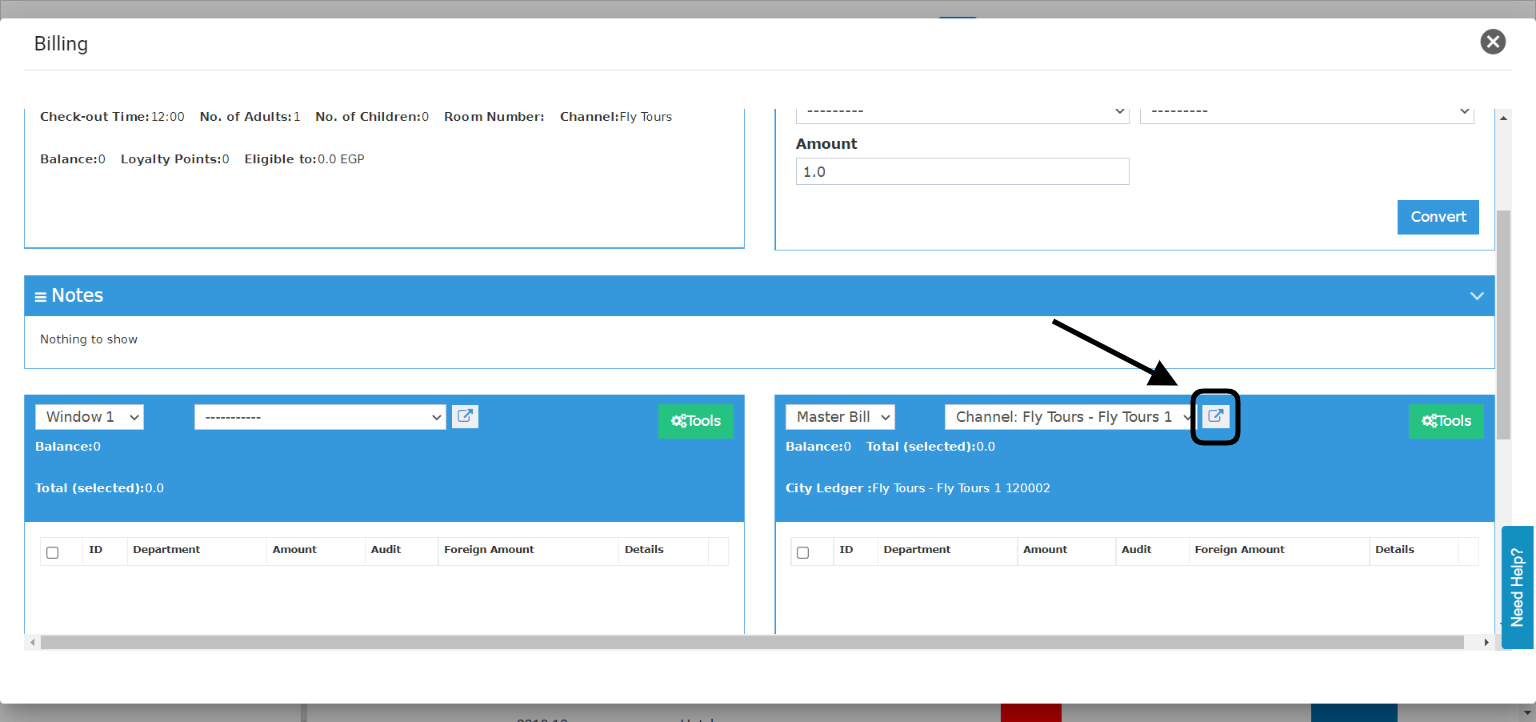
- To edit the agency’s details first, choose the channel and click Open in New Tab.
Add a Billing Instruction
Send set charges to another reservation, or to a paymaster, automatically.- Open Charging Instructions.
- Click Add Billing Instruction.
- Choose the postings and where they go.
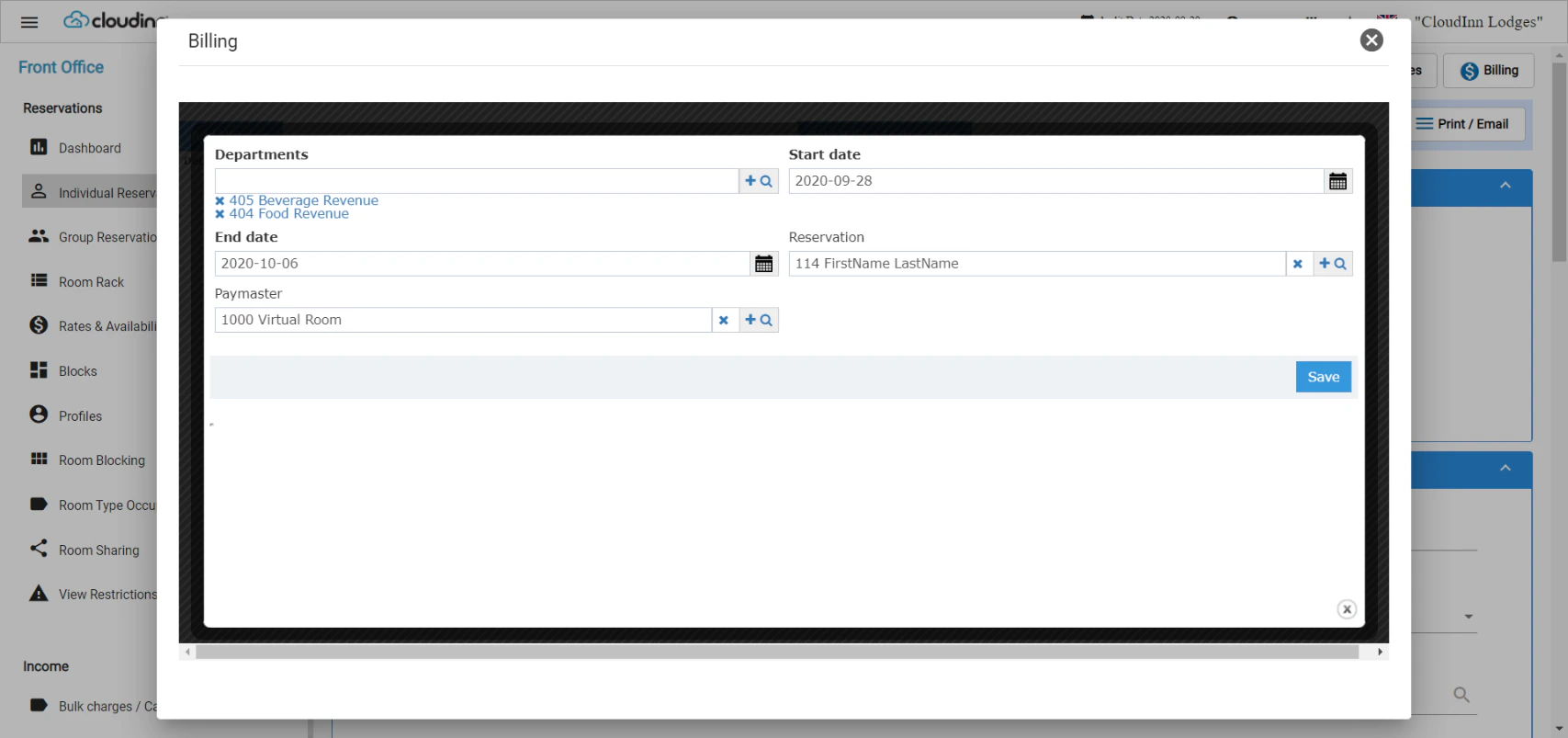
Add Instructions to Many Reservations
- Select the reservations.
- Click Actions.
- Click Add Charging Instructions.
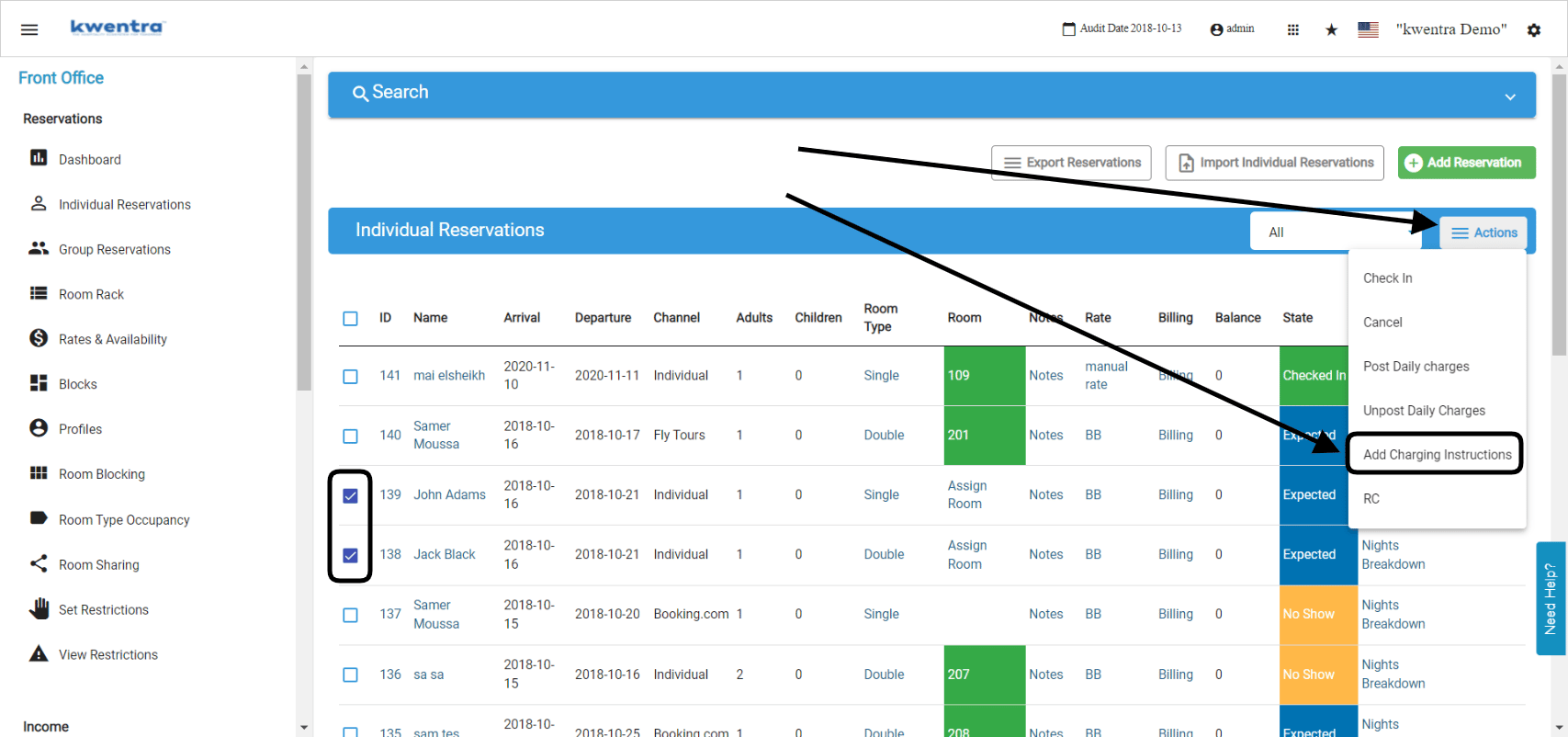
Add a Window to Many Reservations
Use the Add Window form to link a new window to transaction codes (departments).- Name the window, for example Main Bill.
- Select the departments that go to this window. You can pick more than one.
- Click Apply.
- Choose whether to apply it to existing billing postings too.
- Click Return to reservation listing when you finish.
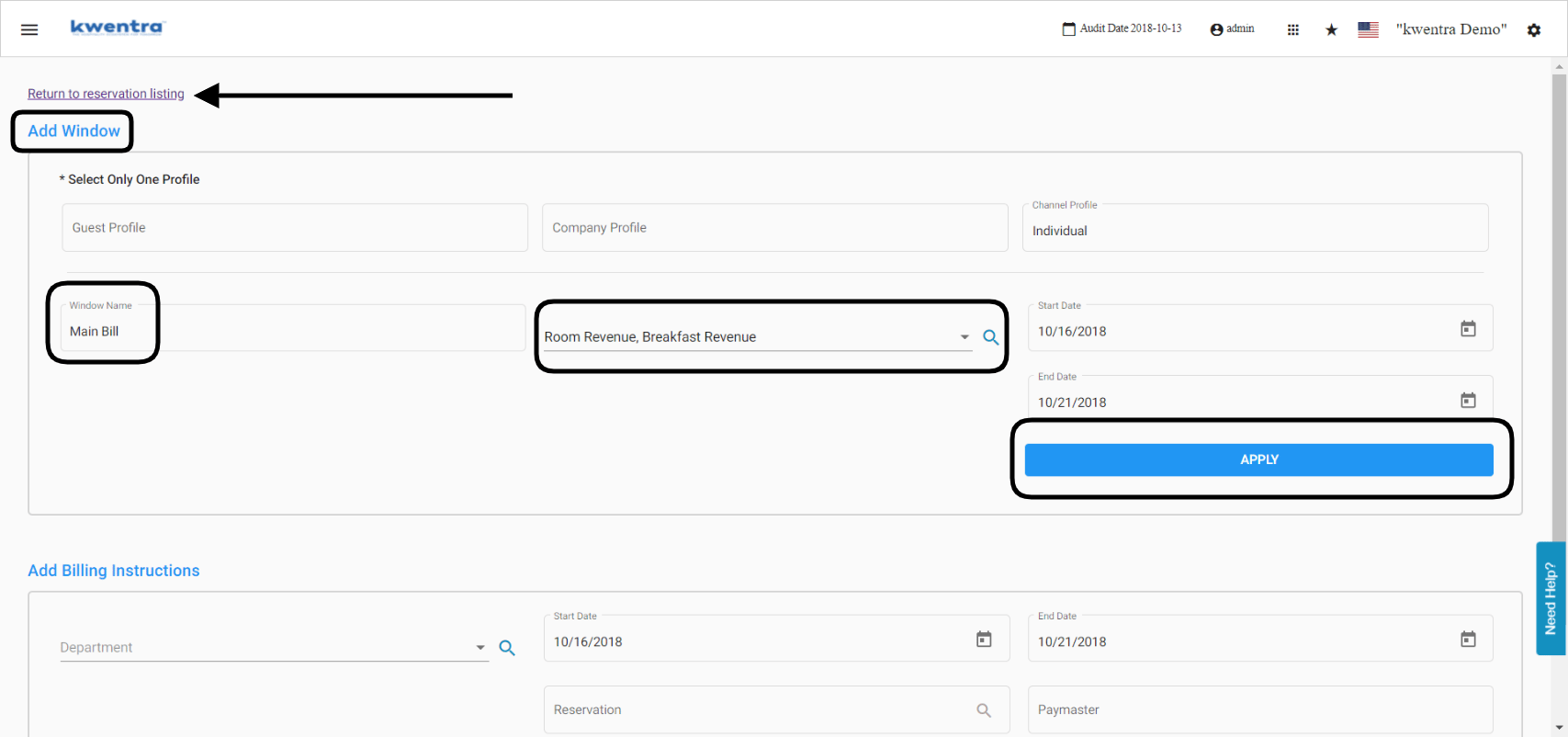
Add a Billing Instruction to Many Reservations
Use the Add Billing Instructions form to send departments to a room or a paymaster.- Select the departments. You can pick more than one.
- Choose a room number or a paymaster.
- Click Apply.
- Choose whether to apply it to existing billing postings too.