Documentation Index

Fetch the complete documentation index at: https://help.kwentra.com/llms.txt

Use this file to discover all available pages before exploring further.

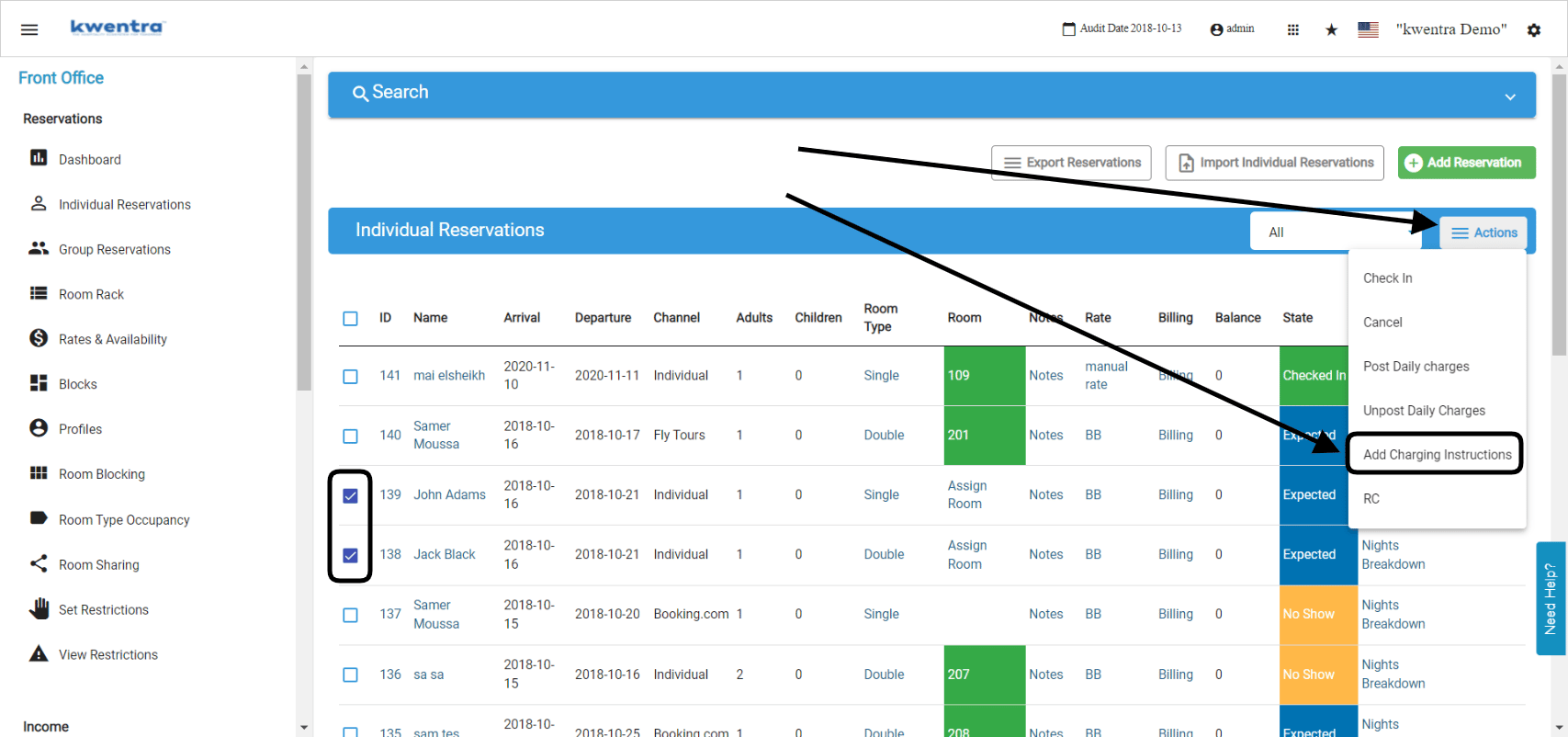
This option helps you apply specific charging guidelines to the automated billing entries to be applied on certain group of reservations in one click to save time. We use this feature when we want to command the billing entries to appear in their right place. Front Office → Individual Reservations → Select Reservations → Add Charging Instructions
  1. Highlight the reservations you want to apply the charging instructiobns for.
  2. Click on Actions.
  3. Click on Add Charging Instructions.
  • Add a new billing window to the selected reservations:
Whenever you would like to add a new window on the billing screen to link them with a certain transaction code “department” we use the Add Window Form.
  1. Write the name of the new window as you desire for example: Main Invoice or Main Bill.
  2. Select the departments you want to automatically get transferred to this new window, this is a multi-select field to choose more than one transaction code.
  3. Click Apply.
  4. You will get the option to apply this new instruction to the current billing entries if any.
  5. After you are done you can easily return to the reservation list from Return to reservation listing option.
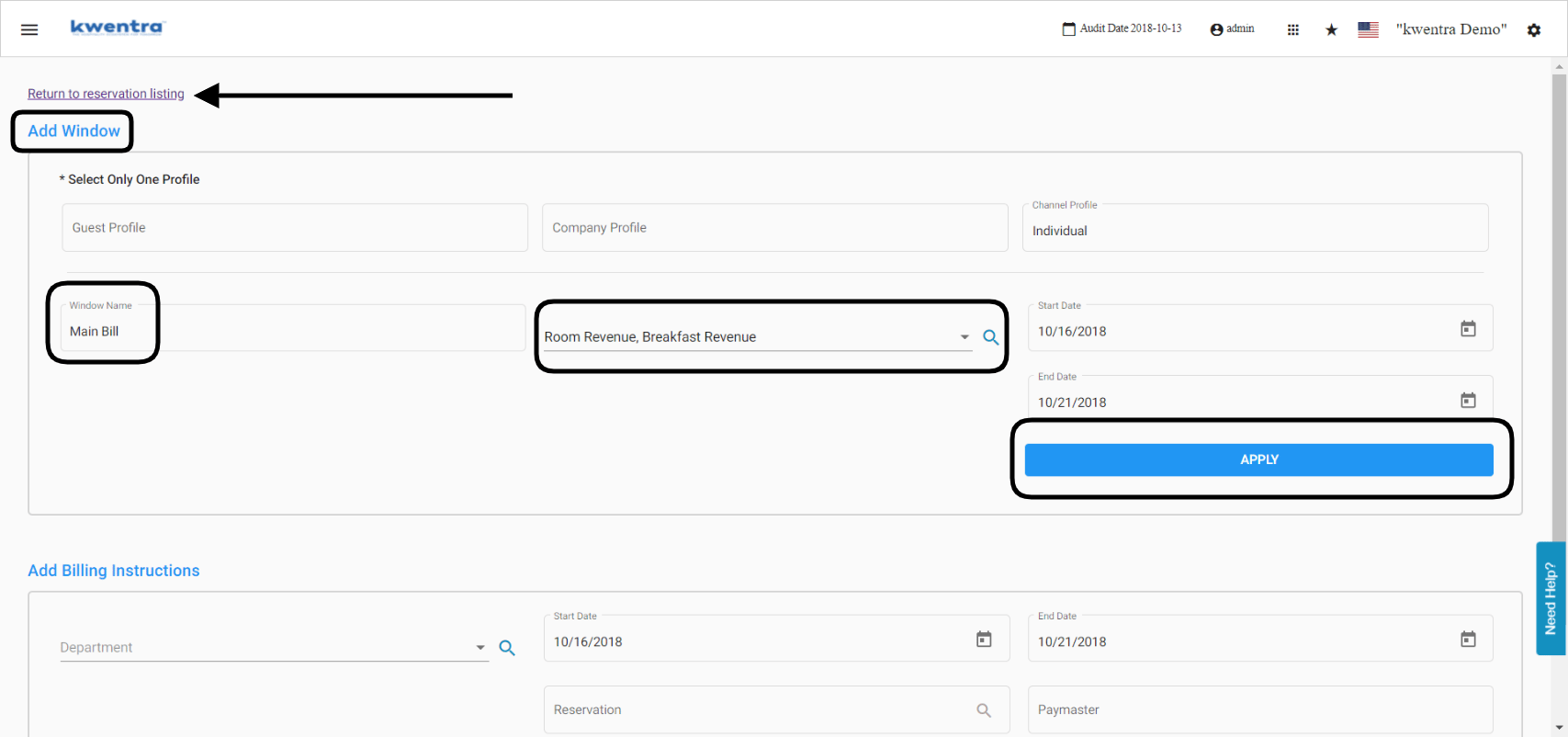
In the below example with the Add Window instruction, all room revenue and breakfast revenue entries will automatically get transferred to the new window called main bill.
  • Add billing instructions to the selected reservations:
Whenever you would like specific billing entries to go to a certain room or a paymaster we use the Add Billing Instructions Form.
  1. Choose the transaction codes “departments” that you would like to apply this command to, the field is multi-select to be able to select more than 1 department.
  2. Choose whether the billing entries of these departments to go to a room number or a paymaster.
  3. Click Apply.
  4. You will get the option to apply this new instruction to the current billing entries if any.
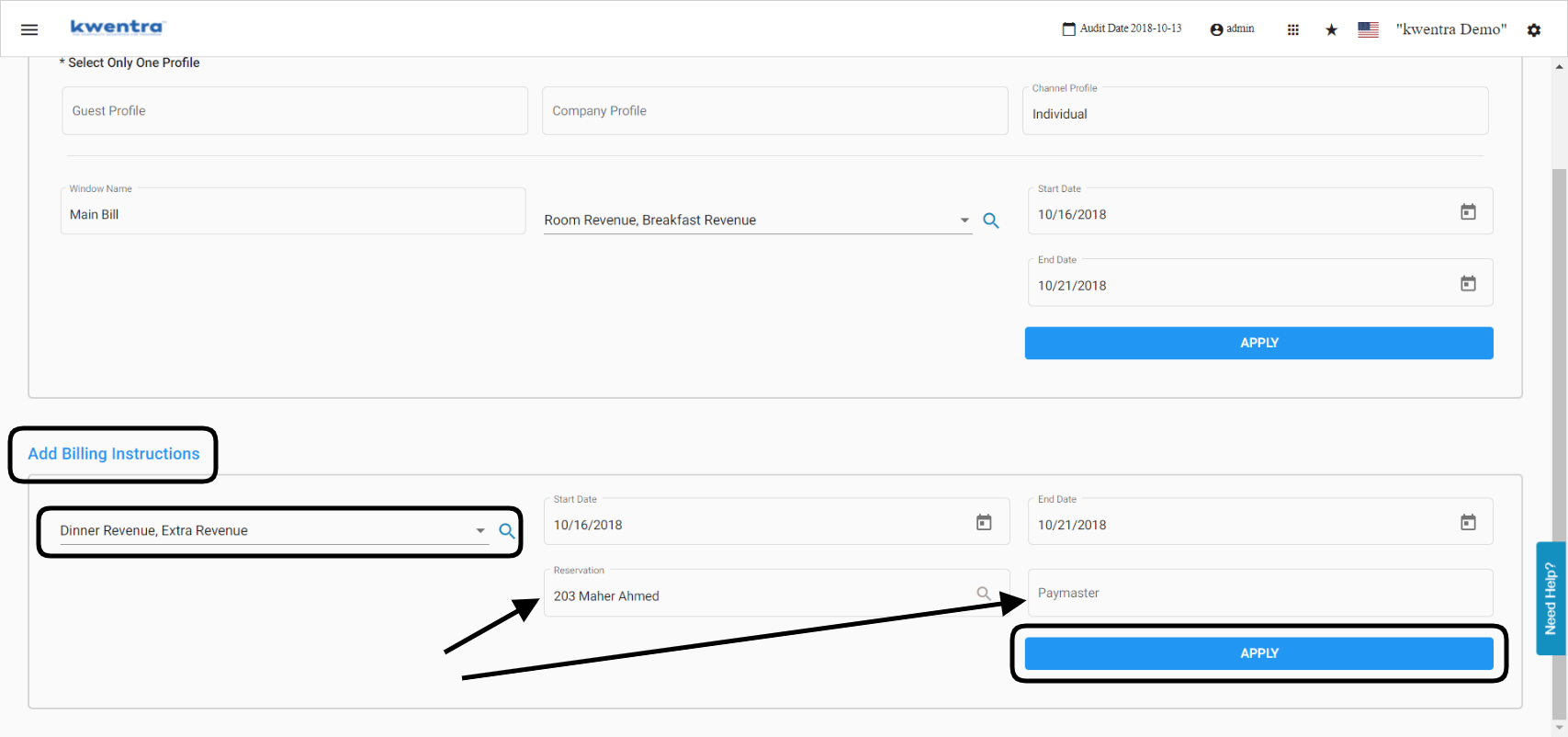
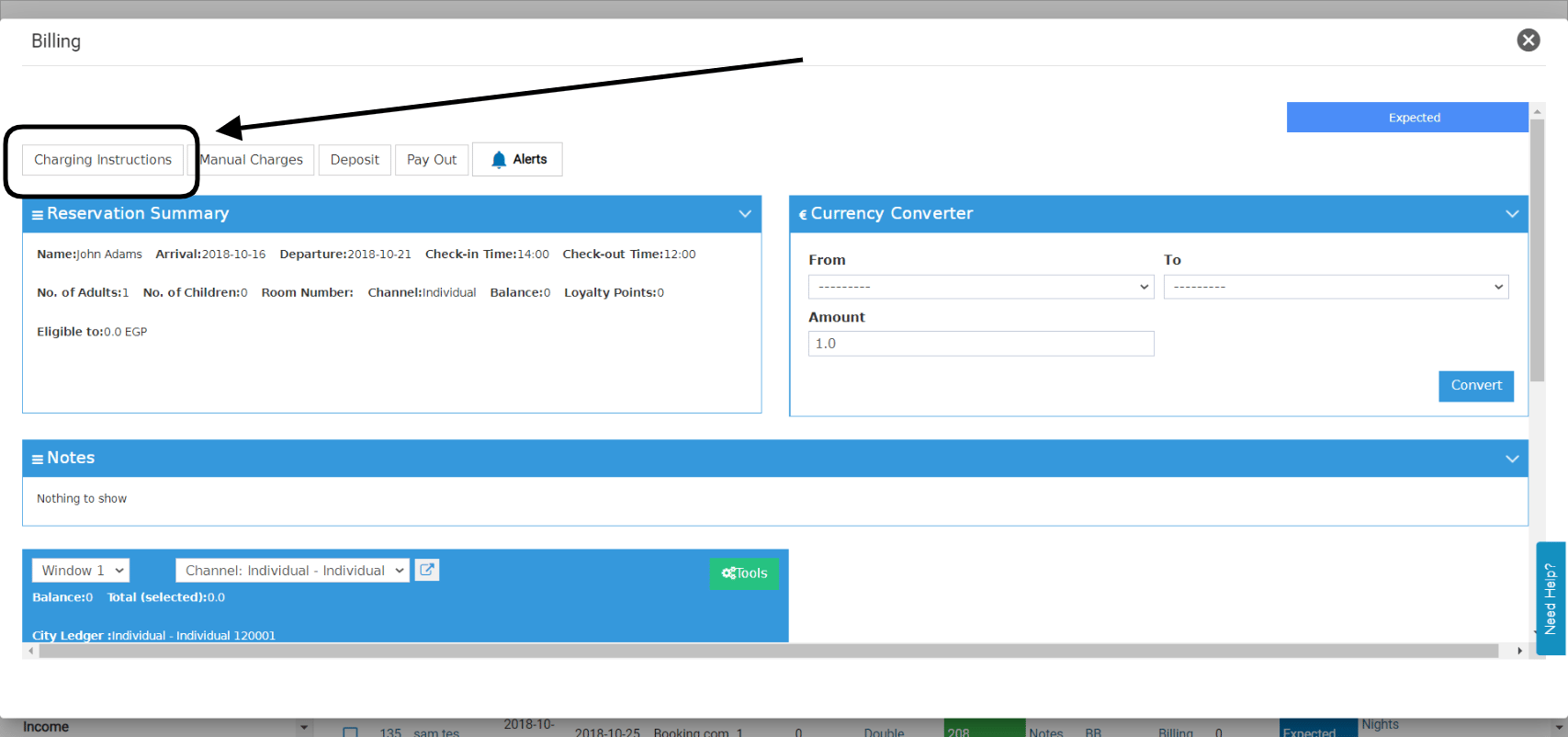
In the below scenario, we are commanding the billing entries for dinner revenue and extra revenue to automatically go to room 203. Now that you applied the bulk charging instruction on multiple reservations you can easily manage the charging instructions on each reservation from here. Front Office → Individual Reservations → Select Reservation → Billing