

Business Value
- Streamlines recovery of bookings after group cancellations, system errors, or mass no-shows.
- Reduces front office effort with one popup, one reason, and bulk action for multiple reservations.
- Prevents operational mistakes by validating and flagging bookings that cannot be reinstated due to audit/date constraints.
Use Cases
- Front desk reinstates all cancelled reservations for a group.
- Reservations manager cancels “No Show” status for several bookings when guests arrive the next morning and adjusts their arrival date.
- Night audit team sees a list of bookings not reinstated, with clickable reservation numbers and clear reasons for fast follow-up.
How It Works
1. Reinstate Cancelled Reservations
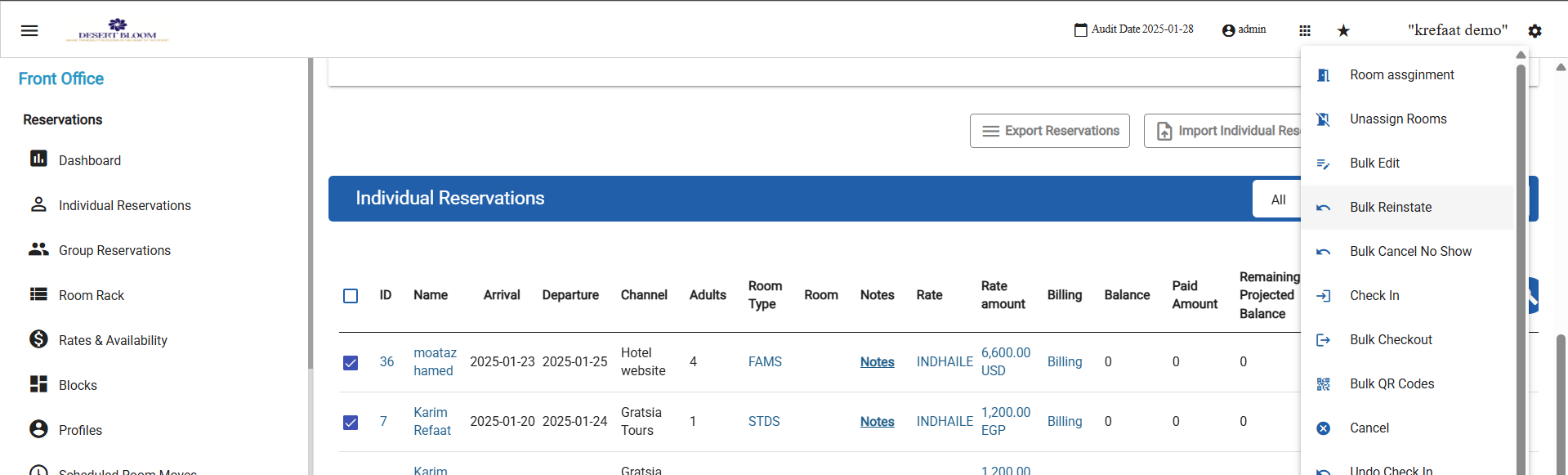
- Go to Front Office → Individual Reservations.
- Select multiple Cancelled reservations.
-
Click Actions → Reinstate.
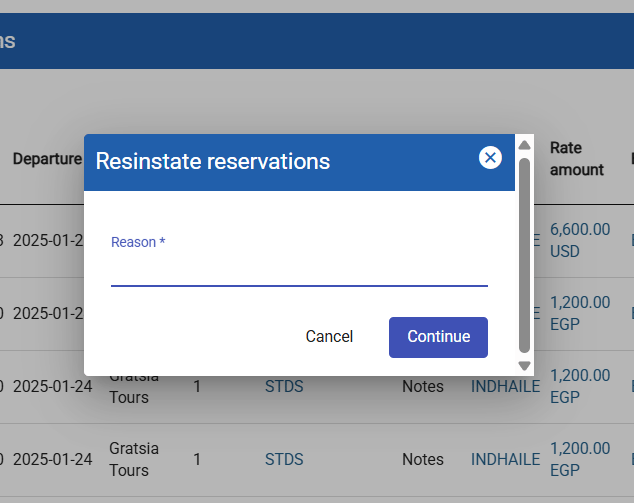
- Enter a single reason in the pop-up (applies to all selected bookings).
- All eligible bookings’ status changes to Expected.
- Success pop-up: all selected reservations set to Expected.
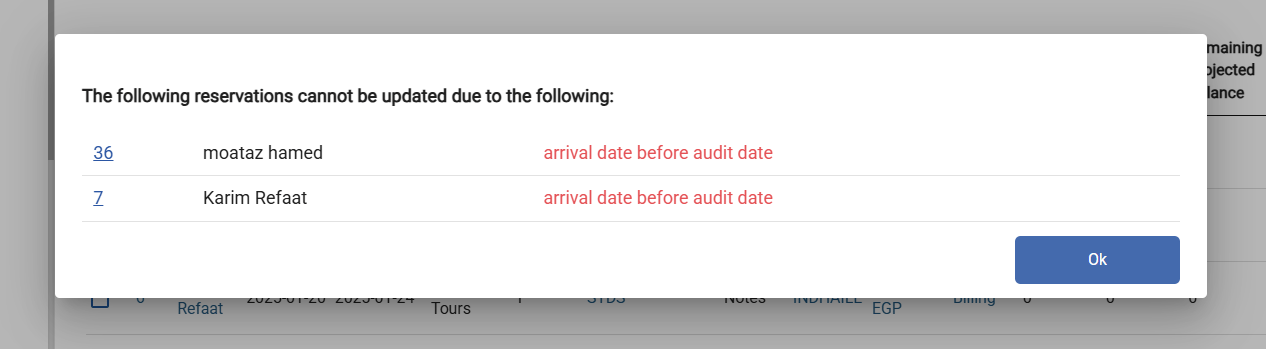
- Validation: Any reservation with an arrival date before the audit date is not reinstated. In the results pop-up, these appear with a clickable reservation ID, guest name, and reason (“Arrival date before audit date”).
2. Cancel No Show
- Go to Front Office → Individual Reservations.
- Select multiple No Show reservations.
- Click Actions → Cancel No Show.
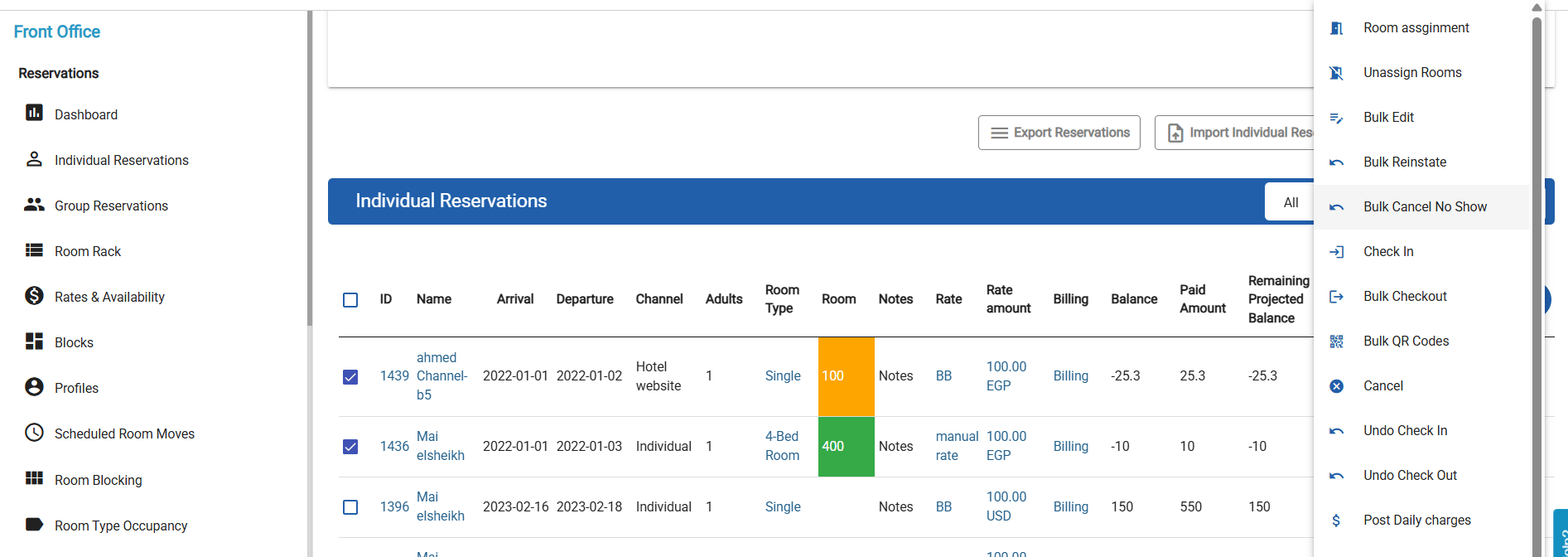
- Reason is required for all selected reservations.
- All selected reservations have their arrival date set to today.
- All statuses update to Expected.
- Success popup confirms update.
- Validation: Any reservation with departure date before audit date is not reinstated, and appears in results popup with reservation ID (clickable), guest name, and reason (“Departure date before audit date”).
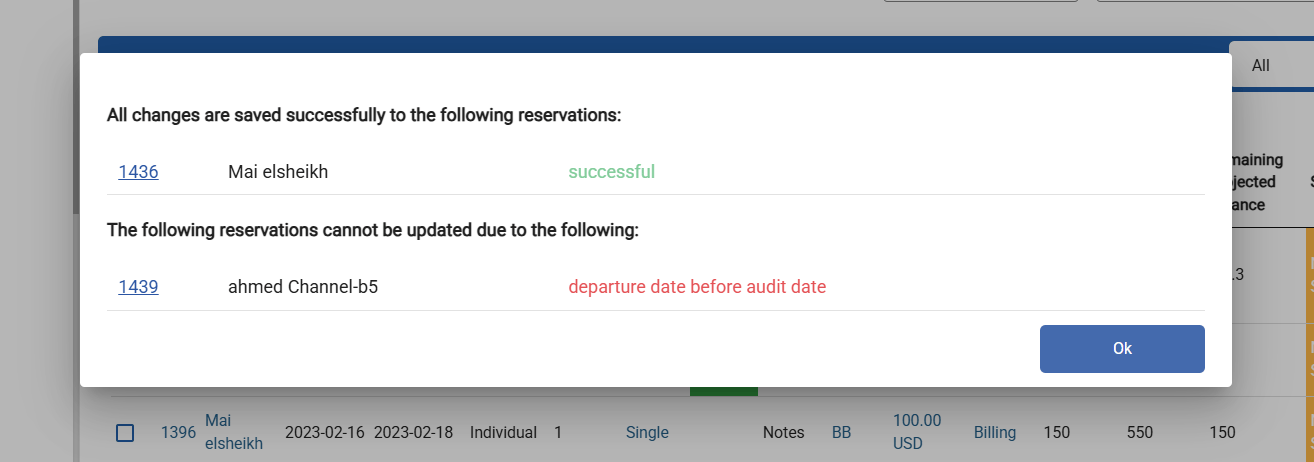
Validation Feedback
- After any bulk operation, the results pop-up lists all bookings that were not updated, with clickable reservation numbers, guest names, and exact failure reasons.
- All staff messages are direct and easy to act on.